Dyslexia Friendly Reader: Prototype, Designs, and Exploratory Study
- SlideShare title: Dyslexia friendly reader: Prototype and designs
- Talk date: Not established
- SlideShare upload: 2015-10-09 (upload date, not the delivery date)
- Event: Not established
- Place: Not established
- Topics: Access & reading
- Language: en
- Slides in the original listing: 29
- Coverage: Full text of all 29 slides, each paired with its original slide image (slide N is section N).
- Original listing: https://www.slideshare.net/slideshow/dyslexia-friendly-reader-prototype-and-designs-iisa/53729839
- Cover image: https://slides.dominiklukes.net/readers/dyslexia-friendly-reader-prototype-and-designs-iisa/pages/page-01.png
- Reader data (JSON): https://slides.dominiklukes.net/readers/dyslexia-friendly-reader-prototype-and-designs-iisa/presentation.json
- TalkWeaver package (outline and images, ZIP): https://slides.dominiklukes.net/dyslexia-friendly-reader-prototype-and-designs-iisa/dyslexia-friendly-reader-prototype-and-designs-iisa-talkweaver.zip
- TalkWeaver outline: https://slides.dominiklukes.net/dyslexia-friendly-reader-prototype-and-designs-iisa/talkweaver/dyslexia-friendly-reader-prototype-and-designs-iisa-outline.md
- Markdown copy: https://slides.dominiklukes.net/dyslexia-friendly-reader-prototype-and-designs-iisa/index.md
Slide 1: Dyslexia Friendly Reader Prototype, Designs, and Exploratory Study
Dyslexia Friendly Reader Prototype, Designs, and Exploratory Study
Dominik Lukeš
Dyslexia Action
www.ilearnrw.eu

Slide 2: Outline
Outline
- Difficulties to moderate
- Reader research
- Current state of reader apps
- Towards and ideal reader app
- Description of a reader prototype
- Preliminary user study results
- Future direction
Slide 3: Dyslexic difficulties
Dyslexic difficulties
- Decoding
- Working memory
- Rapid naming
- Long, rare words
- Focus
- Vision (rare)
- Speed
Slide 4: Typical modification
Typical modification
- Font type – small impact
- Colours – only useful for small numbers
- Avoid underline, ALL CAPS, italics, justify, centre – small-med impact
- Font size – big impact
- Line spacing – medium-big impact
- Small chunks – big impact
- Lists – medium impact
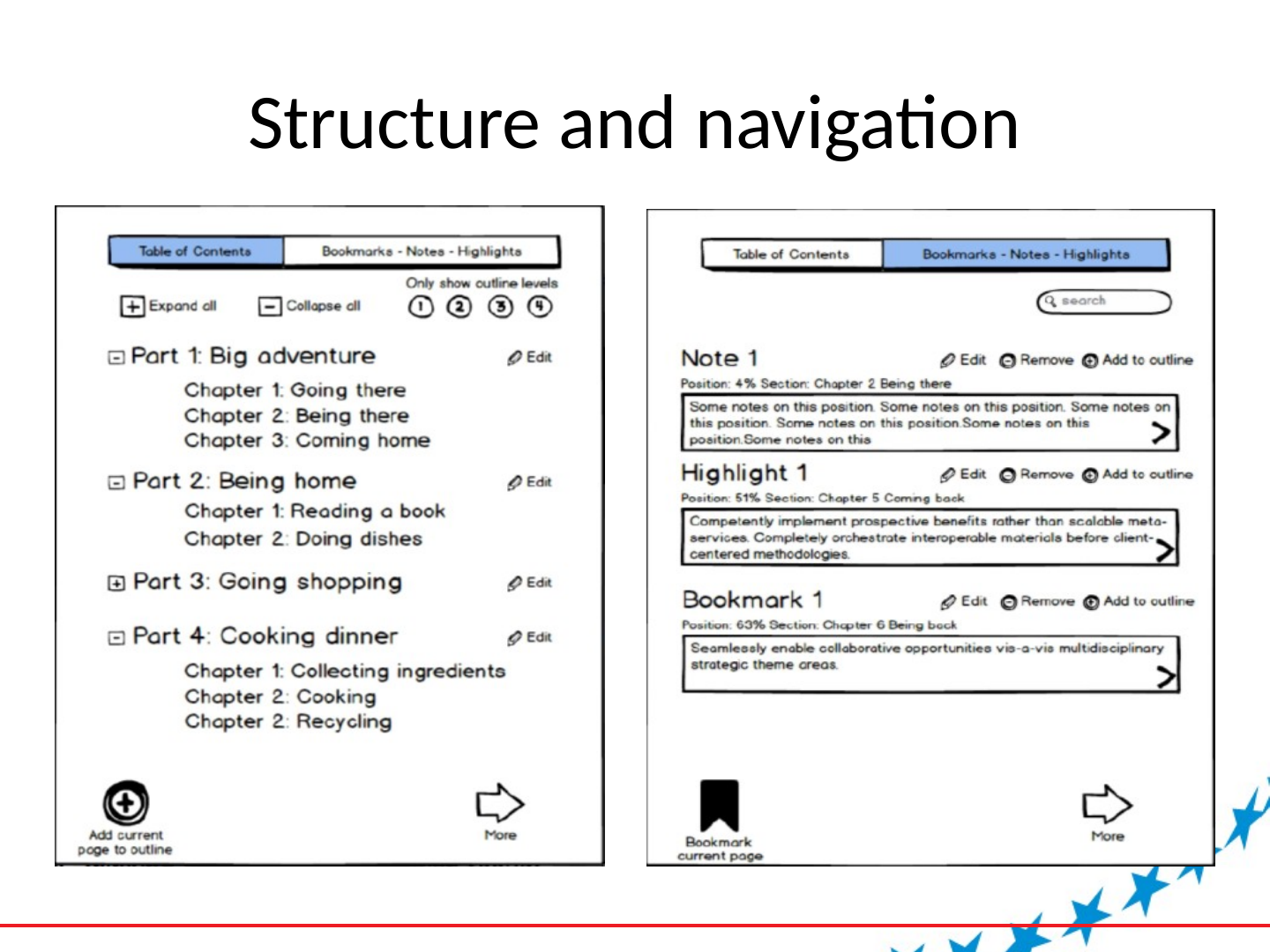
- Structure/outline – medium impact
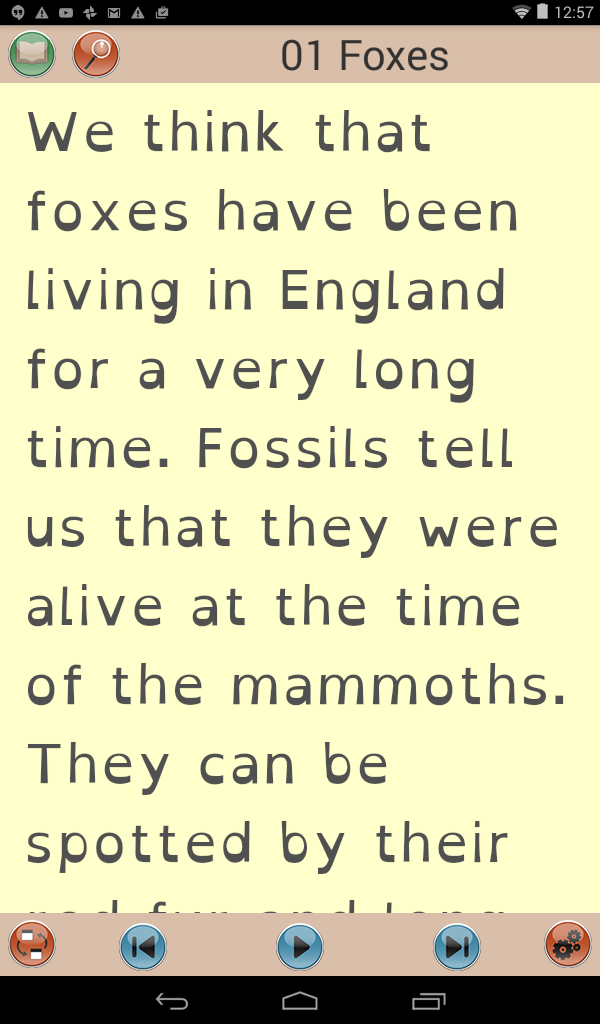
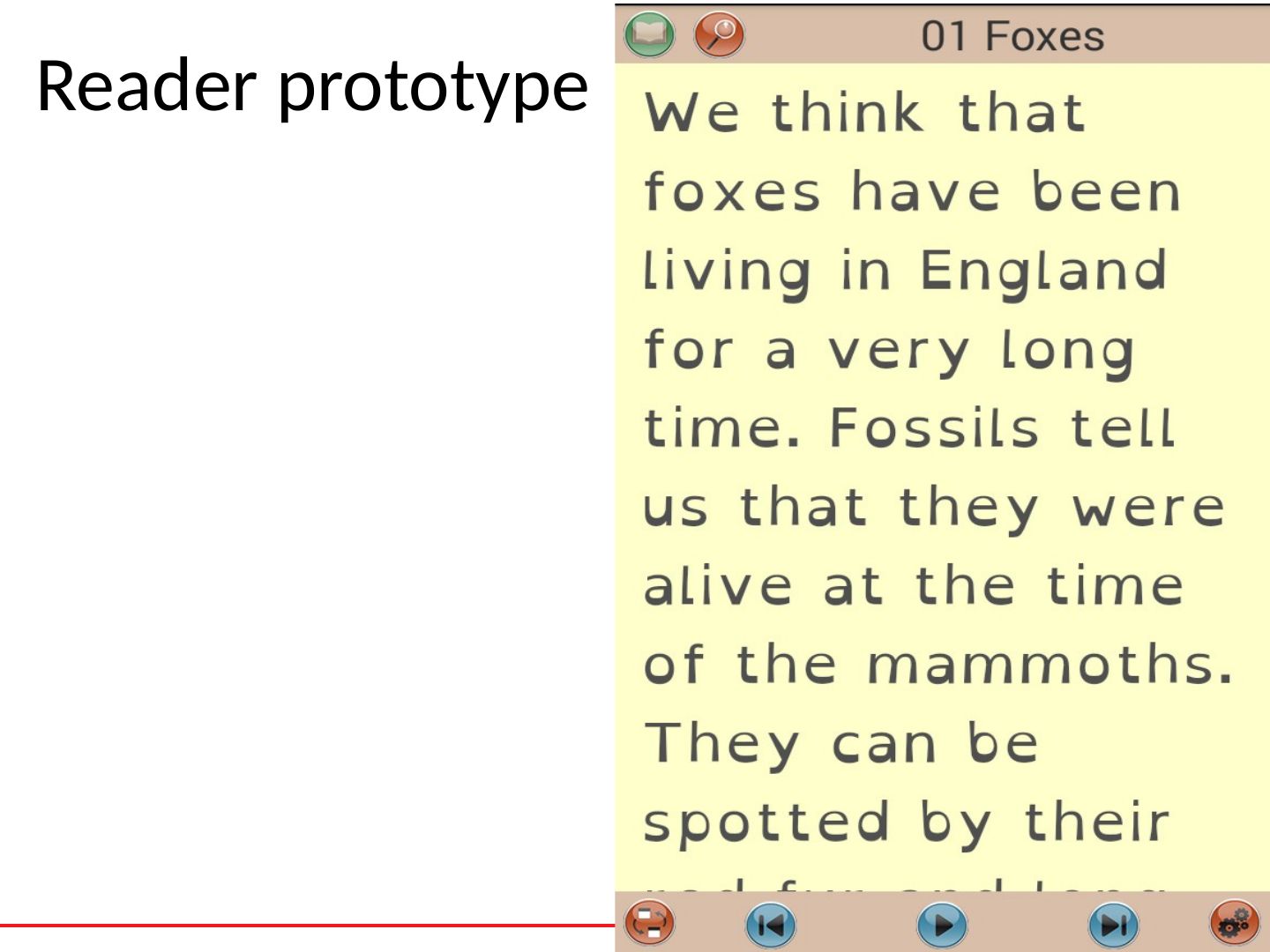
- Small amount of text displayed – big impact
- Audio – biggest impact
Slide 5: Readers
Readers
- Readers associated with well-known e-book shops (Amazon, Kobo, iBooks, Google Play Books)
- Mainstream standalone readers not associated with a particular e-book repository (Aldiko Reader, Cool Reader, FB Reader, Moon+ Reader)
- Alternative readers aimed at specific audiences or formats (Ideal Group Reader, AutoReader, SpeedReader, Repligo Reader, ezPDF Reader)
Slide 6: Typical reader features
Typical reader features
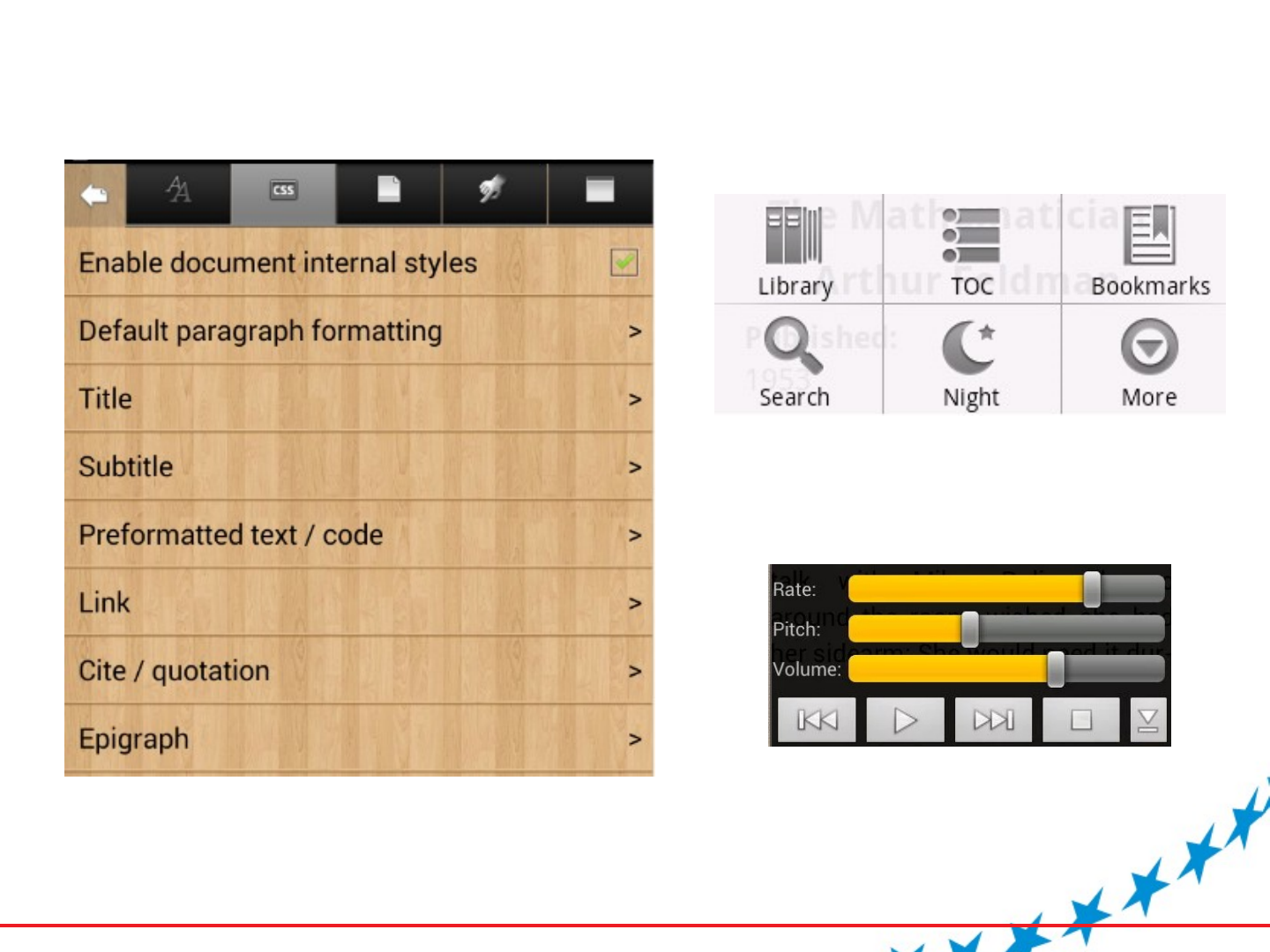
- Basic features for navigating the text. This includes page turning and outline navigation. However, the implementation of these features is not uniform across readers.
- All readers also allow the user some level of customization of text display. The level of customisation varies by reader as does the interface.
Slide 7: Typical reader features (cont.)
Typical reader features (cont.)
- Access to the basic copy of text (unless prevented by digital rights management).
- Management of books using a library and a file browser.
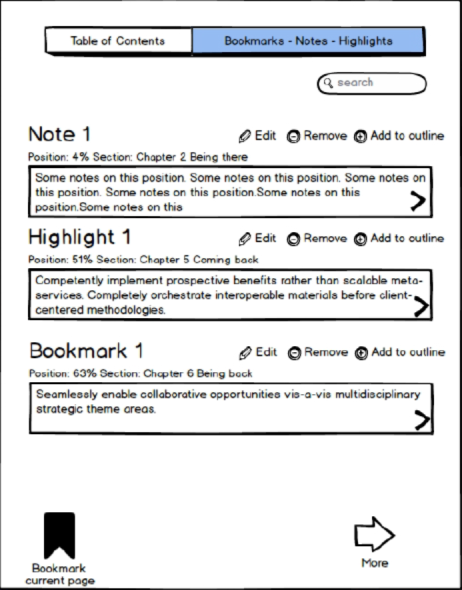
- Highlighting, notes and bookmarks.
Slide 8: Features of some readers only
Features of some readers only
- Text to Speech
- Varied quality
- Best implemntations (Moon+ Reader Pro, VoiceDream Reader, and ezPDF Reader)
- Buggy implementations (FB Reader, Cool Reader)
- Online book repositories (Free, commercial, specialised – e.g. Bookshare)
- Multiple format support
Slide 9: Rare features
Rare features
- Adobe ID (for library loans access)
- Plug ins (FB Reader and Cool Reader)
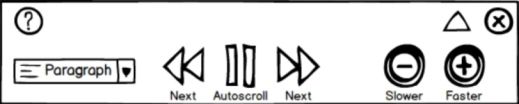
- Chunking and autoscroll (AutoReader and Speed Reader)
- Rolling blinds
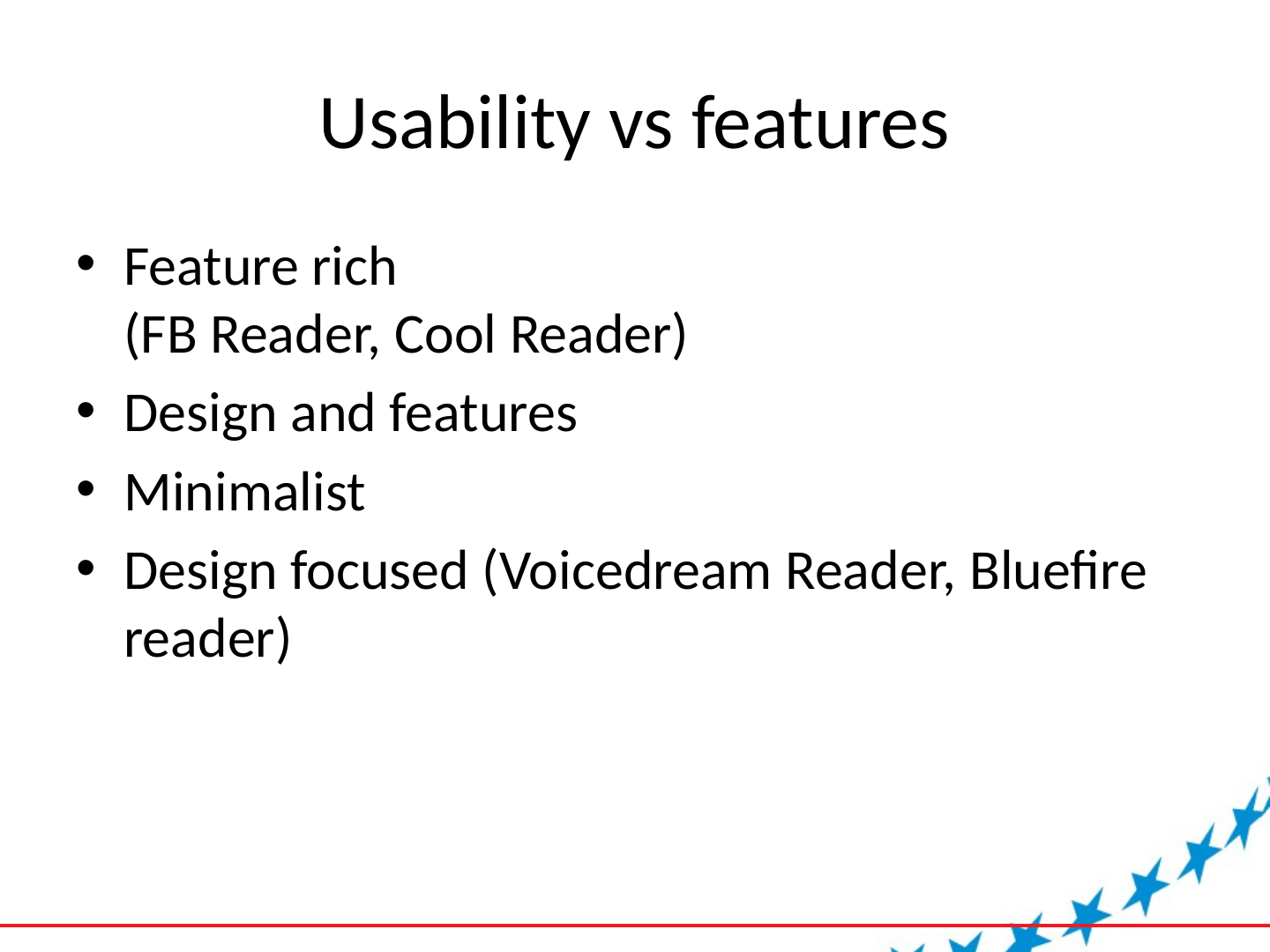
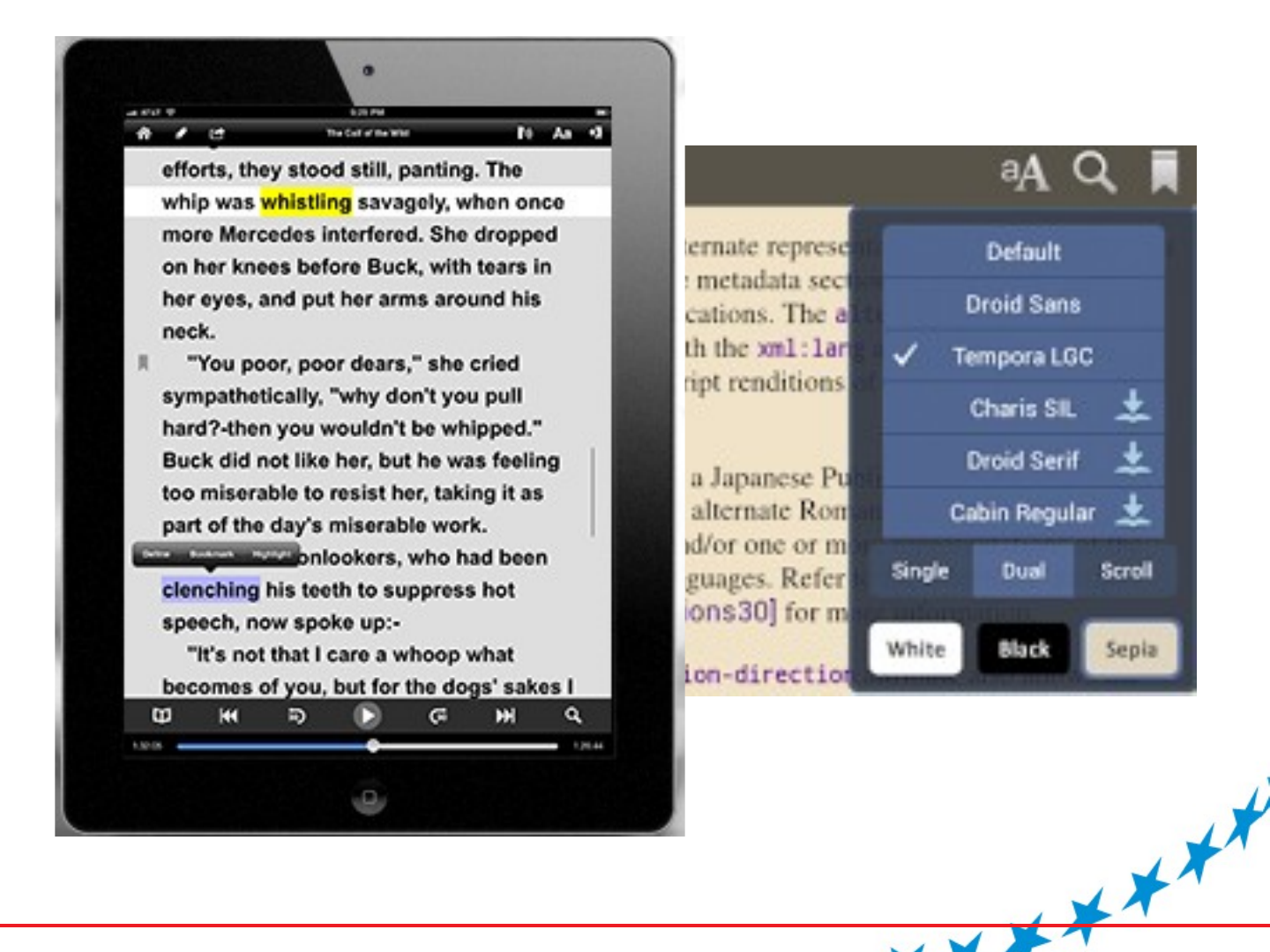
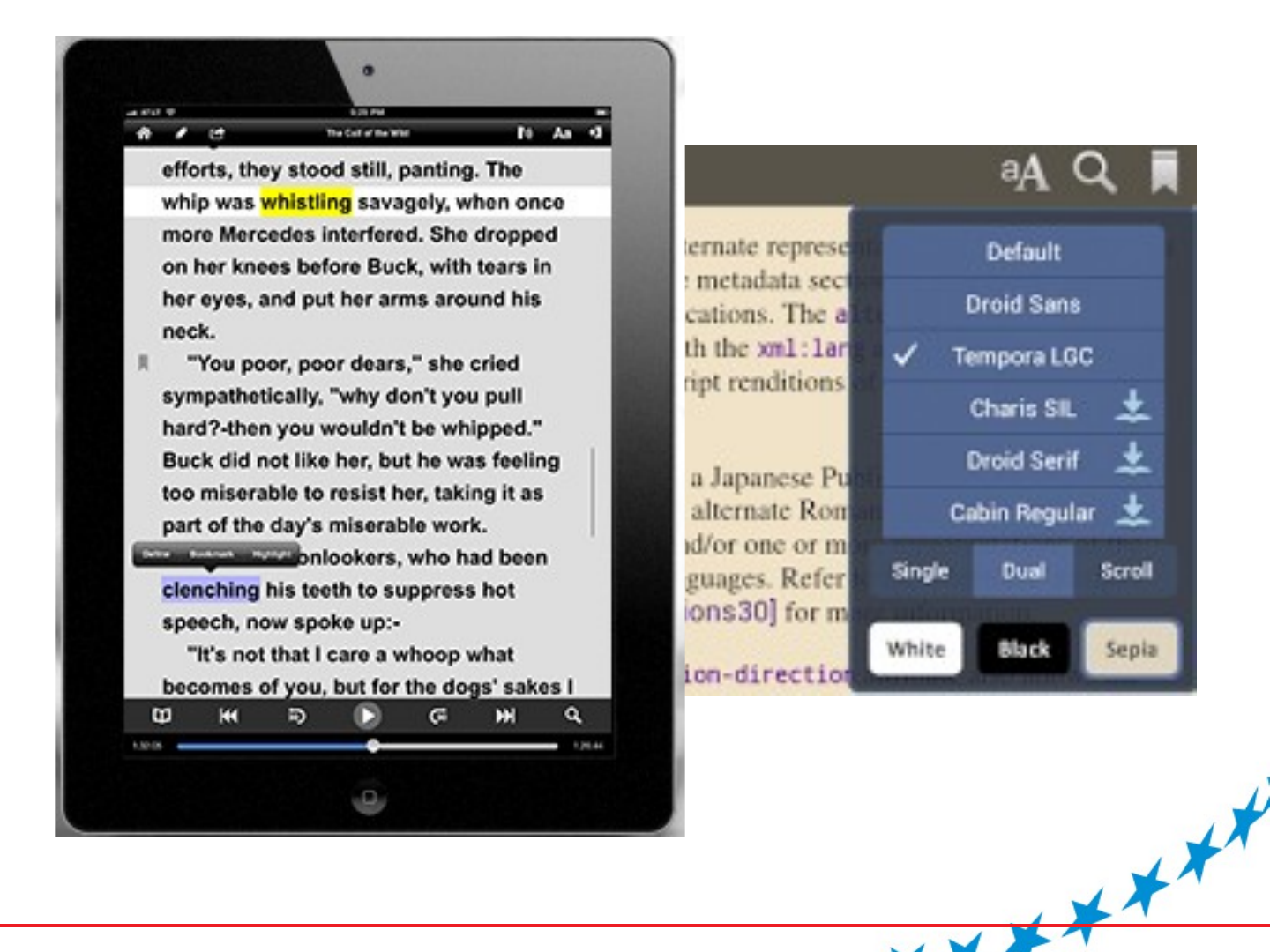
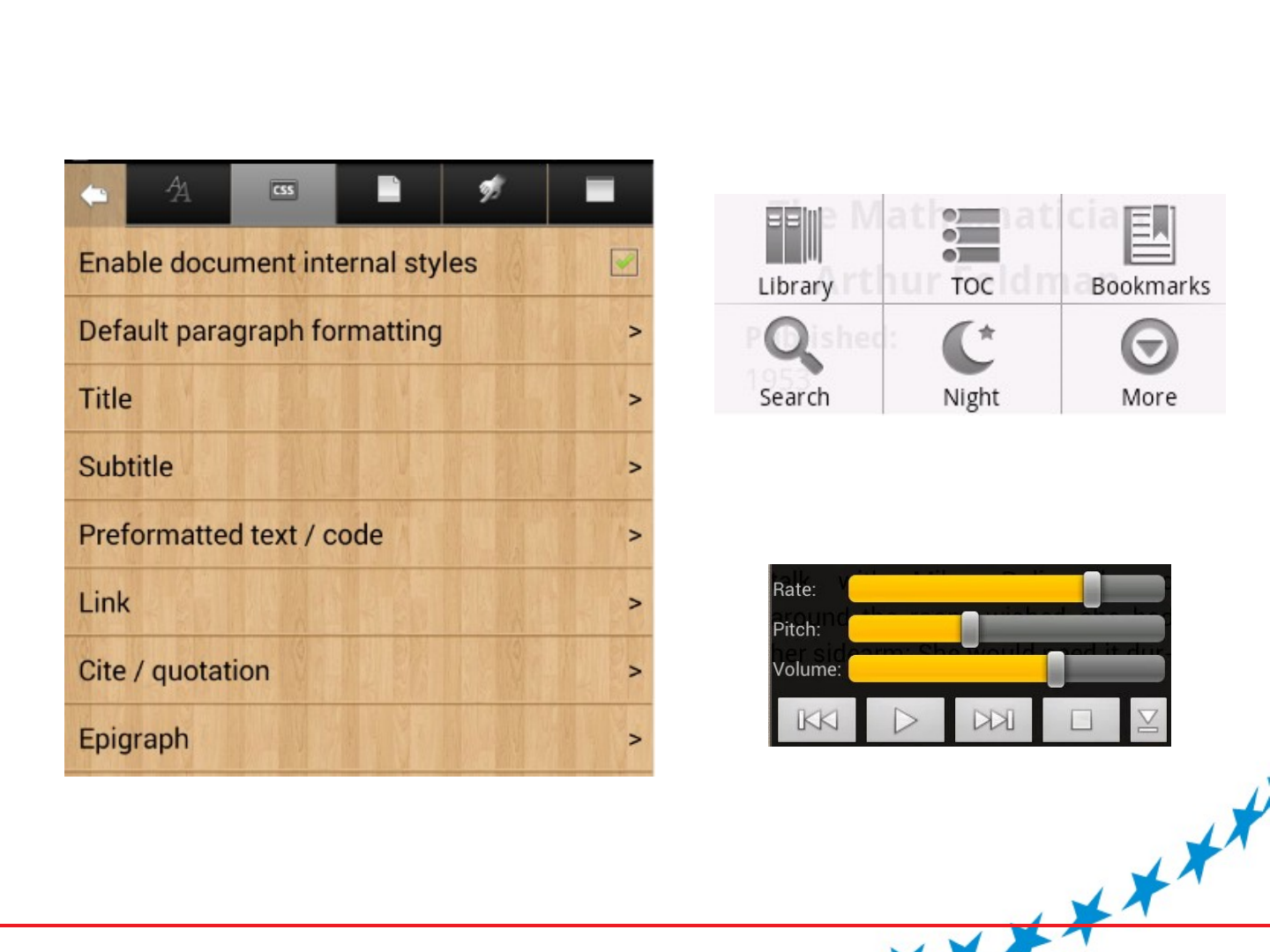
Slide 10: Usability vs features
Usability vs features
- Feature rich (FB Reader, Cool Reader)
- Design and features
- Minimalist
- Design focused (Voicedream Reader, Bluefire reader)
Slide 11: Illustration on slide 11
Slide 12: Illustration on slide 12
Slide 13: 5 General Recommendations
5 General Recommendations
- Focus on usability and clean interface
- Balance feature completeness with the accessibility of key features = presets
- Use icons, sliders + steps.
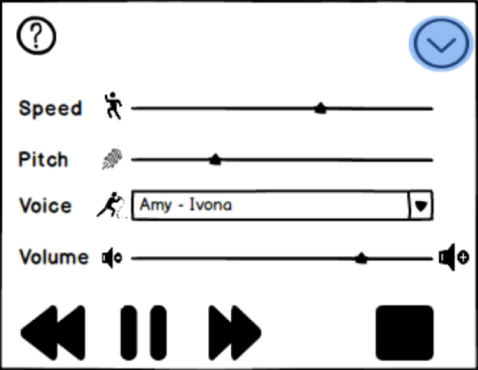
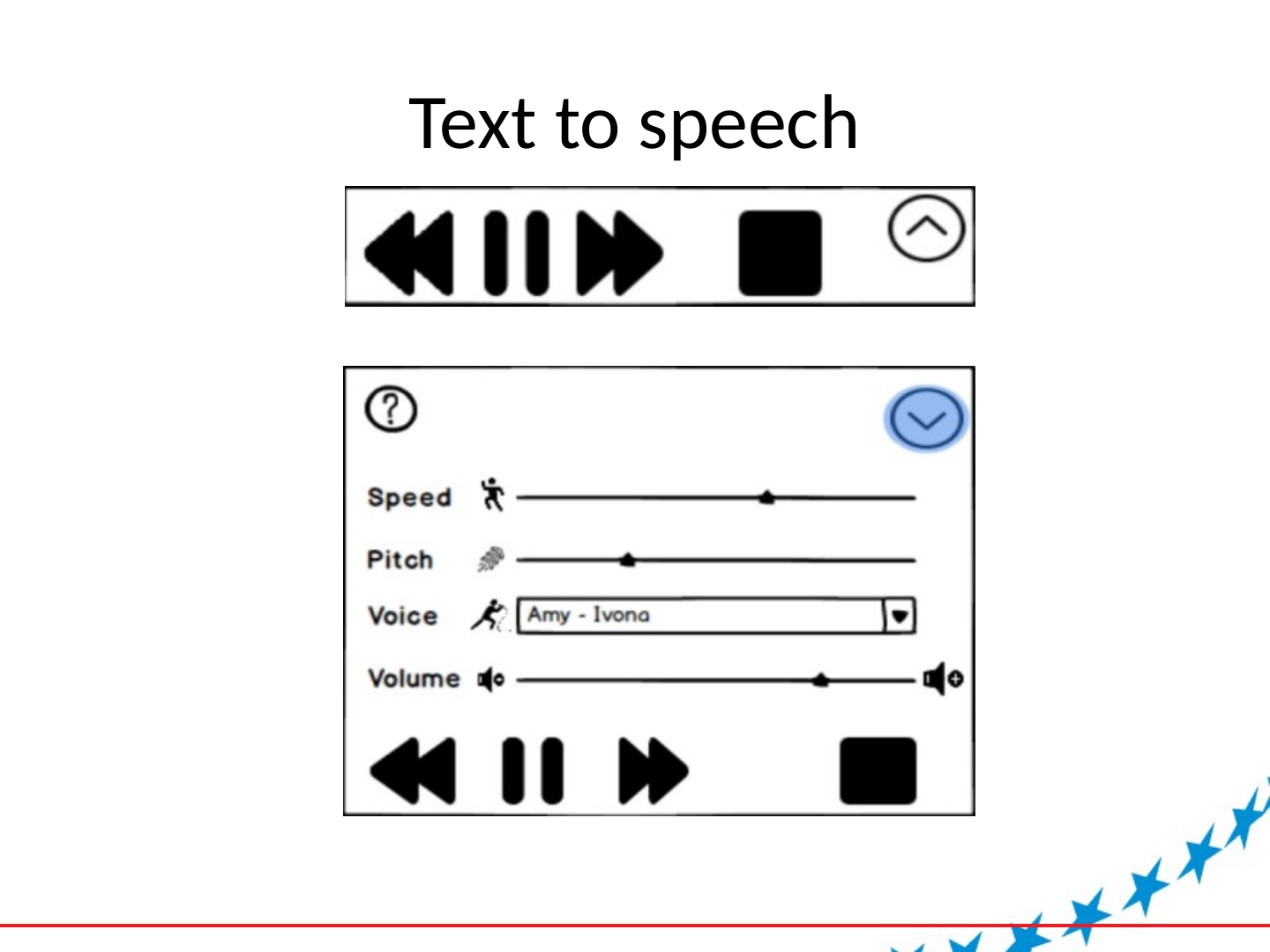
- Text-to-speech is essential to accessibility and must be implemented reliably and provide basic navigation features.
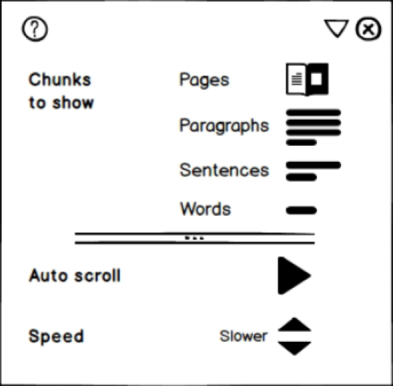
- Controlling the amount of text displayed on screen + autoscroll
Slide 14: Text to speech
Text to speech

Slide 15: Chunking
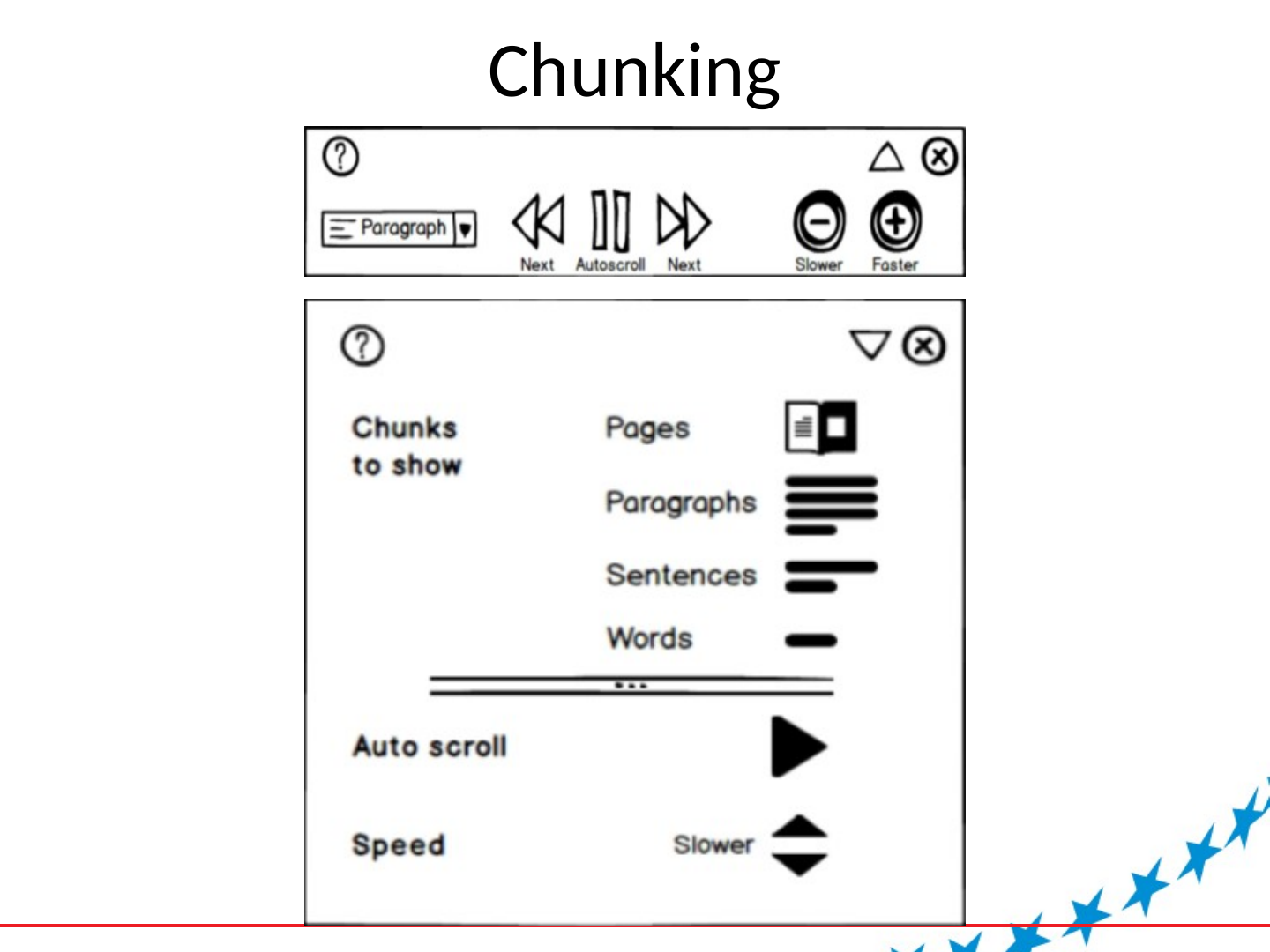
Chunking
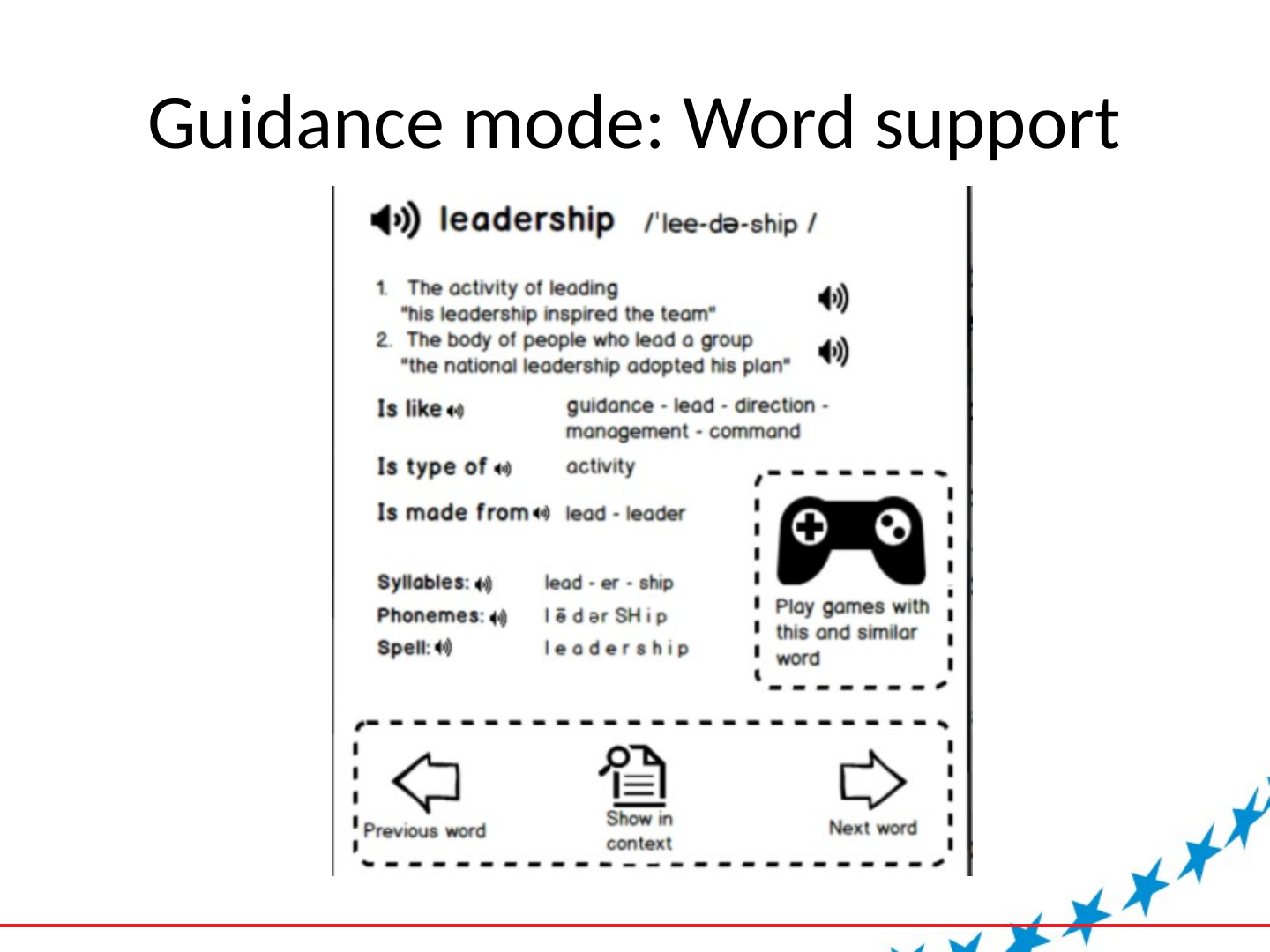
Slide 16: Guidance mode: Word support
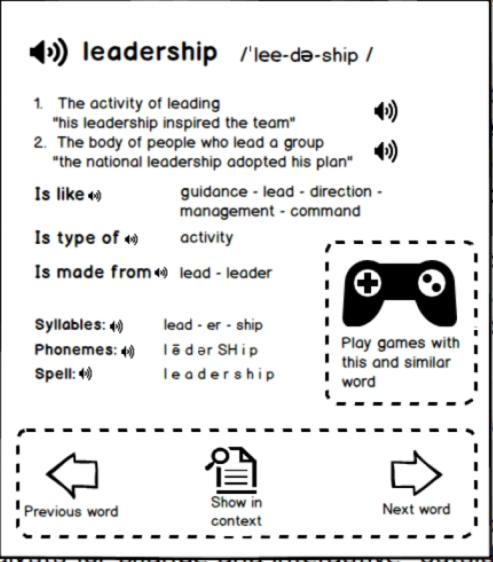
Guidance mode: Word support
Slide 17: Guidance mode: Text highlighting
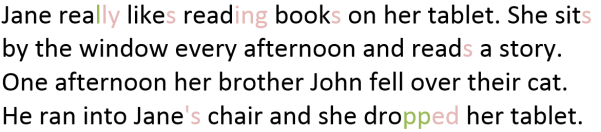
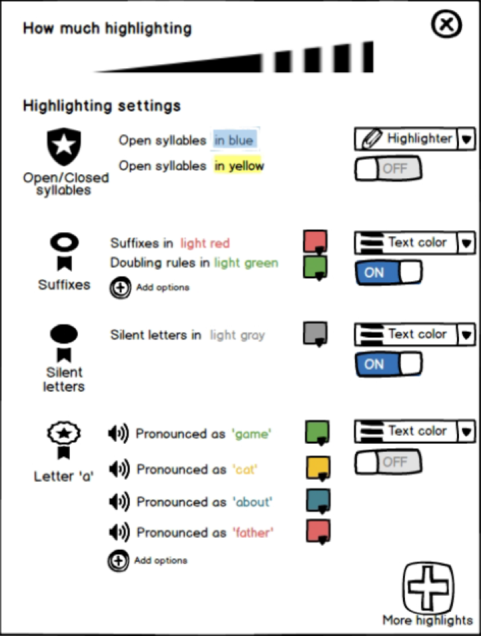
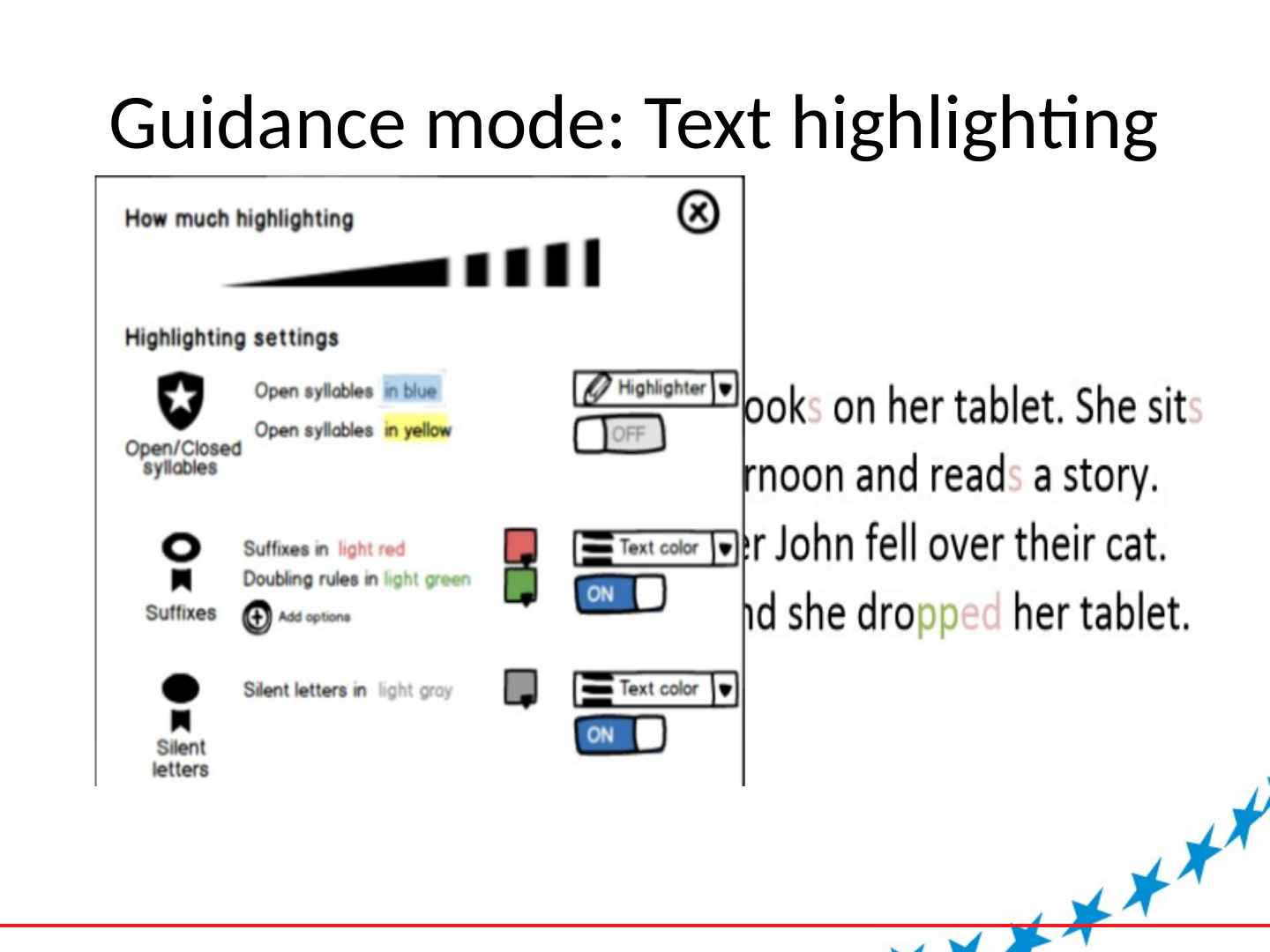
Guidance mode: Text highlighting
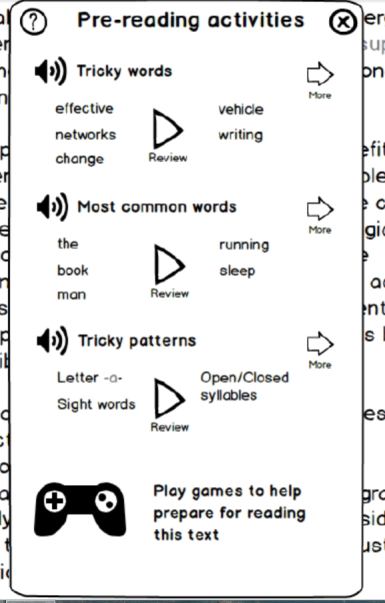
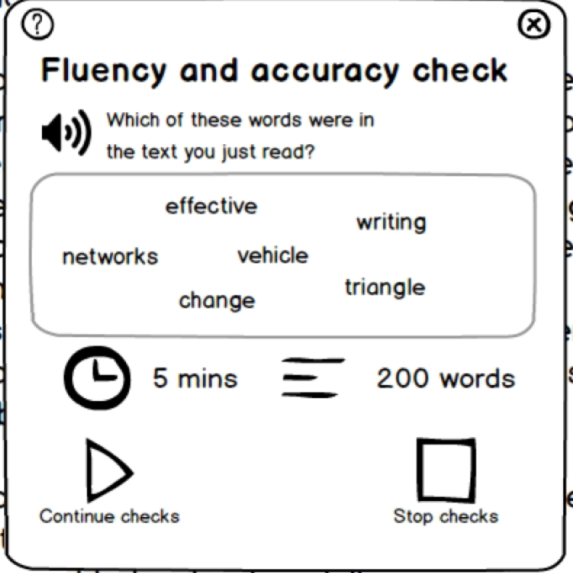
Slide 18: Guidance mode: Pre-reading activities
Guidance mode: Pre-reading activities
Slide 19: Structure and navigation
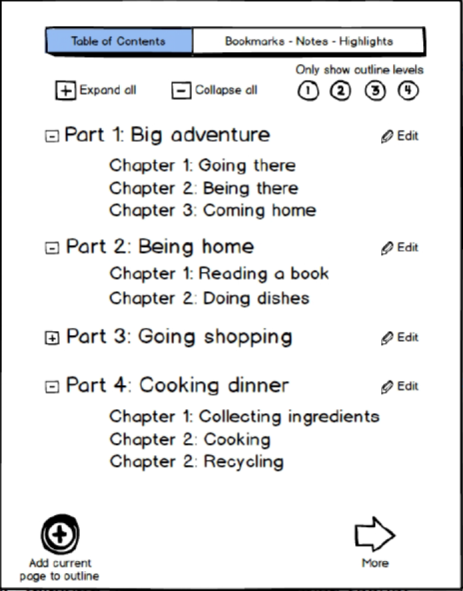
Structure and navigation
Slide 20: Reader prototype
Reader prototype
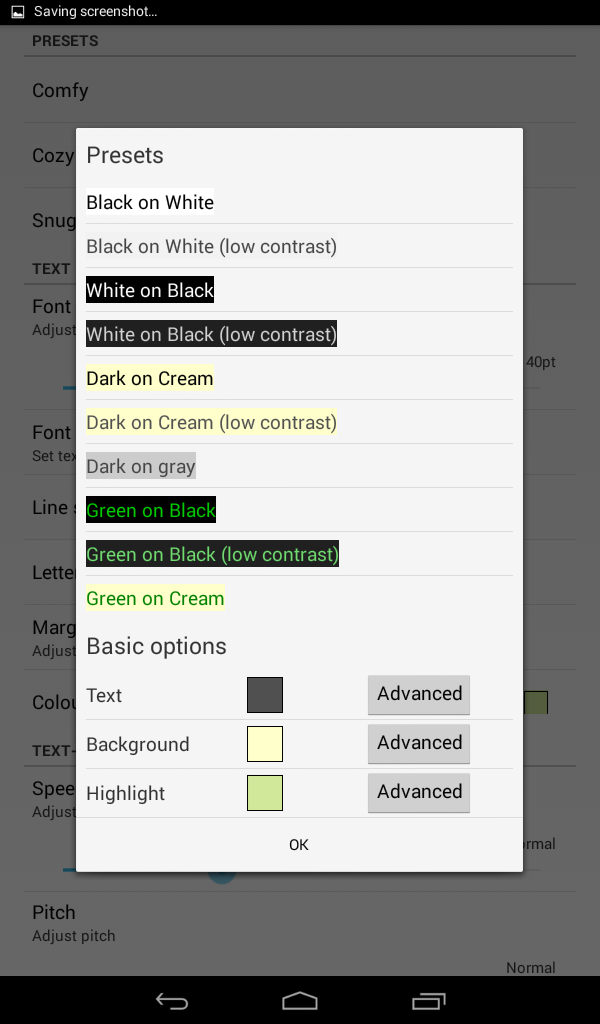
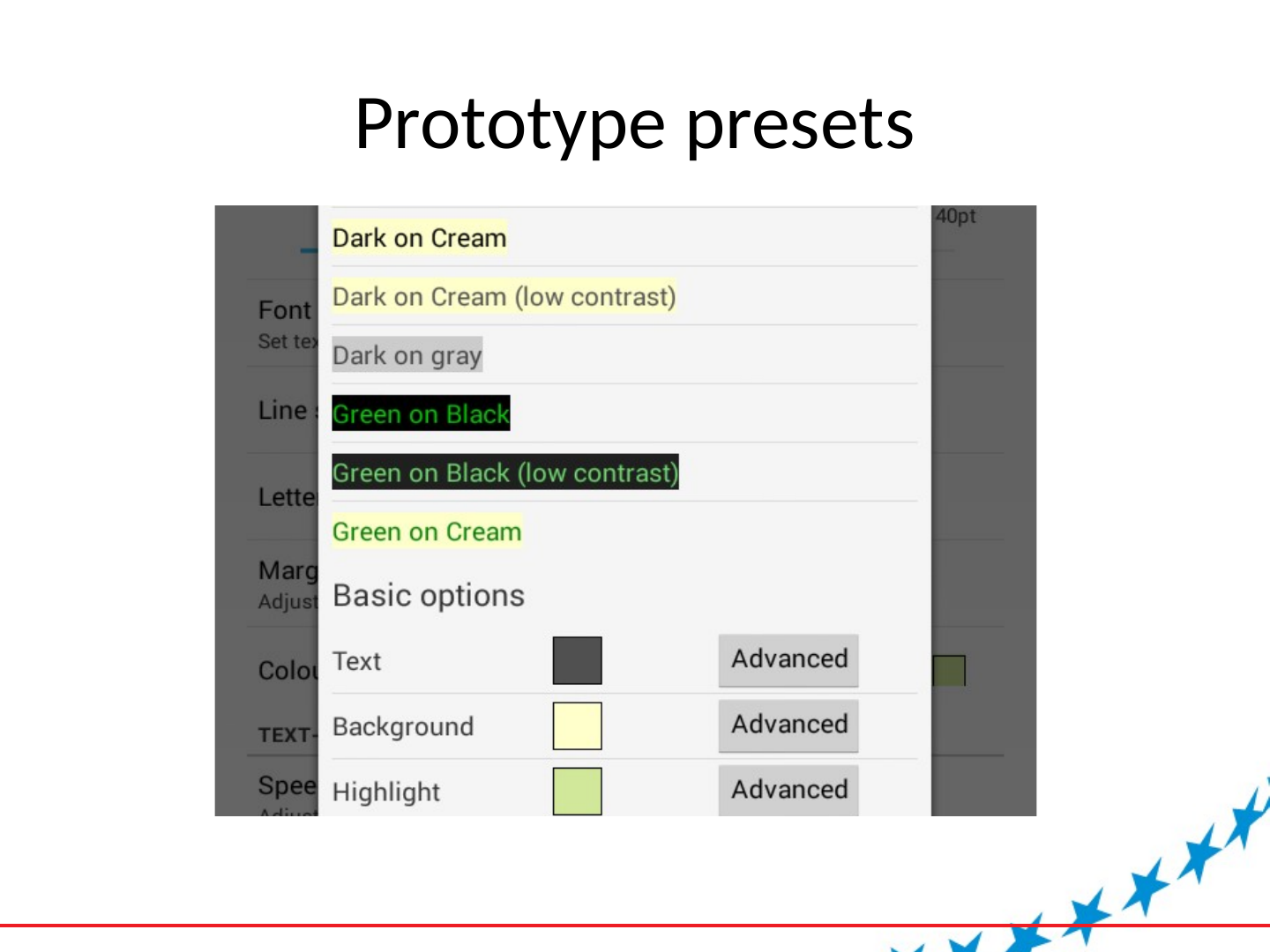
Slide 21: Prototype presets
Prototype presets
Slide 22: Preliminary study
Preliminary study
- Presented to 60 students 9-11 in 5 English schools and two through Dyslexia Action centres
- Prototype reader pre-loaded with short texts
- Reading in class (groups of 5)
- Tablet home use
- Some students progressed to Moon+ Pro
Slide 23: Preliminary study results
Preliminary study results
- Overall positive reactions from students
- Playback functionality immediately utilised by students
- Most students claimed to have used the reader at home, some regularly. This is an increase over their regular reading patterns.
- During sessions, students were able to answer questions about the text they read, some volunteering more information.
Slide 24: Preliminary study results (Cont.)
Preliminary study results (Cont.)
- Students varied in the mode they preferred to access text. Most used text-to-speech at least part of the time. Some before or after reading without it. Several only read without sound.
- During sessions, sometimes students would switch from playing games to using the reader. Several calling it the ‘reading game’.
- Several students admitted to listening to the texts in bed, one to falling asleep to them.
Slide 25: Preliminary study results (Cont.)
Preliminary study results (Cont.)
- One student described taking the tablet when visiting family members and listening while they watched “boring shows”.
- Several students attributed their reading improvements to using the reader.
- Many students appreciated the factual nature of the texts included but some asked for fiction.
- One student admitted that even though he preferred Audible, he still listened to the texts.
Slide 26: Preliminary study results (Cont.)
Preliminary study results (Cont.)
- Several students asked for more texts having read all those provided (the reader came bundled with about 80 texts of 300-500 words). When asked, students in one school generated a list of over twenty books they would like included with the reader.
Slide 27: Conclusions
Conclusions
- Significant accessibility and usability gaps in current reader apps (even those with accessibility focus)
- Speech focused reader have a huge transformative potential for struggling readers
- Readers without full implementation of text-to-speech cannot be seen as accessible
- Other features still need more research
- Gaps in the chain of text discovery, text acquisition and reading
Slide 28: Next steps
Next steps
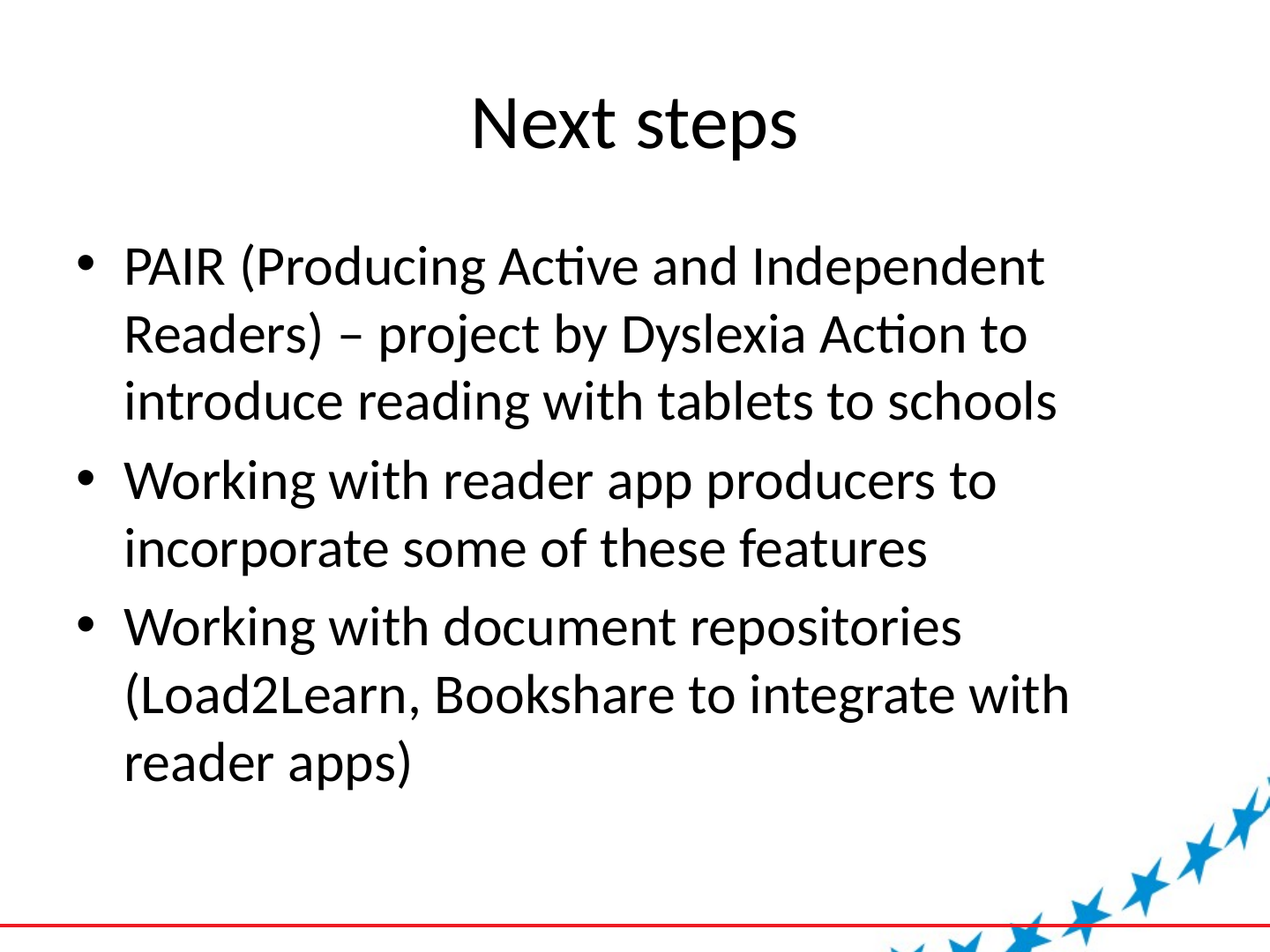
- PAIR (Producing Active and Independent Readers) – project by Dyslexia Action to introduce reading with tablets to schools
- Working with reader app producers to incorporate some of these features
- Working with document repositories (Load2Learn, Bookshare to integrate with reader apps)