Mindmaps, flowcharts and infographics
- SlideShare title: Mindmaps, flowcharts and infographics with everyday tools
- Talk date: Not established
- SlideShare upload: 2019-05-28 (upload date, not the delivery date)
- Event: Not established
- Place: Not established
- Topics: Access & reading
- Language: en
- Slides in the original listing: 57
- Coverage: Full text of all 57 slides, each paired with its original slide image (slide N is section N).
- Original listing: https://www.slideshare.net/slideshow/mindmaps-flowcharts-and-infographics-with-everyday-tools/147947150
- Cover image: https://slides.dominiklukes.net/readers/mindmaps-flowcharts-and-infographics-with-everyday-tools/pages/page-01.png
- Reader data (JSON): https://slides.dominiklukes.net/readers/mindmaps-flowcharts-and-infographics-with-everyday-tools/presentation.json
- TalkWeaver package (outline and images, ZIP): https://slides.dominiklukes.net/mindmaps-flowcharts-and-infographics-with-everyday-tools/mindmaps-flowcharts-and-infographics-with-everyday-tools-talkweaver.zip
- TalkWeaver outline: https://slides.dominiklukes.net/mindmaps-flowcharts-and-infographics-with-everyday-tools/talkweaver/mindmaps-flowcharts-and-infographics-with-everyday-tools-outline.md
- Markdown copy: https://slides.dominiklukes.net/mindmaps-flowcharts-and-infographics-with-everyday-tools/index.md

Slide 1: Mindmaps, flowcharts and infographics
Mindmaps, flowcharts and infographics


Slide 2: Slide 2
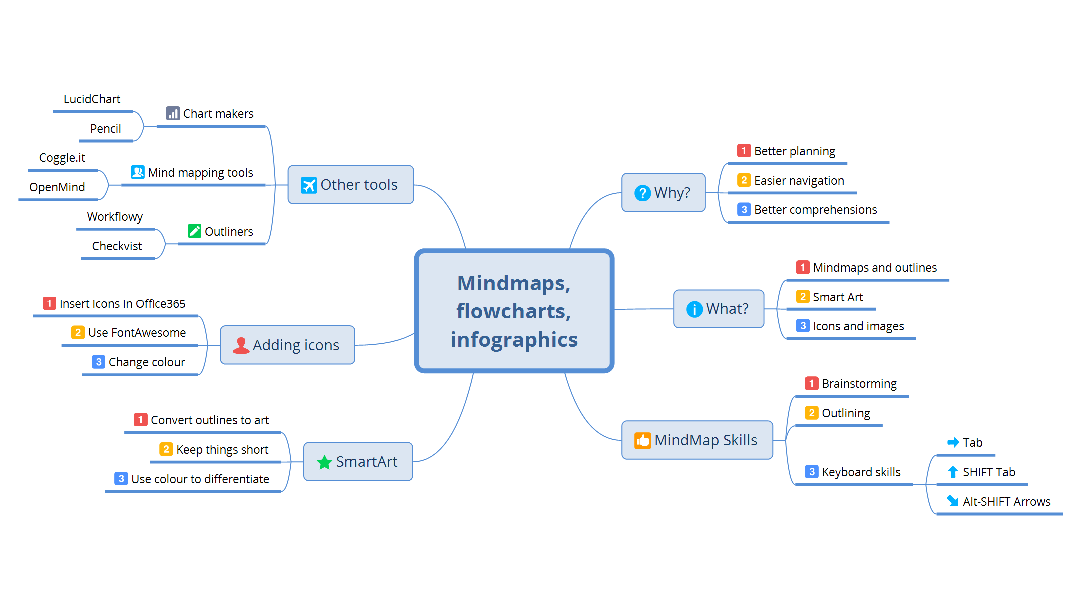
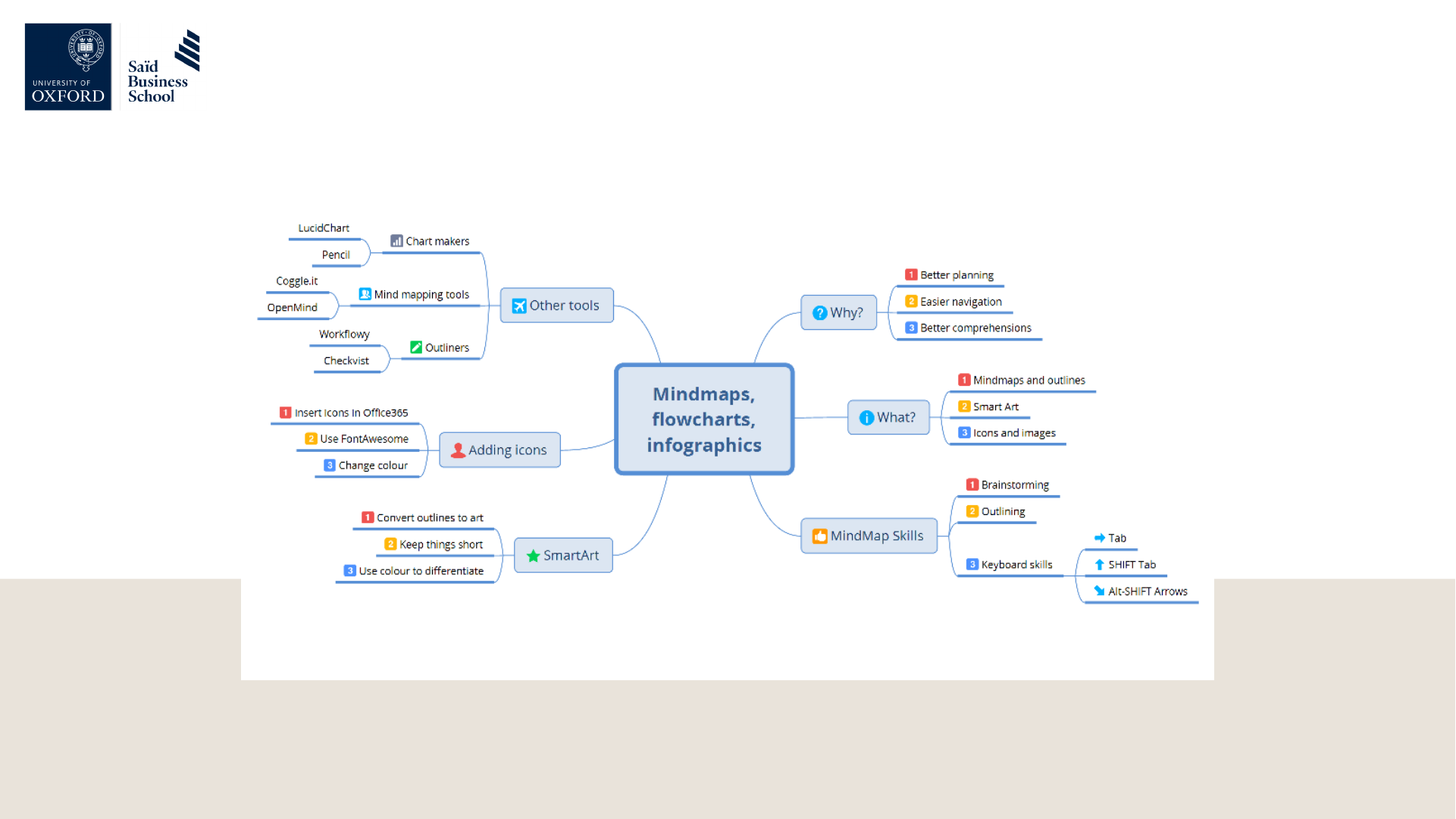
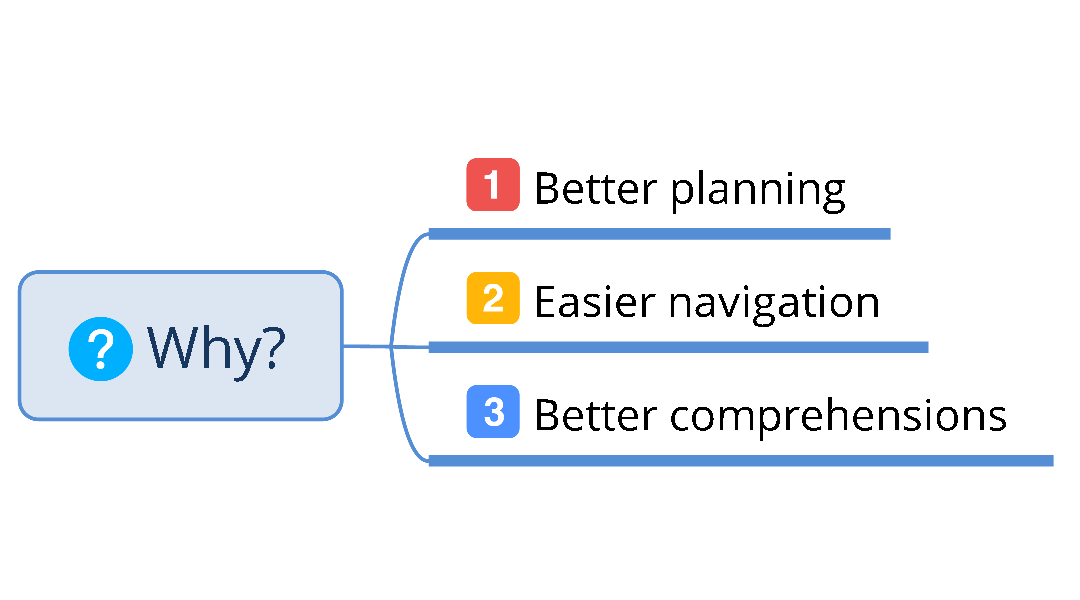
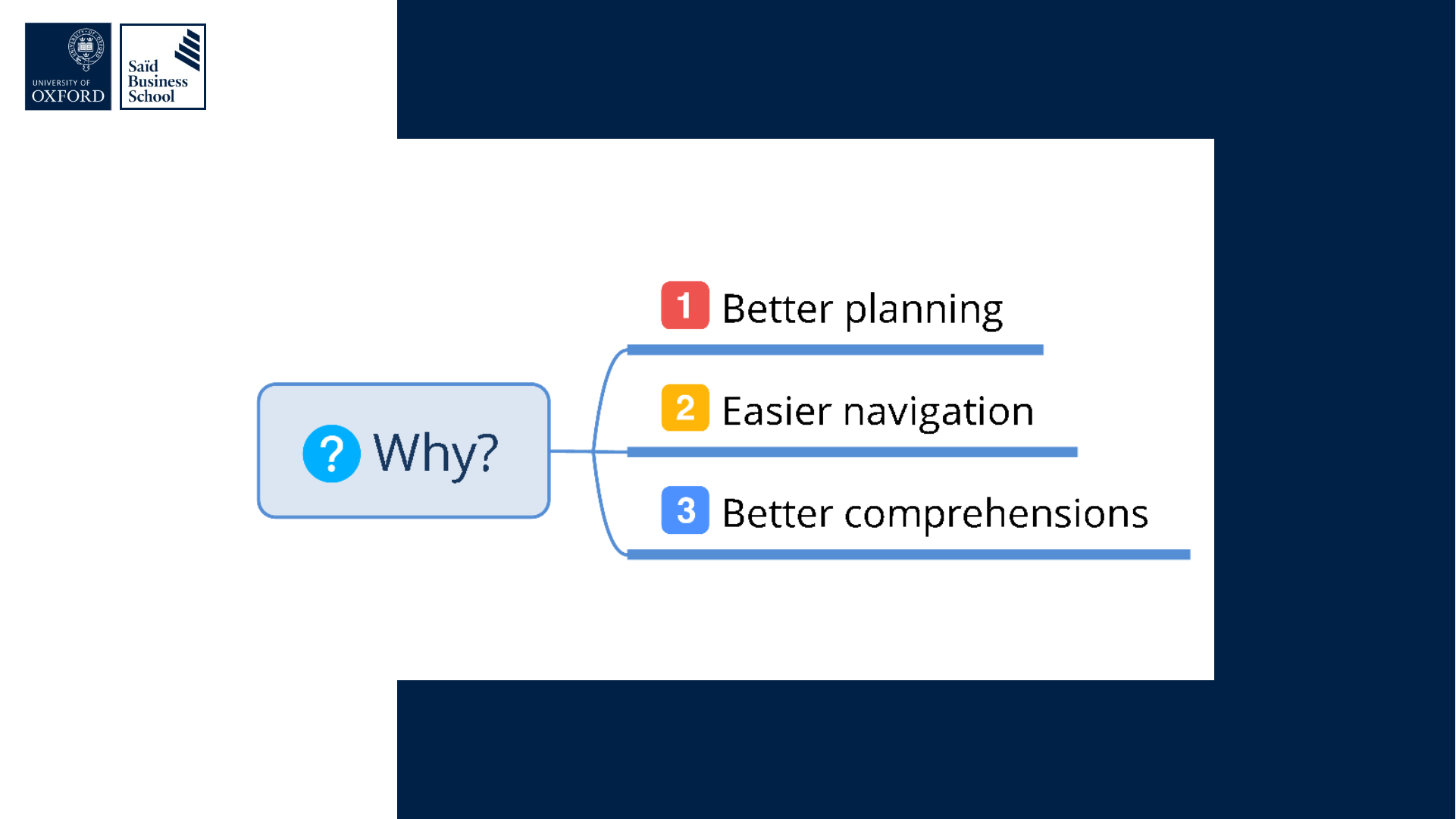
- Why?
- Better planning
- Easier navigation
- Better comprehensions
- What?
- Mindmaps and outlines
- Smart Art
- Icons and images
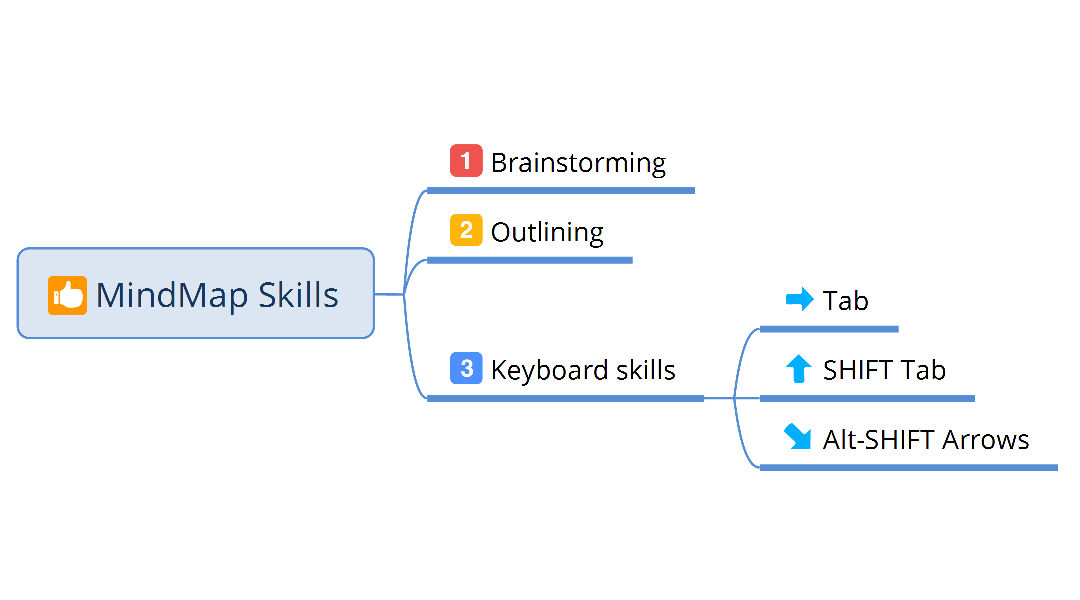
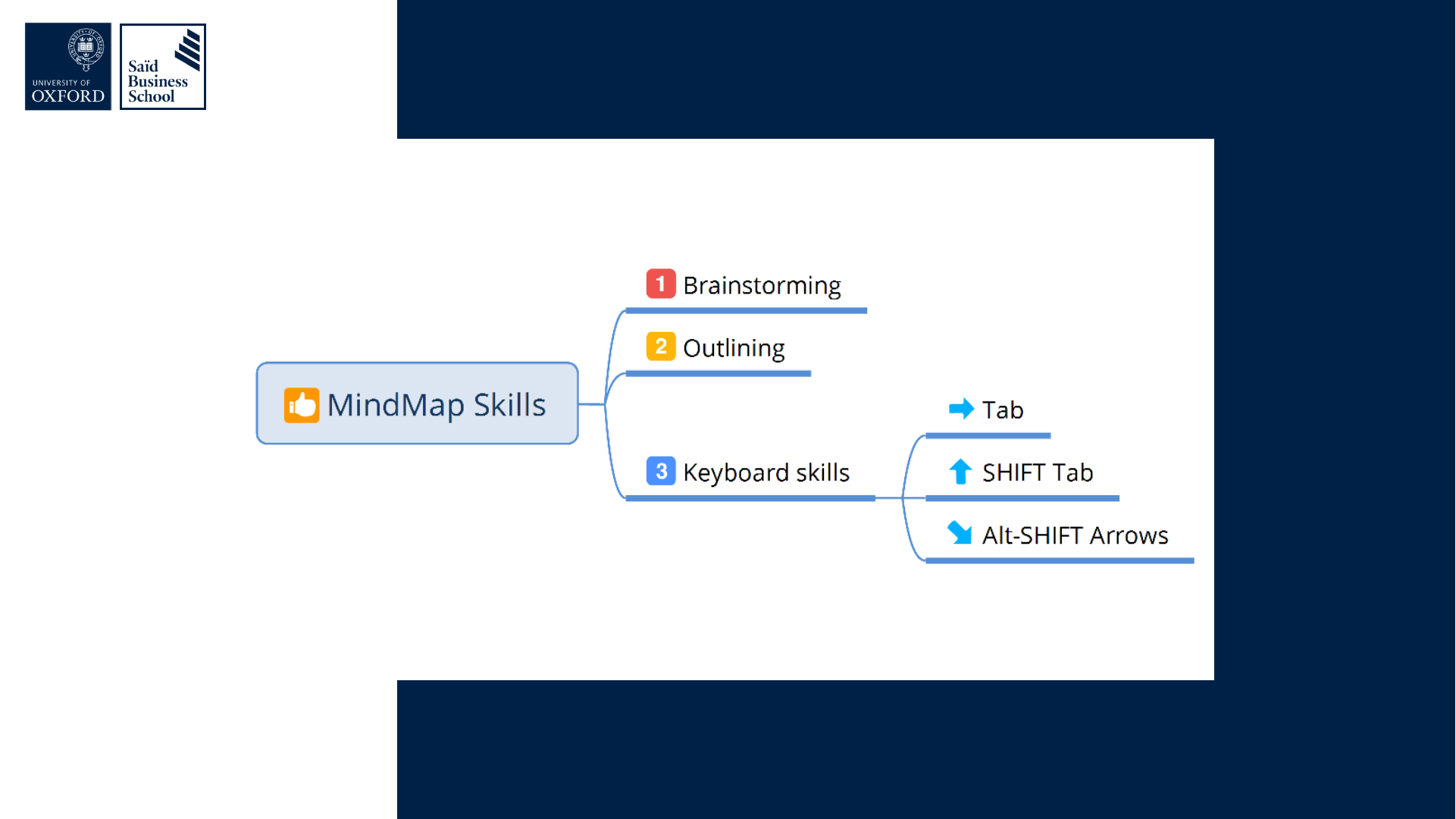
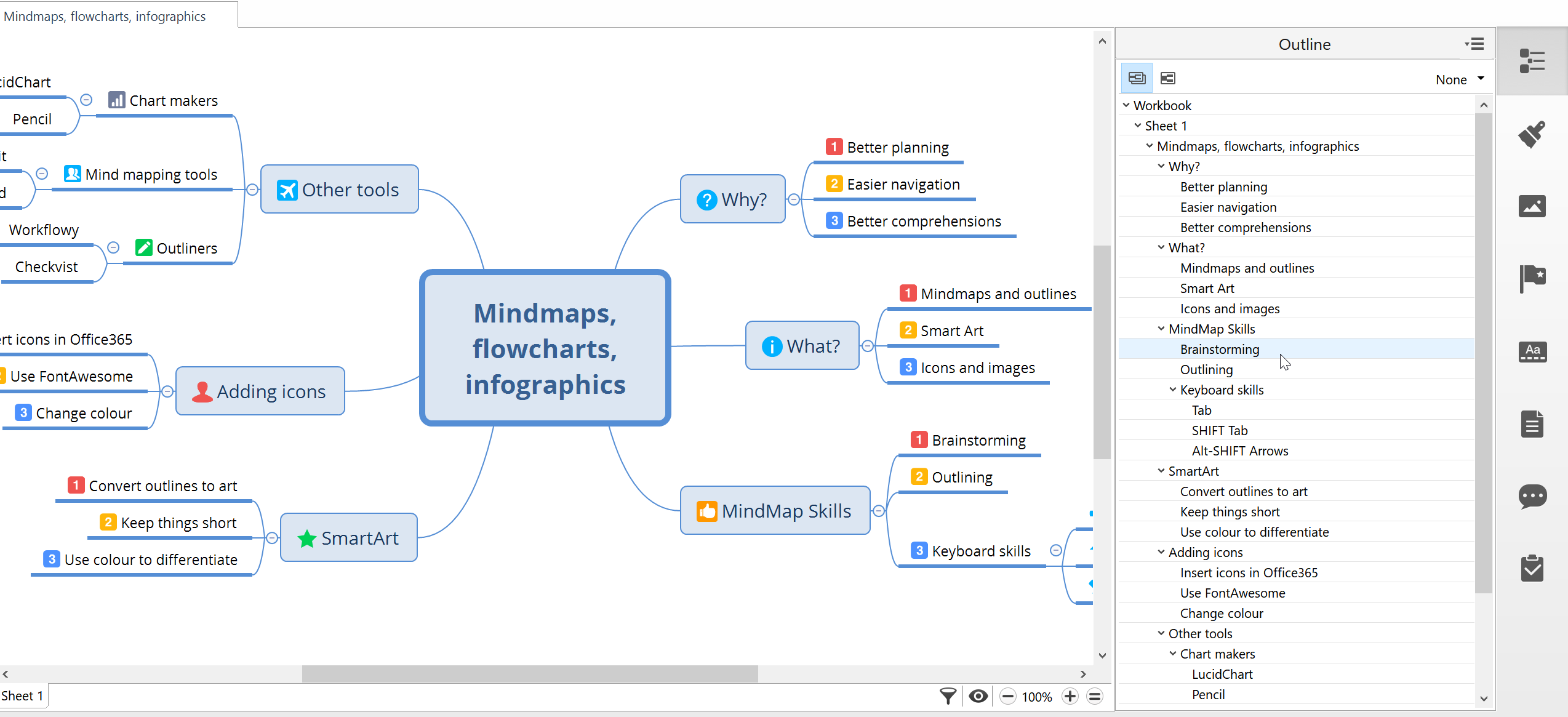
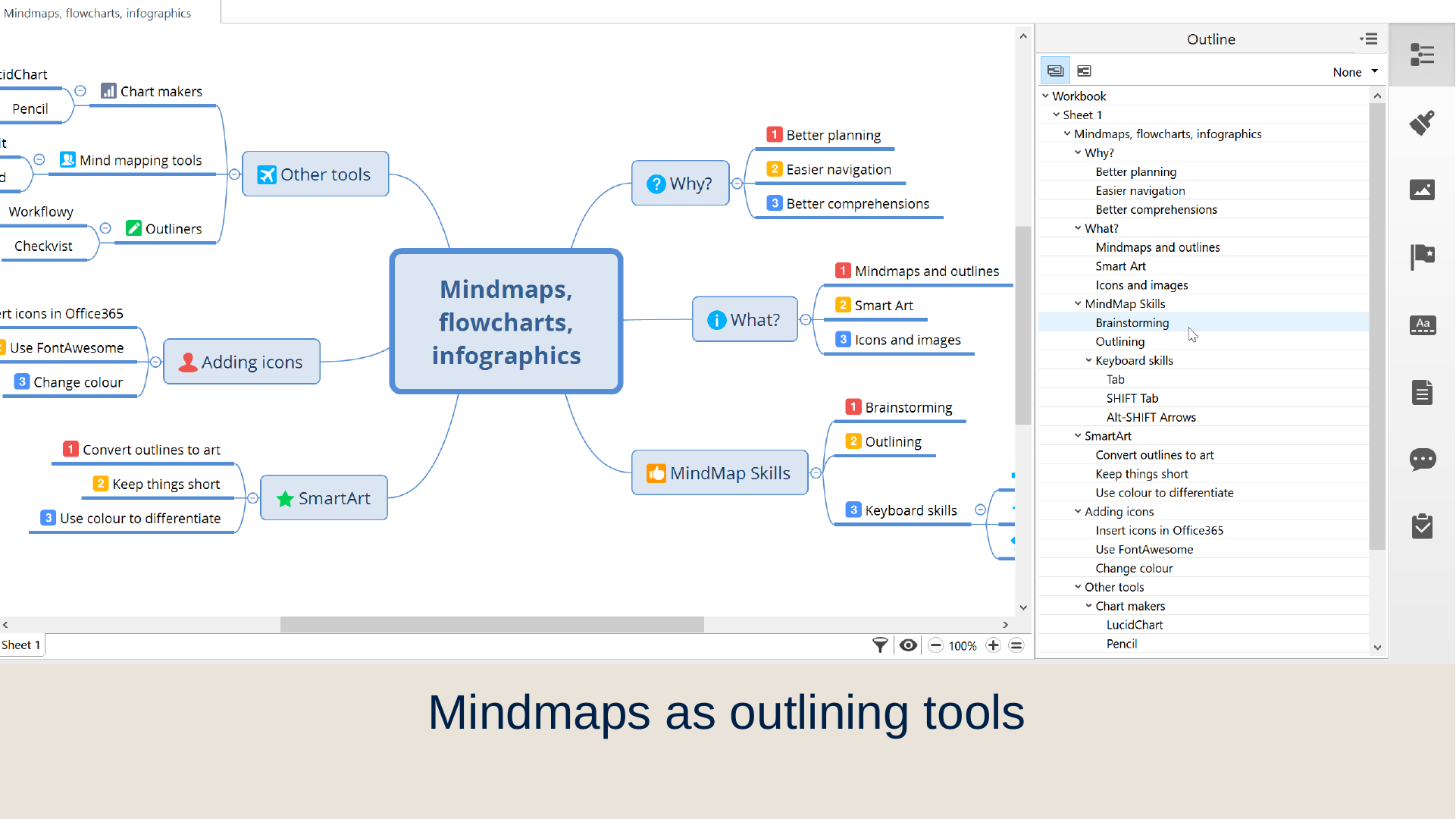
- MindMap Skills
- Brainstorming
- Outlining
- Keyboard skills: Tab; SHIFT Tab; Alt-SHIFT Arrows
- SmartArt
- Convert outlines to art
- Keep things short
- Use colour to differentiate
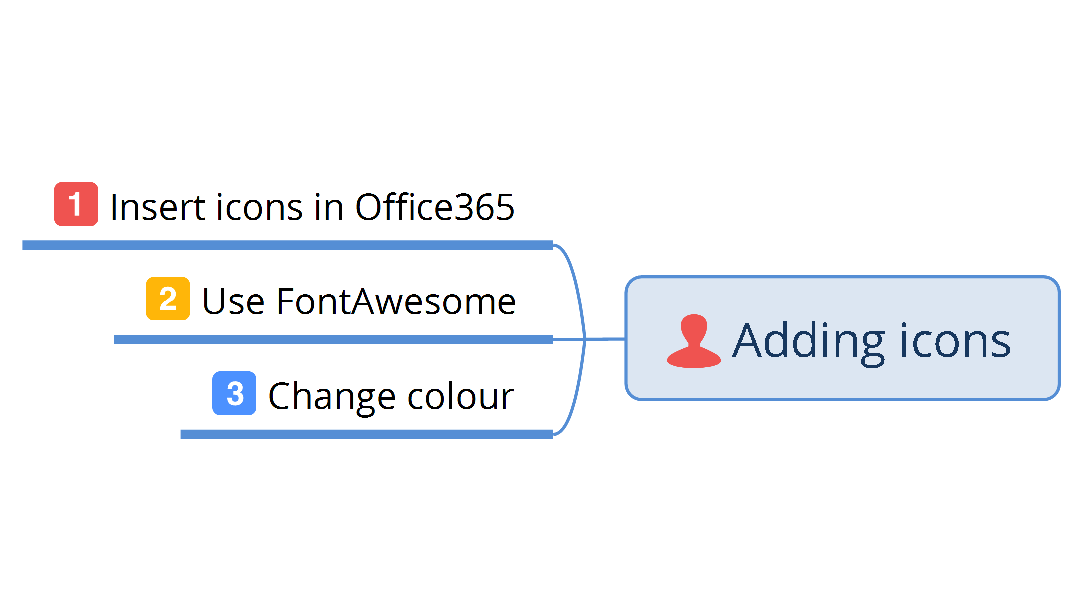
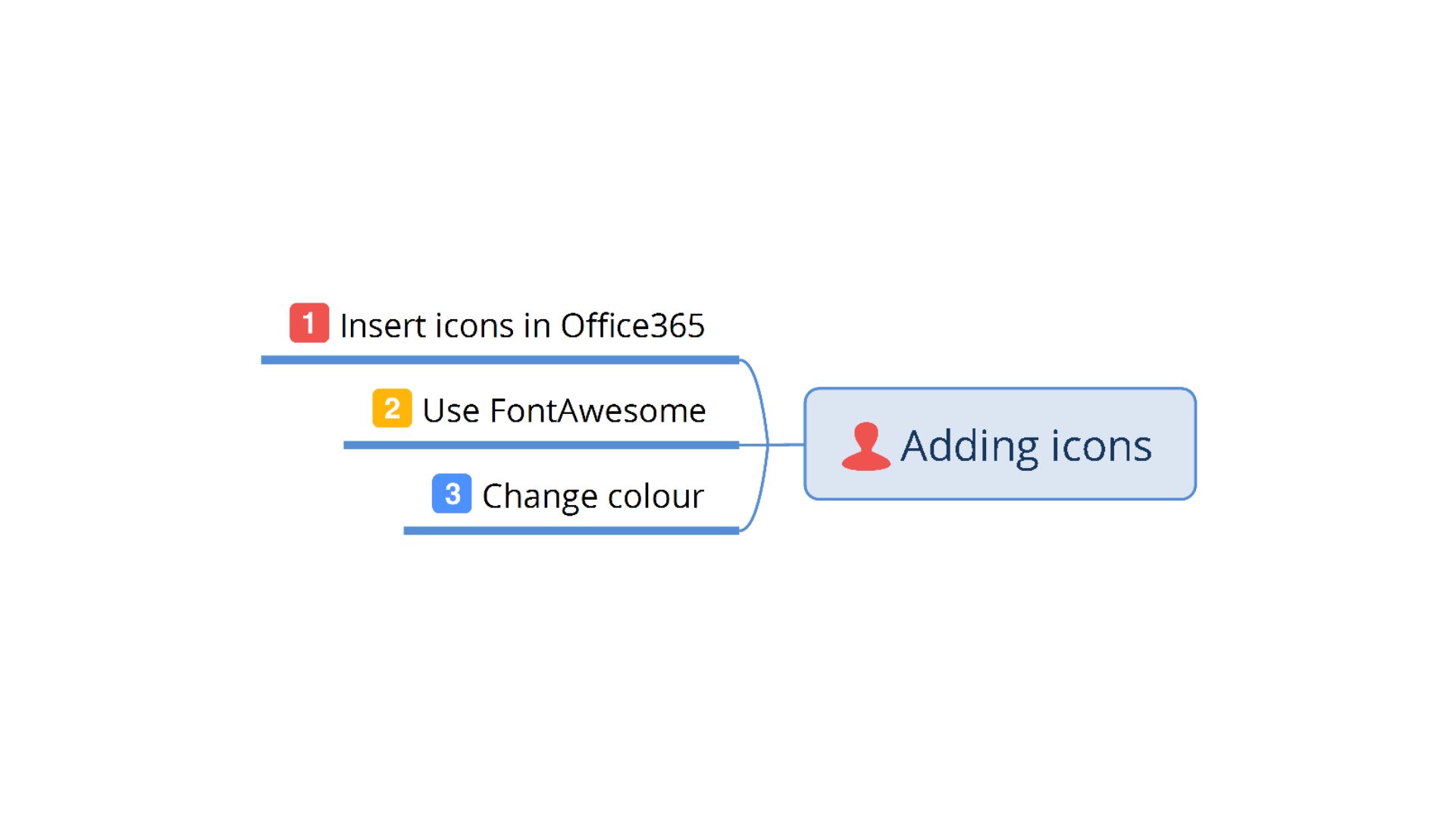
- Adding icons
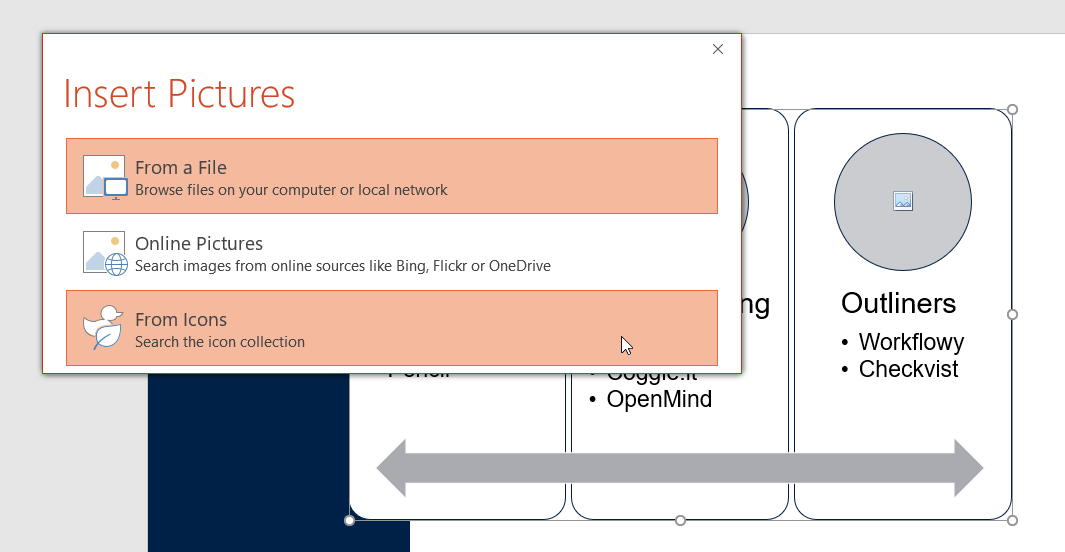
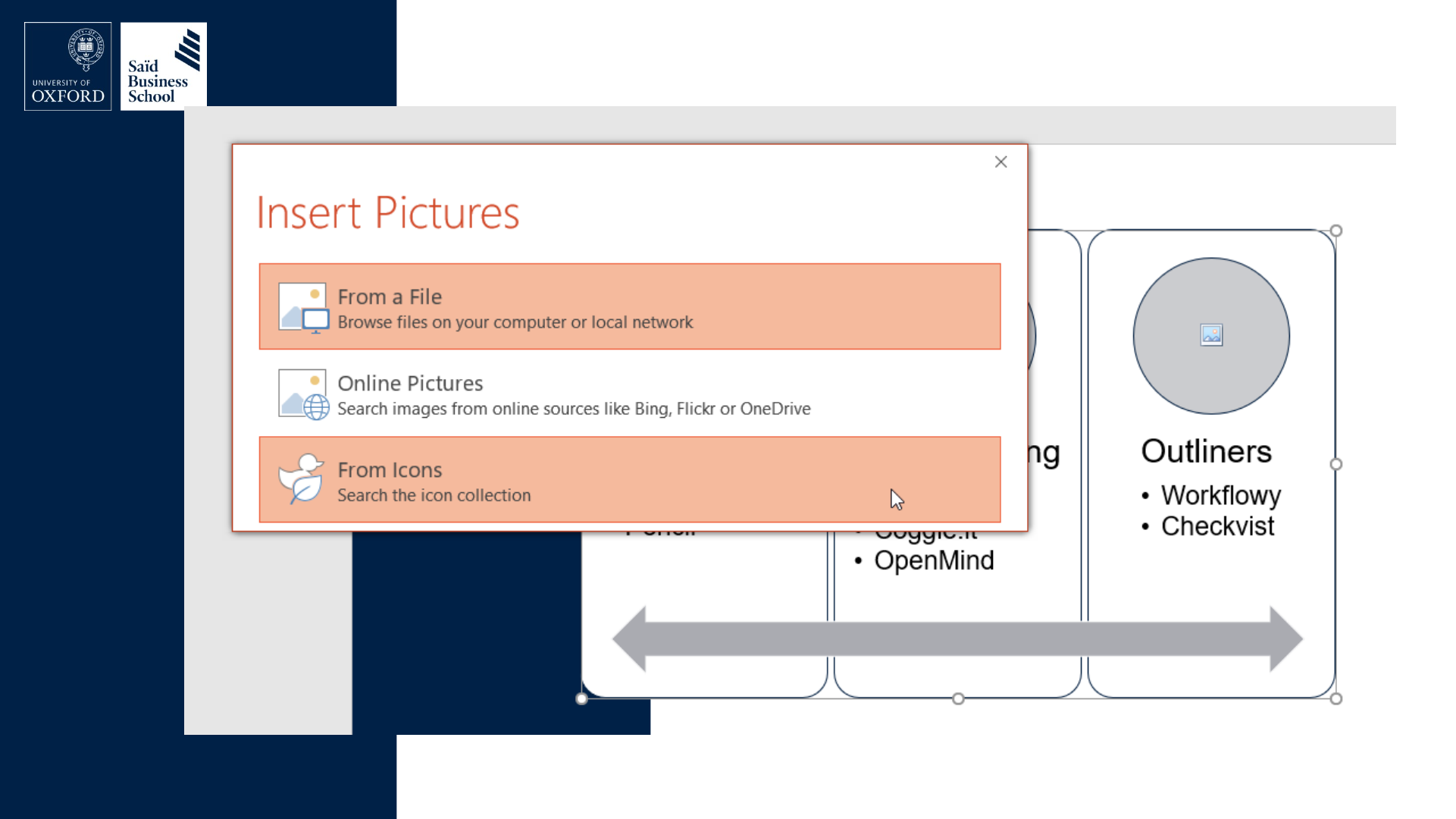
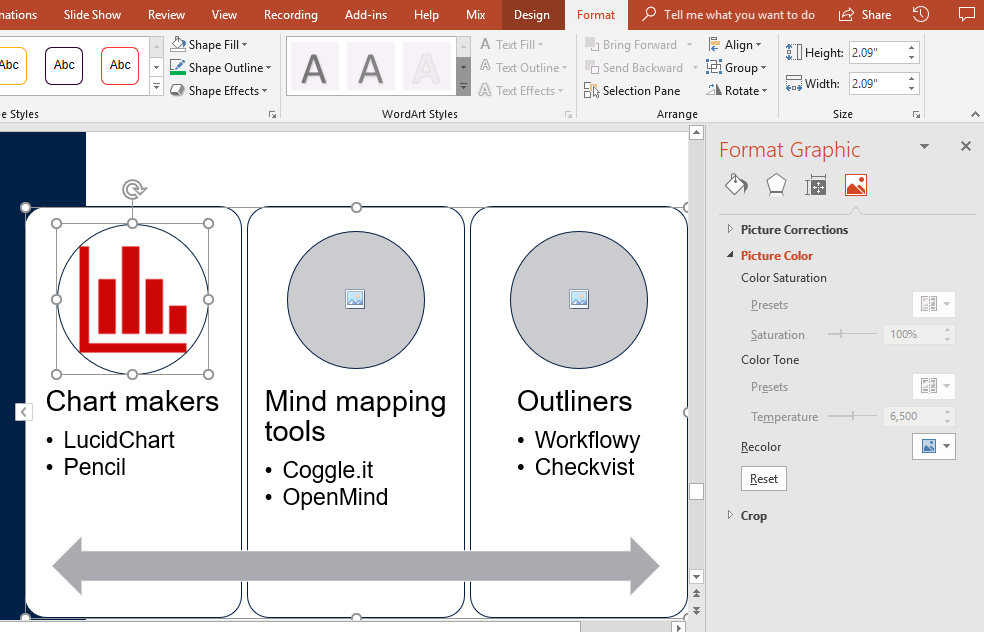
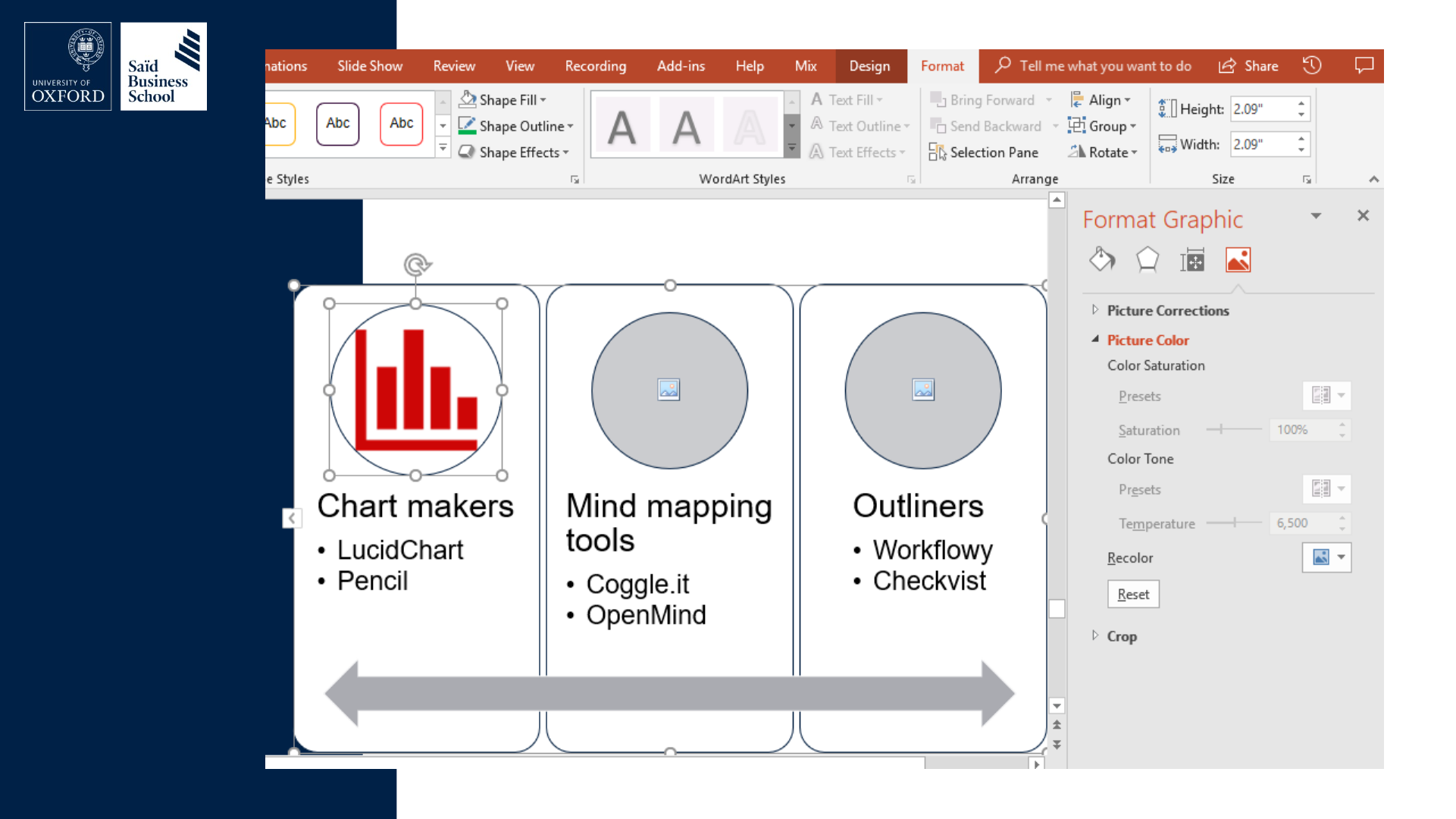
- Insert Icons in Office365
- Use FontAwesome
- Change colour
- Other tools
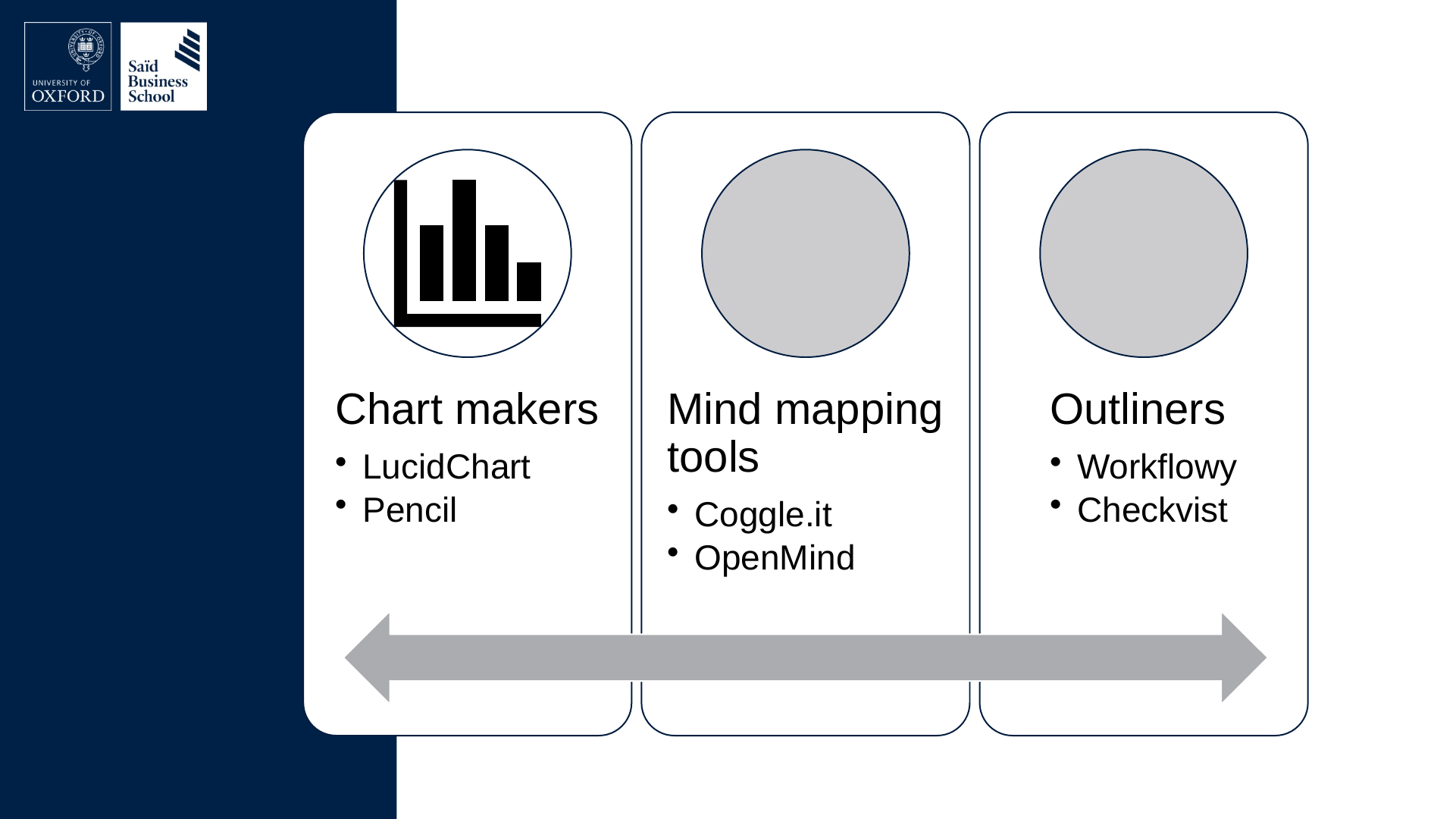
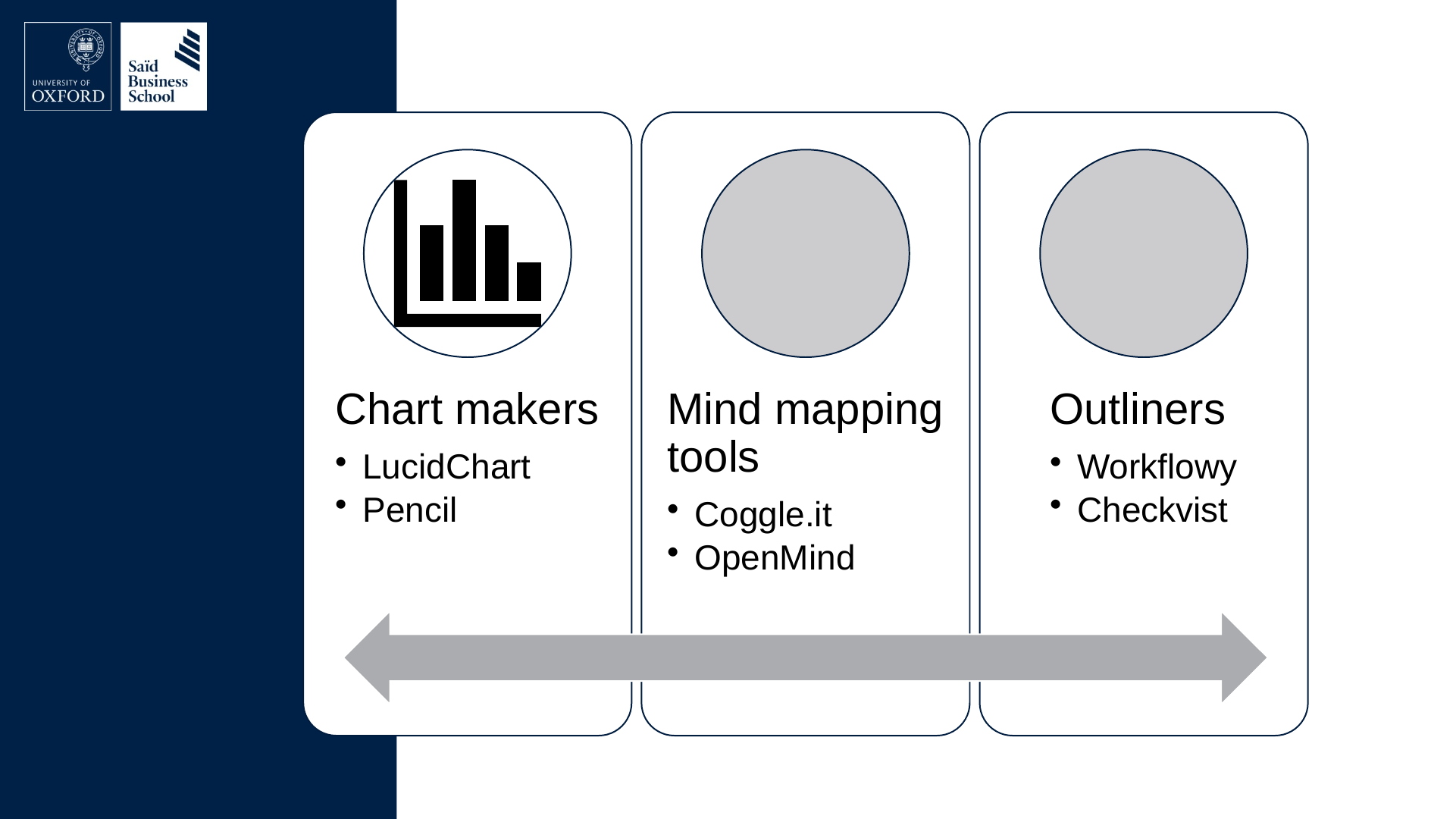
- Chart makers: LucidChart; Pencil
- Mind mapping tools: Coggle.it; OpenMind
- Outliners: Workflowy; Checkvist
Slide 3: Slide 3
Slide 4: Why?
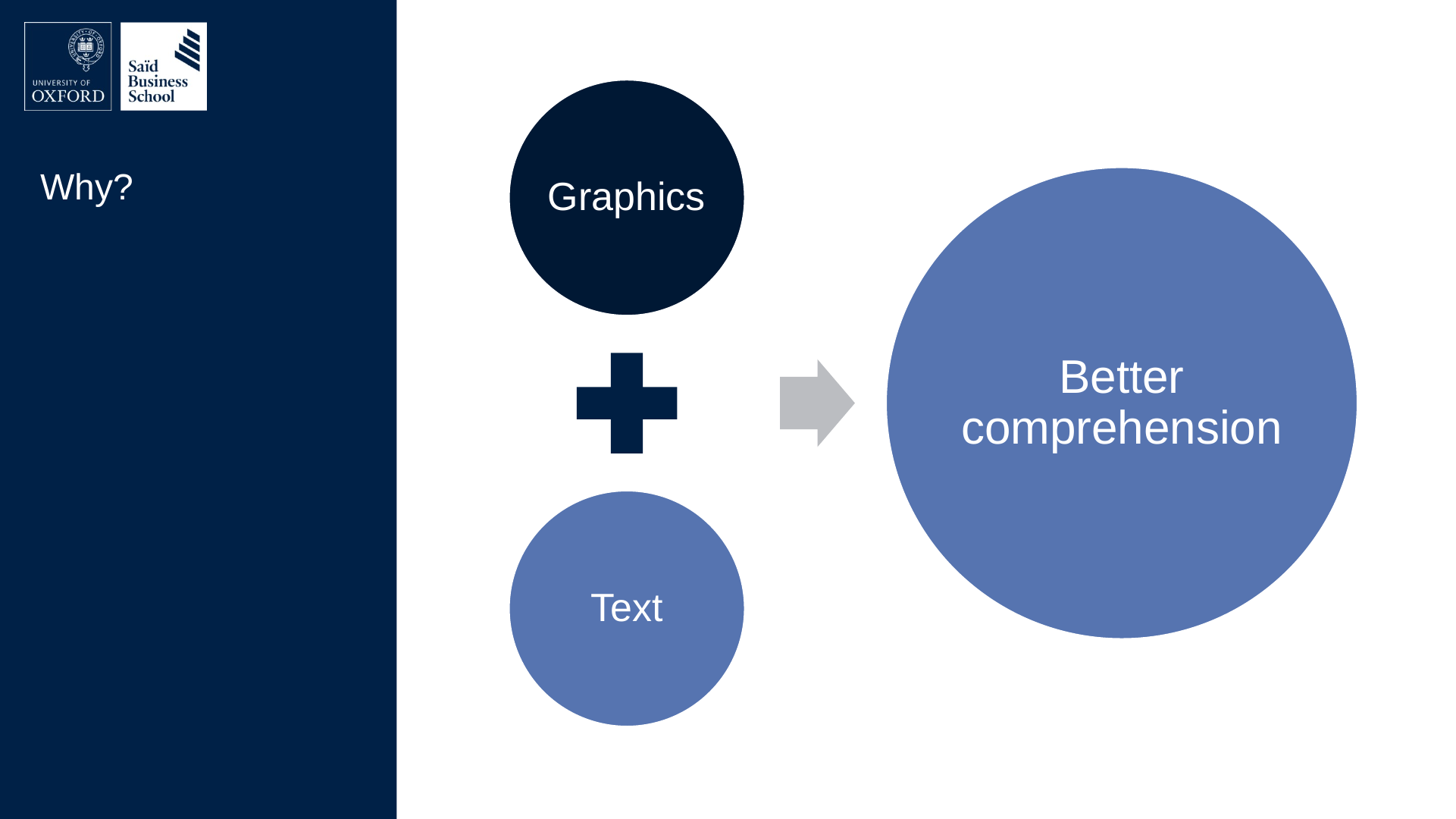
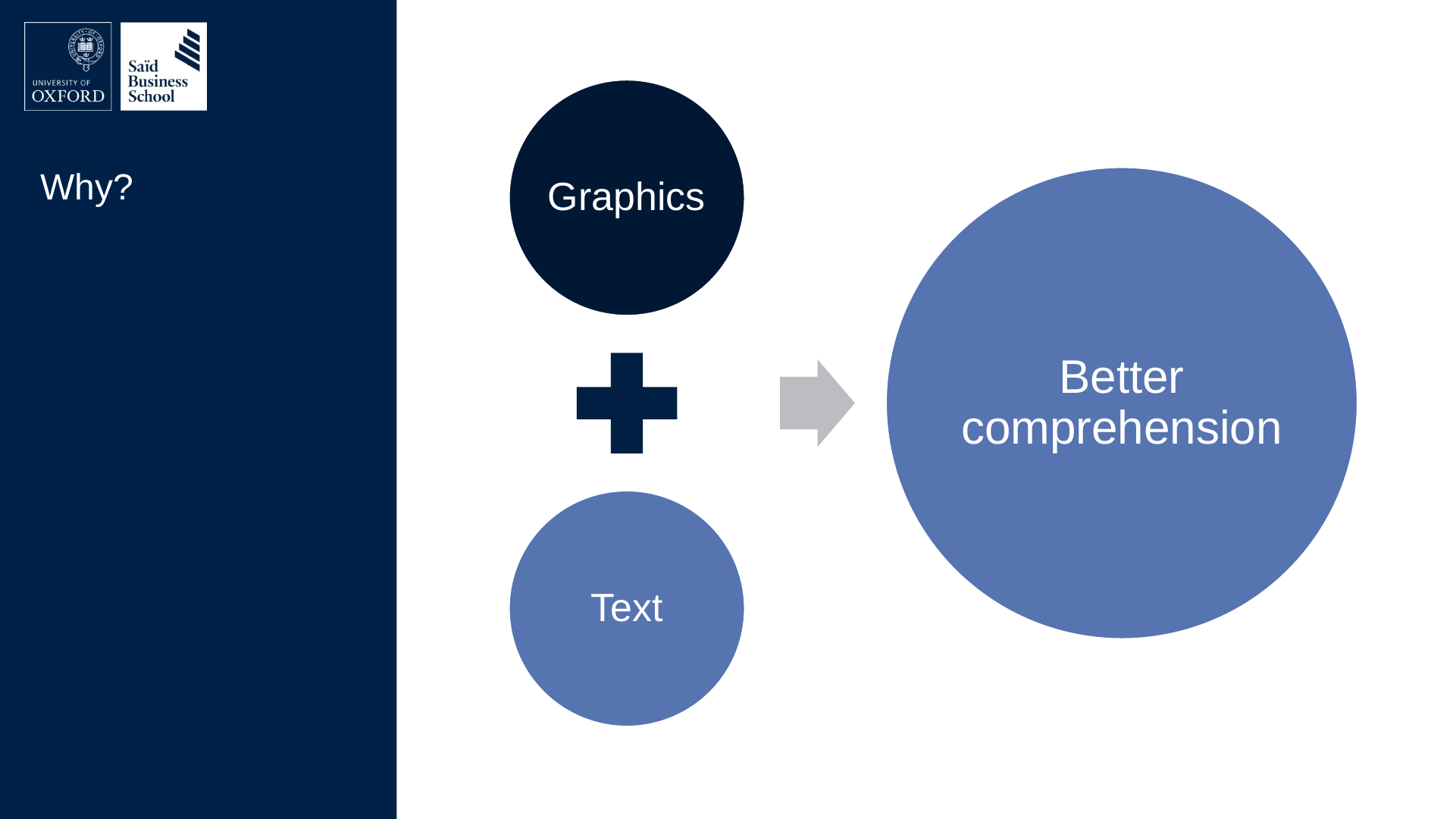
Why?
- Graphics
- Text
- Better comprehension
Slide 5: Slide 5
Slide 6: What?
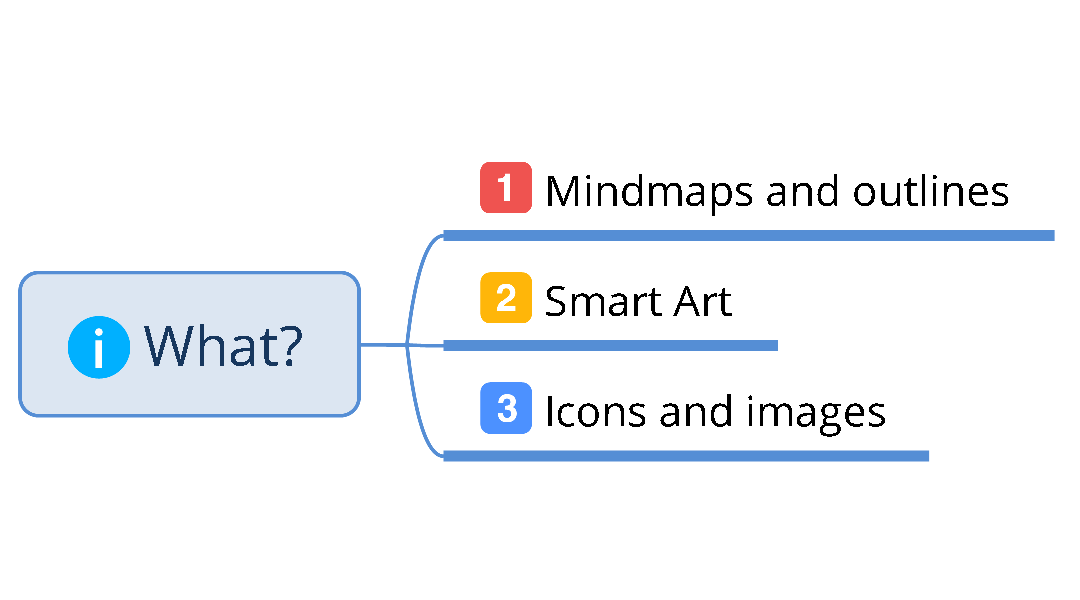
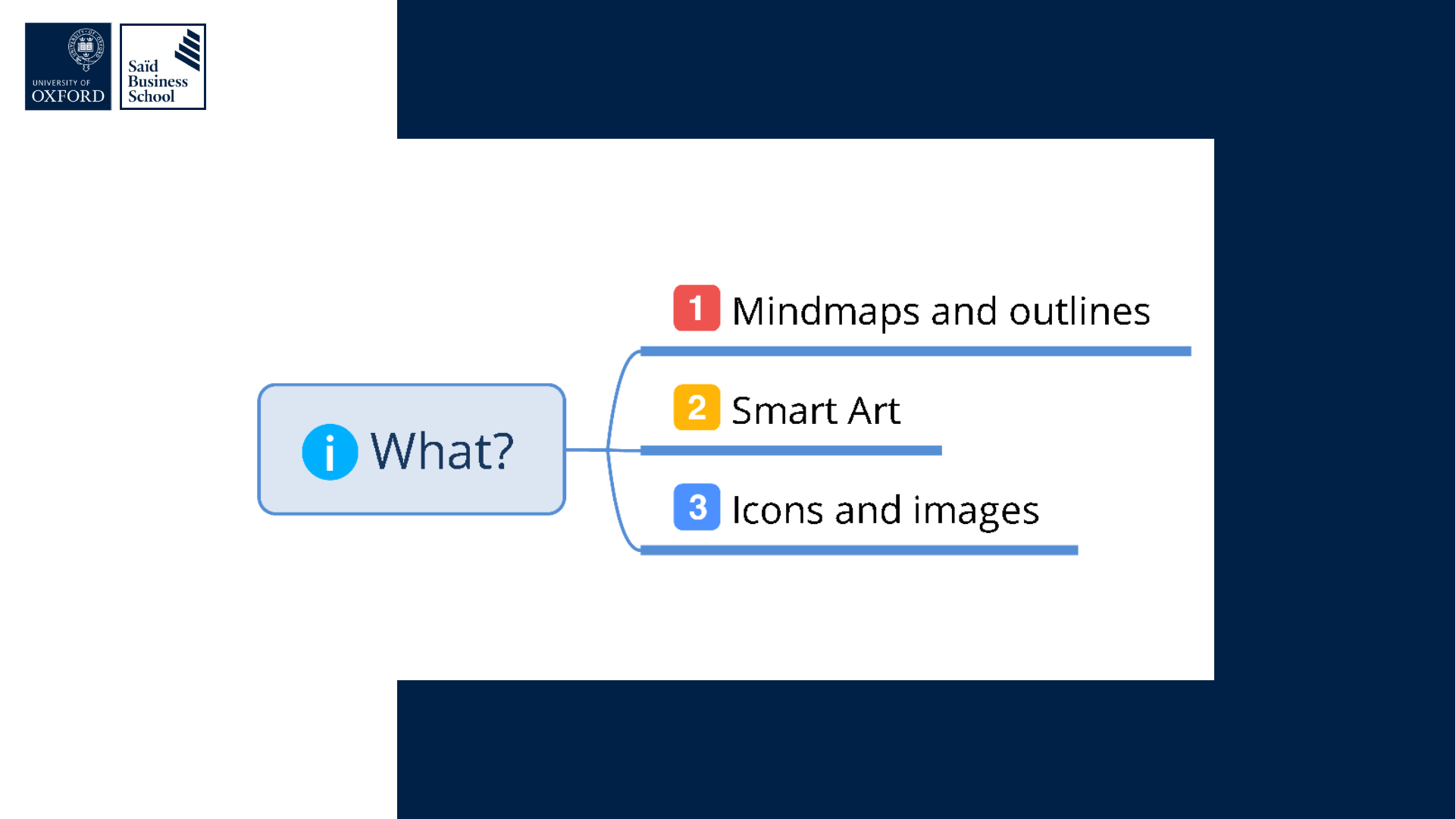
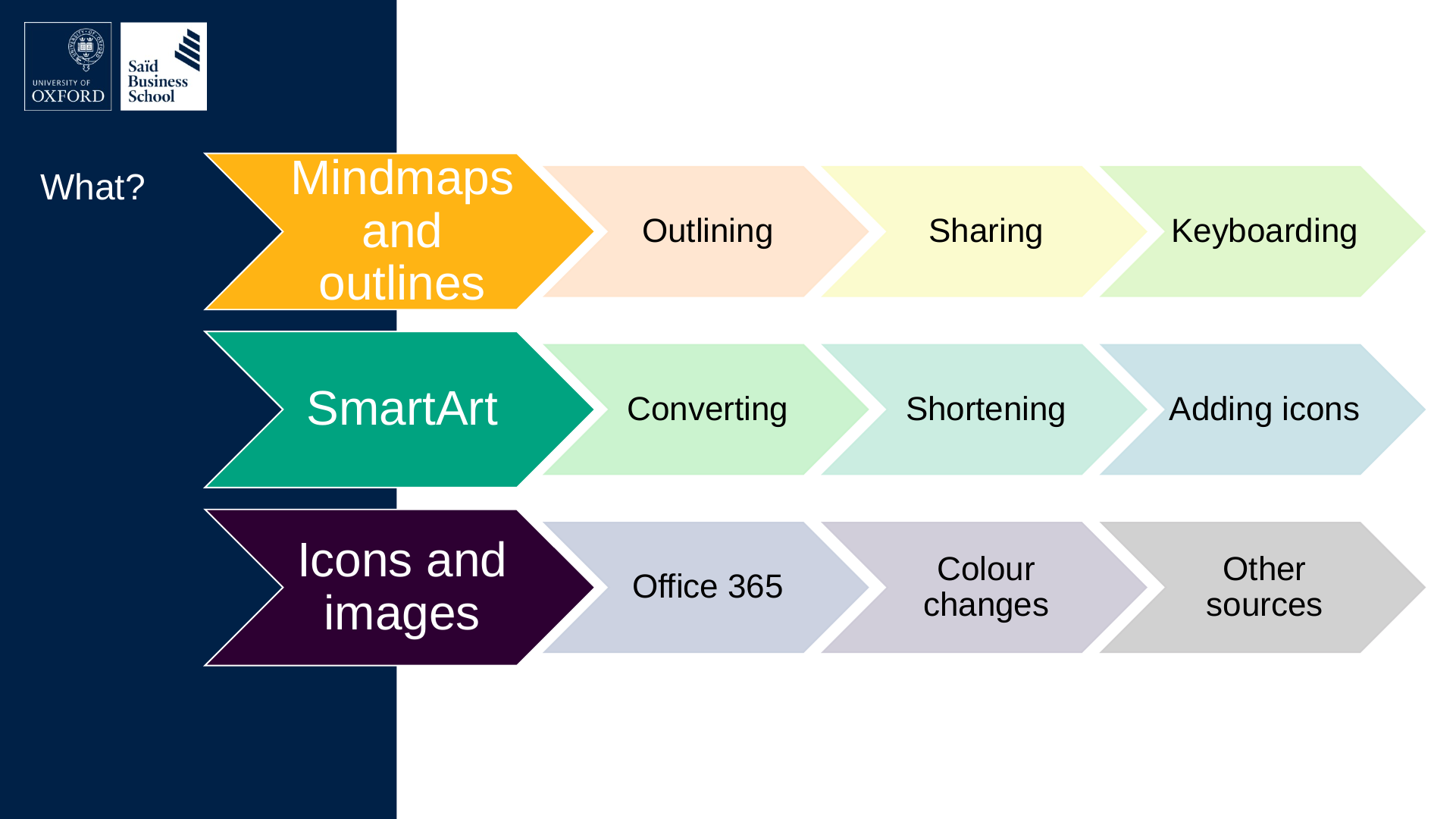
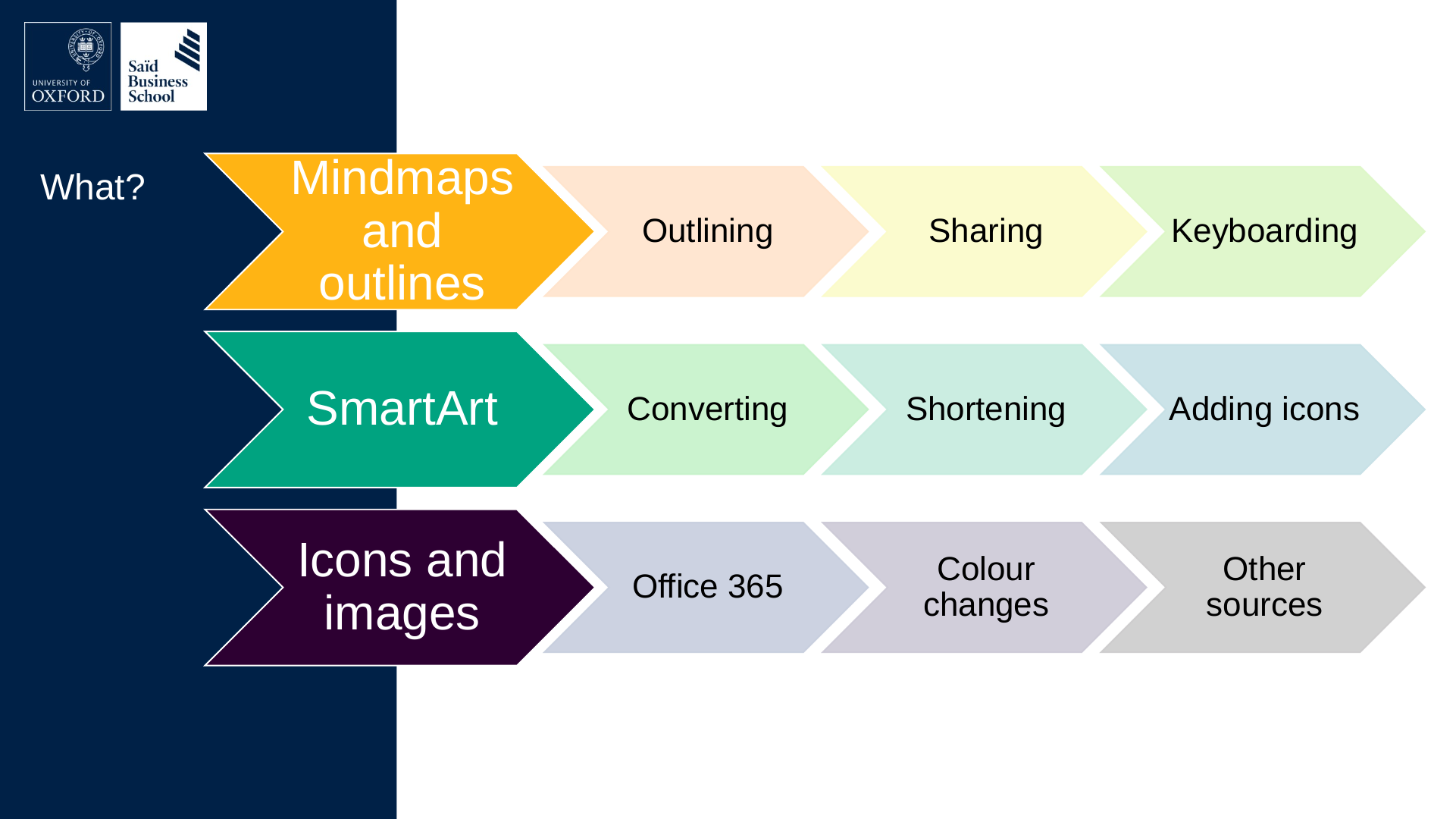
What?
- Mindmaps and outlines
- Outlining
- Sharing
- Keyboarding
- SmartArt
- Converting
- Shortening
- Adding icons
- Icons and images
- Office 365
- Colour changes
- Other sources
Slide 7: Three Principles of Readable Formatting
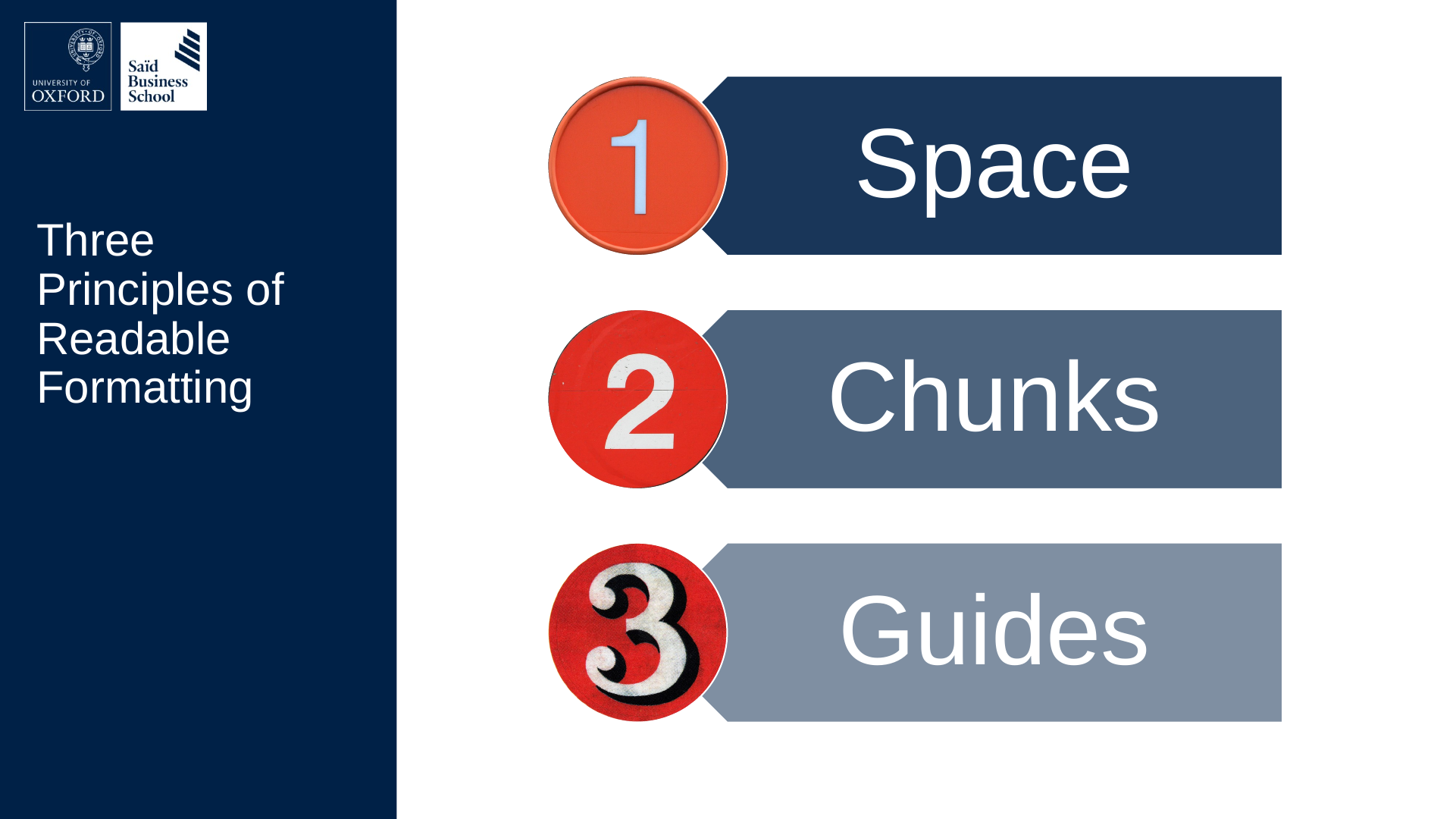
Three Principles of Readable Formatting
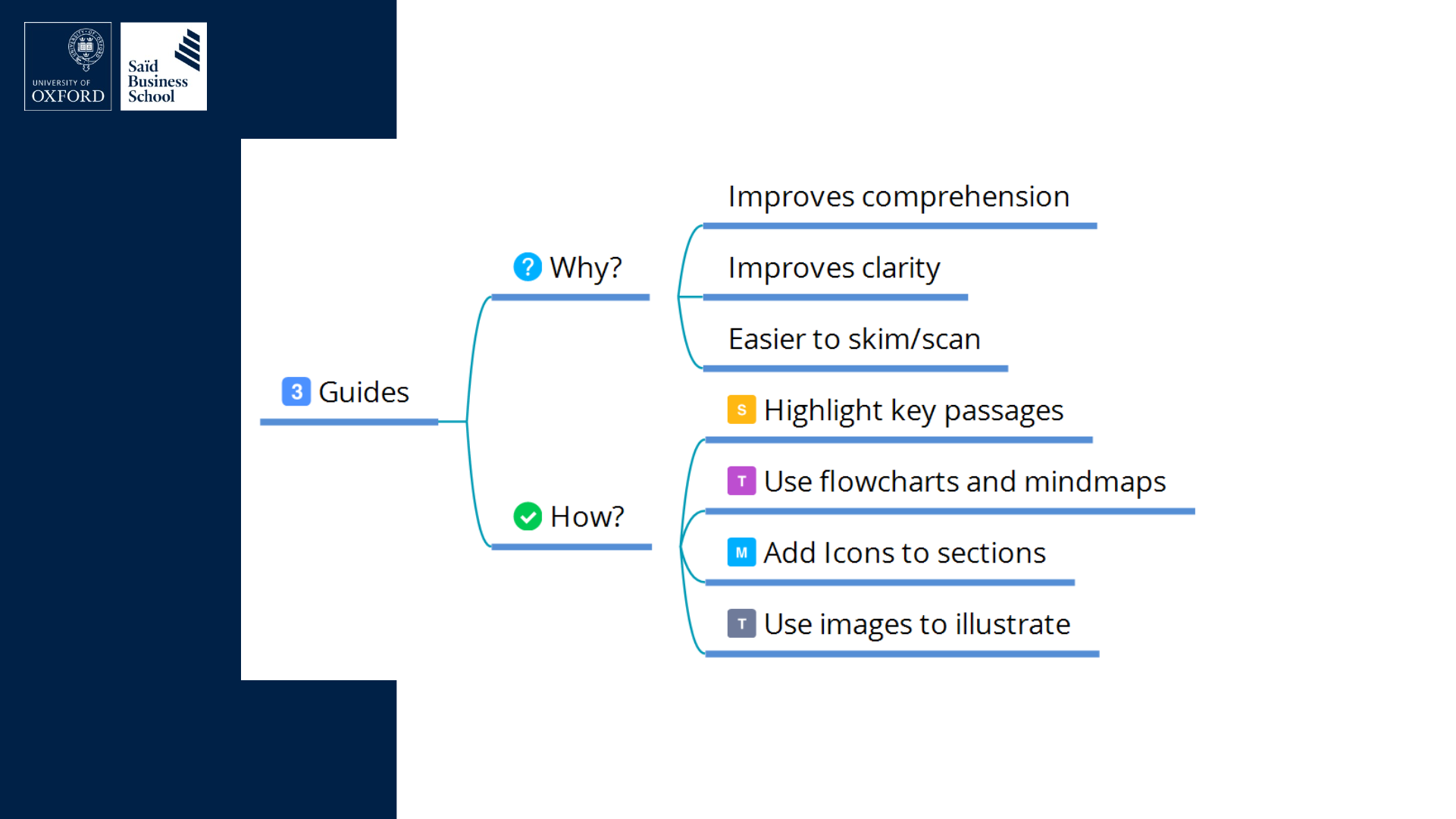
- Space
- Chunks
- Guides
Slide 8: Slide 8
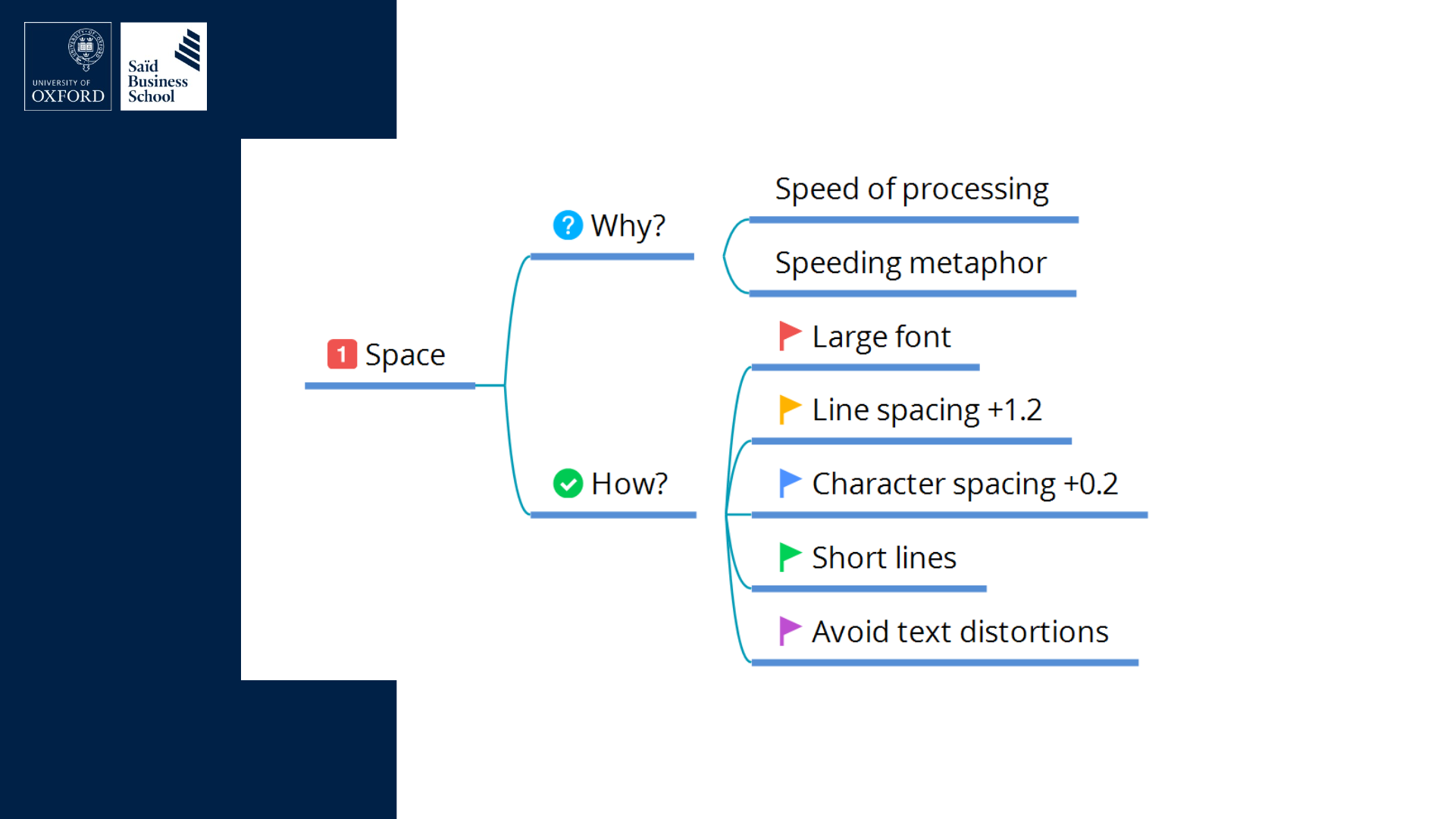
Slide 9: Slide 9
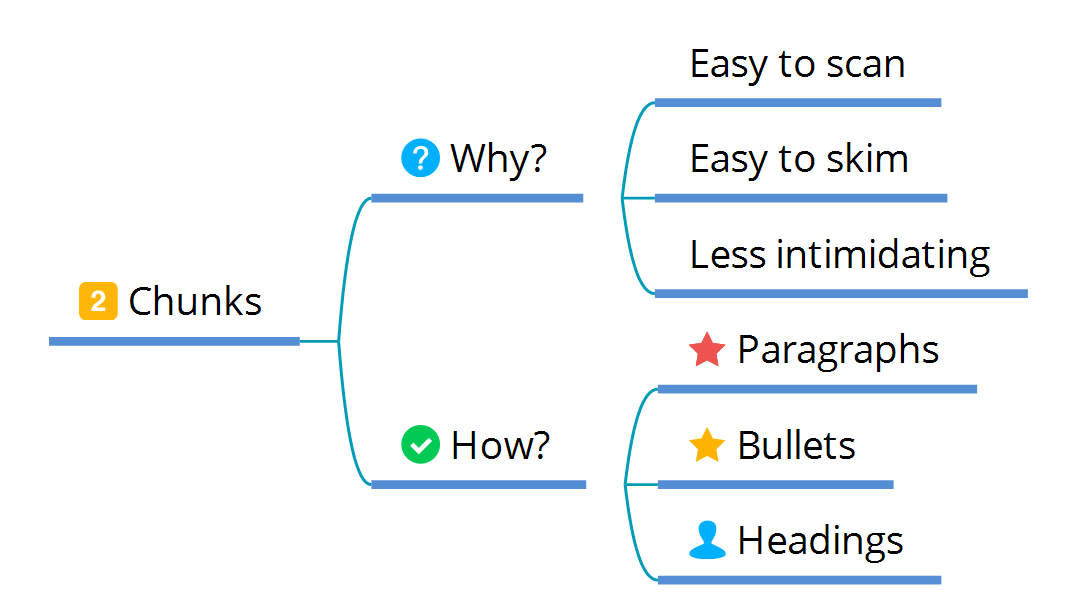
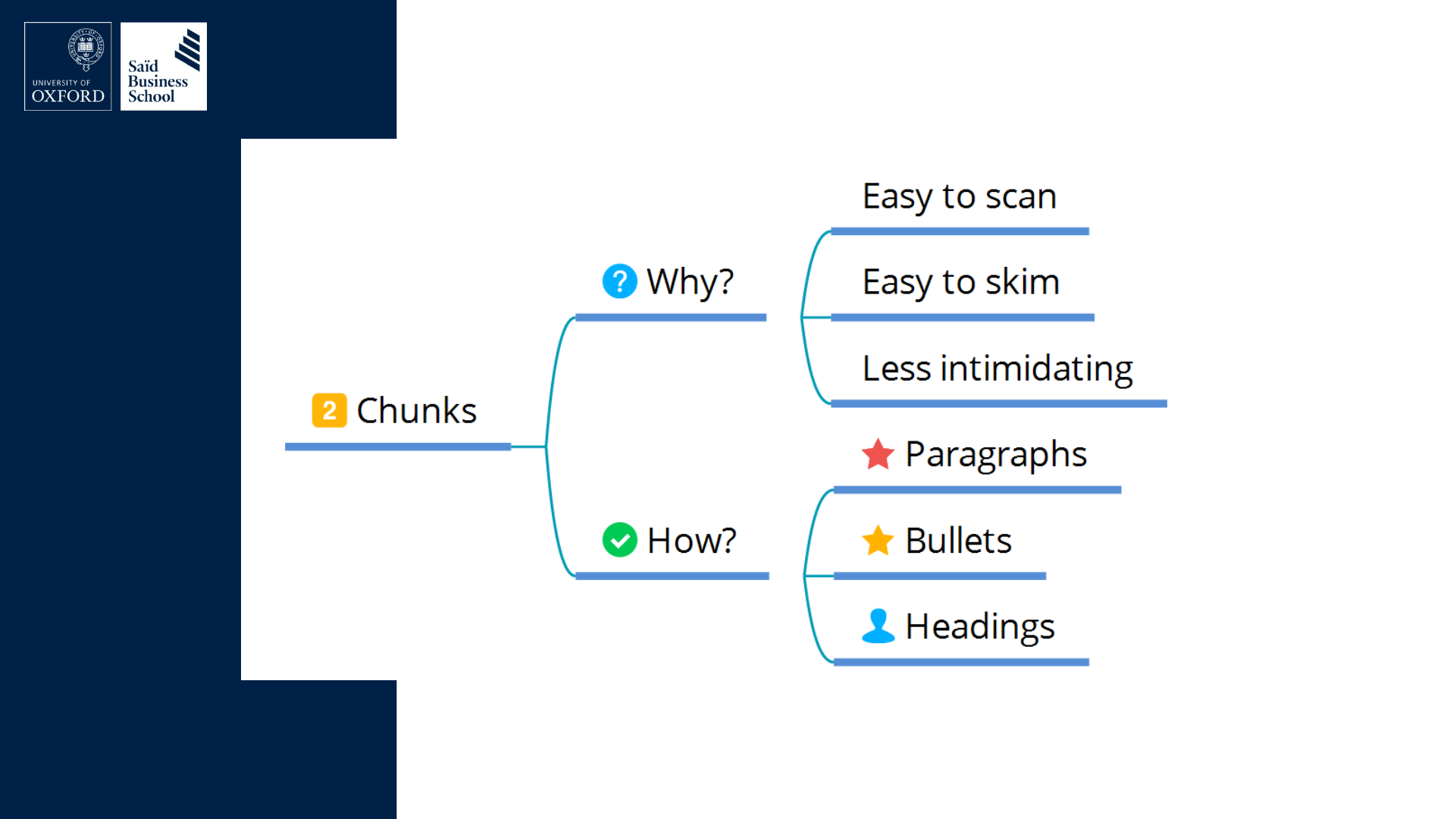
Slide 10: Slide 10
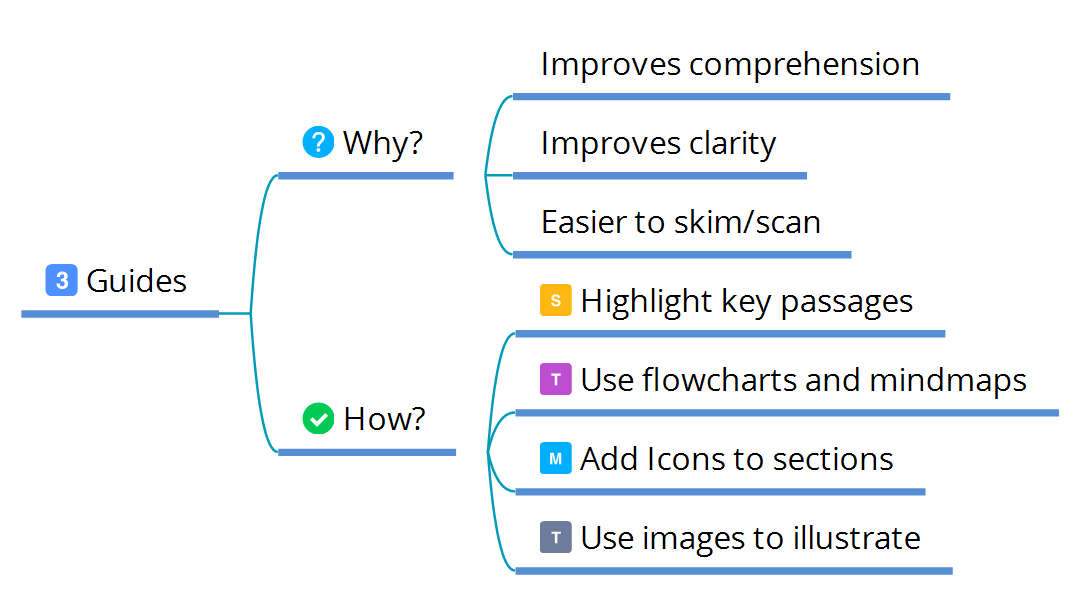
Slide 11: Building the conceptual structure with outlines and Mind Maps
Building the conceptual structure with outlines and Mind Maps
Slide 12: Slide 12
Slide 13: Slide 13
Slide 14: Slide 14
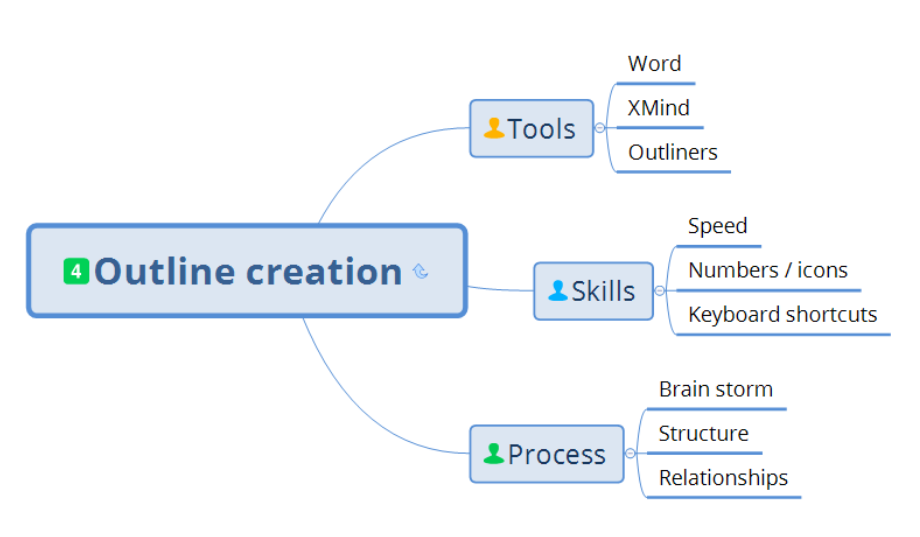
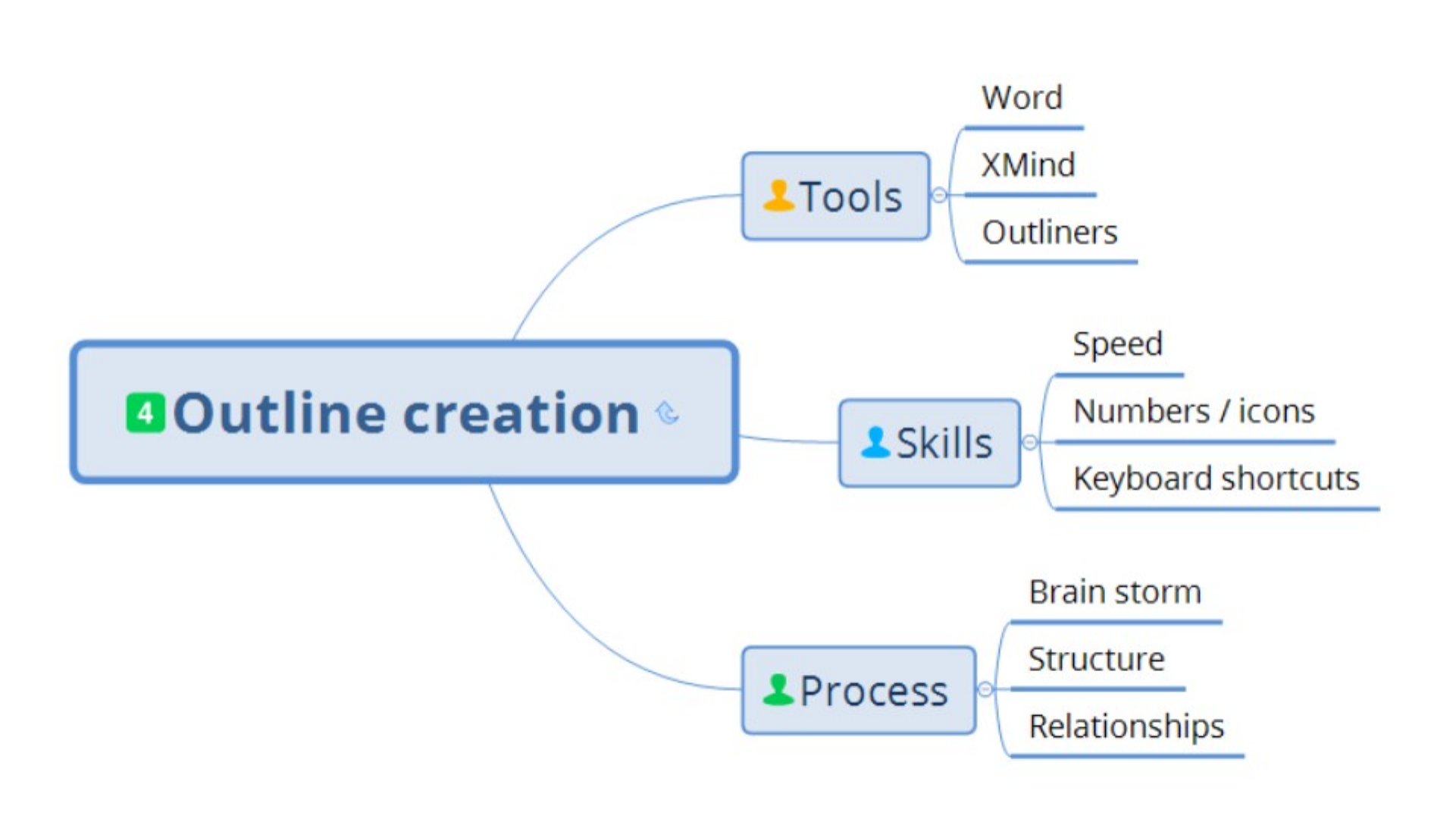
- Process
- Brainstorm
- Structure
- Chunks

Slide 15: Slide 15
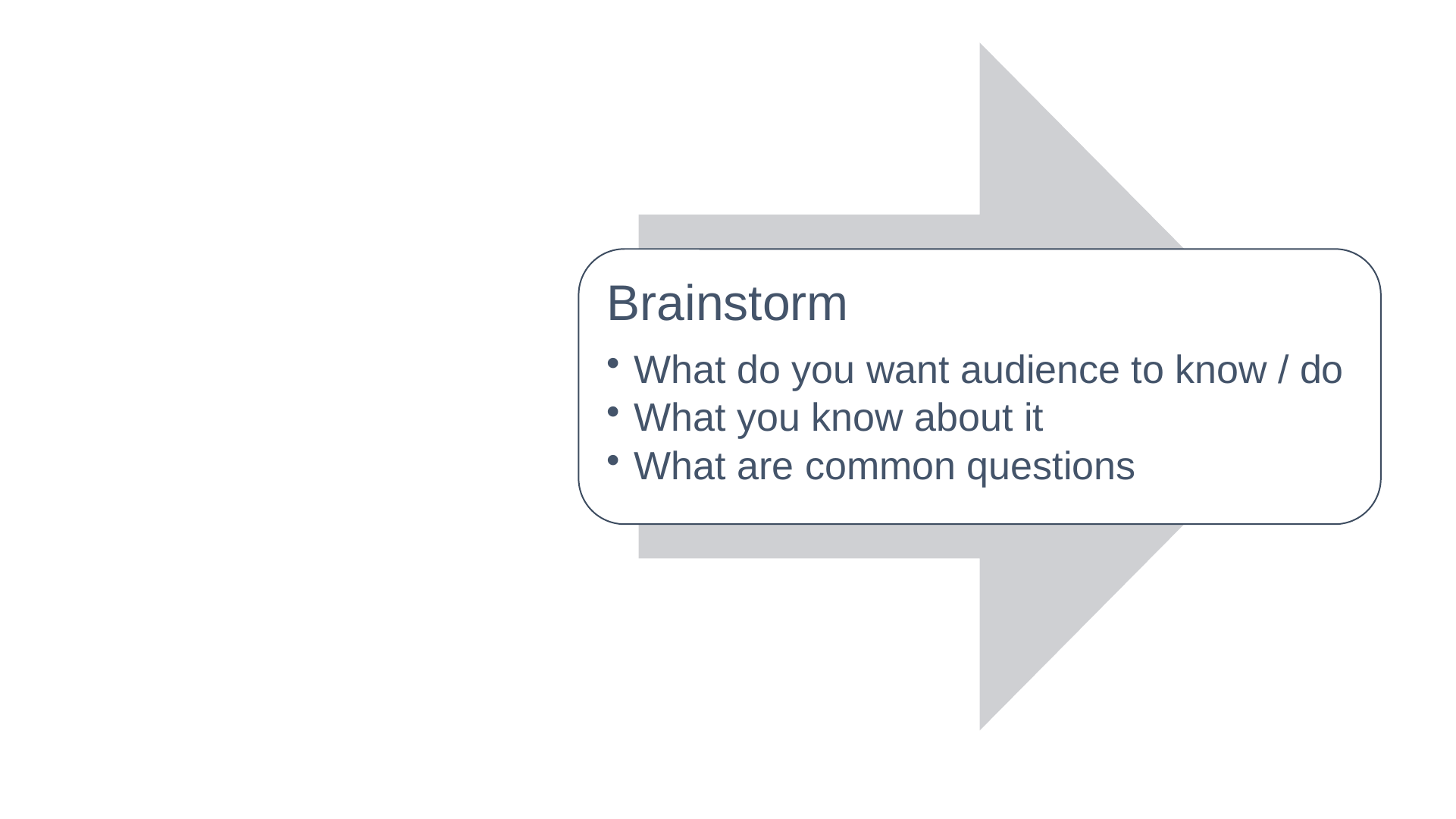
Brainstorm
- What do you want audience to know / do
- What you know about it
- What are common questions
Slide 16: Slide 16
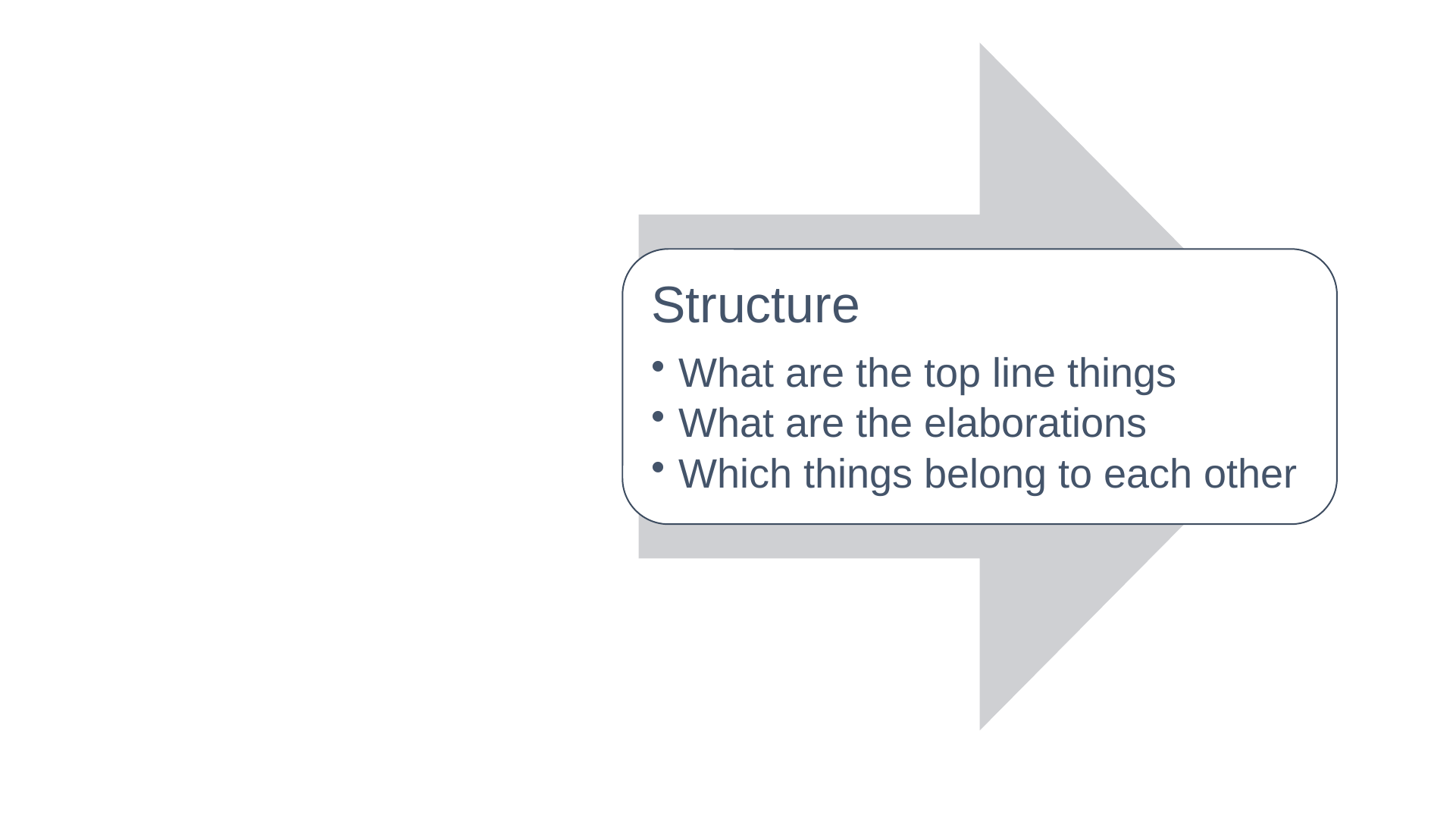
Structure
- What are the top line things
- What are the elaborations
- Which things belong to each other
Slide 17: Slide 17
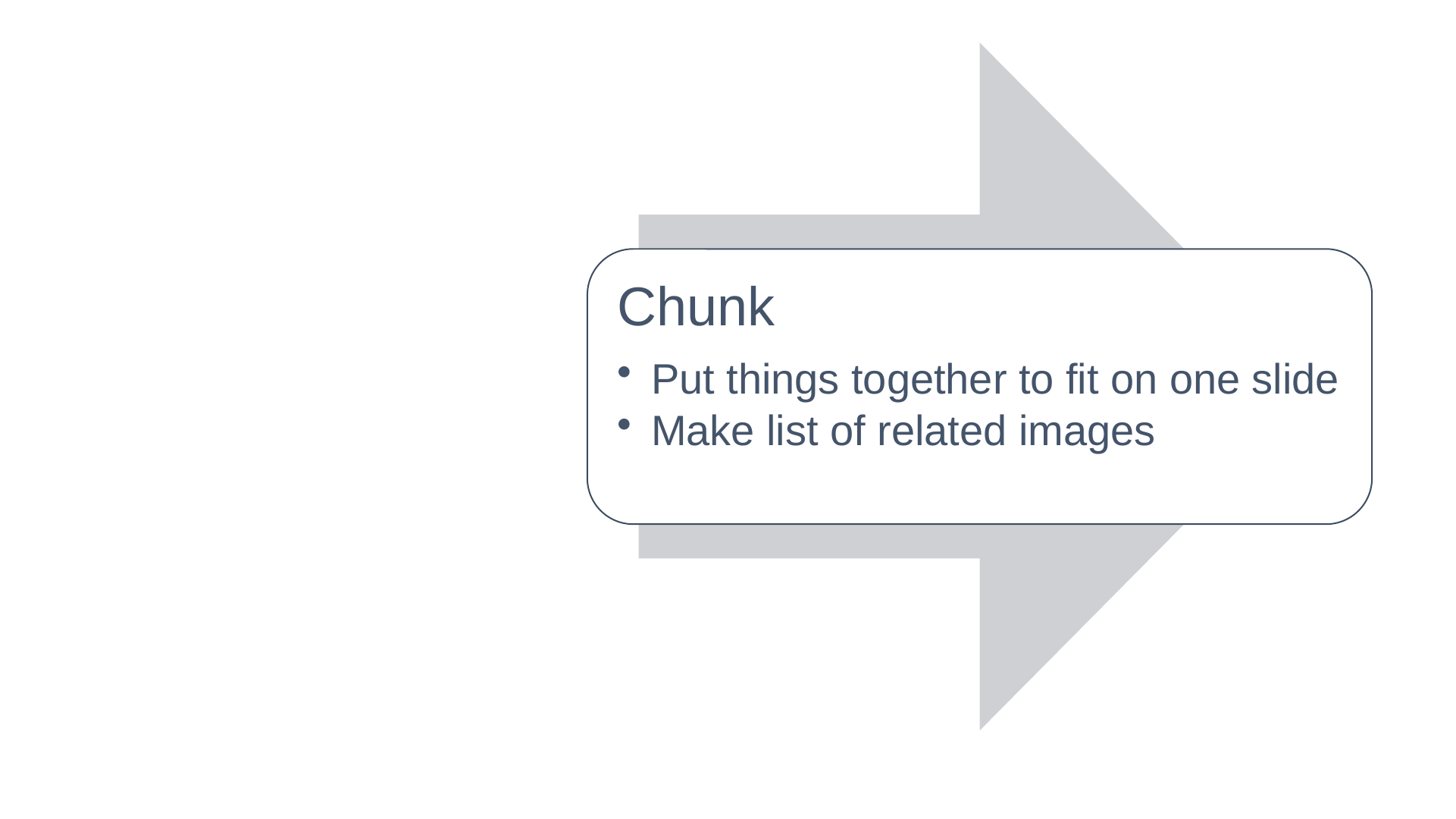
Chunk
- Put things together to fit on one slide
- Make list of related images
Slide 18: Slide 18
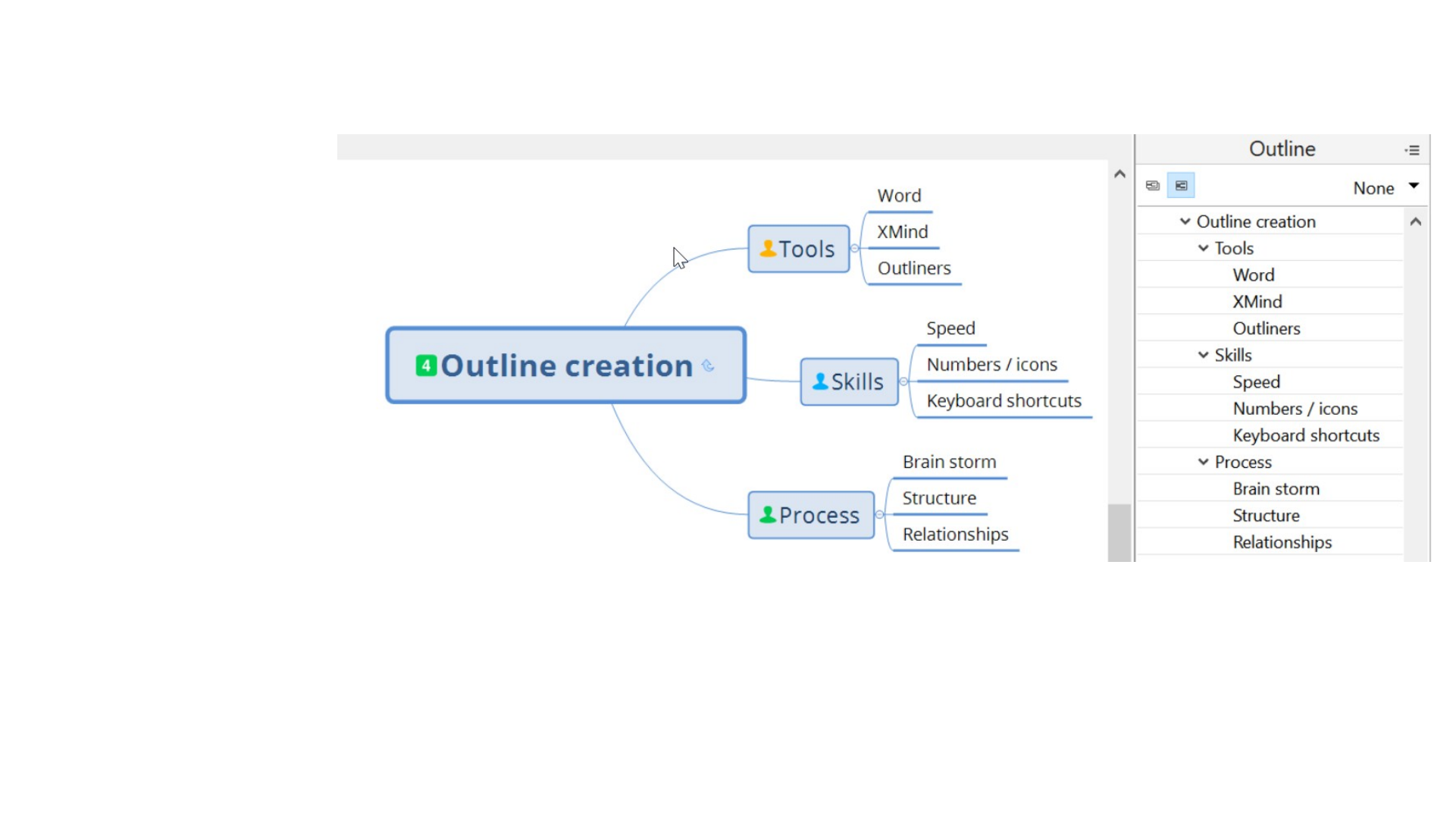
- Tools
- Word
- XMind
- Outliners

Slide 19: Pen and paper are great for outlining
Pen and paper are great for outlining


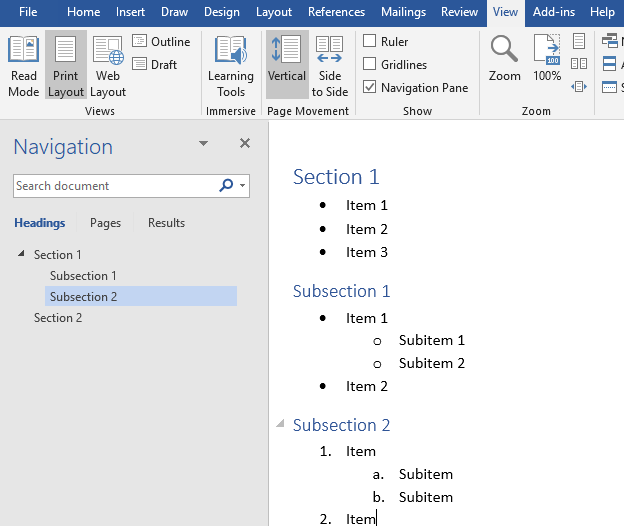
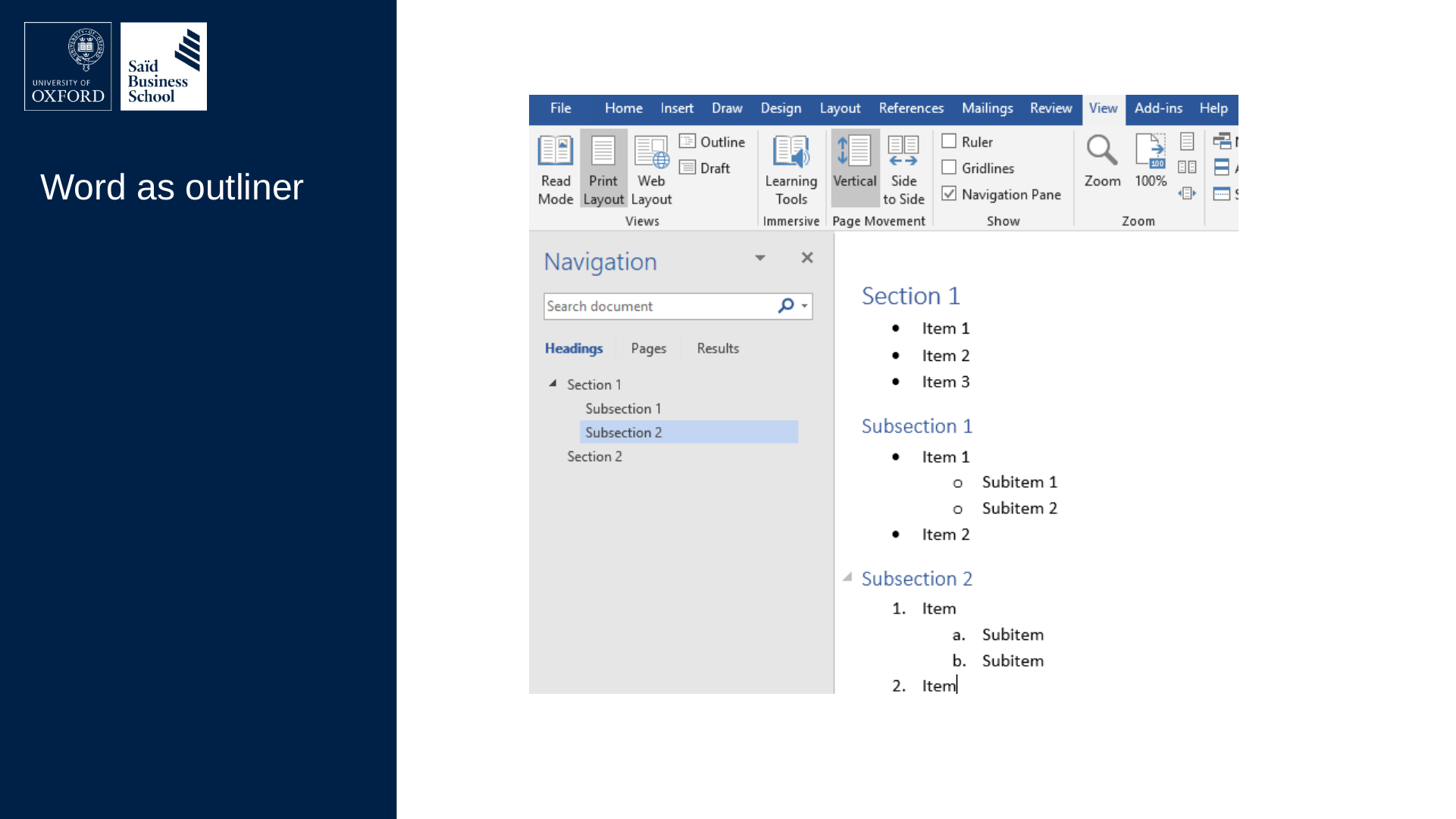
Slide 20: Word as outliner
Word as outliner
Slide 21: Universal outlining shortcuts
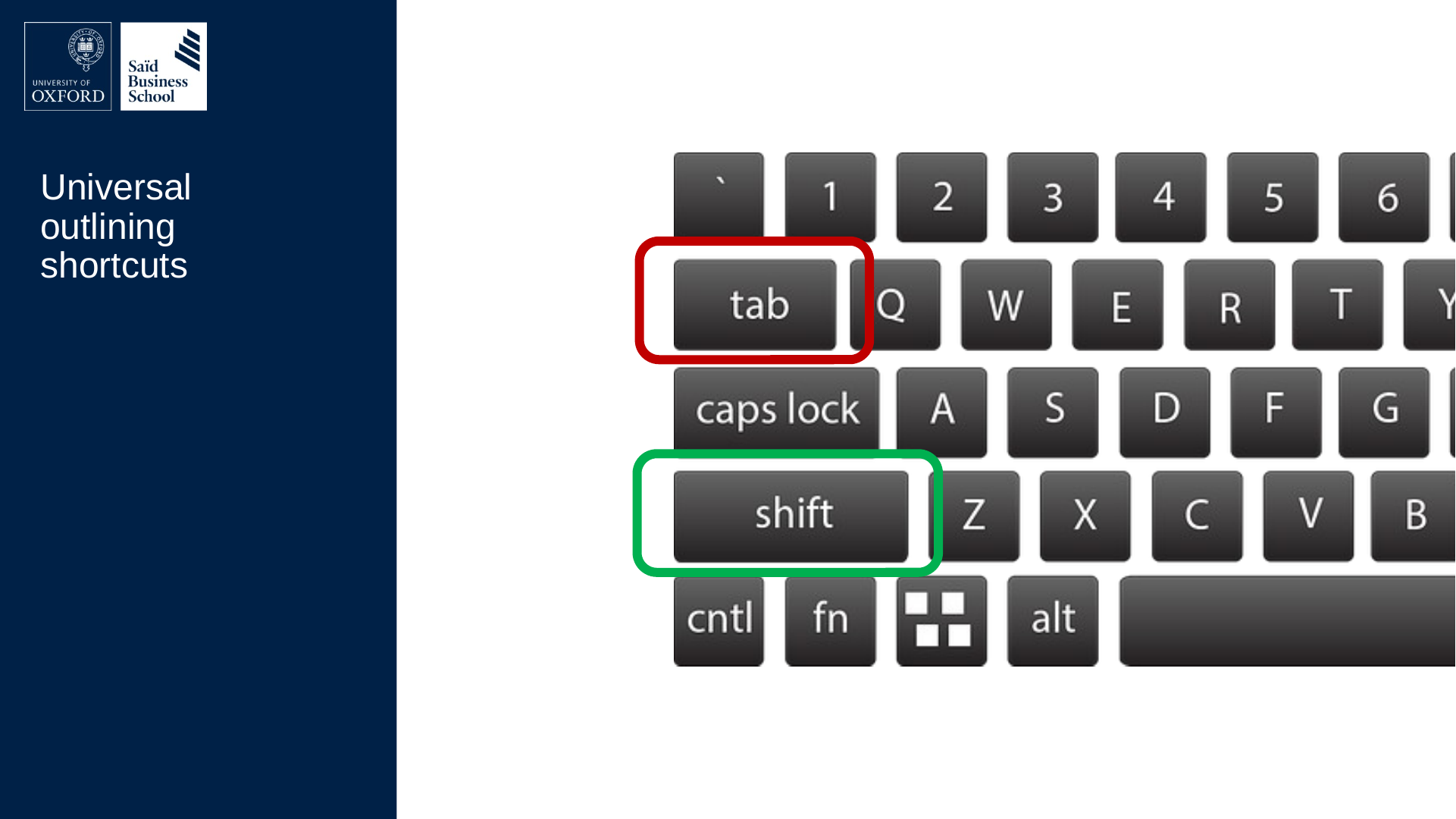
Universal outlining shortcuts
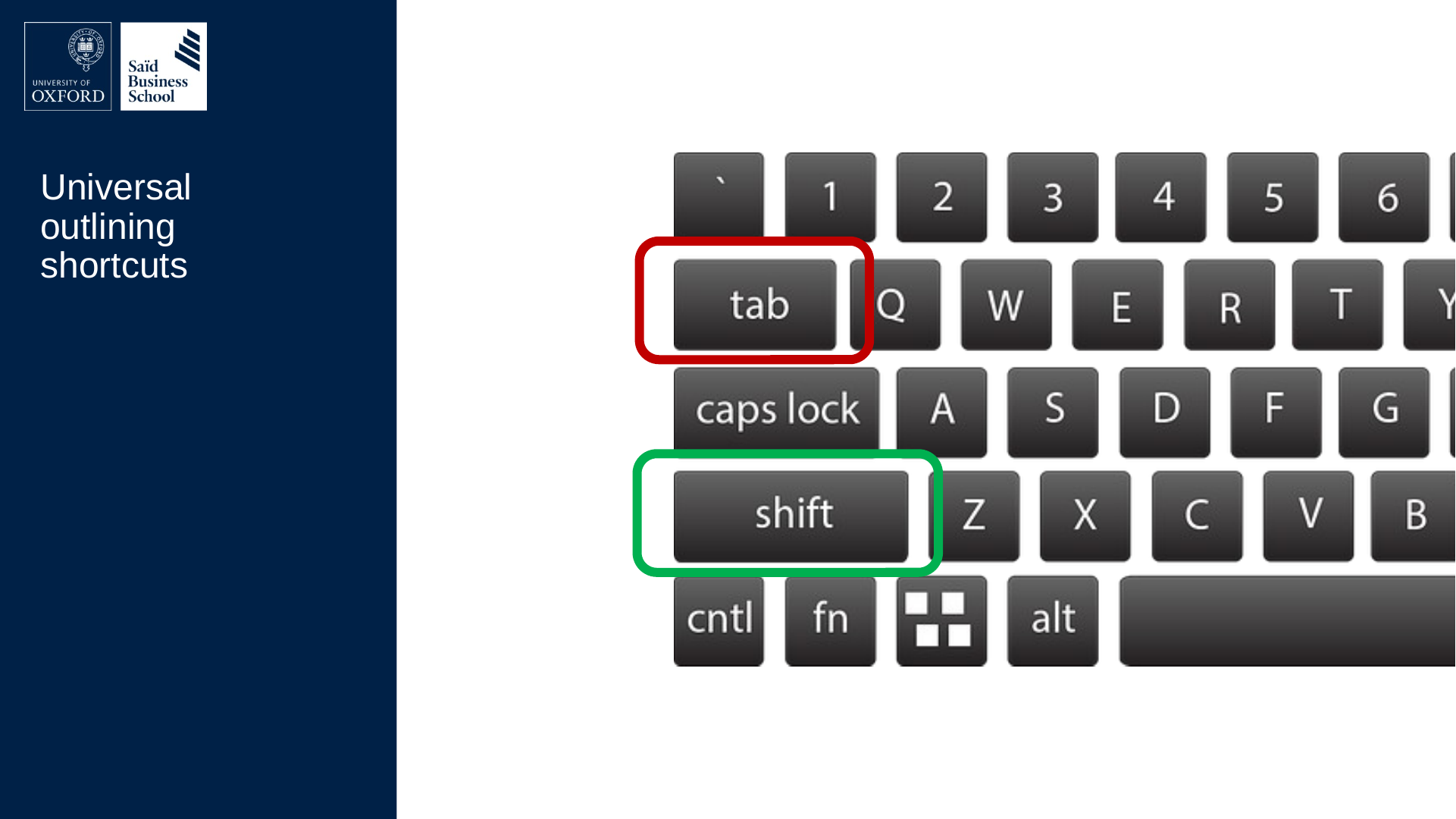
Keys marked on the keyboard: Tab (red box) and Shift (green box).
Slide 22: Creating a nested list without a mouse
Creating a nested list without a mouse


Slide 23: Super advanced and productive shortcut
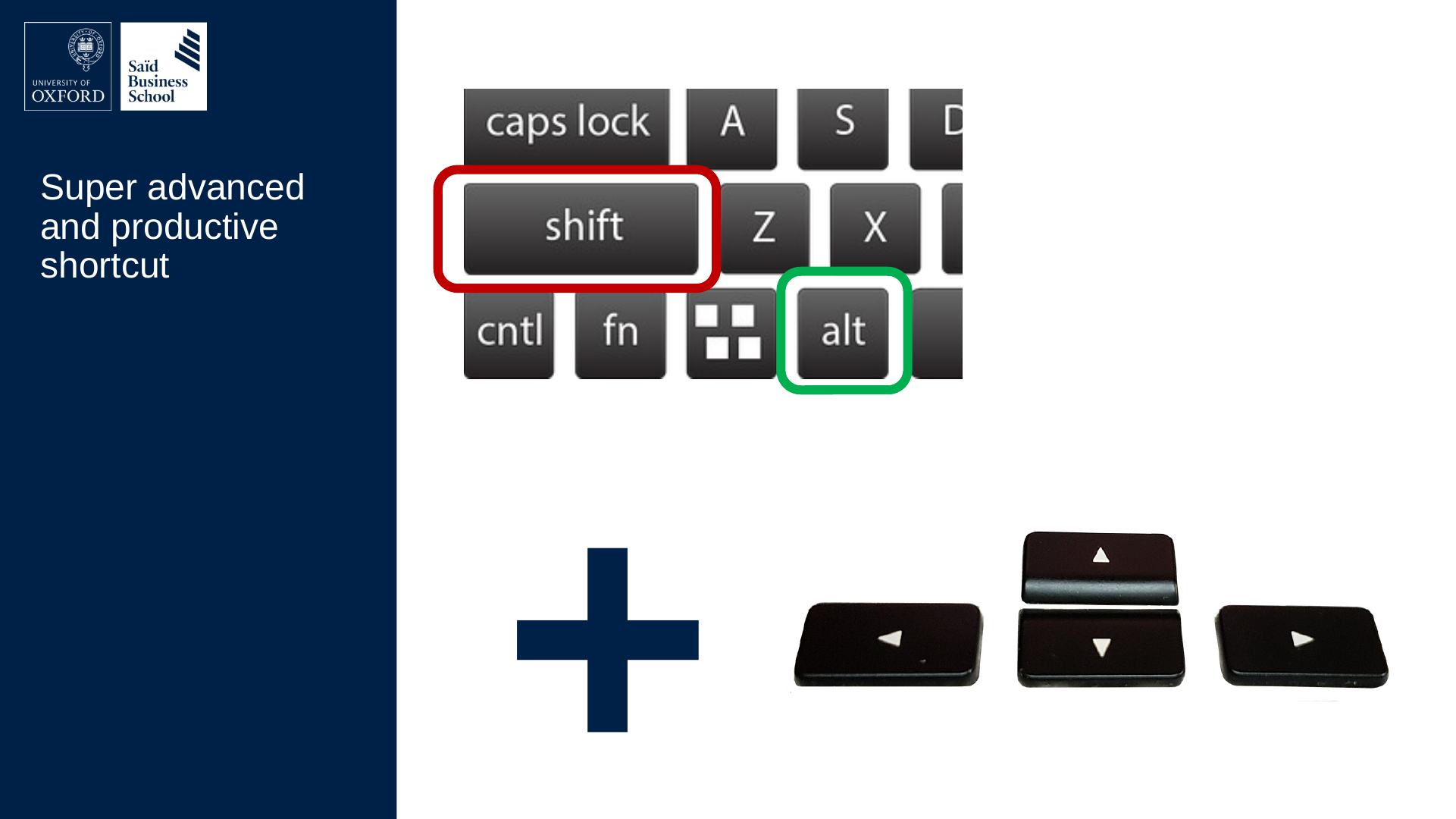
Super advanced and productive shortcut
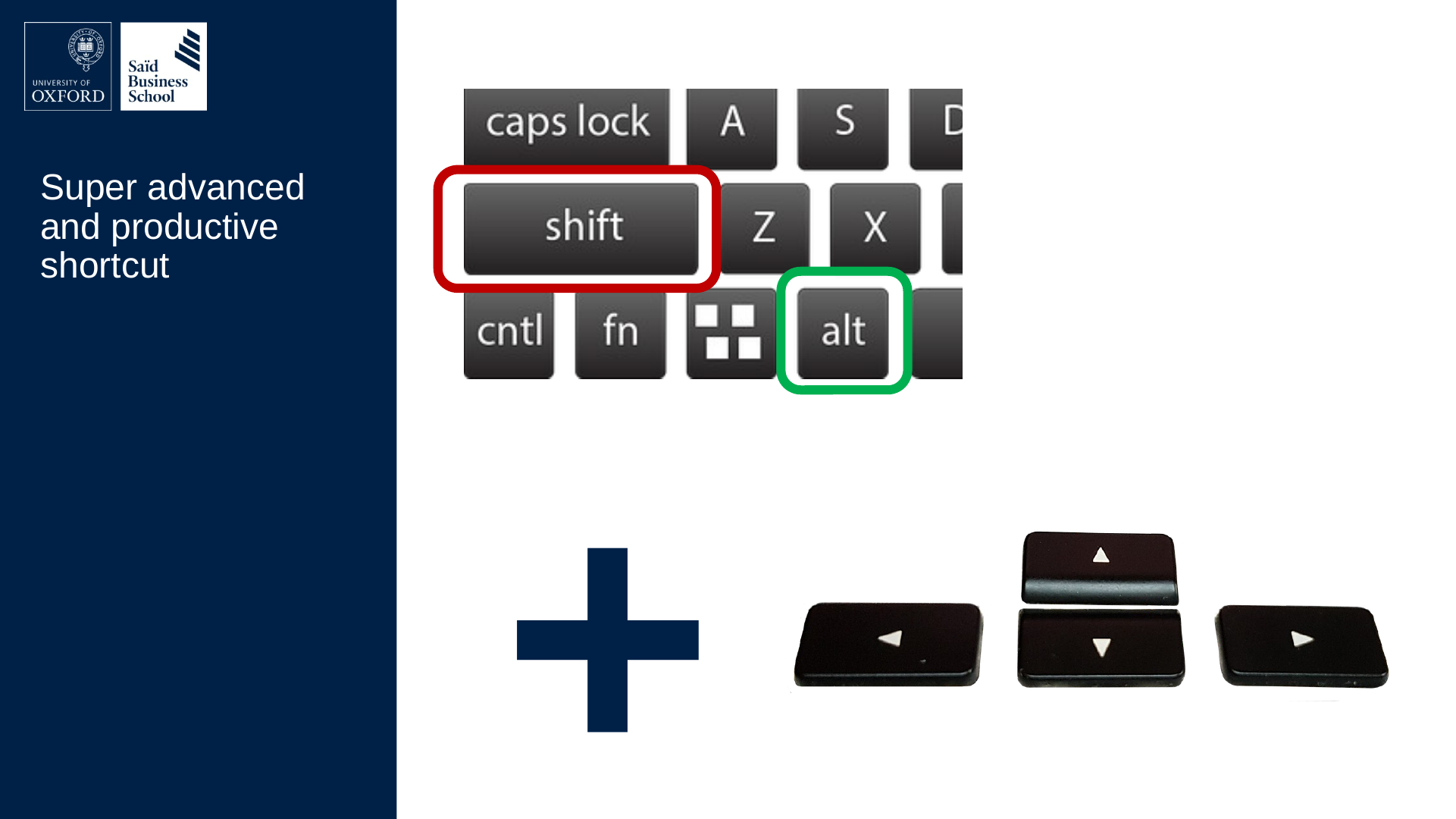
Keys marked on the keyboard: Shift (red box) and Alt (green box)
+
The four arrow keys.
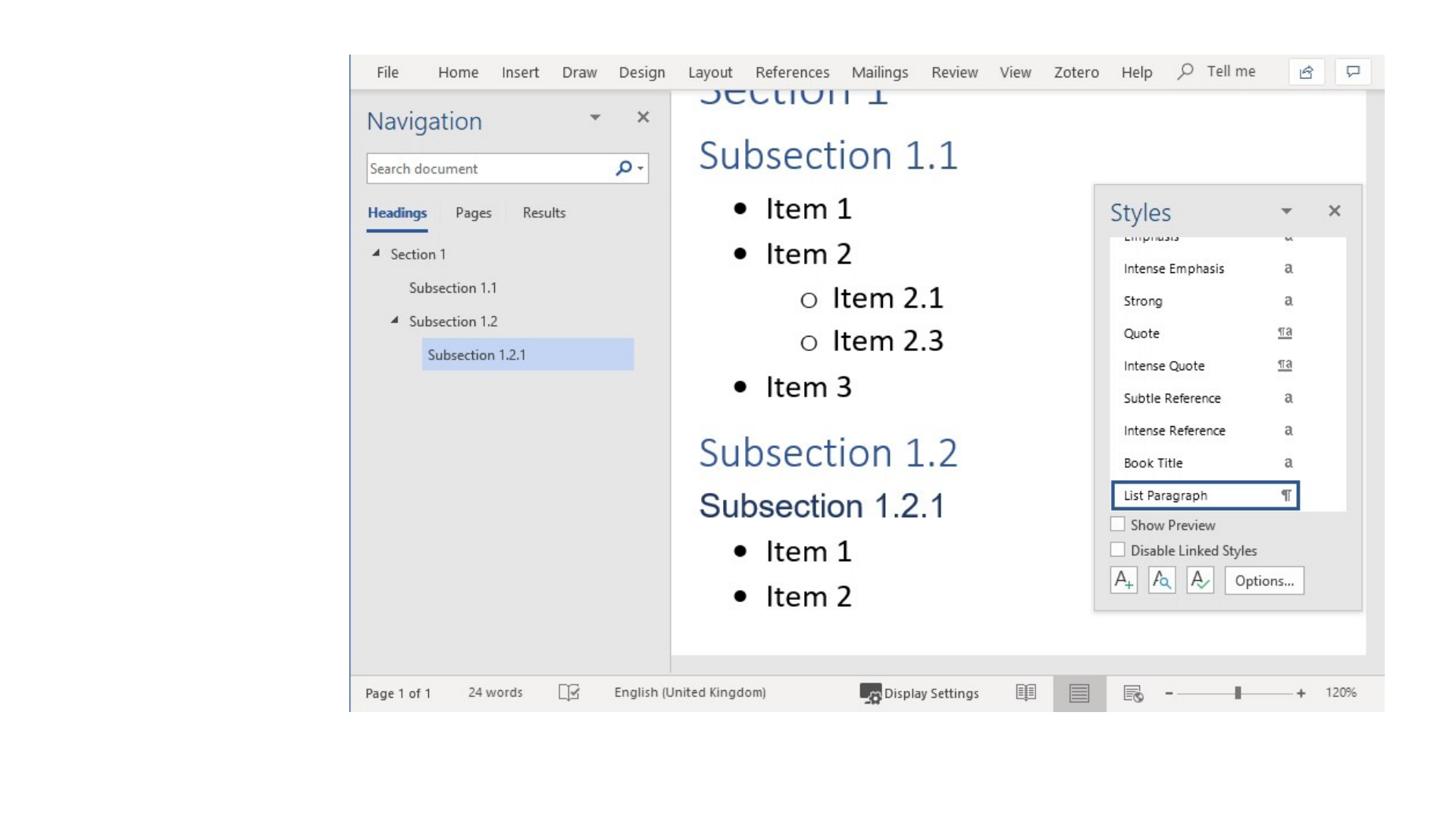
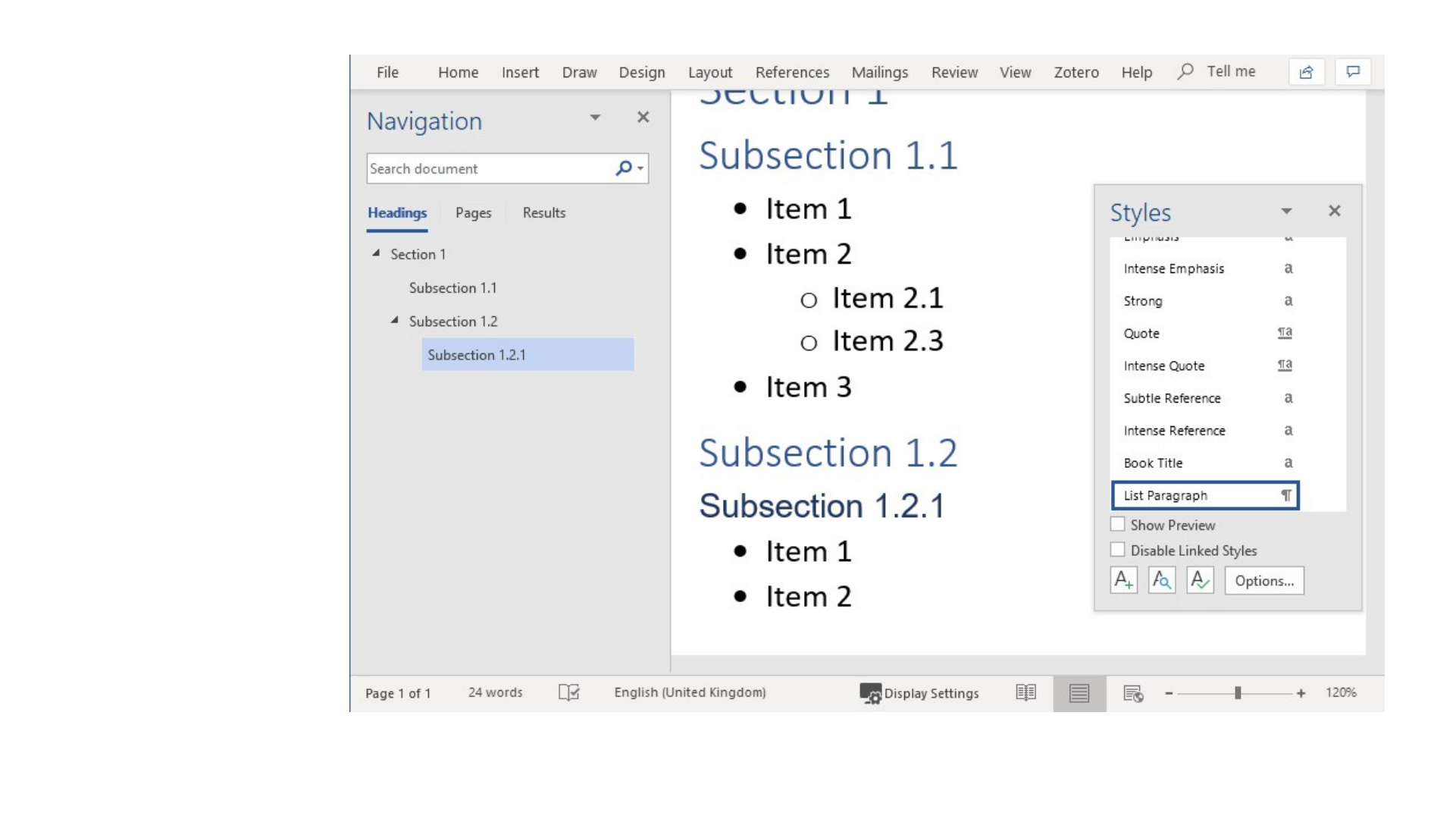
Slide 24: Creating a document outline without a mouse (Shift-Alt-LEFT/RIGHT)
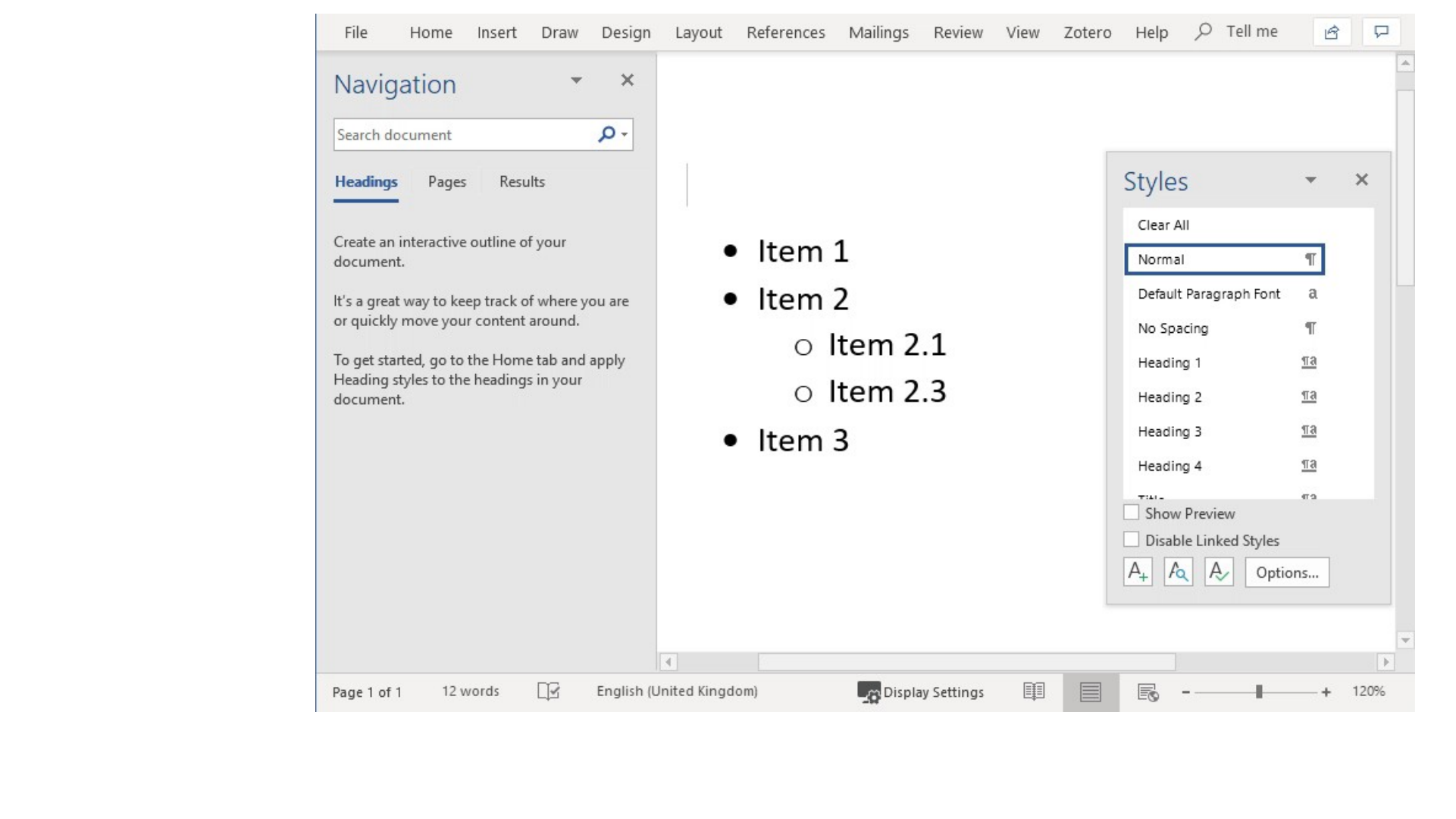
Creating a document outline without a mouse (Shift-Alt-LEFT/RIGHT)
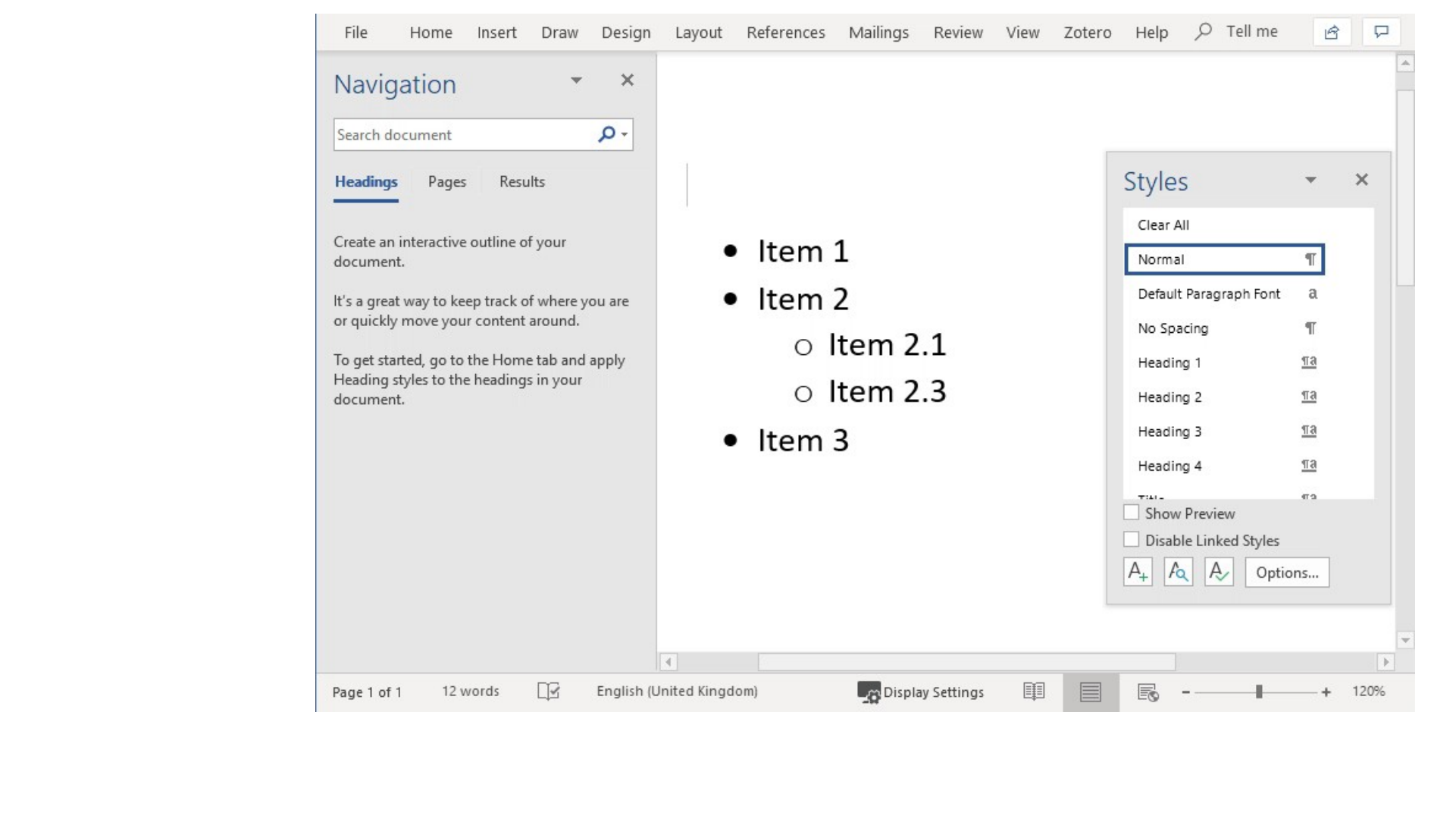
Slide 25: Moving items without a mouse (Shift-Alt-UP/DOWN)
Moving items without a mouse (Shift-Alt-UP/DOWN)
Slide 26: Slide 26


Slide 27: XMind is free (for all the necessary features)
XMind is free (for all the necessary features)
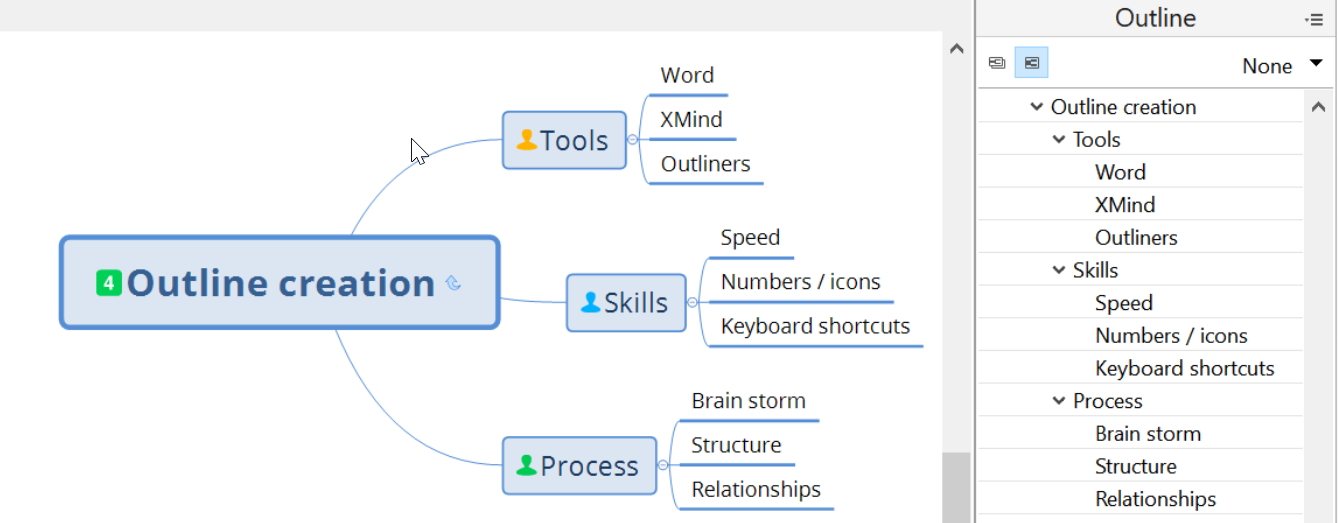
Slide 28: Mindmaps as outlining tools
Mindmaps as outlining tools
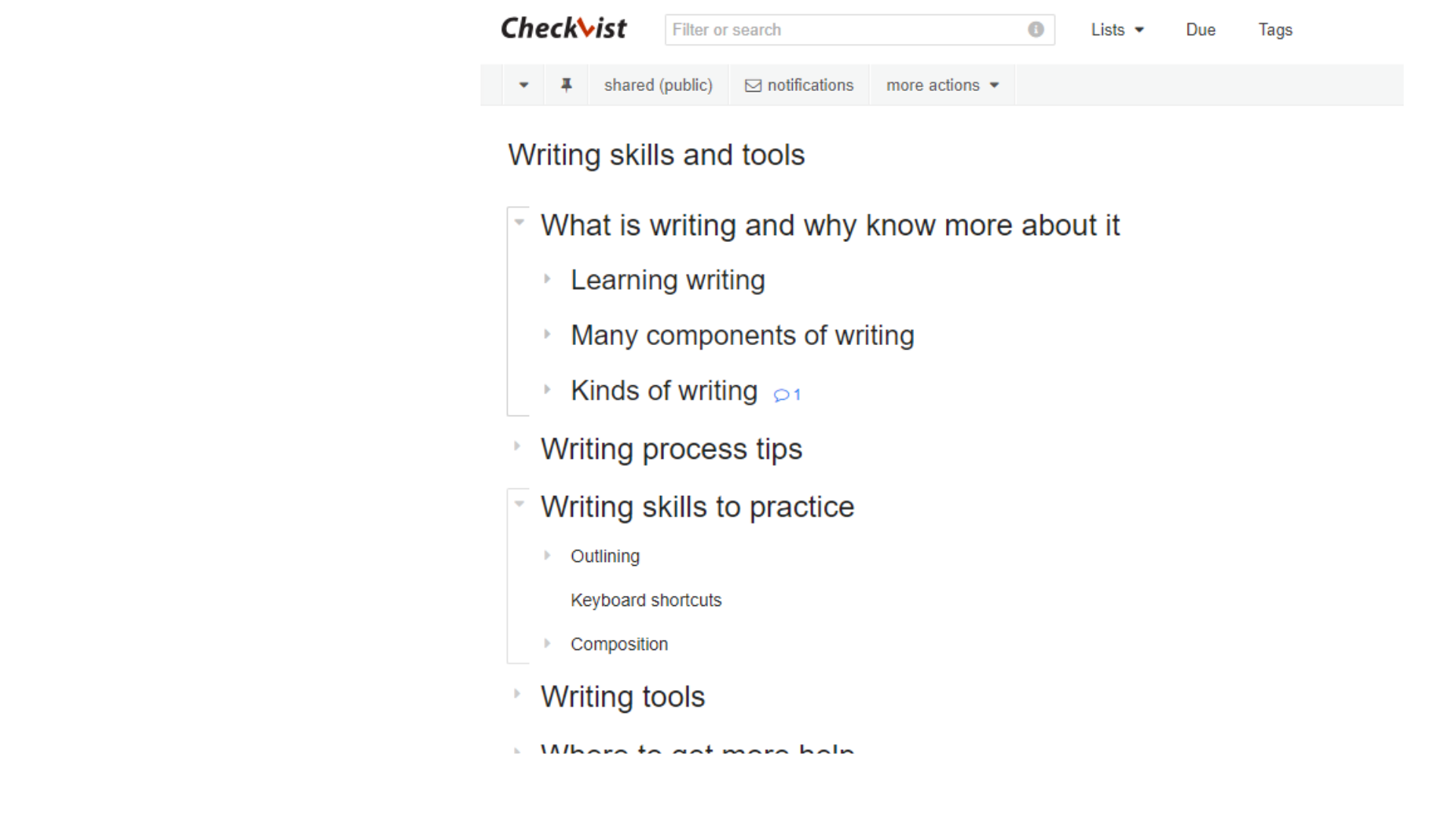
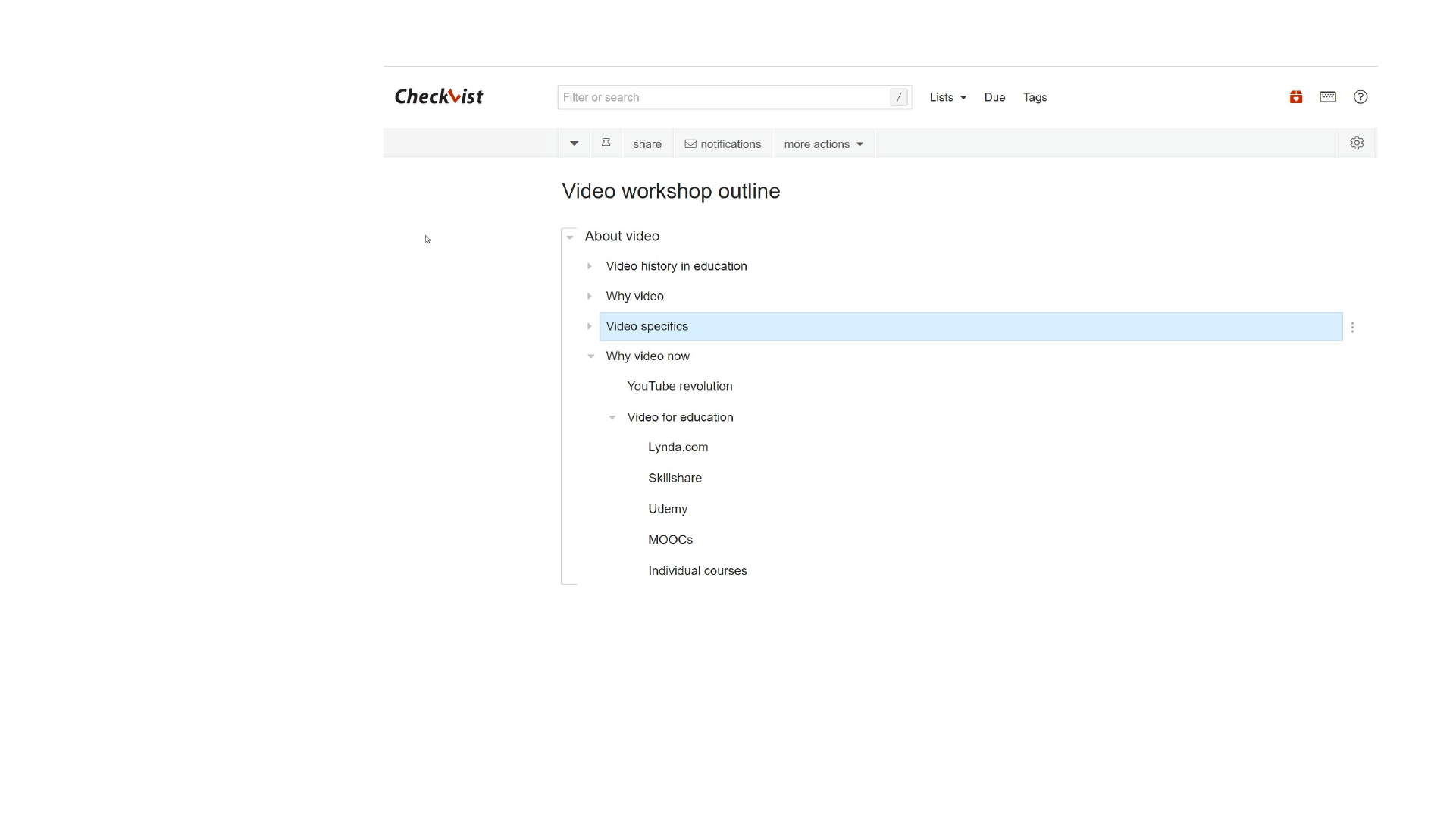
Slide 29: Outline made with Checkvist
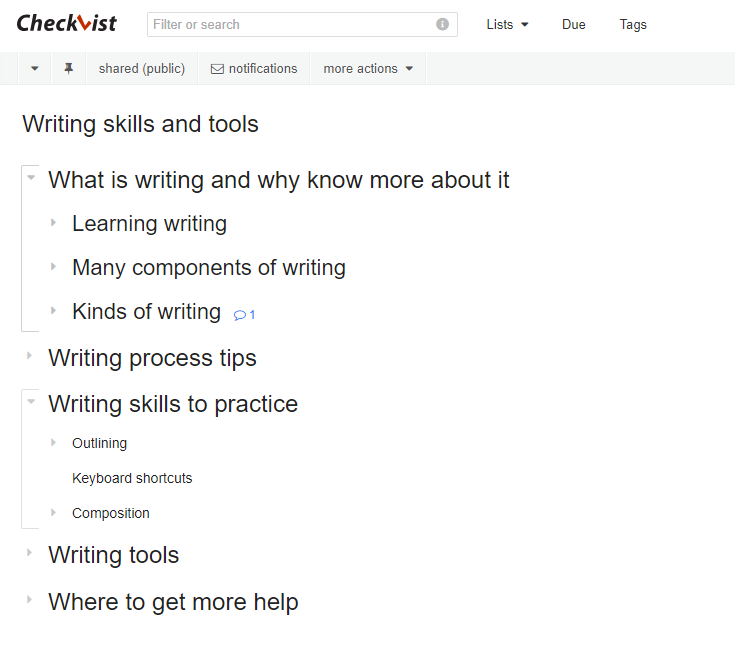
Outline made with Checkvist
Slide 30: Mindmap made with XMind
Mindmap made with XMind
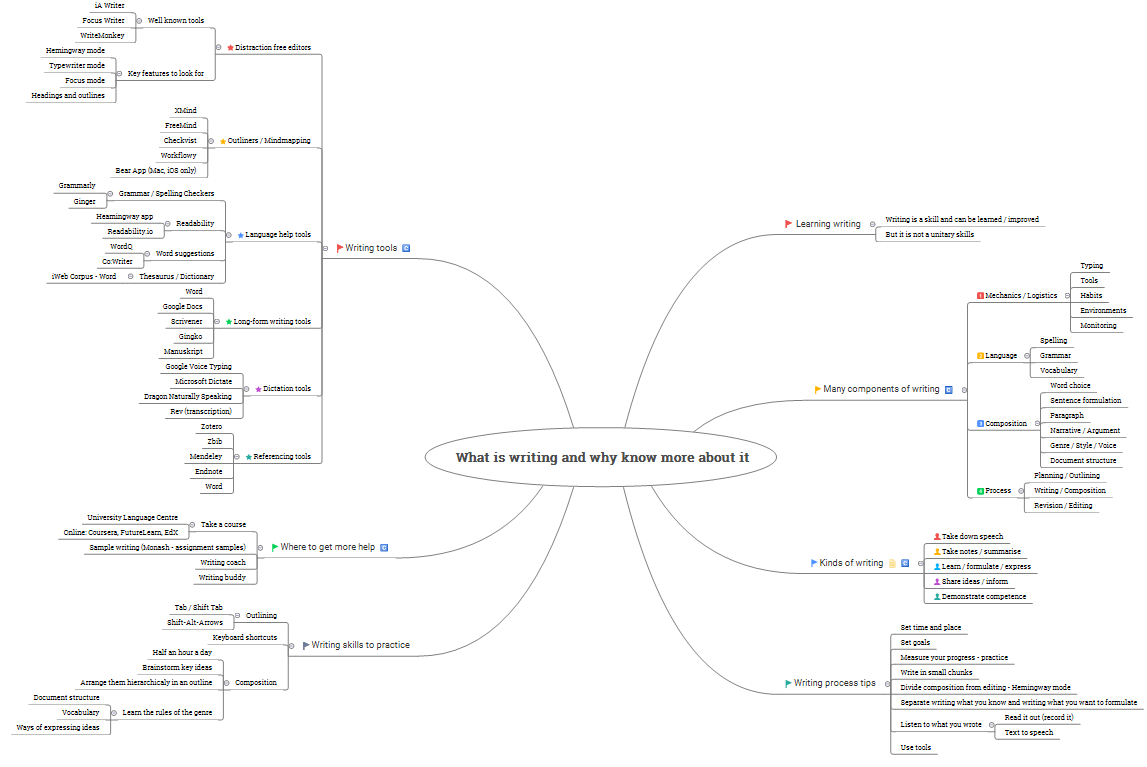
Central topic: What is writing and why know more about it
- Writing tools
- Distraction free editors
- Well known tools: iA Writer; Focus Writer; WriteMonkey
- Key features to look for: Hemingway mode; Typewriter mode; Focus mode; Headings and outlines
- Outliners / Mindmapping: XMind; FreeMind; Checkvist; Workflowy; Bear App (Mac, iOS only)
- Language help tools
- Grammar / Spelling Checkers: Grammarly; Ginger
- Readability: Heamingway app; Readability.io
- Word suggestions: WordQ; Co:Writer
- Thesaurus / Dictionary: iWeb Corpus - Word
- Long-form writing tools: Word; Google Docs; Scrivener; Gingko; Manuskript
- Dictation tools: Google Voice Typing; Microsoft Dictate; Dragon Naturally Speaking; Rev (transcription)
- Referencing tools: Zotero; Zbib; Mendeley; Endnote; Word
- Distraction free editors
- Where to get more help
- Take a course: University Language Centre; Online: Coursera, FutureLearn, EdX
- Sample writing (Monash - assignment samples)
- Writing coach
- Writing buddy
- Writing skills to practice
- Outlining: Tab / Shift Tab; Shift-Alt-Arrows
- Keyboard shortcuts
- Composition: Half an hour a day; Brainstorm key ideas; Arrange them hierarchicaly in an outline
- Learn the rules of the genre: Document structure; Vocabulary; Ways of expressing ideas
- Learning writing: Writing is a skill and can be learned / improved; But it is not a unitary skills
- Many components of writing
- Mechanics / Logistics: Typing; Tools; Habits; Environments; Monitoring
- Language: Spelling; Grammar; Vocabulary
- Composition: Word choice; Sentence formulation; Paragraph; Narrative / Argument; Genre / Style / Voice; Document structure
- Process: Planning / Outlining; Writing / Composition; Revision / Editing
- Kinds of writing: Take down speech; Take notes / summarise; Learn / formulate / express; Share ideas / inform; Demonstrate competence
- Writing process tips: Set time and place; Set goals; Measure your progress - practice; Write in small chunks; Divide composition from editing - Hemingway mode; Separate writing what you know and writing what you want to formulate; Listen to what you wrote (Read it out (record it); Text to speech); Use tools
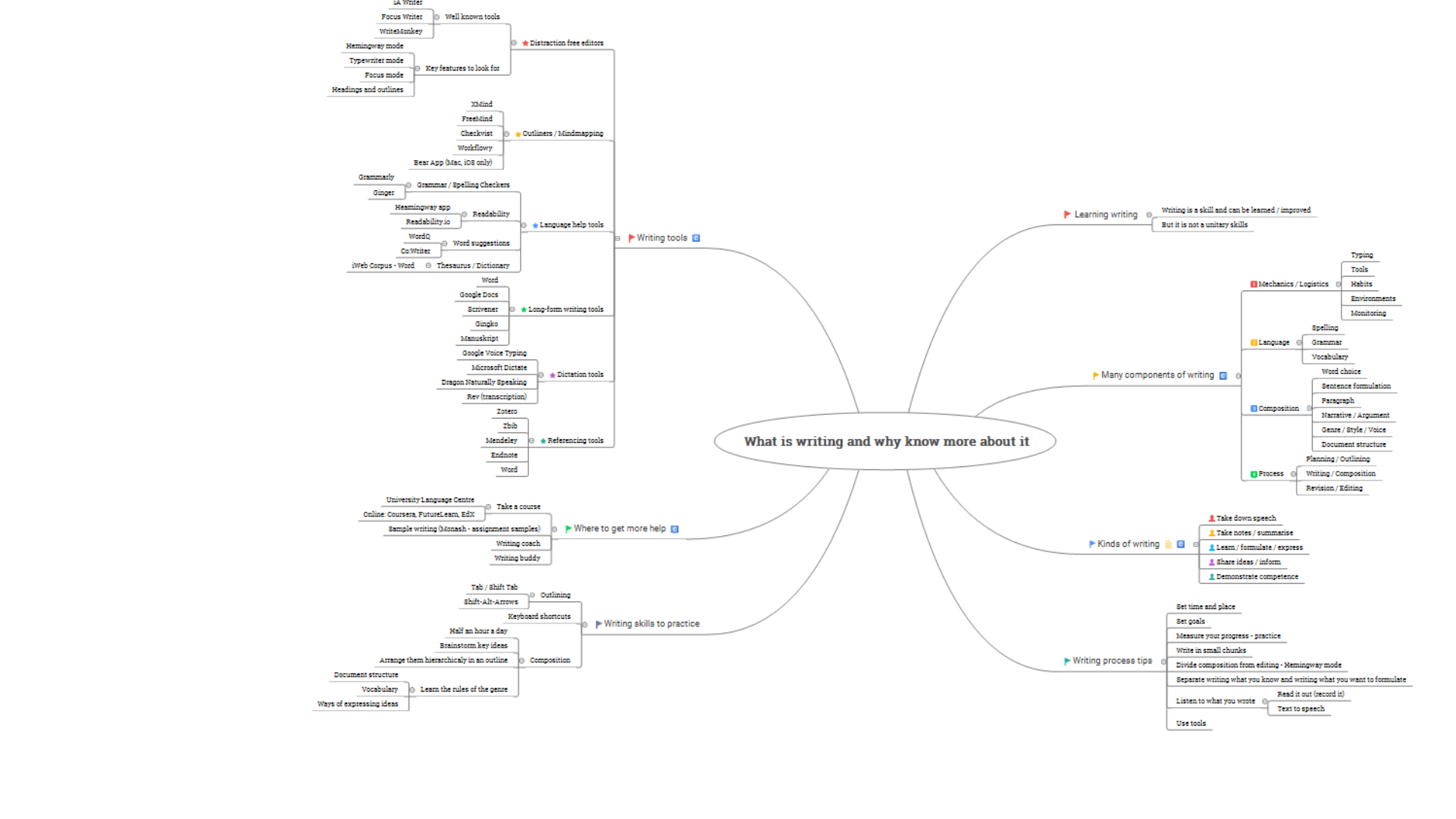
Slide 31: Checkvist is an online dedicated outliner
Checkvist is an online dedicated outliner
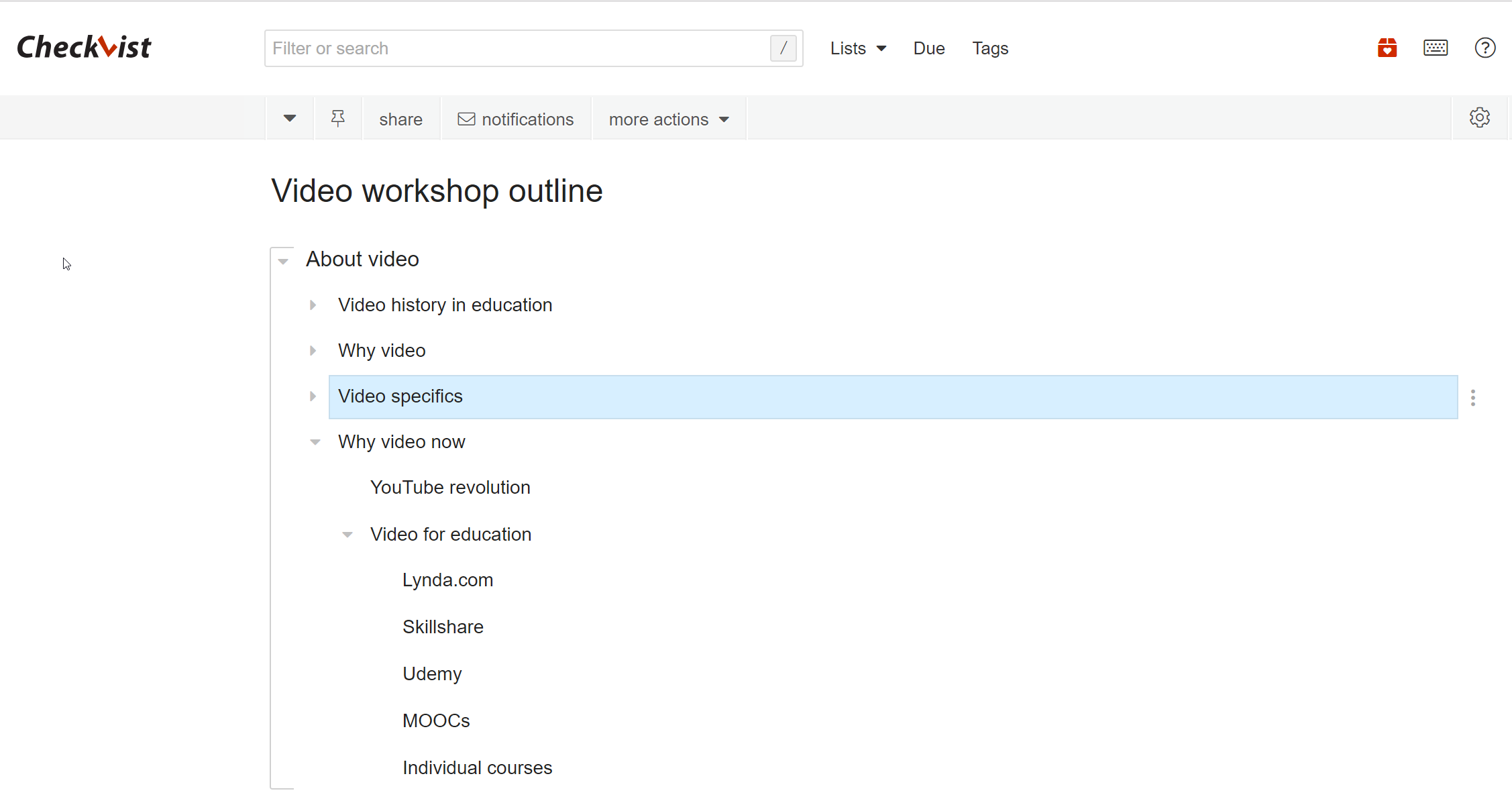
Slide 32: From conceptual structure to impactful visuals
From conceptual structure to impactful visuals

Slide 33: Should you use Visio?
Should you use Visio?
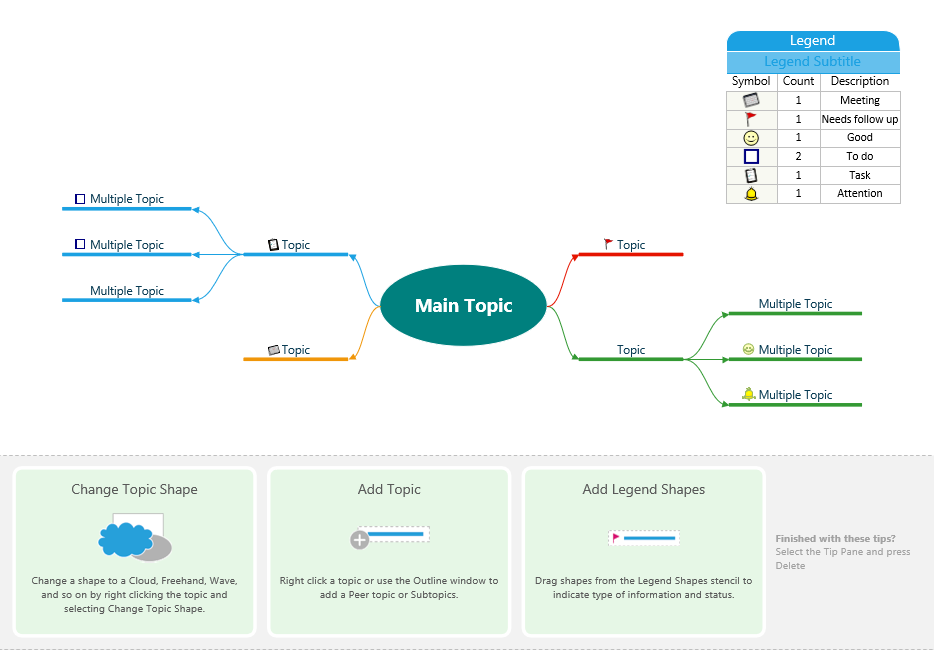
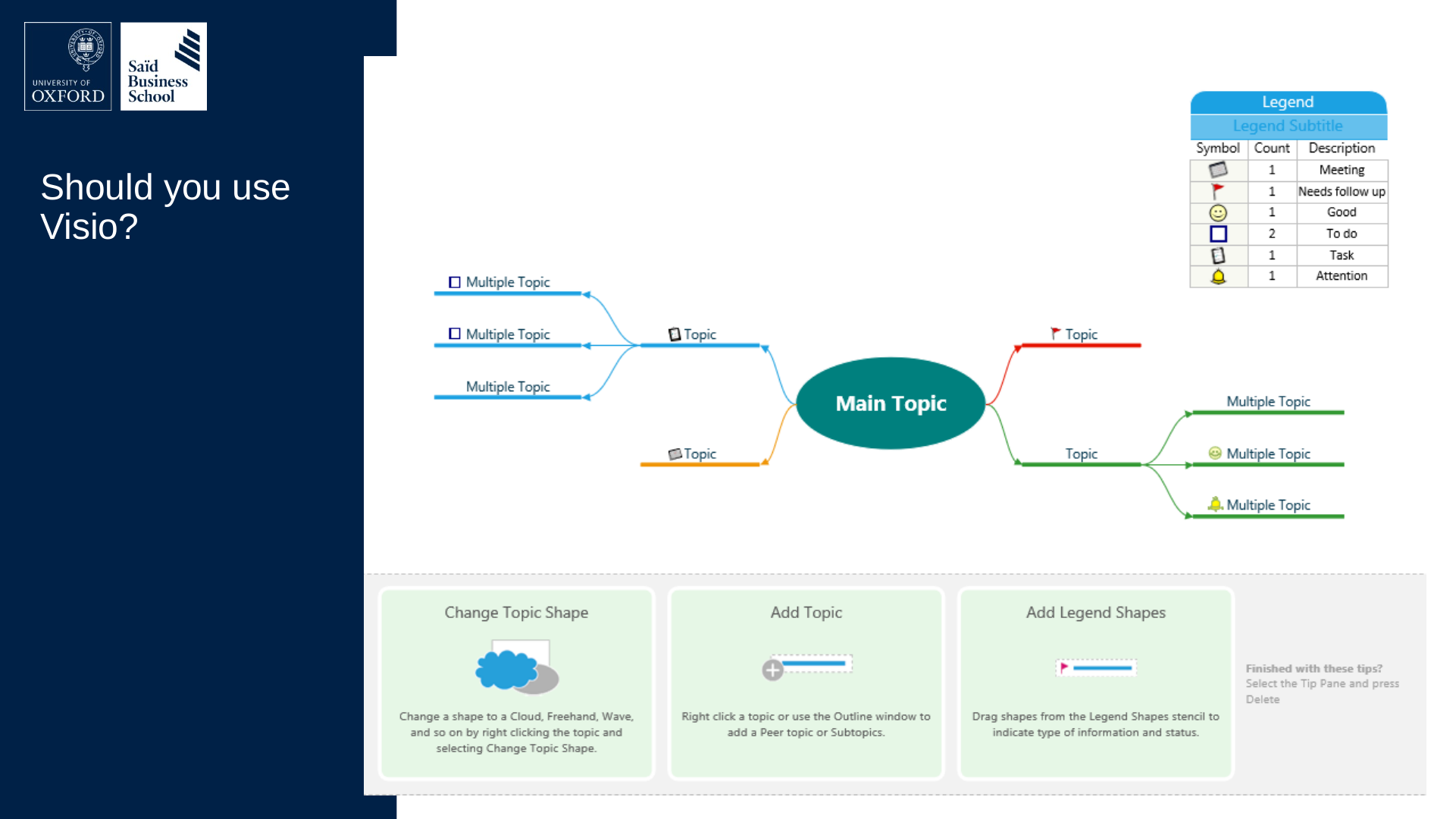
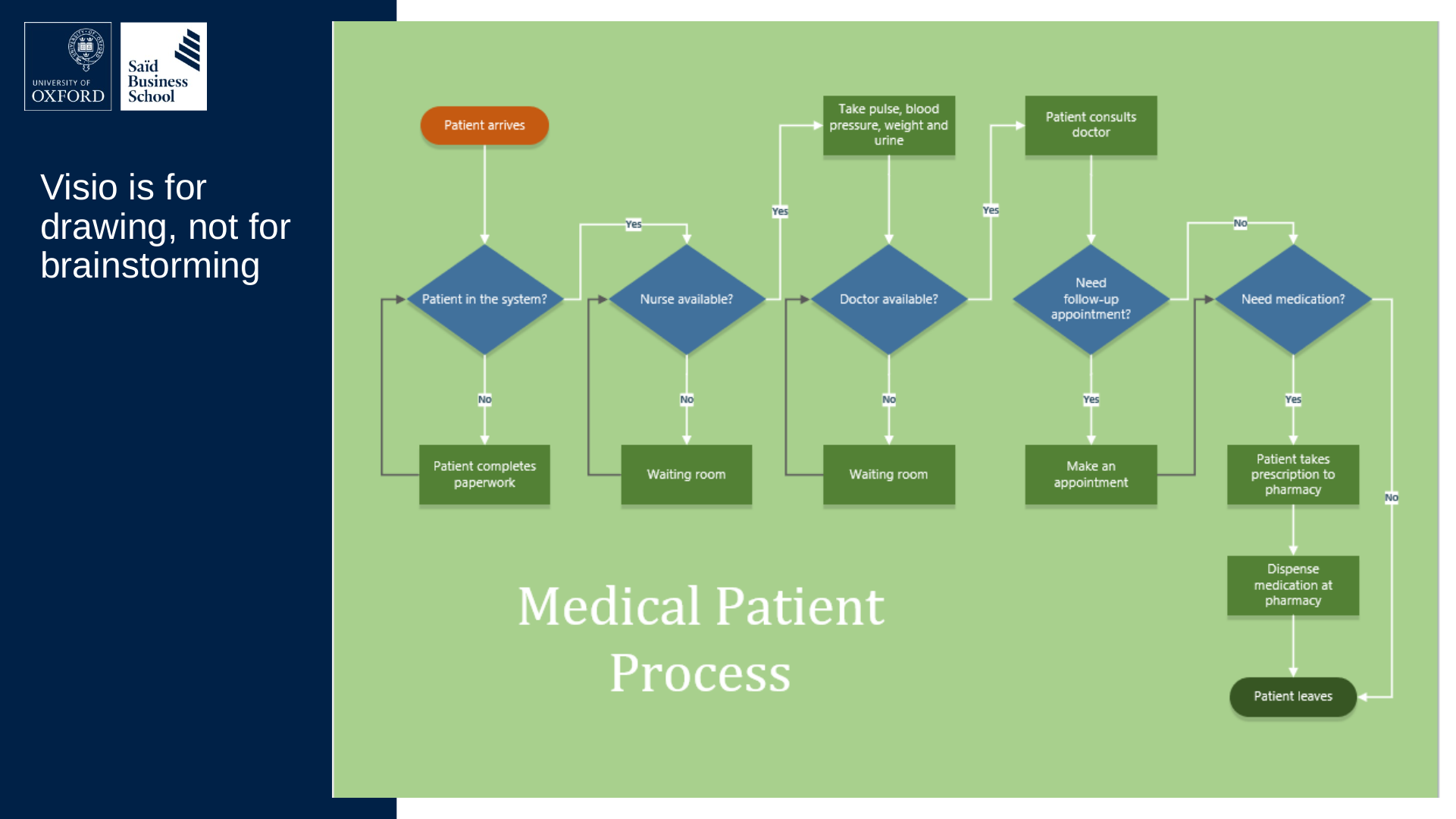
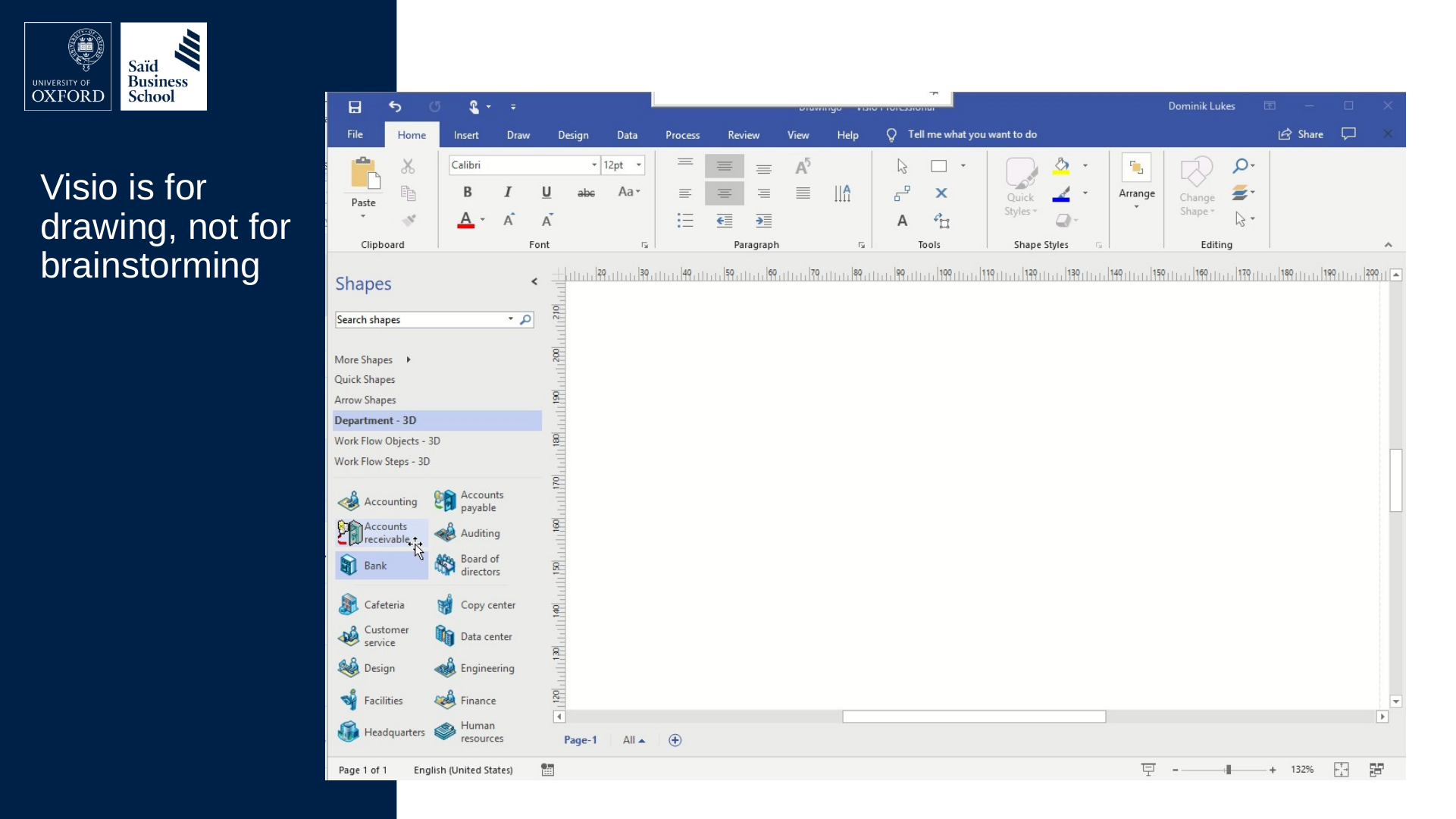
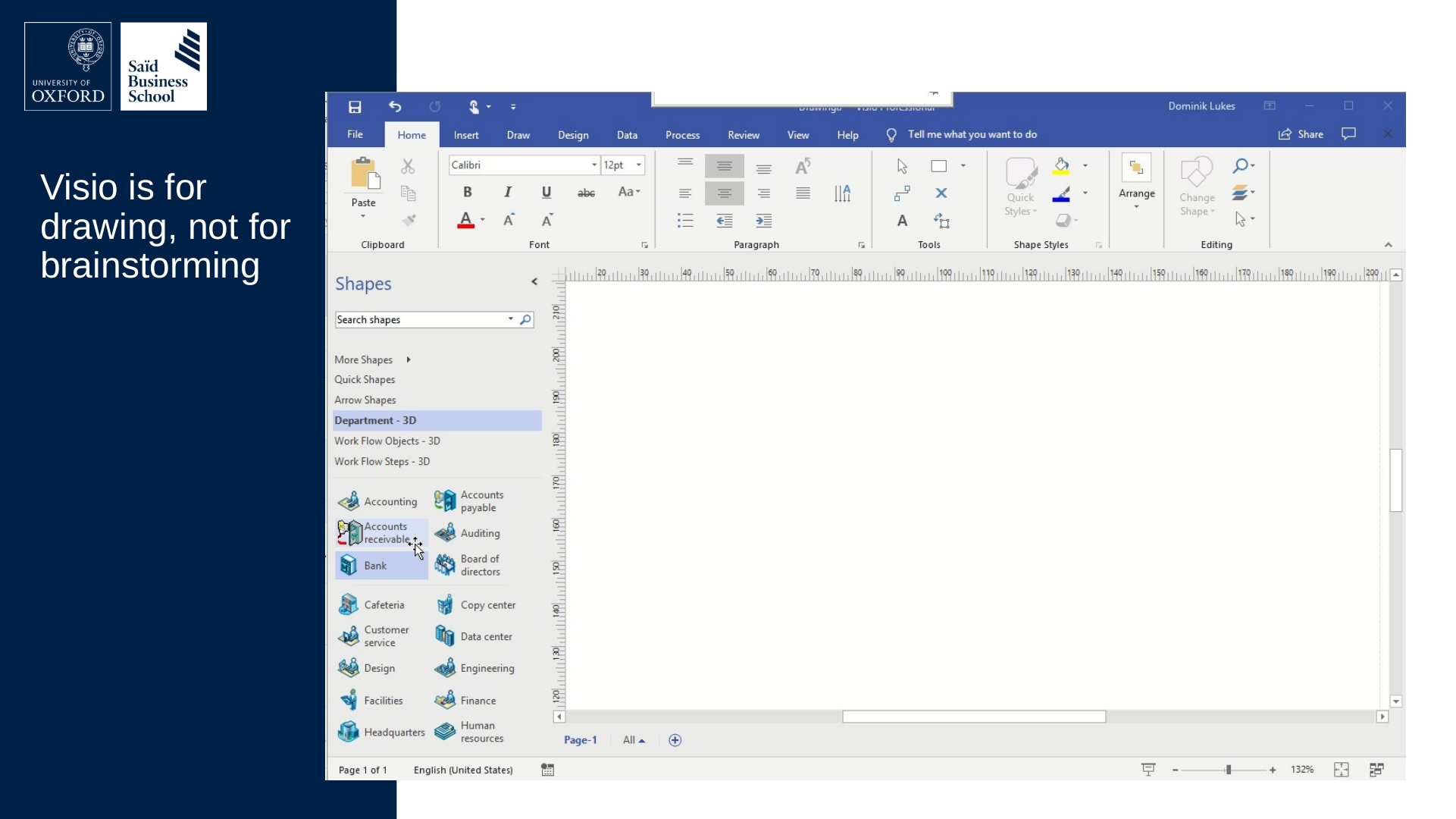
Slide 34: Visio is for drawing, not for brainstorming
Visio is for drawing, not for brainstorming
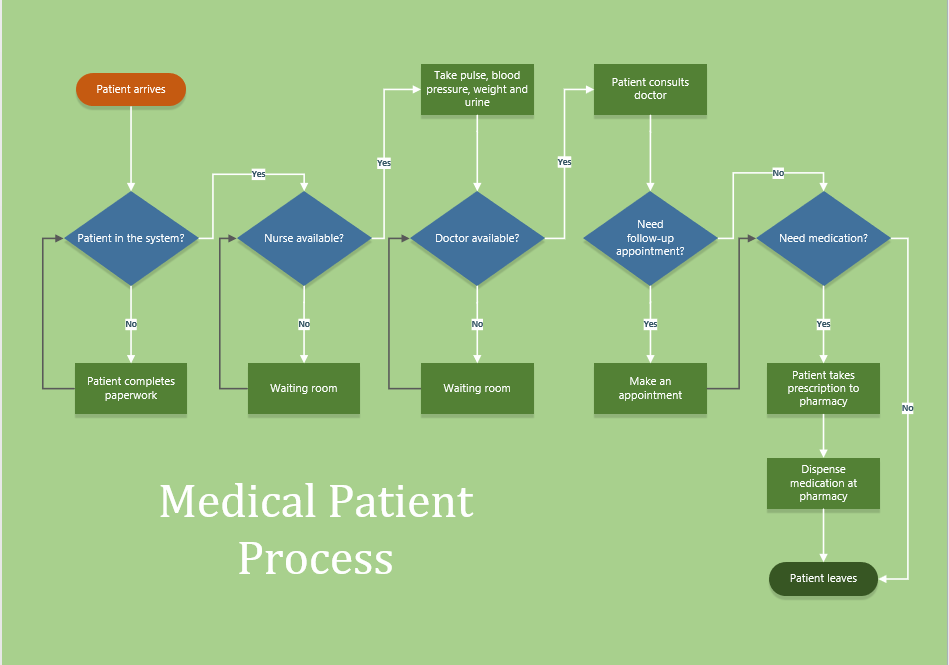
Flowchart “Medical Patient Process”, read from the start:
- Patient arrives, then the decision Patient in the system? — No: Patient completes paperwork, then back to the same question. Yes: continue.
- Nurse available? — No: Waiting room, then back to the same question. Yes: Take pulse, blood pressure, weight and urine.
- Doctor available? — No: Waiting room, then back to the same question. Yes: Patient consults doctor.
- Need follow-up appointment? — Yes: Make an appointment, then continue to the next question. No: continue to the next question.
- Need medication? — Yes: Patient takes prescription to pharmacy, then Dispense medication at pharmacy, then Patient leaves. No: Patient leaves.
Slide 35: Visio is for drawing, not for brainstorming
Visio is for drawing, not for brainstorming
Slide 36: Slide 36
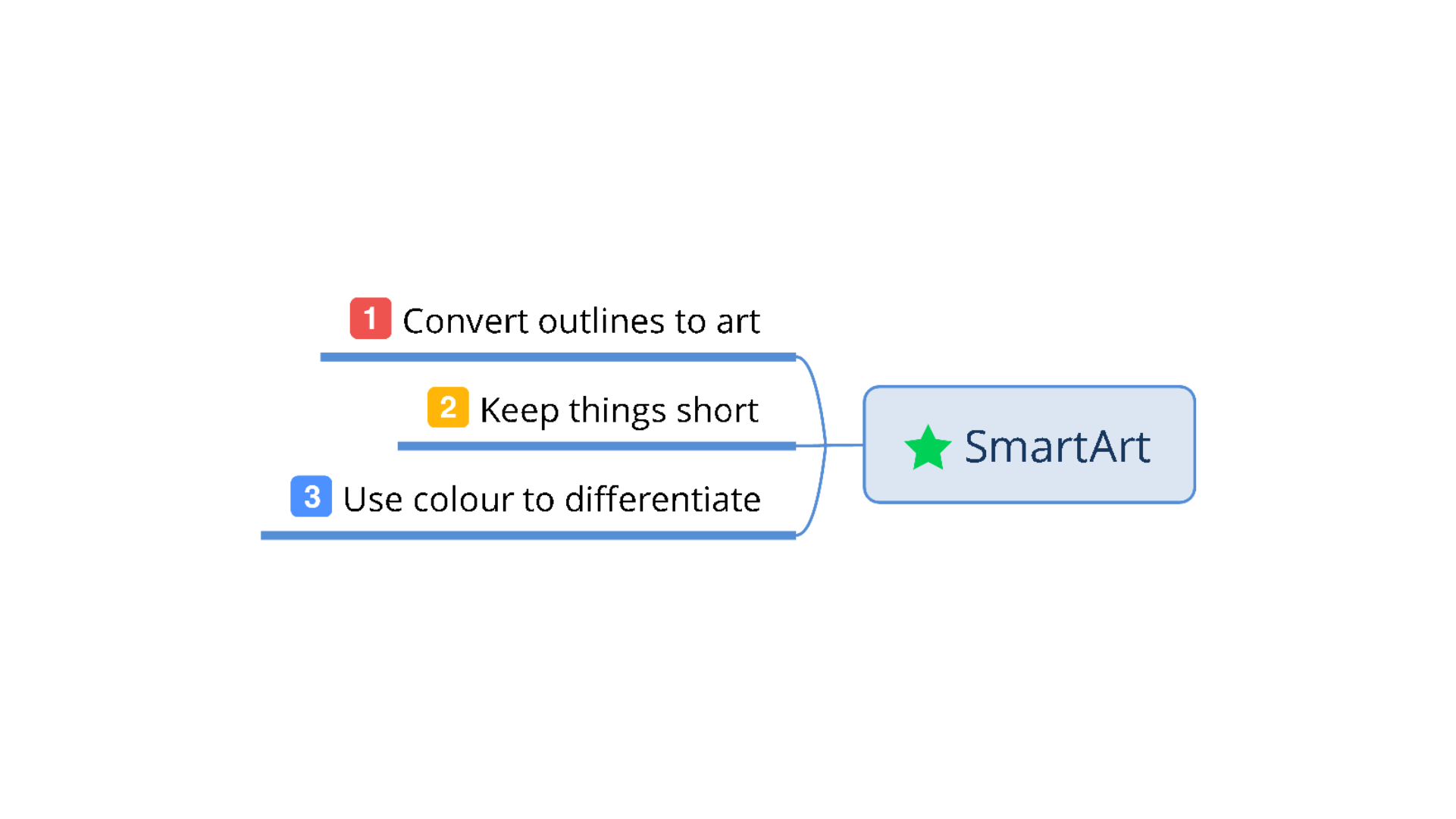
Slide 37: SmartArt
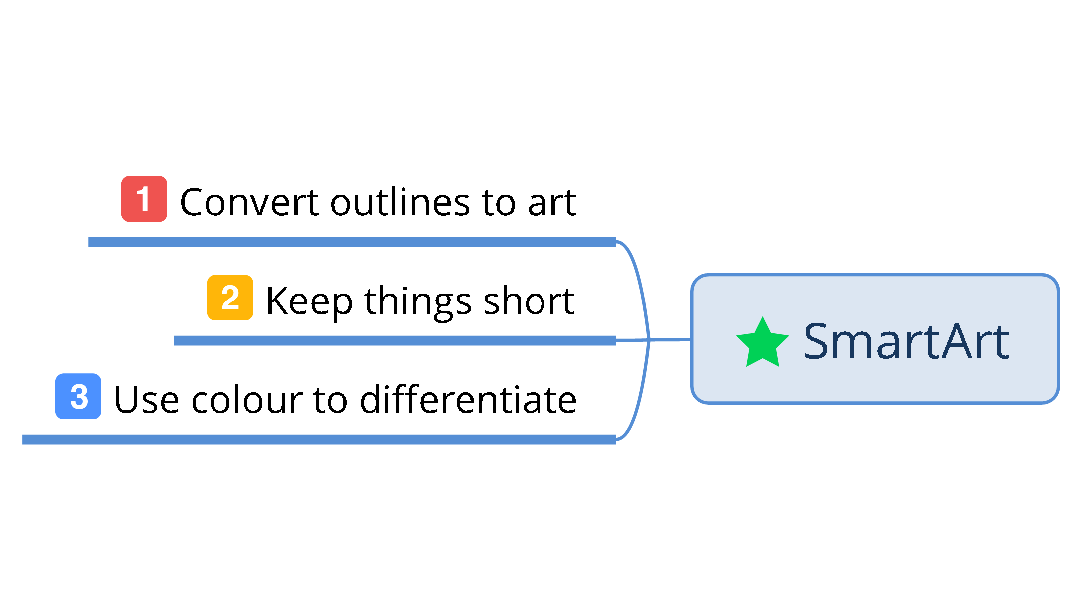
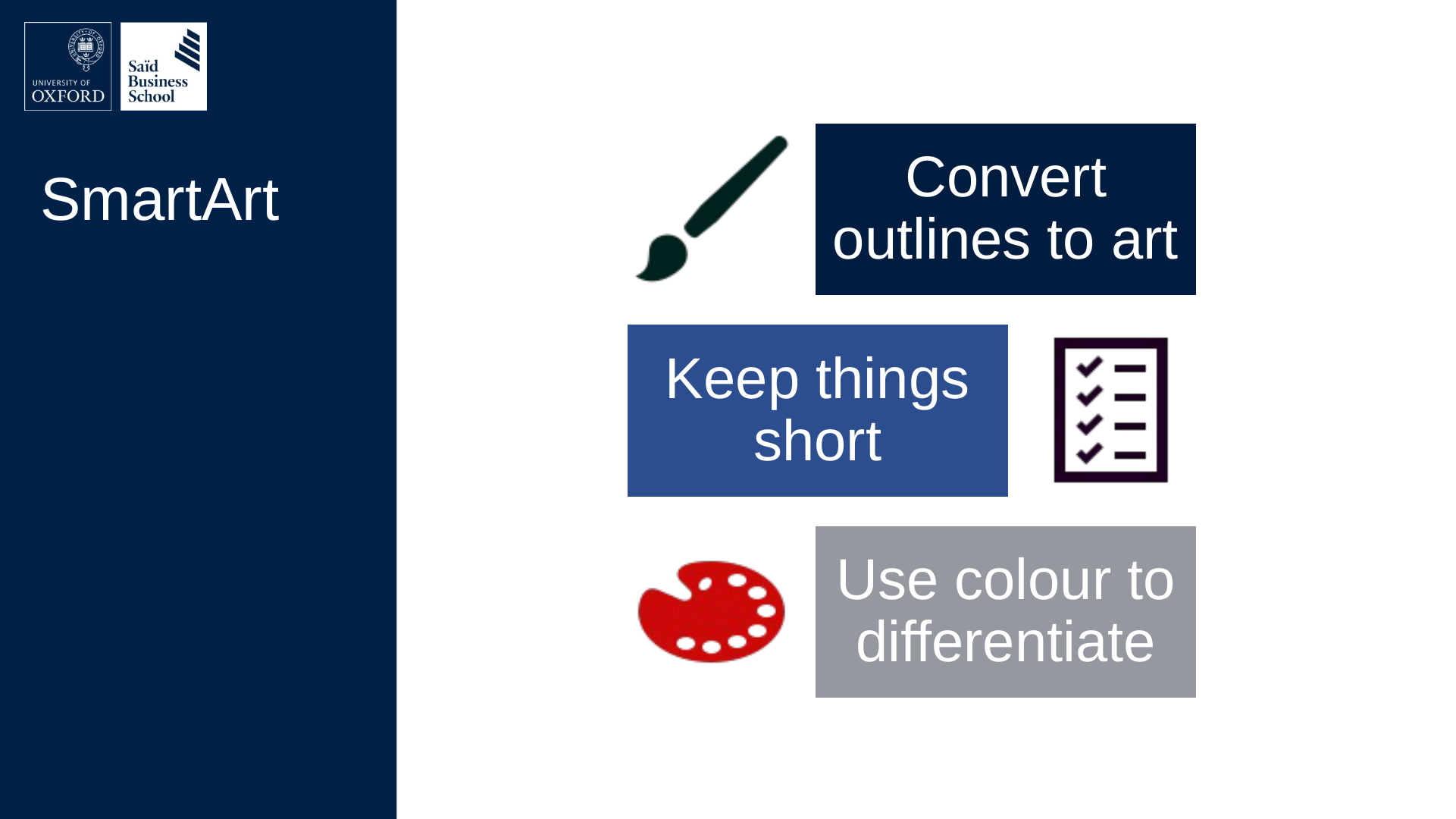
SmartArt
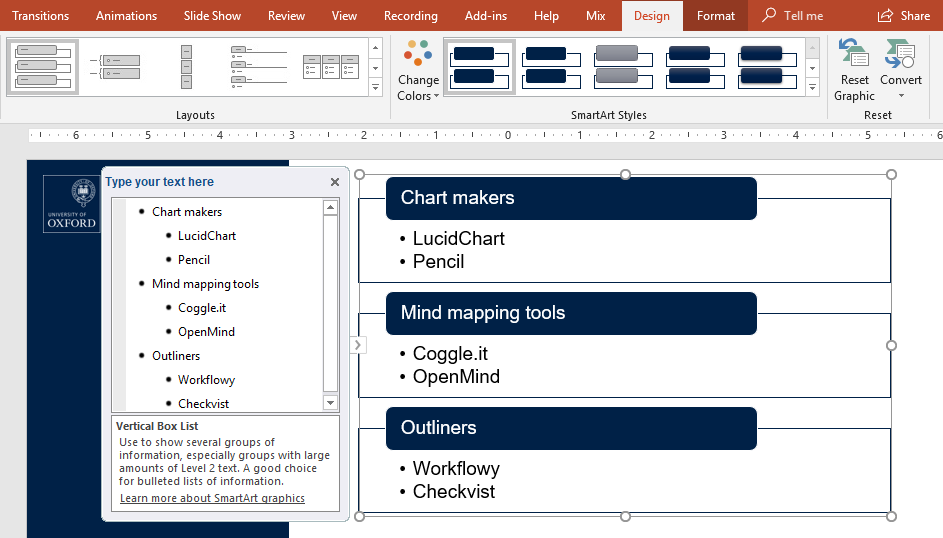
- Convert outlines to art
- Keep things short
- Use colour to differentiate
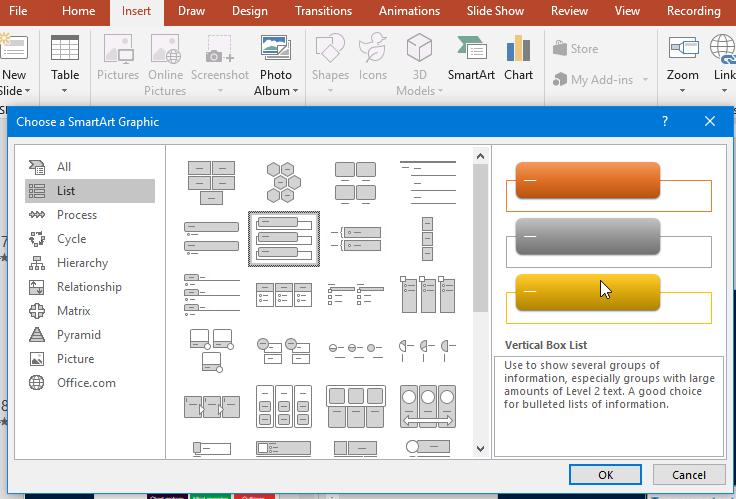
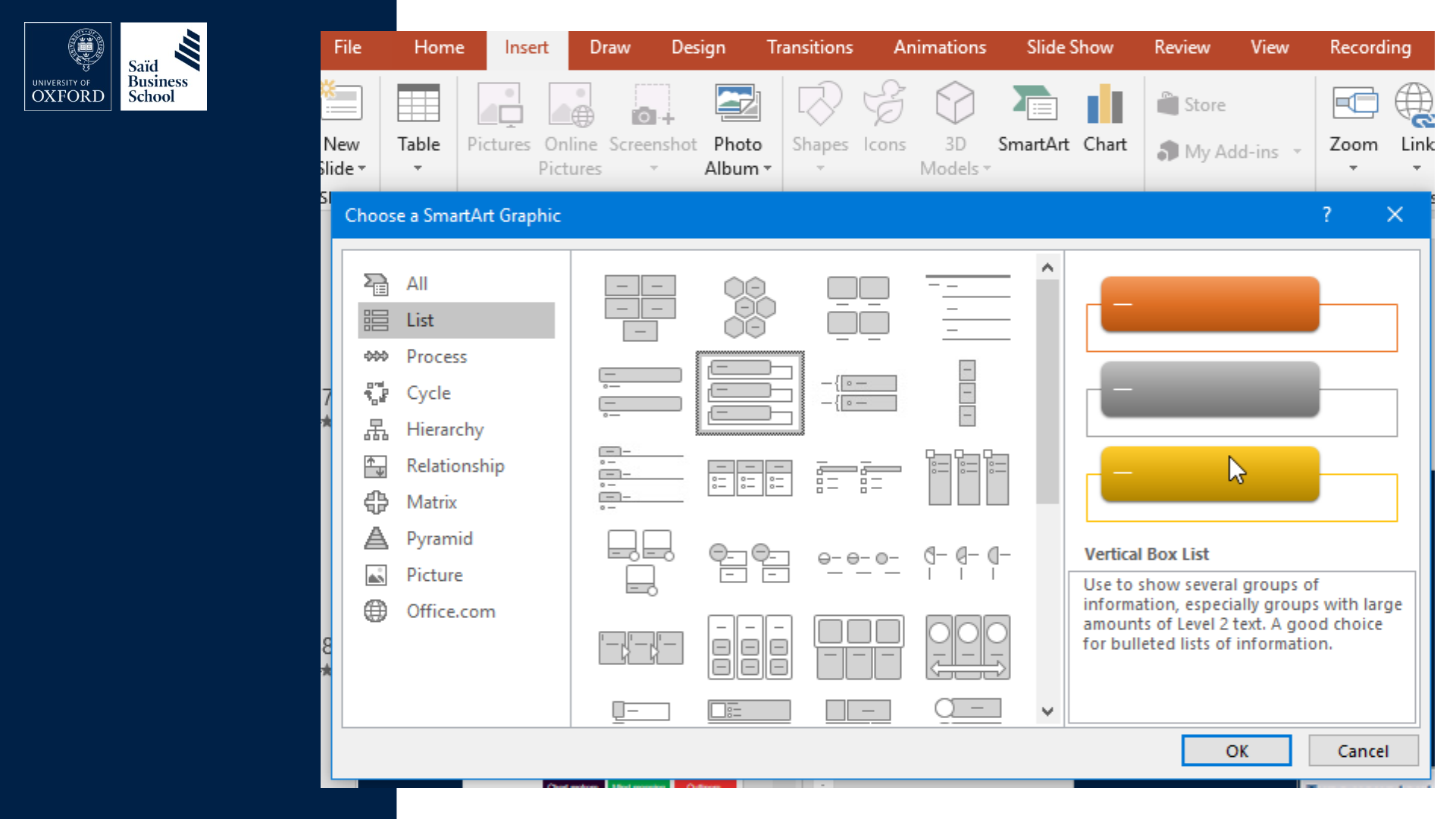
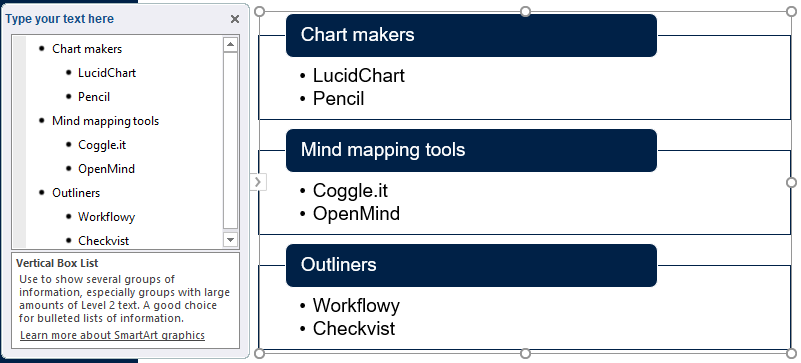
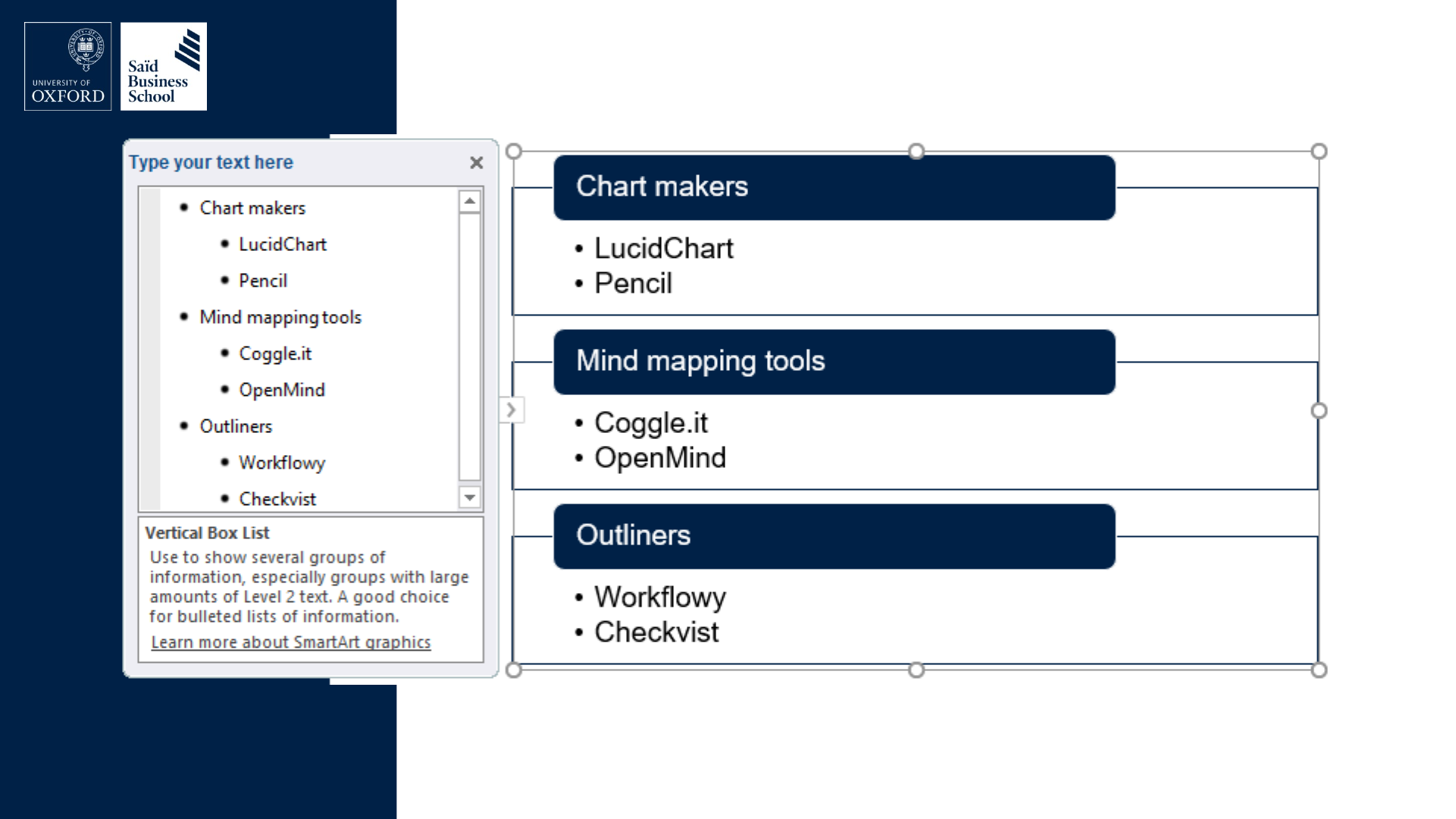
Slide 38: How to convert outlines into art
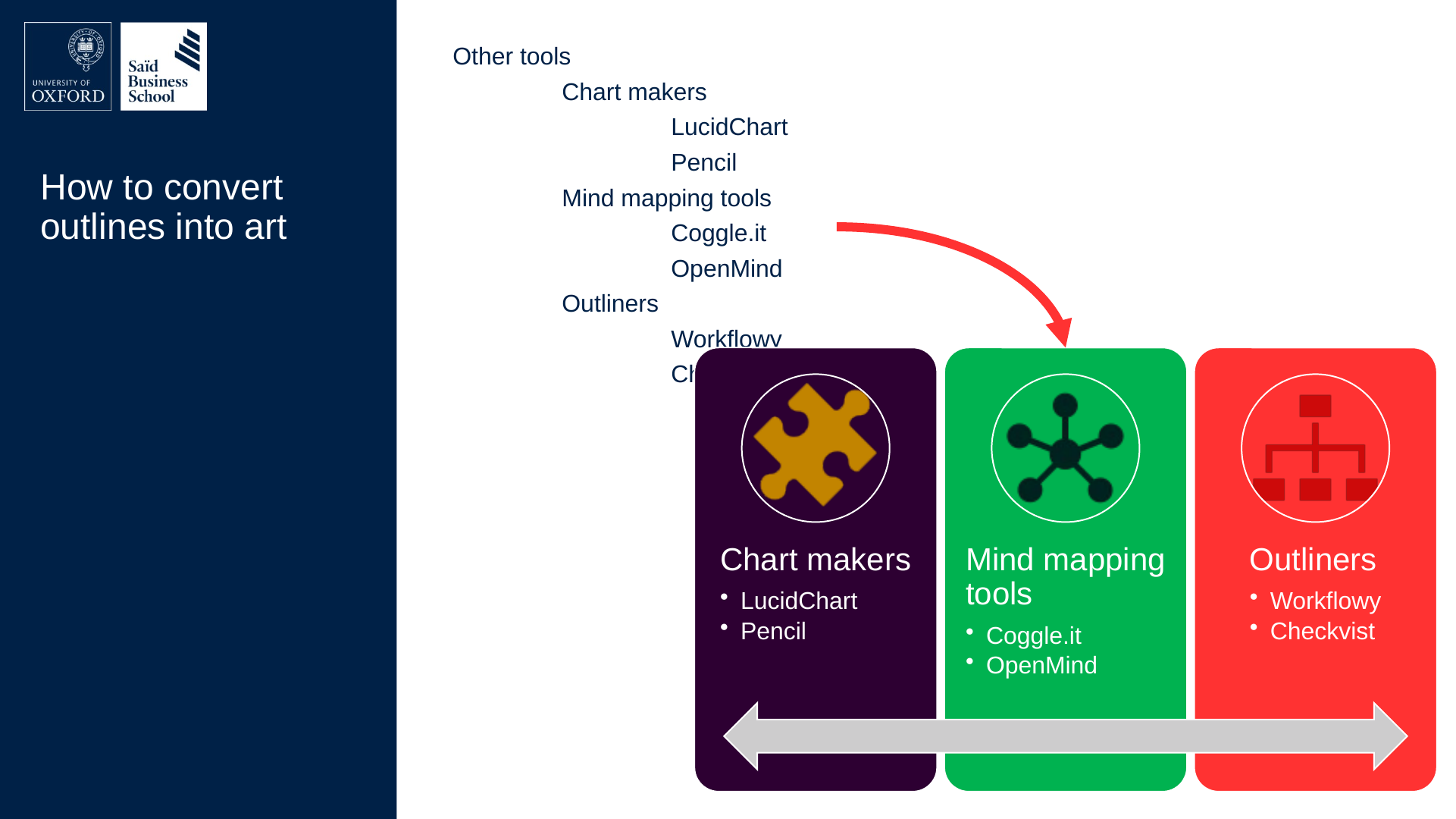
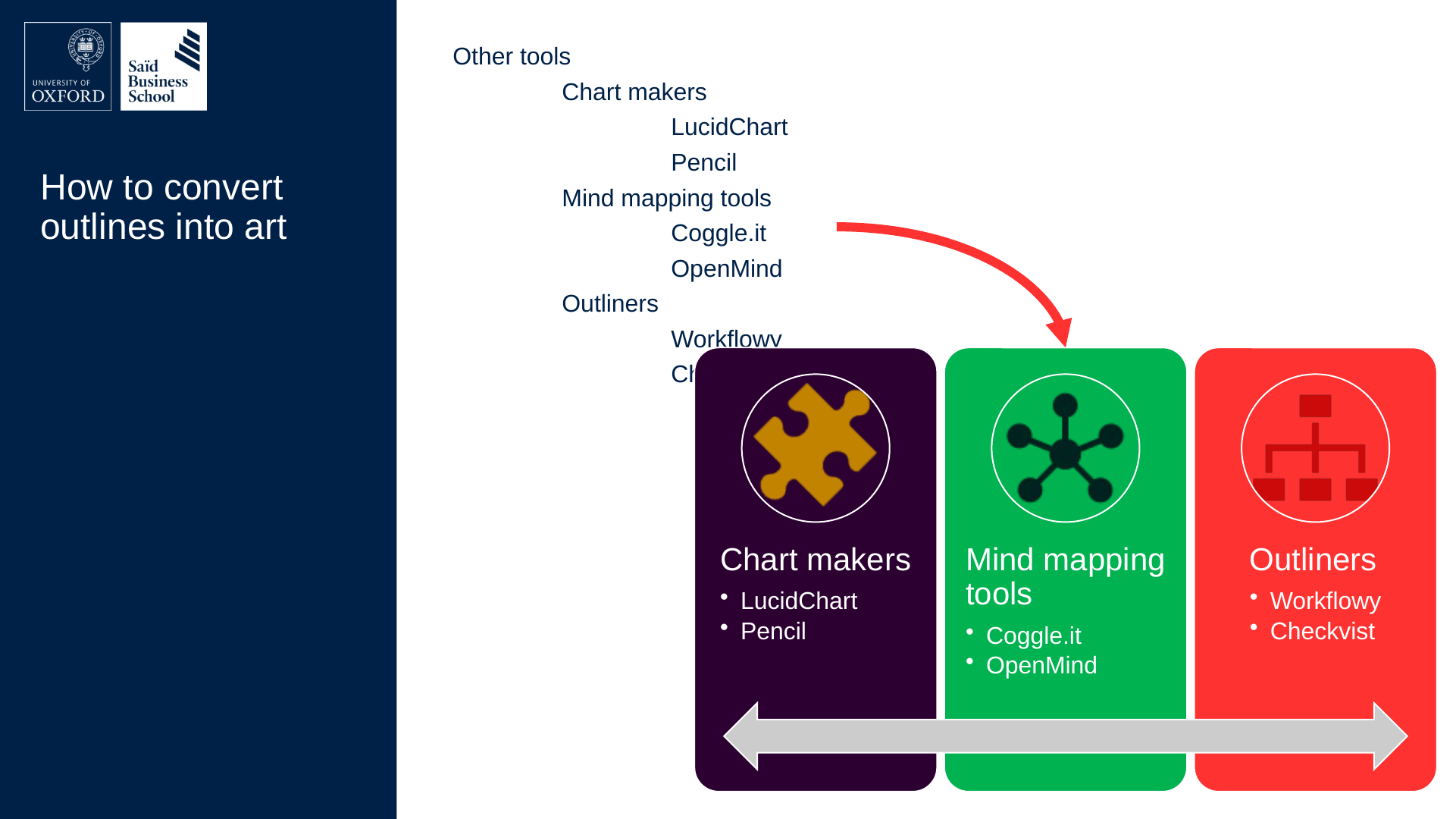
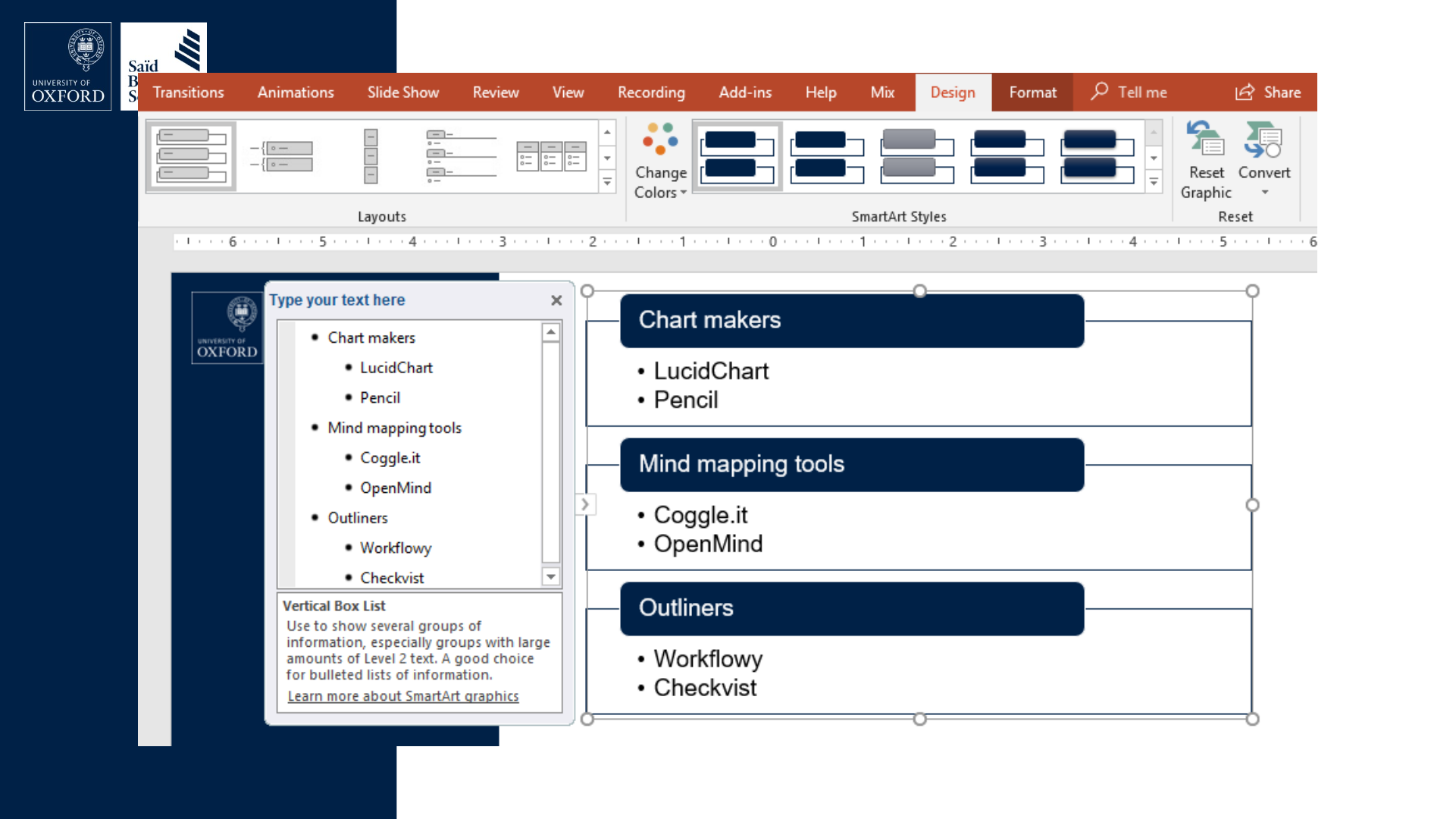
How to convert outlines into art
- Other tools
- Chart makers
- LucidChart
- Pencil
- Mind mapping tools
- Coggle.it
- OpenMind
- Outliners
- Workflowy
- Checkvist
- Chart makers
Slide 39: Slide 39
Slide 40: Slide 40
Slide 41: Slide 41
Slide 42: Slide 42
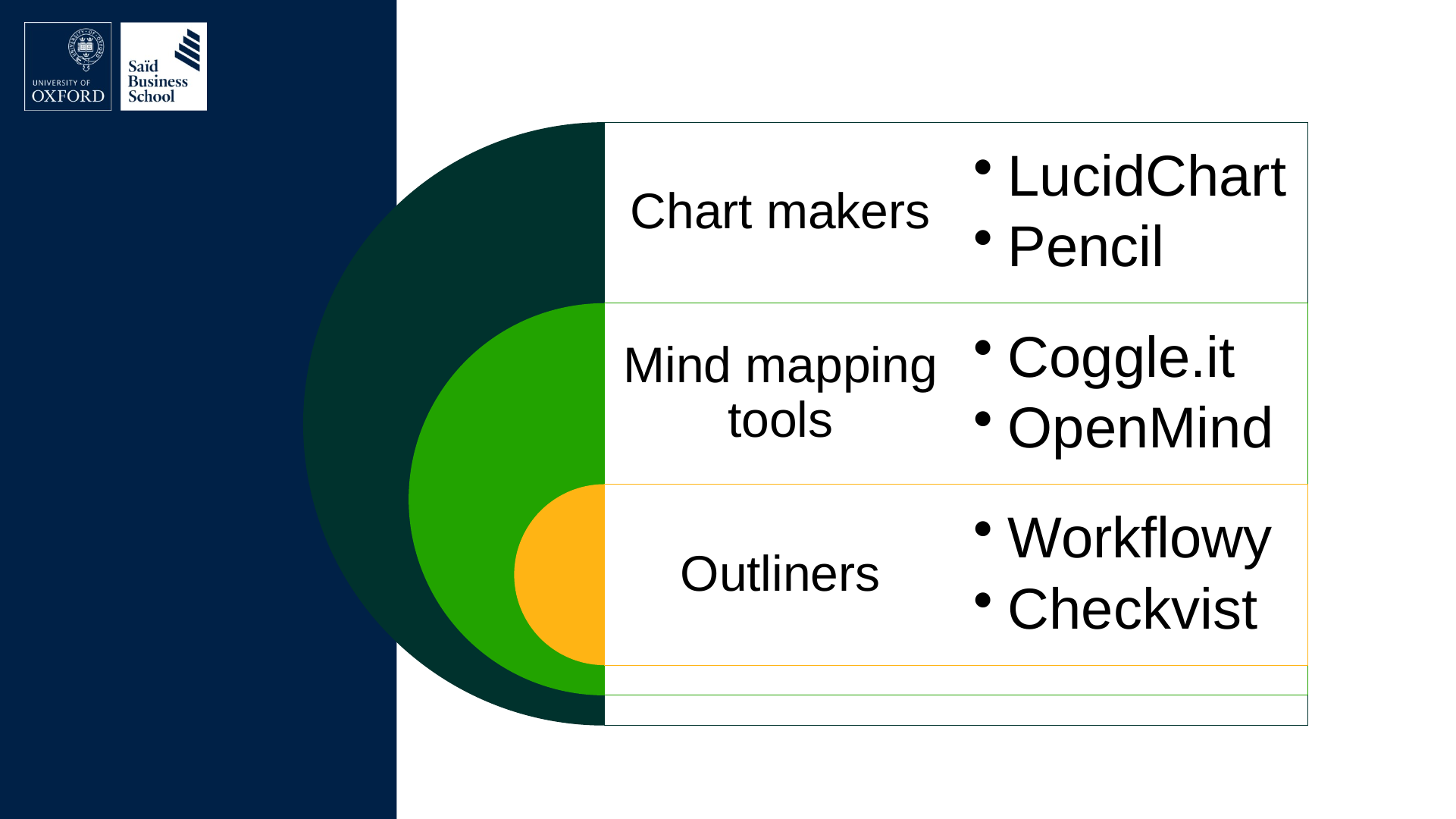
- Chart makers
- LucidChart
- Pencil
- Mind mapping tools
- Coggle.it
- OpenMind
- Outliners
- Workflowy
- Checkvist
Slide 43: Adding icons
Adding icons
Slide 44: Slide 44
Slide 45: Slide 45
- Chart makers
- LucidChart
- Pencil
- Mind mapping tools
- Coggle.it
- OpenMind
- Outliners
- Workflowy
- Checkvist
Slide 46: Slide 46
Slide 47: Slide 47
Slide 48: Other tools
Other tools
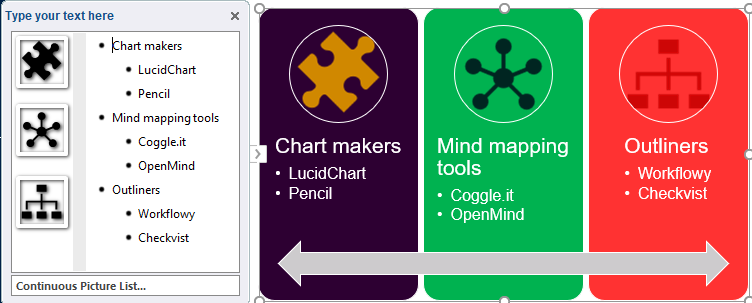
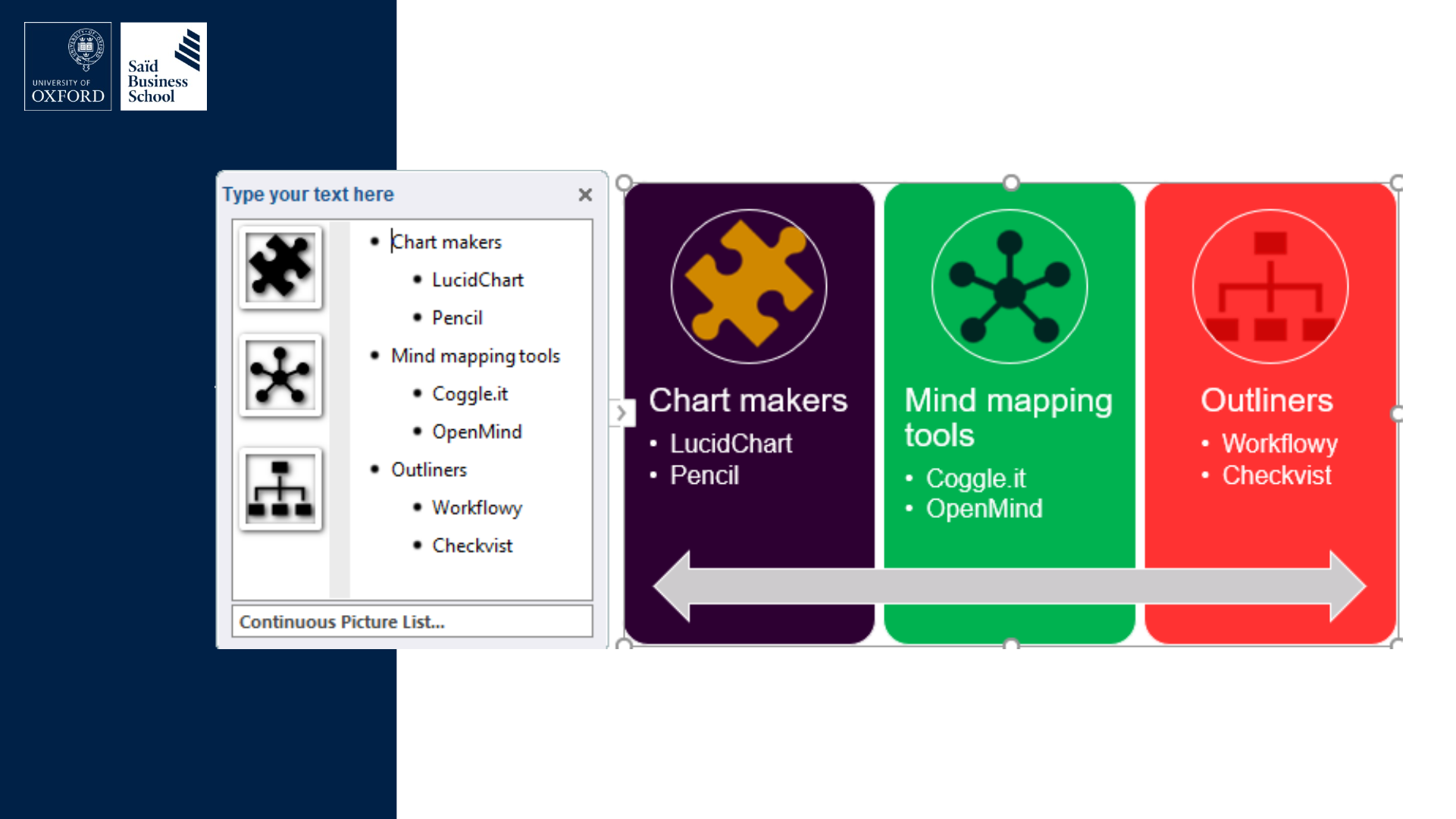
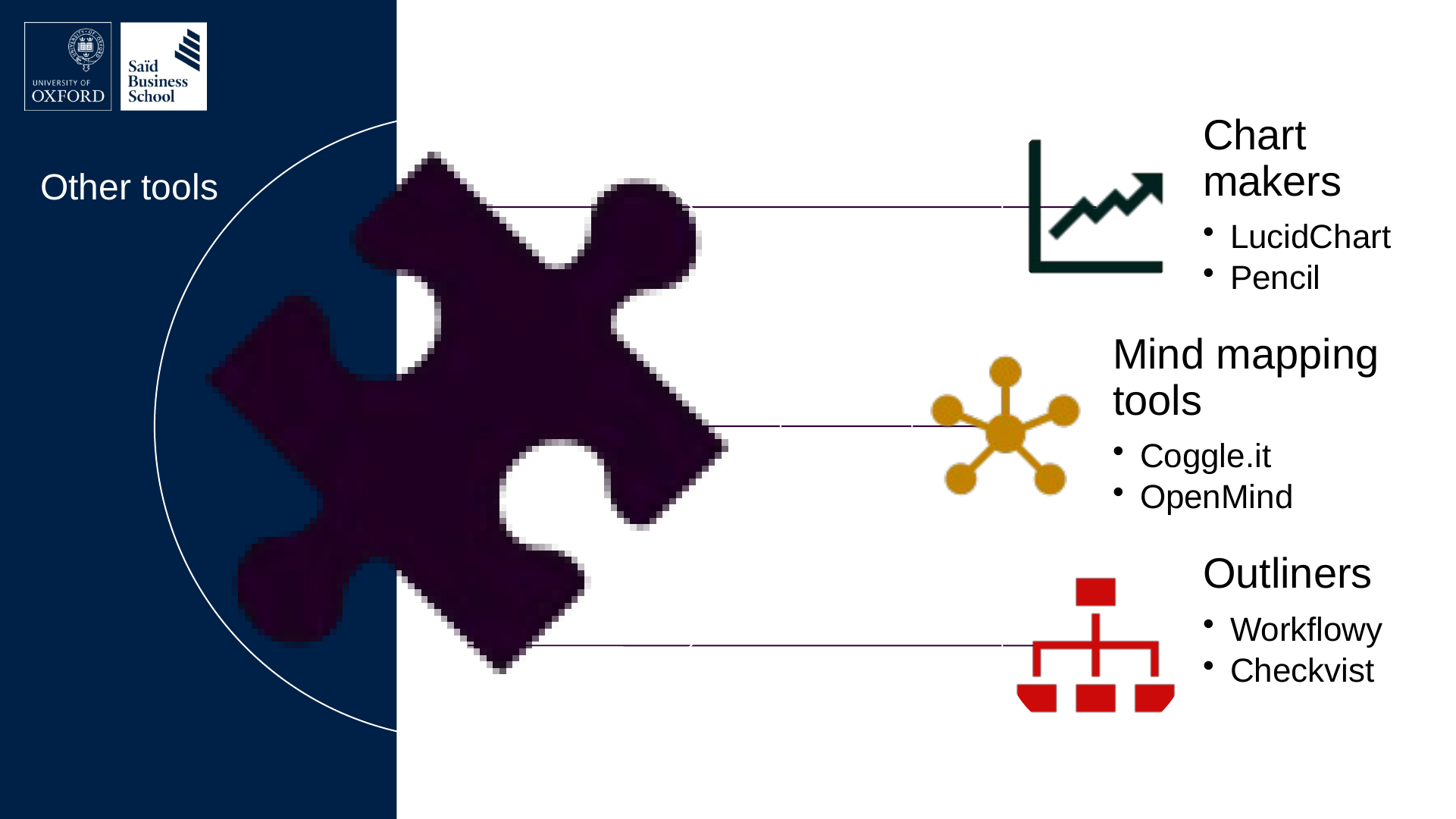
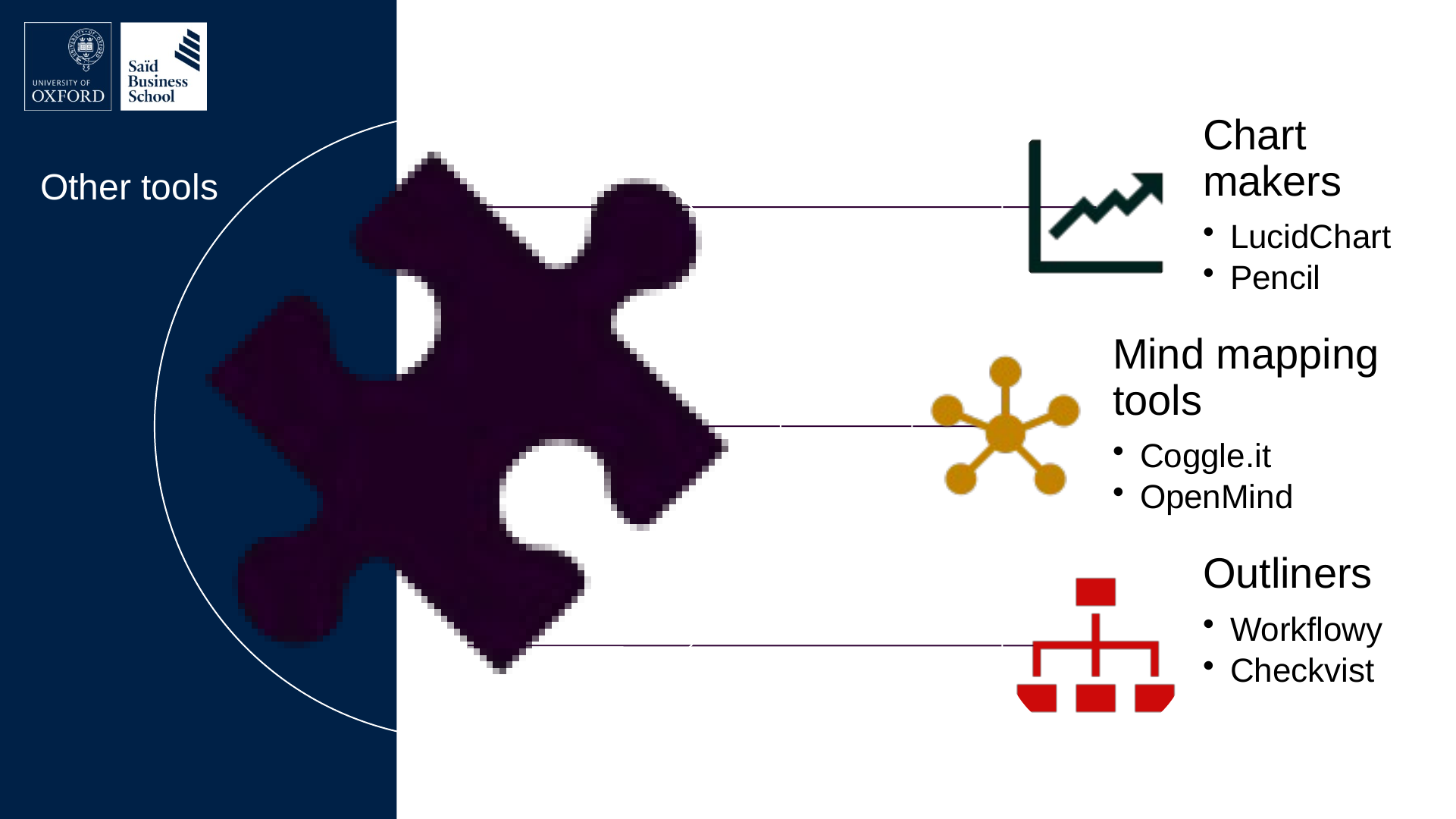
- Chart makers
- LucidChart
- Pencil
- Mind mapping tools
- Coggle.it
- OpenMind
- Outliners
- Workflowy
- Checkvist
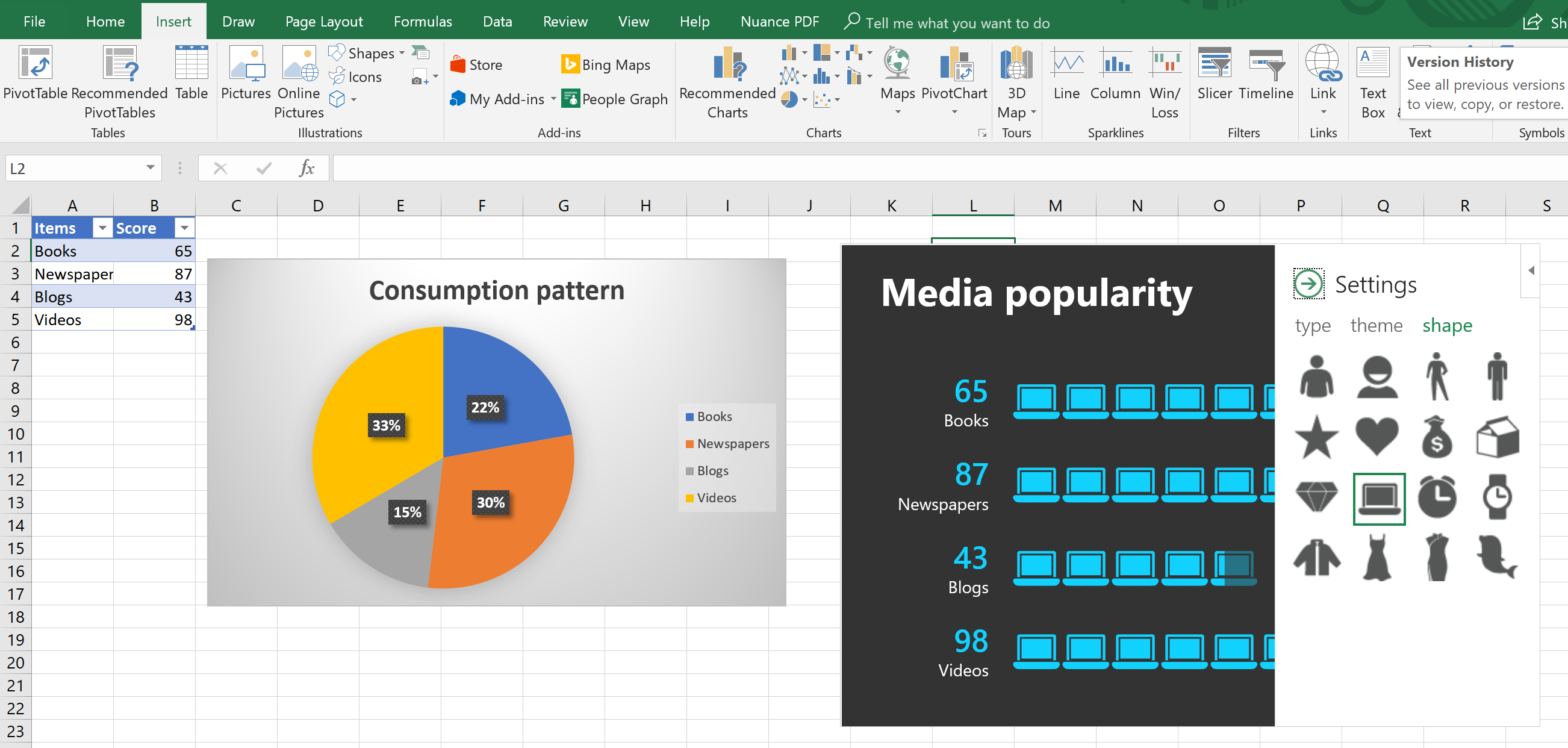
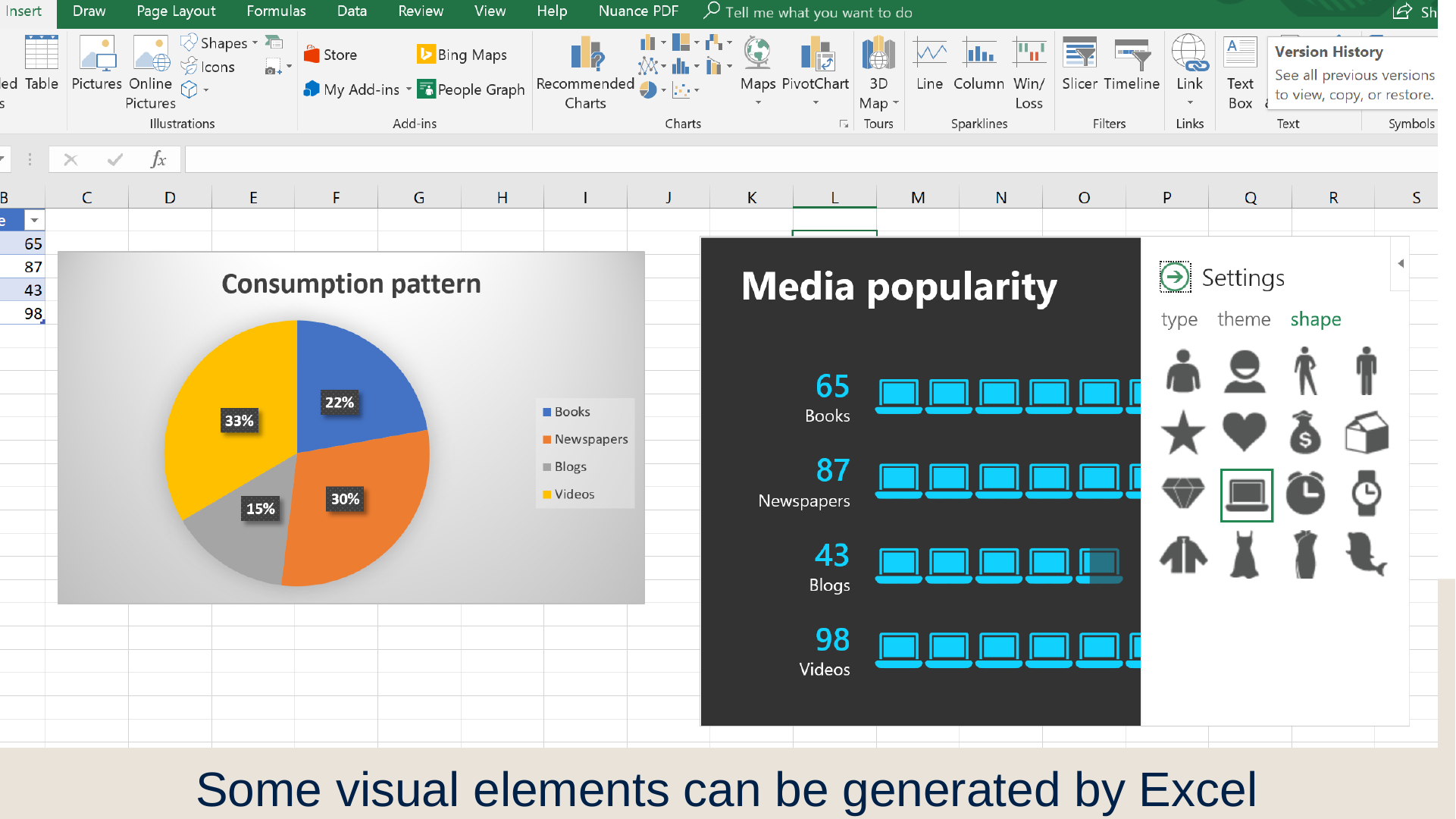
Slide 49: Some visual elements can be generated by Excel
Some visual elements can be generated by Excel
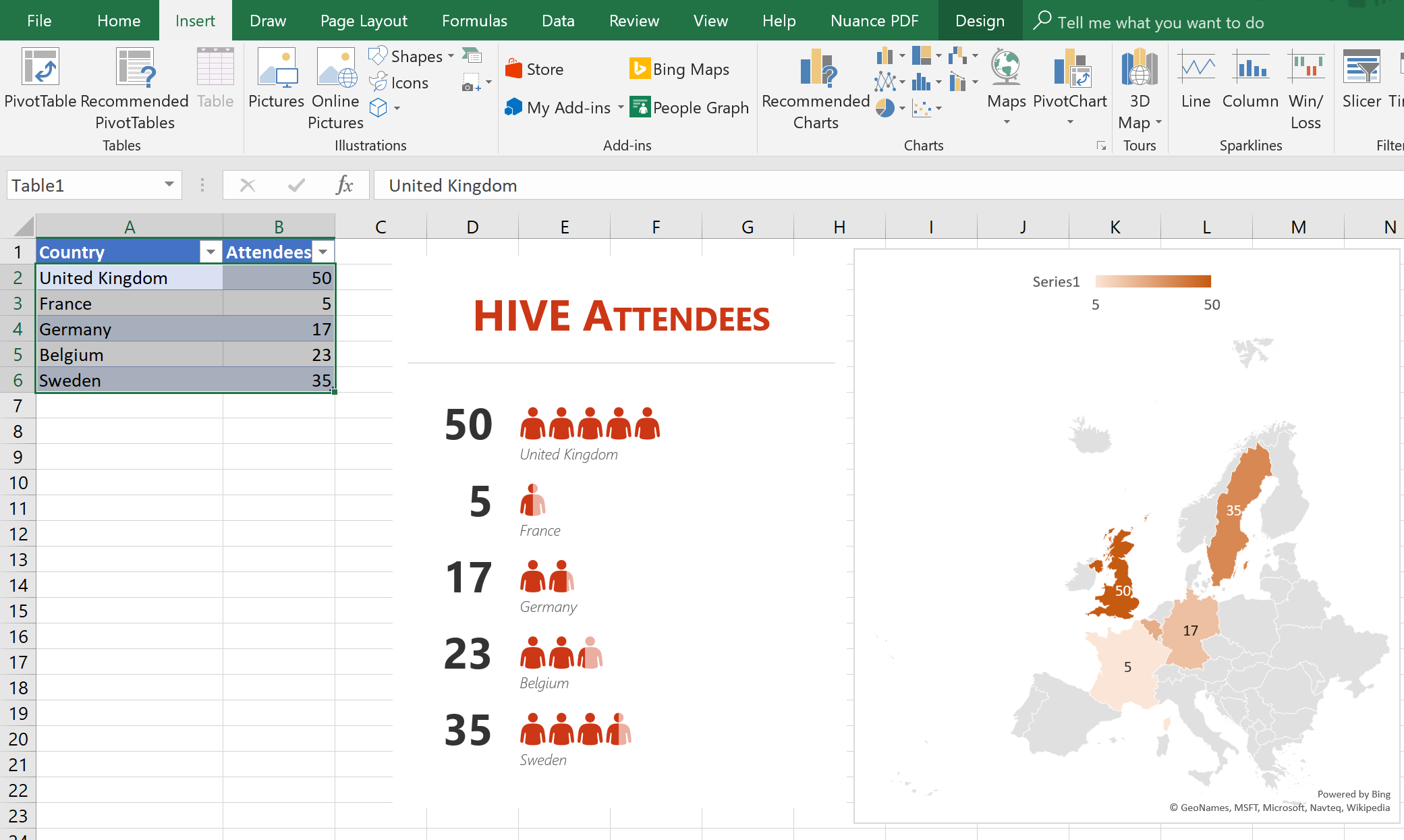
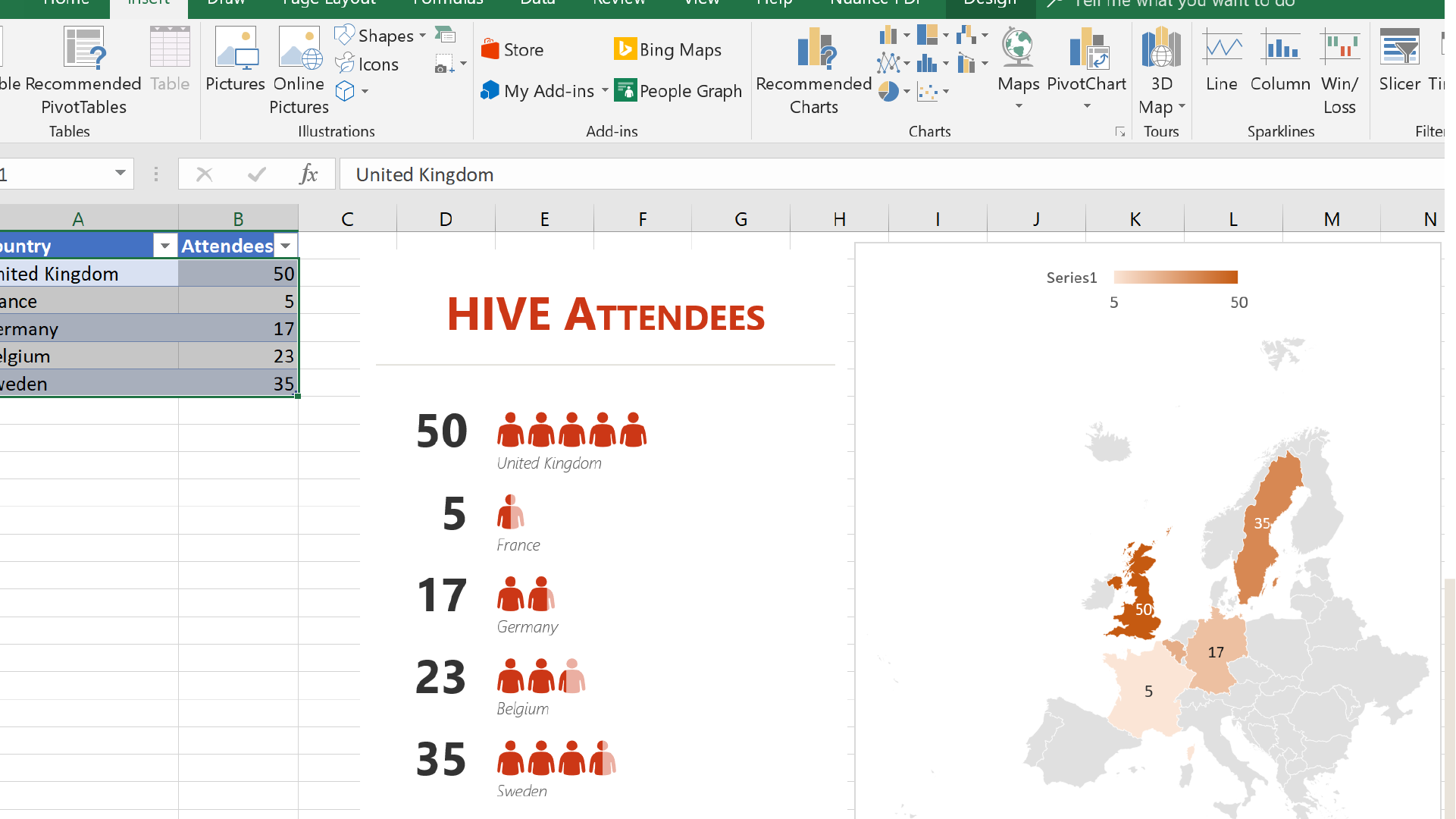
Slide 50: Some charts can be generated by Excel
Some charts can be generated by Excel
Slide 51: More examples
More examples

Slide 52: More examples
More examples
Slide 53: More examples
More examples
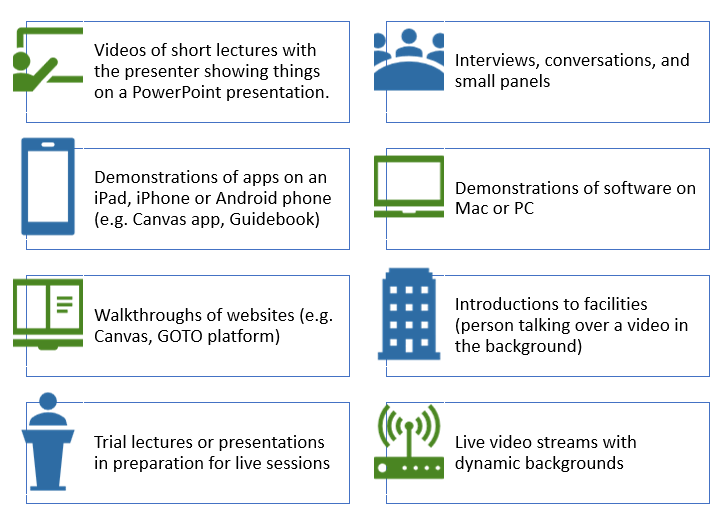
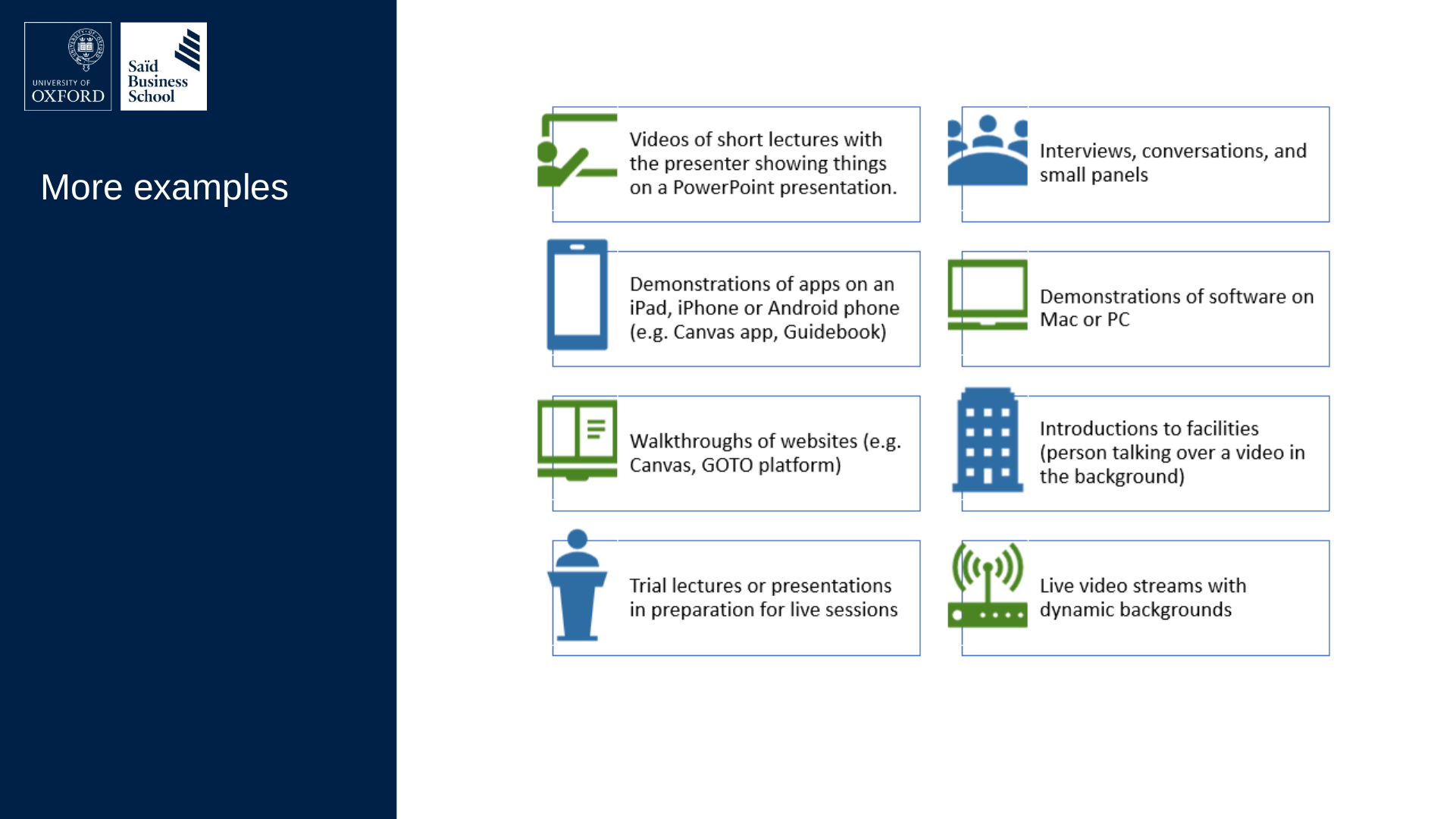
Slide 54: More examples
More examples
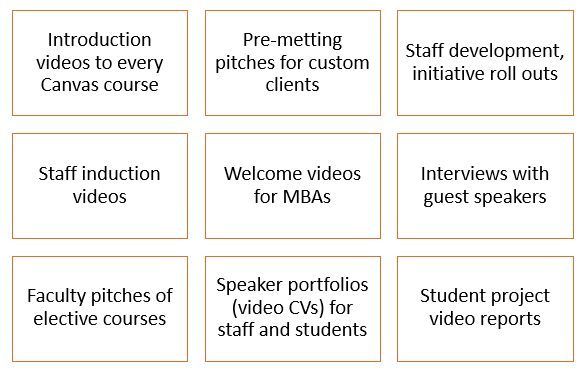
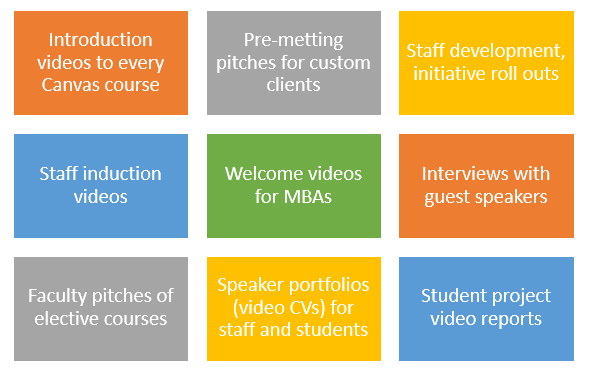
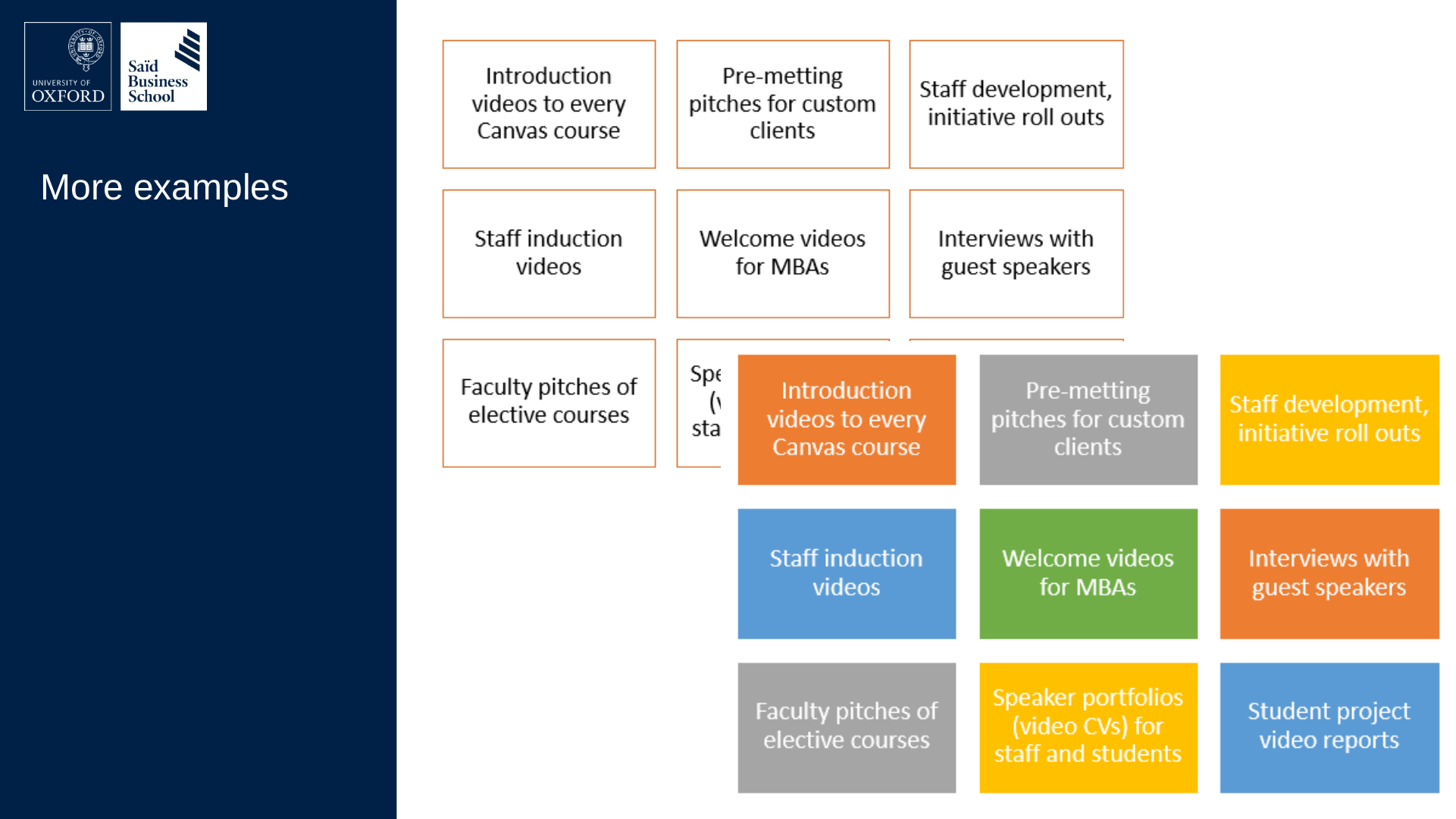
The nine entries, in grid order: Introduction videos to every Canvas course; Pre-metting pitches for custom clients; Staff development, initiative roll outs; Staff induction videos; Welcome videos for MBAs; Interviews with guest speakers; Faculty pitches of elective courses; Speaker portfolios (video CVs) for staff and students; Student project video reports.
Slide 55: More examples
More examples
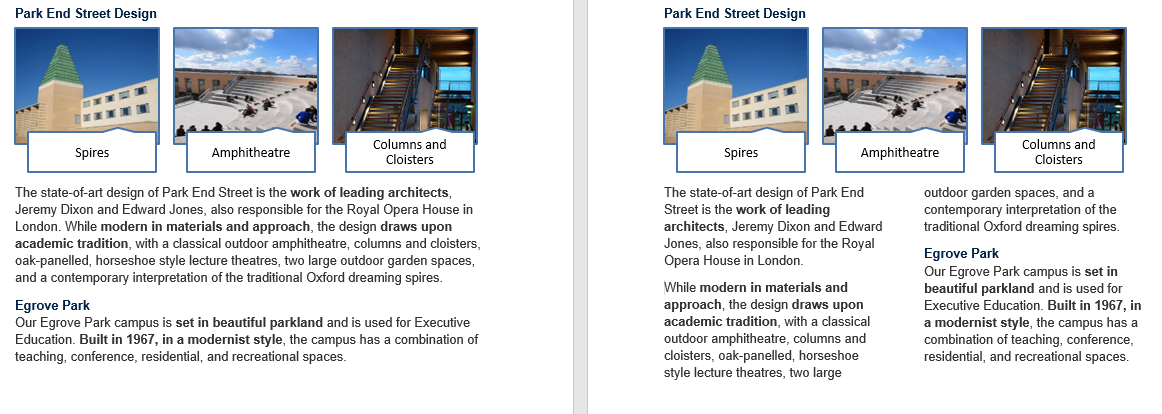
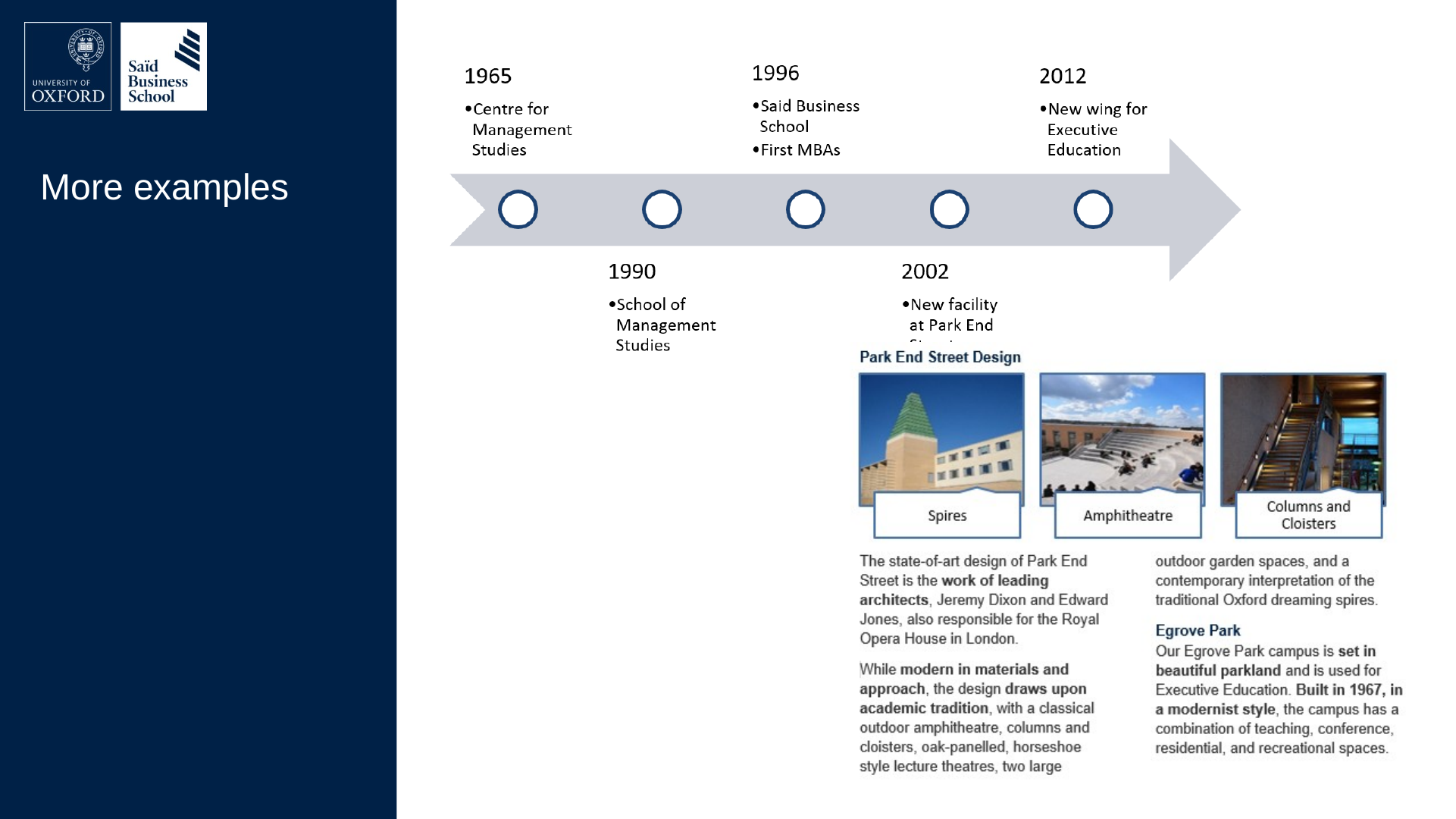
Park End Street Design. Photographs: Spires; Amphitheatre; Columns and Cloisters.
The state-of-art design of Park End Street is the work of leading architects, Jeremy Dixon and Edward Jones, also responsible for the Royal Opera House in London. While modern in materials and approach, the design draws upon academic tradition, with a classical outdoor amphitheatre, columns and cloisters, oak-panelled, horseshoe style lecture theatres, two large outdoor garden spaces, and a contemporary interpretation of the traditional Oxford dreaming spires.
Egrove Park. Our Egrove Park campus is set in beautiful parkland and is used for Executive Education. Built in 1967, in a modernist style, the campus has a combination of teaching, conference, residential, and recreational spaces.
Slide 56: And finally
And finally
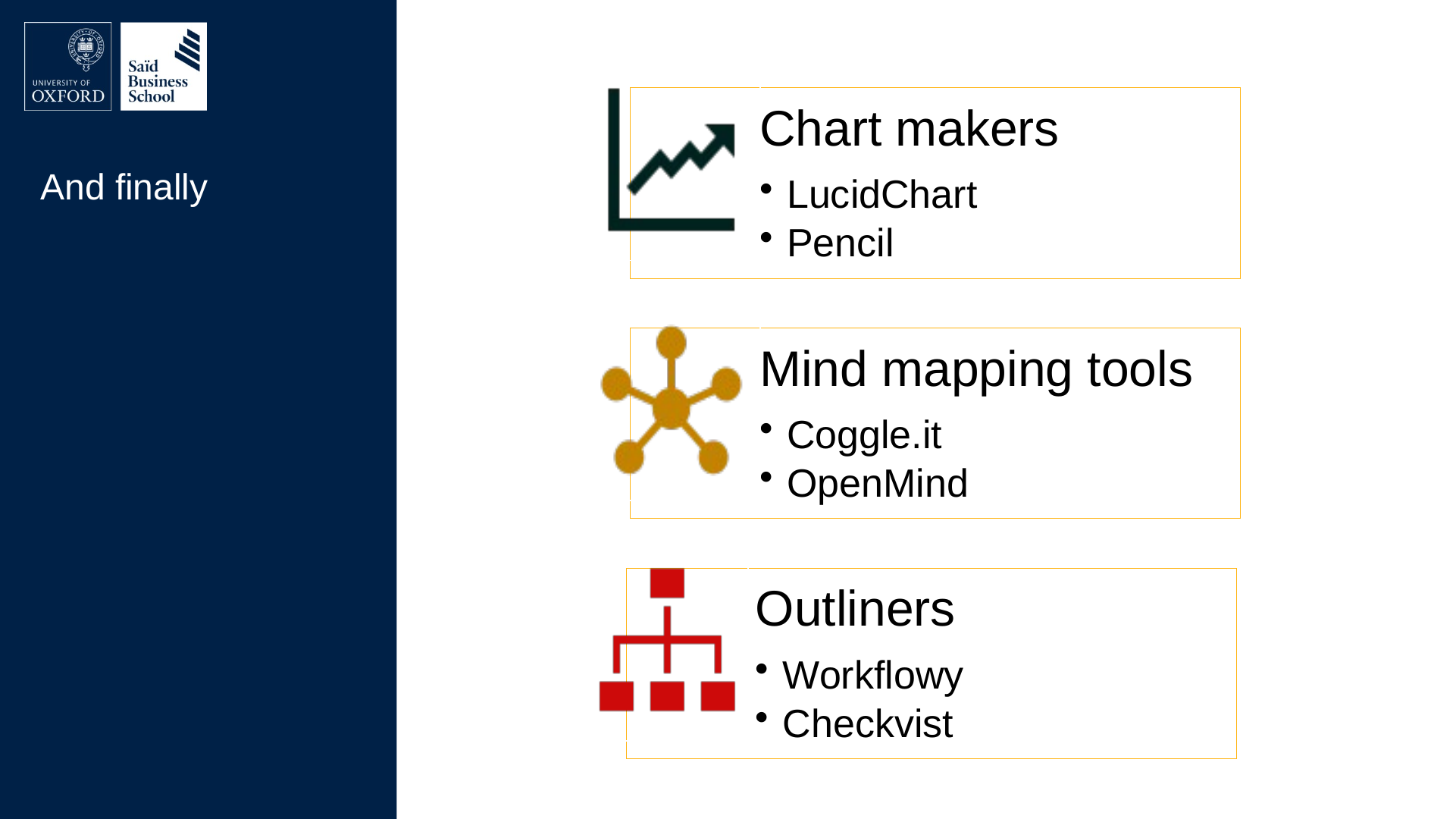
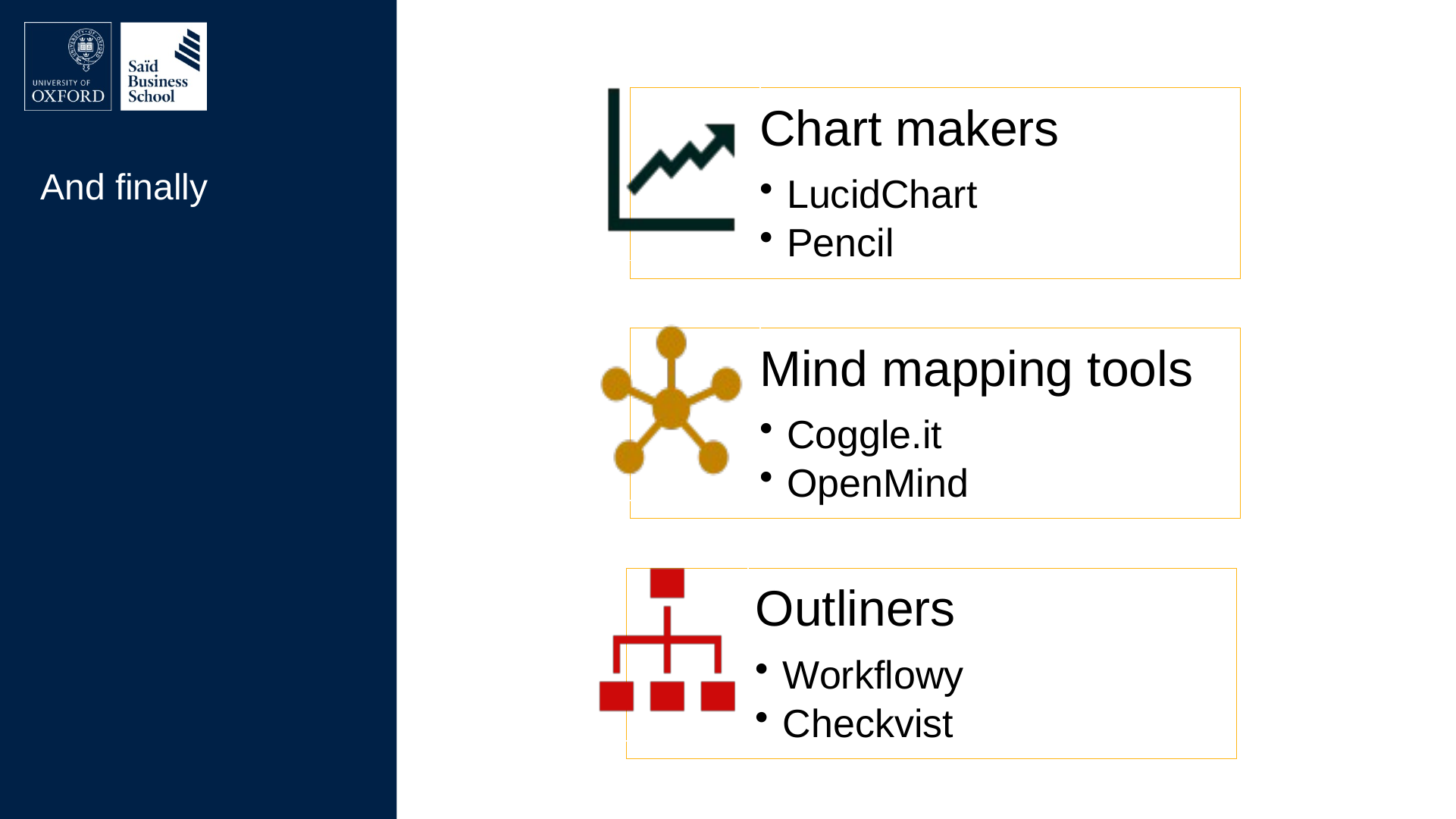
- Chart makers
- LucidChart
- Pencil
- Mind mapping tools
- Coggle.it
- OpenMind
- Outliners
- Workflowy
- Checkvist
Slide 57: Thank you
Thank you
This presentation was created by Dominik Lukeš
and it is made available under Creative Commons Attribution license