Inclusive reading on e-readers, tablets and phones
- SlideShare title: Reading on e readers, tablets and phones: Hardware and software for inclusive...
- Talk date: Not established
- SlideShare upload: 2014-02-27 (upload date, not the delivery date)
- Event: Not established
- Place: Not established
- Topics: Access & reading
- Language: en
- Slides in the original listing: 43
- Coverage: Full text of all 43 slides, each paired with its original slide image (slide N is section N).
- Original listing: https://www.slideshare.net/slideshow/reading-on-e-readers-tablets-and-phones-hardware-and-software-for-inclusive-literacy/31710820
- Cover image: https://slides.dominiklukes.net/readers/reading-on-e-readers-tablets-and-phones-hardware-and-software-for-inclusive-literacy/pages/page-01.png
- Reader data (JSON): https://slides.dominiklukes.net/readers/reading-on-e-readers-tablets-and-phones-hardware-and-software-for-inclusive-literacy/presentation.json
- TalkWeaver package (outline and images, ZIP): https://slides.dominiklukes.net/reading-on-e-readers-tablets-and-phones-hardware-and-software-for-inclusive-literacy/reading-on-e-readers-tablets-and-phones-hardware-and-software-for-inclusive-literacy-talkweaver.zip
- TalkWeaver outline: https://slides.dominiklukes.net/reading-on-e-readers-tablets-and-phones-hardware-and-software-for-inclusive-literacy/talkweaver/reading-on-e-readers-tablets-and-phones-hardware-and-software-for-inclusive-literacy-outline.md
- Markdown copy: https://slides.dominiklukes.net/reading-on-e-readers-tablets-and-phones-hardware-and-software-for-inclusive-literacy/index.md
Slide 1: Inclusive reading on e-readers, tablets and phones
Inclusive reading on e-readers, tablets and phones
Dominik Lukeš, Education & Technology Specialist
[email protected], @techczech, slidesha.re/go-eread

Slide 2: Research based on work on these two projects:
Research based on work on these two projects:

Load2Learn.org.uk

iLearnRW.eu
Slide 3: Slide 3
- eReaders vs Tablets
- Which tablet
- What apps
- Where to get books
- How to read accessibly
Slide 4: eReaders v Tablets
eReaders v Tablets
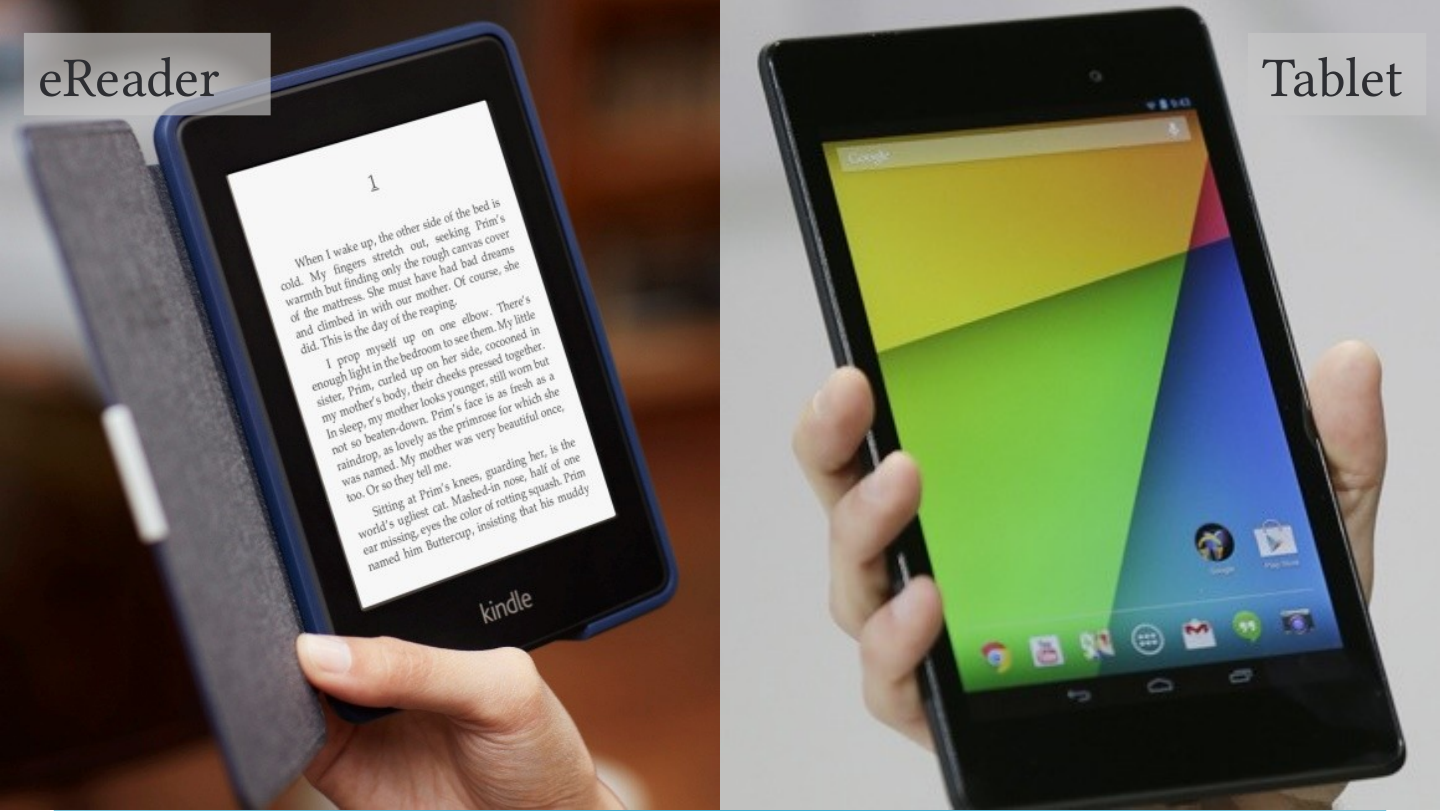
Slide 5: eReaders v Tablets
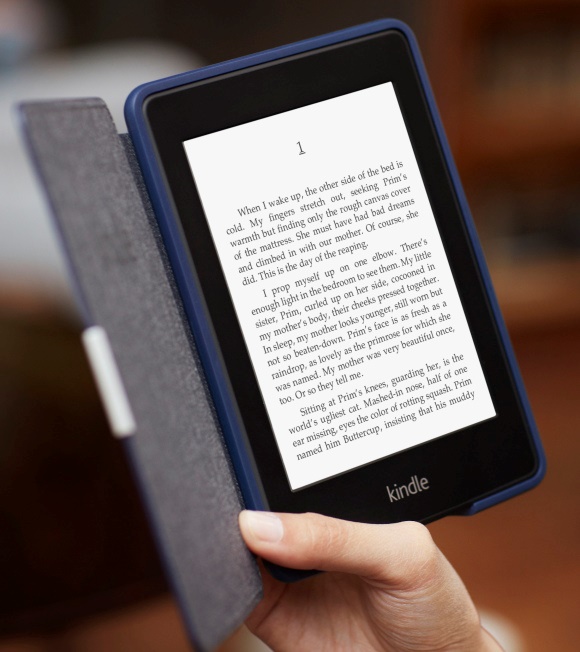
eReader
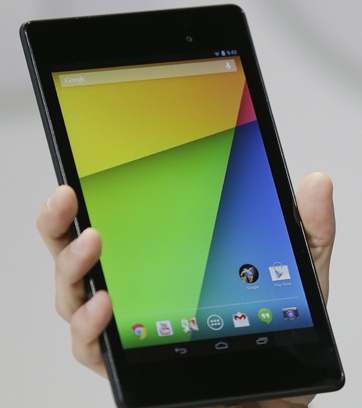
Tablet
Slide 6: eReaders v Tablets
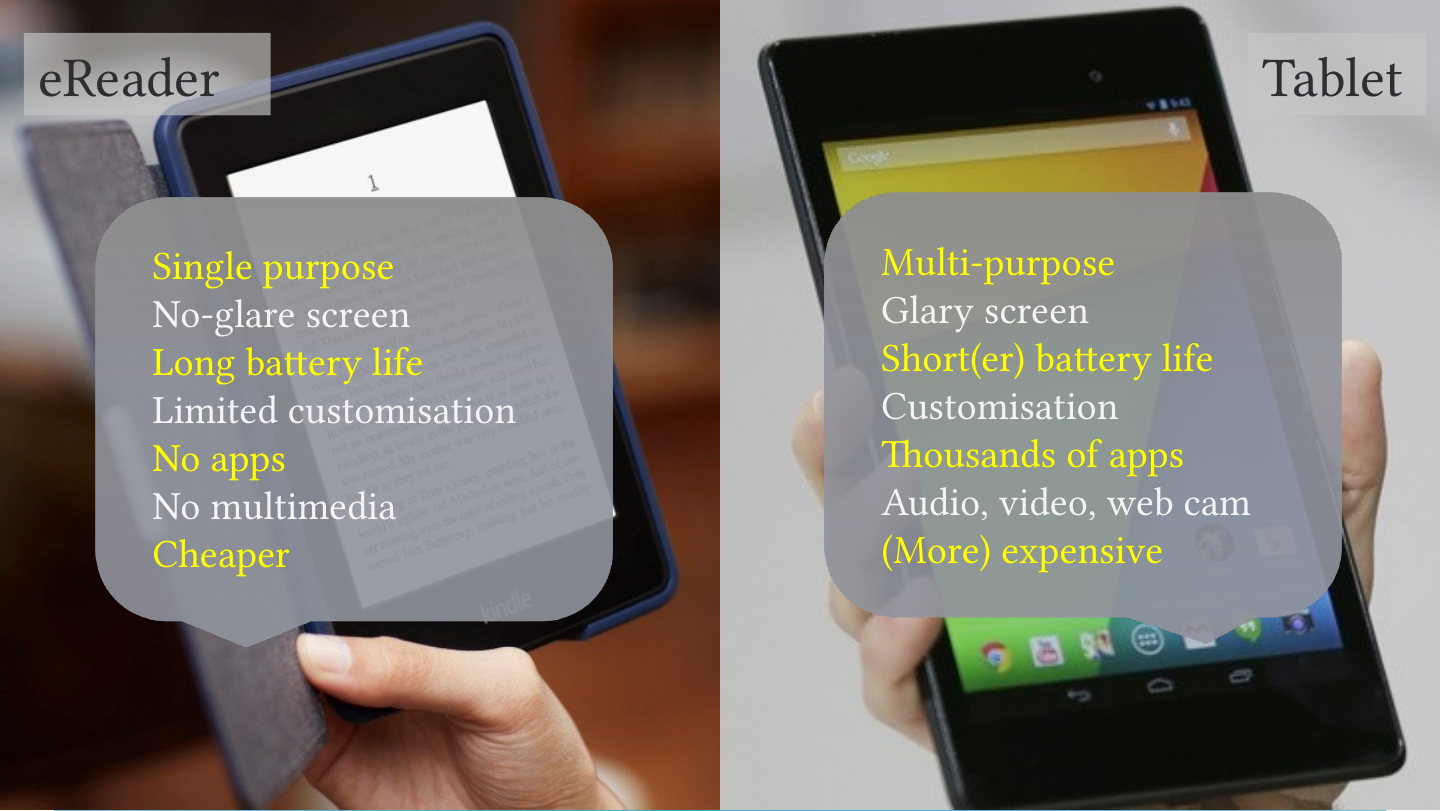
eReader
- Single purpose
- No-glare screen
- Long battery life
- Limited customisation
- No apps
- No multimedia
- Cheaper
Tablet
- Multi-purpose
- Glary screen
- Short(er) battery life
- Customisation
- Thousands of apps
- Audio, video, web cam
- (More) expensive
Slide 7: eReaders v Tablets
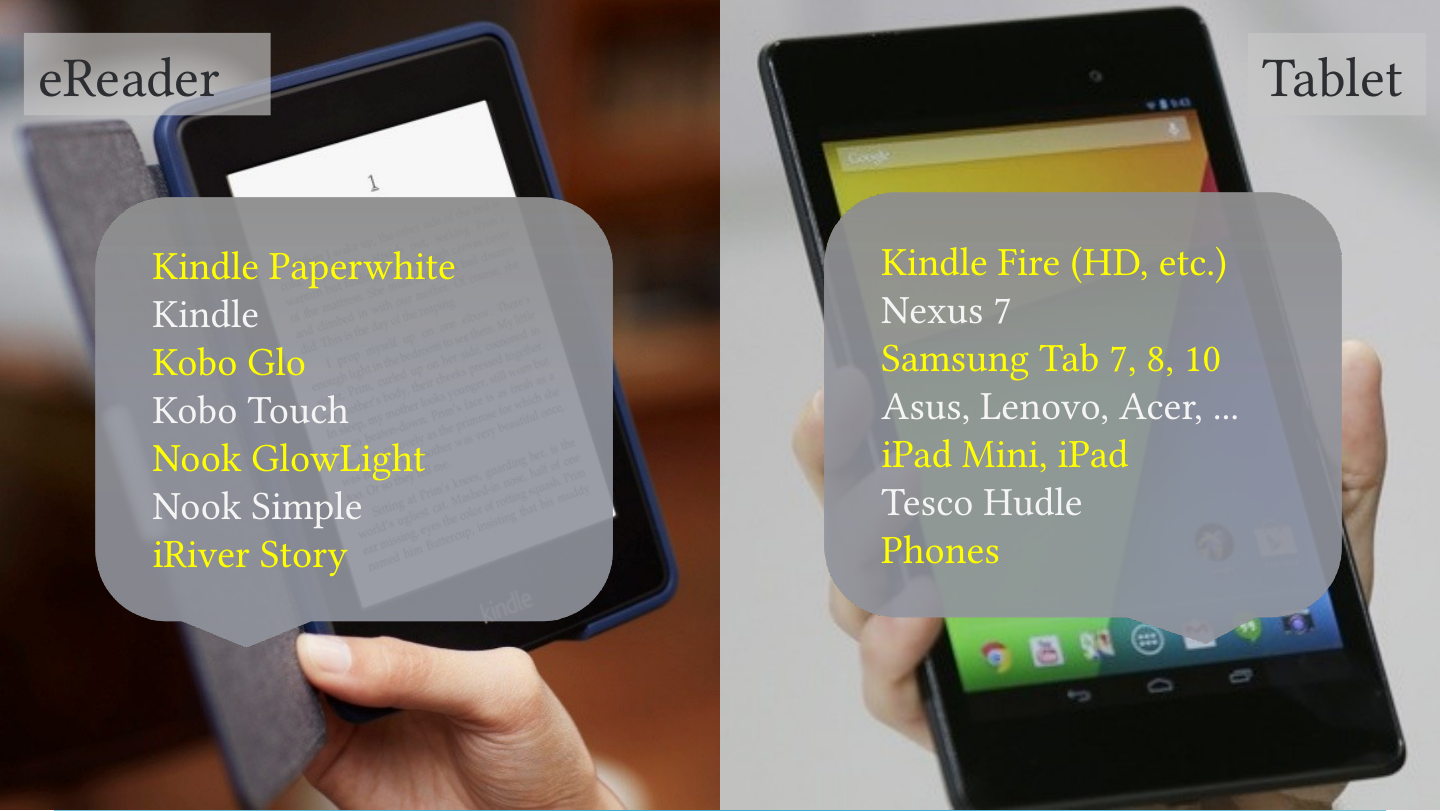
eReader
- Kindle Paperwhite
- Kindle
- Kobo Glo
- Kobo Touch
- Nook GlowLight
- Nook Simple
- iRiver Story
Tablet
- Kindle Fire (HD, etc.)
- Nexus 7
- Samsung Tab 7, 8, 10
- Asus, Lenovo, Acer, ...
- iPad Mini, iPad
- Tesco Hudle
- Phones
Slide 8: Why read on an eReader or Tablet?
Why read on an eReader or Tablet?
Slide 9: Why read on an eReader or Tablet?
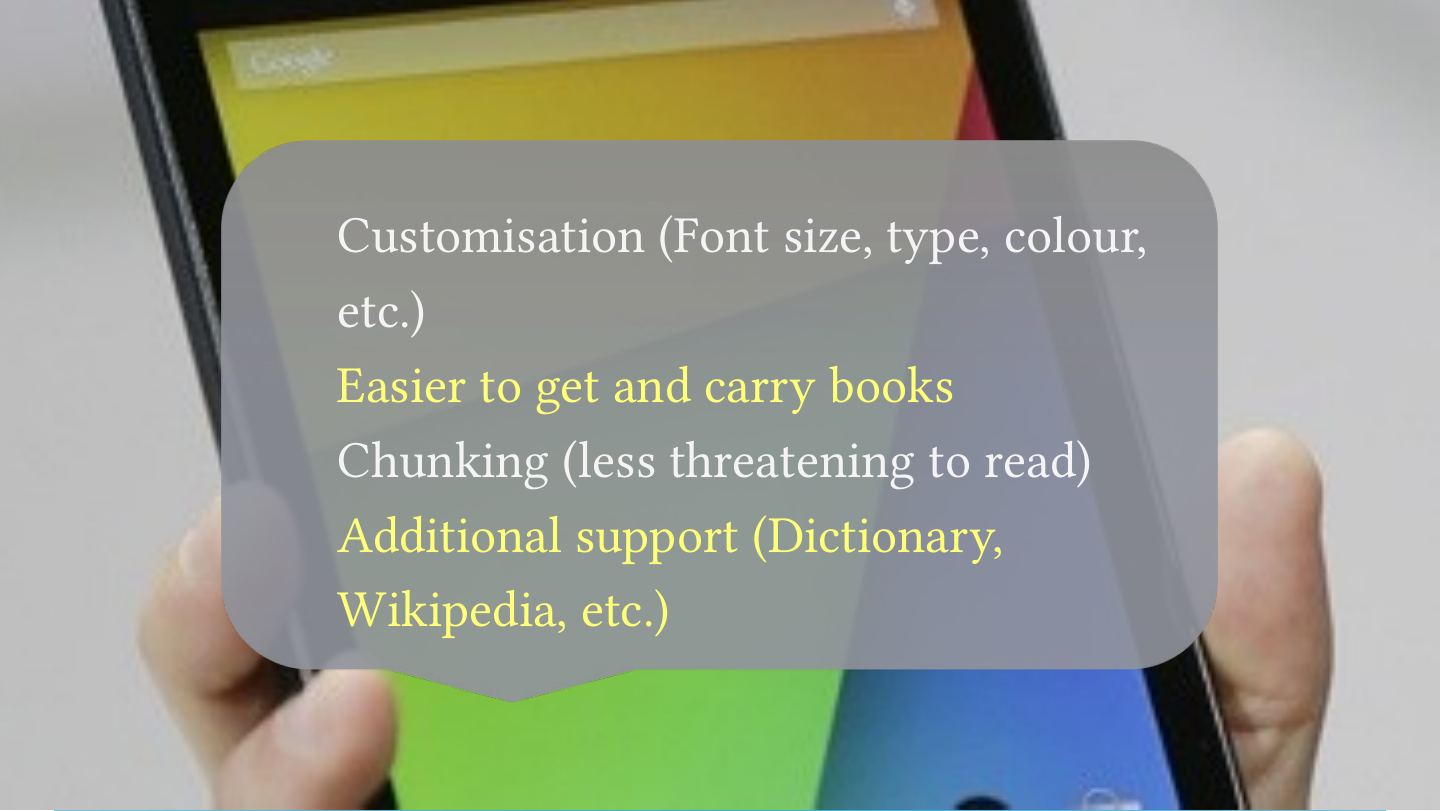
- Customisation (Font size, type, colour, etc.)
- Easier to get and carry books
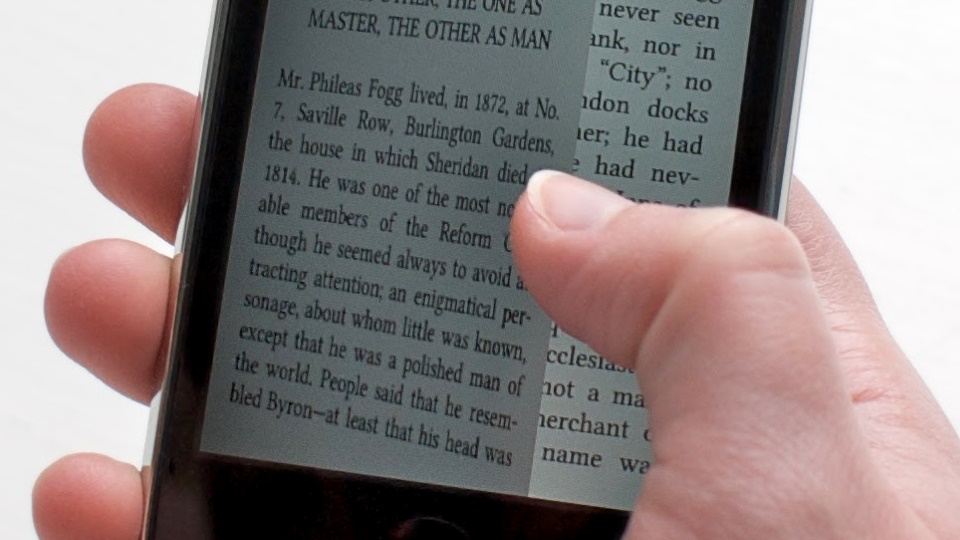
- Chunking (less threatening to read)
- Additional support (Dictionary, Wikipedia, etc.)
Slide 10: Why read on an eReader or Tablet?
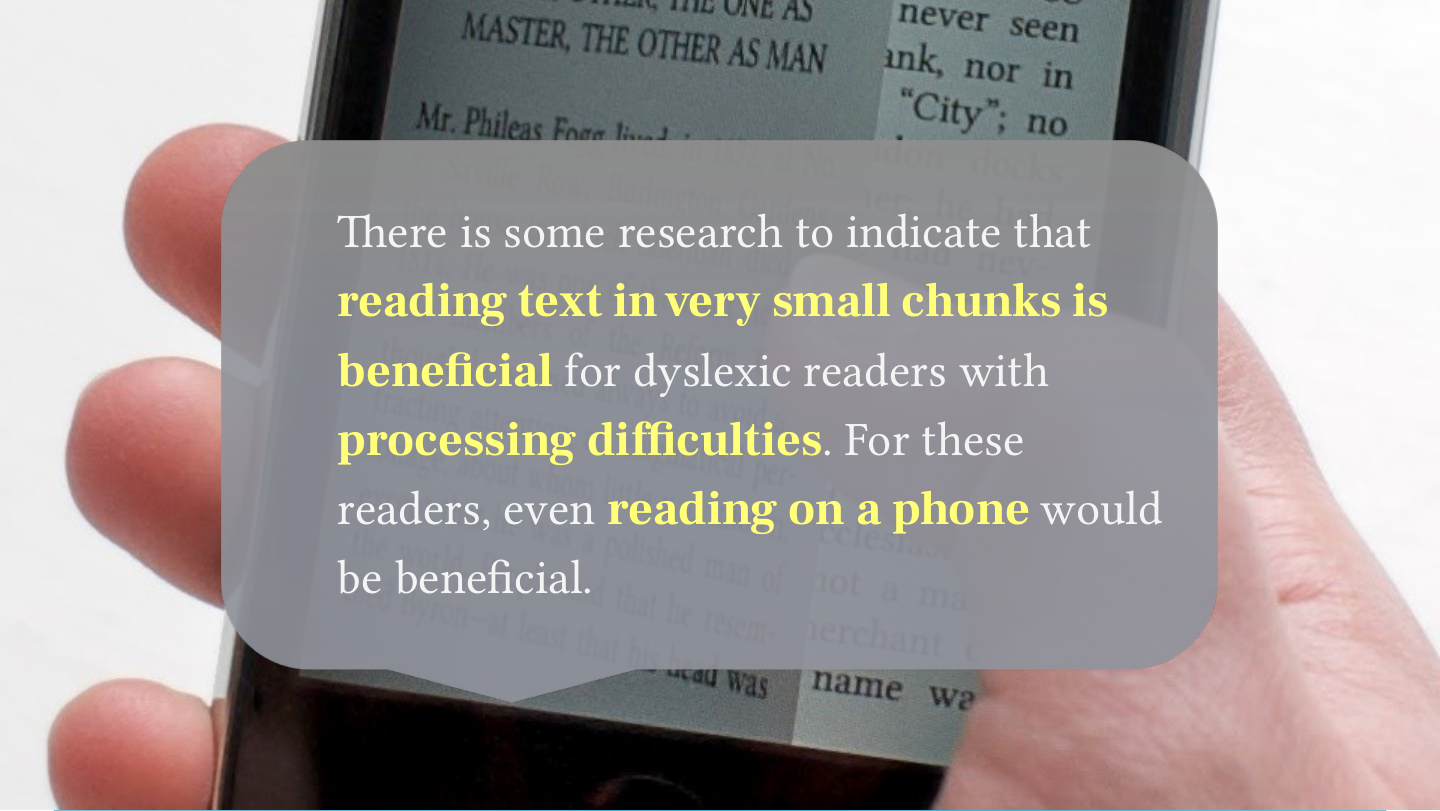
There is some research to indicate that reading text in very small chunks is beneficial for dyslexic readers with processing difficulties. For these readers, even reading on a phone would be beneficial.
Slide 11: Ideal tablet for reading?
Ideal tablet for reading?
Slide 12: Ideal tablet for reading?
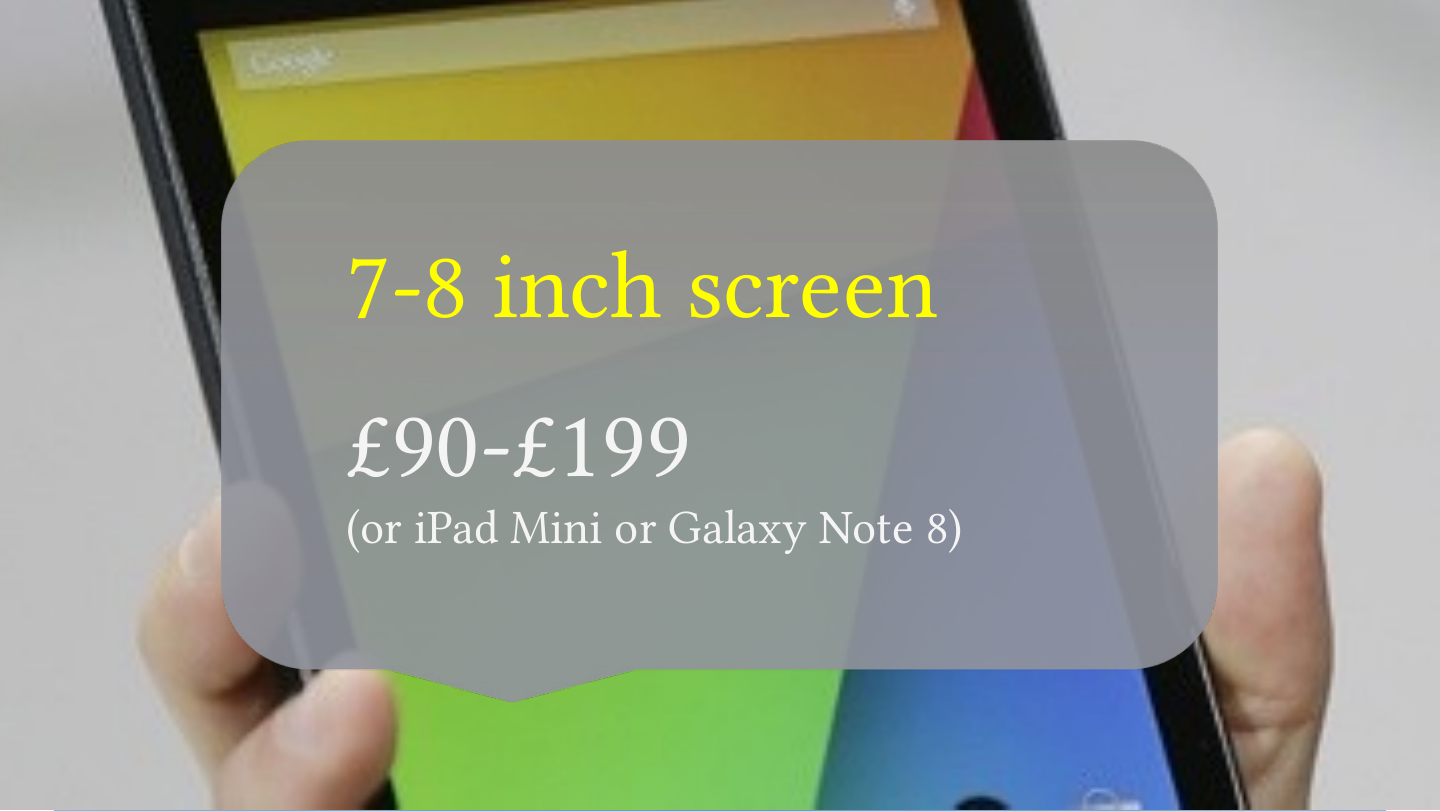
7-8 inch screen
£90-£199 (or iPad Mini or Galaxy Note 8)
Slide 13: What apps?
What apps?
Slide 14: What apps?
CC-BY Some rights reserved by ‘Ajnagraphy’
Slide 15: What apps?
Two types of reading apps
- Tied in to store
- Independent
Slide 16: What apps?
1
- Buy books in app
- Only read purchased books
Slide 17: What apps?
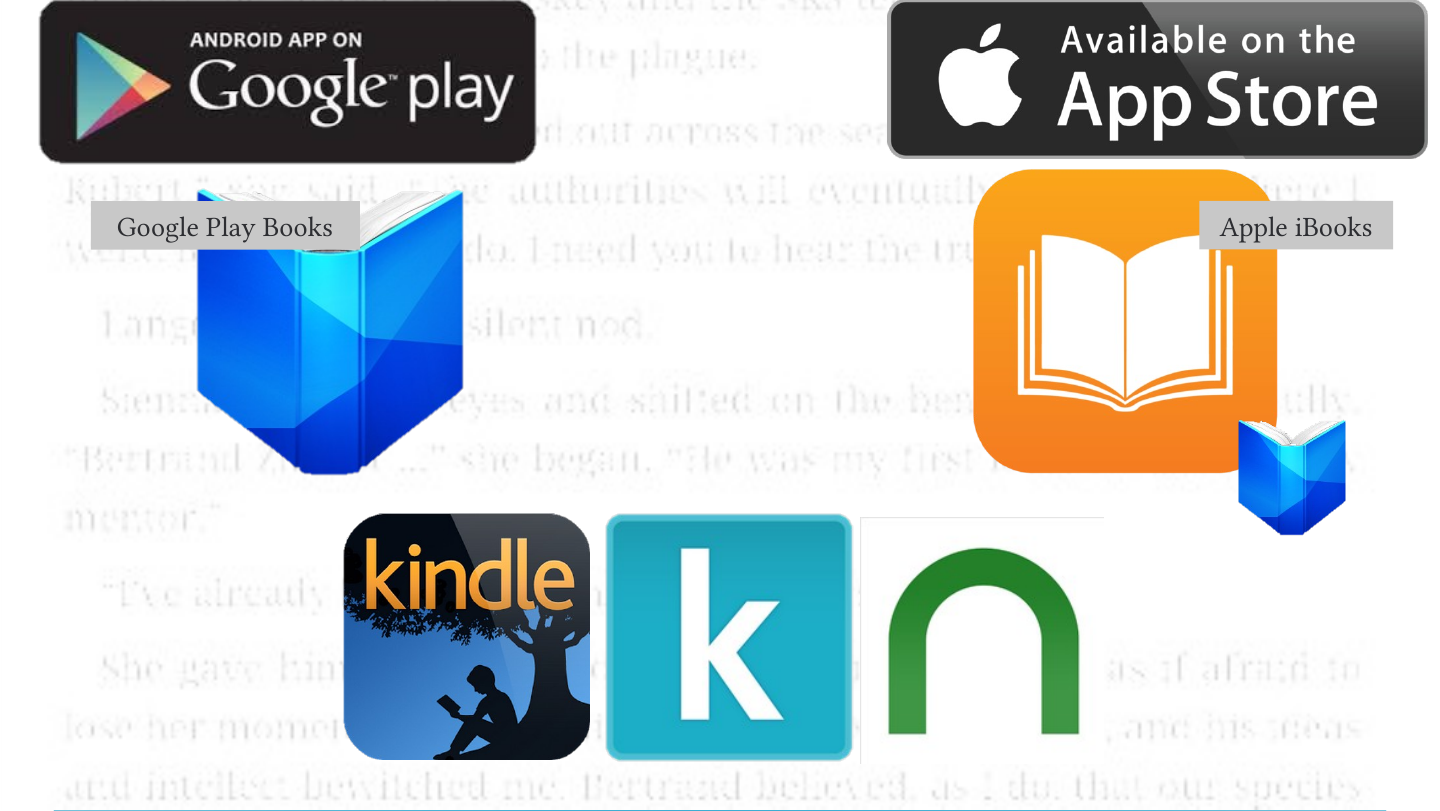
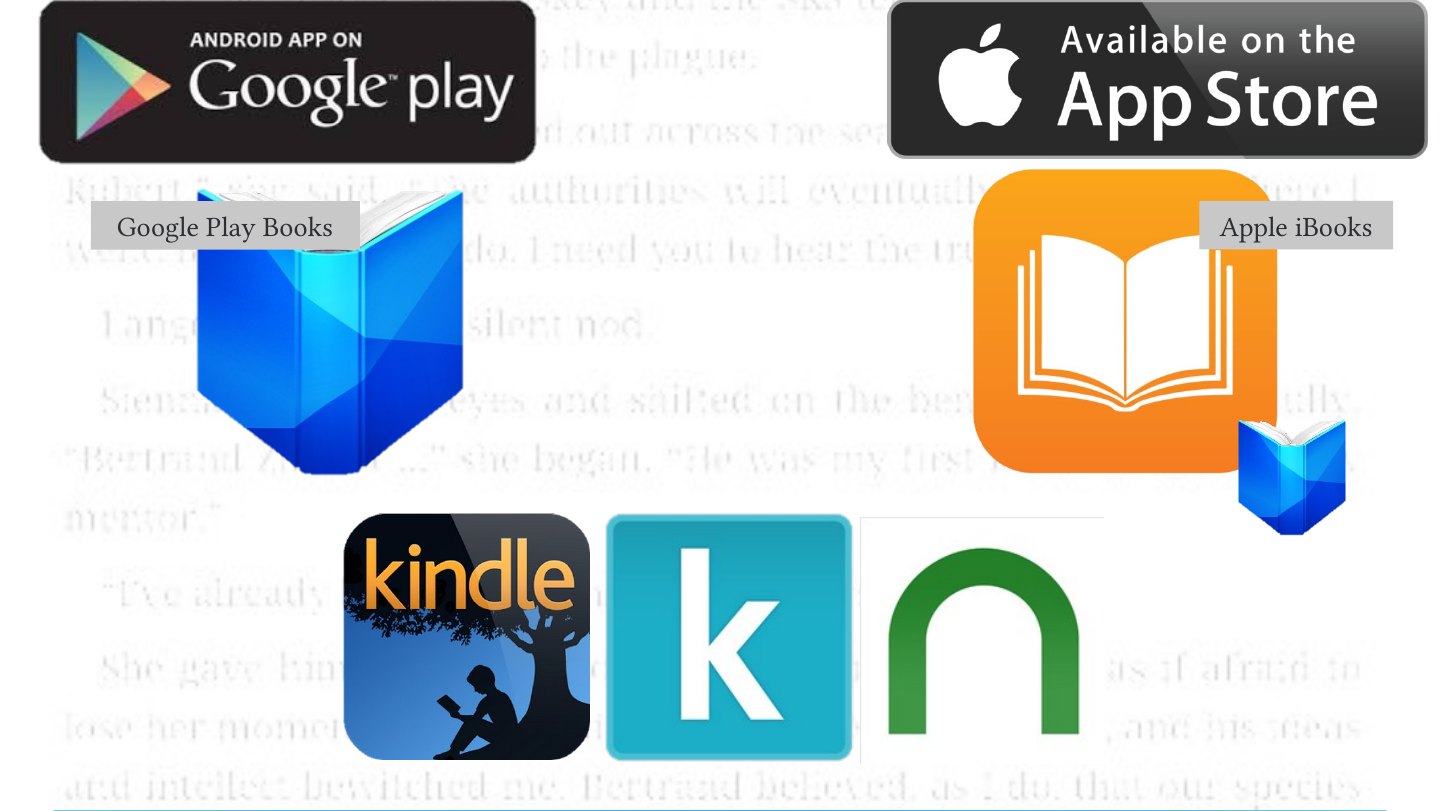
Google Play Books
Apple iBooks
Slide 18: What apps?
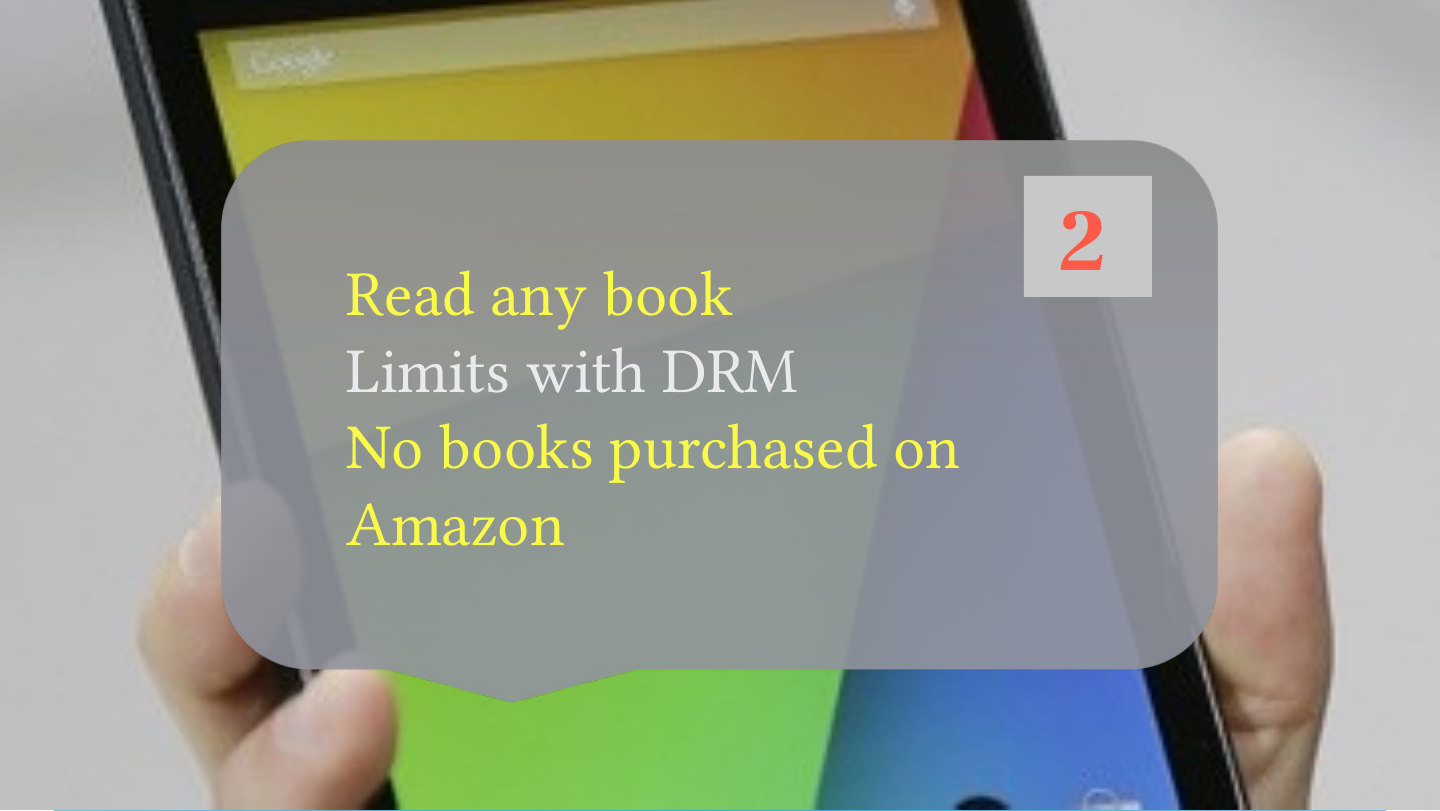
2
- Read any book
- Limits with DRM
- No books purchased on Amazon
Slide 19: What apps?
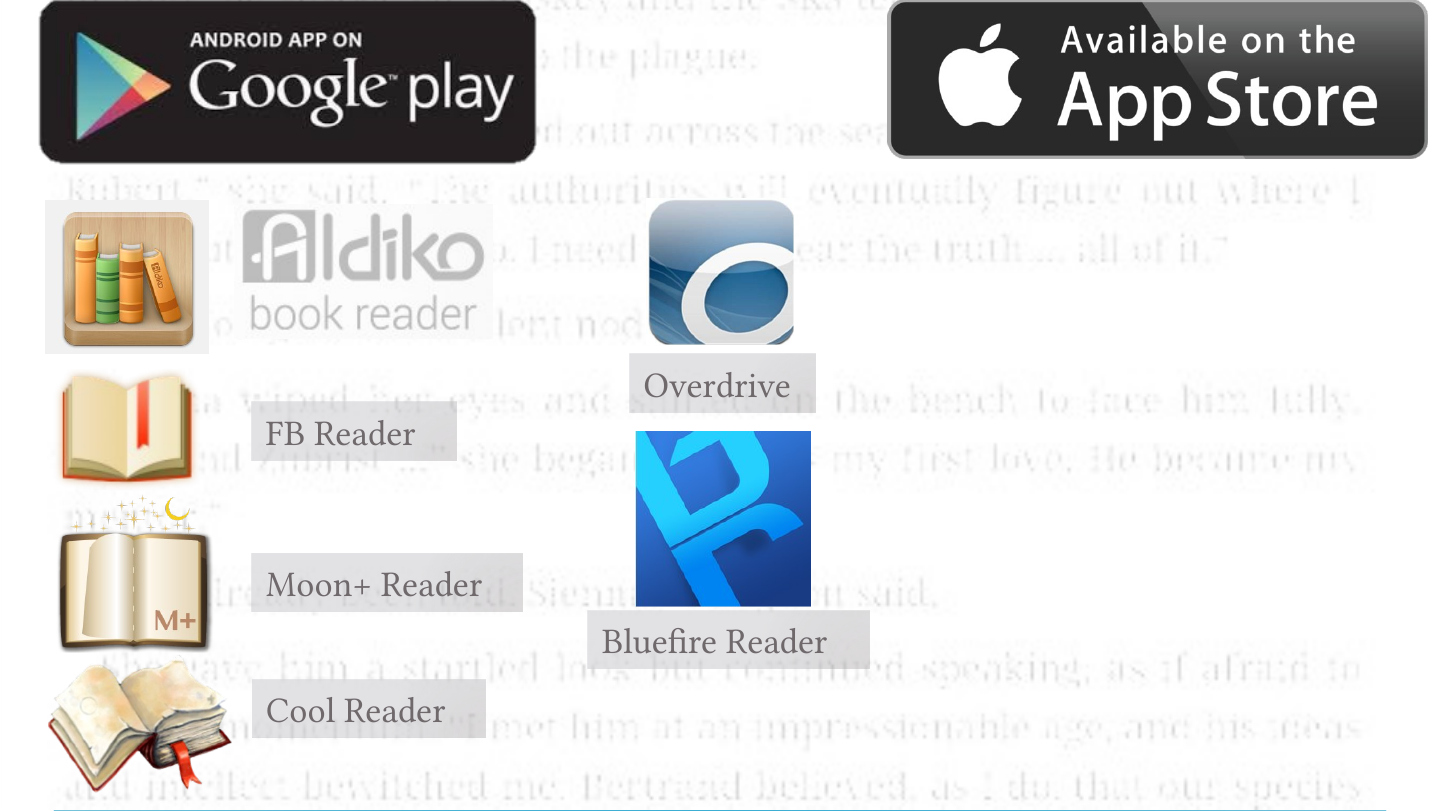
- FB Reader
- Moon+ Reader
- Cool Reader
- Overdrive
- Bluefire Reader
Slide 20: What apps?
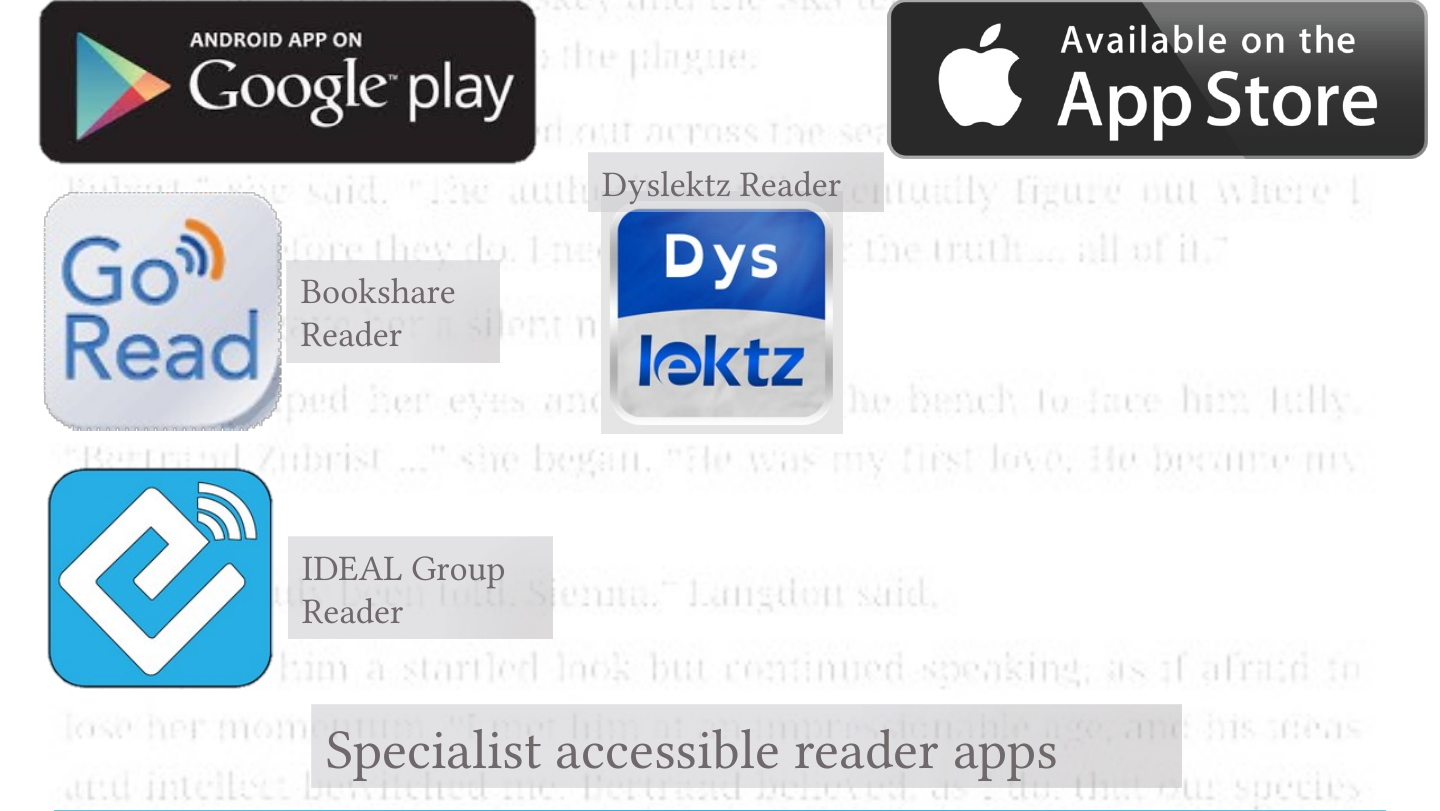
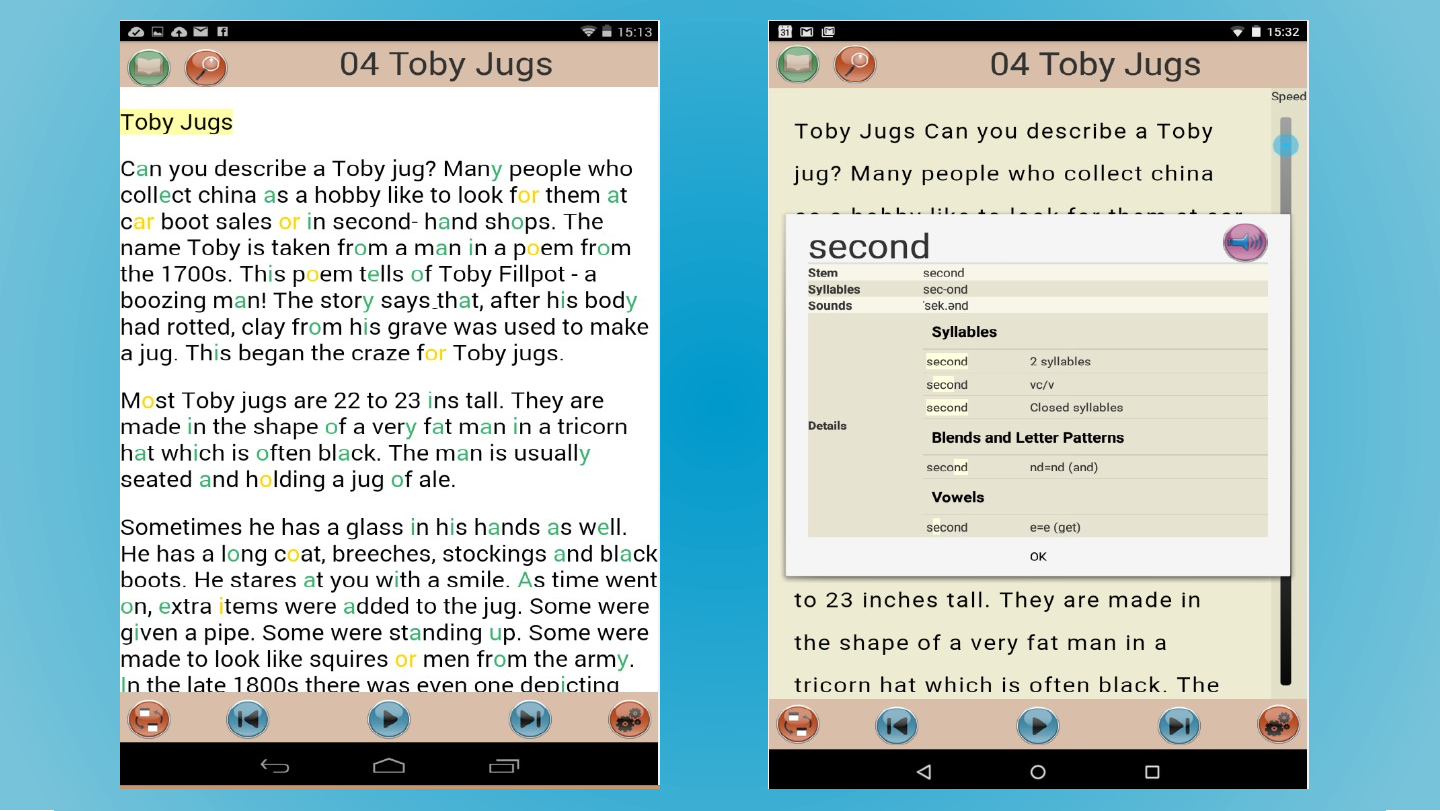
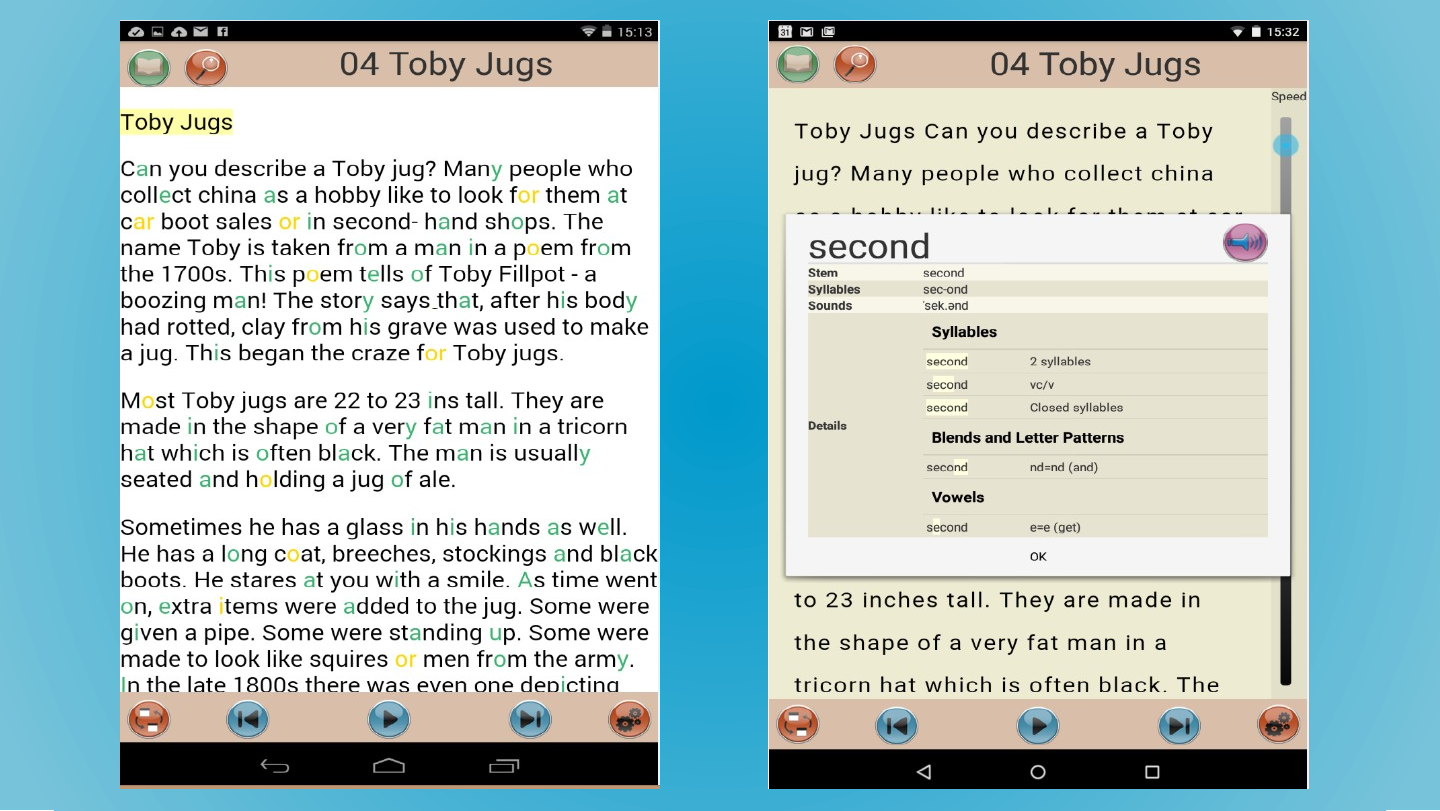
Specialist accessible reader apps
- IDEAL Group Reader
- Bookshare Reader
- Dyslektz Reader
Slide 21: What apps?
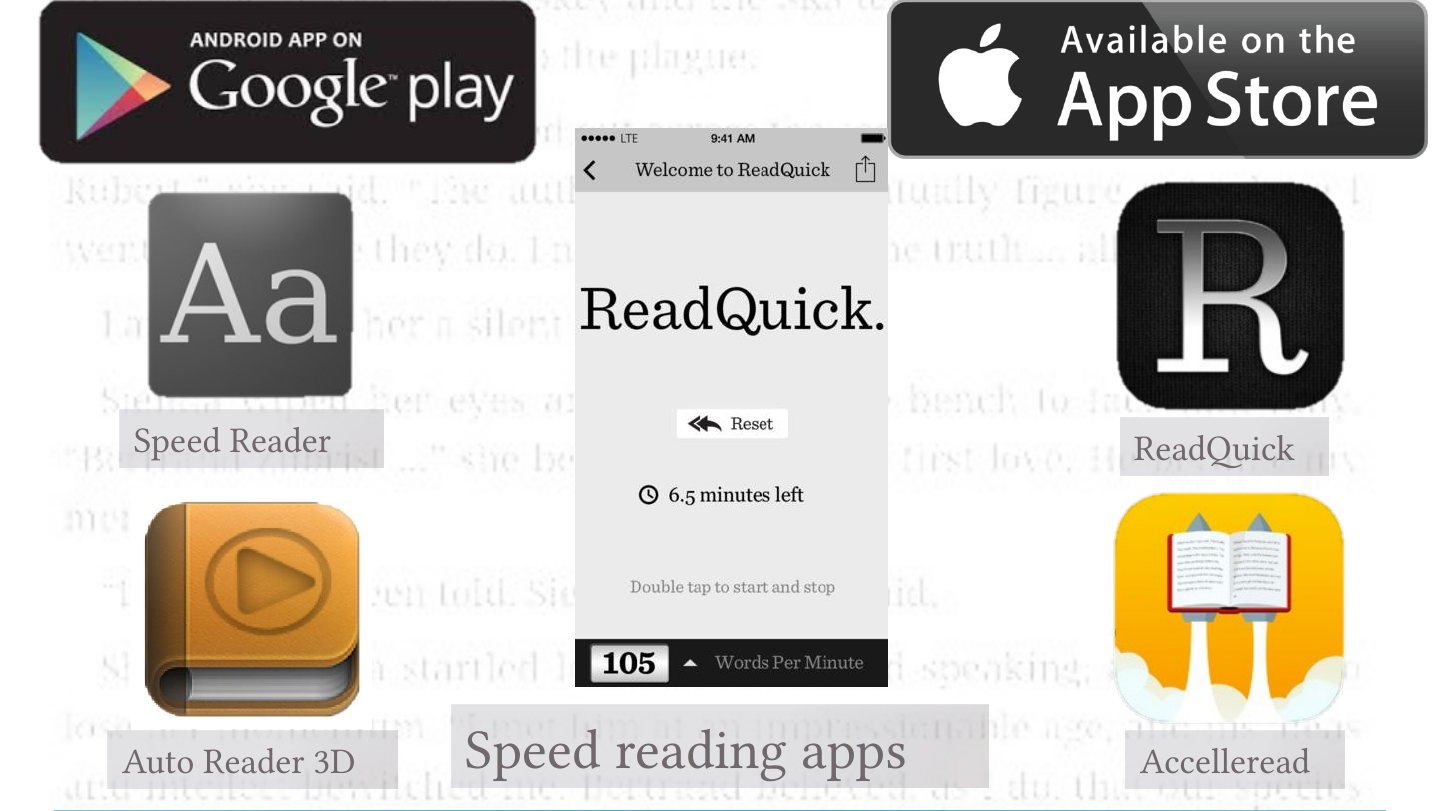
Speed reading apps
- Speed Reader
- Auto Reader 3D
- ReadQuick
- Accelleread
Slide 22: What apps?
Reading PDFs and news
- EZ PDF
- iAnnotate PDF
- Readability
- Feedly
Slide 23: What apps?
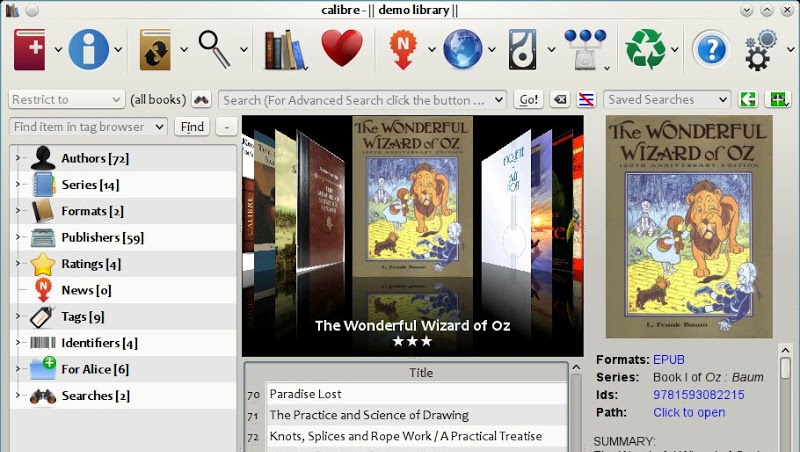
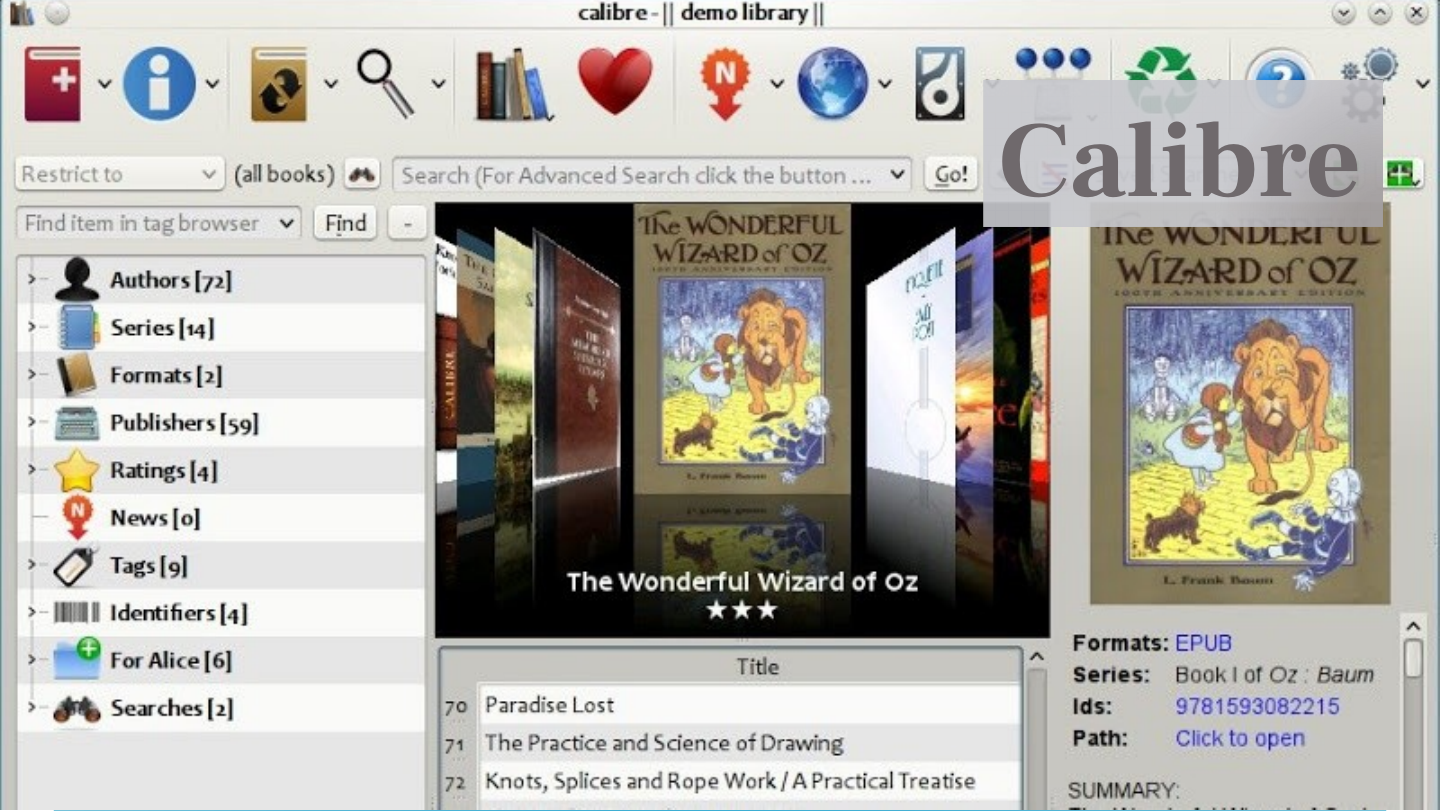
Calibre
Slide 24: What apps?
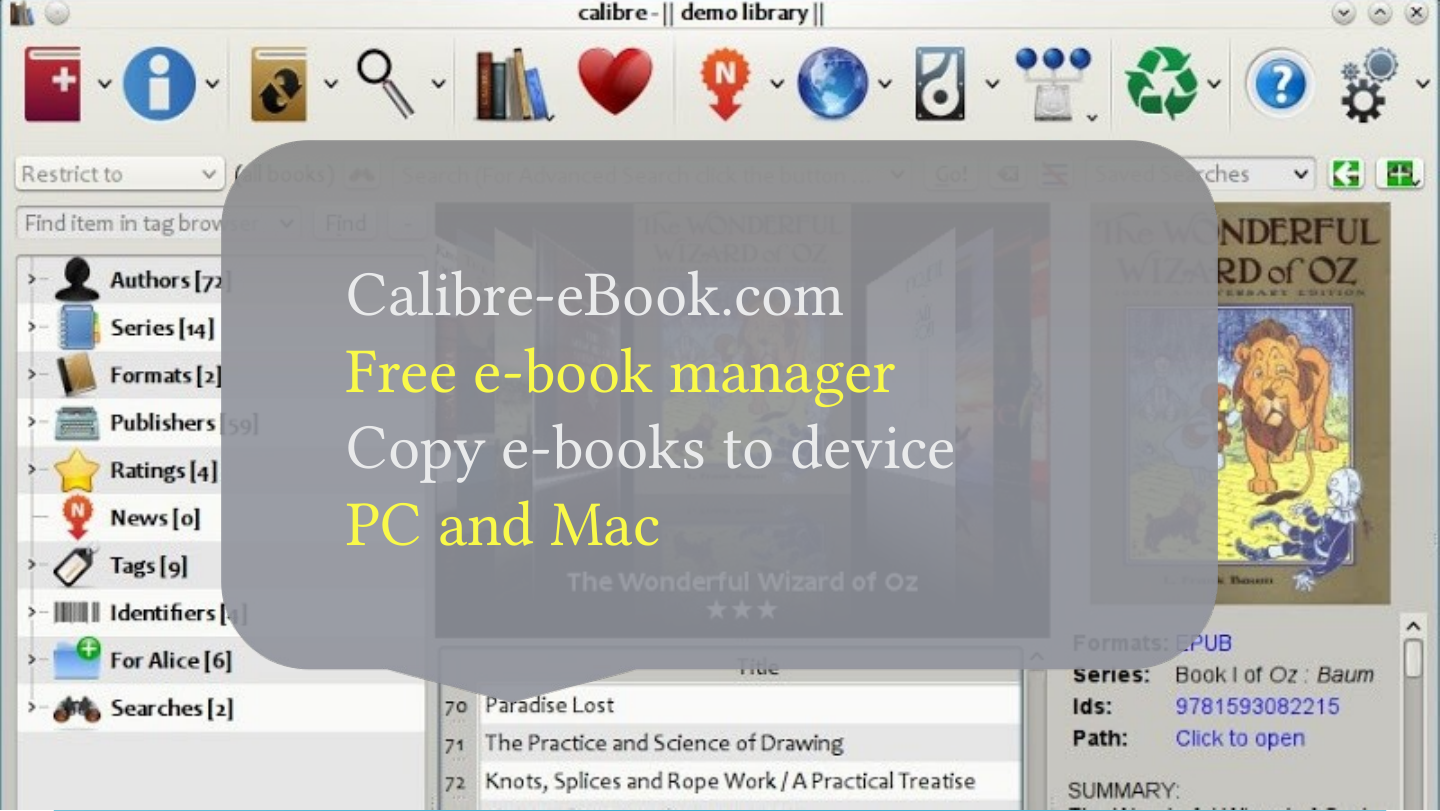
Calibre-eBook.com
- Free e-book manager
- Copy e-books to device
- PC and Mac
Slide 25: Ideal reader app
Ideal reader app
Slide 26: Ideal reader app
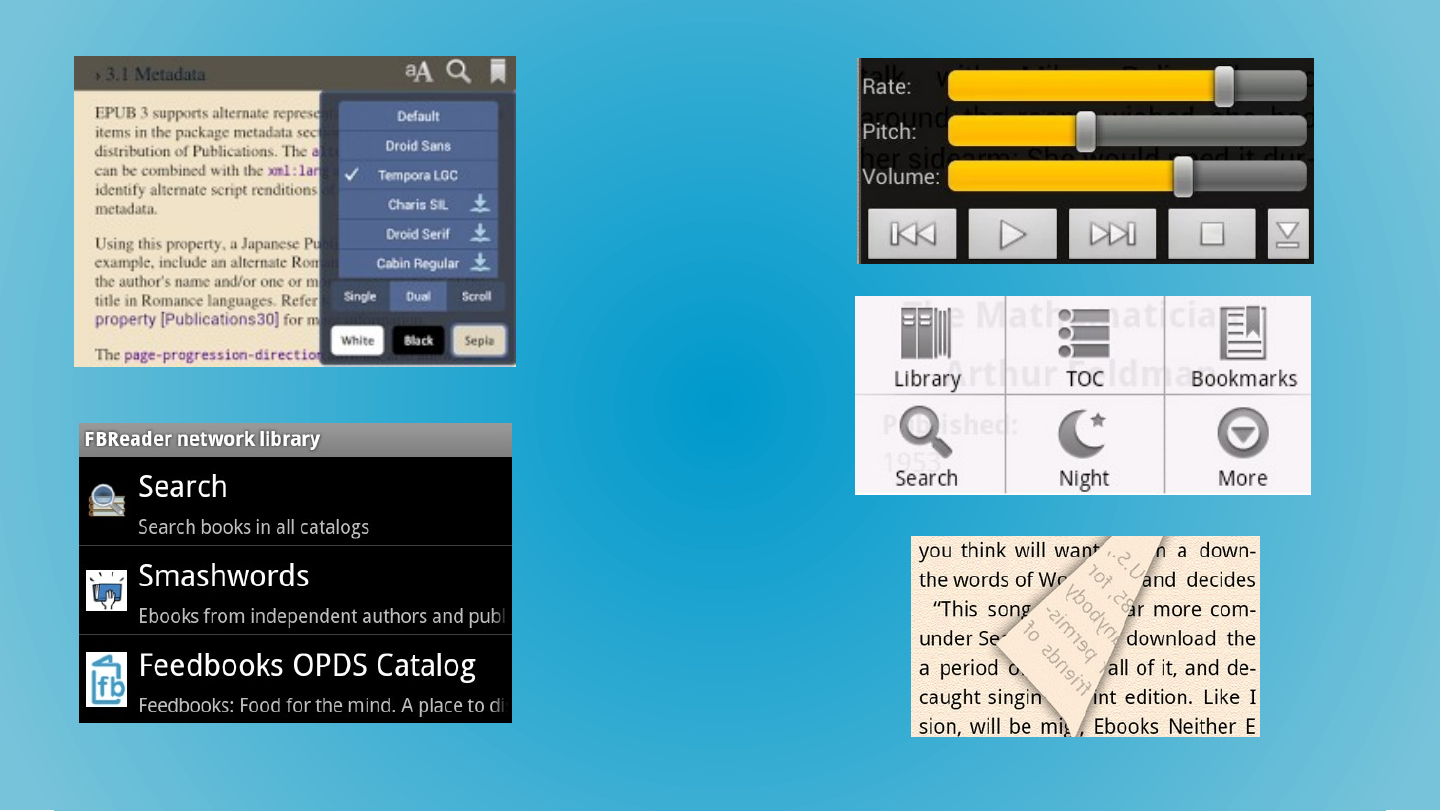
- Full font/colour customisation
- Text to speech
- Library with tie in to online repositories
Slide 27: Research in reader interfaces
Research in reader interfaces
Slide 28: Research in reader interfaces
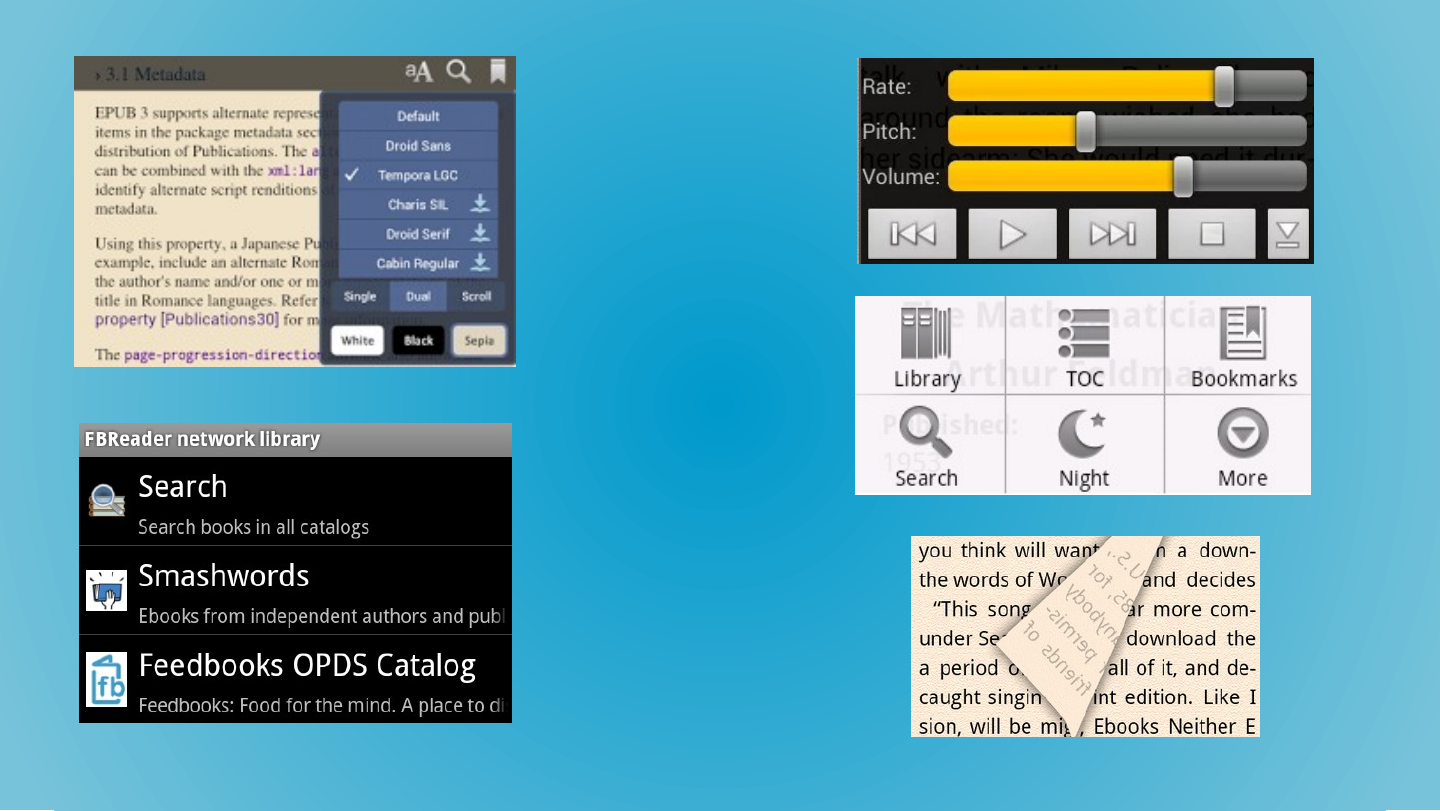
Slide 29: Research in reader interfaces
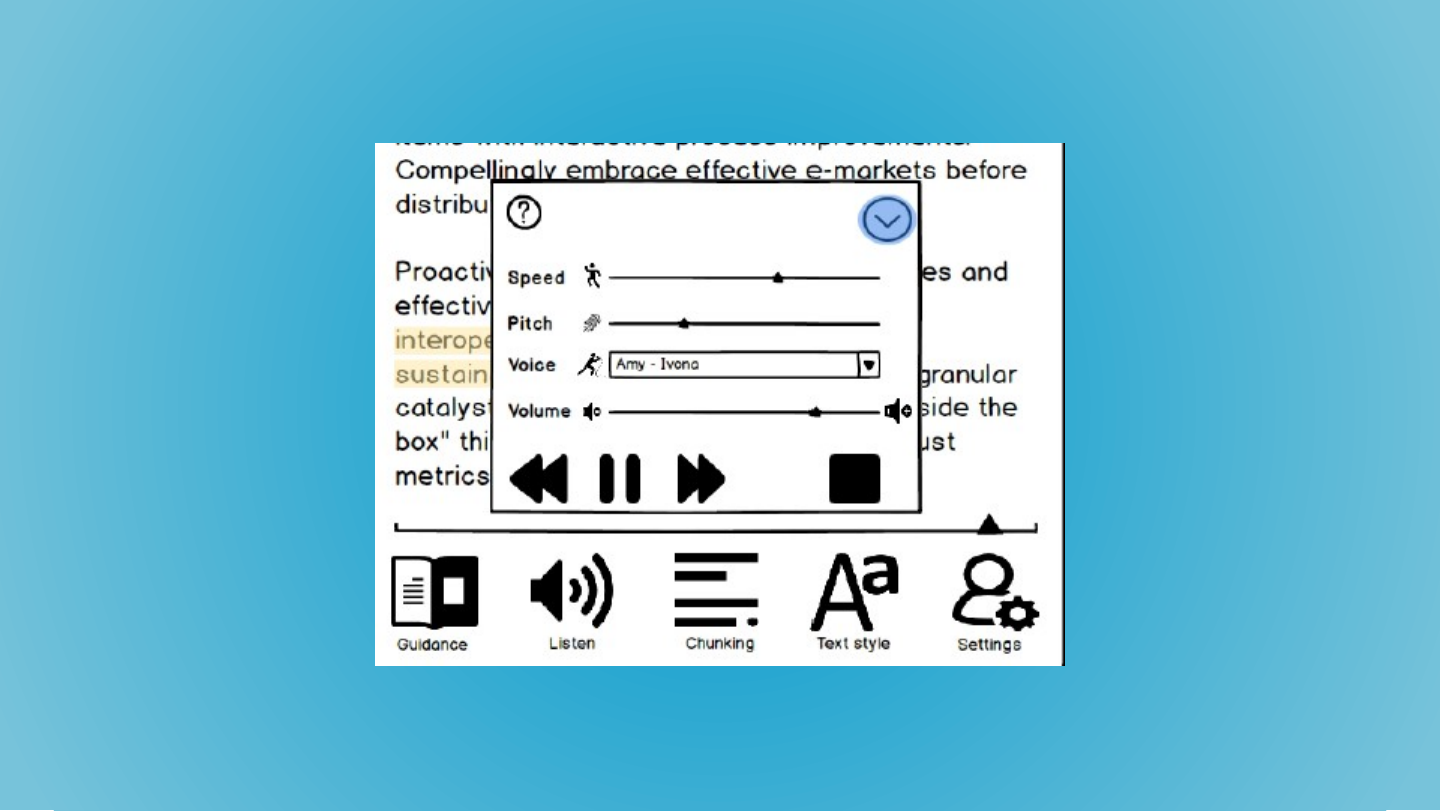
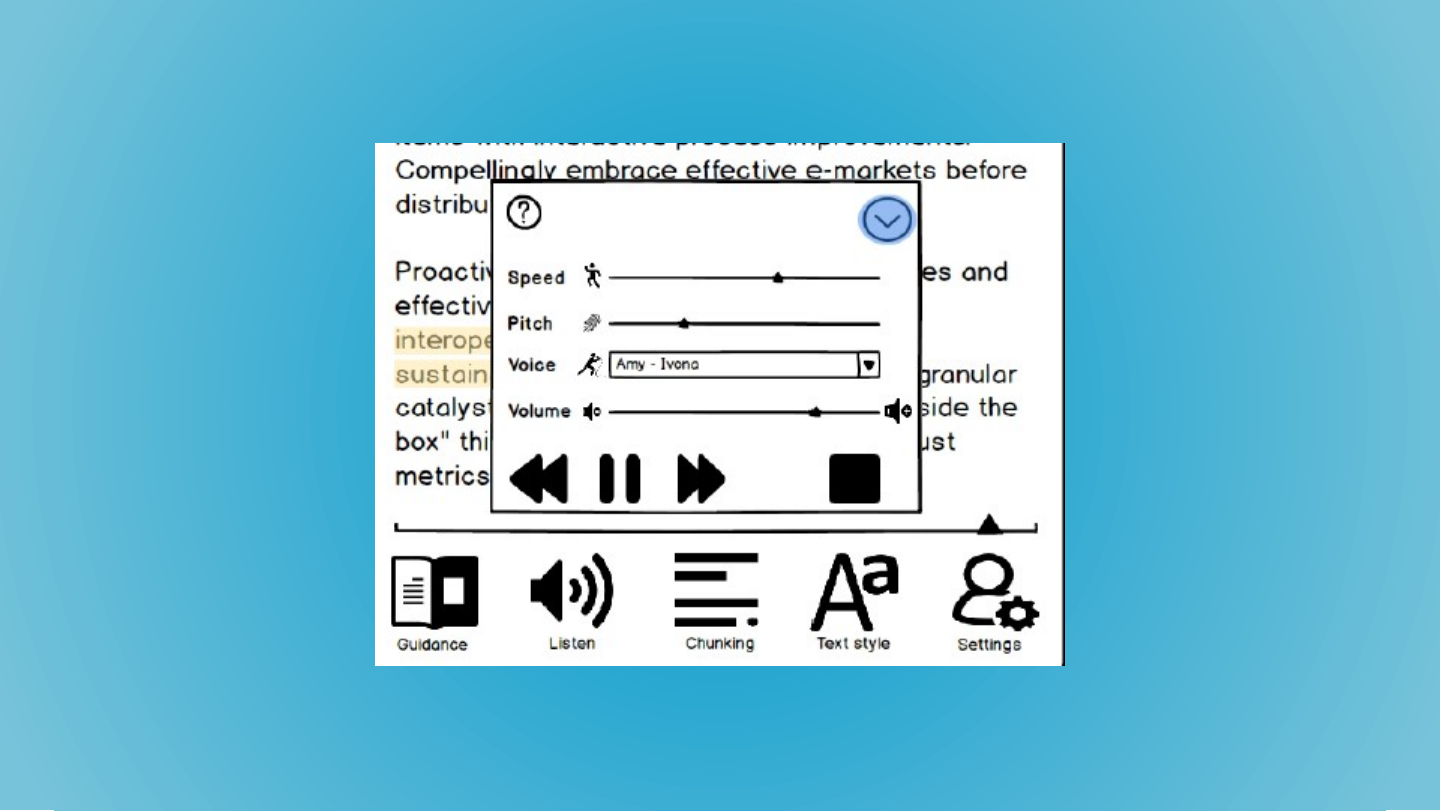
Slide 30: Research in reader interfaces
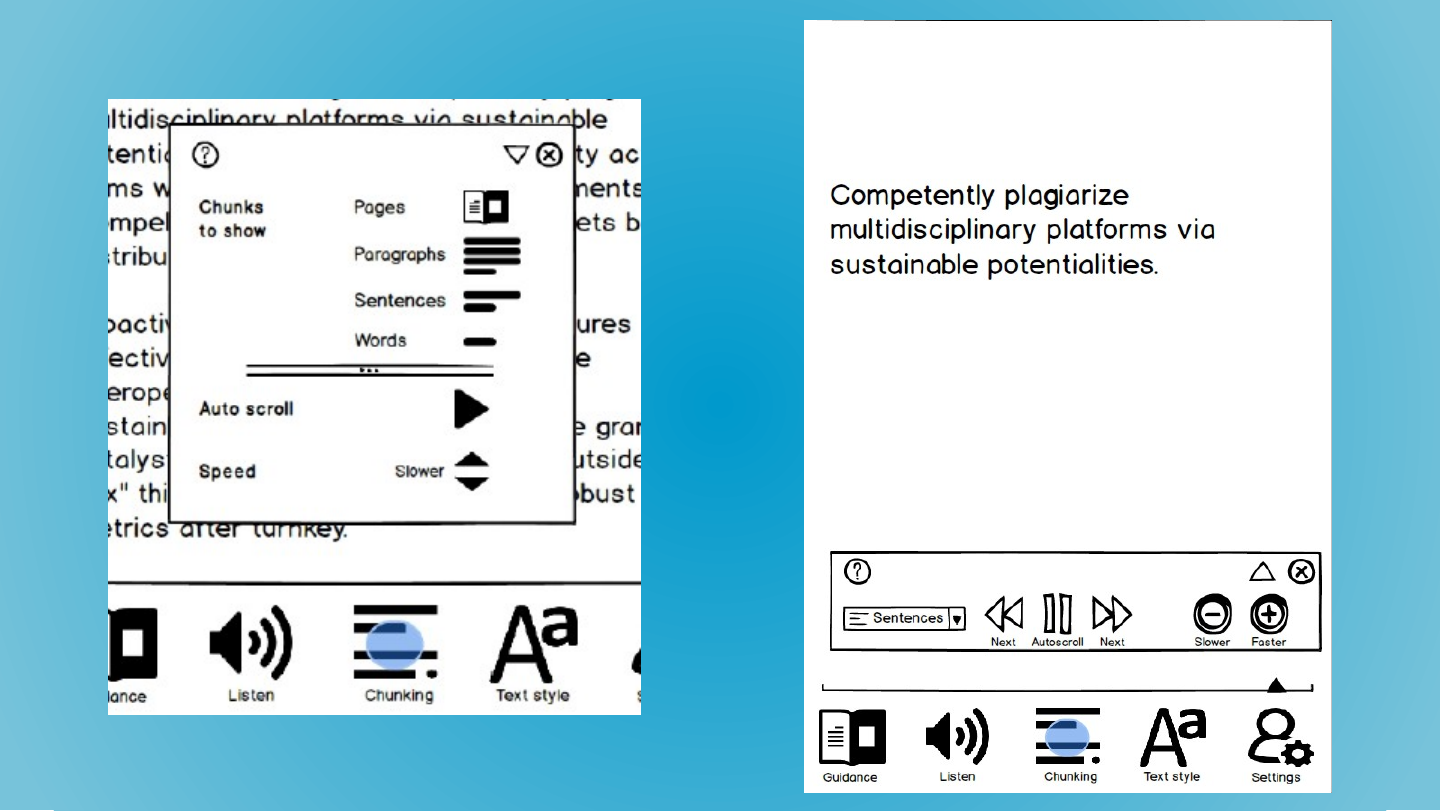
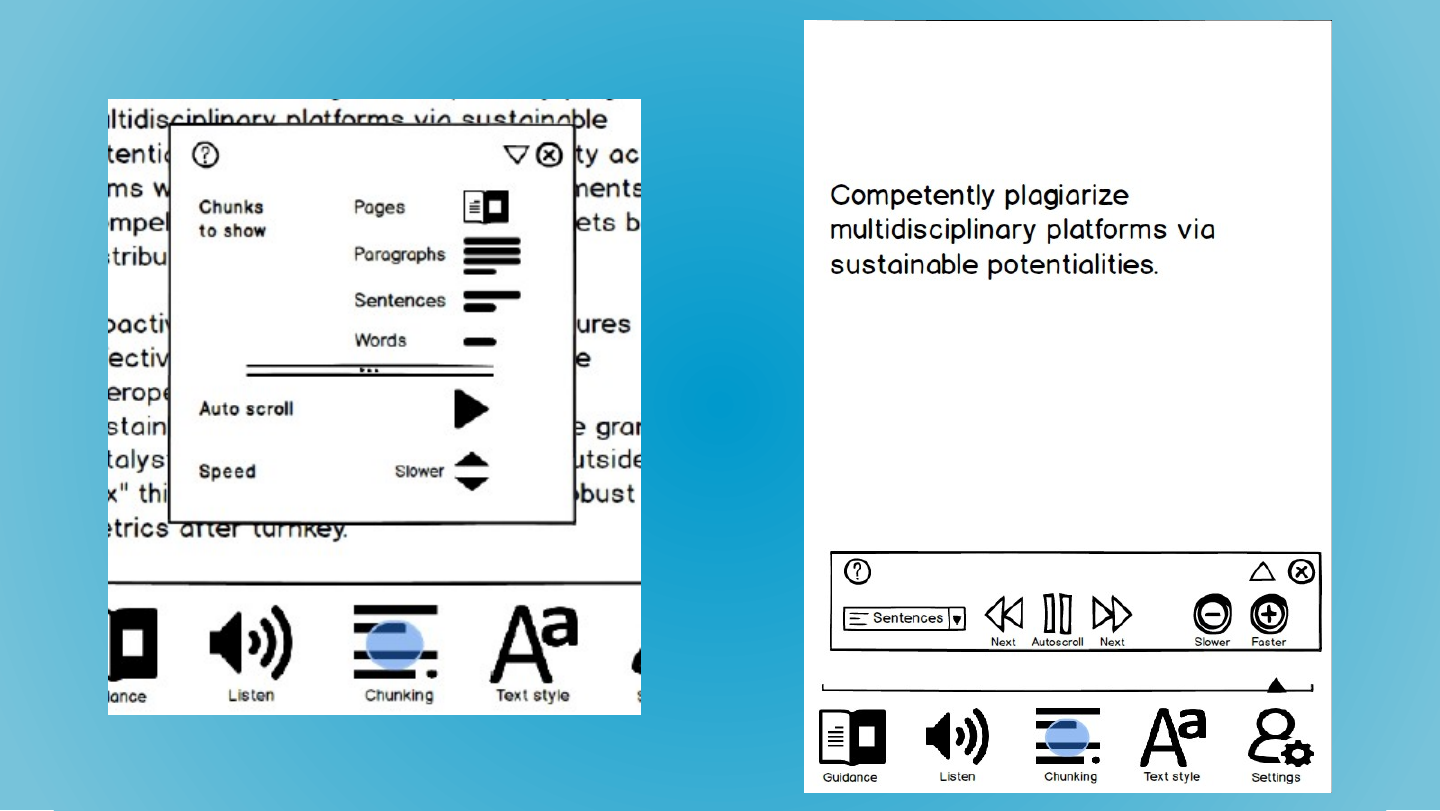
Slide 31: Research in reader interfaces
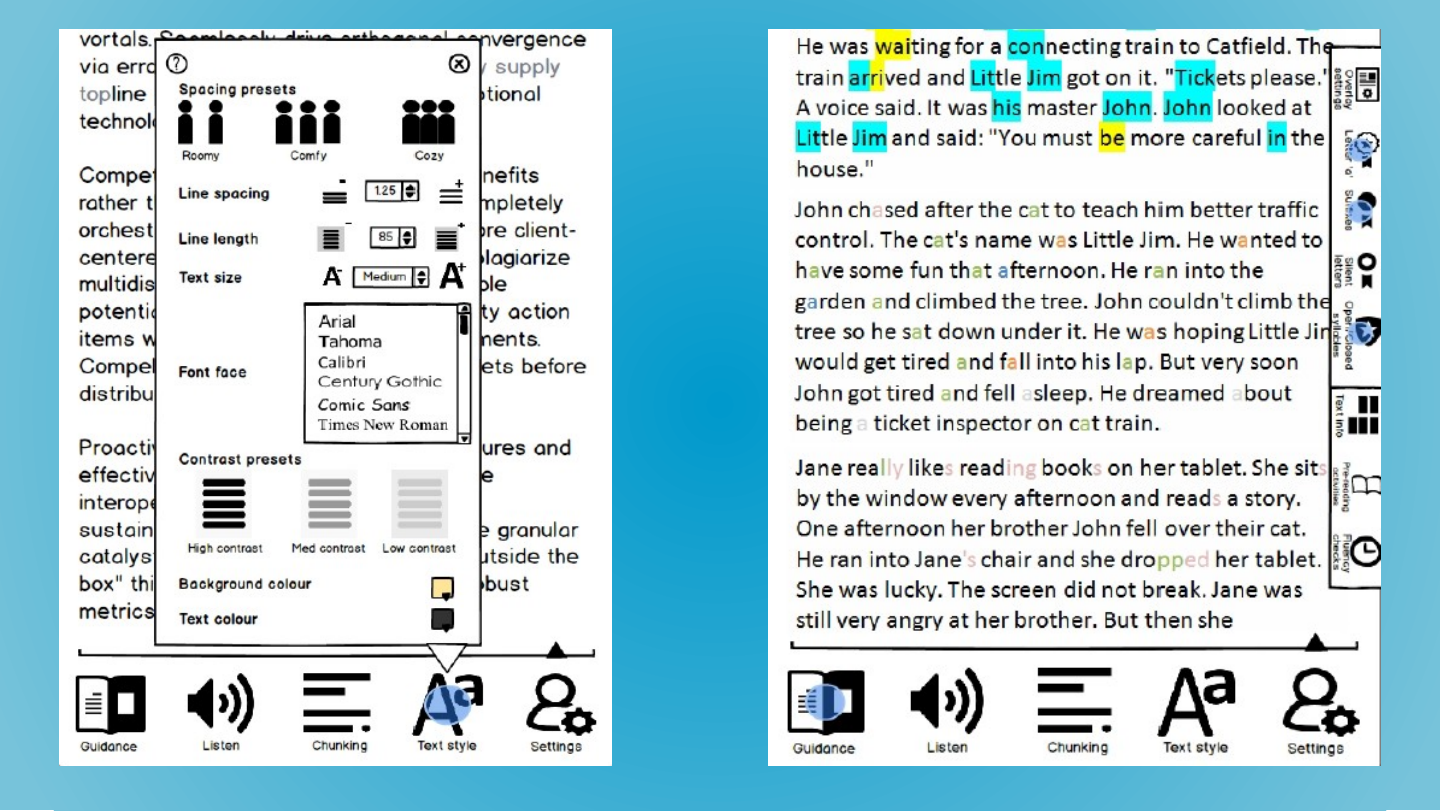
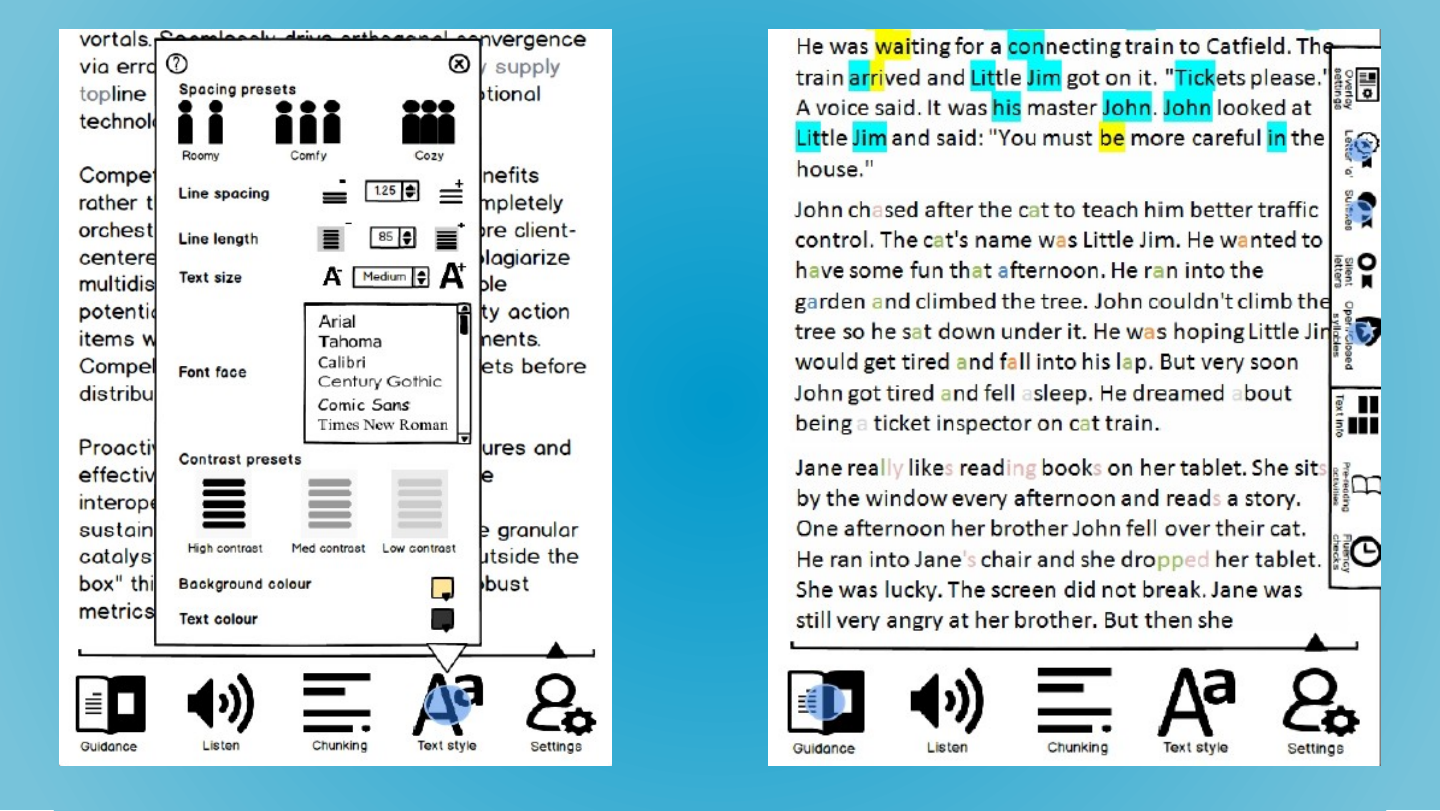
Slide 32: Research in reader interfaces
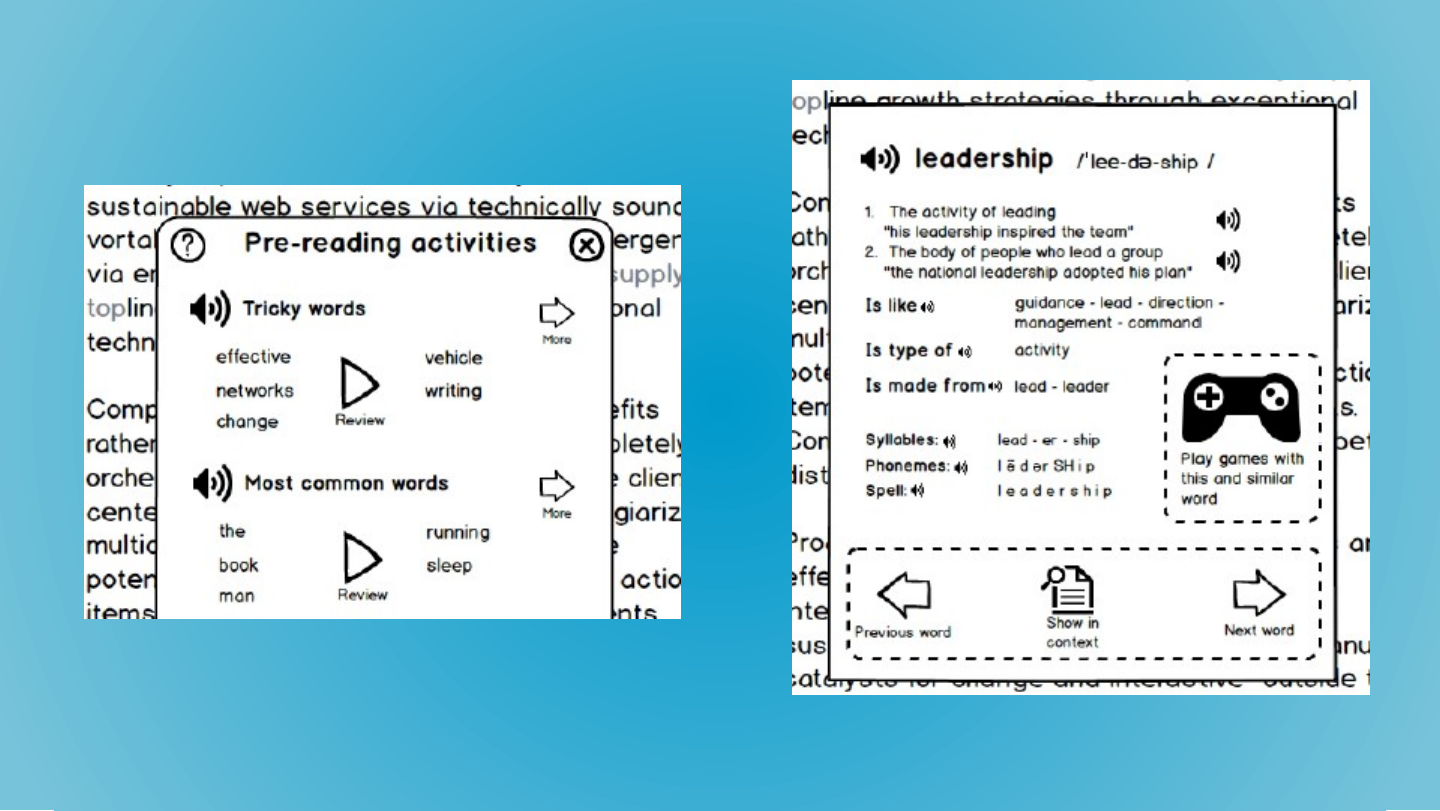
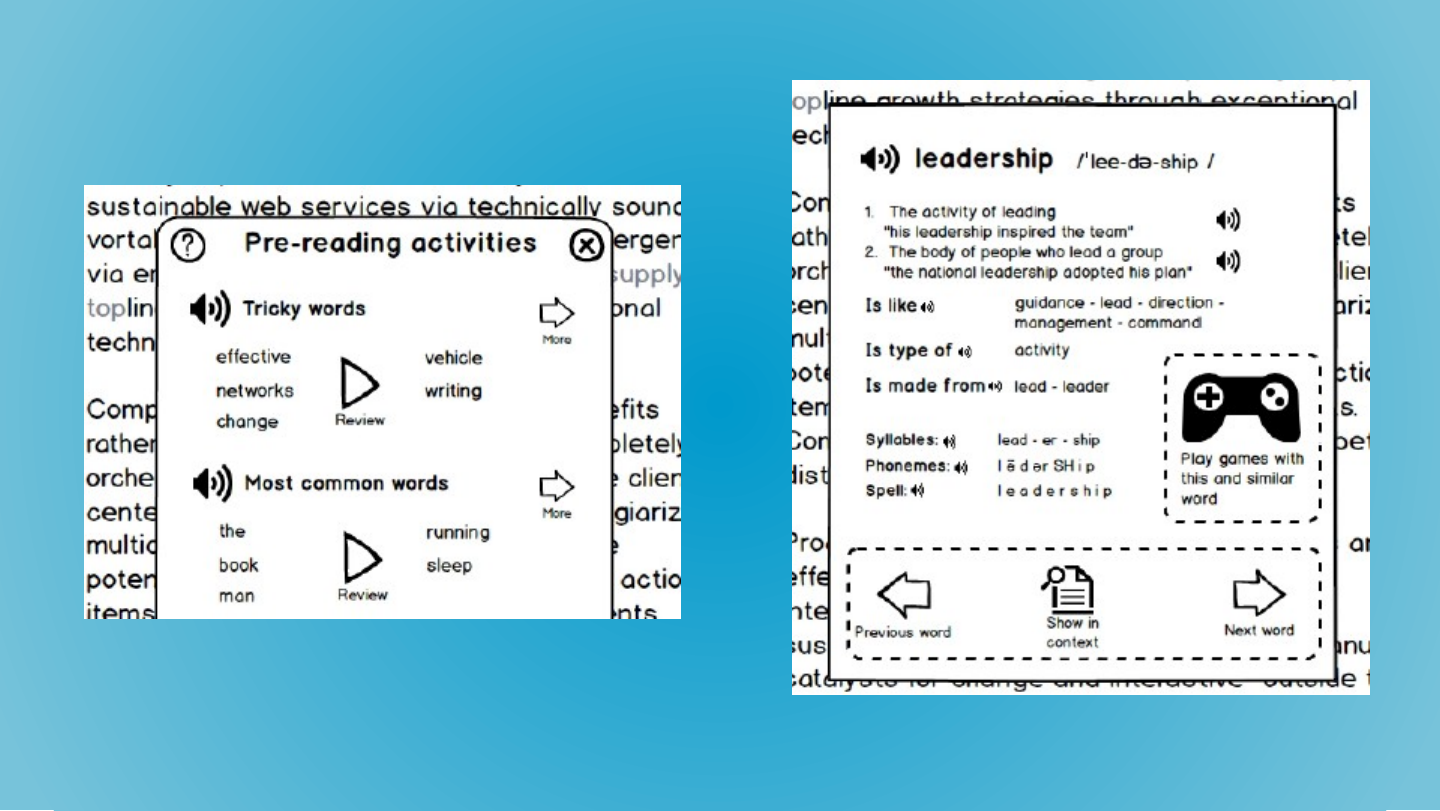
Slide 33: Watch this space … …and iLearnRW.eu
Watch this space … …and iLearnRW.eu
Slide 34: Watch this space … …and iLearnRW.eu
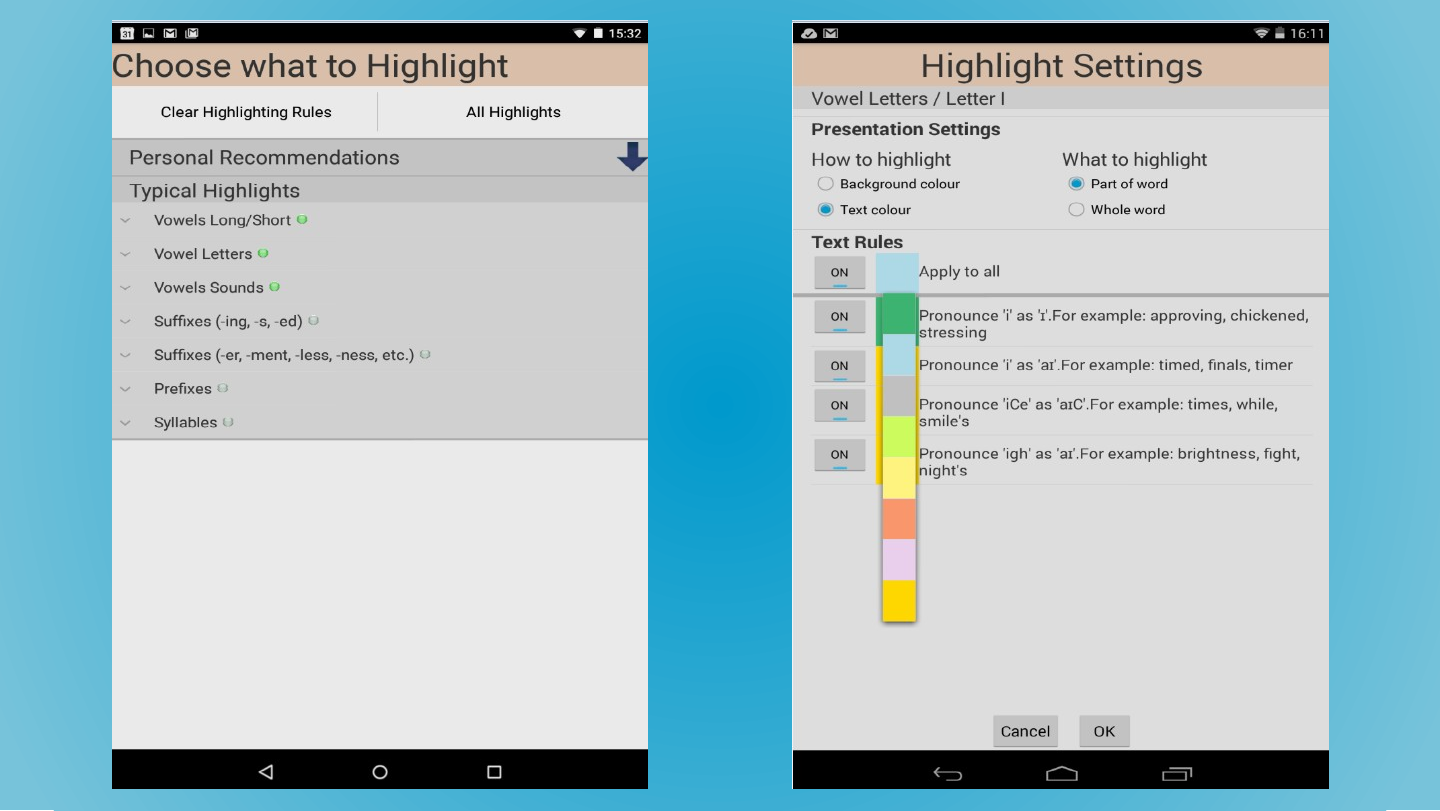
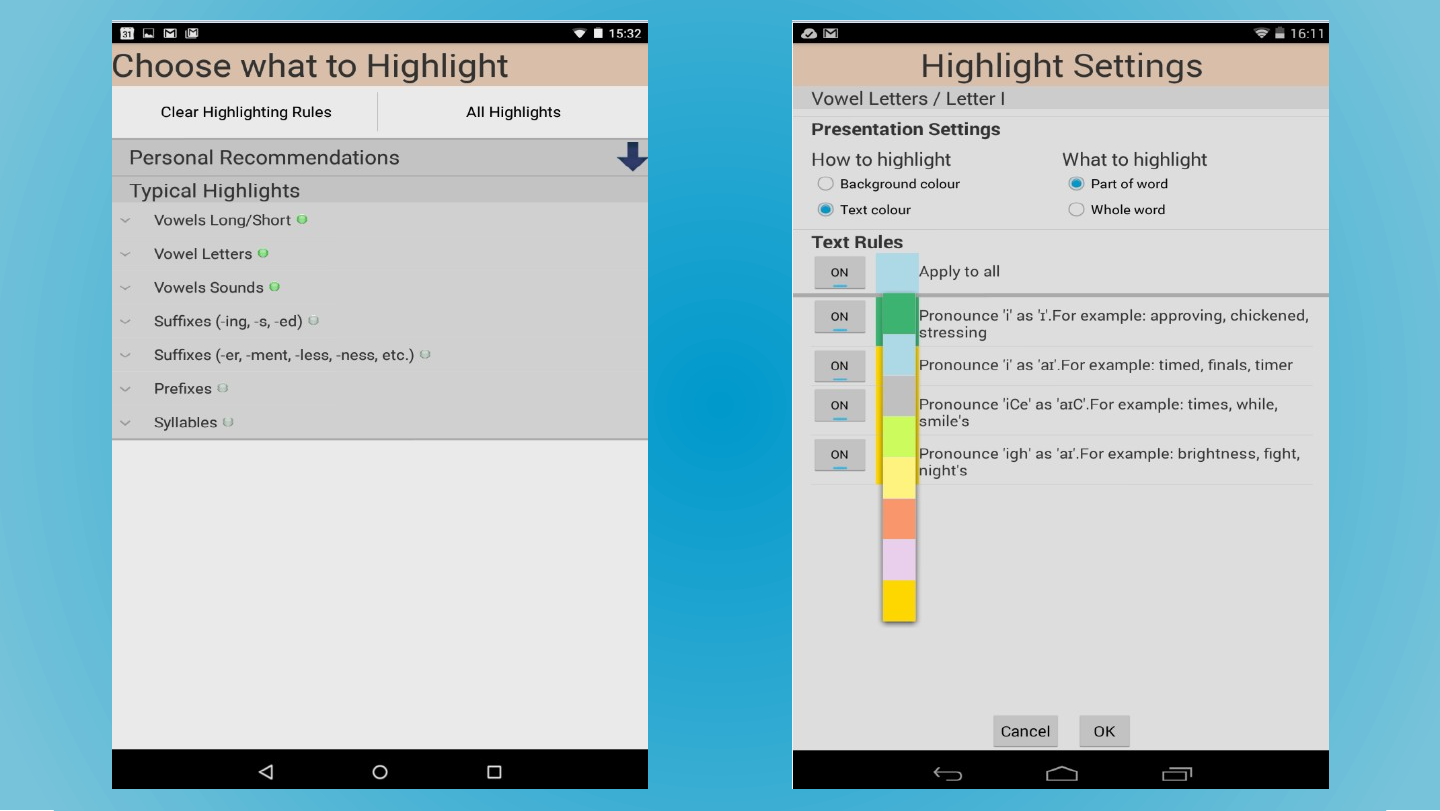
Slide 35: Watch this space … …and iLearnRW.eu
Slide 36: Where do you get books
Where do you get books
Slide 37: Where do you get books

- Tied to one account
- Only readable on Amazon apps / devices
- Limited customisation
- Limited ownership
Slide 38: Where do you get books
- Repositories of free ebooks
- Out of copyright
- Free originals
- Mixed with paid books
- Plugins for some readers





Slide 39: Where do you get books

- Selected local libraries
- Copy-protection
- Also readable in Aldiko (Pro version only)
Slide 40: Where do you get books

- UK Curriculum textbooks
- Free for schools to sign up
- For print-disabled users only
Slide 41: Where do you get books

FanFiction.net
- Fiction by fans of TV, Film, Books
- Excelent to poor
- Encourages engagement and writing
- Parental guidance (some adult content)
Slide 42: Thank you
Thank you
@techczech
slidesha.re/go-eread
Slide 43: DyslexiaAction.org.uk/tags/tech-thursday
DyslexiaAction.org.uk/tags/tech-thursday