All presentations

Tools to help with writing: Simple language

Slide 1: Tools to help with writing Simple language

Tools to help with writing Simple language
Creative Commons Attribution (CC BY) licence badge.

Original slide 1 (image)

Slide 2: Slide 2

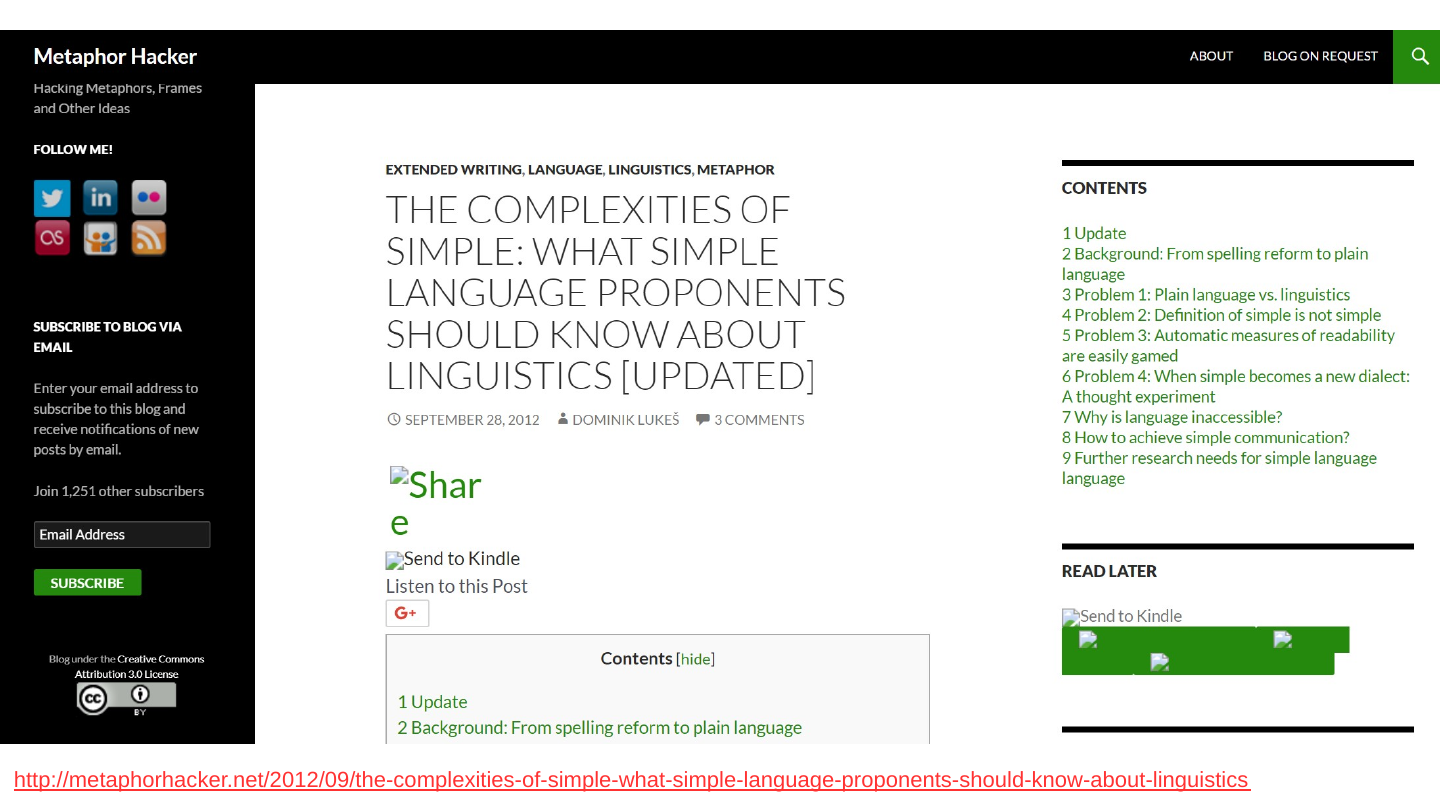
Screenshot of the Metaphor Hacker blog post “The complexities of simple: what simple language proponents should know about linguistics (updated)”, with its table of contents.

http://metaphorhacker.net/2012/09/the-complexities-of-simple-what-simple-language-proponents-should-know-about-linguistics

Original slide 2 (image)

Slide 3: Slide 3

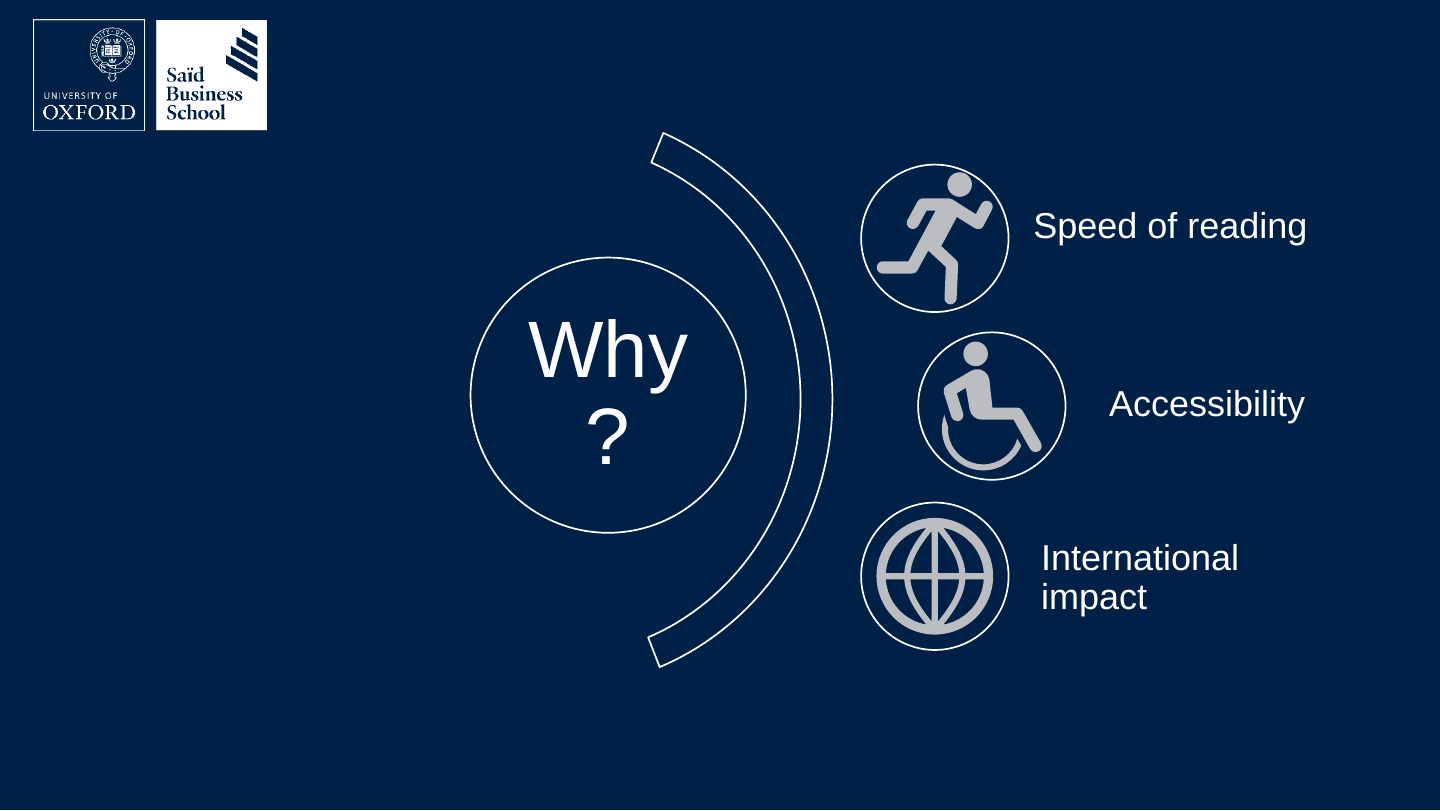
  • Why?
    • Speed of reading
    • Accessibility
    • International impact

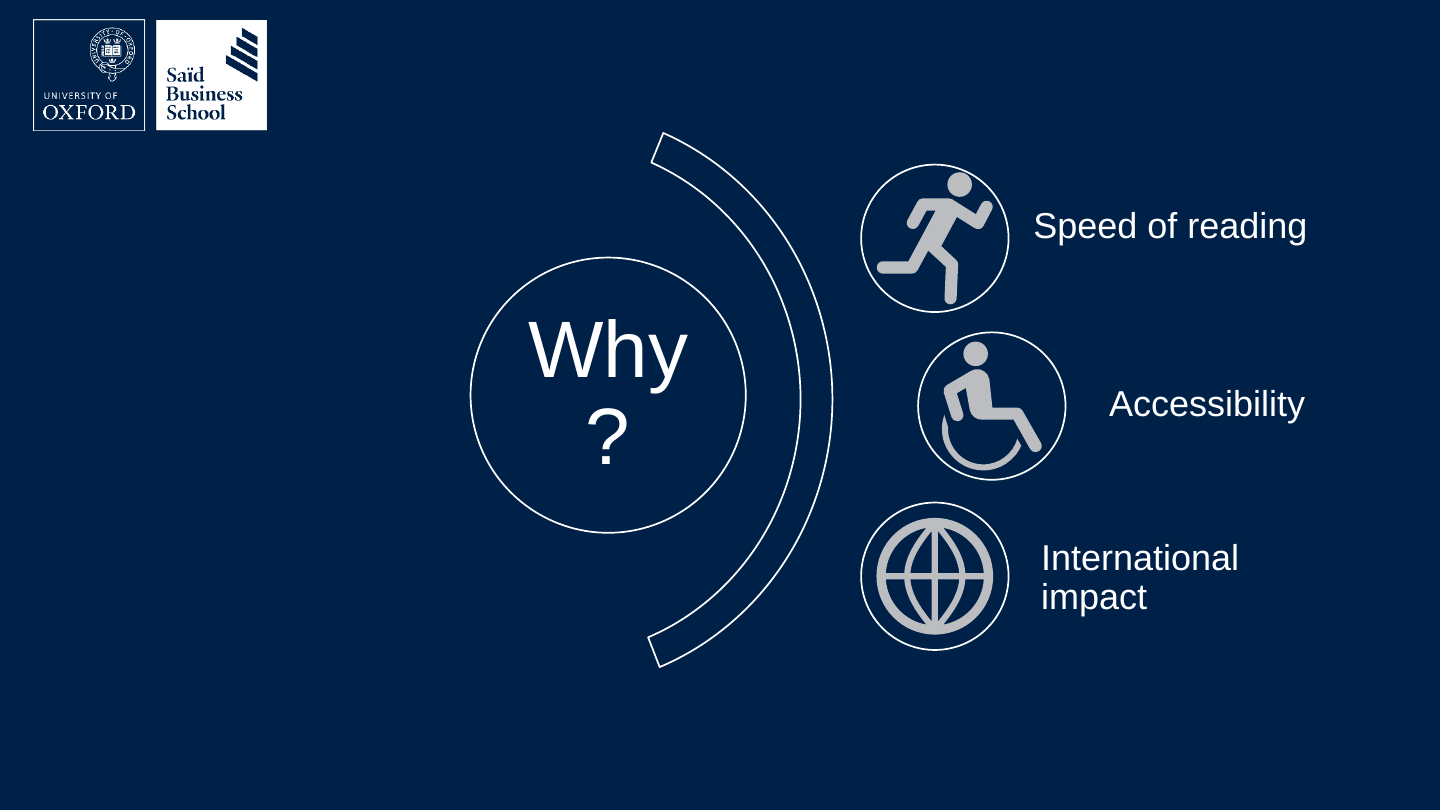
The slide's original page: a circle labelled “Why?” with an arc of three labelled icons: a running figure for Speed of reading, a wheelchair user for Accessibility and a globe for International impact.

Original slide 3 (image)

Slide 4: Slide 4

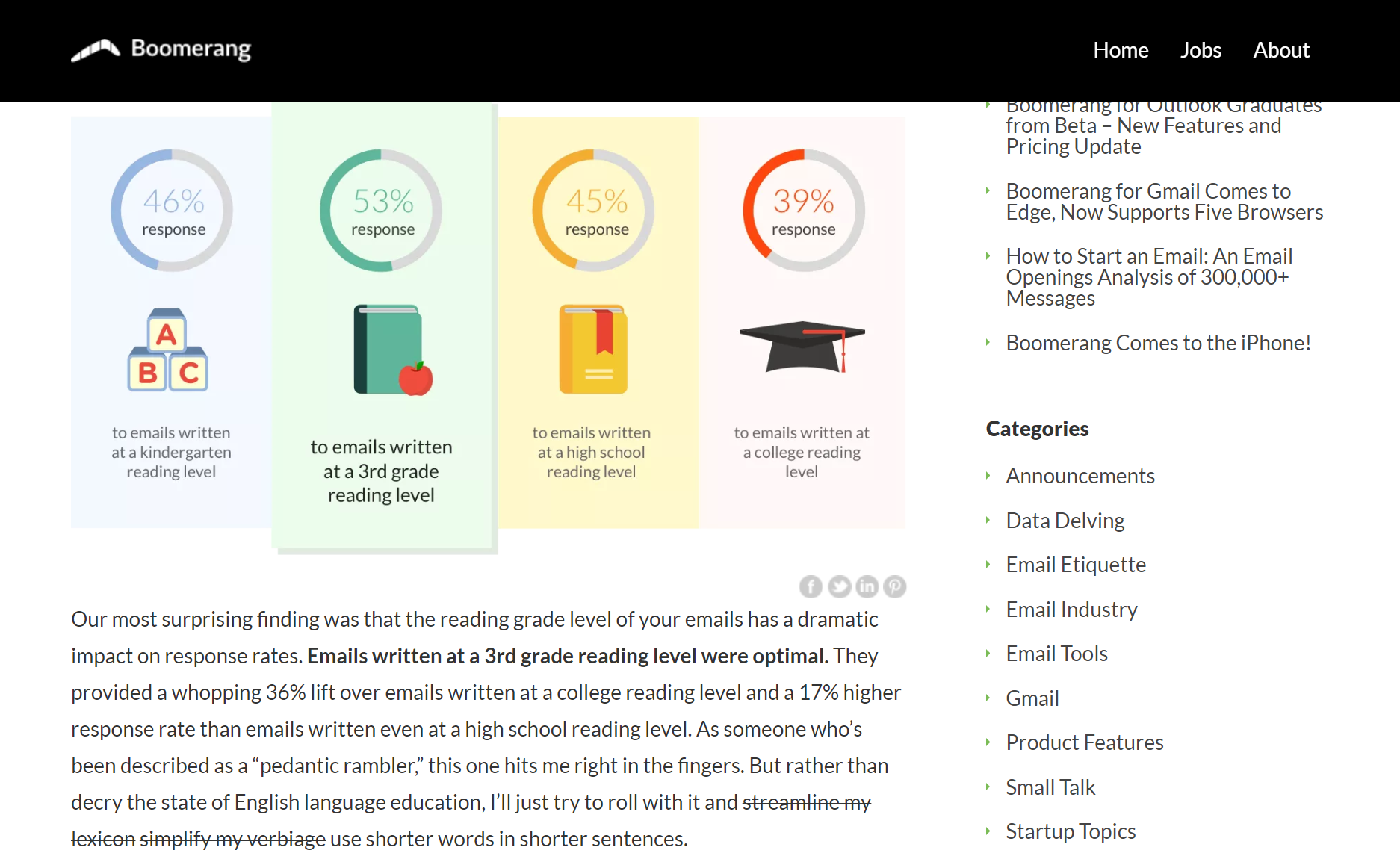
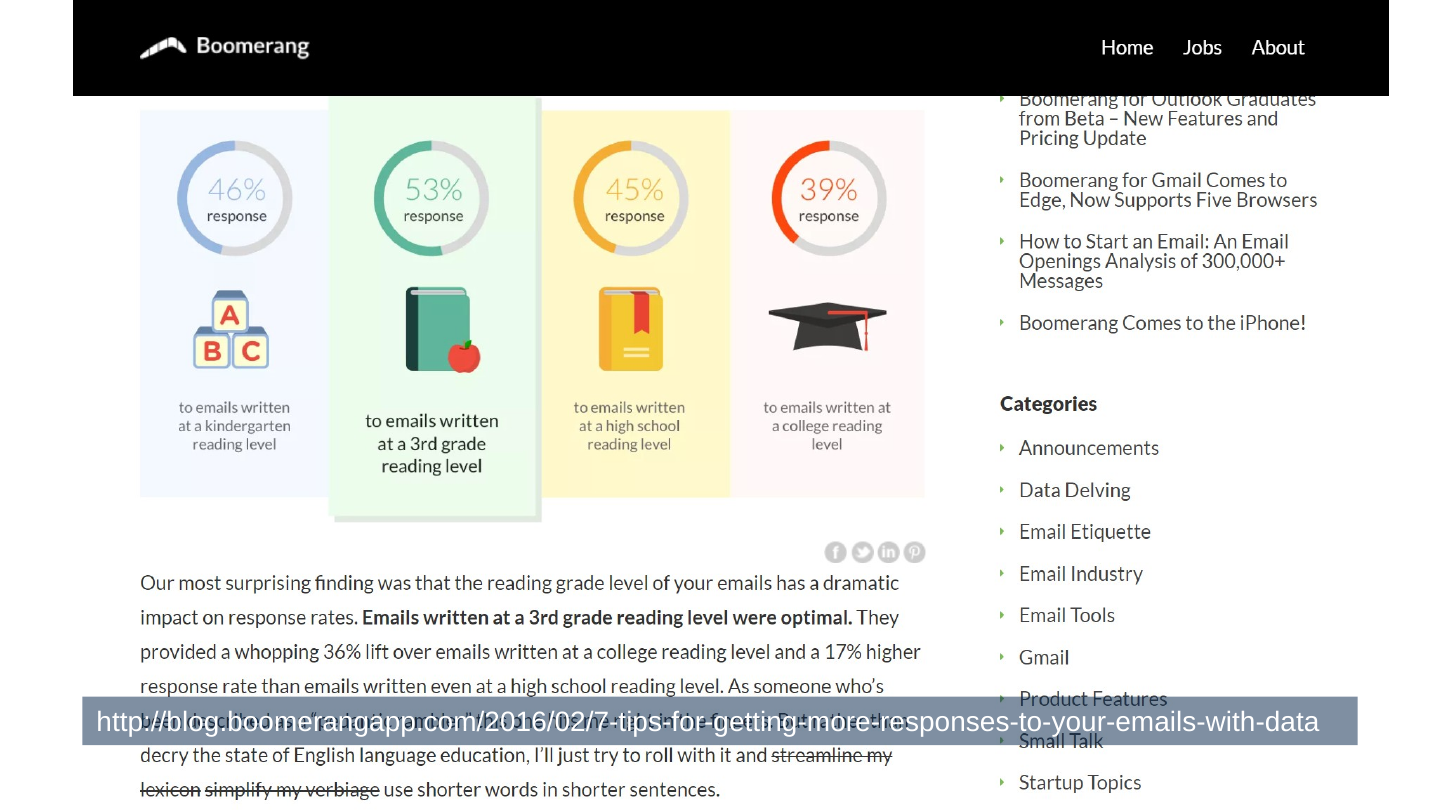
Screenshot of a Boomerang blog post with four bars showing email response rates by reading level: 46% for emails written at a kindergarten reading level, 53% at a 3rd grade level, 45% at a high school level and 39% at a college reading level.

http://blog.boomerangapp.com/2016/02/7-tips-for-getting-more-responses-to-your-emails-with-data
Original slide 4 (image)

Slide 5: What makes language simple?

What makes language simple?
Original slide 5 (image)

Slide 6: No perfect communication

No perfect communication
Original slide 6 (image)

Slide 7: Even with arrows

Even with arrows
Original slide 7 (image)

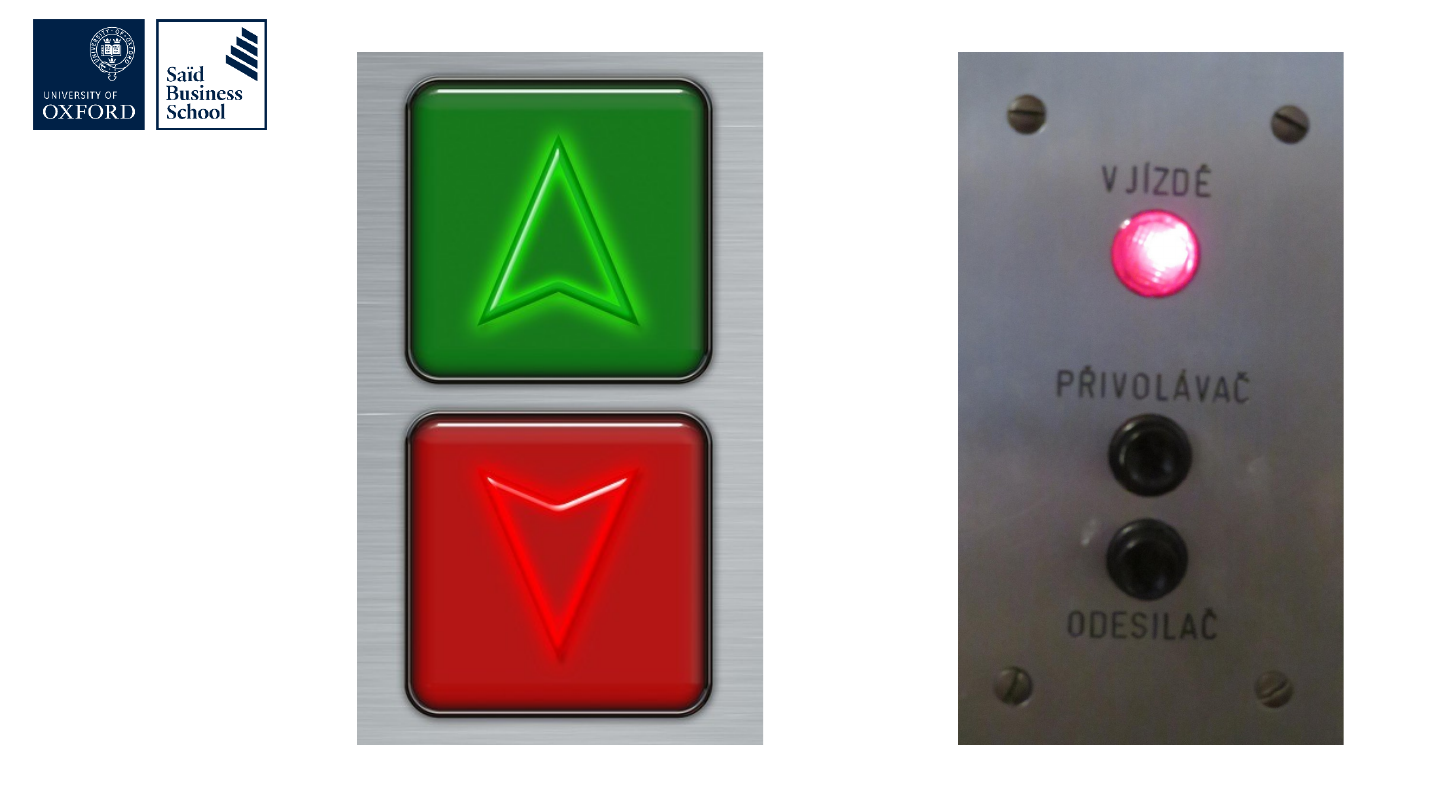
Slide 8: Which way will the lift go?

Which way will the lift go?
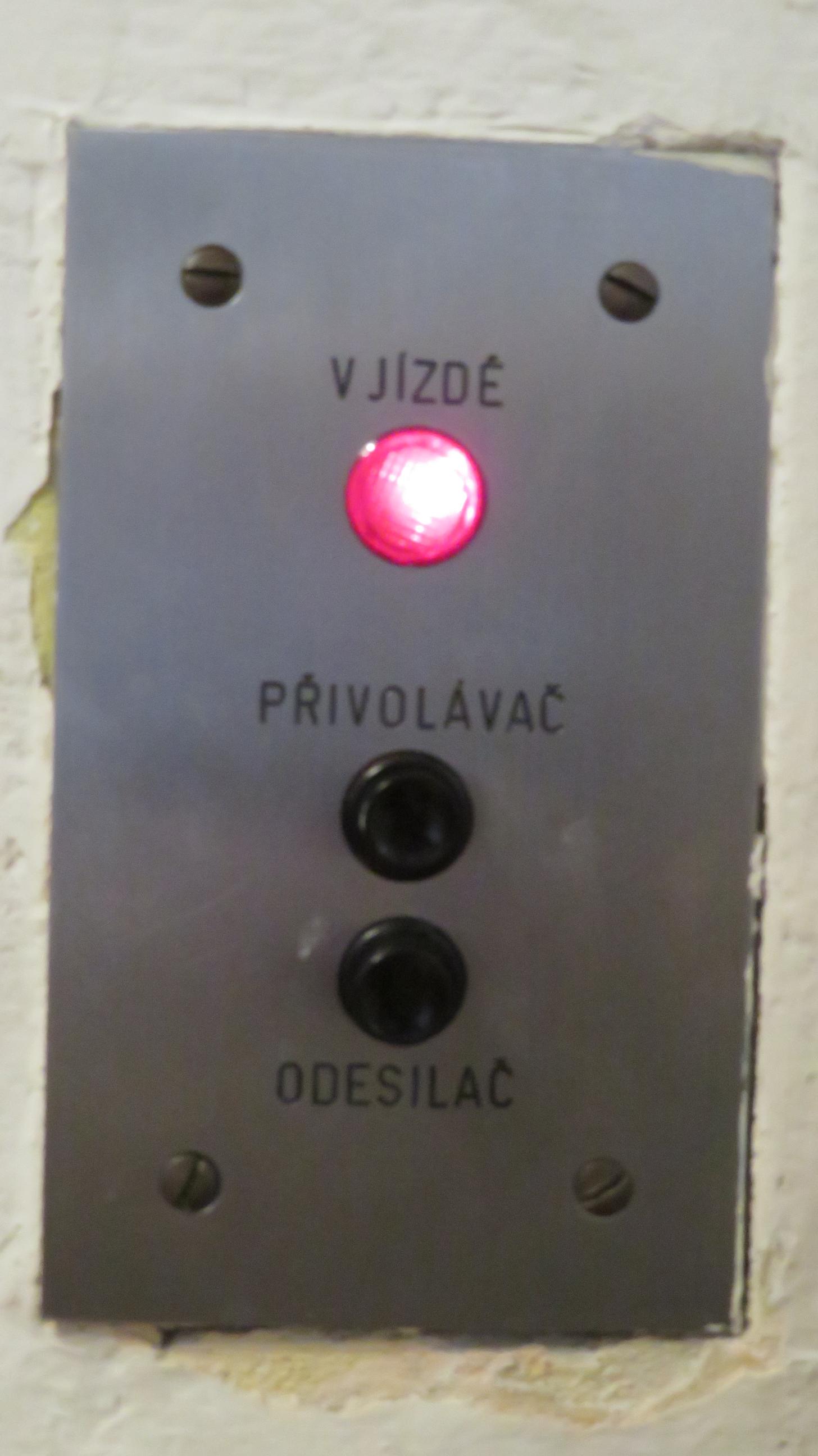
Photograph of two lift buttons: a green button with an upward arrow above a red button with a downward arrow.

Photograph of a metal lift panel with a lit red button above the label “VJÍŽDÍ” and two buttons labelled “PŘIVOLÁVAČ” and “ODESÍLAČ”.

Original slide 8 (image)

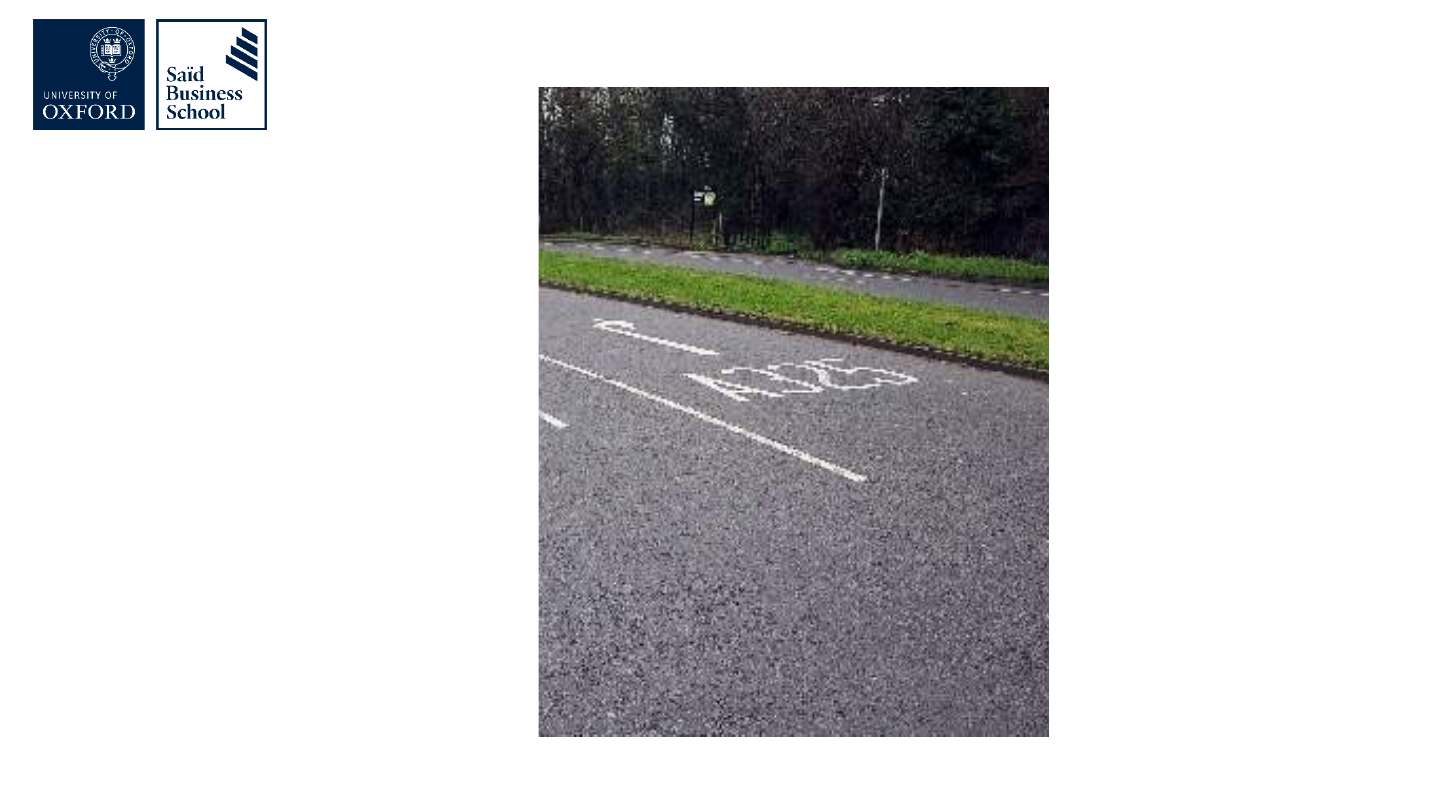
Slide 9: Which way will you turn the wheel of your car?

Which way will you turn the wheel of your car?
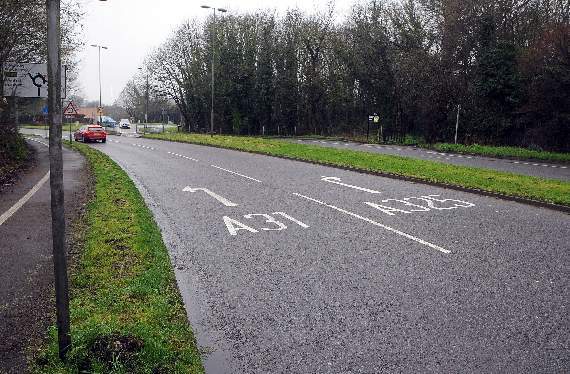
Photograph of a road with white lettering and a line painted on the tarmac.

Original slide 9 (image)

Slide 10: Which way will you turn your wheel now?
Which way will you turn your wheel now?

Photograph of a road with white lettering and a line painted on the tarmac.

Original slide 10 (image)

Slide 11: What makes text easy to read?

What makes text easy to read?
Original slide 11 (image)

Slide 12: Slide 12

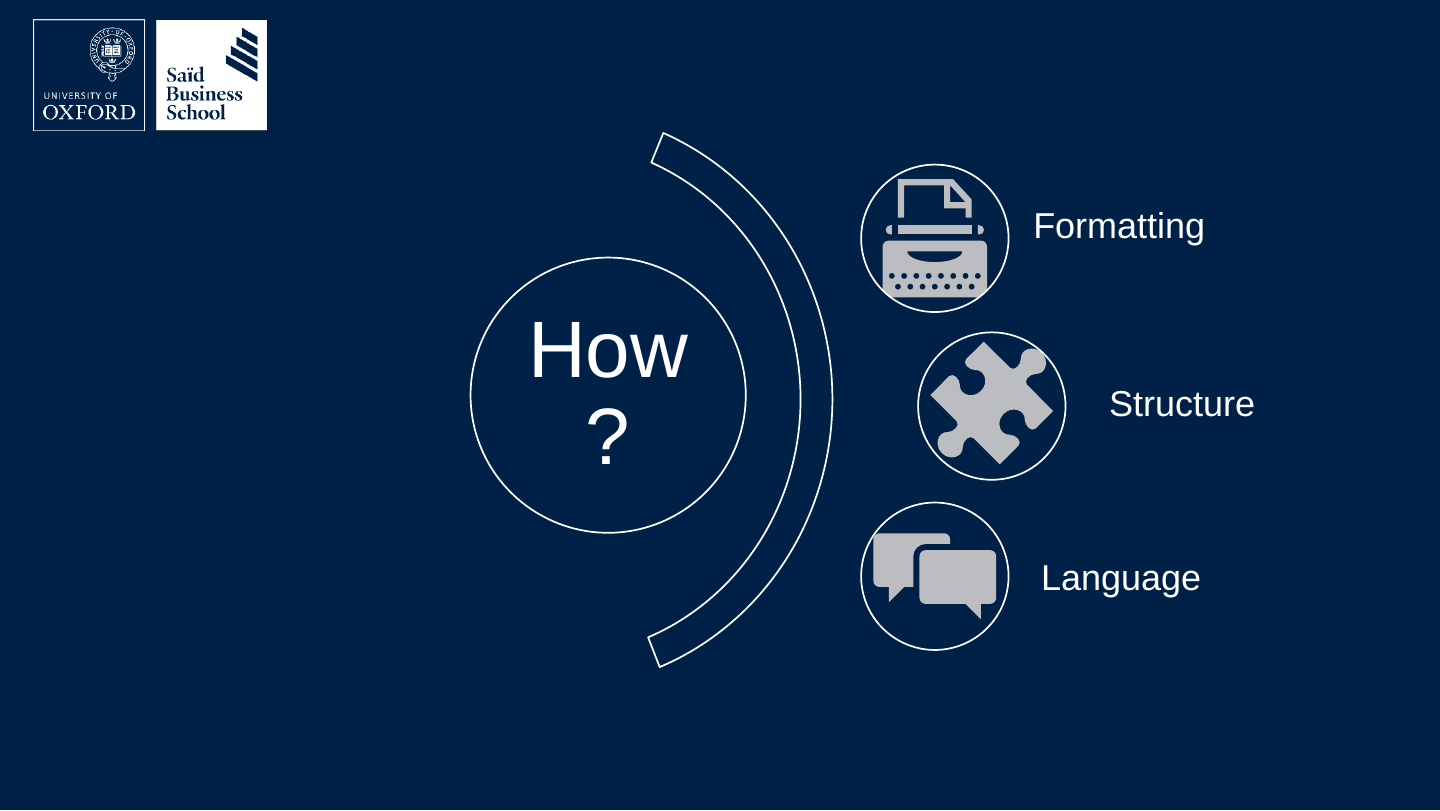
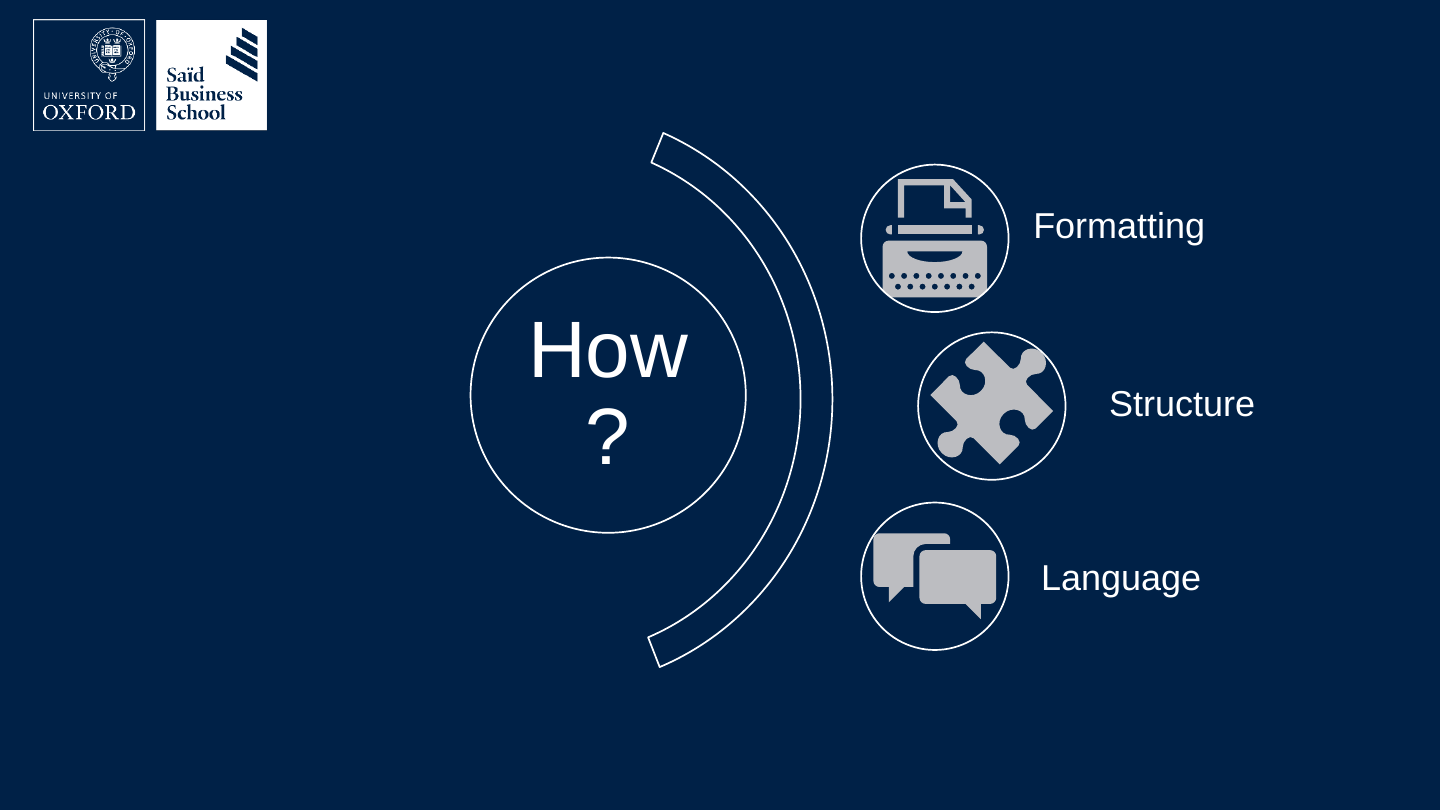
  • How?
    • Formatting
    • Structure
    • Language

The slide's original page: a circle labelled “How?” with an arc of three labelled icons: a typewriter for Formatting, a puzzle piece for Structure and speech bubbles for Language.

Original slide 12 (image)

Slide 13: I wanted to write you a short letter

I wanted to write you a short letter
Original slide 13 (image)

Slide 14: I wanted to write you a short letter but I didn’t have time.

I wanted to write you a short letter but I didn’t have time.
Original slide 14 (image)

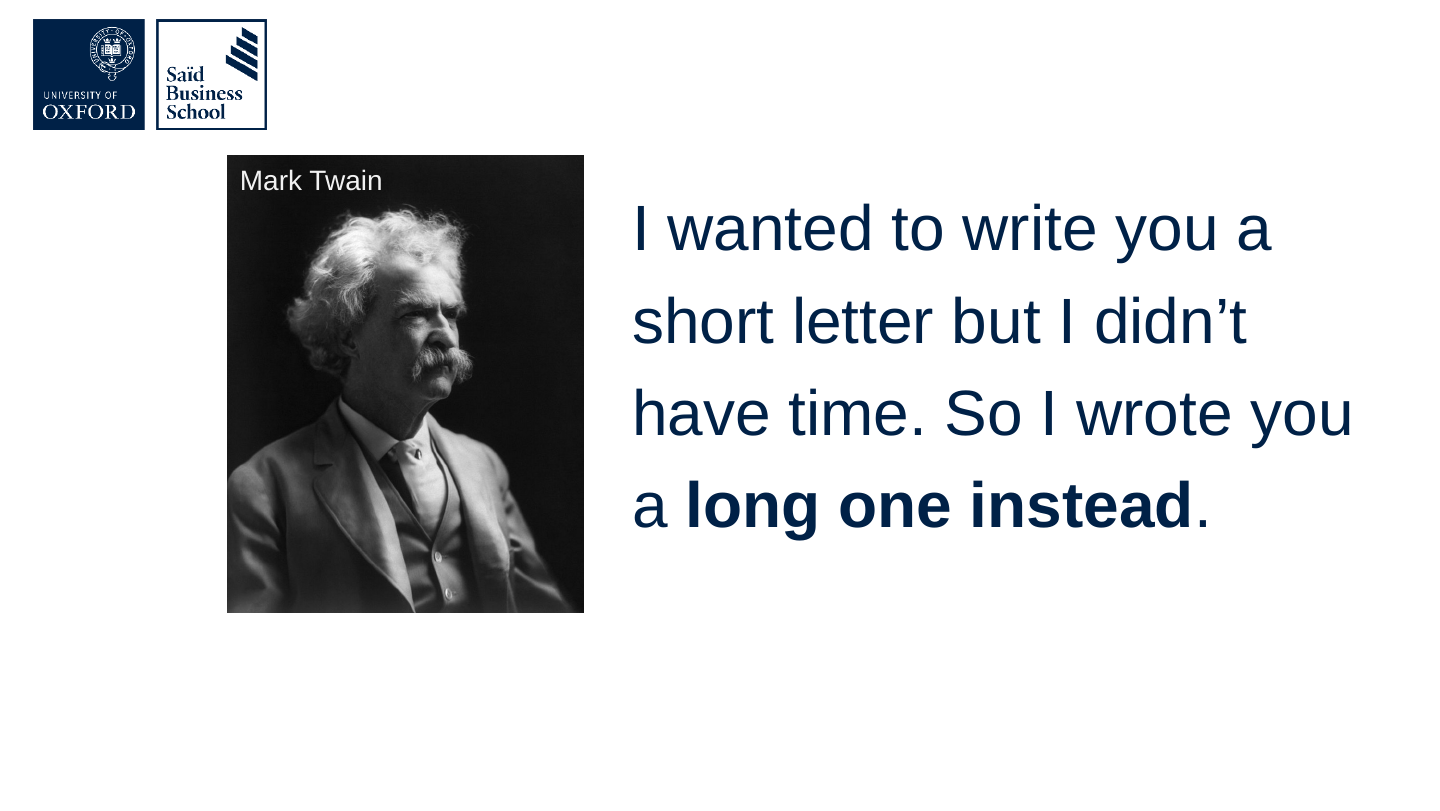
Slide 15: I wanted to write you a short letter but I didn’t have time. So I wrote you a long one instead.

I wanted to write you a short letter but I didn’t have time. So I wrote you a long one instead.
Original slide 15 (image)

Slide 16: … or Franklin or Pascal or Locke or somebody else.

… or Franklin or Pascal or Locke or somebody else.
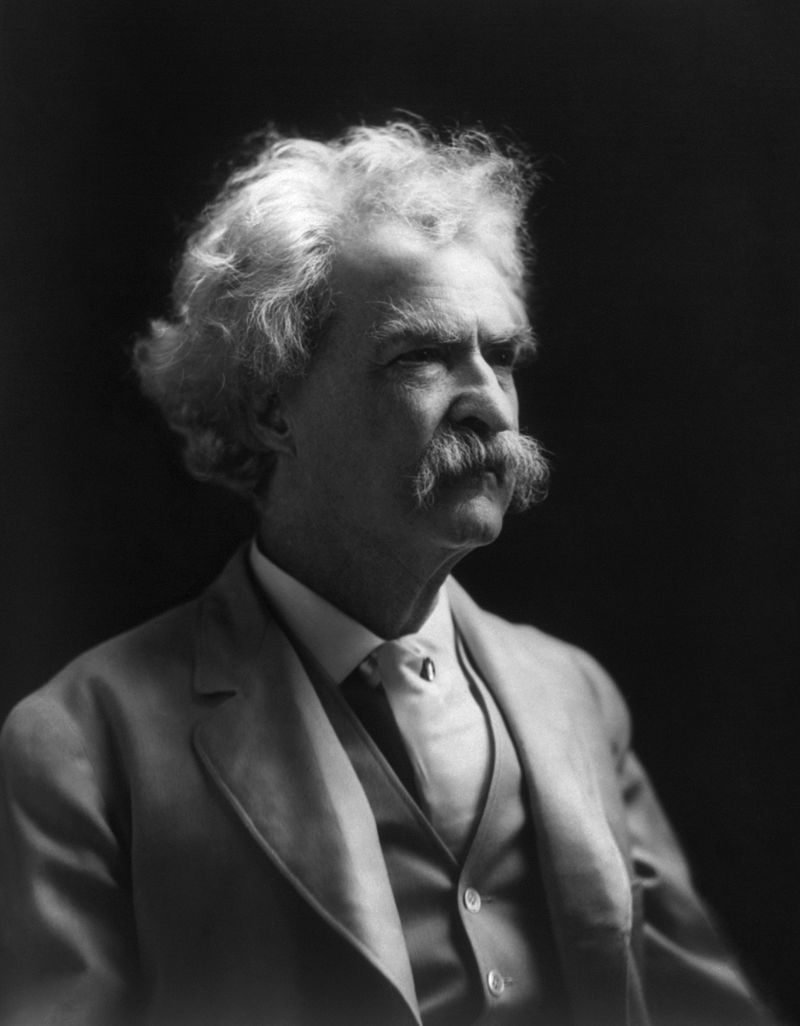
Black-and-white portrait photograph of Mark Twain, an older man with white hair and a moustache, wearing a suit.

I wanted to write you a short letter but I didn’t have time. So I wrote you a long one instead.

Mark Twain
Original slide 16 (image)

Slide 17: Simple and clear writing is not natural. It is harder and more time consuming than complicated writing.
Simple and clear writing is not natural. It is harder and more time consuming than complicated writing.

Original slide 17 (image)

Slide 18: Bad advice

Bad advice

Original slide 18 (image)

Slide 19: Slide 19

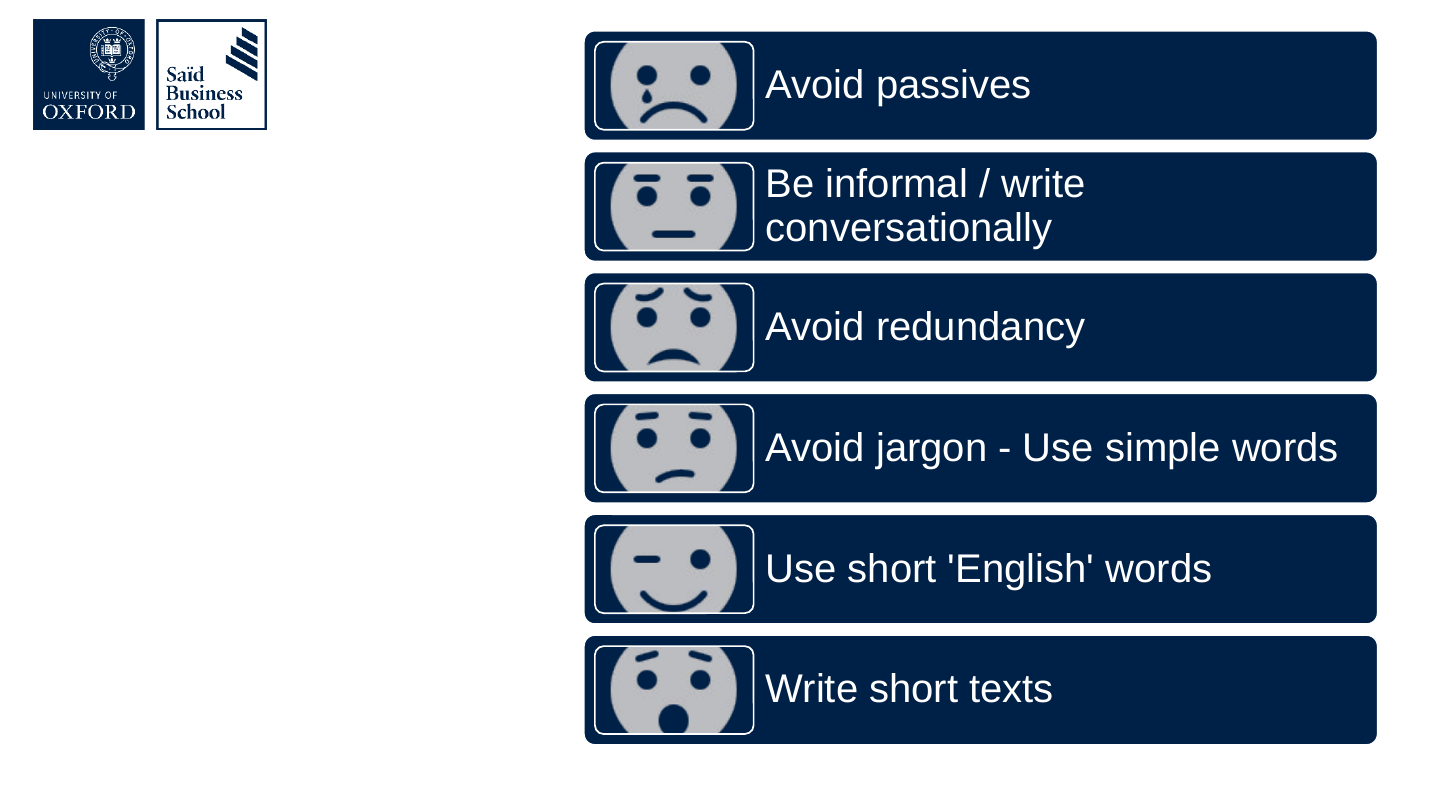
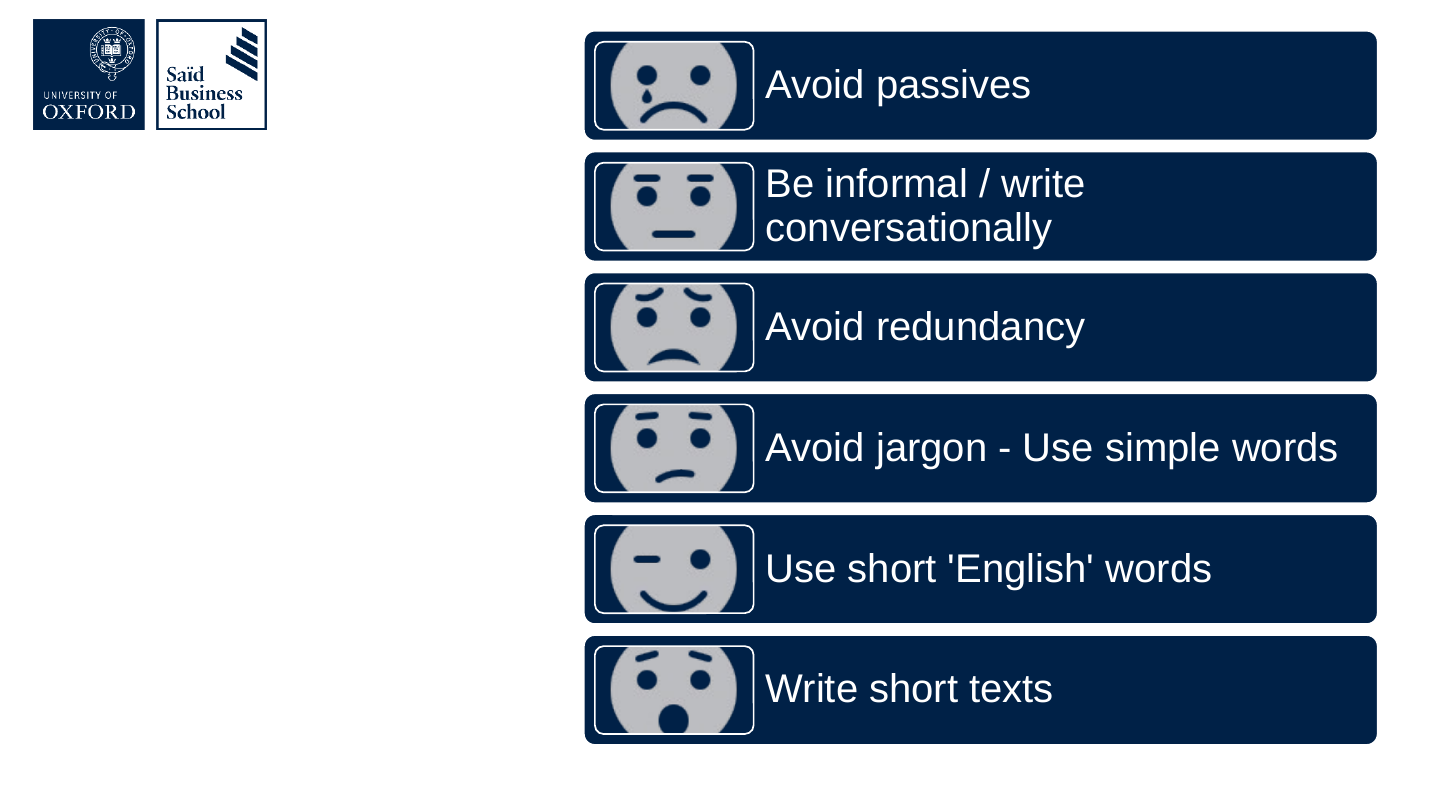
  • Avoid passives
  • Be informal / write conversationally
  • Avoid redundancy
  • Avoid jargon - Use simple words
  • Use short 'English' words
  • Write short texts

The slide's original page: six dark blue bars listing the pieces of advice, each with a small cartoon face icon at its left.

Original slide 19 (image)

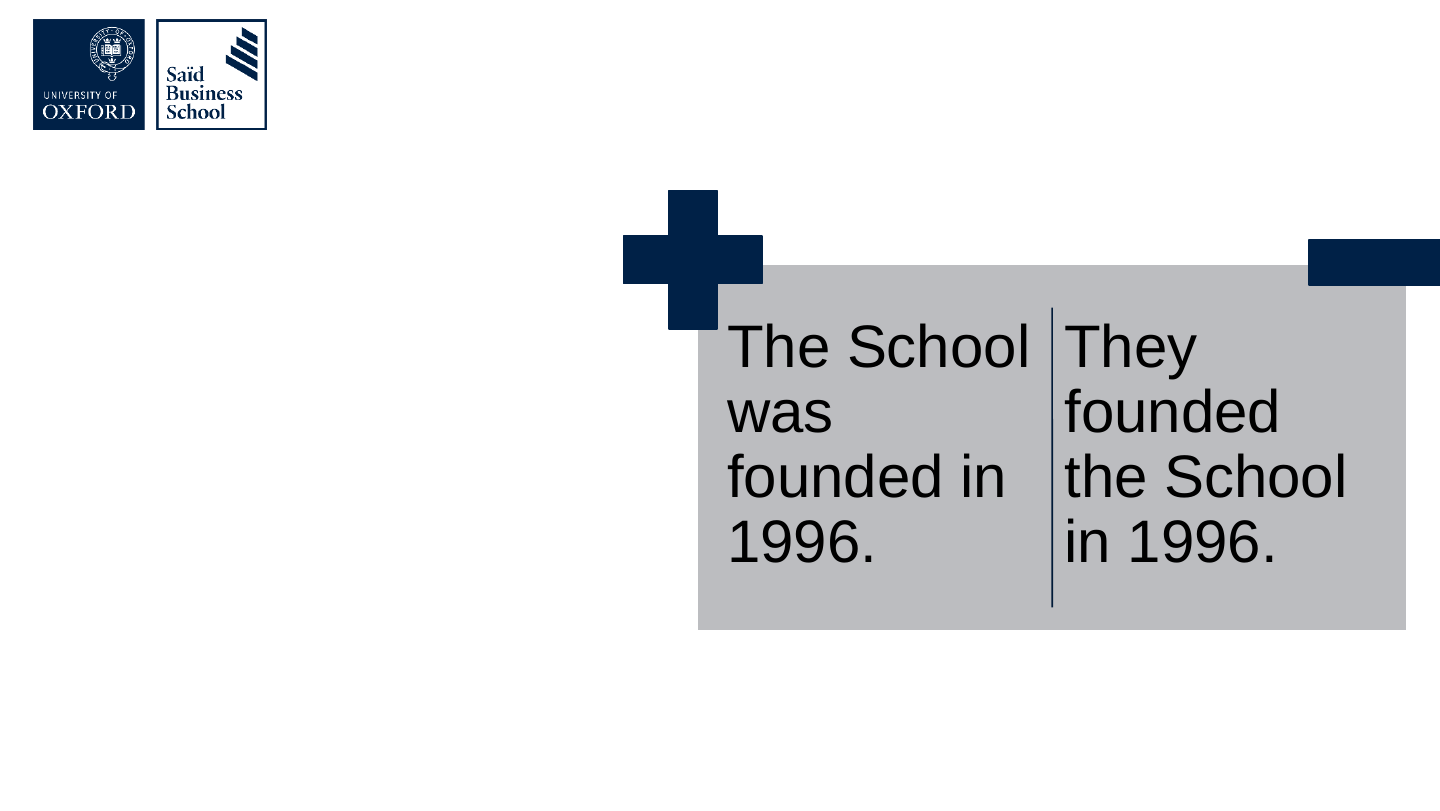
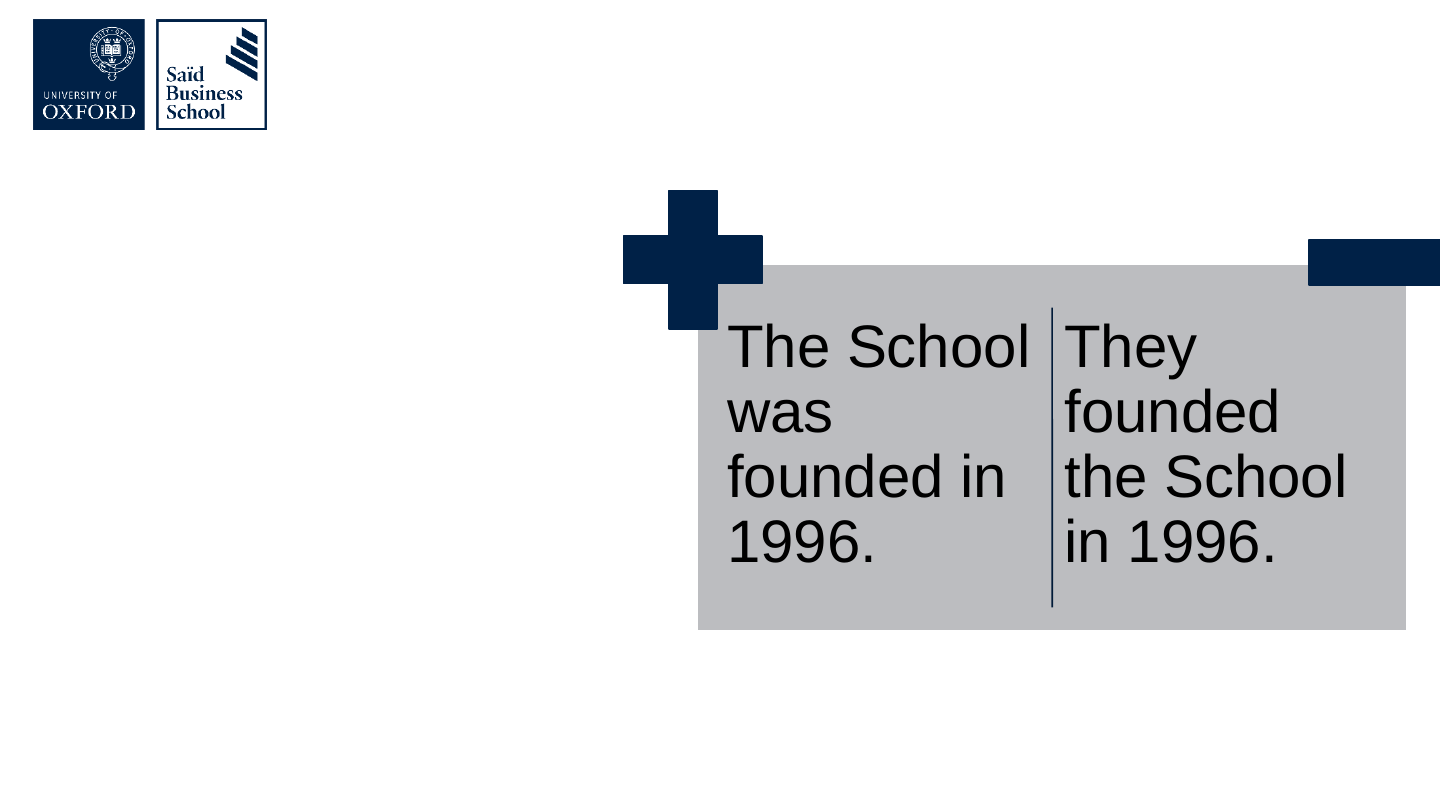
Slide 20: Don’t avoid passives too much

Don’t avoid passives too much

The School was founded in 1996.They founded the School in 1996.

The slide's original page: two grey boxes side by side with a dark blue plus sign above the left box and a dark blue minus bar above the right box.

Original slide 20 (image)

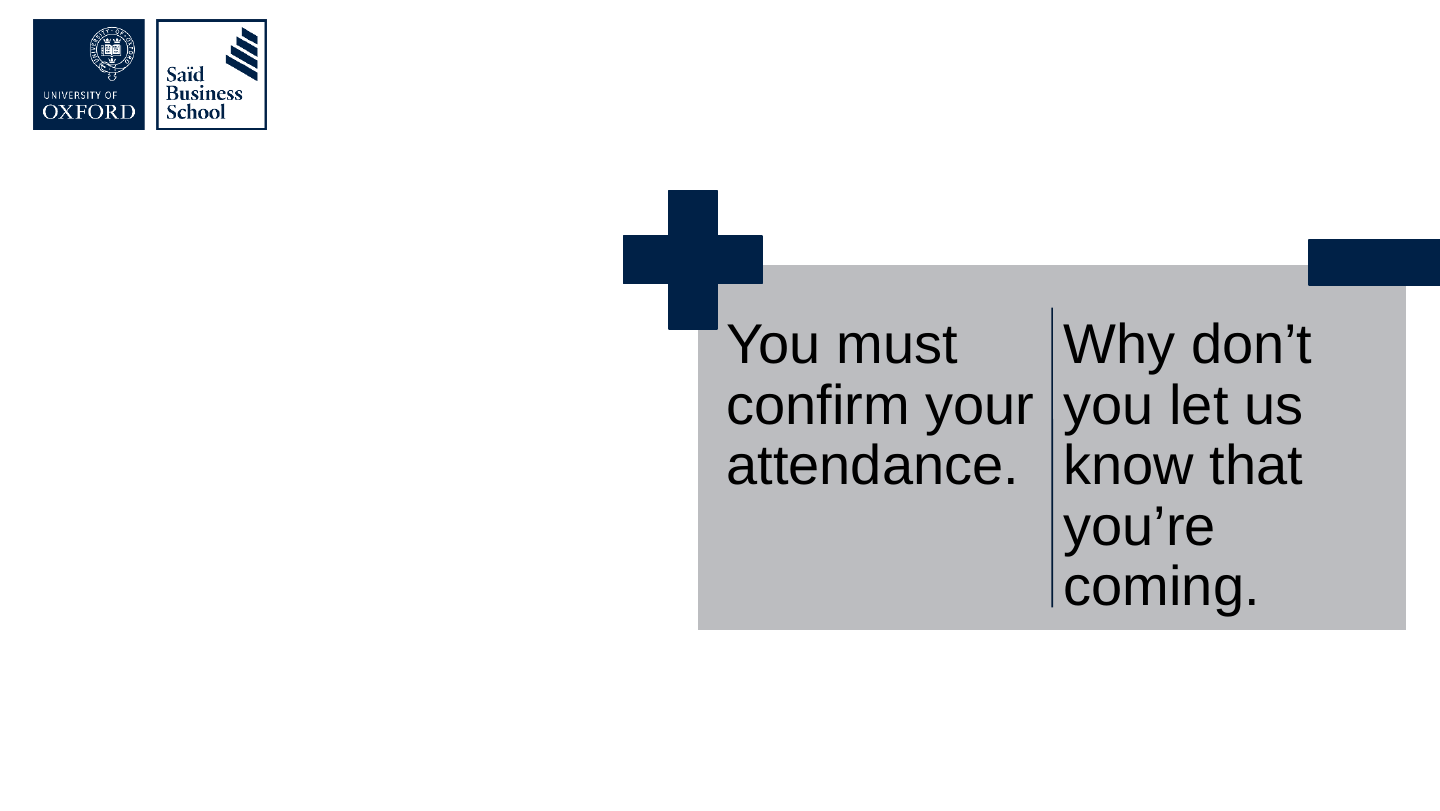
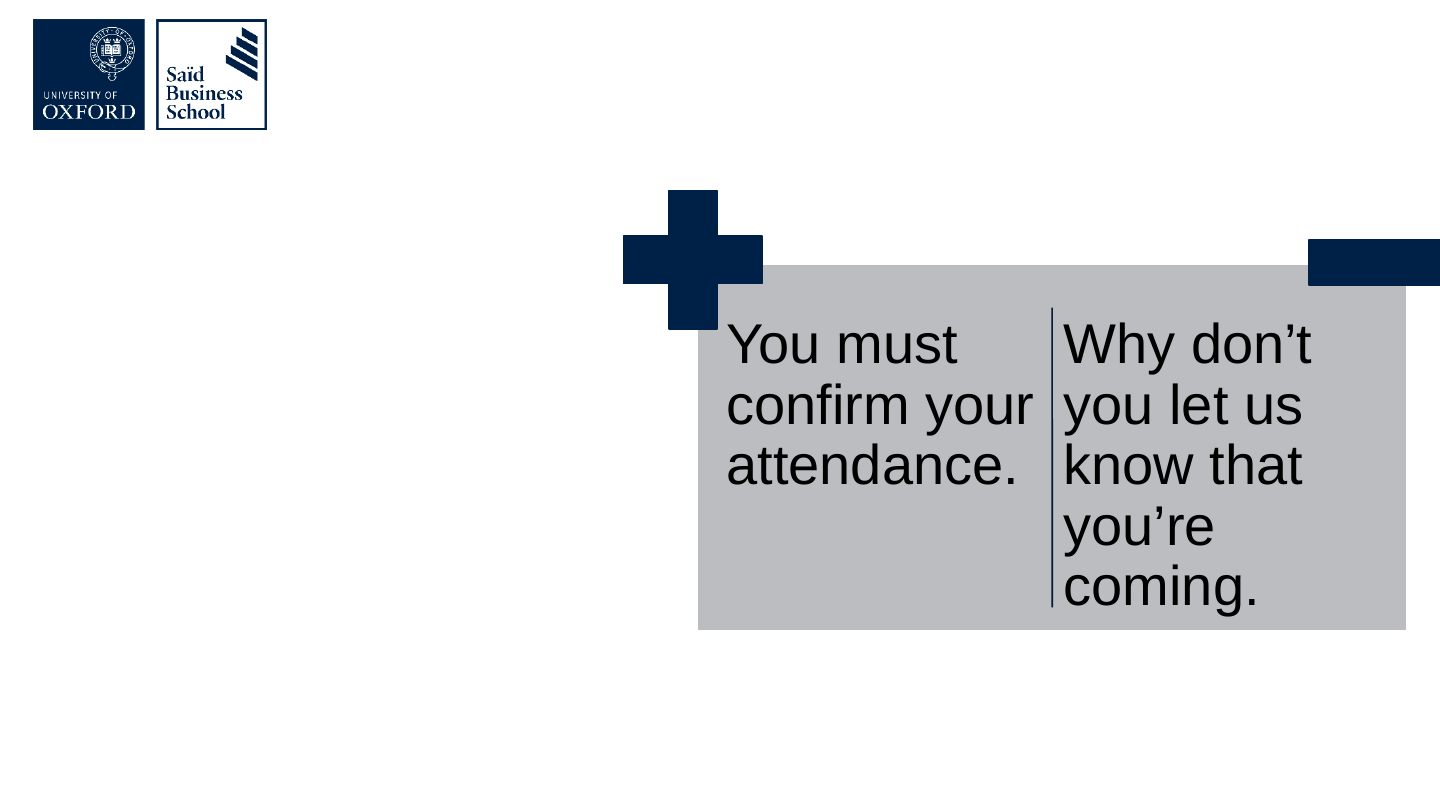
Slide 21: Don’t be too informal

Don’t be too informal

You must confirm your attendance.Why don’t you let us know that you’re coming.

The slide's original page: two grey boxes side by side with a dark blue plus sign above the left box and a dark blue minus bar above the right box.

Original slide 21 (image)

Slide 22: Redundancy can reduce errors

Redundancy can reduce errors

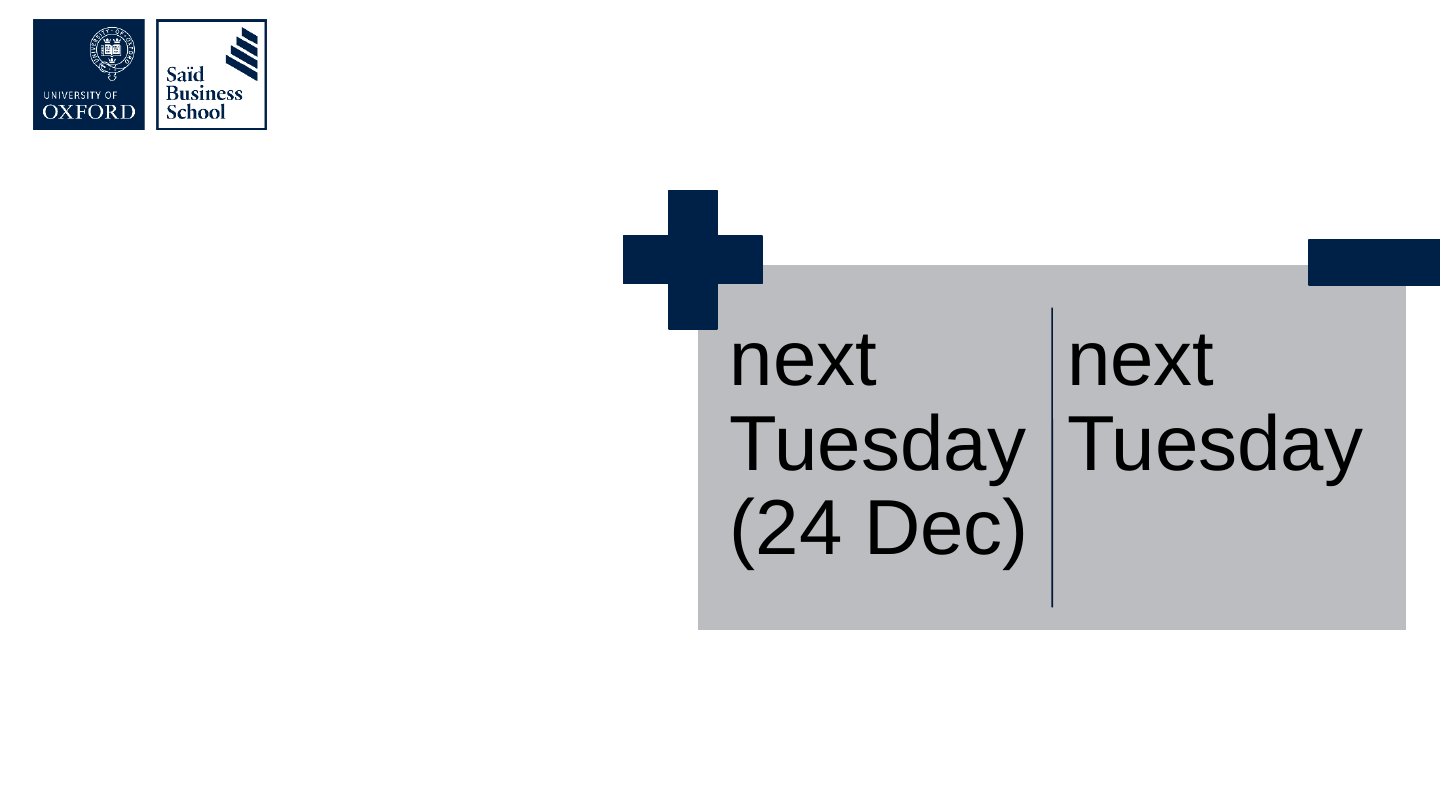
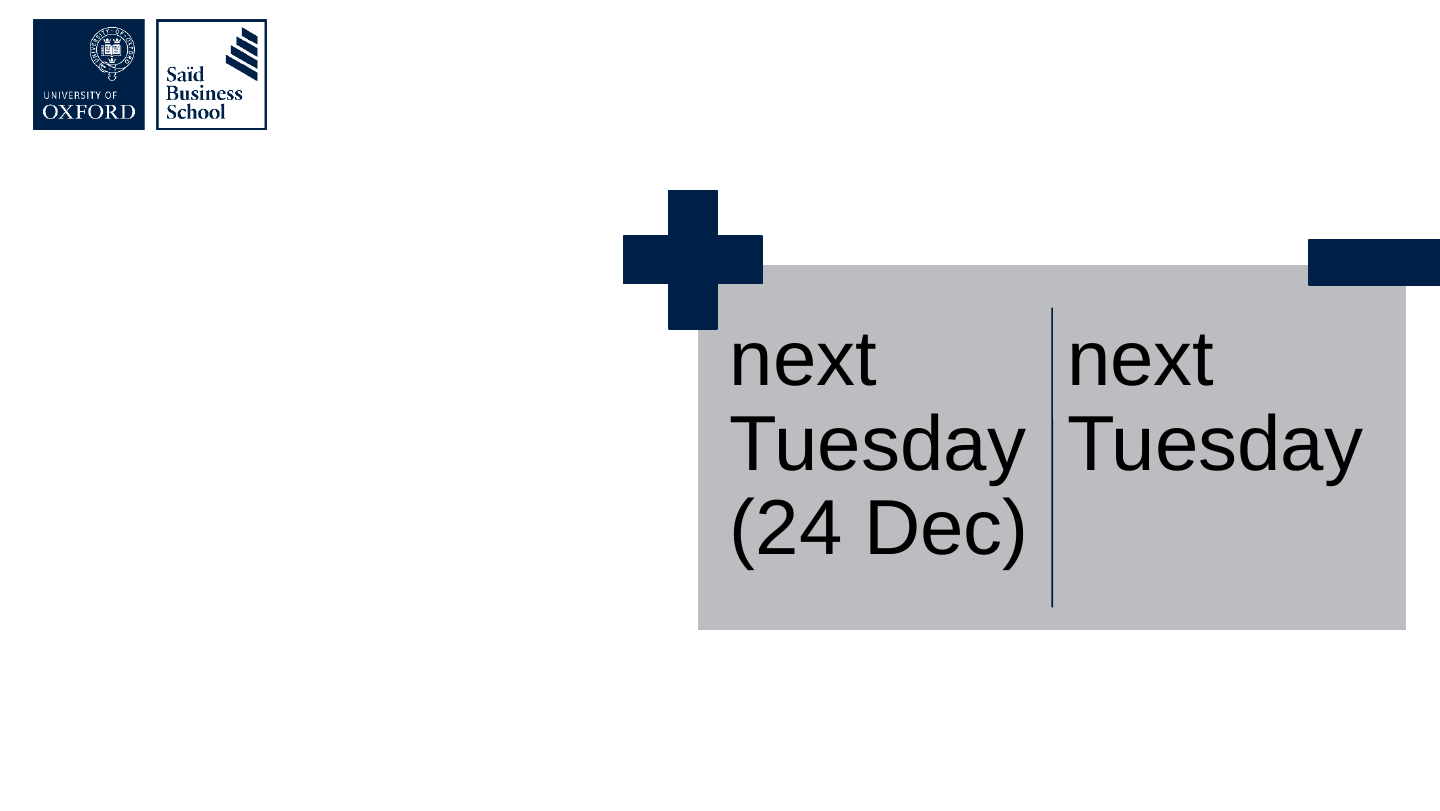
next Tuesday (24 Dec)next Tuesday

The slide's original page: two grey boxes side by side with a dark blue plus sign above the left box and a dark blue minus bar above the right box.

Original slide 22 (image)

Slide 23: Redundancy can aid comprehension

Redundancy can aid comprehension

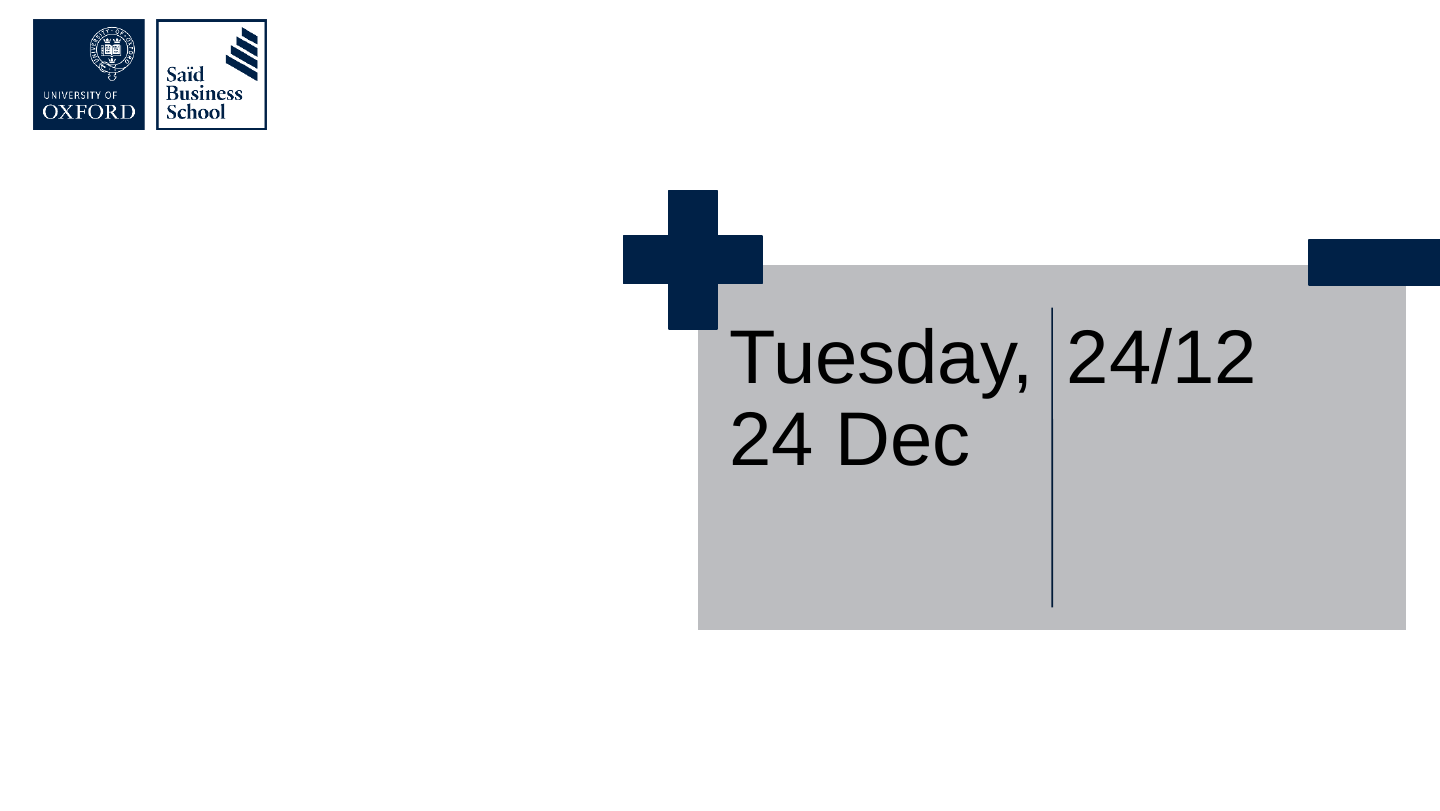
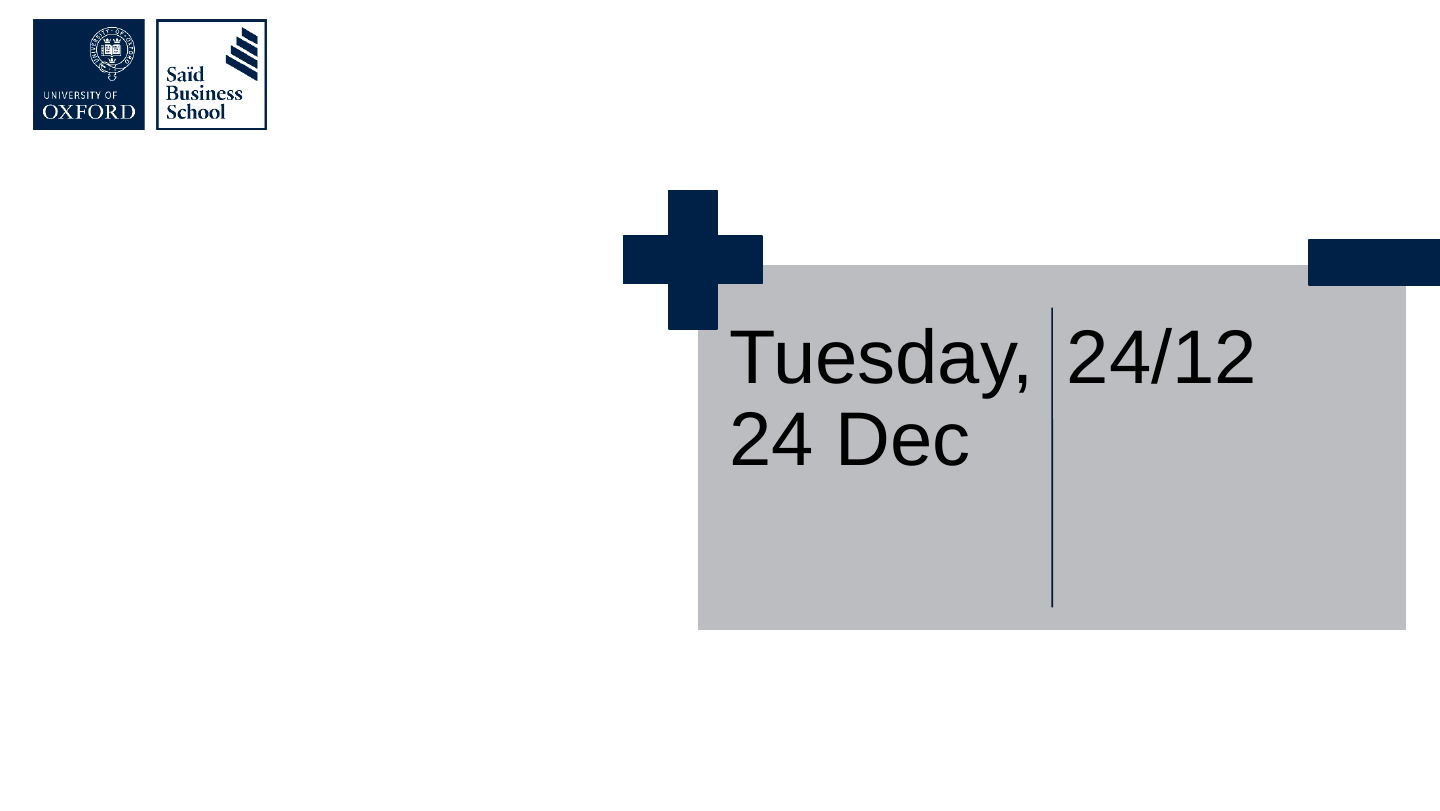
Tuesday, 24 Dec24/12

The slide's original page: two grey boxes side by side with a dark blue plus sign above the left box and a dark blue minus bar above the right box.

Original slide 23 (image)

Slide 24: Simple words don’t always make things clear

Simple words don’t always make things clear

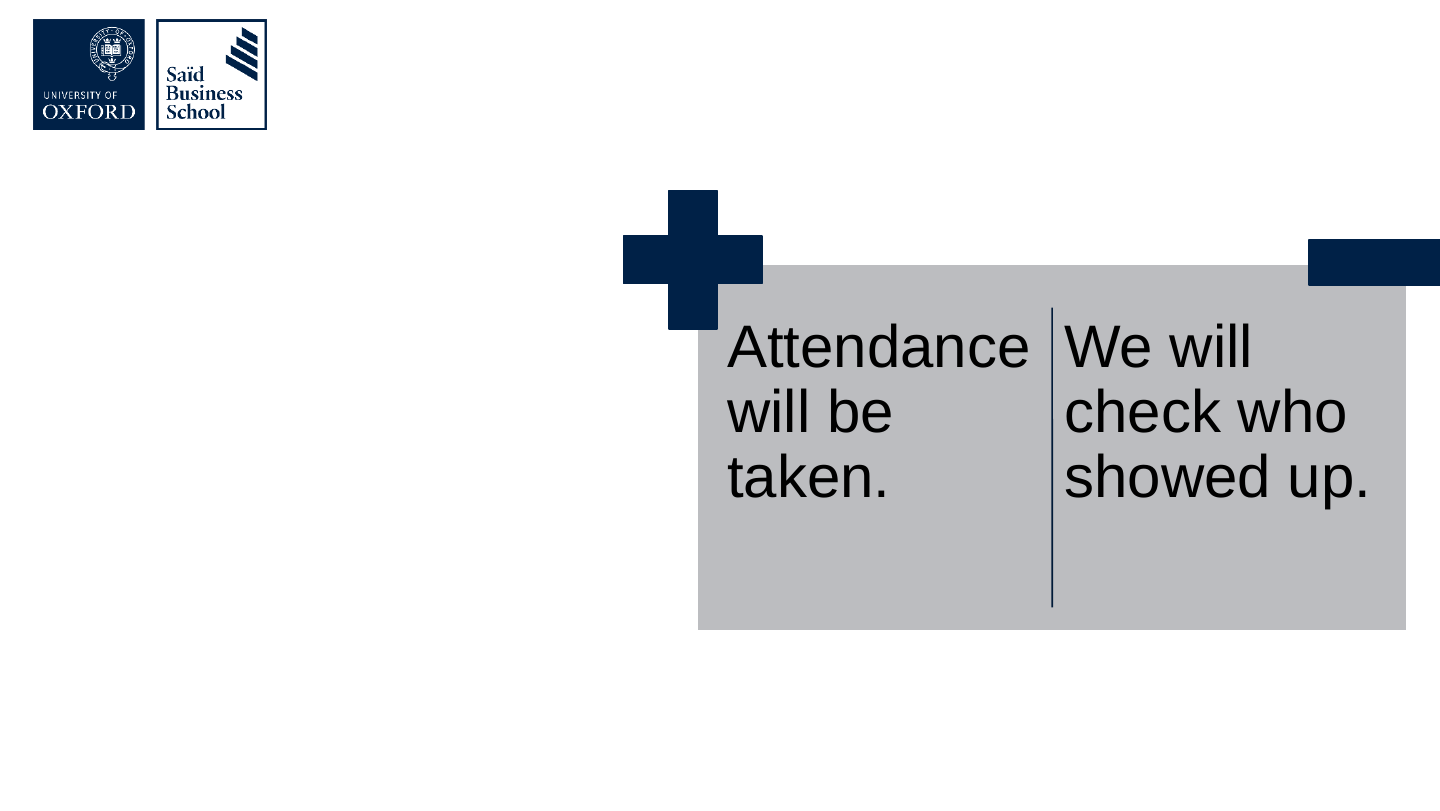
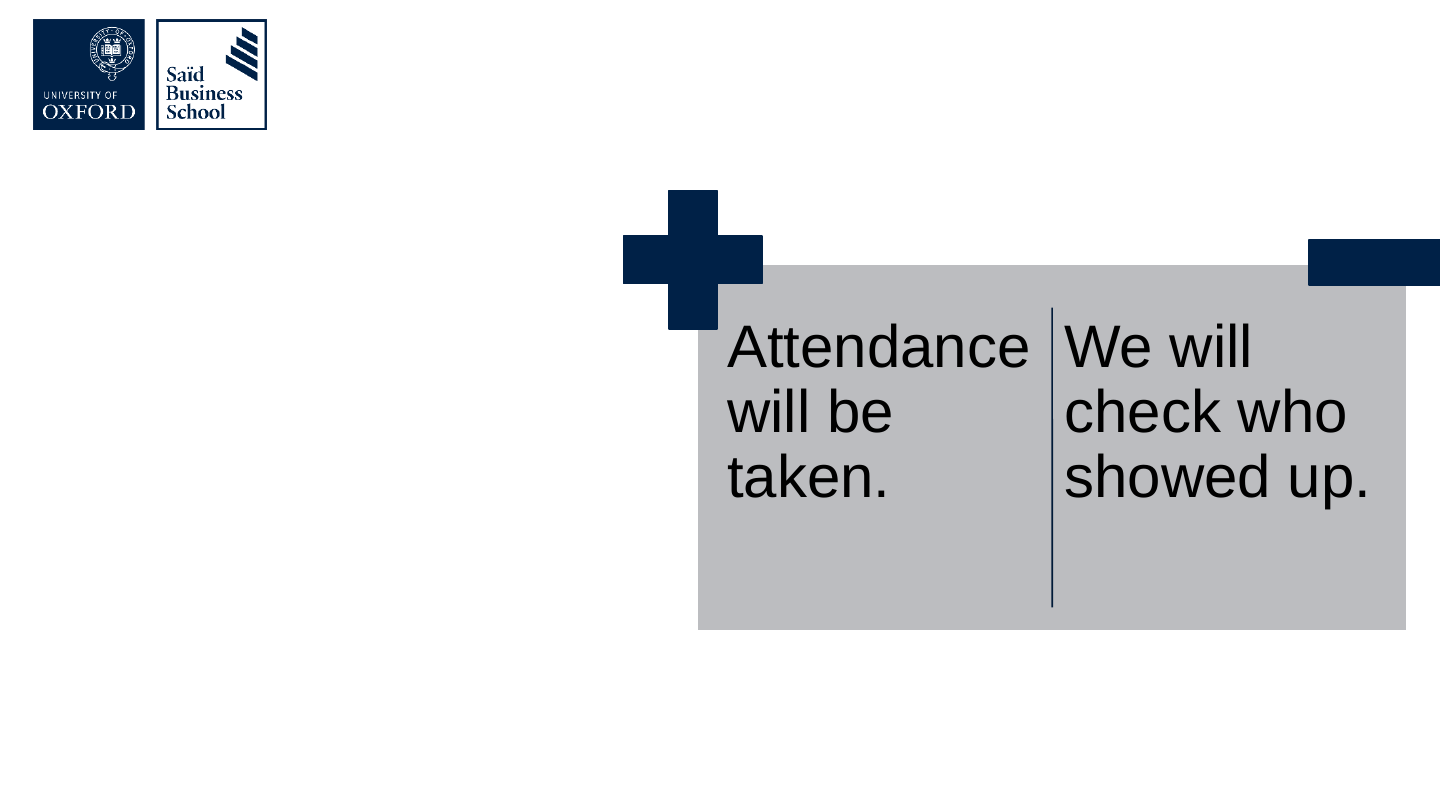
Attendance will be taken.We will check who showed up.

The slide's original page: two grey boxes side by side with a dark blue plus sign above the left box and a dark blue minus bar above the right box.

Original slide 24 (image)

Slide 25: Short English words don’t always make things better.

Short English words don’t always make things better.

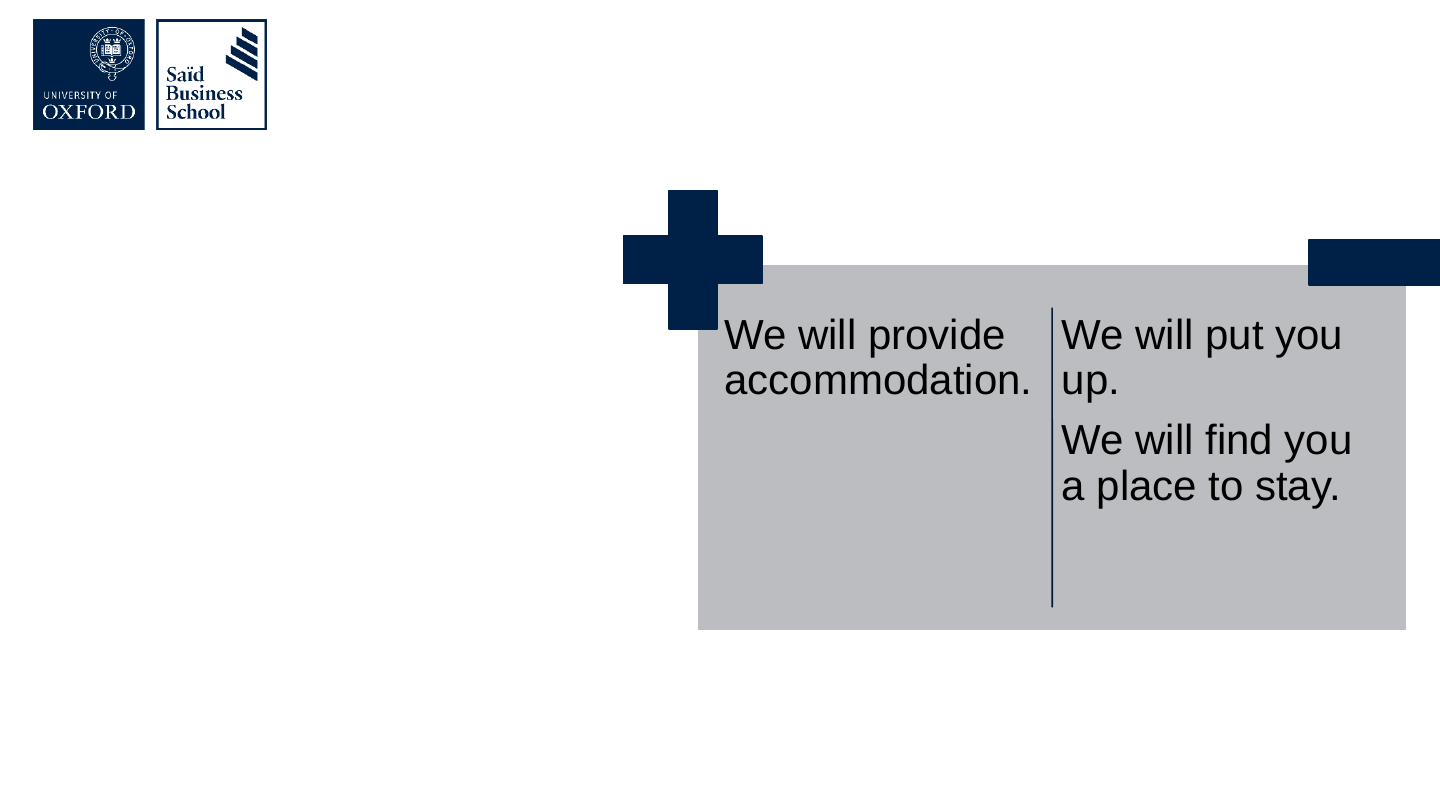
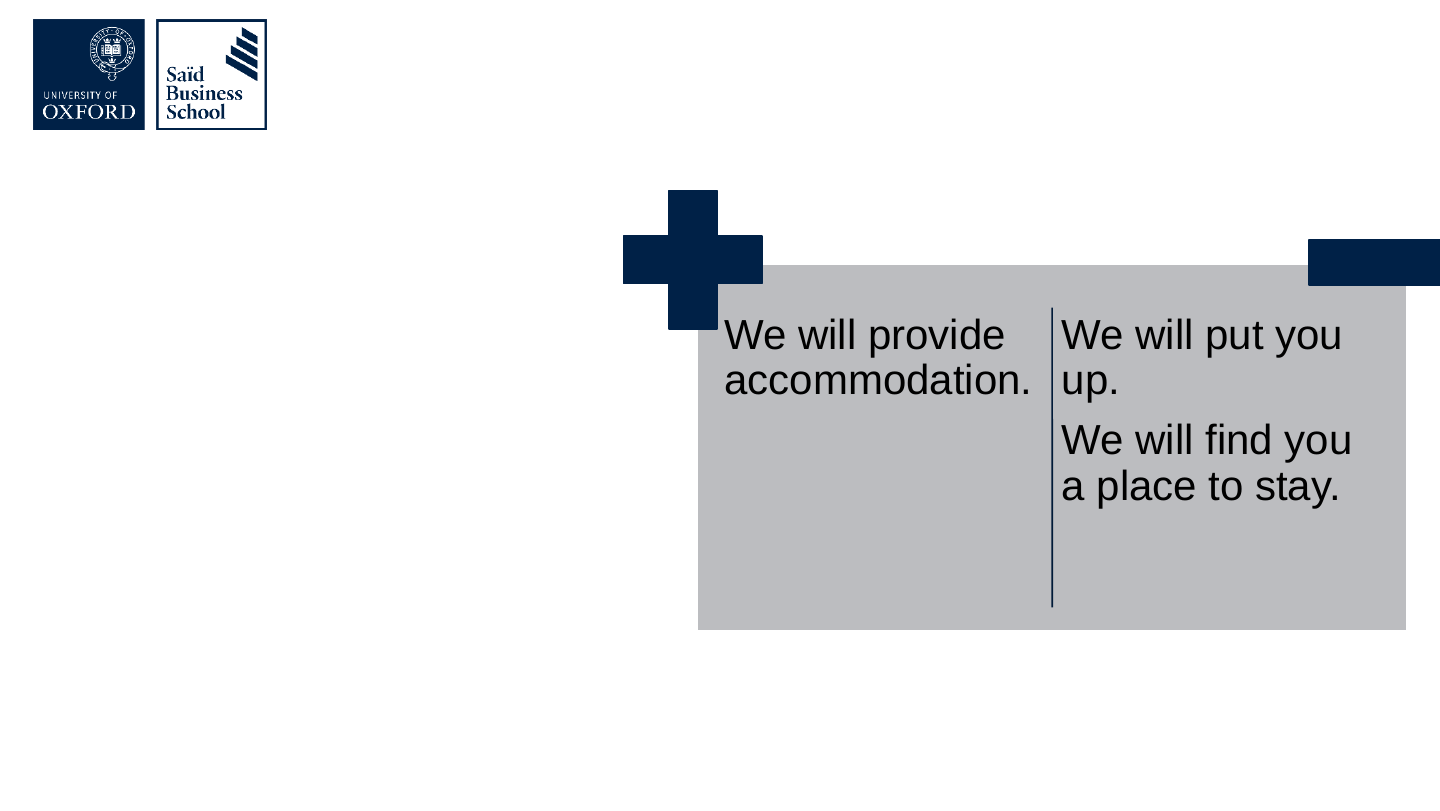
We will provide accommodation.We will put you up. / We will find you a place to stay.

The slide's original page: two grey boxes side by side with a dark blue plus sign above the left box and a dark blue minus bar above the right box.

Original slide 25 (image)

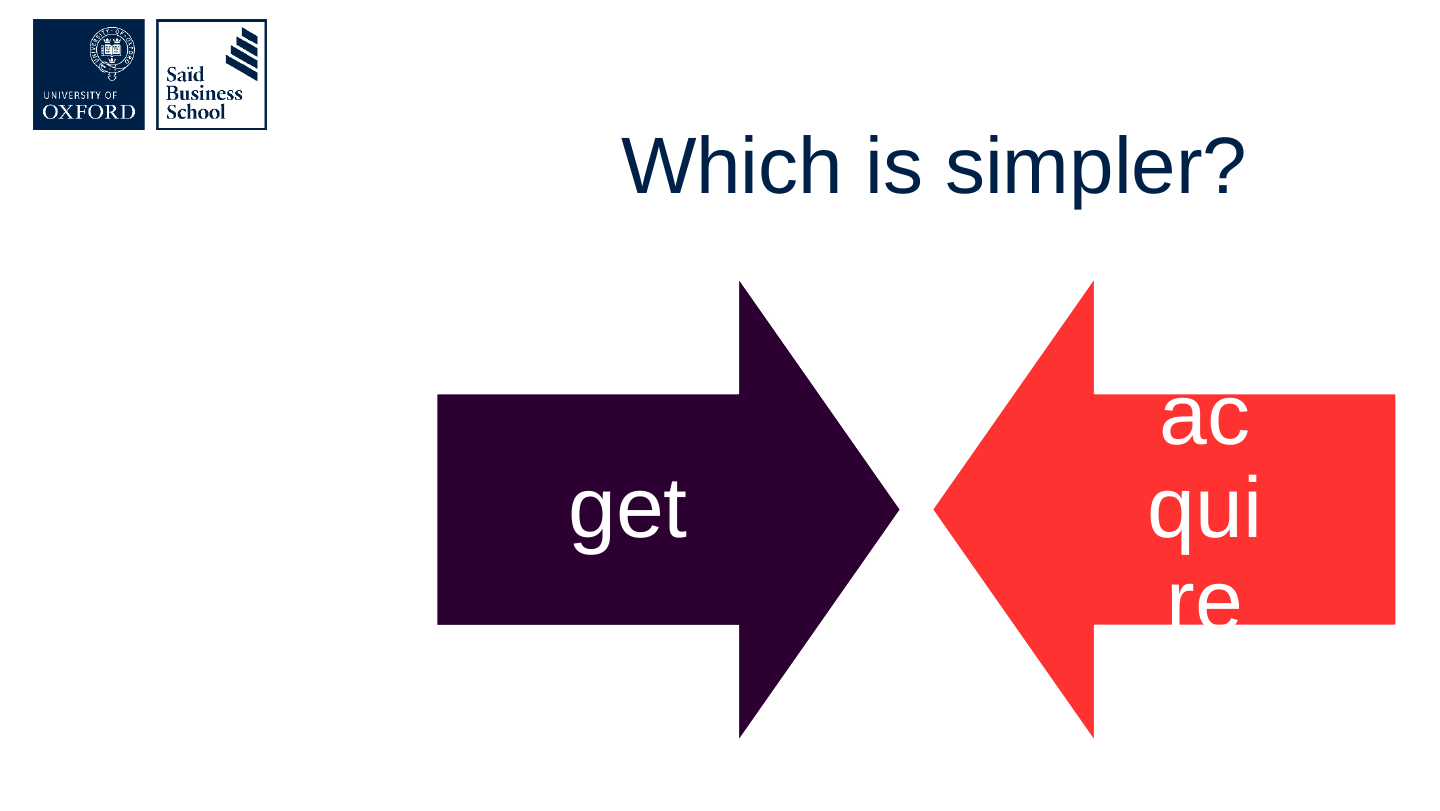
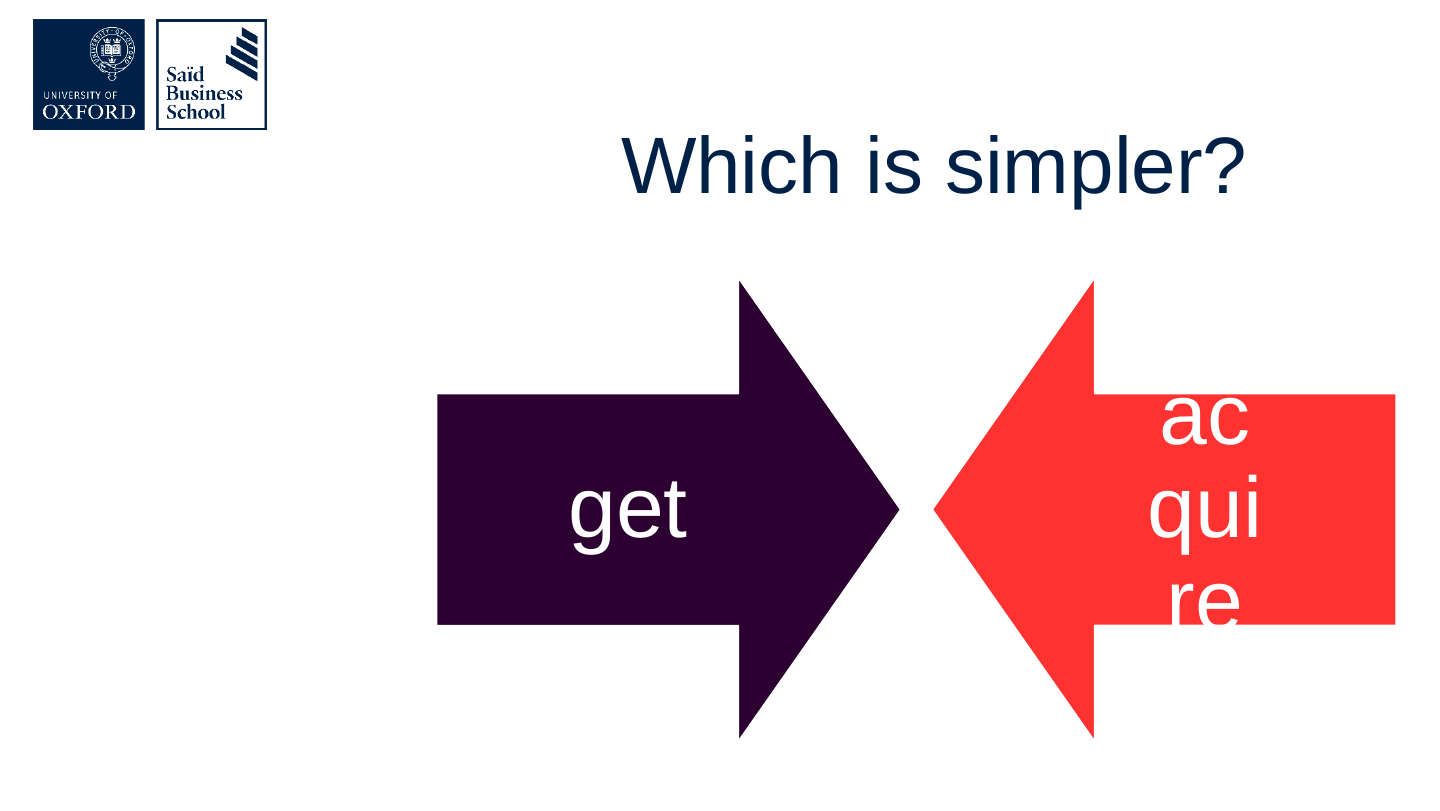
Slide 26: Which is simpler?

Which is simpler?

  • get
  • acquire

The slide's original page: two large arrows pointing at each other, a purple one labelled “get” from the left and a red one labelled “acquire” from the right.

Original slide 26 (image)

Slide 27: Slide 27

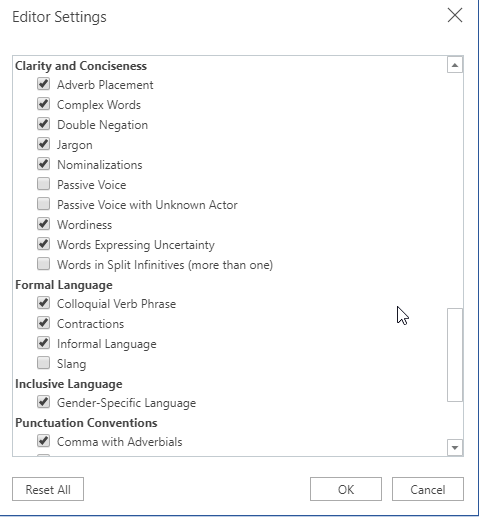
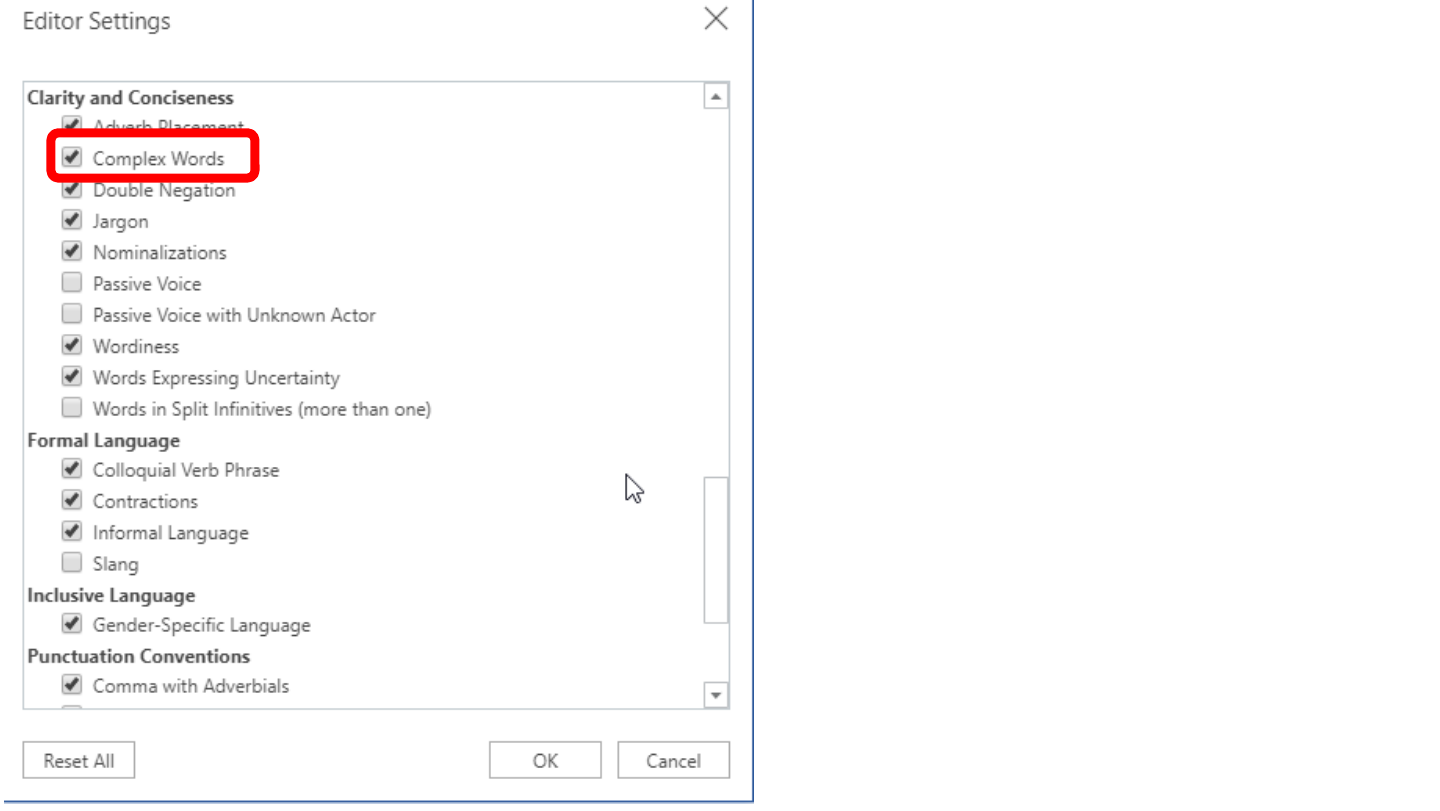
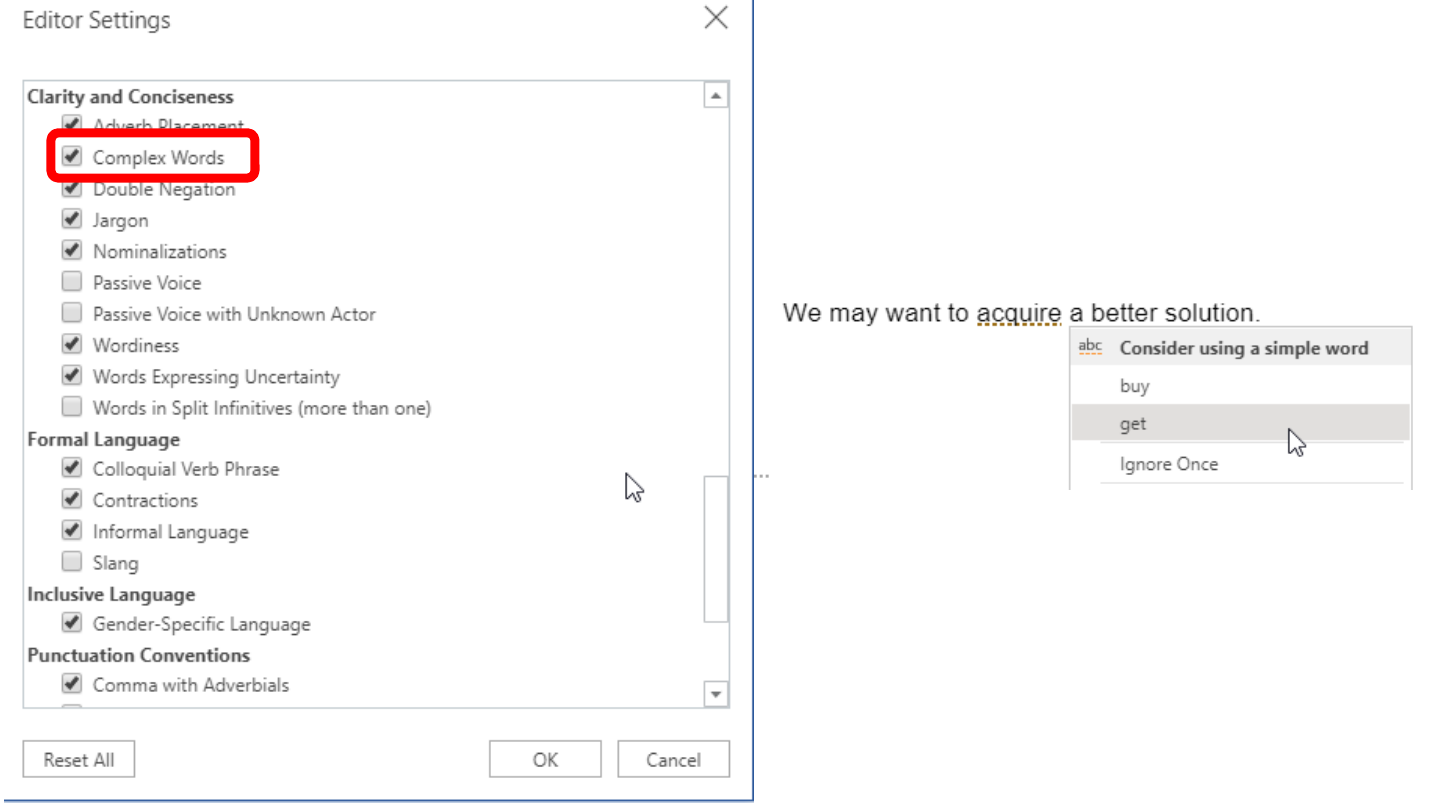
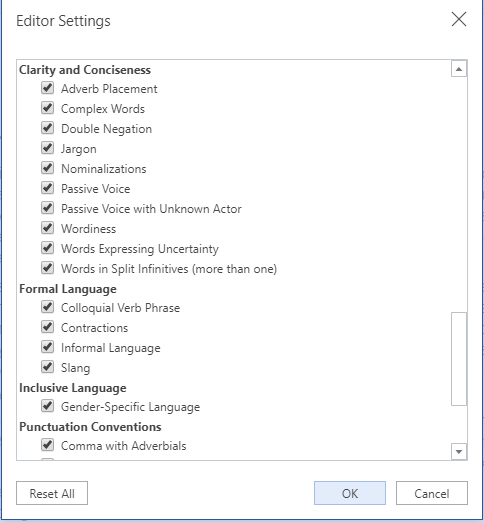
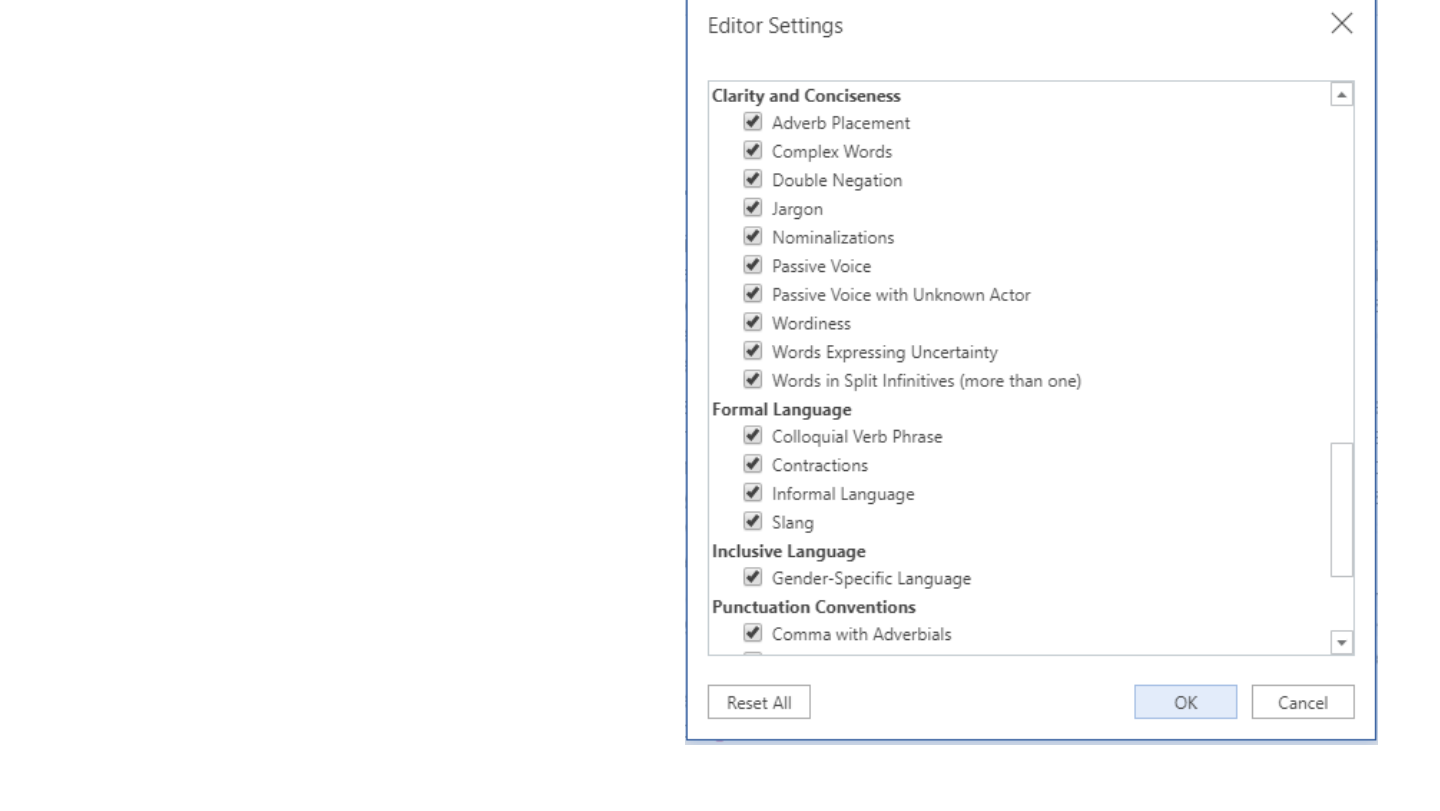
Screenshot of the Editor Settings dialog of a word processor listing checks under Clarity and Conciseness, Formal Language, Inclusive Language and Punctuation Conventions; the Complex Words check is ticked and outlined in red.

Original slide 27 (image)

Slide 28: Slide 28

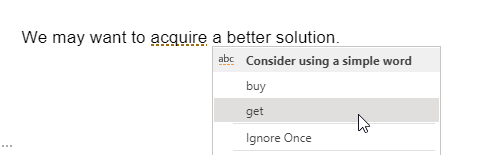
Screenshot of the sentence “We may want to acquire a better solution.” with a suggestion menu headed “Consider using a simple word” offering “buy” and “get”, and an “Ignore Once” option.

Screenshot of the Editor Settings dialog of a word processor listing checks under Clarity and Conciseness, Formal Language, Inclusive Language and Punctuation Conventions; the Complex Words check is ticked and outlined in red.

Original slide 28 (image)

Slide 29: Slide 29

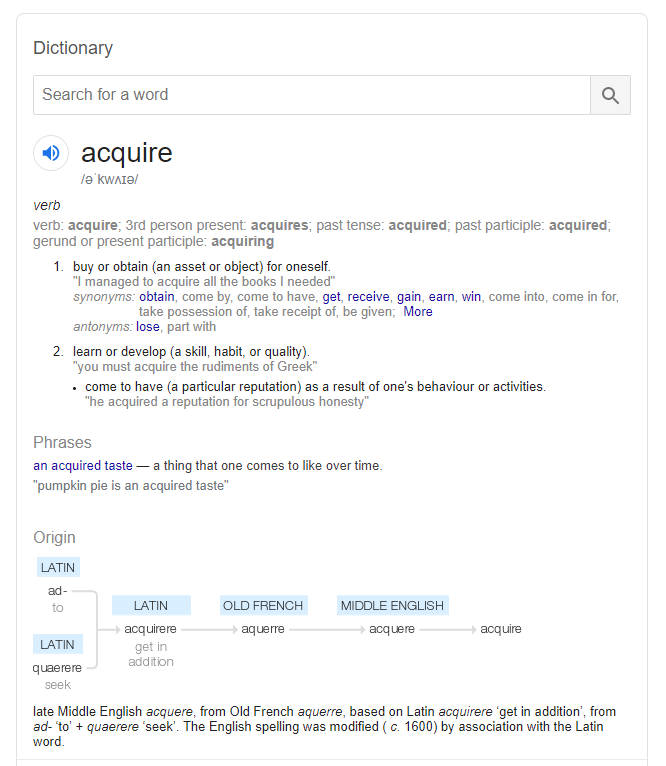
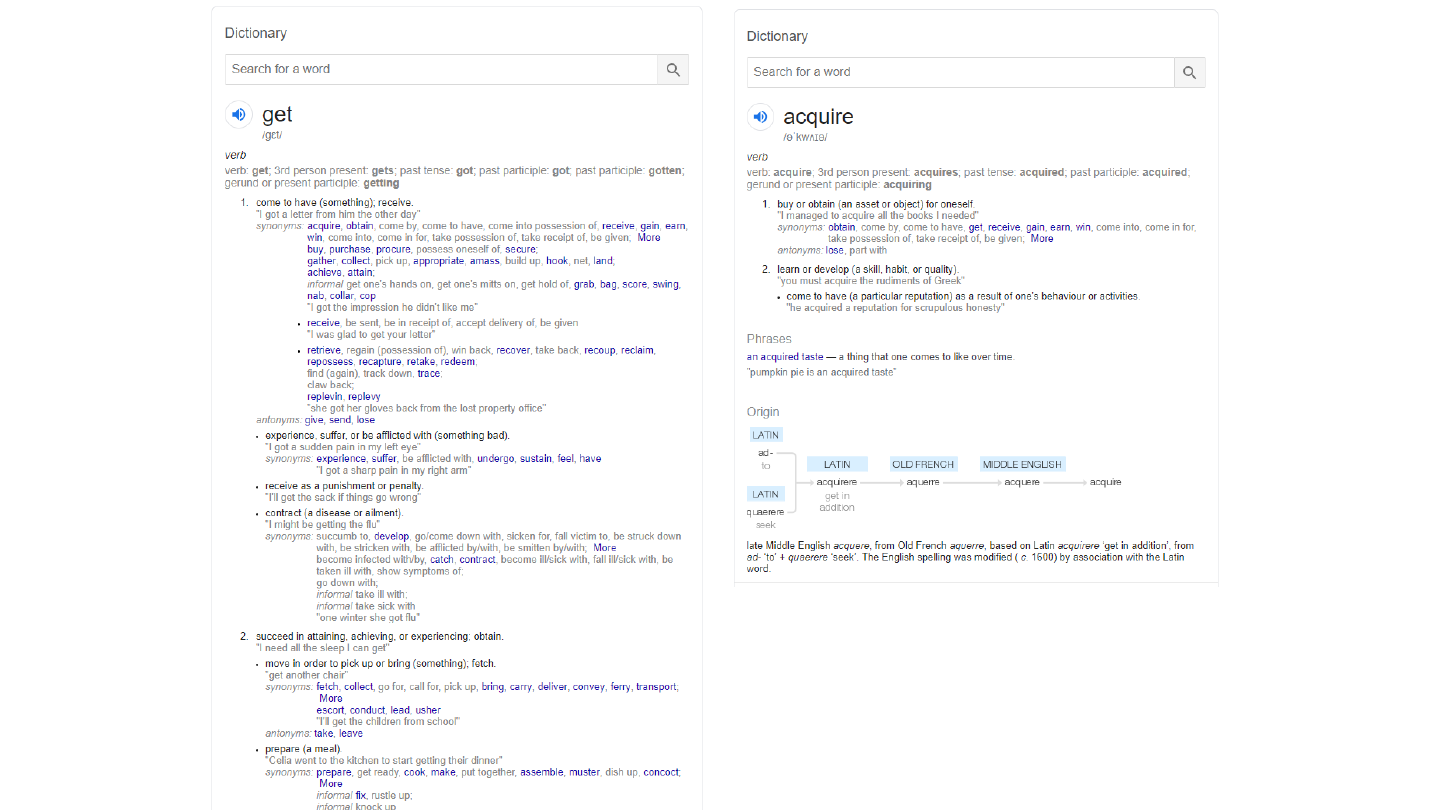
Screenshot of an online dictionary entry for “acquire”, with two numbered senses, a phrase and the word's origin.

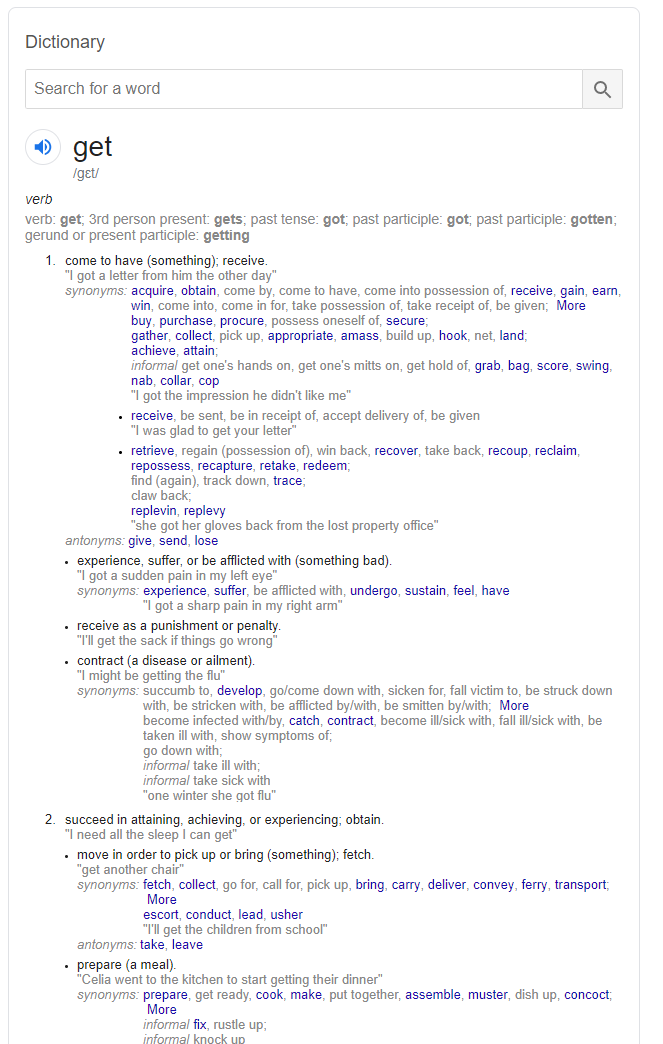
Screenshot of a long online dictionary entry for “get” with many numbered senses and example phrases.

Original slide 29 (image)

Slide 30: Slide 30

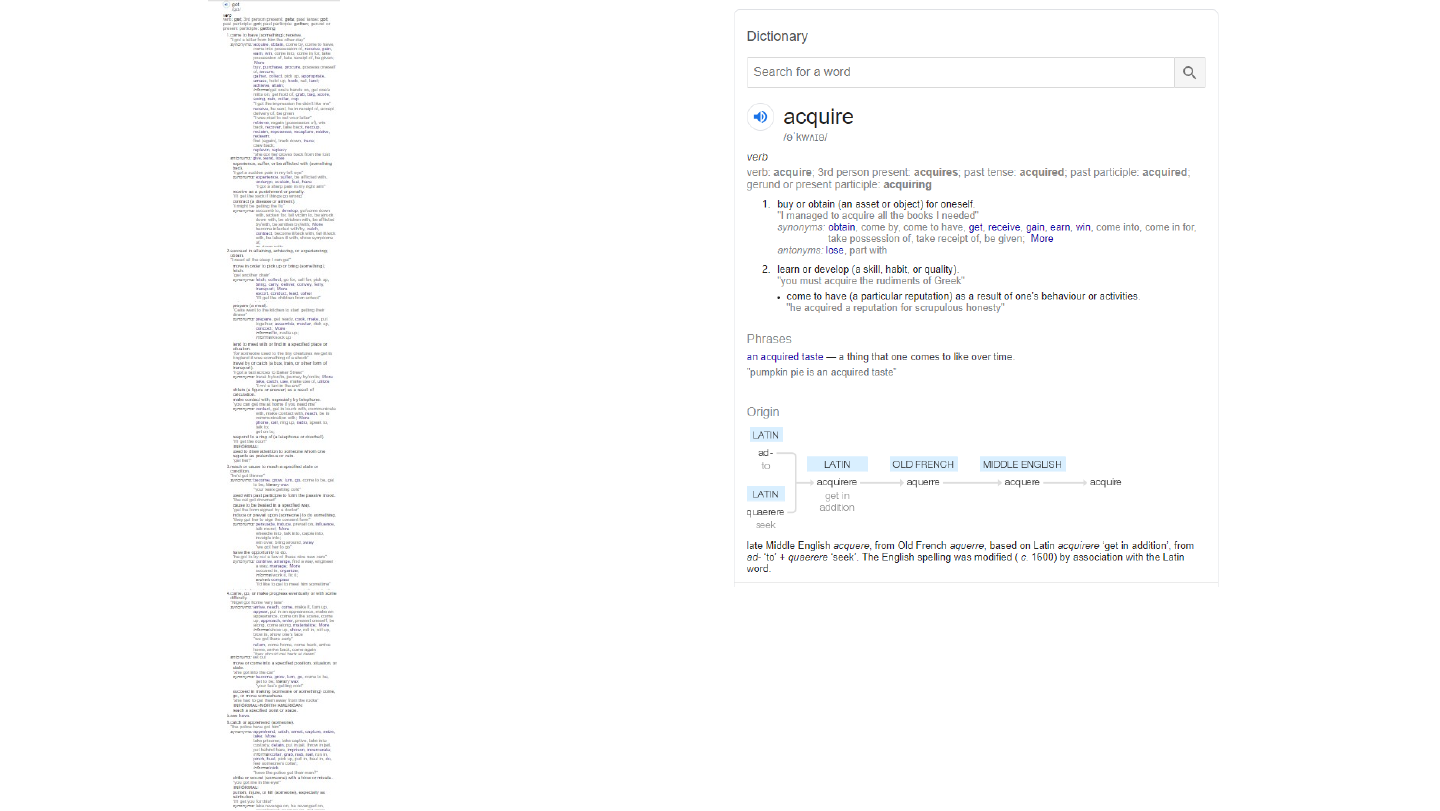
Screenshot of an online dictionary entry for “acquire”, with two numbered senses, a phrase and the word's origin.

Screenshot of the whole online dictionary entry for “get”, shrunk into a narrow strip to show how long it is.

Original slide 30 (image)

Slide 31: Slide 31

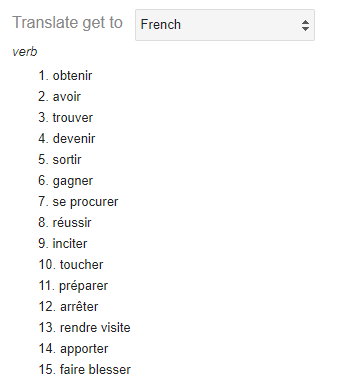
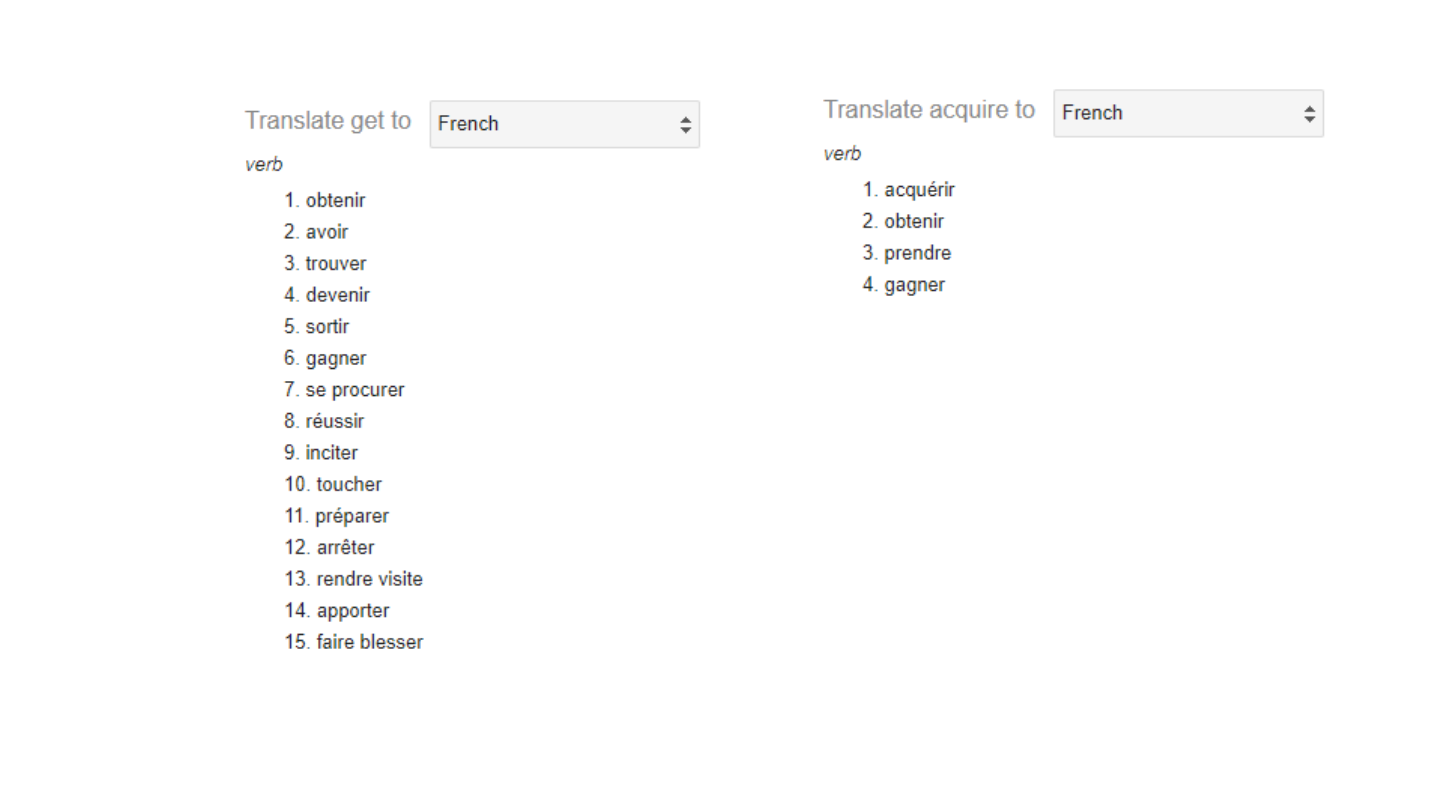
Screenshot of the translations of “get” into French: a numbered list of fifteen verbs, from “obtenir” to “faire blesser”.

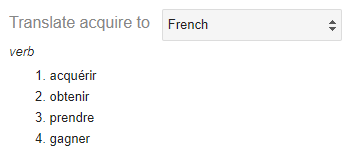
Screenshot of the translations of “acquire” into French: four verbs, “acquérir”, “obtenir”, “prendre” and “gagner”.

Original slide 31 (image)

Slide 32: Slide 32

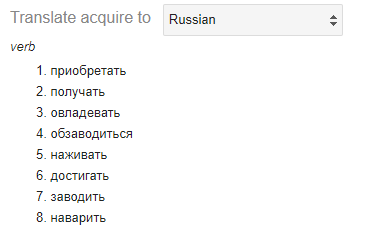
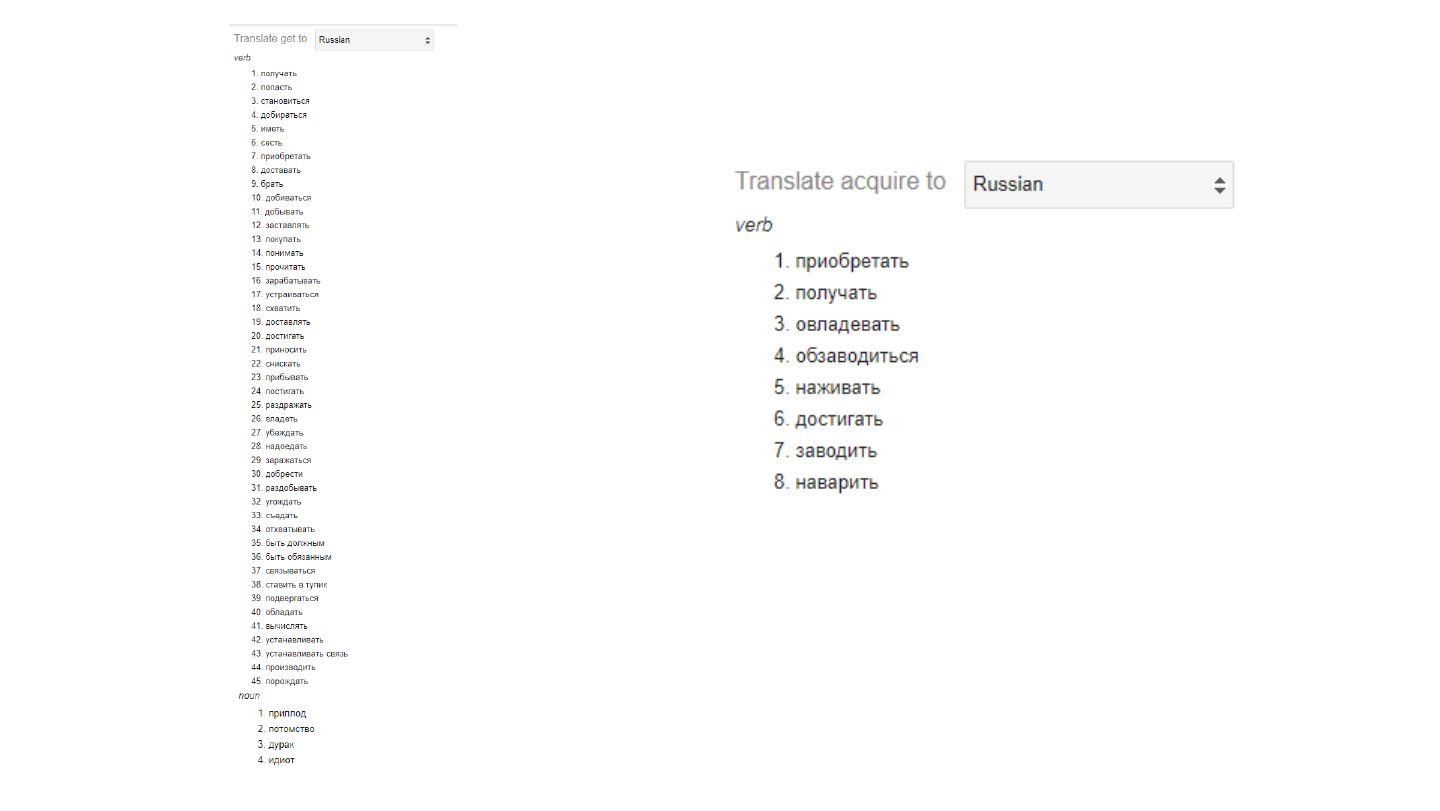
Screenshot of the translations of “acquire” into Russian: a numbered list of eight verbs.

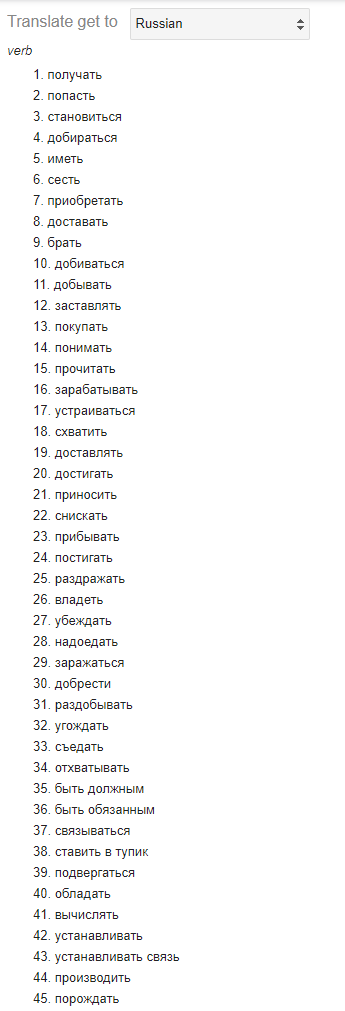
Screenshot of the translations of “get” into Russian, a very long numbered list shrunk into a narrow strip.

Small screenshot of the end of the list of Russian translations of “get”.

Original slide 32 (image)

Slide 33: Slide 33

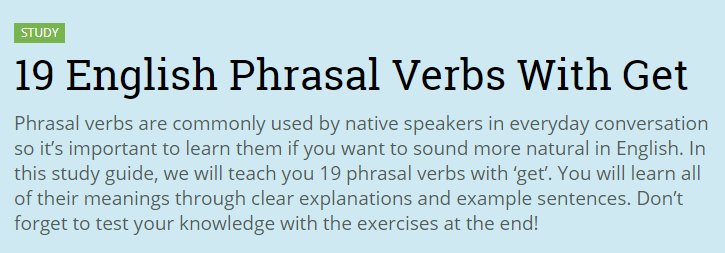
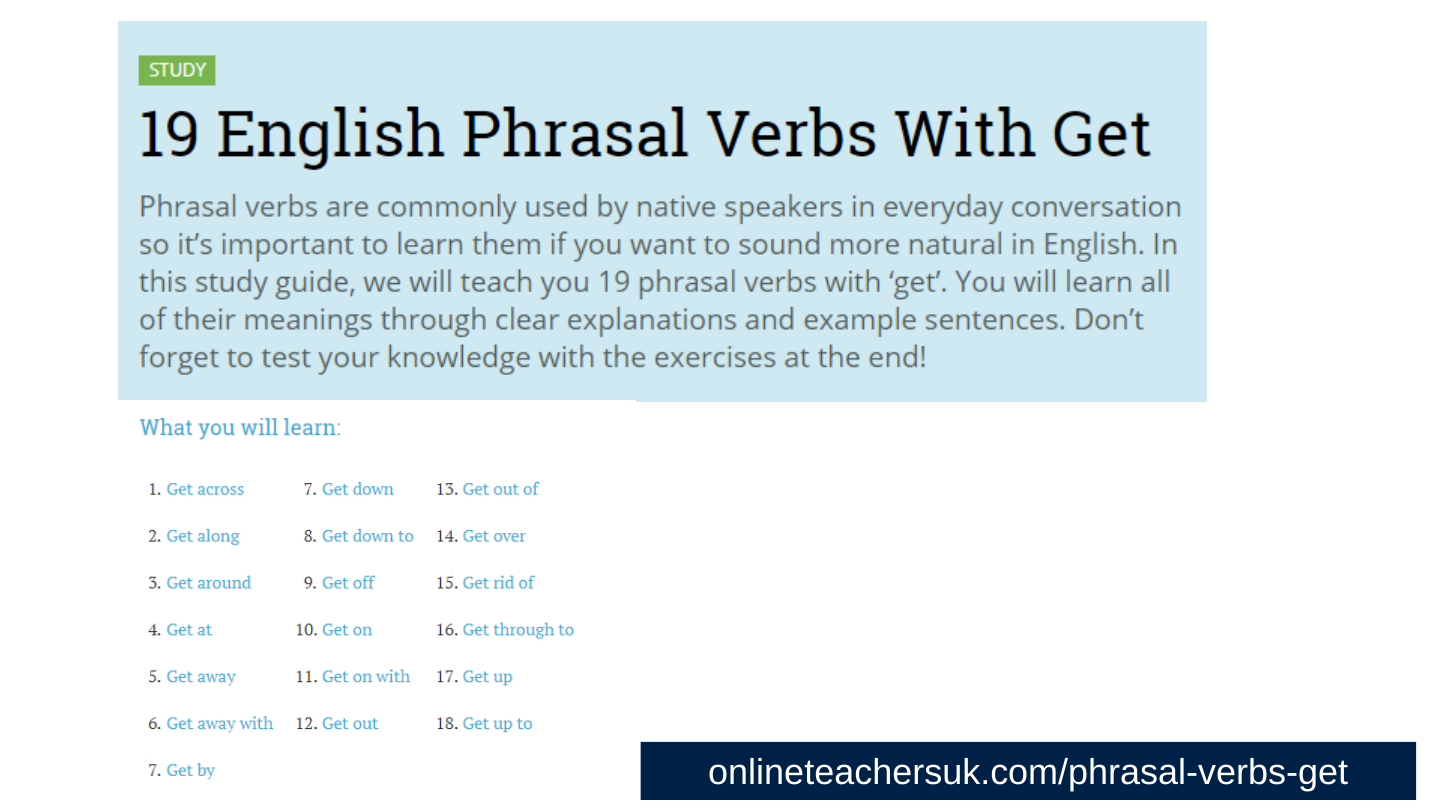
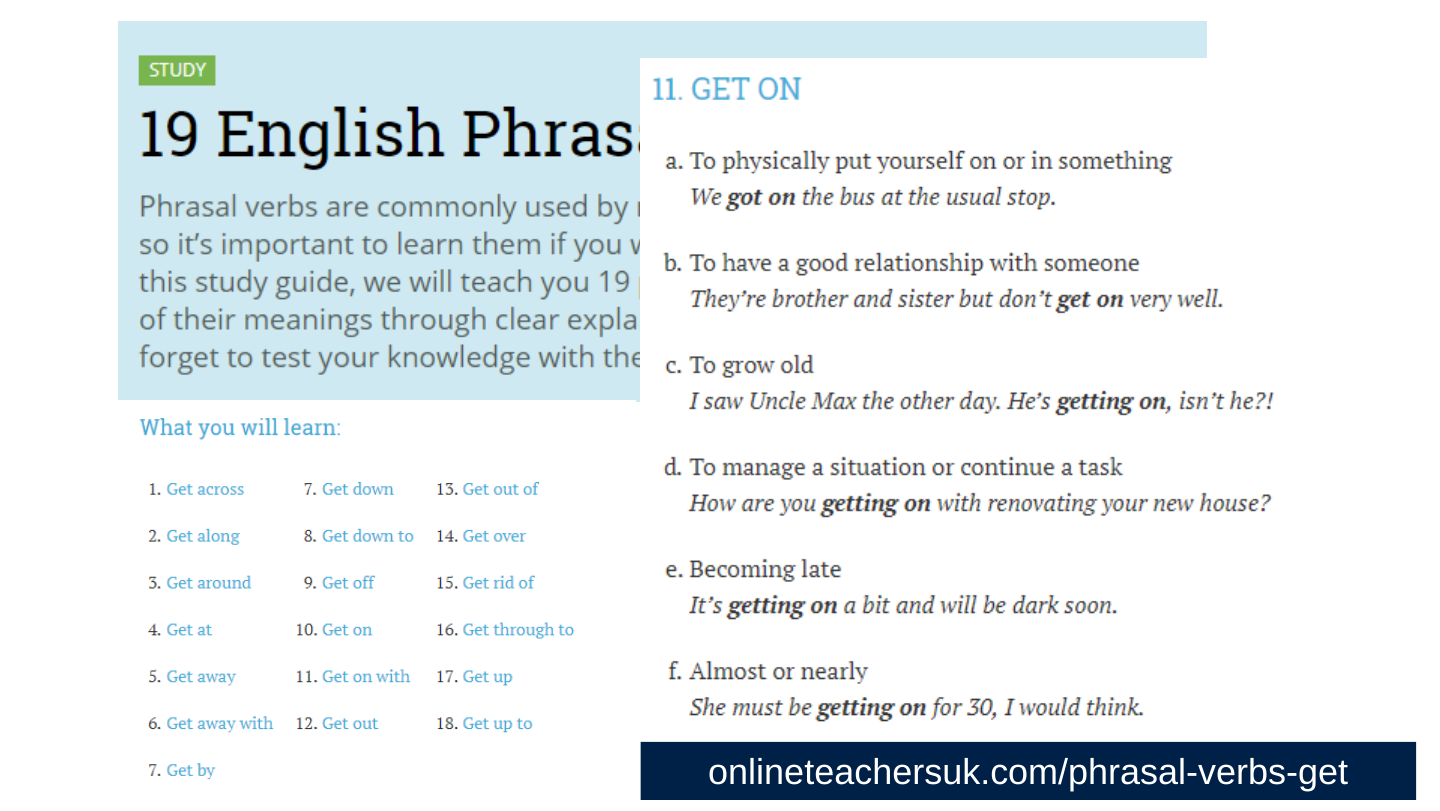
Screenshot of the top of the web page “19 English Phrasal Verbs With Get”, with a green “Study” label and an introduction saying that phrasal verbs are commonly used by native speakers.

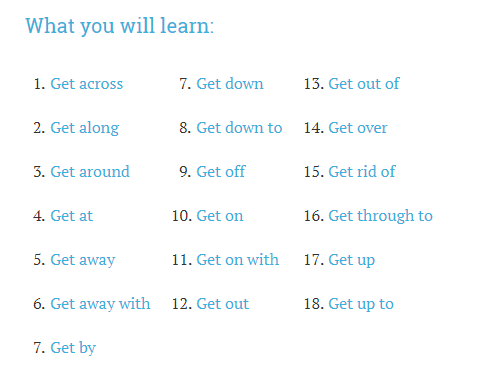
Screenshot of the “What you will learn” list of the same page: the phrasal verbs from “Get across” to “Get up to”.

onlineteachersuk.com/phrasal-verbs-get
Original slide 33 (image)

Slide 34: Slide 34

Screenshot of the top of the web page “19 English Phrasal Verbs With Get”, with a green “Study” label and an introduction saying that phrasal verbs are commonly used by native speakers.

Screenshot of the “What you will learn” list of the same page: the phrasal verbs from “Get across” to “Get up to”.

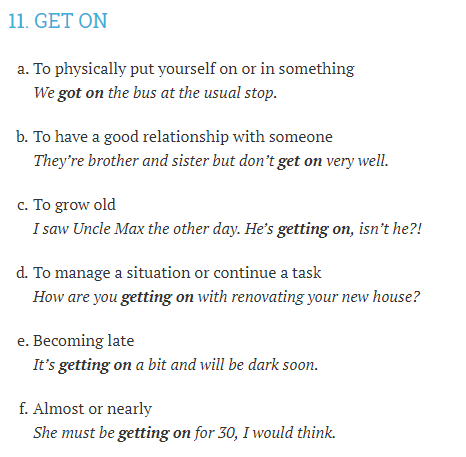
Screenshot of the entry “11. Get on” with six numbered senses, a to f, each with an example sentence.

onlineteachersuk.com/phrasal-verbs-get
Original slide 34 (image)

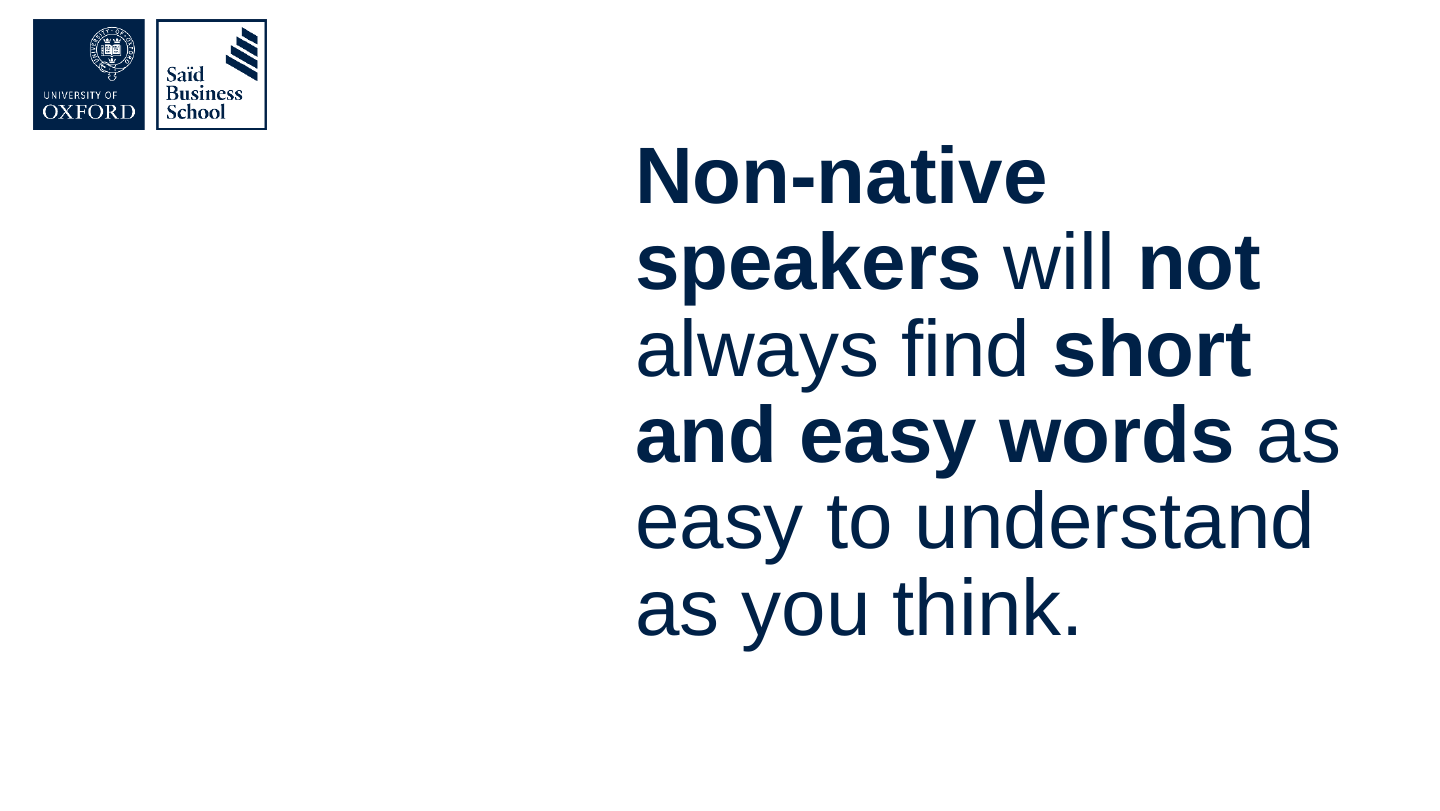
Slide 35: Non-native speakers will not always find short and easy words as easy to understand as you think.

Non-native speakers will not always find short and easy words as easy to understand as you think.
Original slide 35 (image)

Slide 36: Good advice

Good advice

Original slide 36 (image)

Slide 37: Slide 37

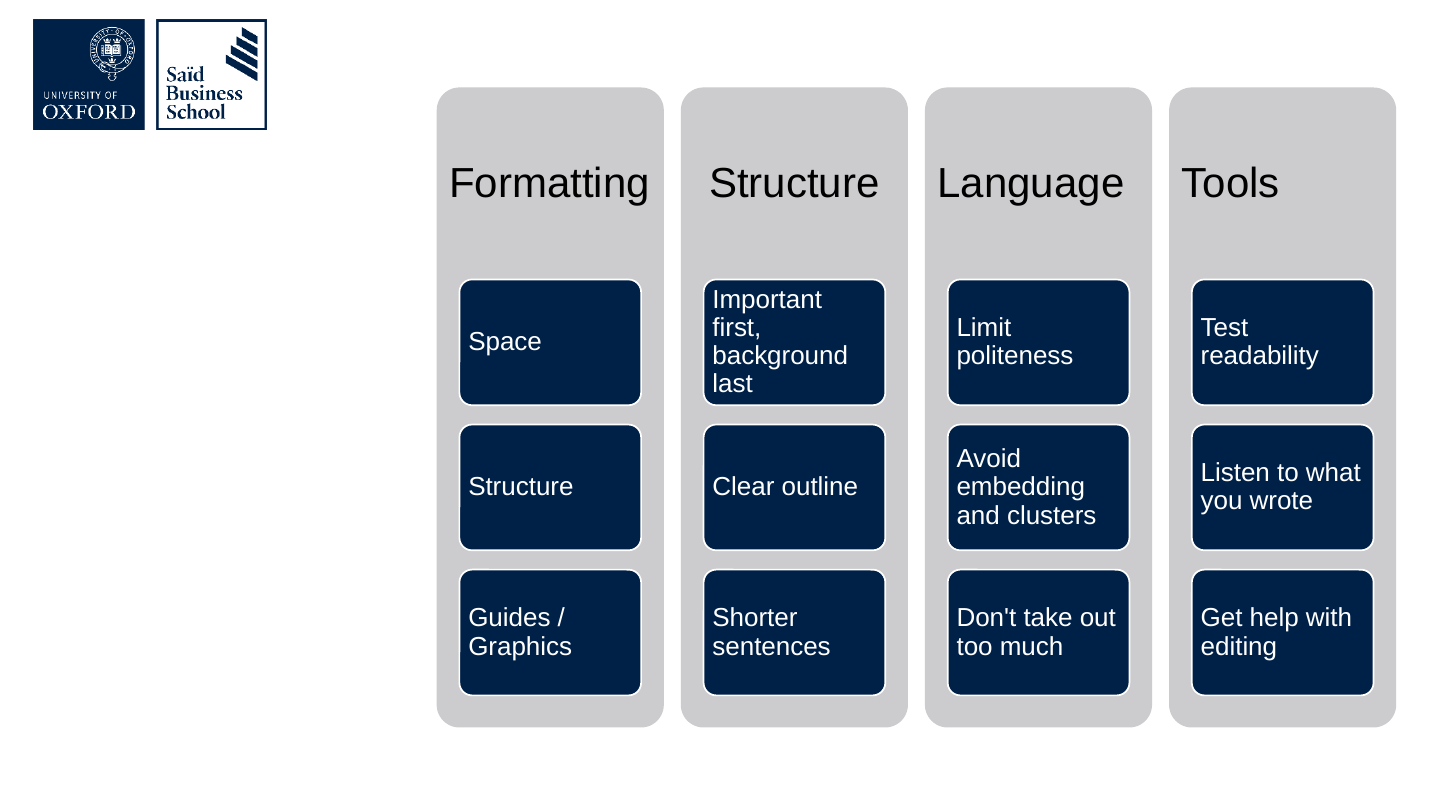
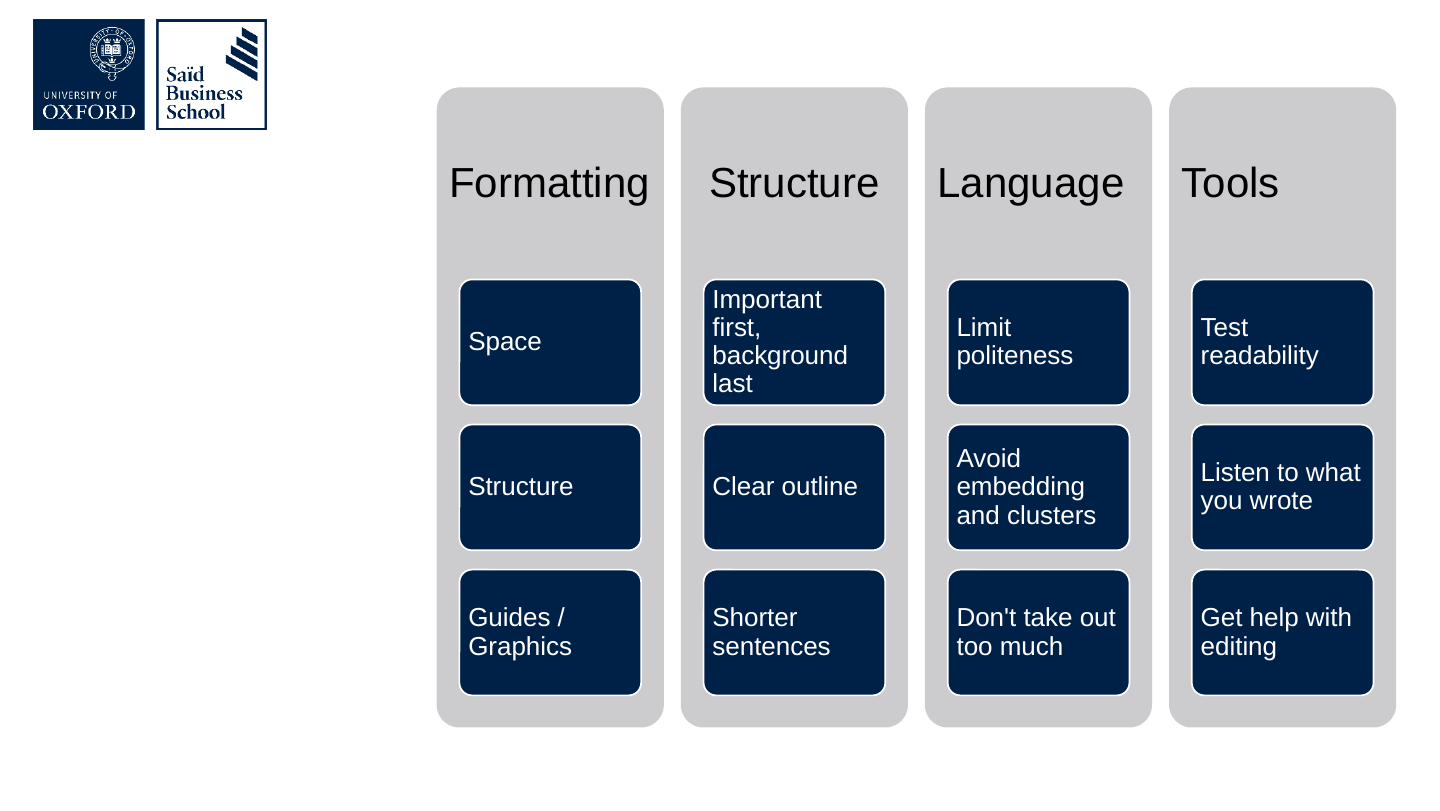
  • Formatting
    • Space
    • Structure
    • Guides / Graphics
  • Structure
    • Important first, background last
    • Clear outline
    • Shorter sentences
  • Language
    • Limit politeness
    • Avoid embedding and clusters
    • Don't take out too much
  • Tools
    • Test readability
    • Listen to what you wrote
    • Get help with editing

The slide's original page: four grey columns headed Formatting, Structure, Language and Tools, each holding three dark blue boxes with the items listed above.

Original slide 37 (image)

Slide 38: Who does it well?

Who does it well?
Original slide 38 (image)

Slide 39: Slide 39

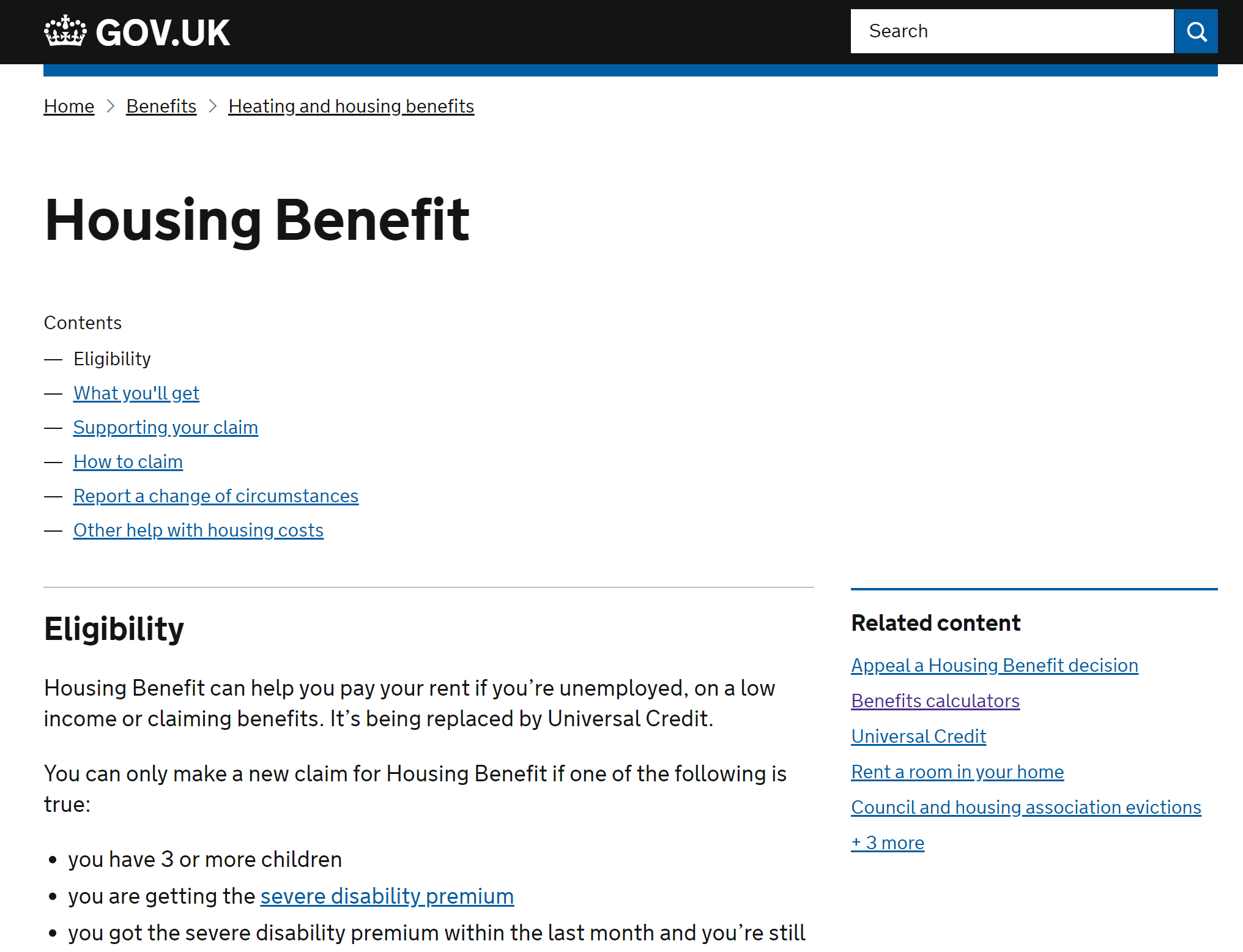
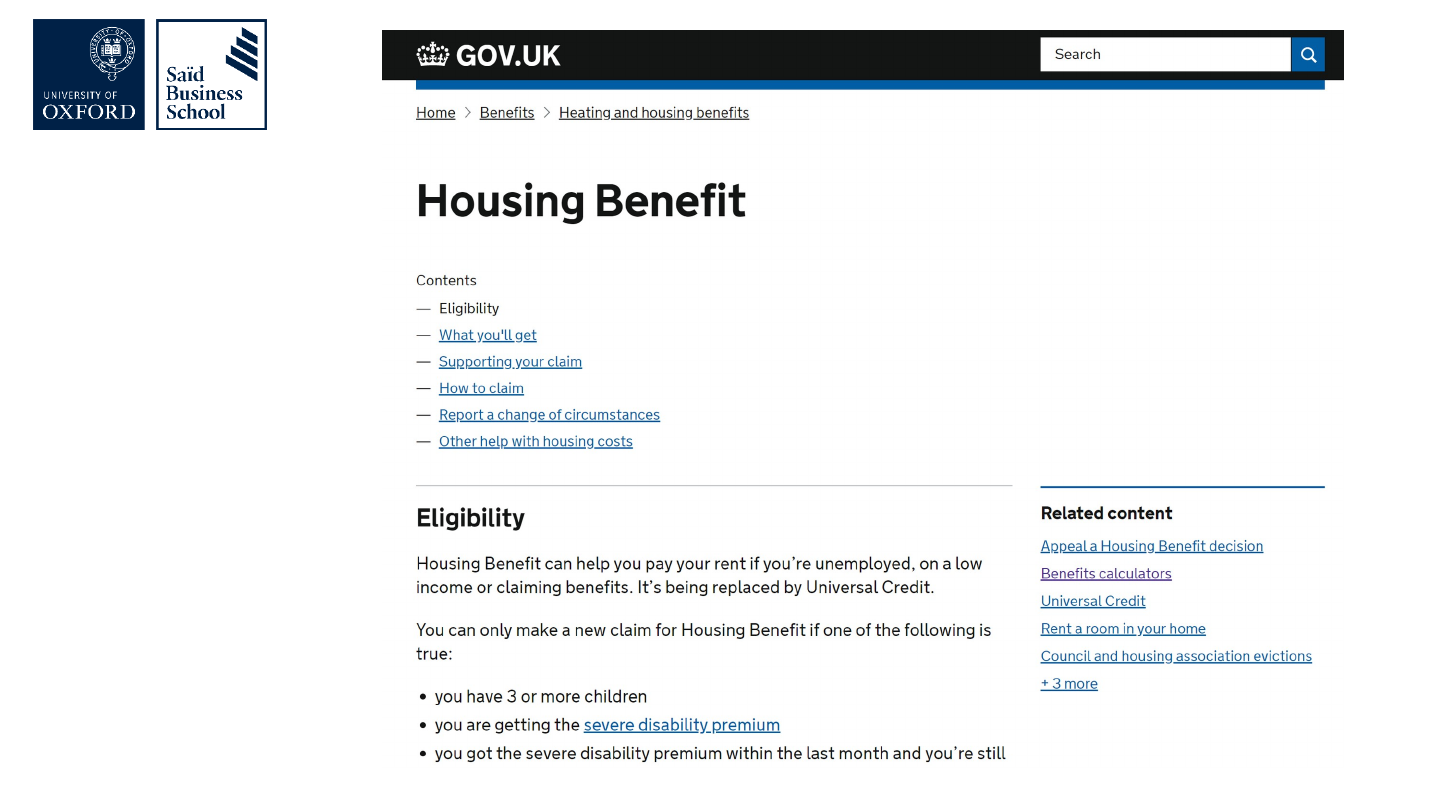
Screenshot of the GOV.UK page “Housing Benefit” with its contents list, an “Eligibility” section and a list of related content.

Original slide 39 (image)

Slide 40: Slide 40

Screenshot of a web page for the Oxford Diploma in Organisational Leadership, with a photograph of people working around a table and details of the start date, duration, time commitment, location and cost.

Original slide 40 (image)

Slide 41: Slide 41

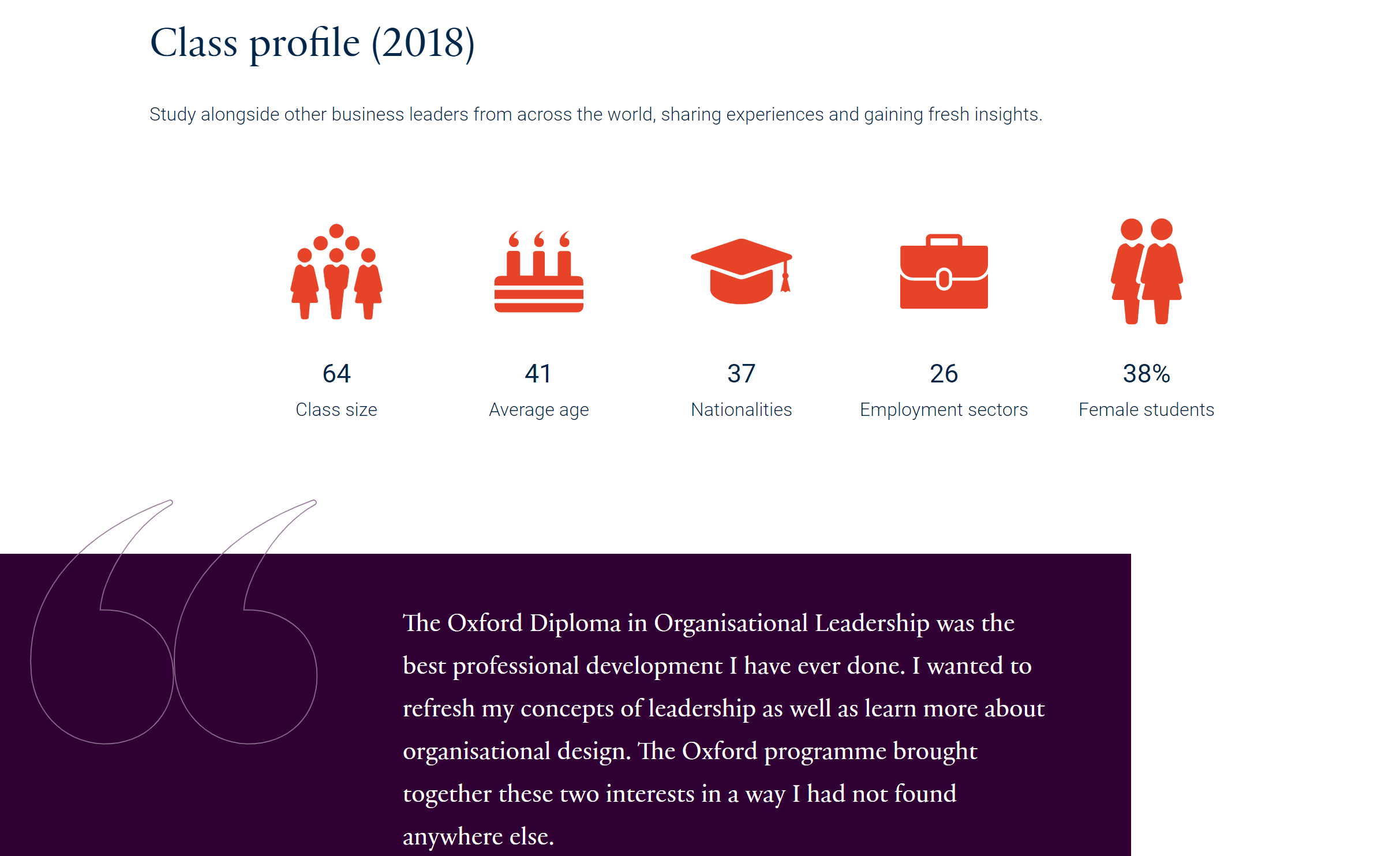
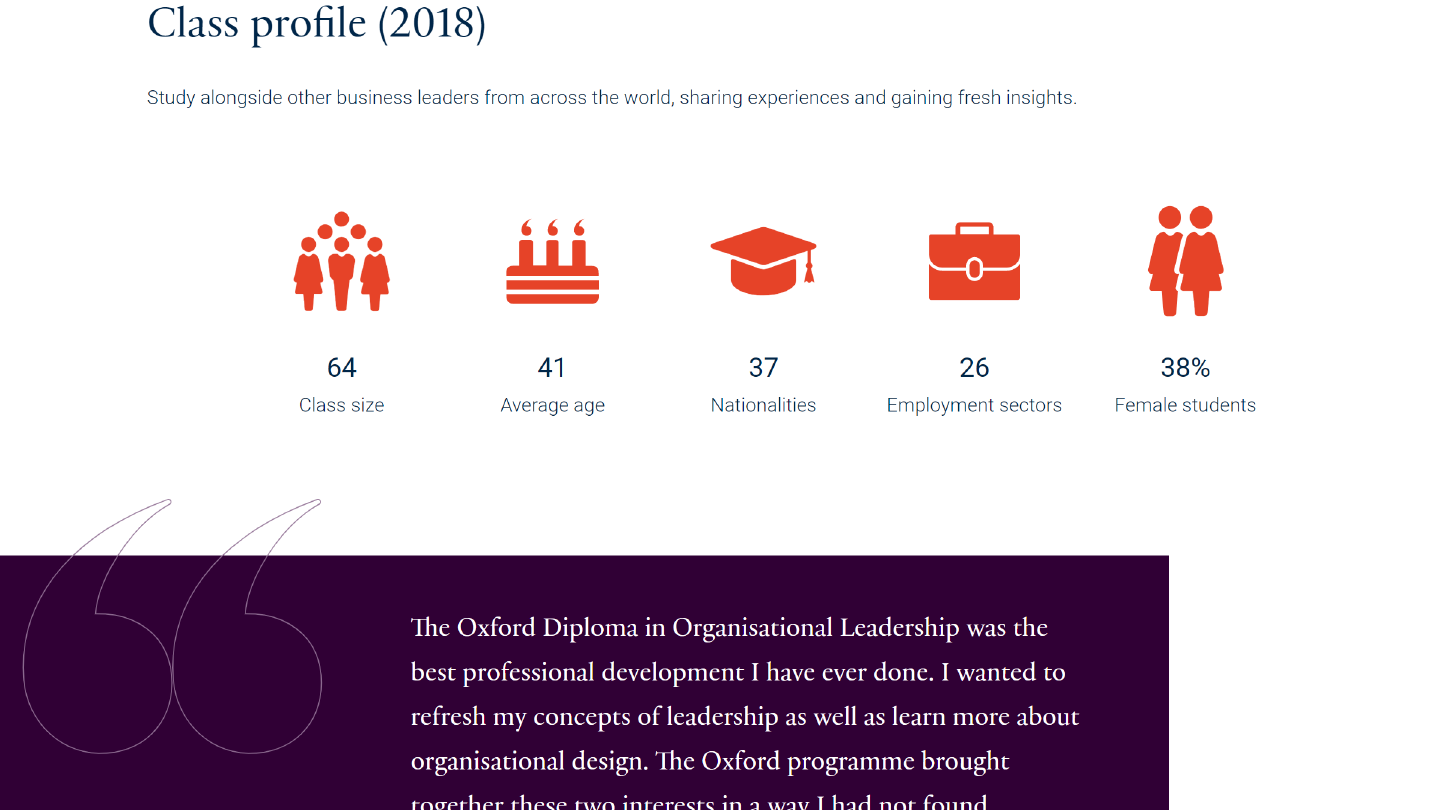
Screenshot of a web page, “Class profile (2018)”, with five statistics (class size, average age, nationalities, employment sectors and female students) and a quotation praising the Oxford Diploma in Organisational Leadership.

Original slide 41 (image)

Slide 42: Making things more readable with formatting

Making things more readable with formatting
Original slide 42 (image)

Slide 43: Slide 43

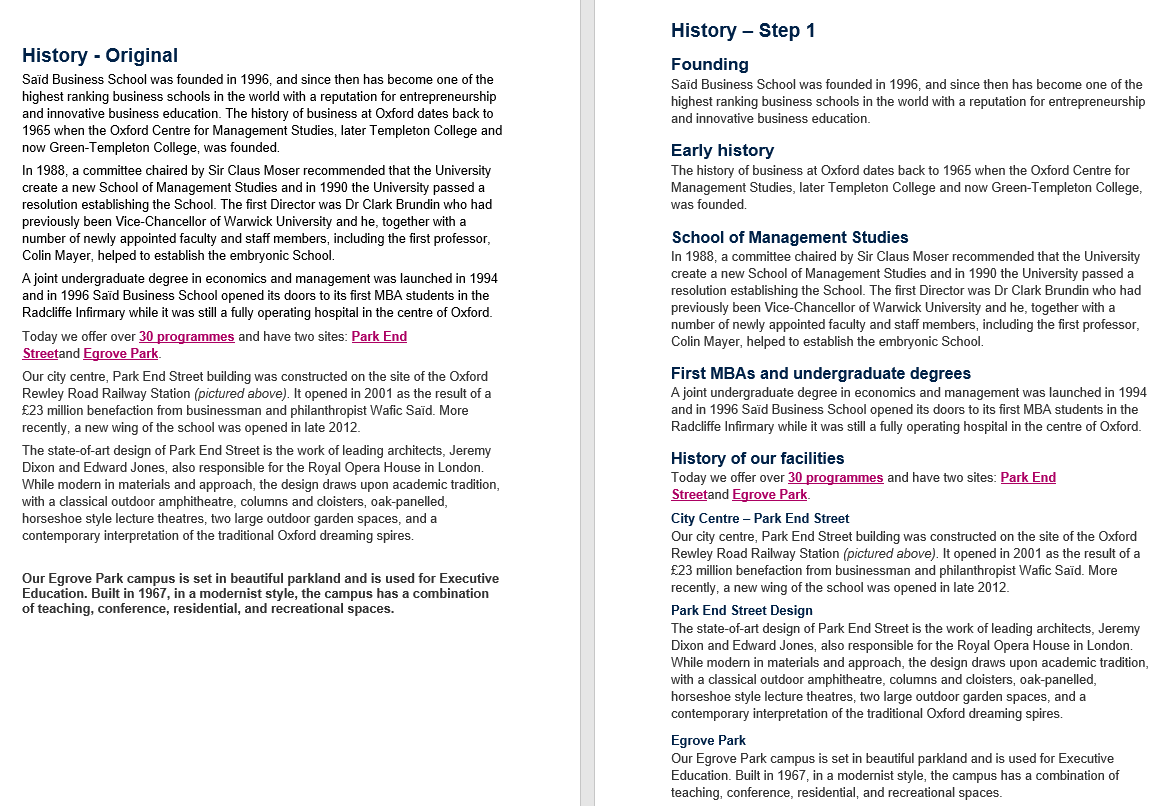
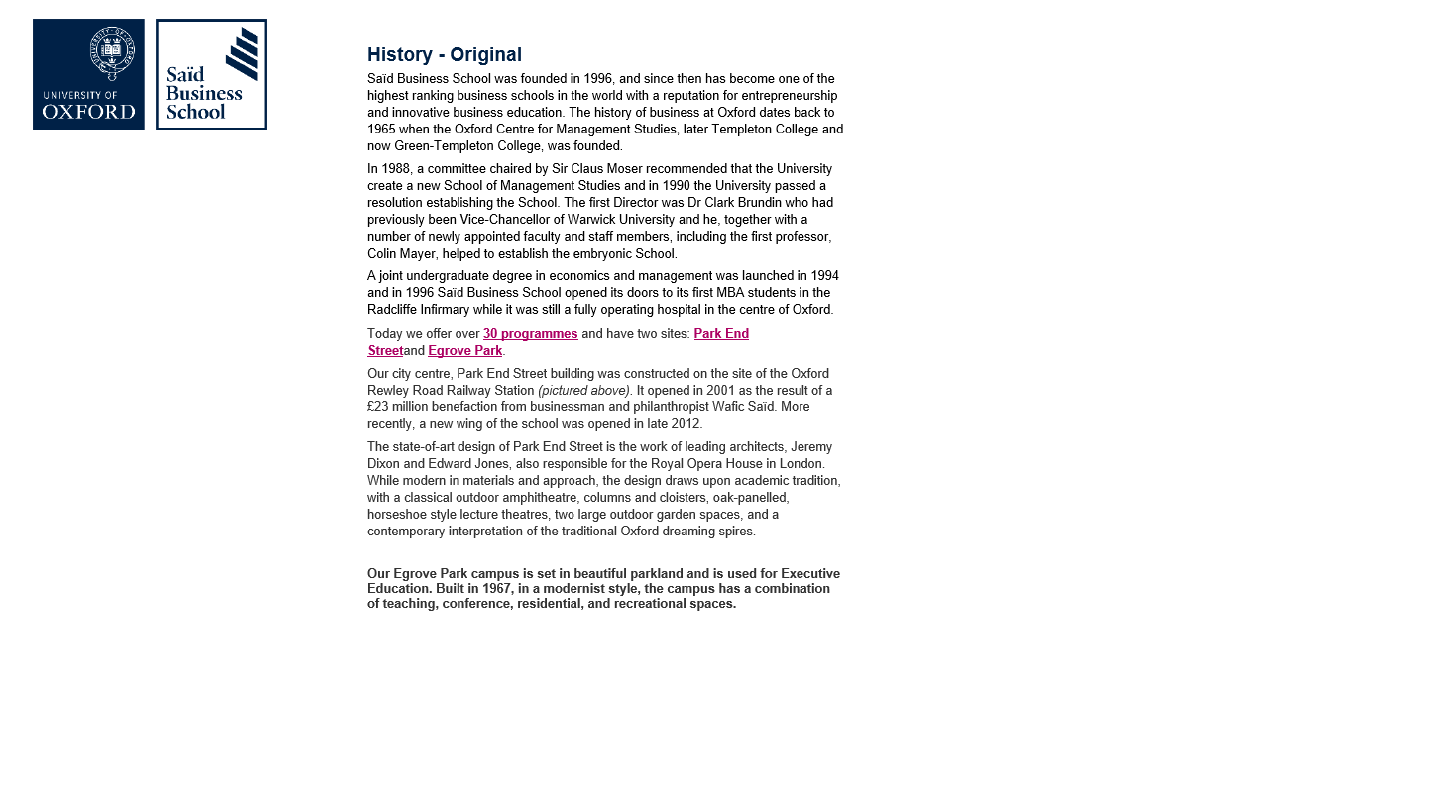
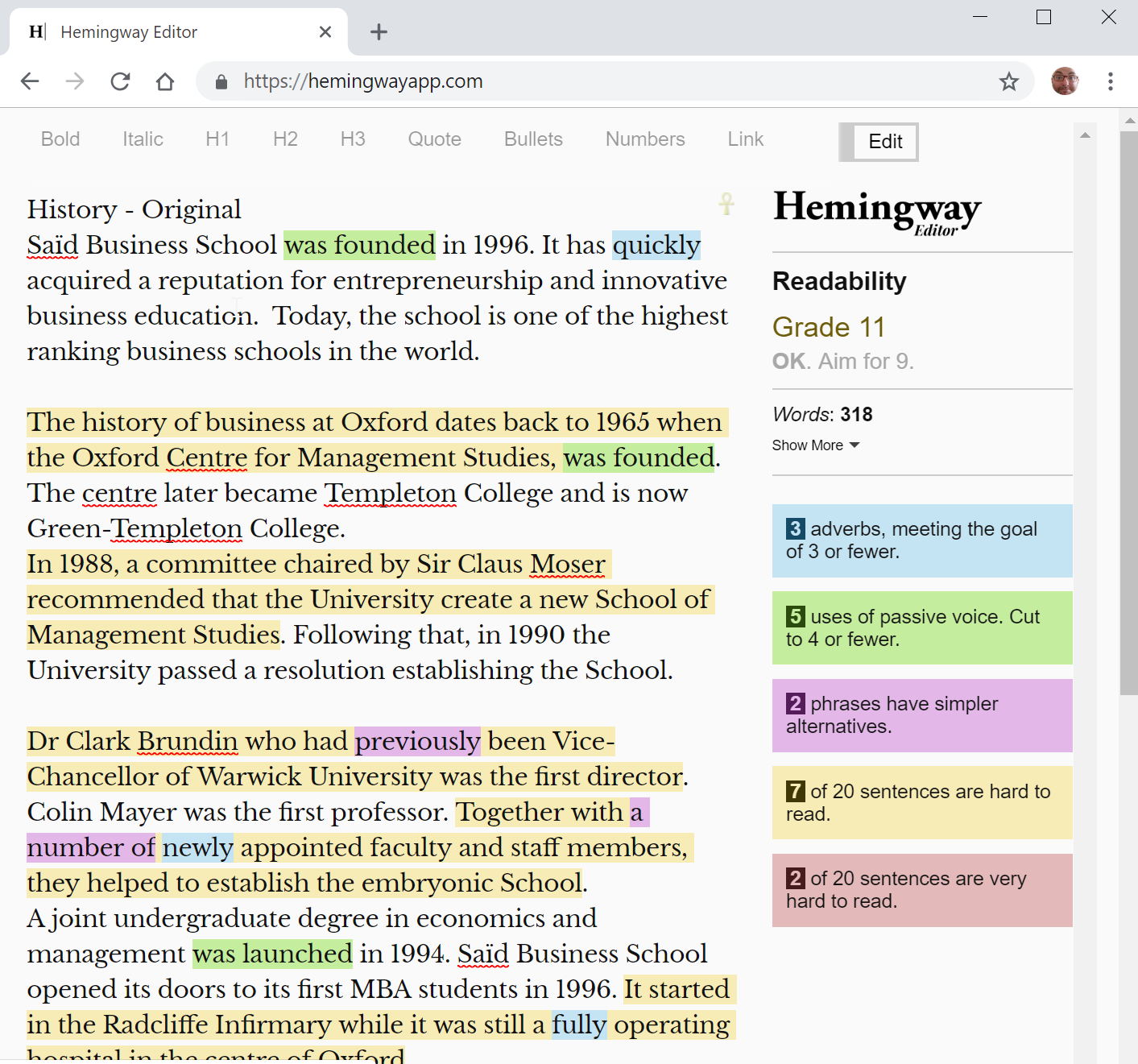
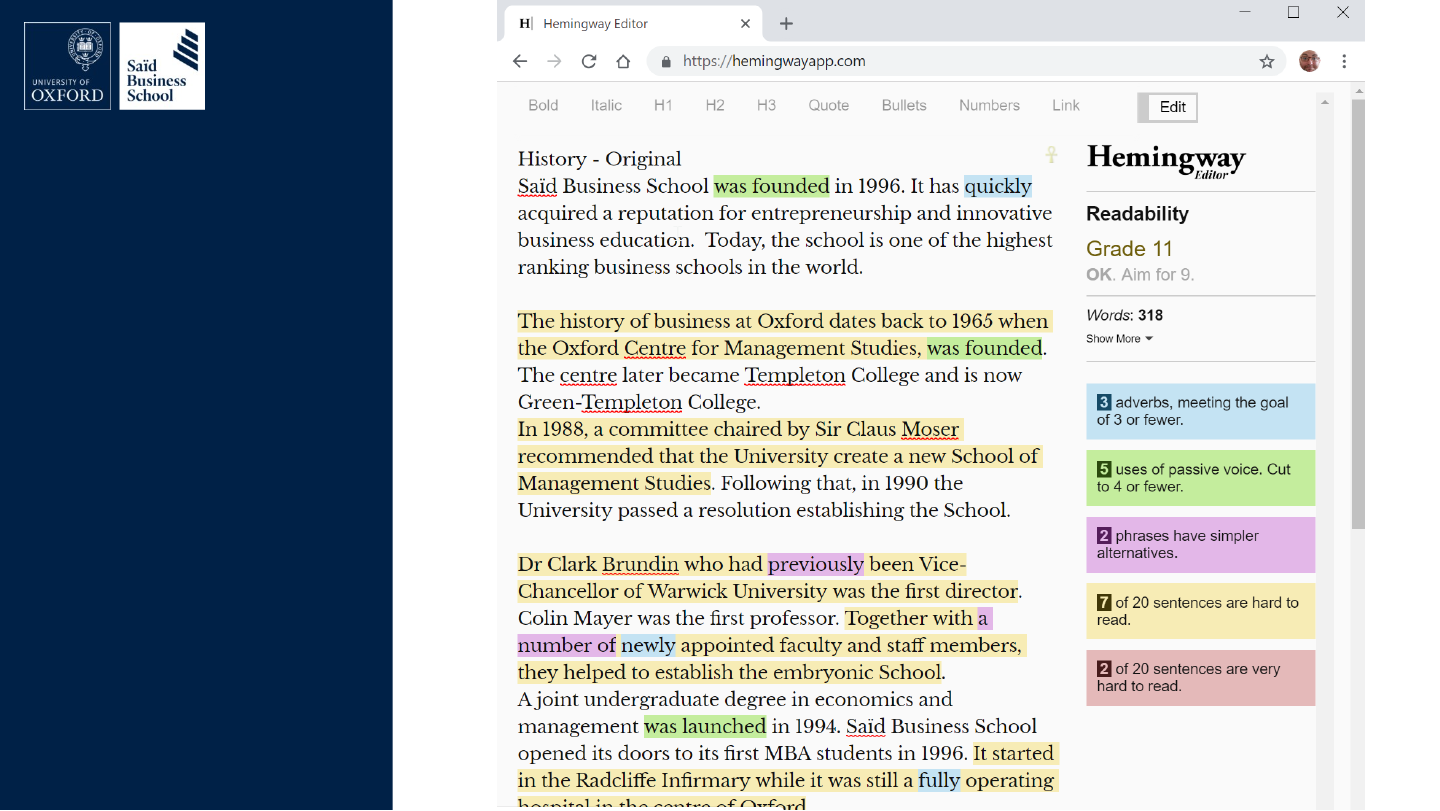
Screenshot of a long page headed “History - Original”: a dense history of Saïd Business School in unbroken paragraphs.

Original slide 43 (image)

Slide 44: Chunking makes texts more readable

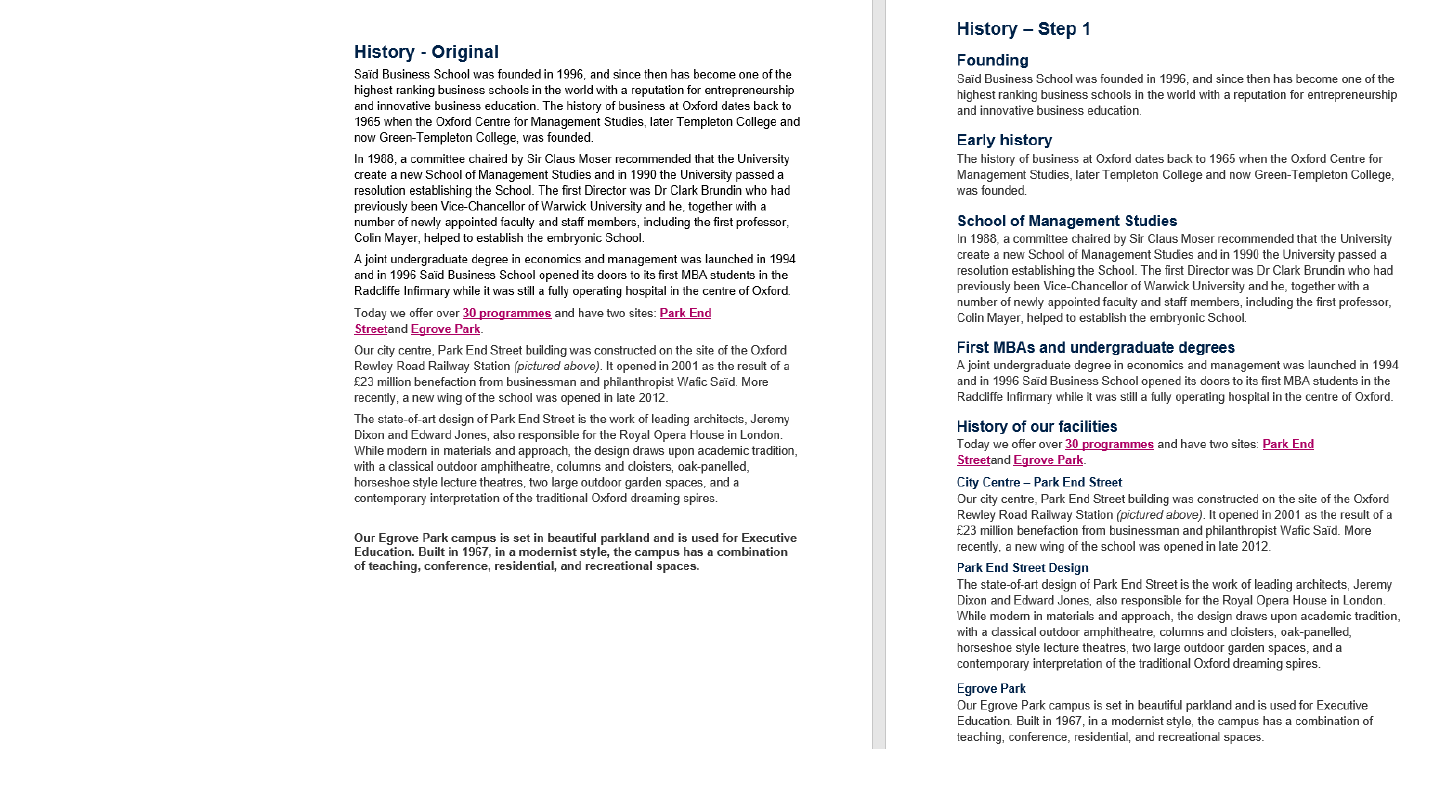
Chunking makes texts more readable
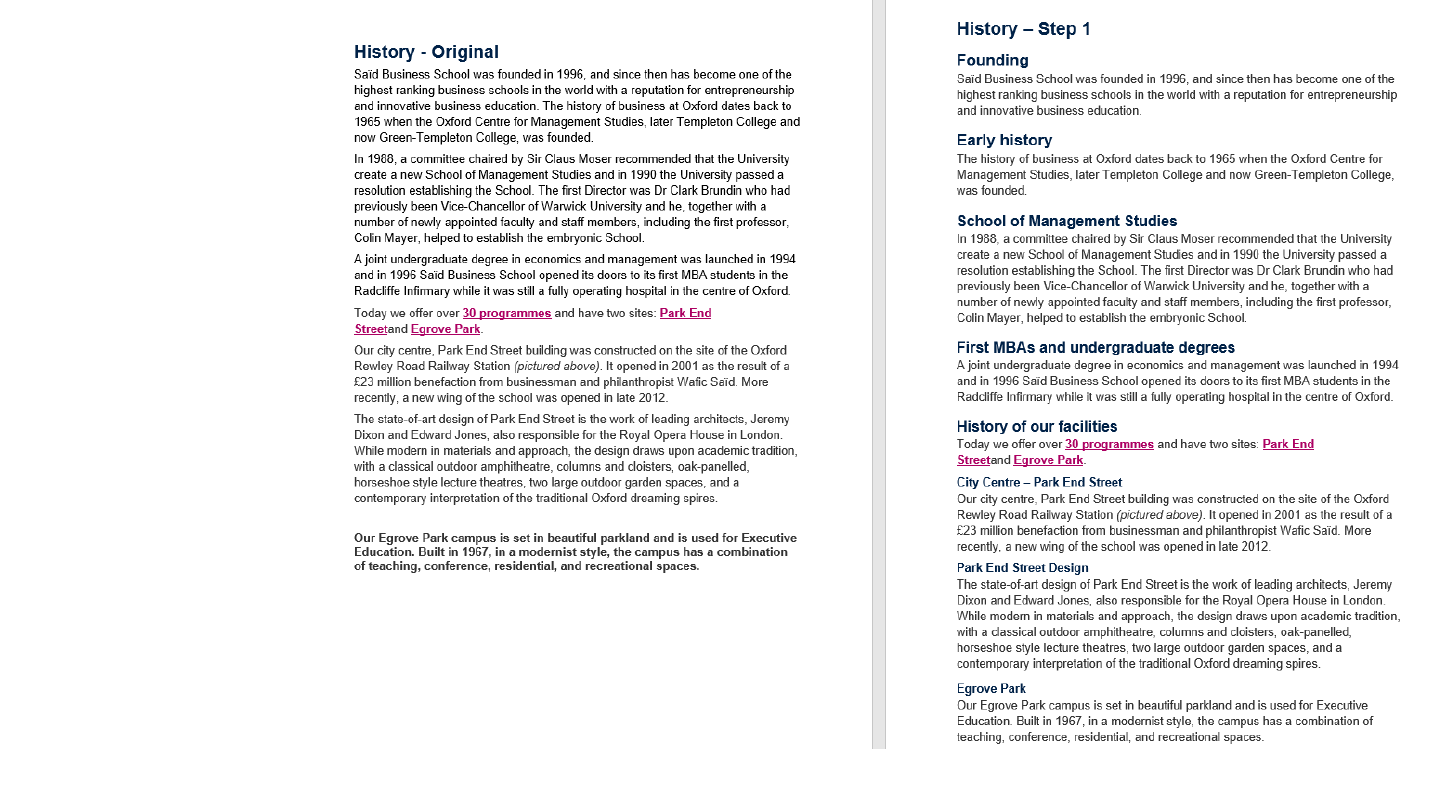
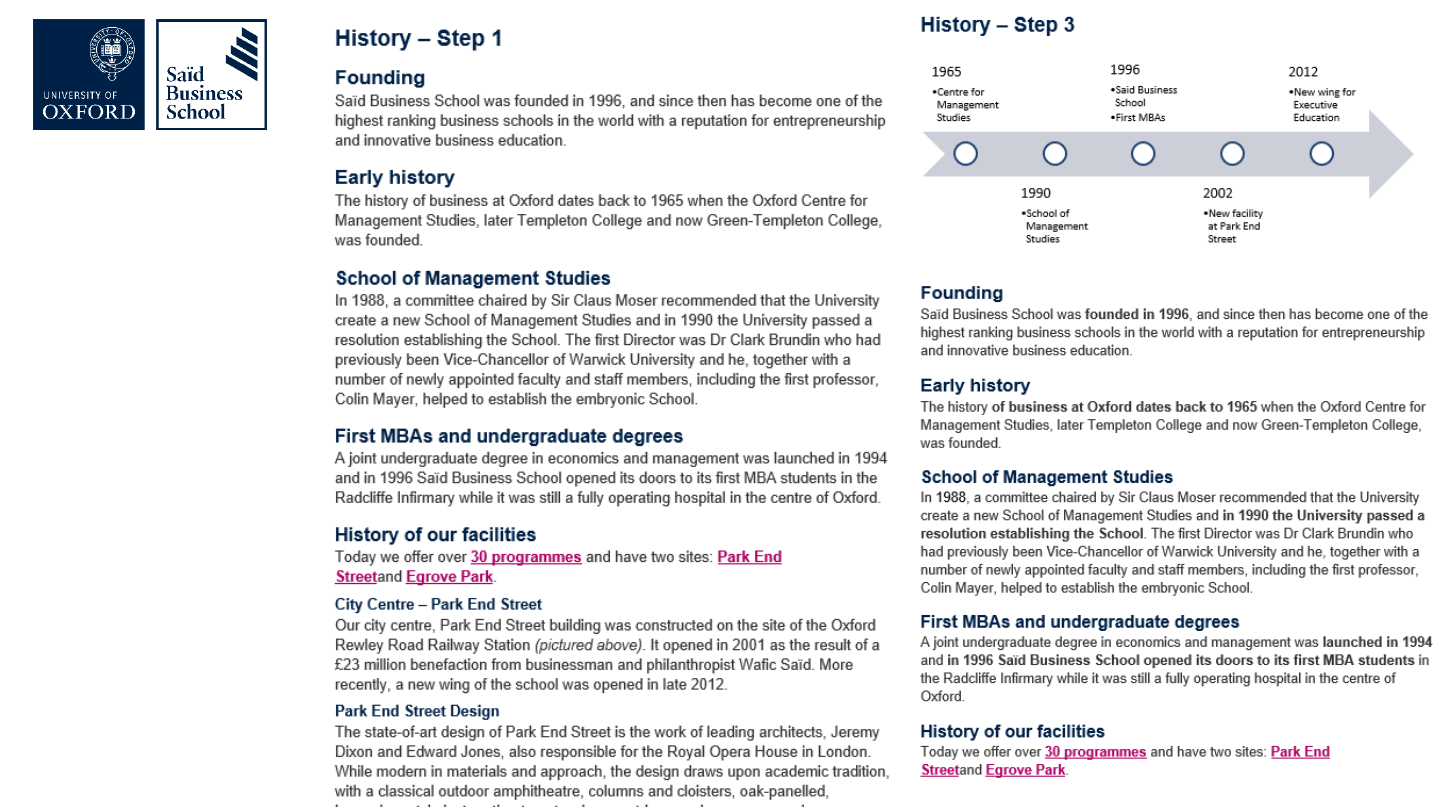
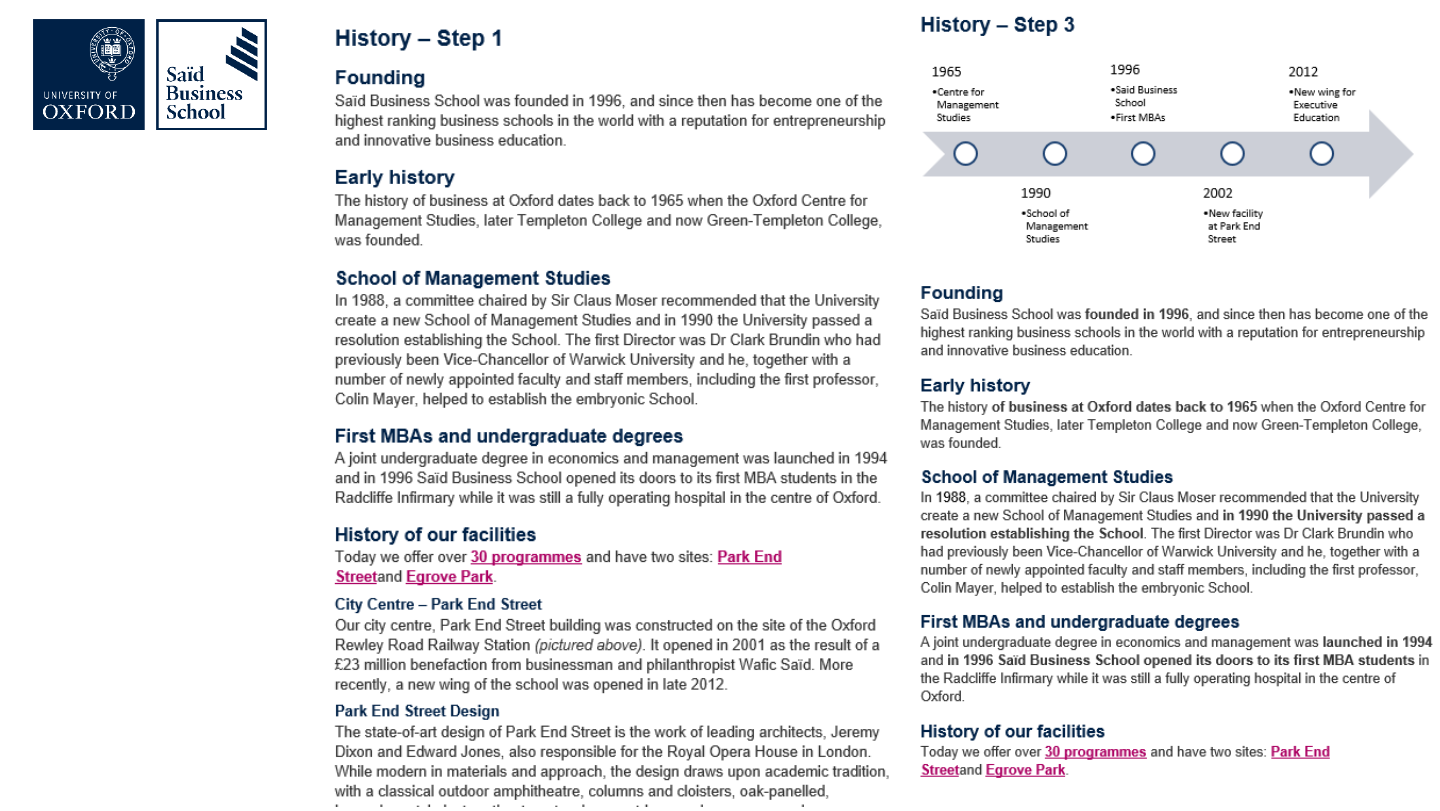
The slide's original page: two pages of the same history text side by side. On the left the unbroken “History - Original” page; on the right “History – Step 1”, the same text split into short paragraphs under headings such as Founding, Early history and School of Management Studies.

Original slide 44 (image)

Slide 45: Word Navigation feature is great for outlines

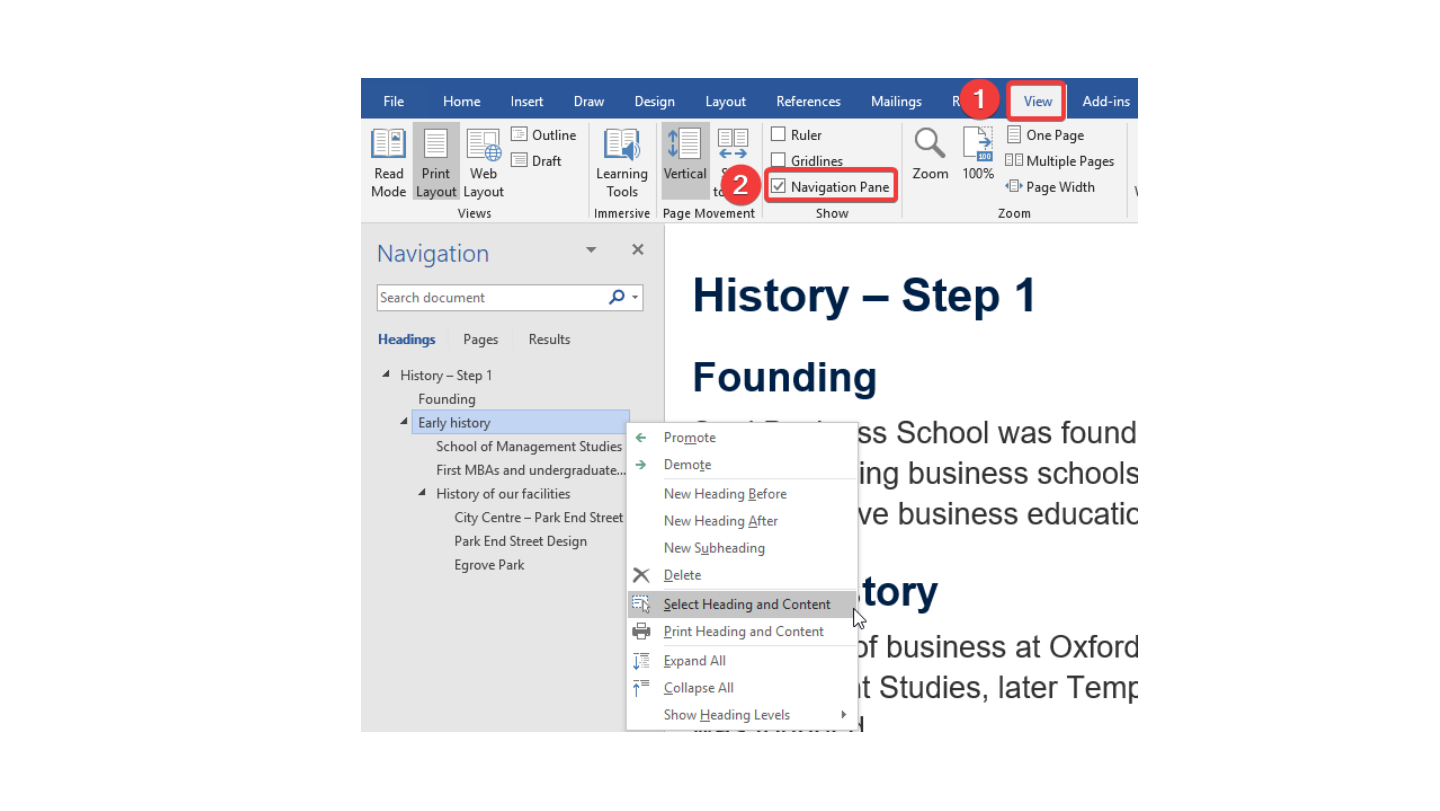
Word Navigation feature is great for outlines
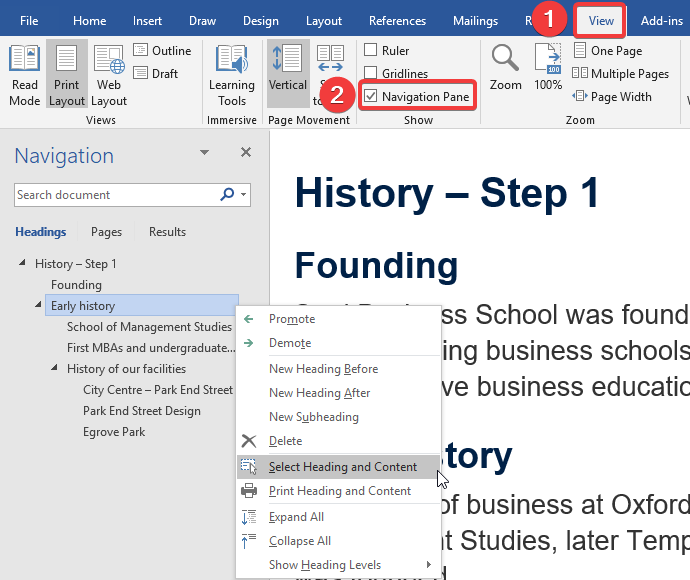
Screenshot of Microsoft Word with the View tab's Navigation Pane option marked and a navigation pane listing the headings of a document titled “History – Step 1”.

Original slide 45 (image)

Slide 46: Make sure you use headings

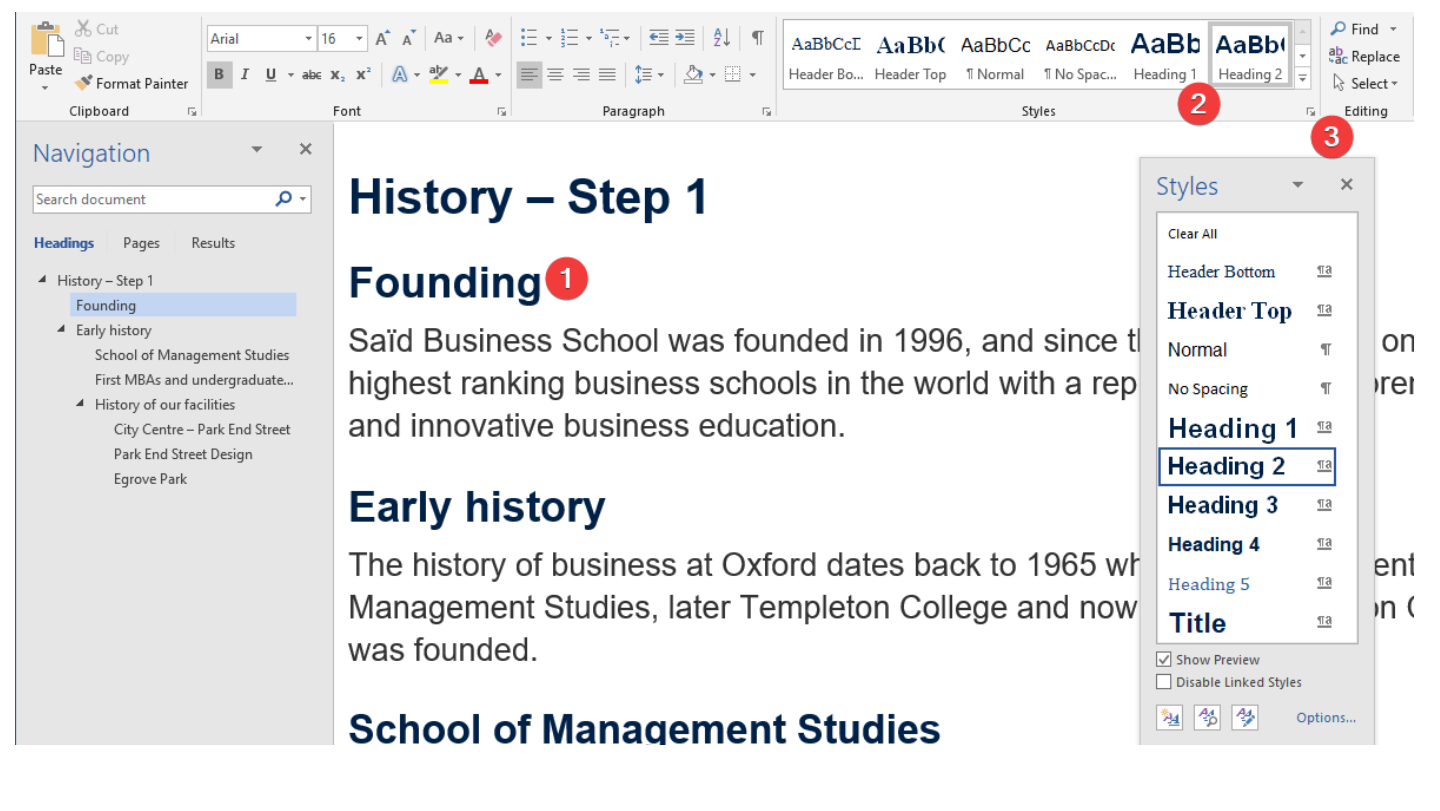
Make sure you use headings
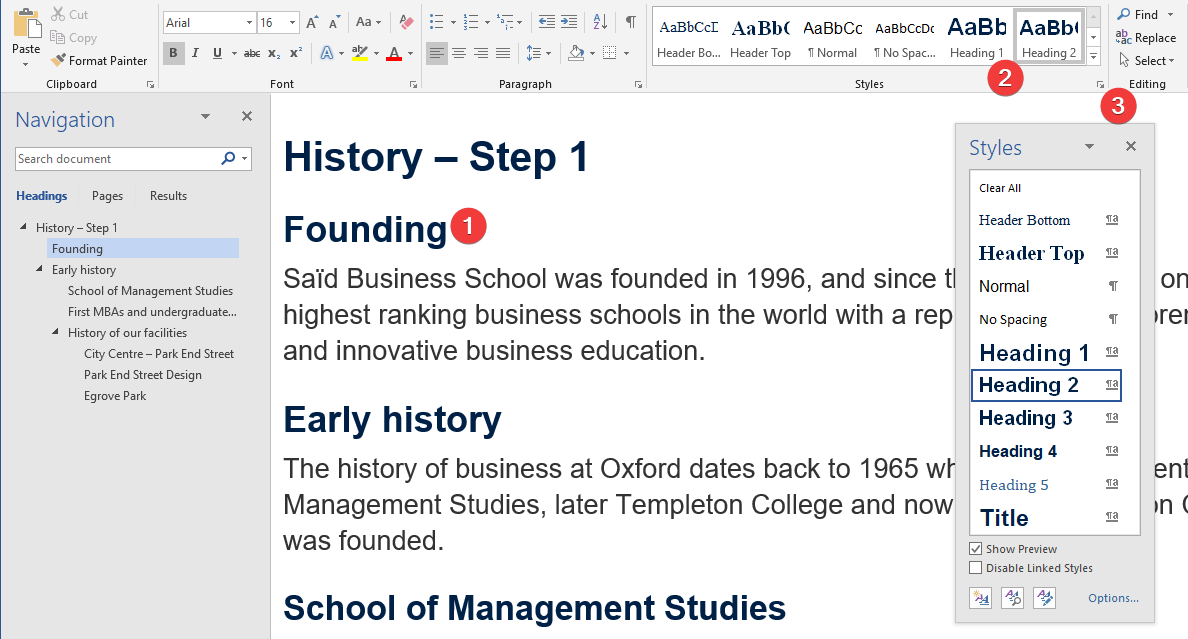
Screenshot of Microsoft Word showing the document “History – Step 1” with its headings, the Navigation pane at the left and the Styles pane at the right with Heading 1 to Heading 5 and Title.

Original slide 46 (image)

Slide 47: Mindmaps help with chunking, structure, outline

Mindmaps help with chunking, structure, outline
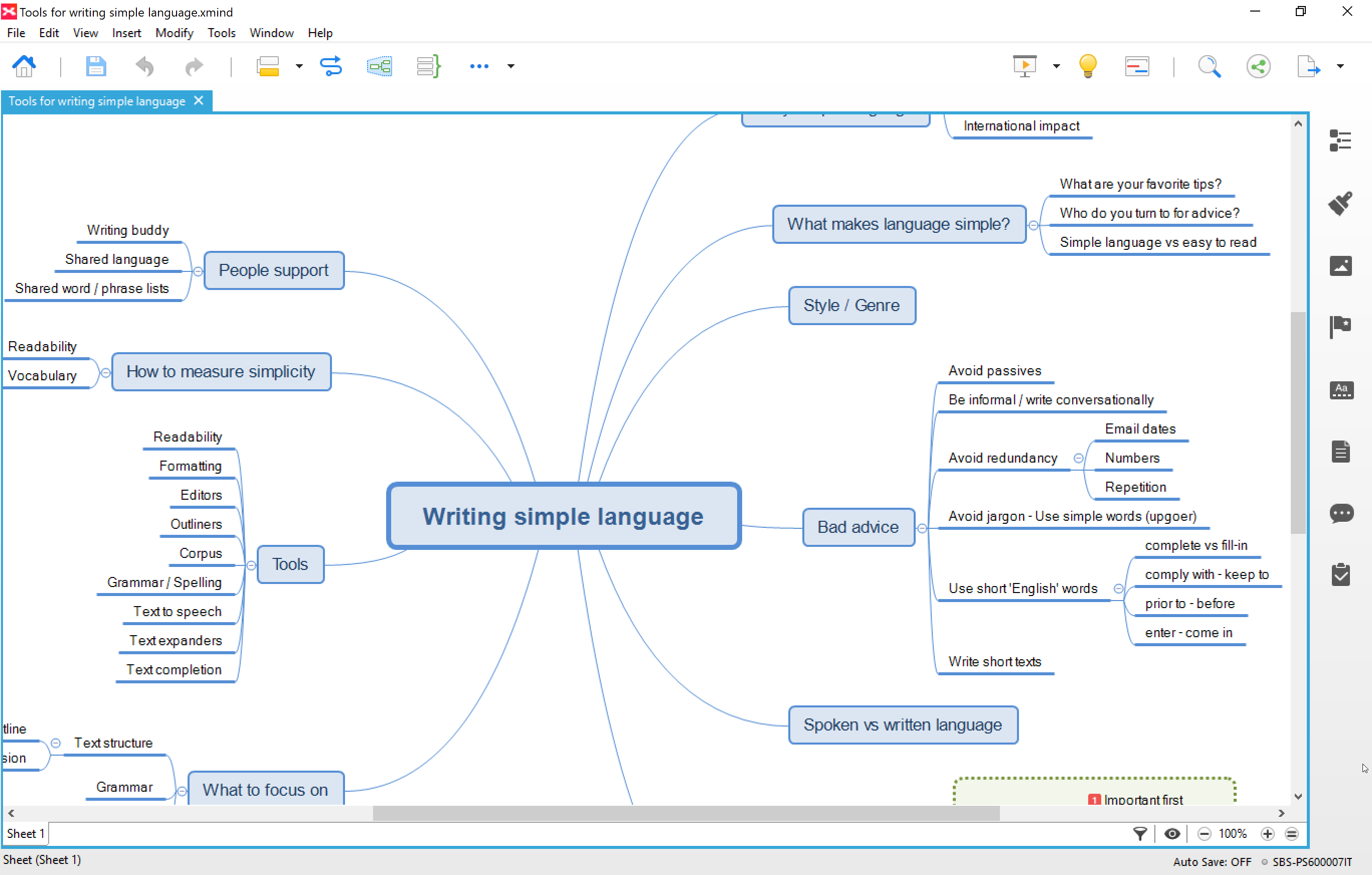
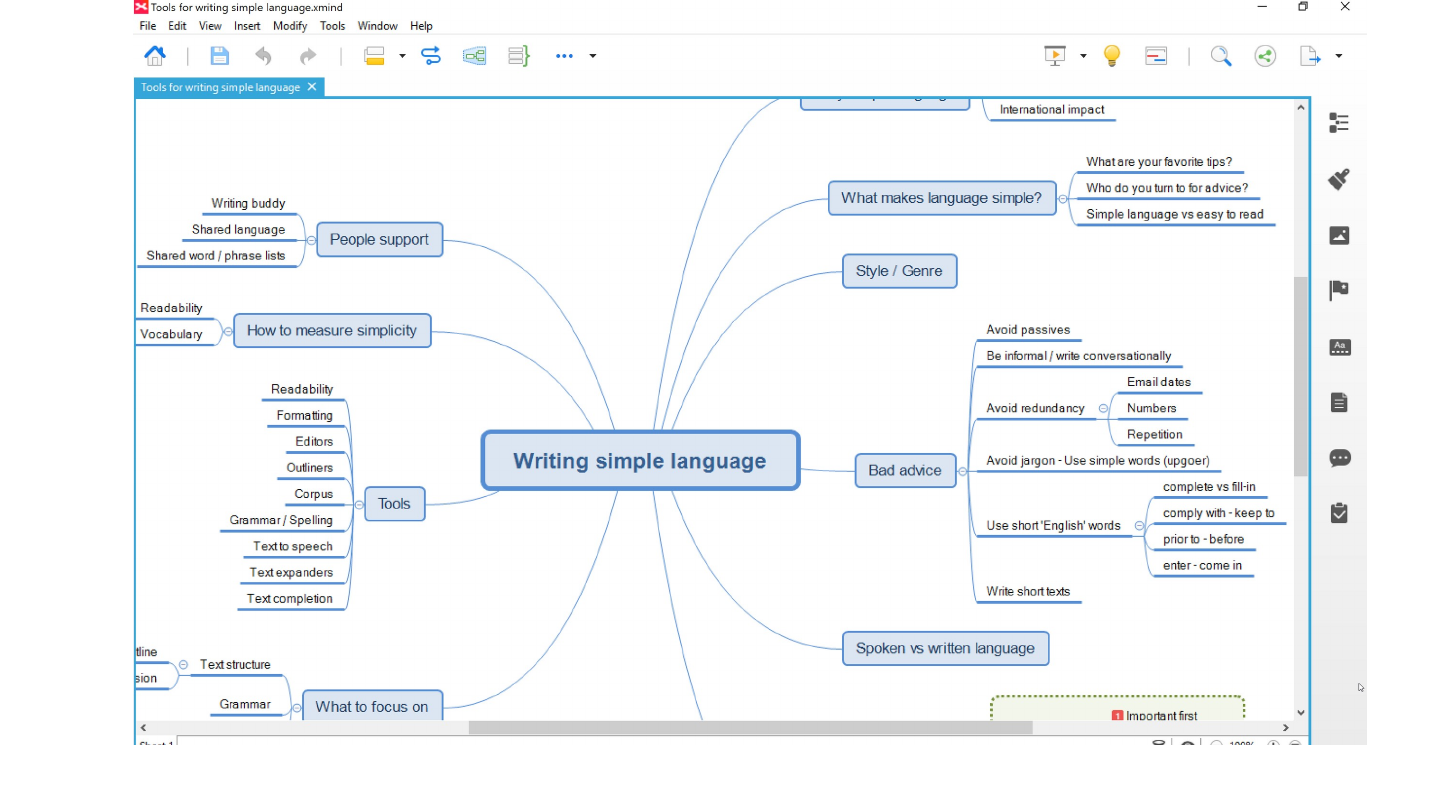
Screenshot of a mind map with “Writing simple language” in the centre and branches including Tools, Spoken vs written language, Style / Genre, Bad advice and People support.

Original slide 47 (image)

Slide 48: Slide 48

The slide's original page: two versions of the history text side by side. On the left “History – Step 1” with headings and short paragraphs; on the right “History – Step 3”, with a timeline arrow across the top (dates 1965, 1990, 1996, 2002 and 2012 with short captions) above the same text.

Original slide 48 (image)

Slide 49: Tips for more readable structure

Tips for more readable structure
Original slide 49 (image)

Slide 50: Slide 50

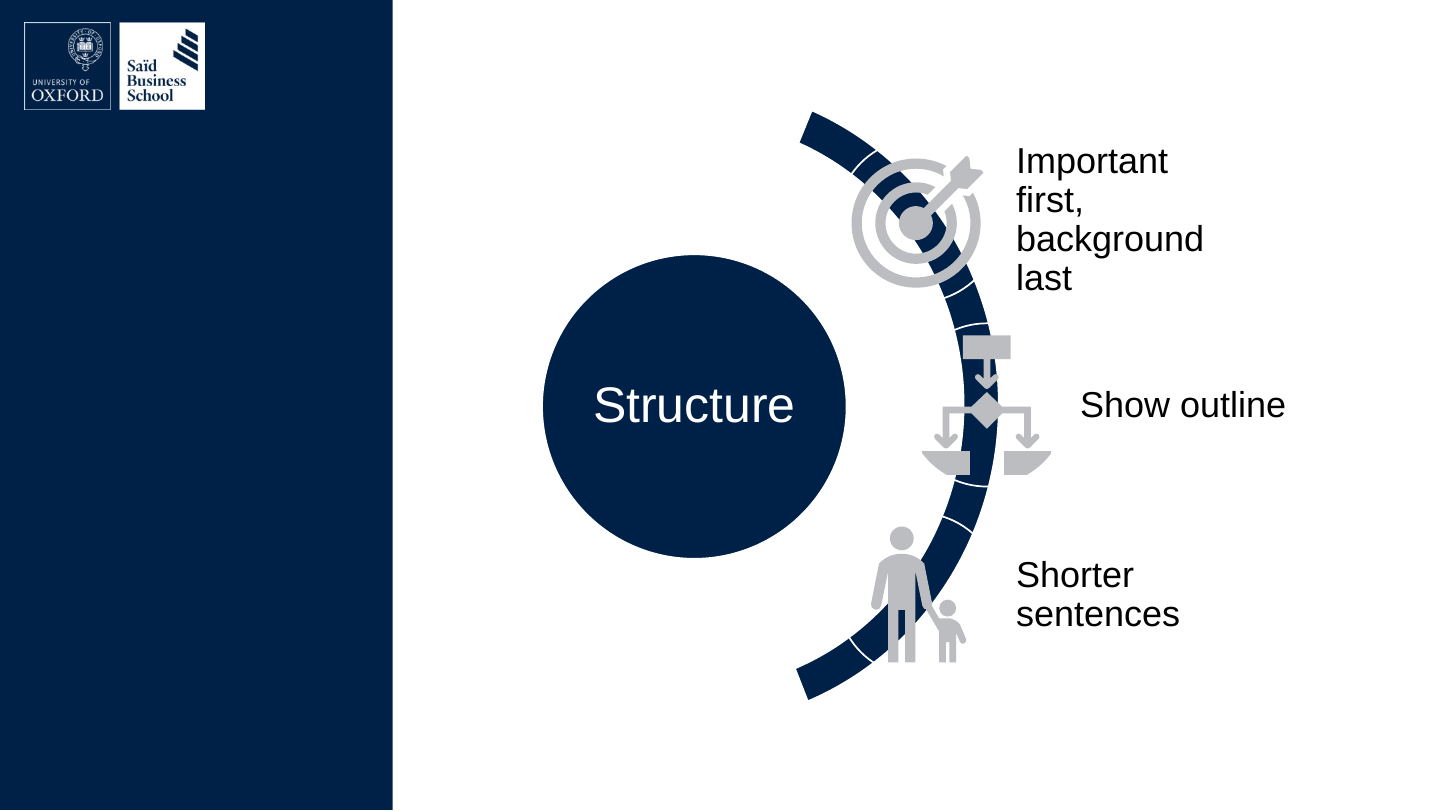
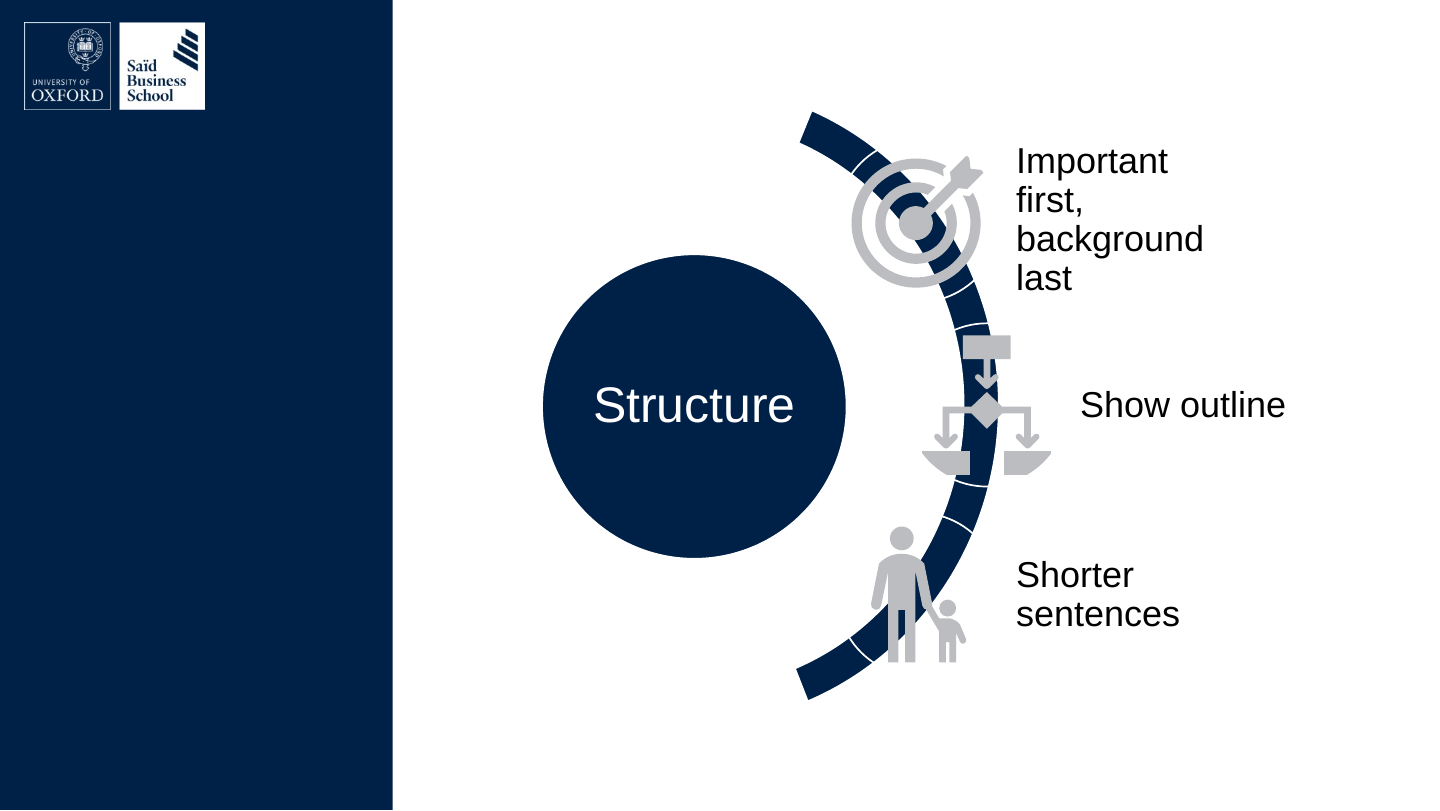
  • Structure
    • Important first, background last
    • Show outline
    • Shorter sentences

The slide's original page: a circle labelled “Structure” with an arc of three labelled icons: a target for Important first, background last; a balance for Show outline; and two figures, one small and one tall, for Shorter sentences.

Original slide 50 (image)

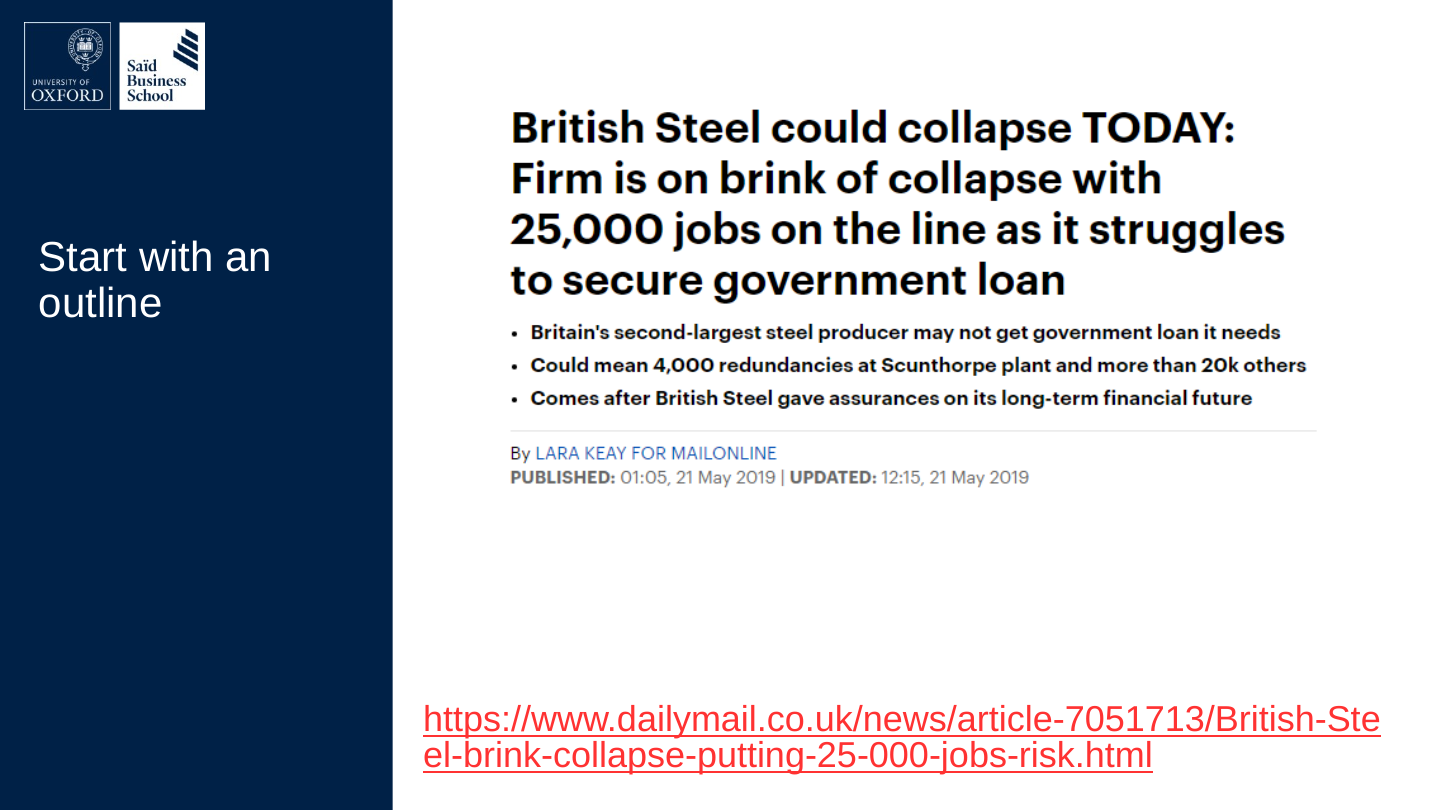
Slide 51: Start with an outline

Start with an outline
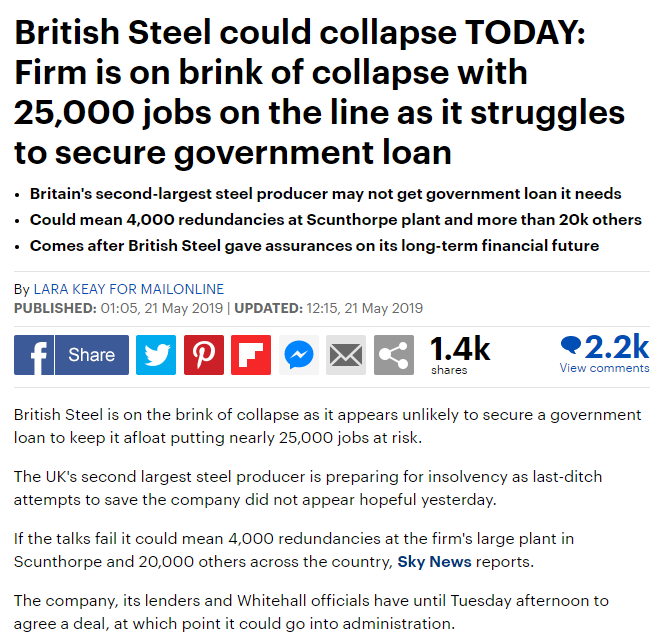
Screenshot of a Daily Mail article headed “British Steel could collapse TODAY: Firm is on brink of collapse with 25,000 jobs on the line as it struggles to secure government loan”, followed by three bullet points and a byline.

https://www.dailymail.co.uk/news/article-7051713/British-Steel-brink-collapse-putting-25-000-jobs-risk.html

Original slide 51 (image)

Slide 52: First things first

First things first
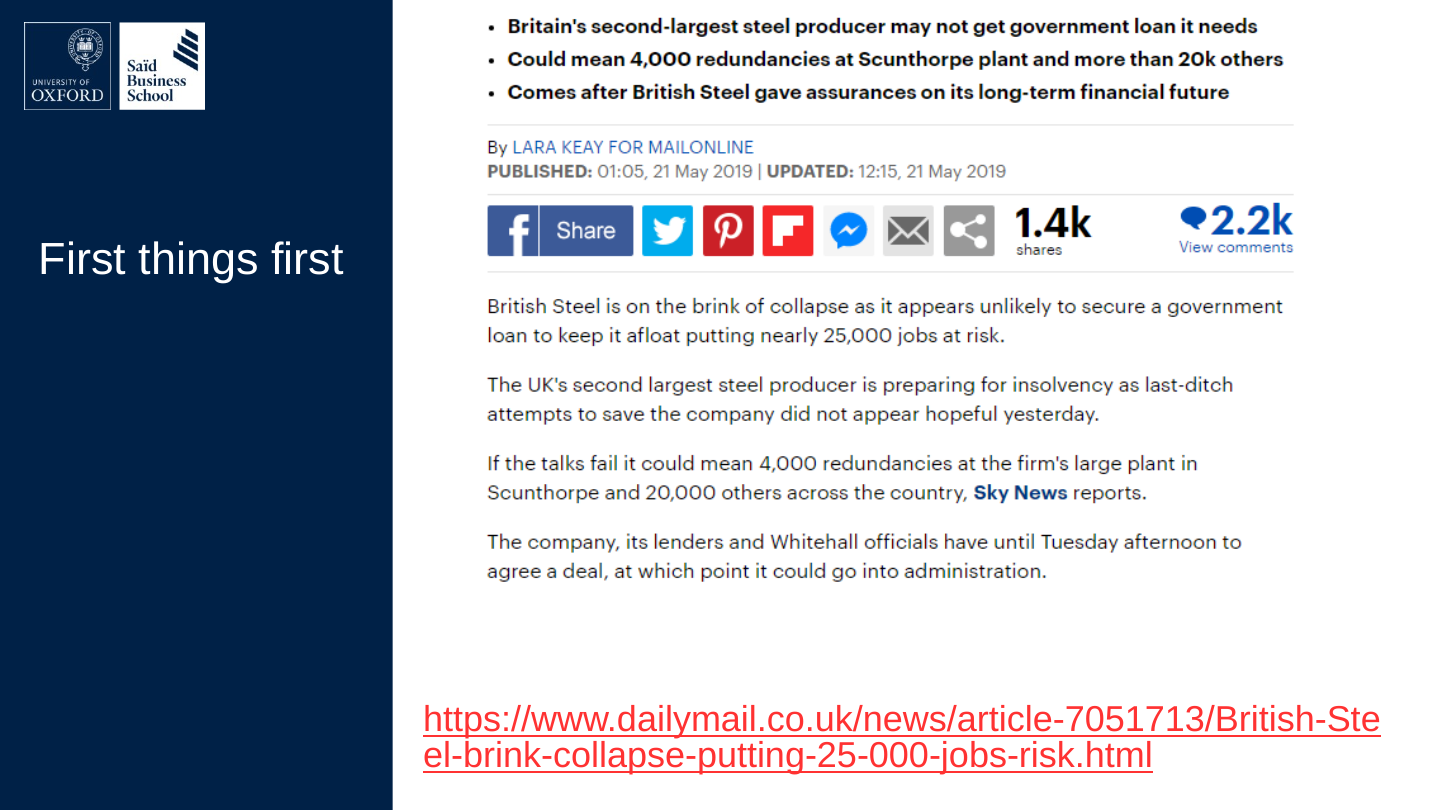
Screenshot of a Daily Mail article headed “British Steel could collapse TODAY: Firm is on brink of collapse with 25,000 jobs on the line as it struggles to secure government loan”, followed by three bullet points and a byline.

https://www.dailymail.co.uk/news/article-7051713/British-Steel-brink-collapse-putting-25-000-jobs-risk.html

Original slide 52 (image)

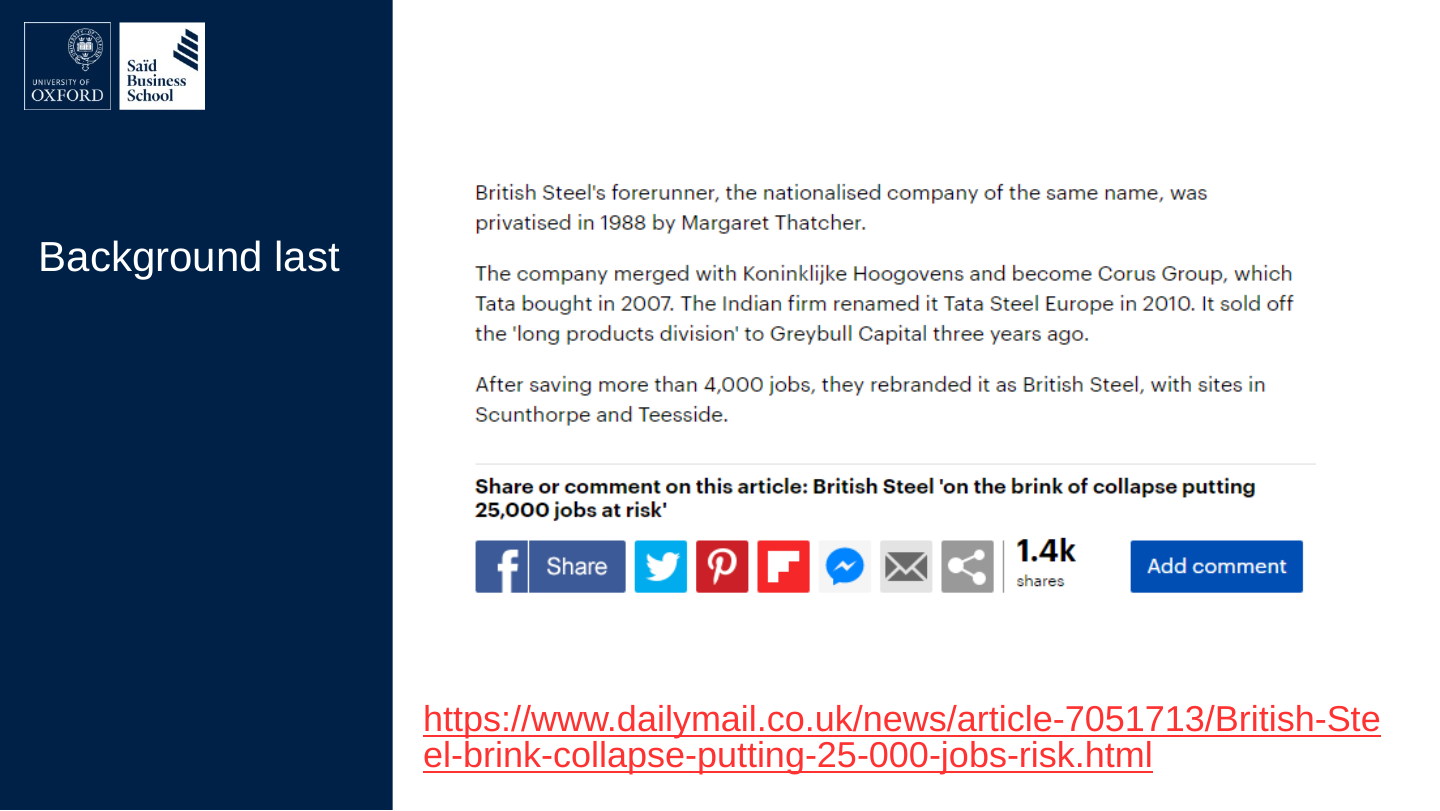
Slide 53: Background last

Background last
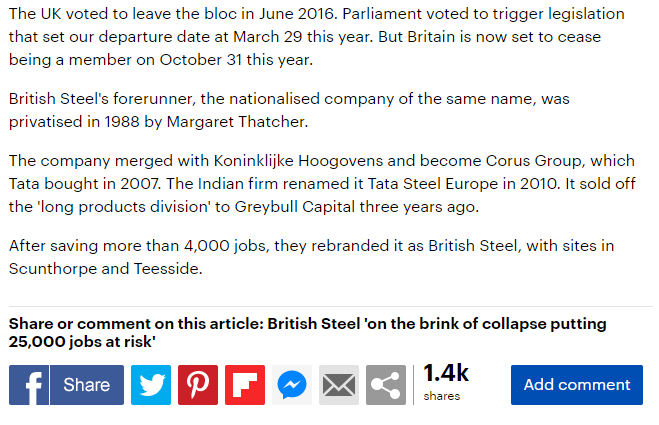
https://www.dailymail.co.uk/news/article-7051713/British-Steel-brink-collapse-putting-25-000-jobs-risk.html

Screenshot of the later part of the same article: background about British Steel's forerunner, its privatisation in 1988 and its sale to Tata Steel.

Original slide 53 (image)

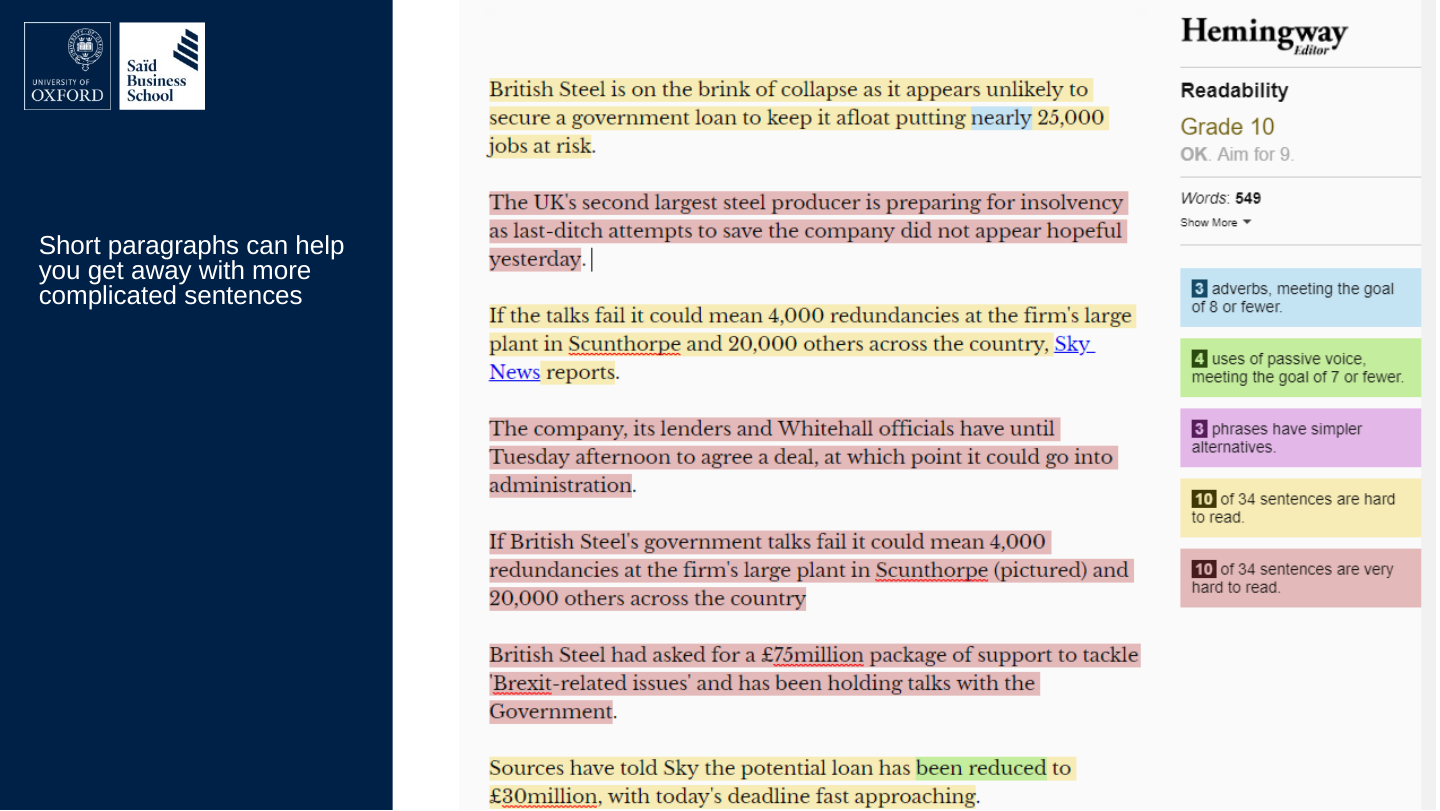
Slide 54: Short paragraphs can help you get away with more complicated sentences

Short paragraphs can help you get away with more complicated sentences
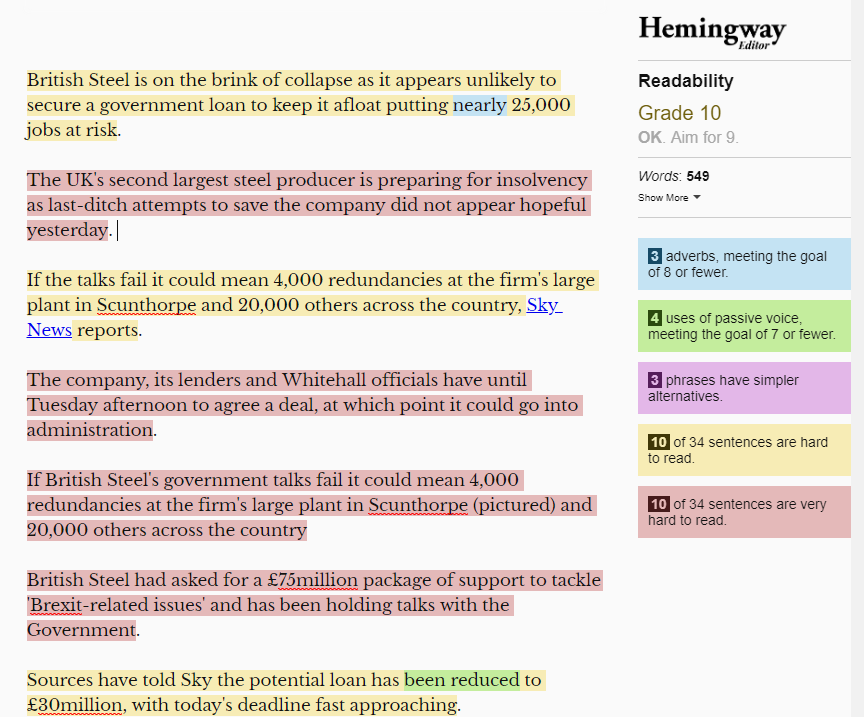
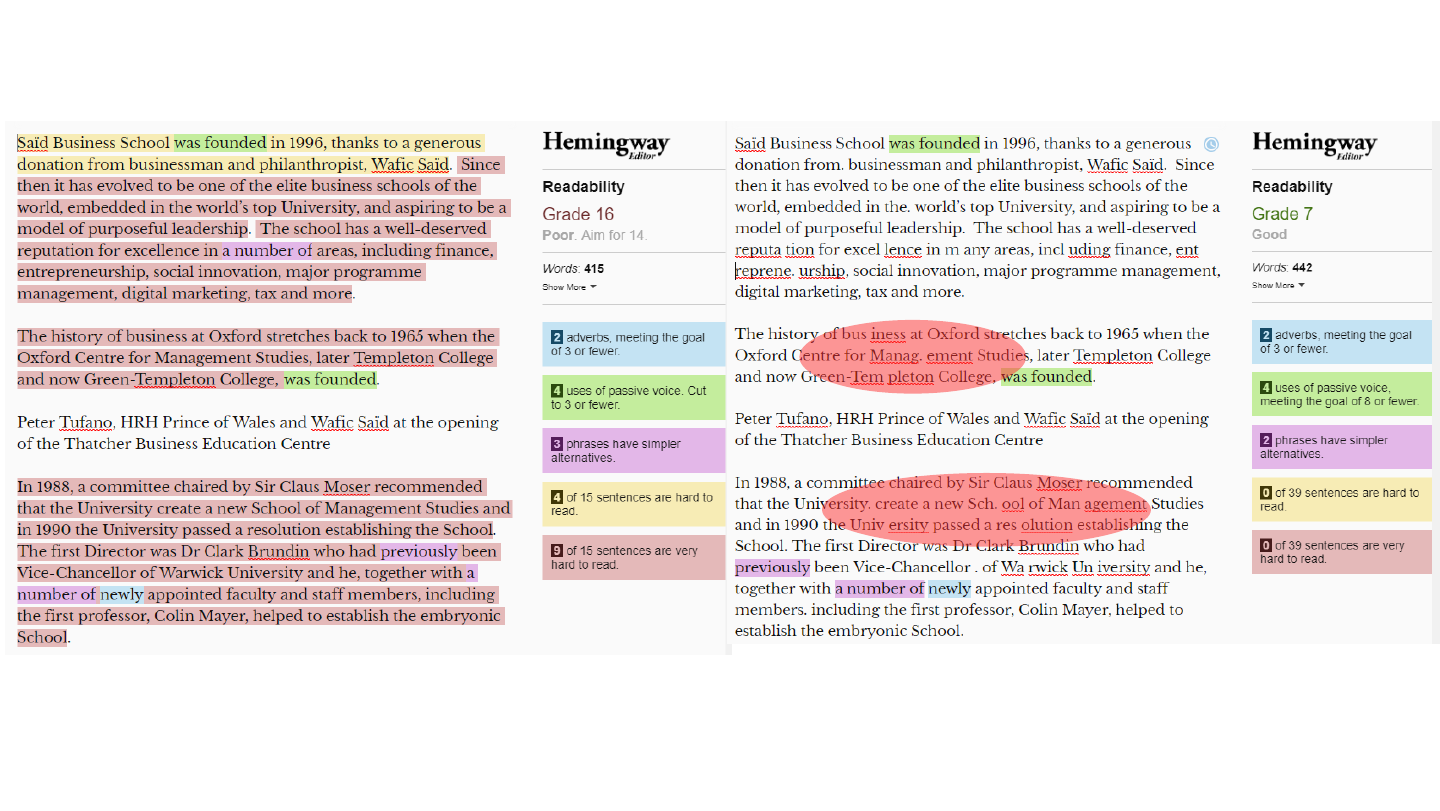
Screenshot of the Hemingway Editor with the Daily Mail article text highlighted in yellow and red, and a panel counting adverbs, passive voice, phrases with simpler alternatives and hard-to-read sentences.

Original slide 54 (image)

Slide 55: F-shaped scanning pattern

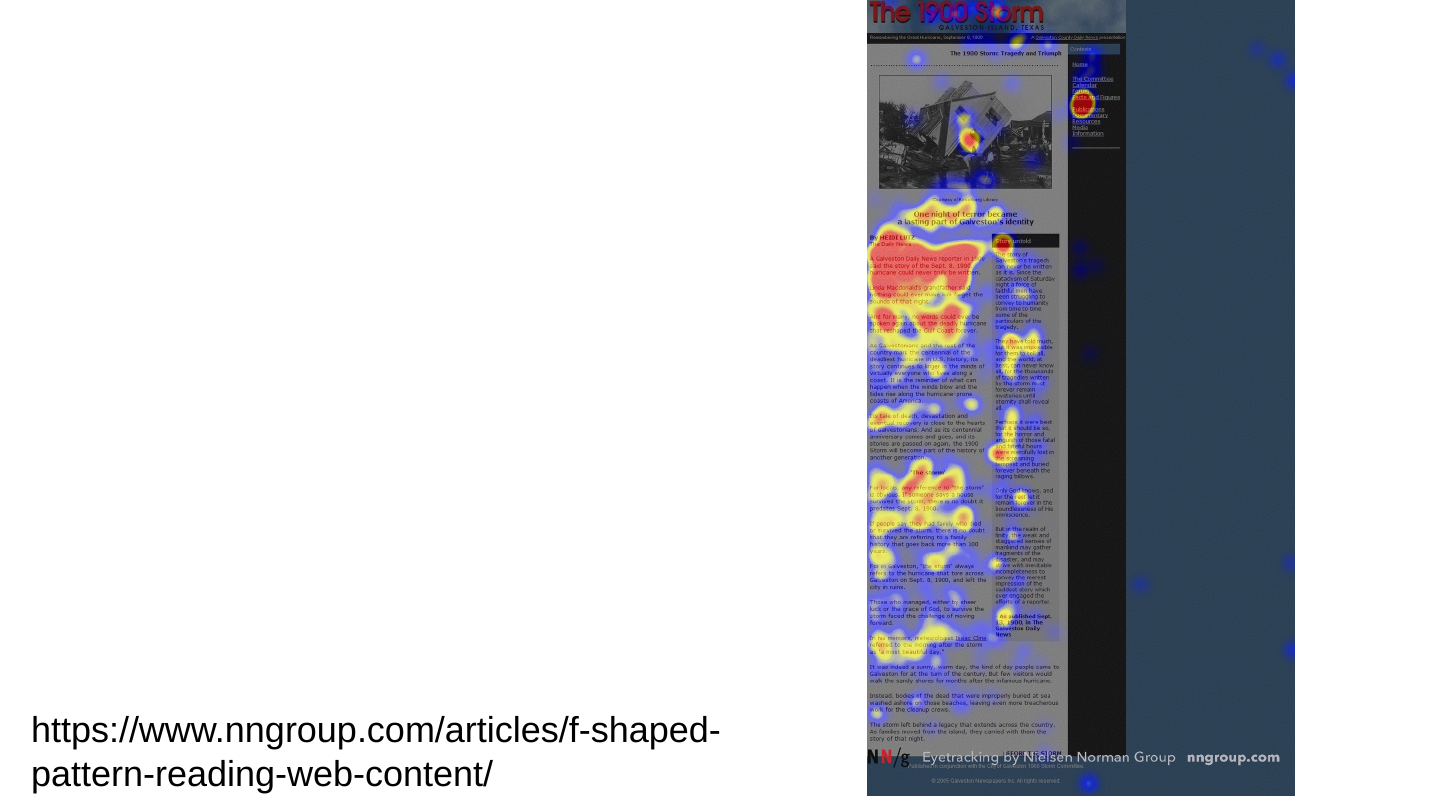
F-shaped scanning pattern

© Nielsen Norman Group 2017
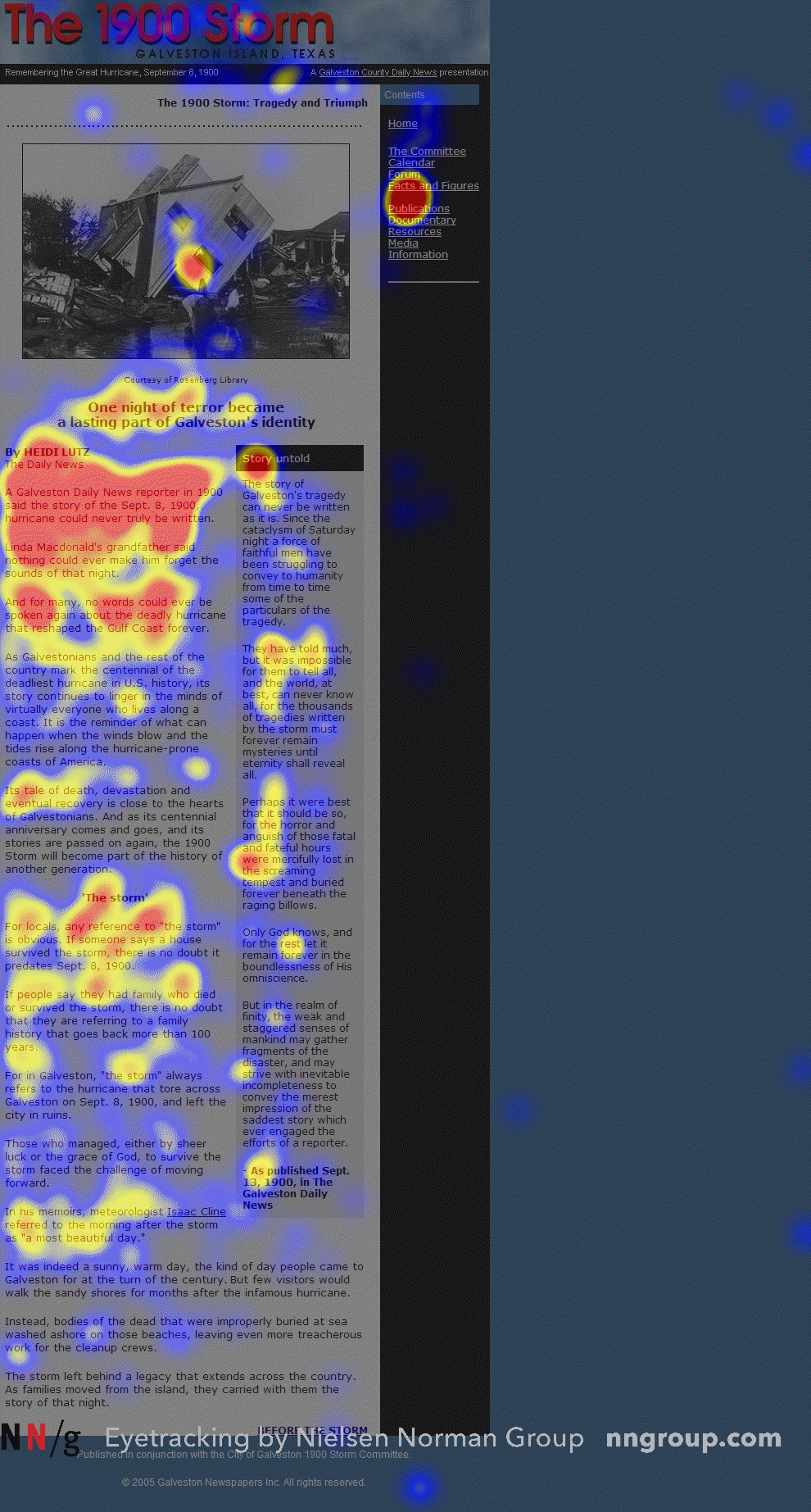
Heat map of eye-tracking over a web page in the F-shaped scanning pattern, with a red and yellow band across the top, a shorter band below and a vertical band down the left side. Credit: Nielsen Norman Group.

https://www.nngroup.com/articles/f-shaped-pattern-reading-web-content/
Original slide 55 (image)

Slide 56: Slide 56

“F-shaped scanning pattern is bad for users and businesses: it means that users may skip important content simply because it appears on the right side of the page.”

— (Kara Pernice, 2017)

https://www.nngroup.com/articles/f-shaped-pattern-reading-web-content/
Original slide 56 (image)

Slide 57: Slide 57

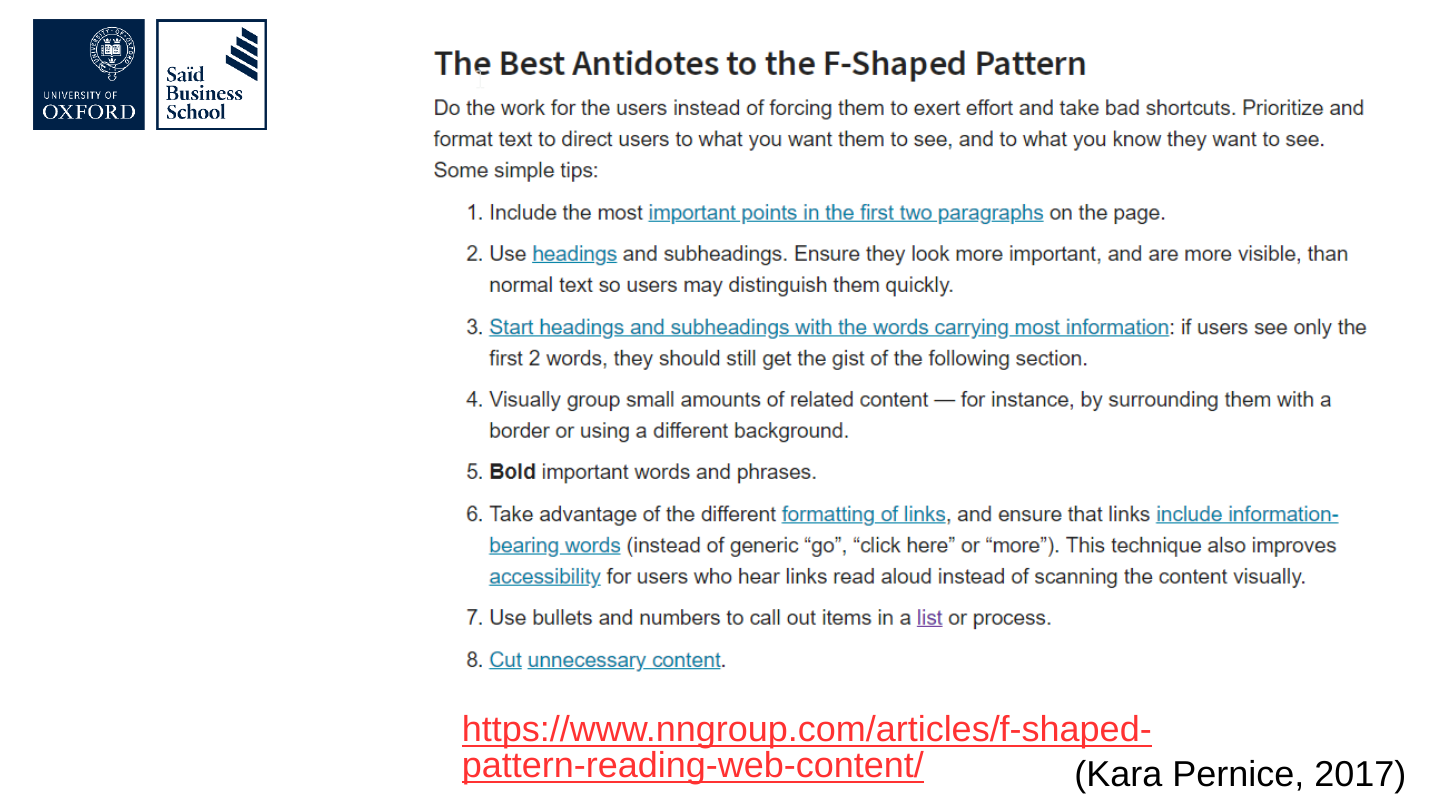
https://www.nngroup.com/articles/f-shaped-pattern-reading-web-content/
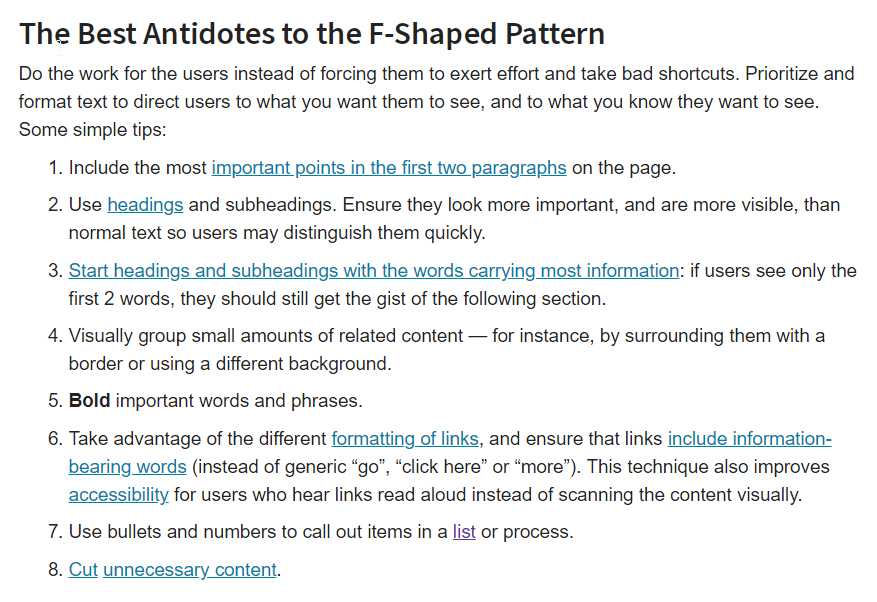
Screenshot of the article “The Best Antidotes to the F-Shaped Pattern” from Nielsen Norman Group, with eight numbered tips for formatting content.

(Kara Pernice, 2017)

Original slide 57 (image)

Slide 58: How to use Hemingway app to simplify language

How to use Hemingway app to simplify language
Original slide 58 (image)

Slide 59: Readability scores

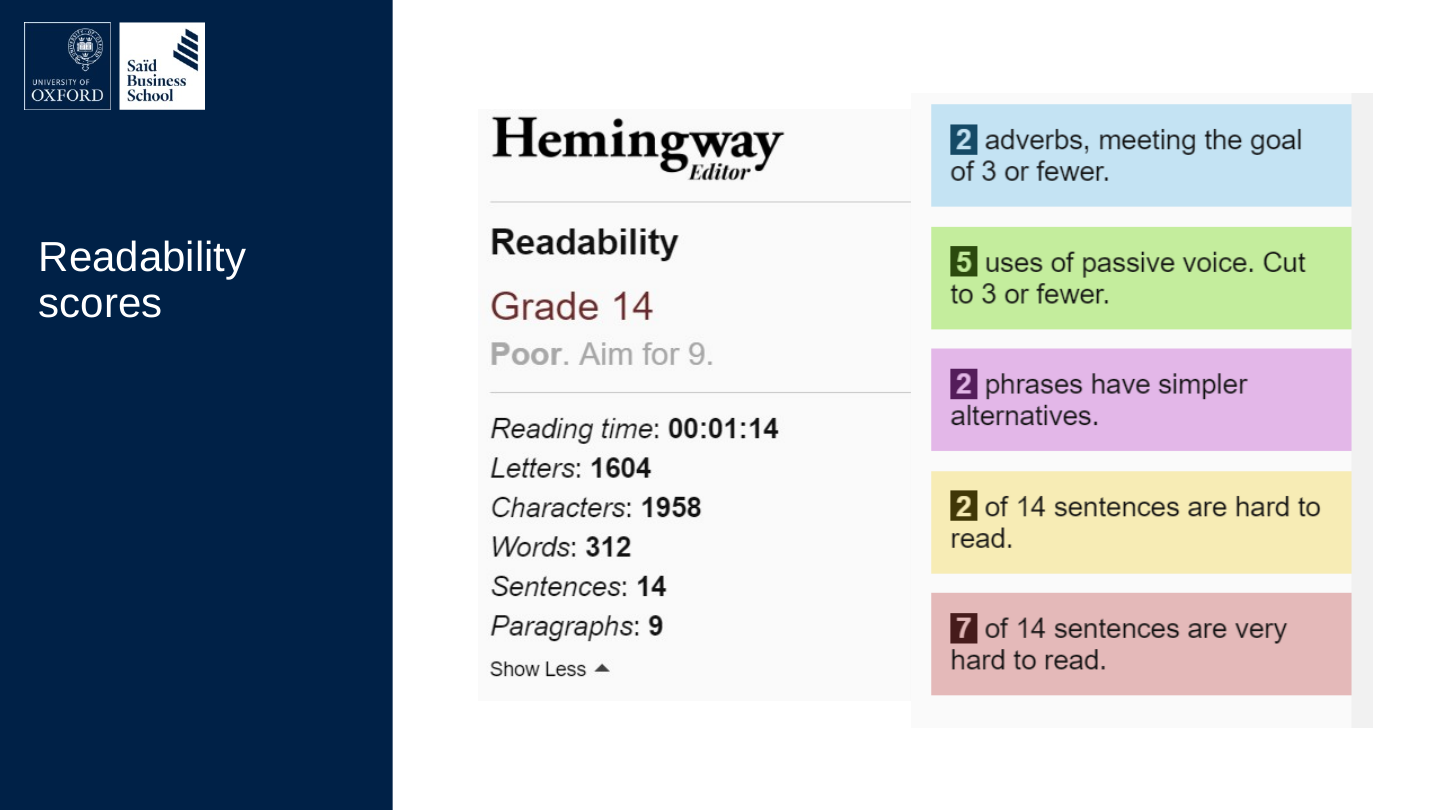
Readability scores
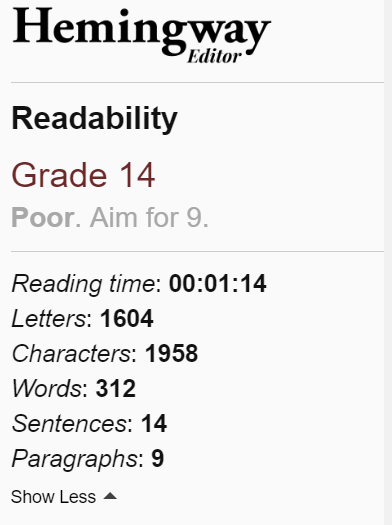
Screenshot of the Hemingway Editor's readability panel: a grade level marked “Poor”, with reading time, letters, characters, words, sentences and paragraphs counts.

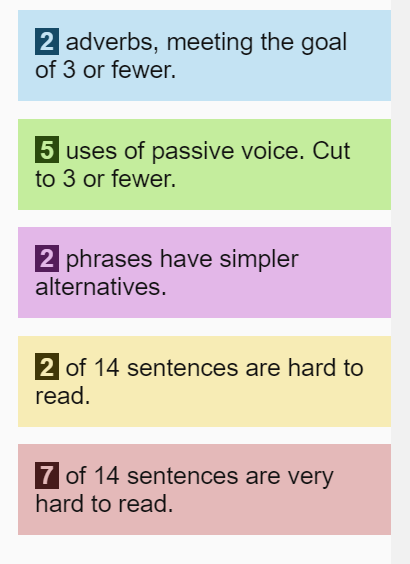
Screenshot of the Hemingway Editor's coloured panels counting adverbs, uses of passive voice, phrases that have simpler alternatives, and hard and very hard to read sentences.

Original slide 59 (image)

Slide 60: Check readability

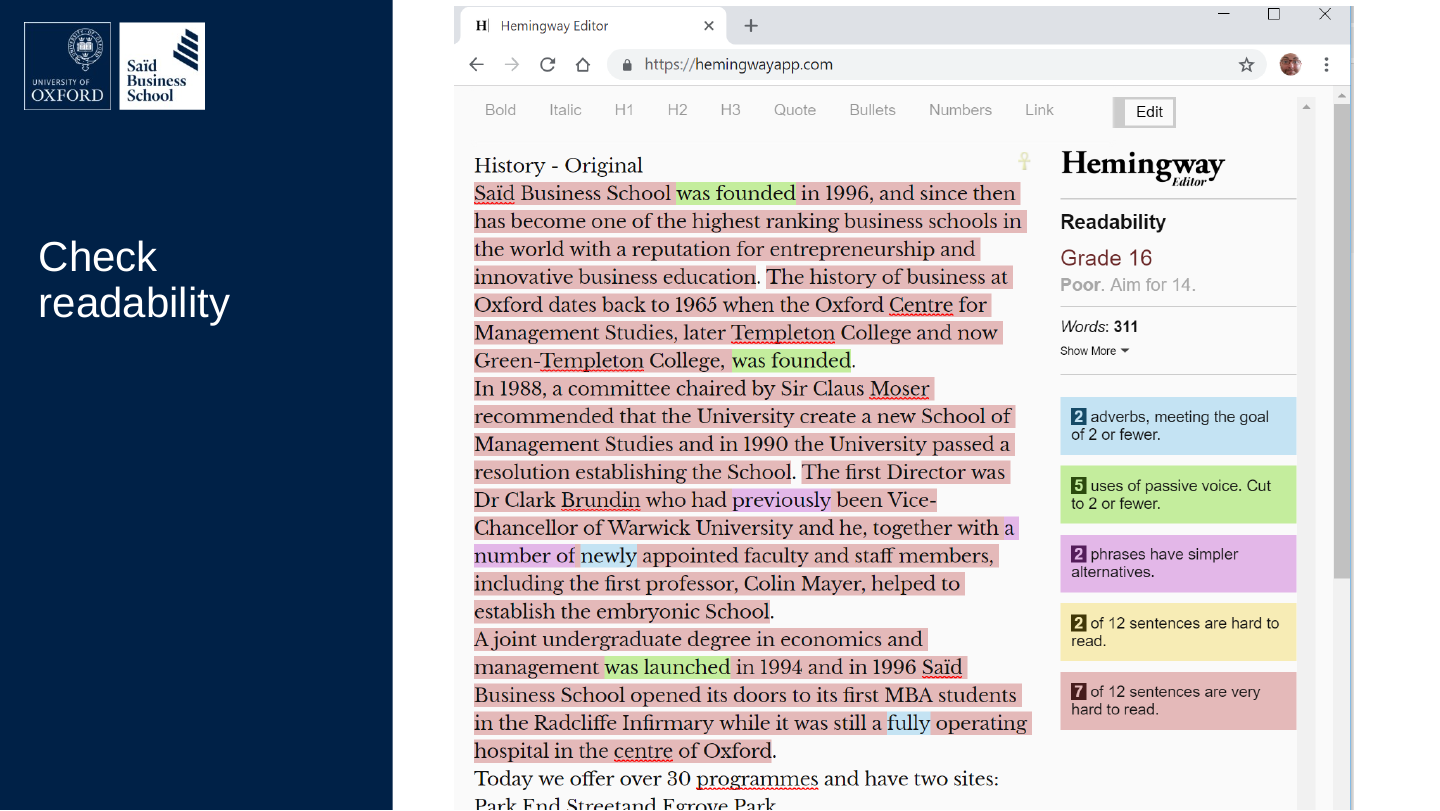
Check readability
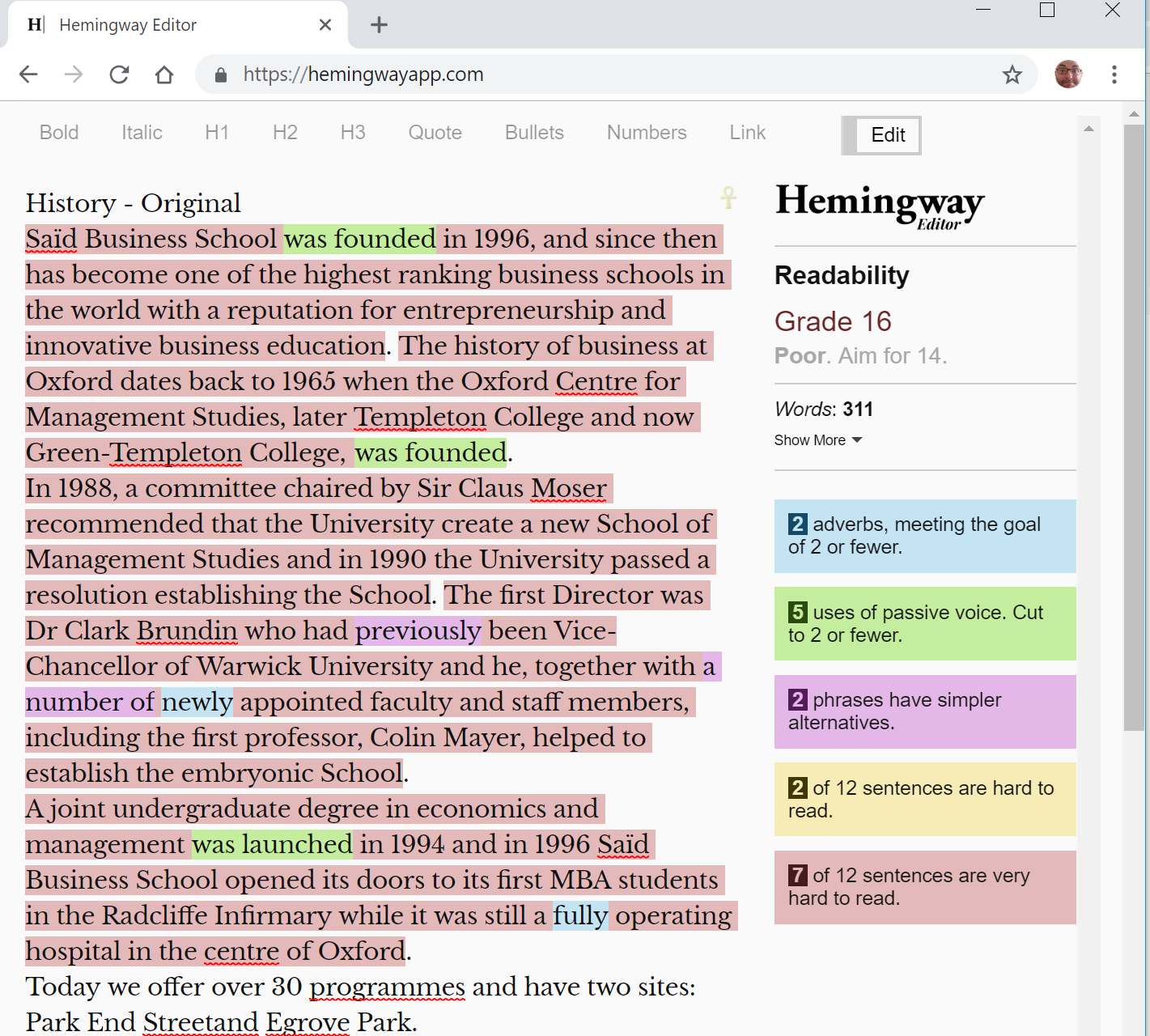
Screenshot of the Hemingway Editor in a browser with the “History – Original” text mostly highlighted in red and a high grade level with a “Poor” rating.

Original slide 60 (image)

Slide 61: Slide 61

Screenshot of the Hemingway Editor with a revised version of the same history text, much less highlighted, with a lower grade level.

Original slide 61 (image)

Slide 62: Do experts pass the test?

Do experts pass the test?
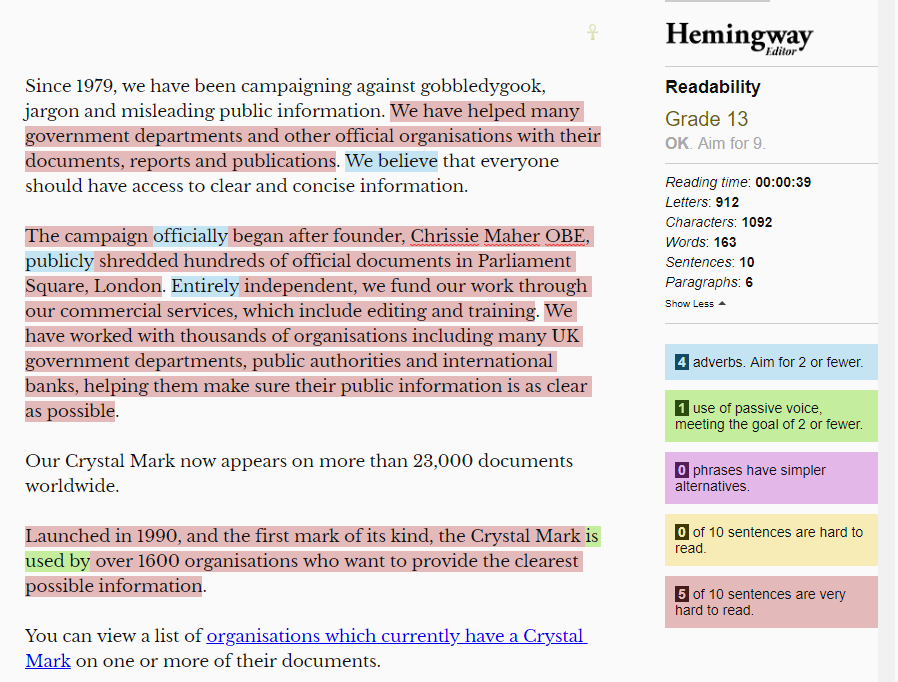
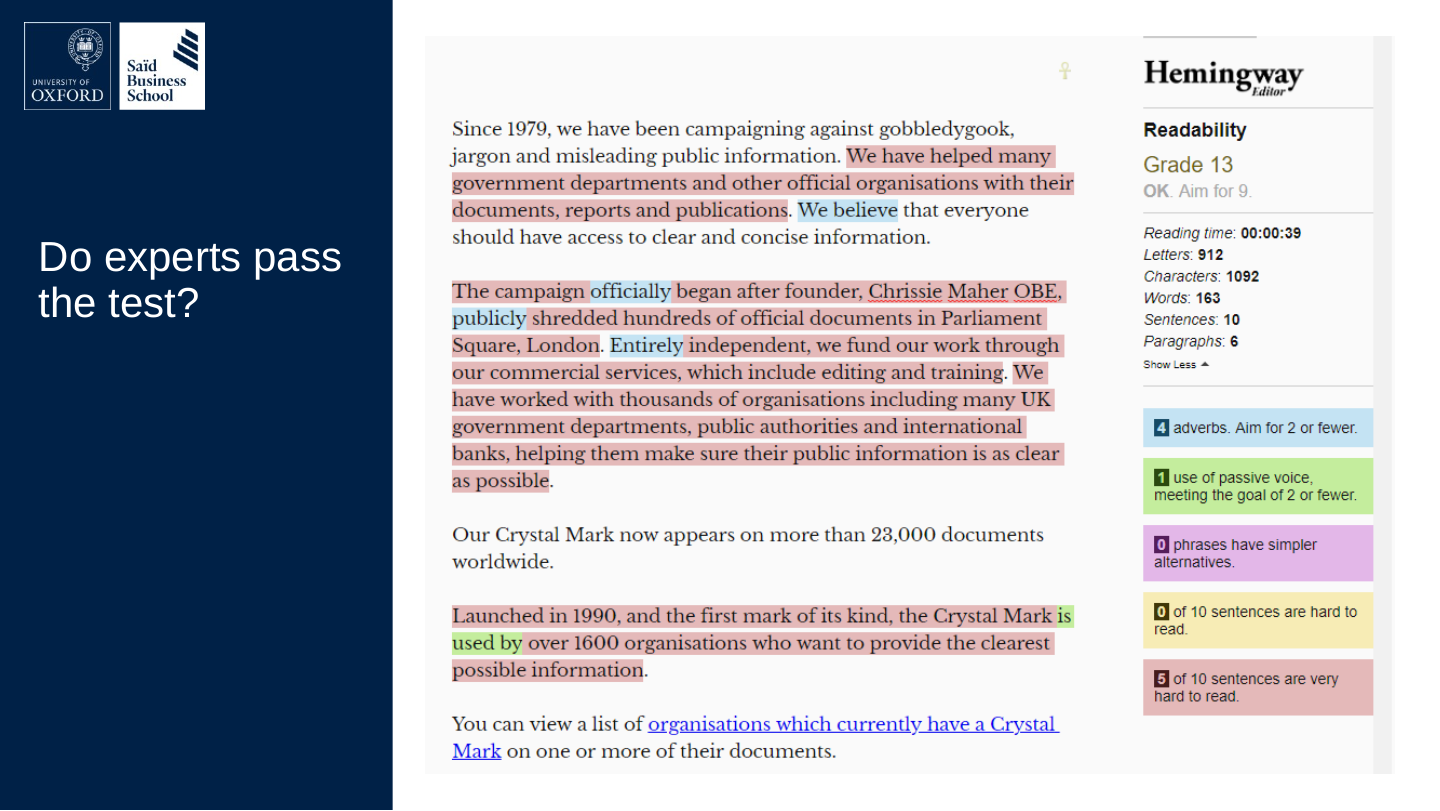
Screenshot of the Hemingway Editor with text from the Plain English Campaign's “About us” page, with passages highlighted in red and a panel of counts.

Original slide 62 (image)

Slide 63: About us by Plain English Campaign

About us by Plain English Campaign

plainenglish.co.uk/about-us.html
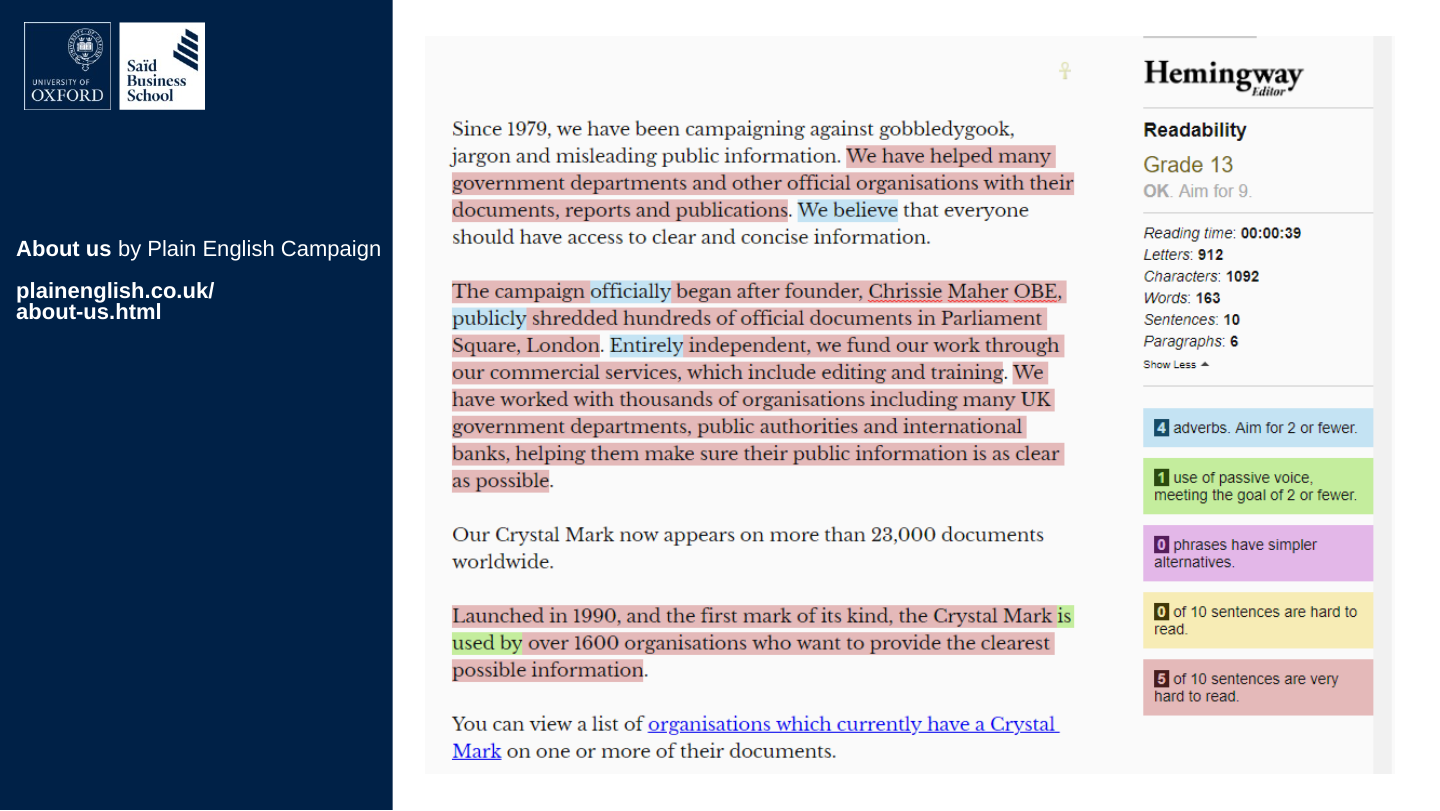
Screenshot of the Hemingway Editor with text from the Plain English Campaign's “About us” page, with passages highlighted in red and a panel of counts.

Original slide 63 (image)

Slide 64: Complexities of simple by Dominik Lukeš

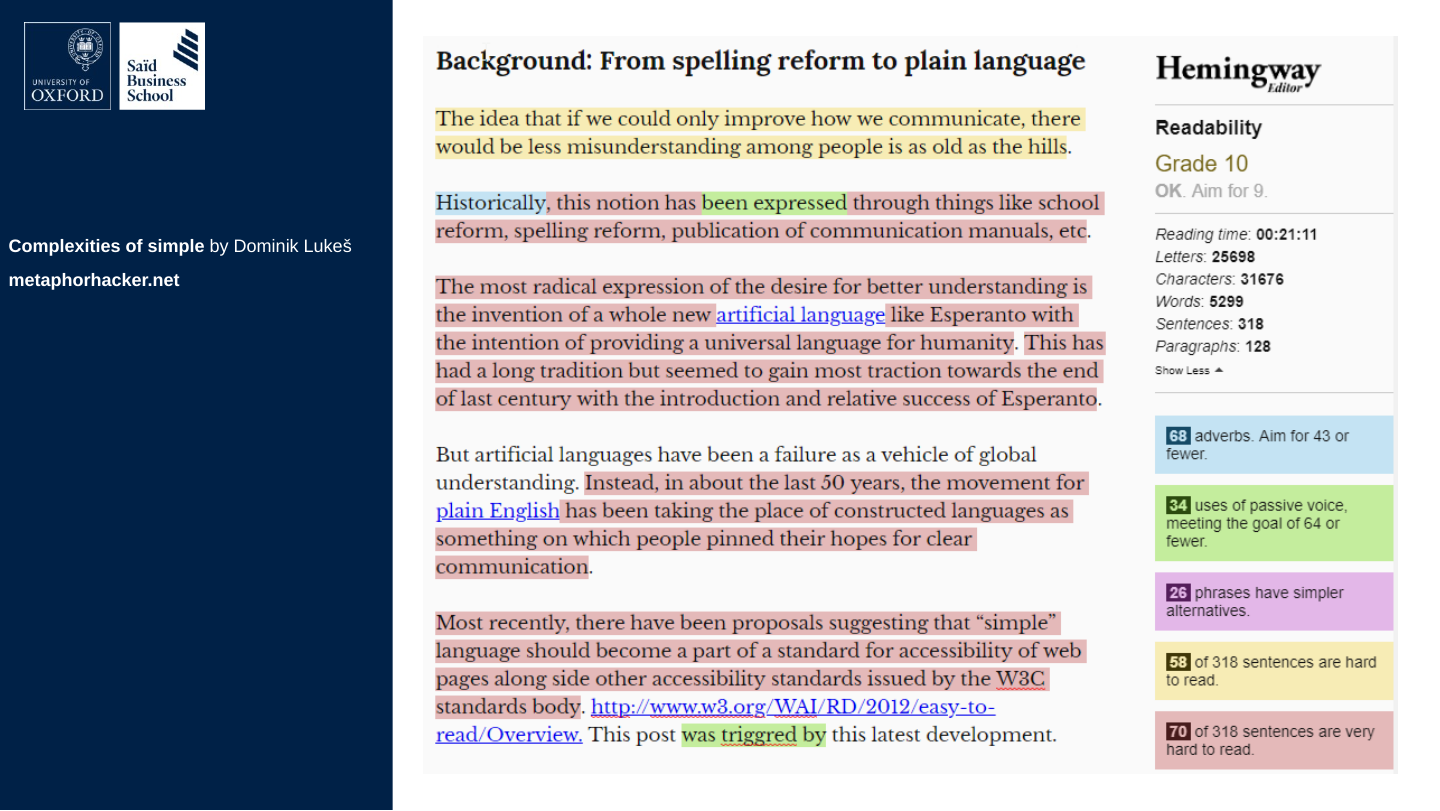
Complexities of simple by Dominik Lukeš

metaphorhacker.net
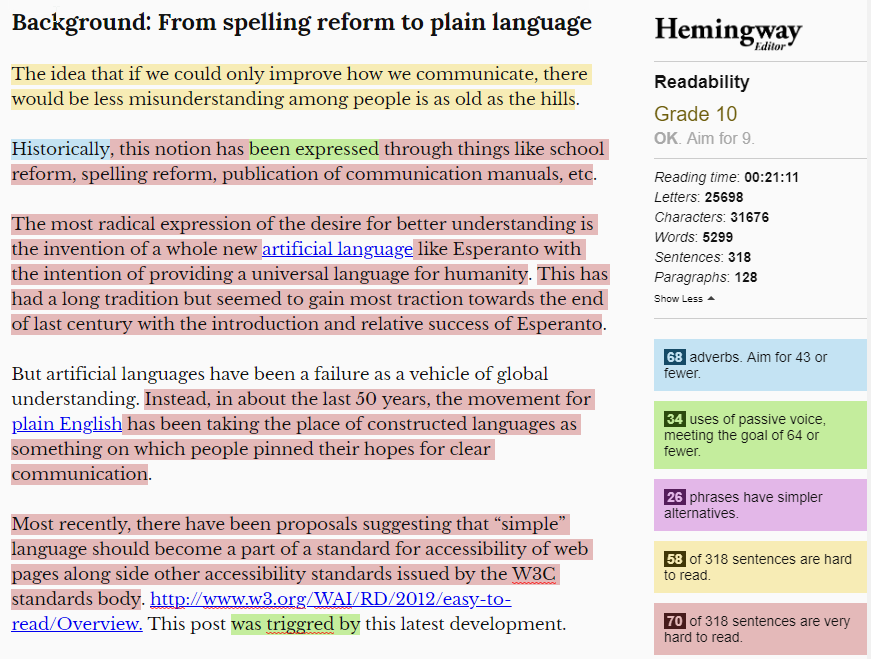
Screenshot of the Hemingway Editor with a section of the blog post “Complexities of simple”, with passages highlighted in red, yellow and green.

Original slide 64 (image)

Slide 65: Plain Language Is for Everyone, Even Experts

Plain Language Is for Everyone, Even Experts

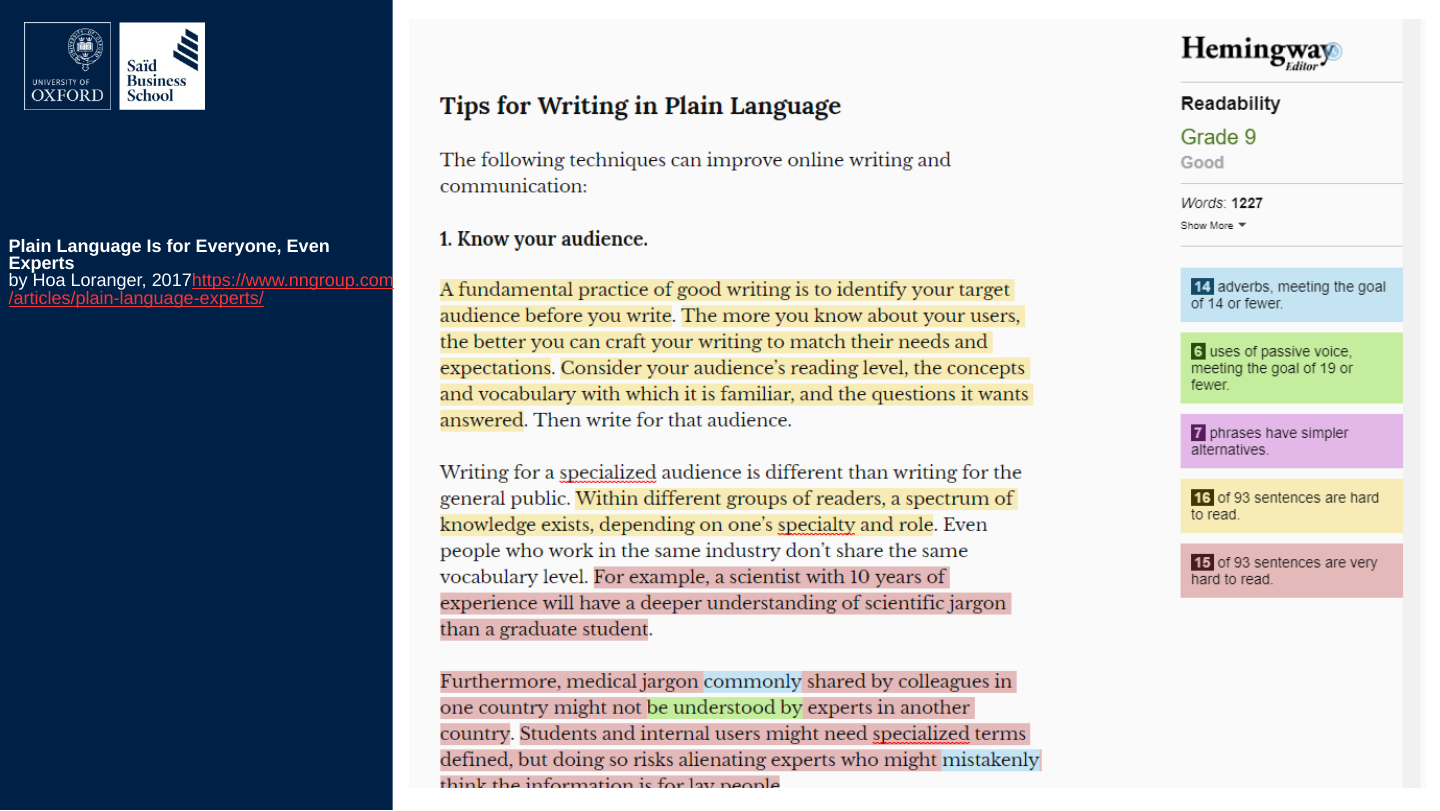
by Hoa Loranger, 2017

https://www.nngroup.com/articles/plain-language-experts/
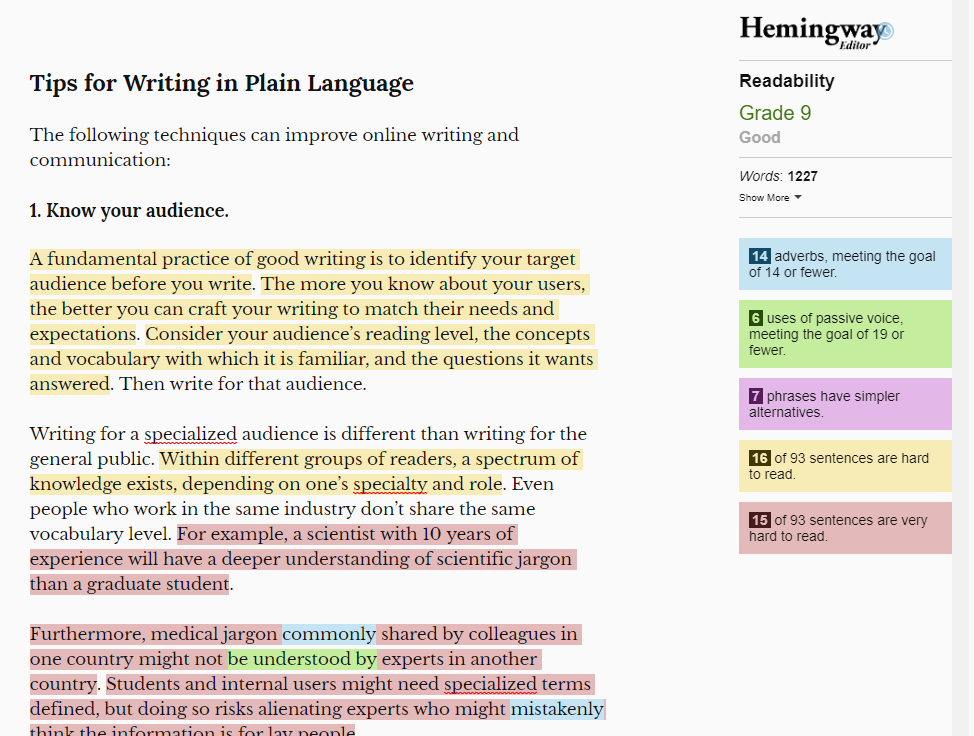
Screenshot of the Hemingway Editor with the start of the article “Tips for Writing in Plain Language”, with passages highlighted and a panel of counts.

Original slide 65 (image)

Slide 66: Tips for simpler language

Tips for simpler language
Original slide 66 (image)

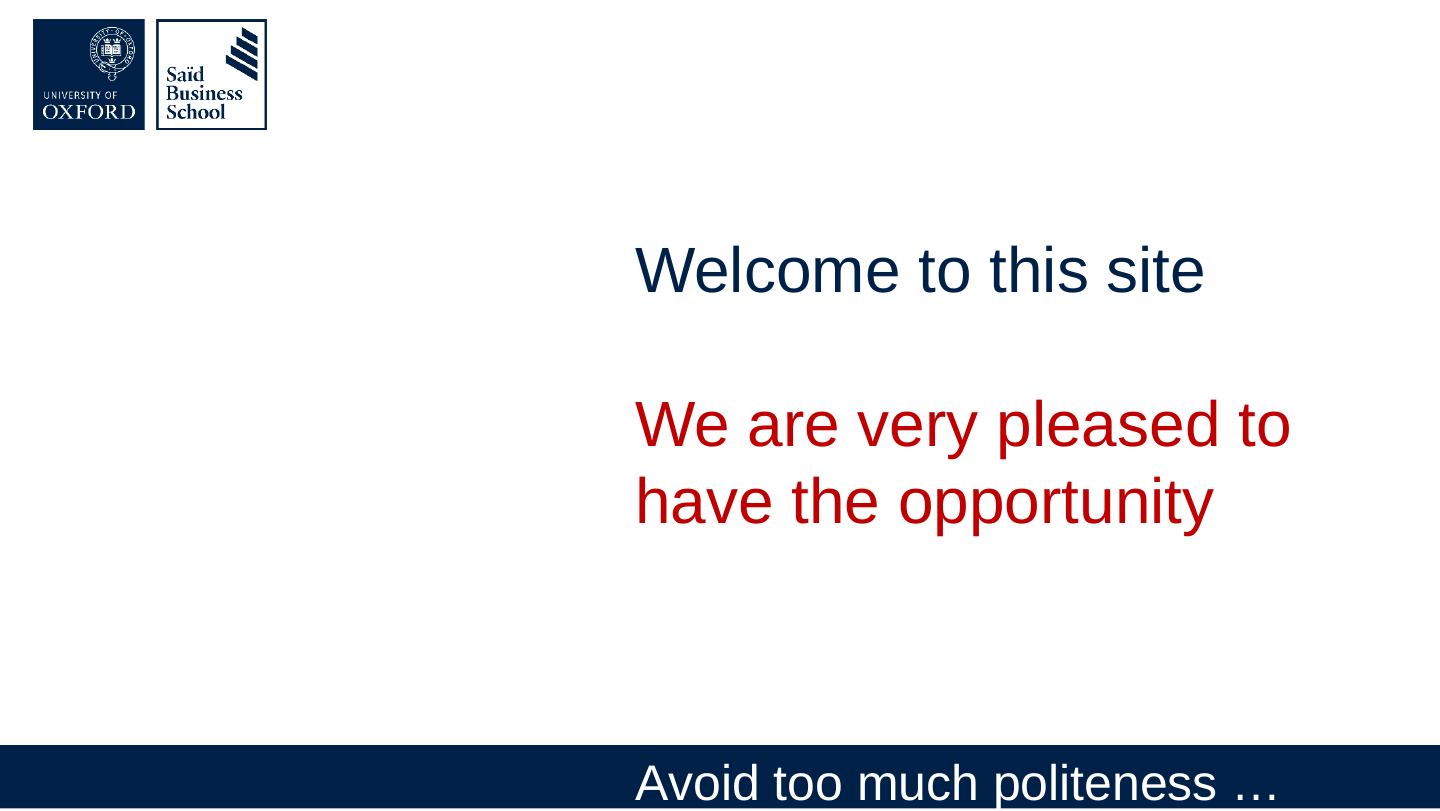
Slide 67: Avoid too much politeness …

Avoid too much politeness …

Welcome to this site

We are very pleased to have the opportunity
Original slide 67 (image)

Slide 68: …but only in context

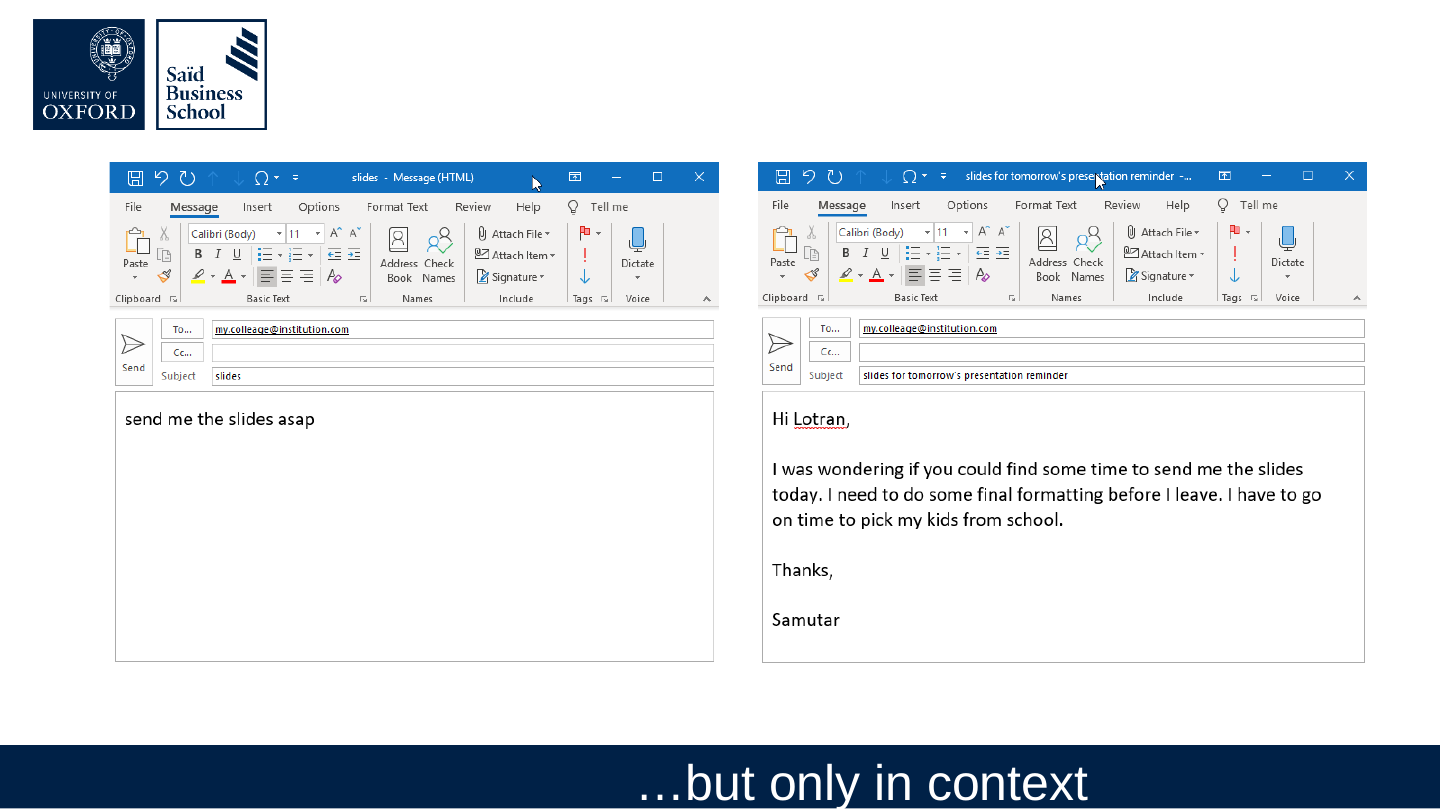
…but only in context
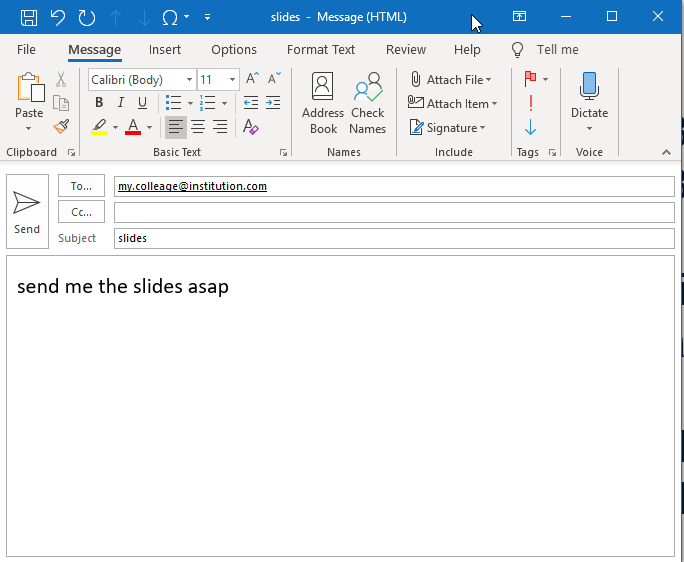
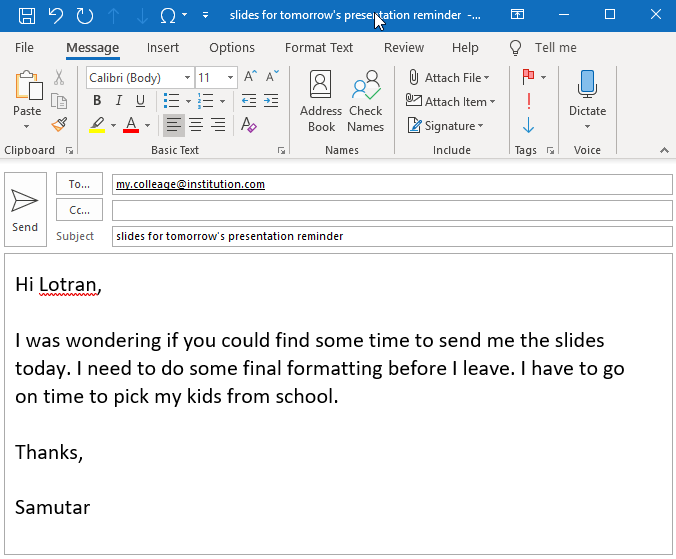
Screenshot of an email being written in Outlook with the subject line “slides” and a one-line message with no greeting asking for the slides as soon as possible.

Screenshot of an email being written in Outlook with a greeting, a polite request for the presentation slides and a sign-off.

Original slide 68 (image)

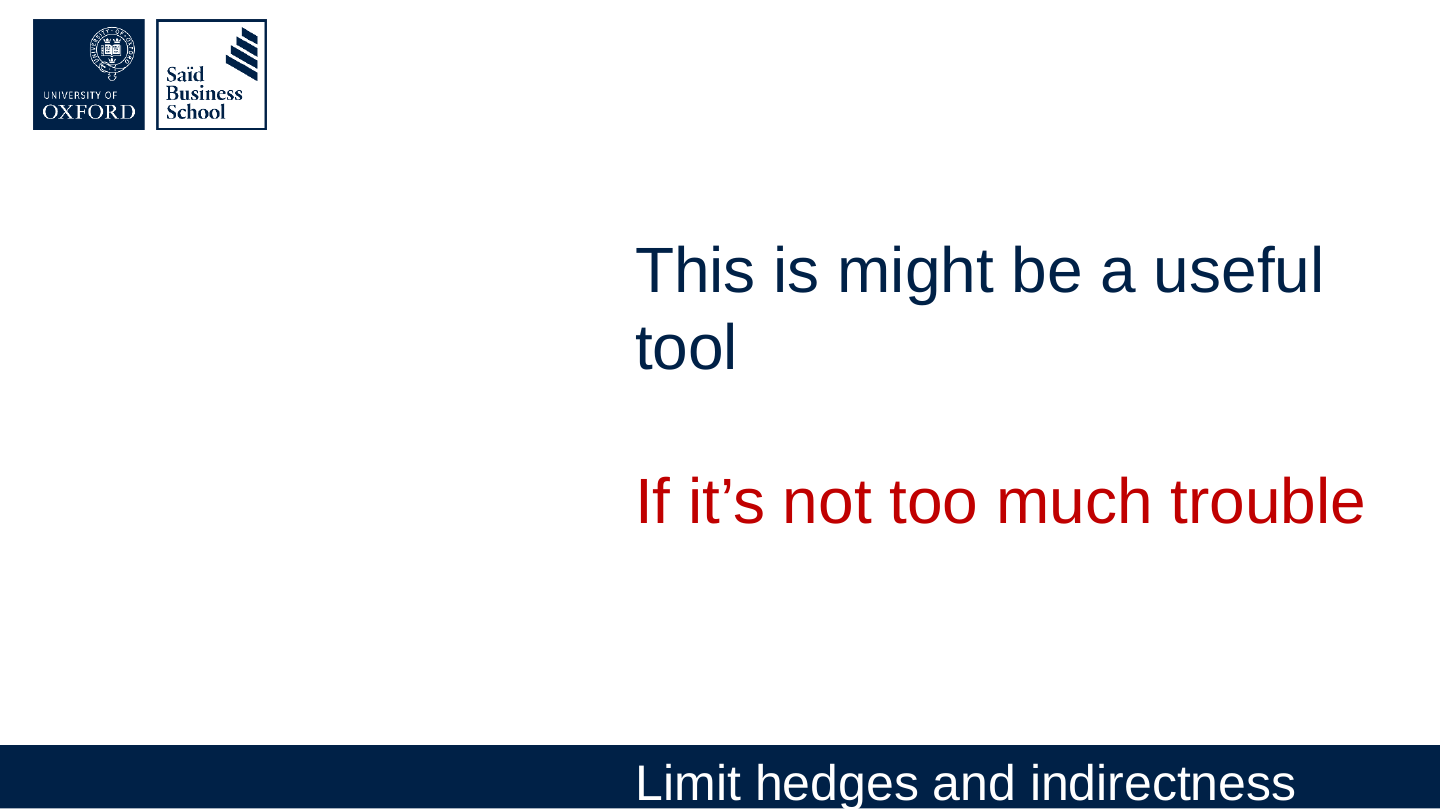
Slide 69: Limit hedges and indirectness

Limit hedges and indirectness

This is might be a useful tool

If it’s not too much trouble
Original slide 69 (image)

Slide 70: Strip out unnecessary language

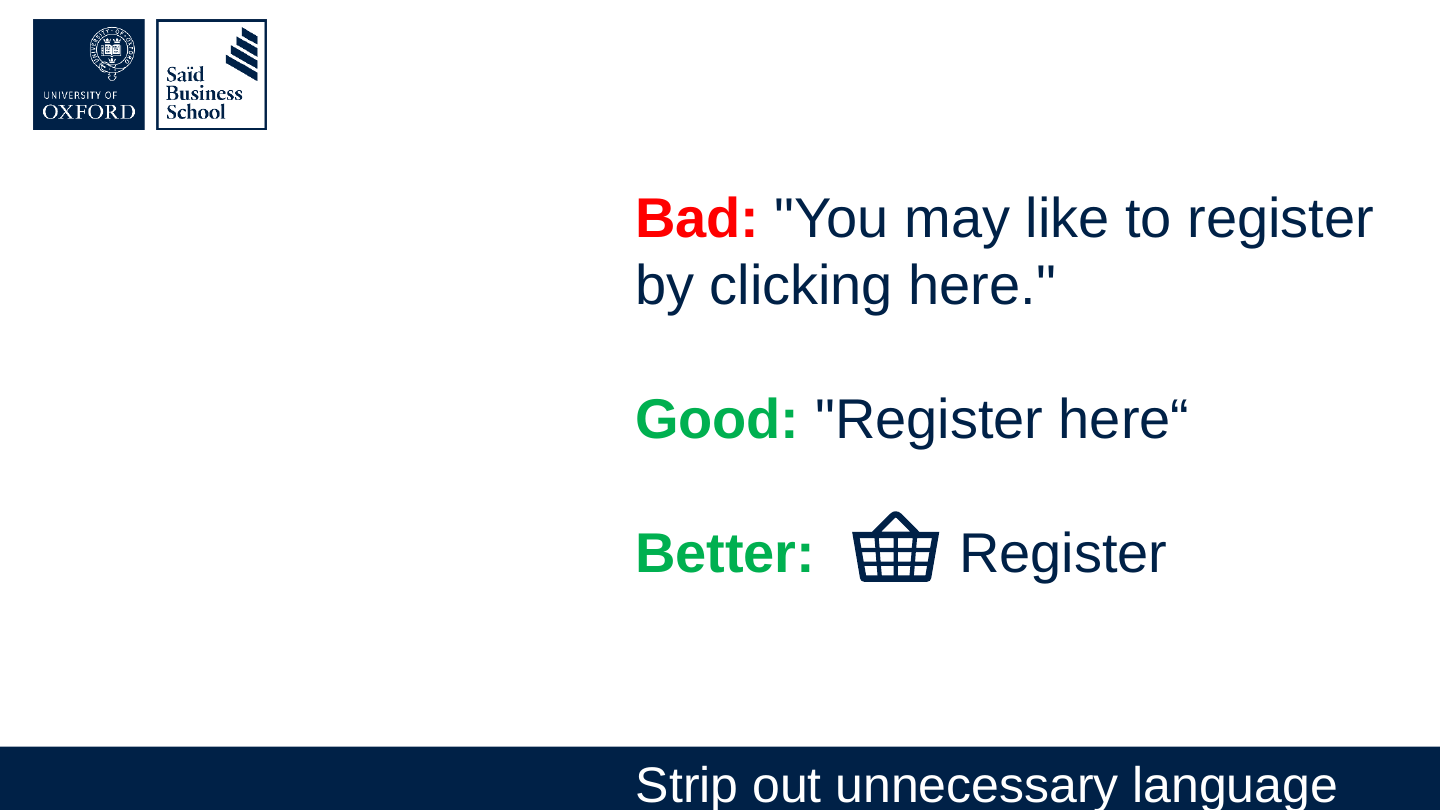
Strip out unnecessary language

Bad: "You may like to register by clicking here."

Good: "Register here“

Better: Register

Icon of a shopping basket, shown before the word Register.

Original slide 70 (image)

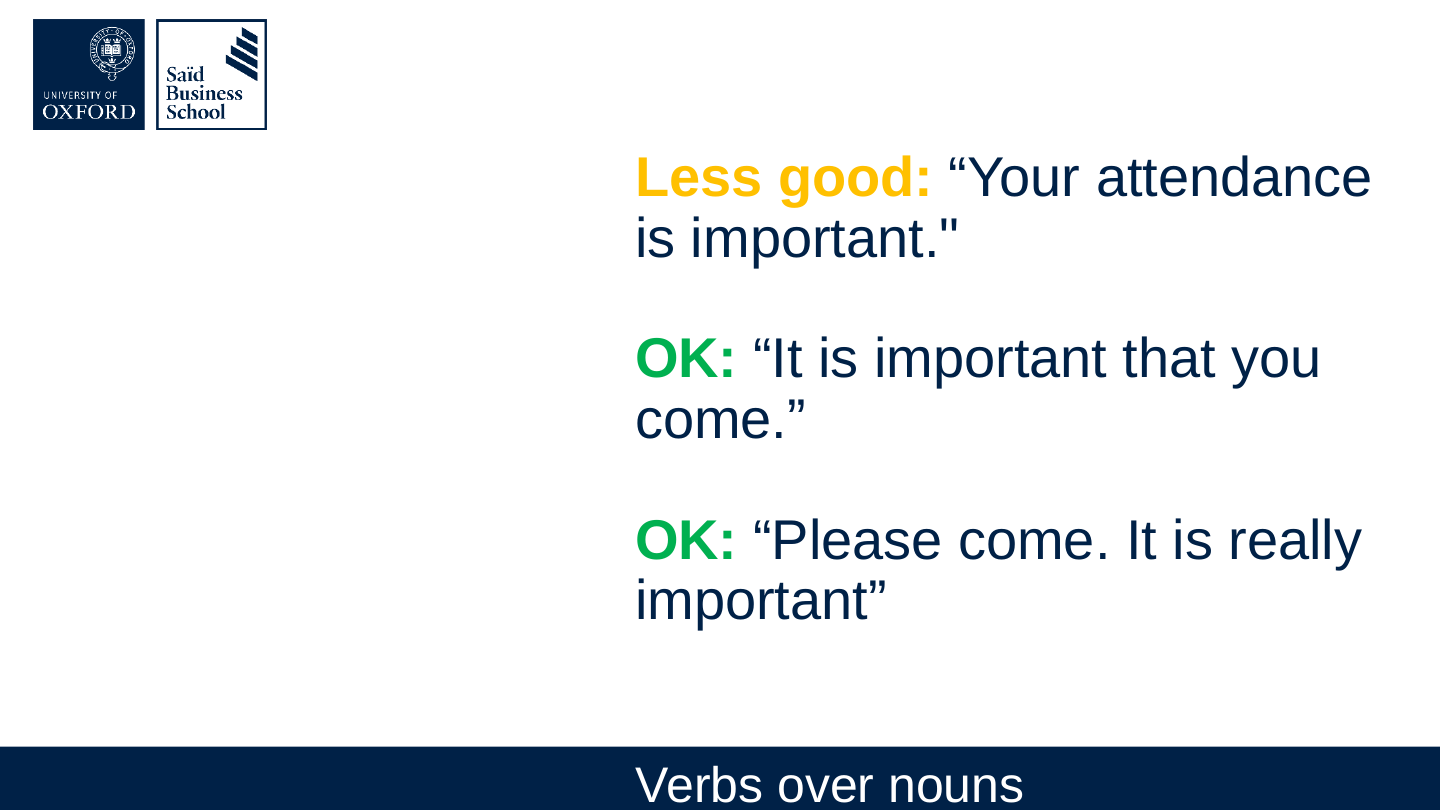
Slide 71: Verbs over nouns

Verbs over nouns

Less good: “Your attendance is important."

OK: “It is important that you come.”

OK: “Please come. It is really important”
Original slide 71 (image)

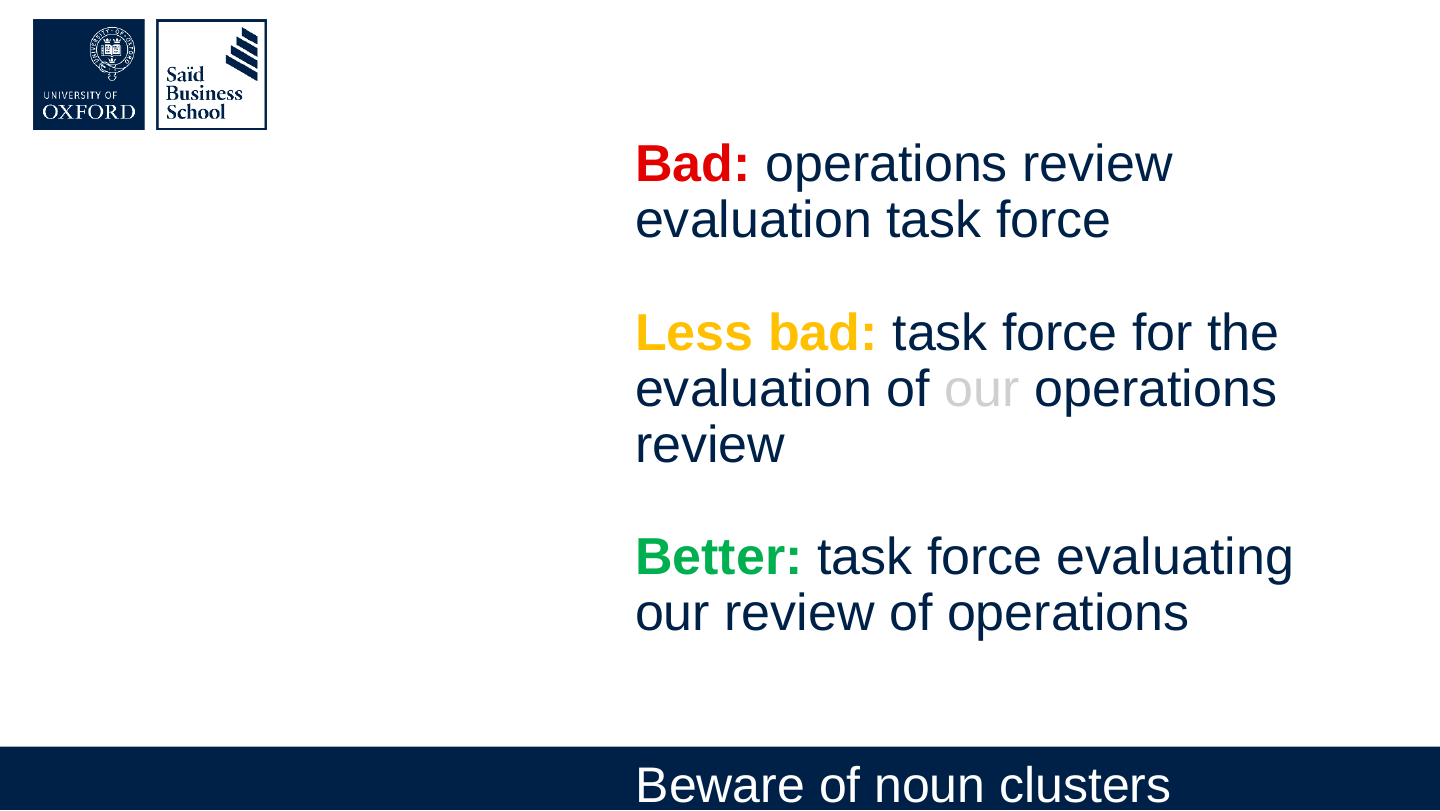
Slide 72: Beware of noun clusters

Beware of noun clusters

Bad: operations review evaluation task force

Less bad: task force for the evaluation of our operations review

Better: task force evaluating our review of operations
Original slide 72 (image)

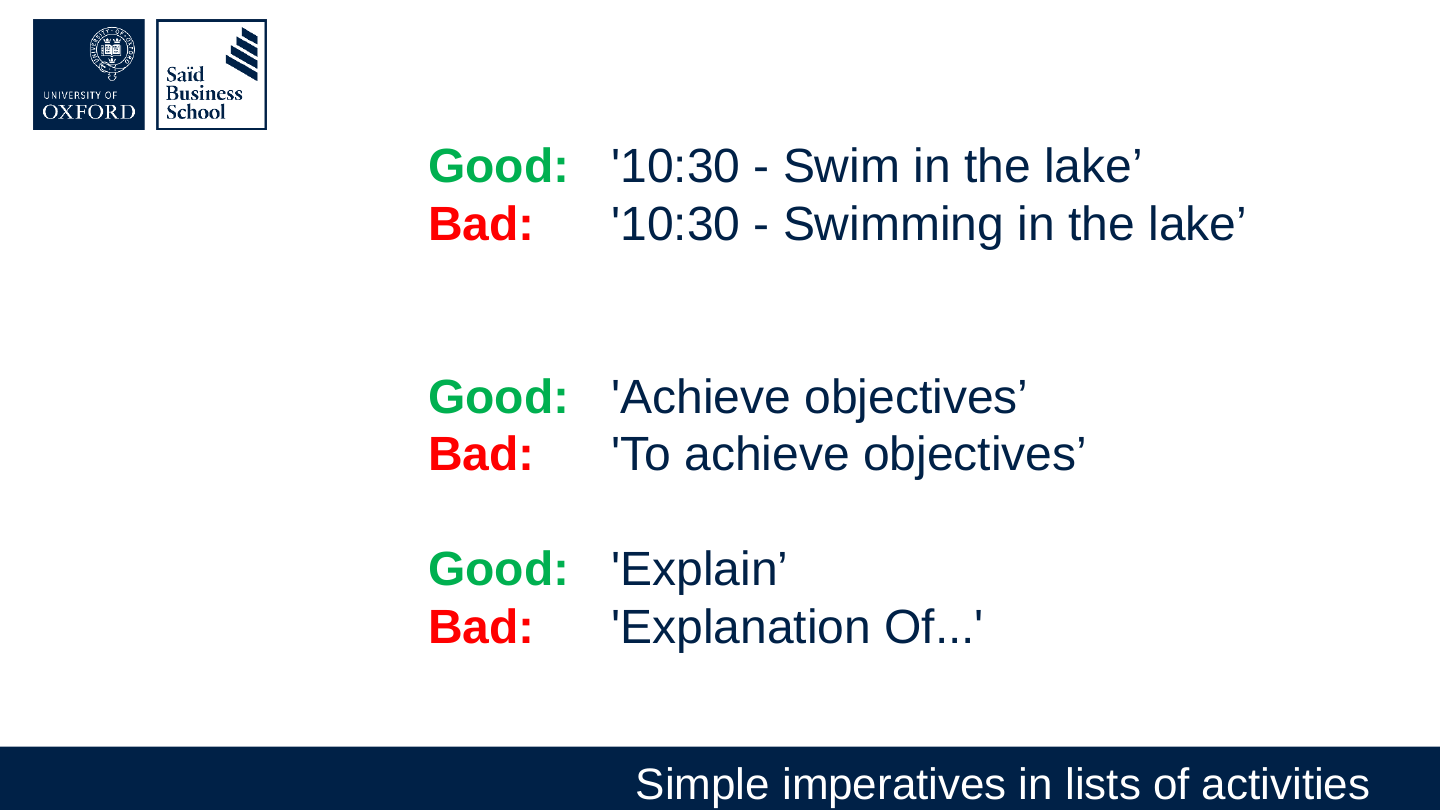
Slide 73: Simple imperatives in lists of activities

Simple imperatives in lists of activities

Good: '10:30 - Swim in the lake’

Bad: '10:30 - Swimming in the lake’

Good: 'Achieve objectives’

Bad: 'To achieve objectives’

Good: 'Explain’

Bad: 'Explanation Of...'
Original slide 73 (image)

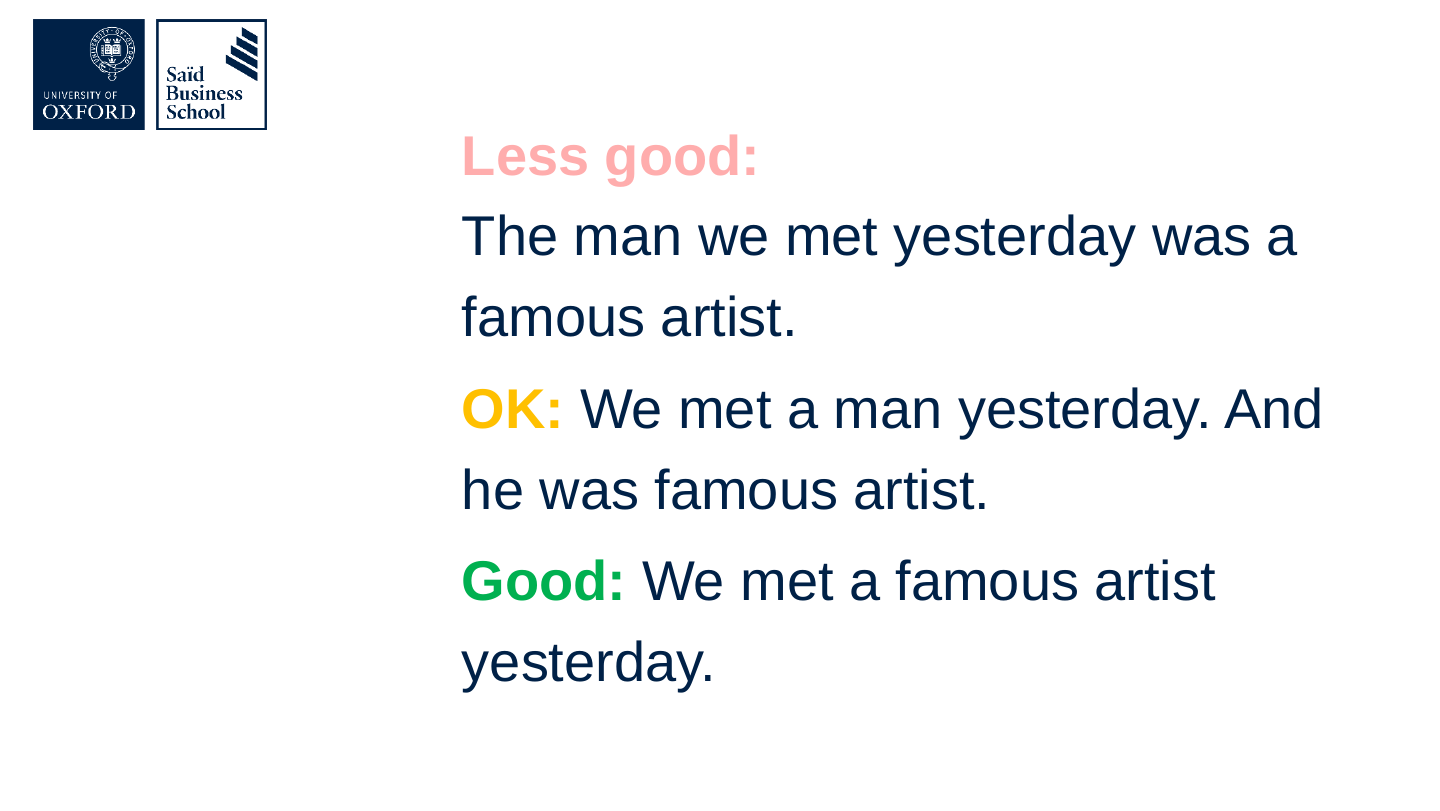
Slide 74: Limit complex embedding and if statements

Limit complex embedding and if statements

Less good: The man we met yesterday was a famous artist.

OK: We met a man yesterday. And he was famous artist.

Good: We met a famous artist yesterday.
Original slide 74 (image)

Slide 75: Don't strip out linking phrases

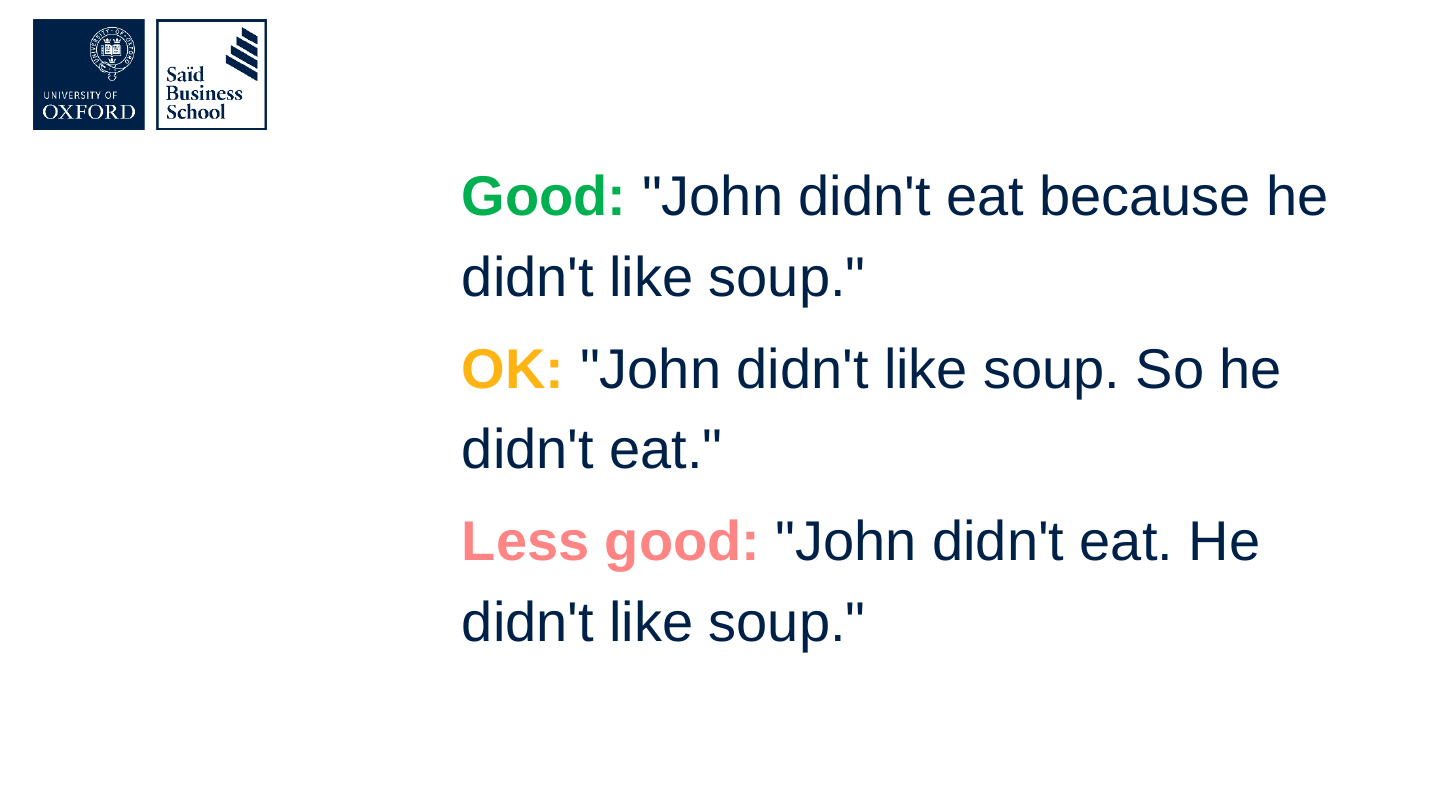
Don't strip out linking phrases

Good: "John didn't eat because he didn't like soup."

OK: "John didn't like soup. So he didn't eat."

Less good: "John didn't eat. He didn't like soup."
Original slide 75 (image)

Slide 76: Think about when to use nouns vs pronouns

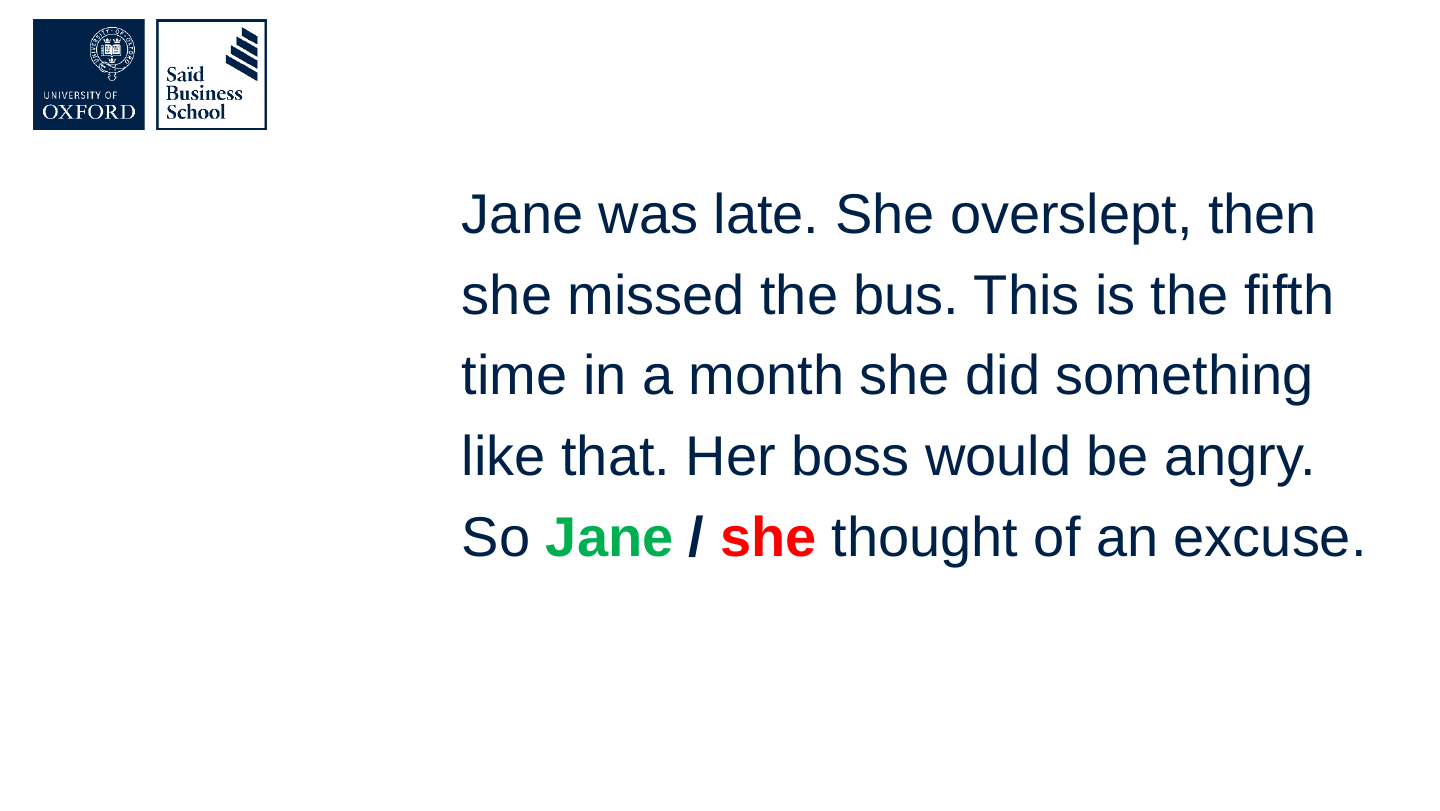
Think about when to use nouns vs pronouns

Jane was late. She overslept, then she missed the bus. This is the fifth time in a month she did something like that. Her boss would be angry. So Jane / she thought of an excuse.

Colour in the source slide: in the last sentence “Jane” is green and “she” is red, both in bold type. The slide gives no key for the colours.
Original slide 76 (image)

Slide 77: Avoid too much repetition, but not all of it

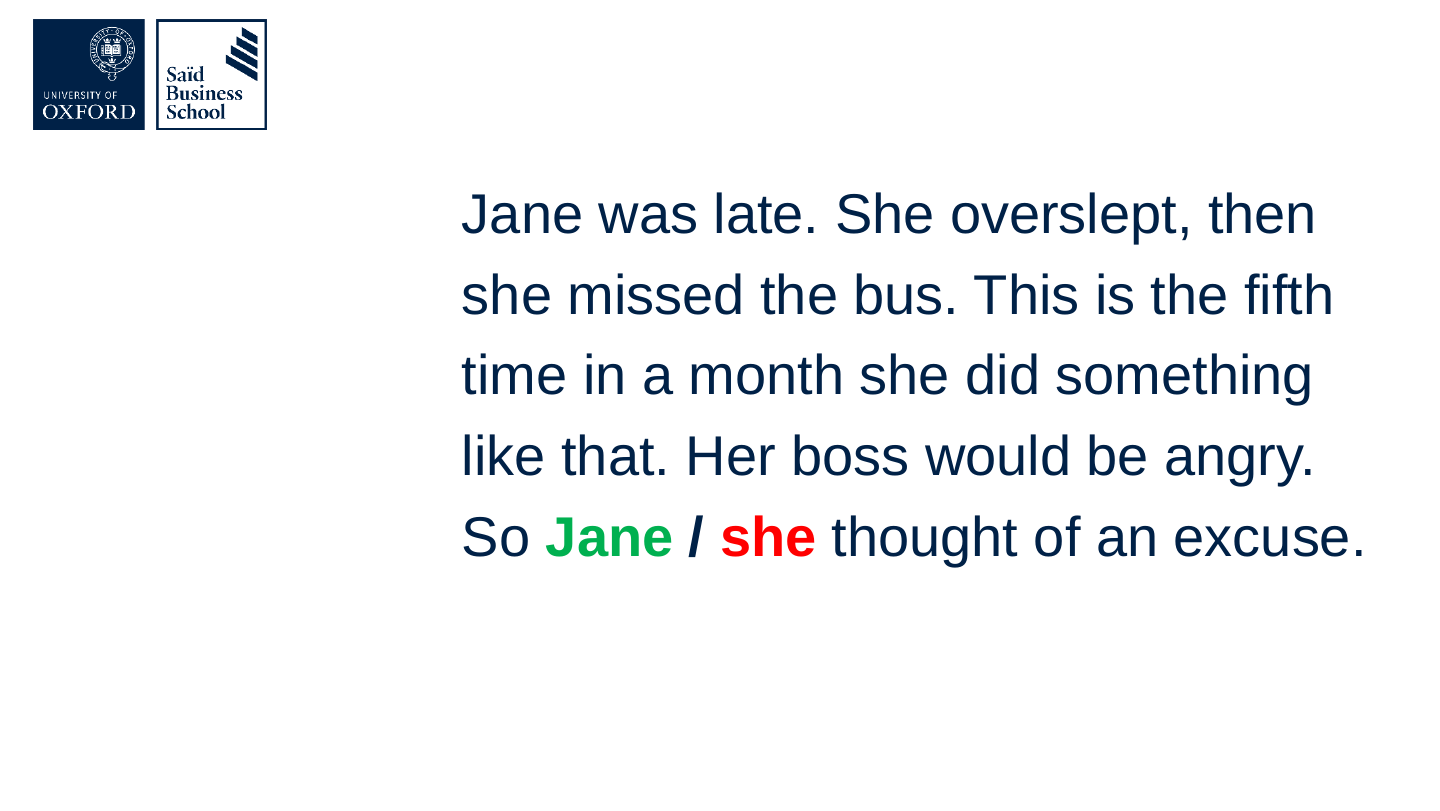
Avoid too much repetition, but not all of it

Jane was late. She overslept, then she missed the bus. This is the fifth time in a month she did something like that. Her boss would be angry. So Jane / she thought of an excuse.

Colour in the source slide: in the last sentence “Jane” is green and “she” is red, both in bold type. The slide gives no key for the colours.
Original slide 77 (image)

Slide 78: Readability

Readability

Original slide 78 (image)

Slide 79: What is readability?

What is readability?
Original slide 79 (image)

Slide 80: What typical level of education is required to understand a text?

What typical level of education is required to understand a text?
Original slide 80 (image)

Slide 81: Aim for GCSE (or less)

Aim for GCSE (or less)

Grade 9 – 11
Original slide 81 (image)

Slide 82: Note: 14-year old reading level does not mean, 14-year old content.

Note: 14-year old reading level does not mean, 14-year old content.
Original slide 82 (image)

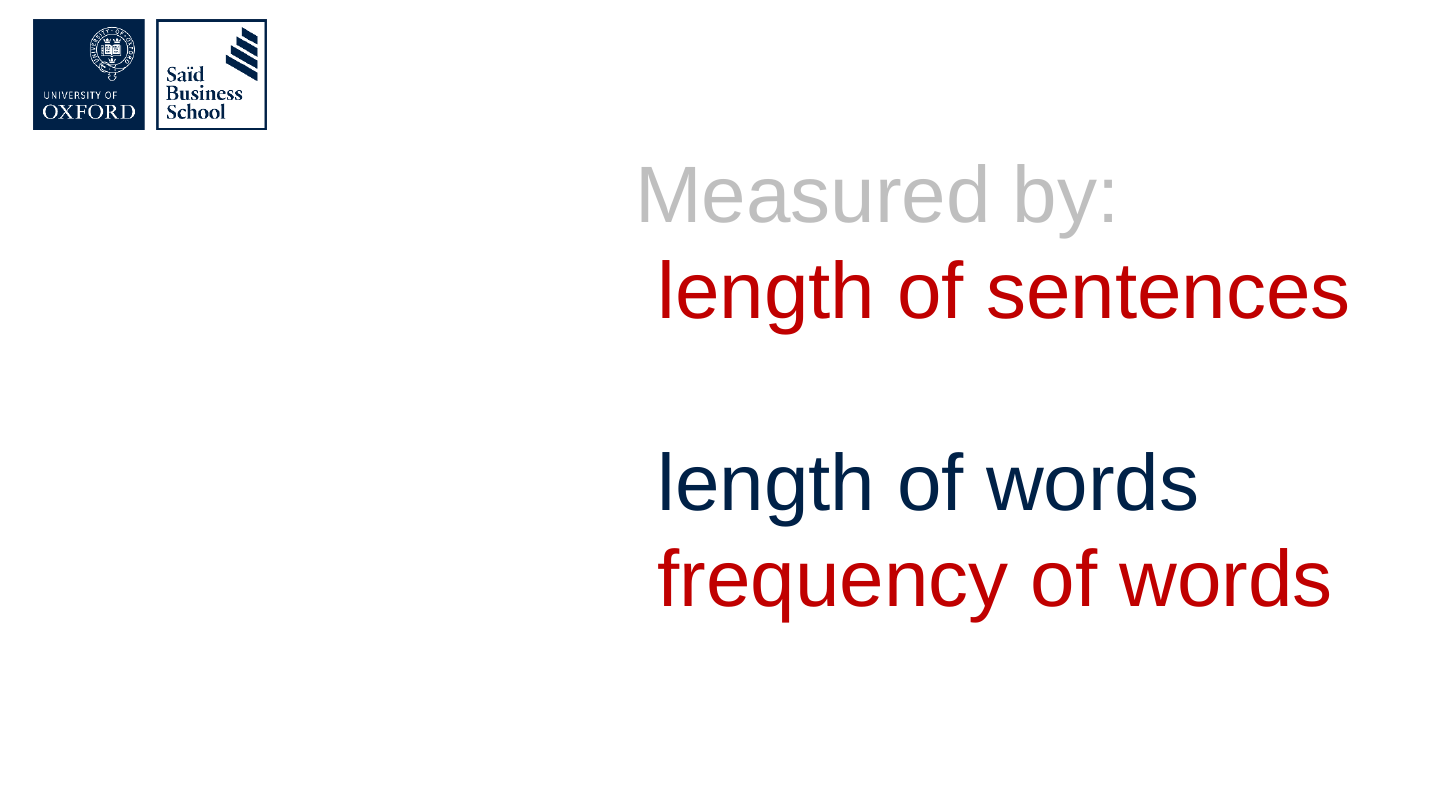
Slide 83: Measured by:

Measured by:

  • length of sentences
  • length of words
  • frequency of words

Original slide 83 (image)

Slide 84: But don’t game the readability scores.
But don’t game the readability scores.

Original slide 84 (image)

Slide 85: Slide 85

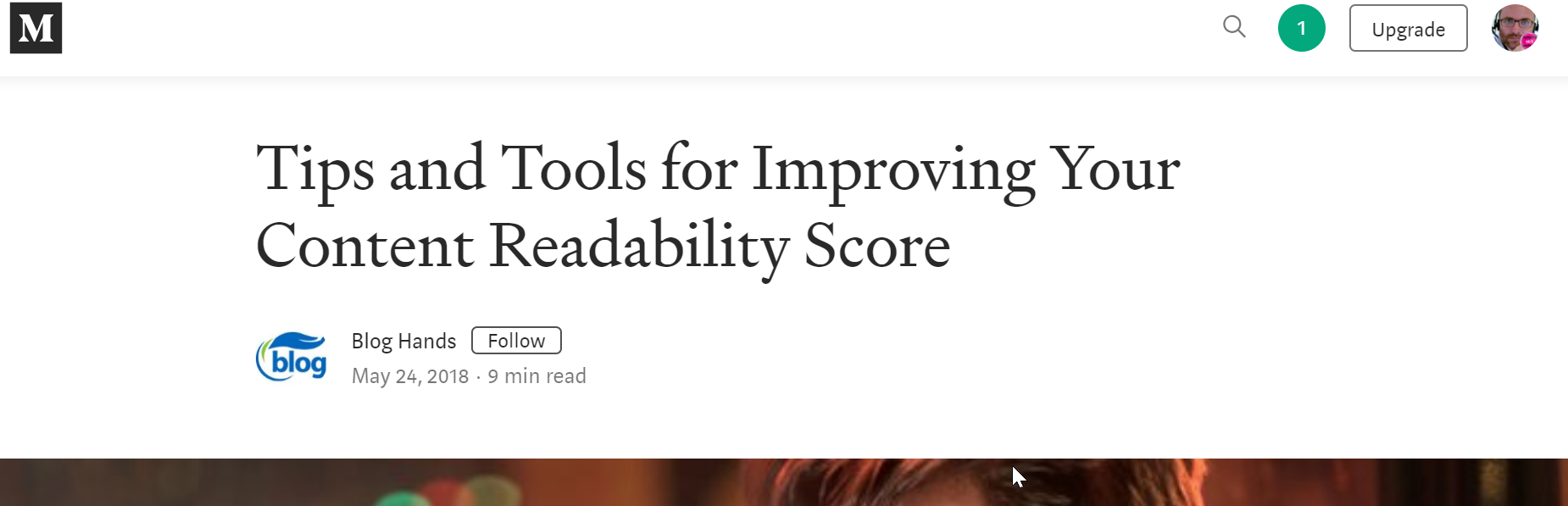
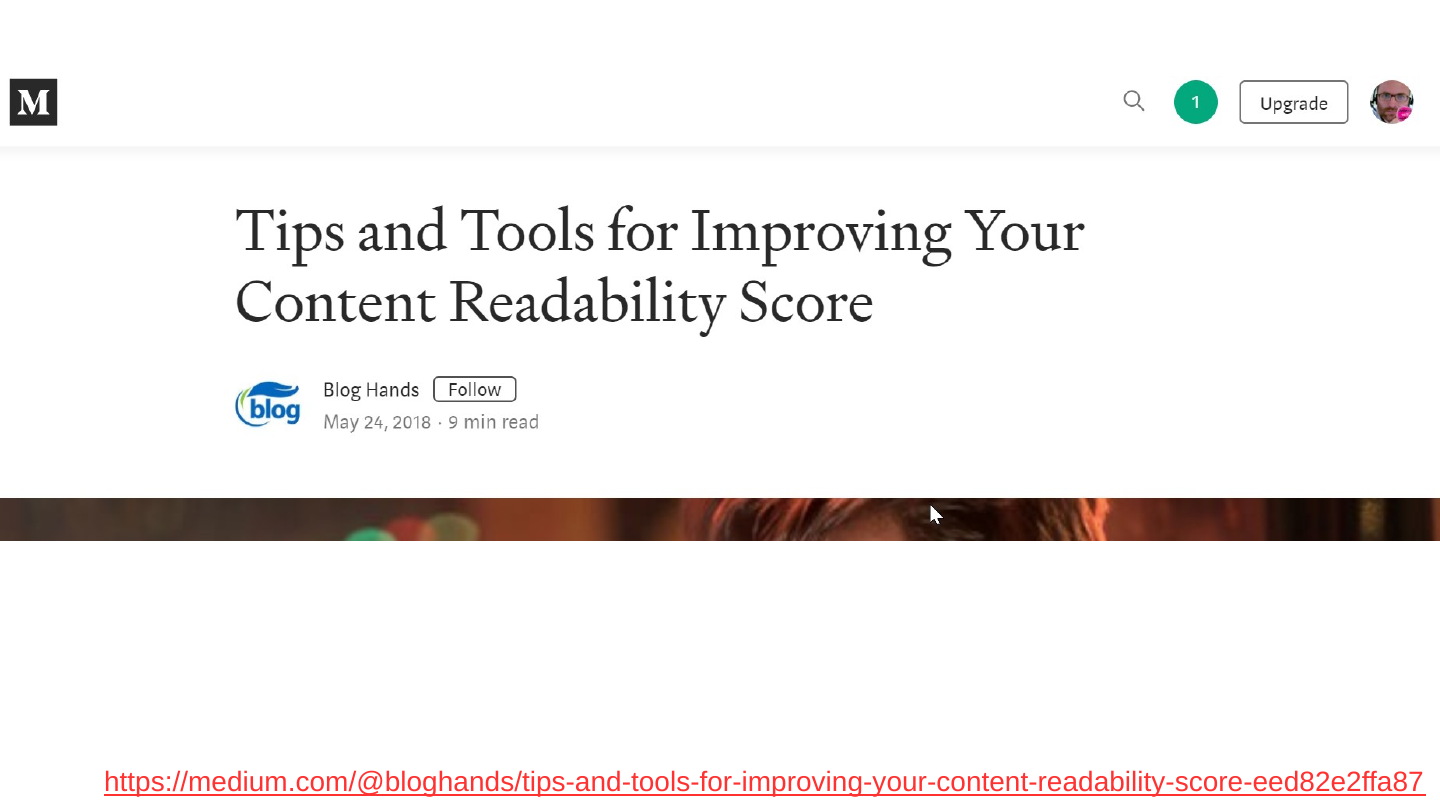
Screenshot of the top of a Medium article, “Tips and Tools for Improving Your Content Readability Score”, by Blog Hands.

https://medium.com/@bloghands/tips-and-tools-for-improving-your-content-readability-score-eed82e2ffa87

Original slide 85 (image)

Slide 86: Slide 86

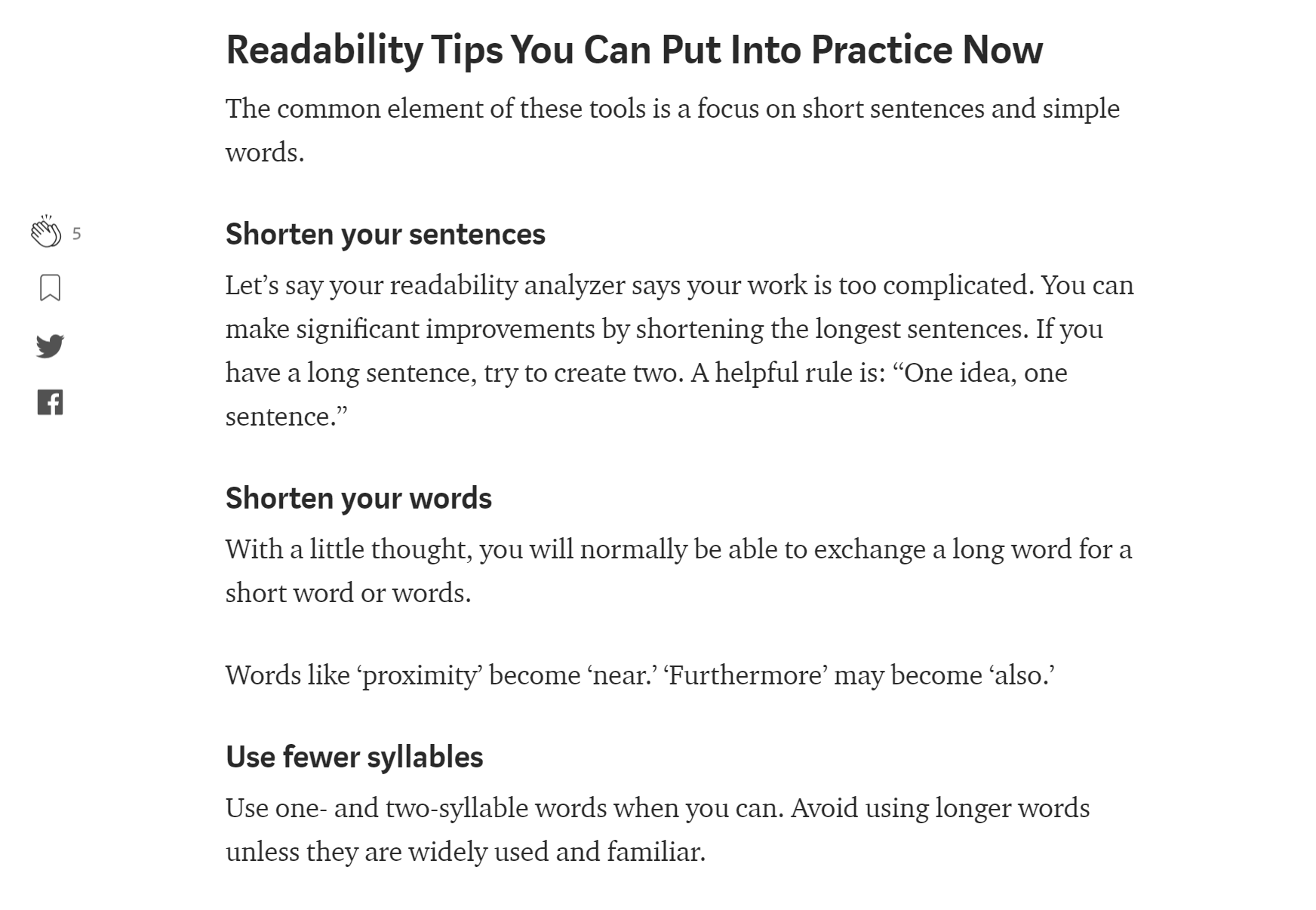
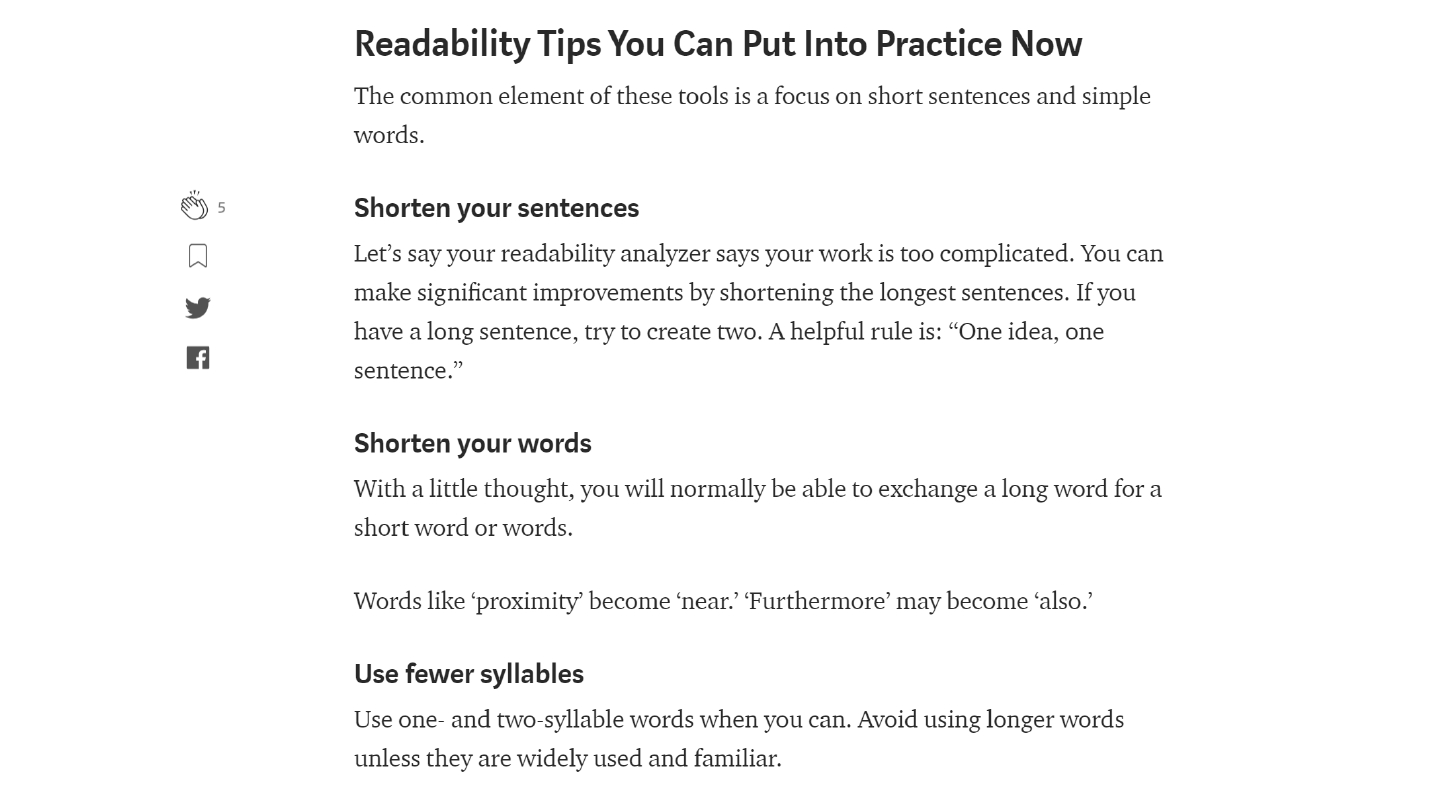
Screenshot of a section of the same article, “Readability Tips You Can Put Into Practice Now”, with the sub-headings Shorten your sentences, Shorten your words and Use fewer syllables.

Original slide 86 (image)

Slide 87: Slide 87

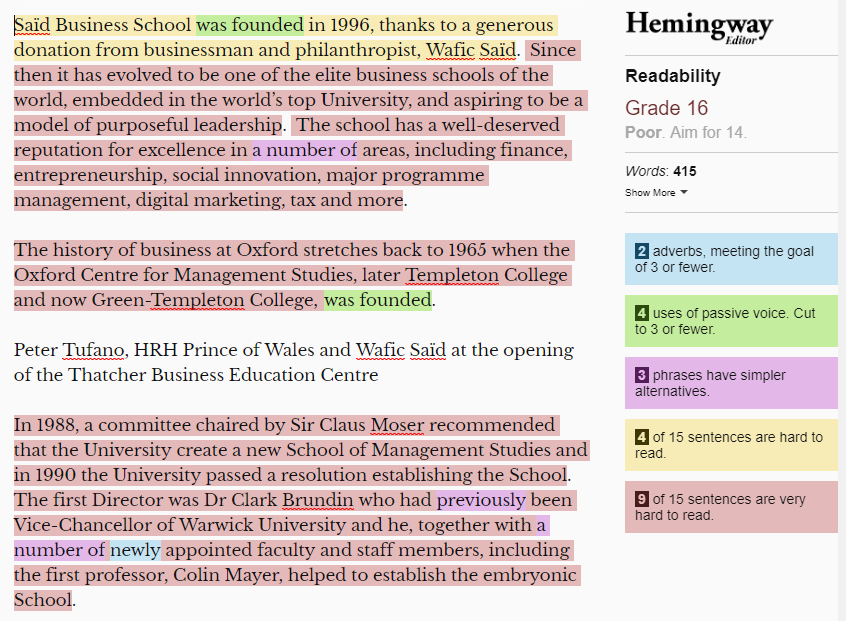
Screenshot of the Hemingway Editor with a long text on the left, mostly highlighted in red and yellow, with a high grade level and a red oval around a long sentence.

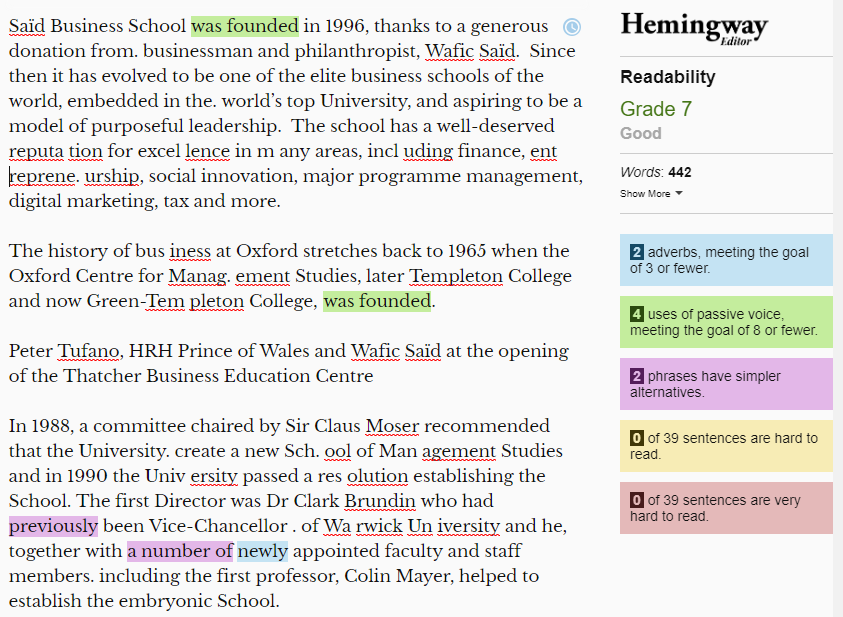
Screenshot of the Hemingway Editor with a shortened version of the same text on the right, much less highlighted, with a low grade level and a red oval around a sentence.

Original slide 87 (image)

Slide 88: Readability tools

Readability tools
Original slide 88 (image)

Slide 89: Slide 89

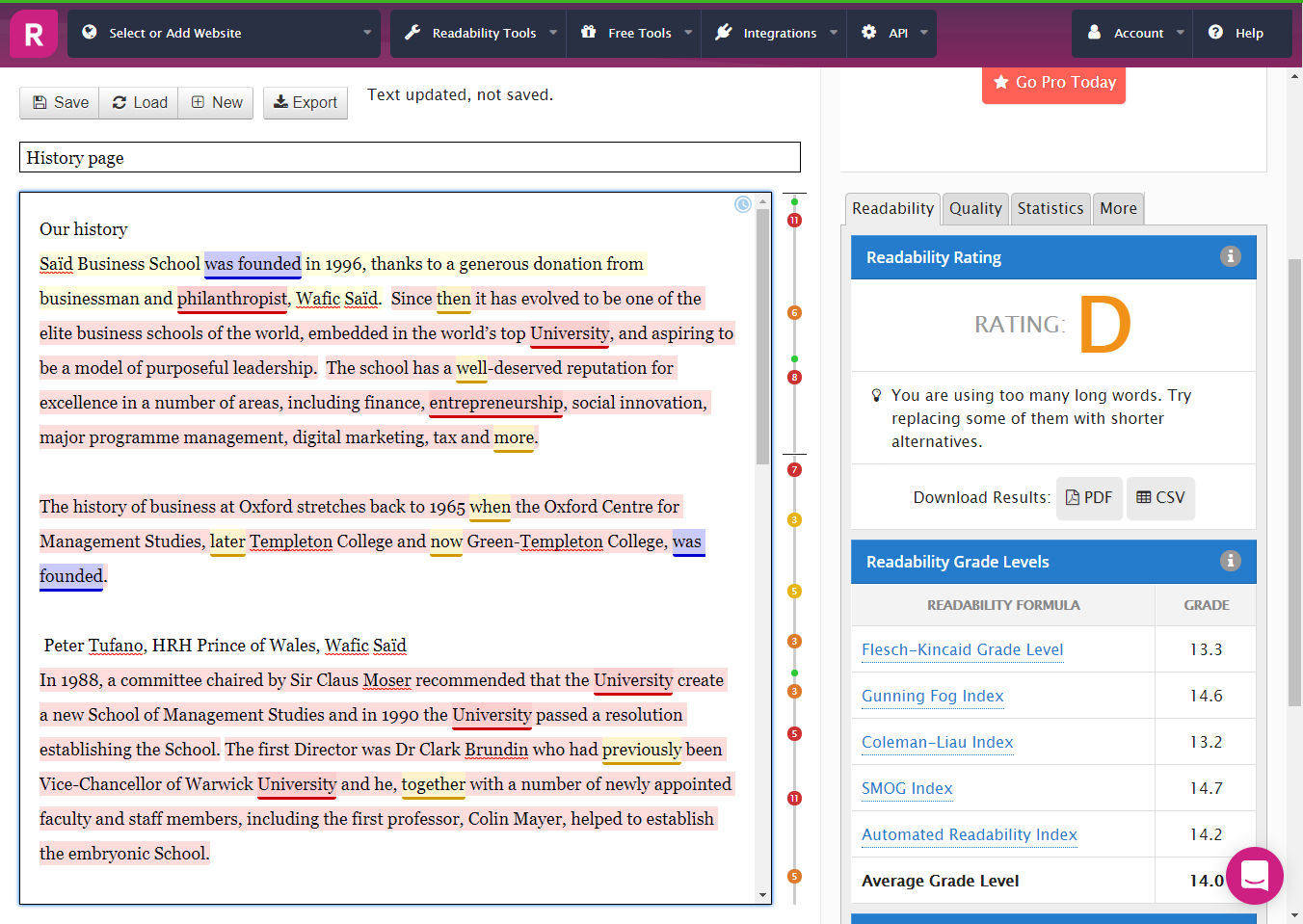
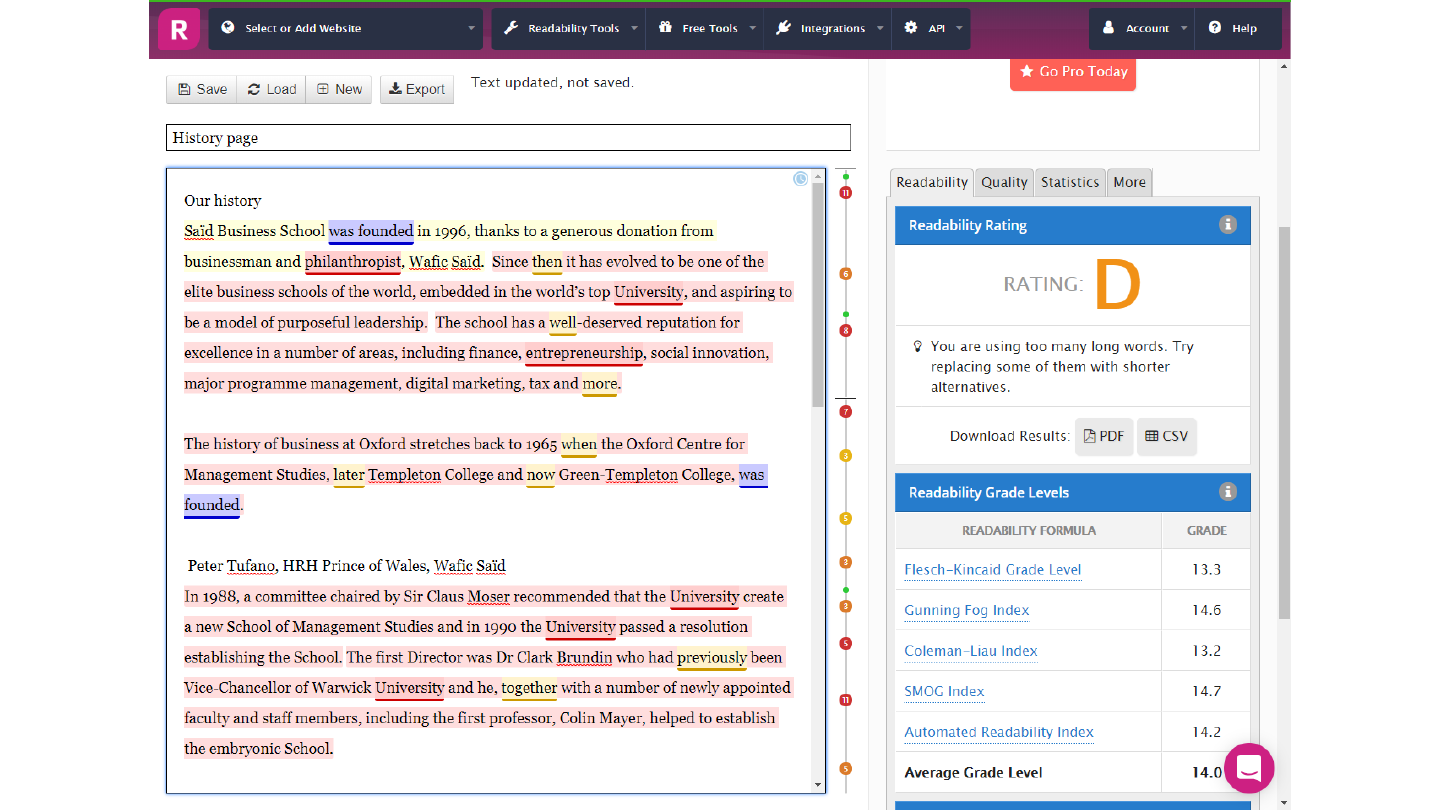
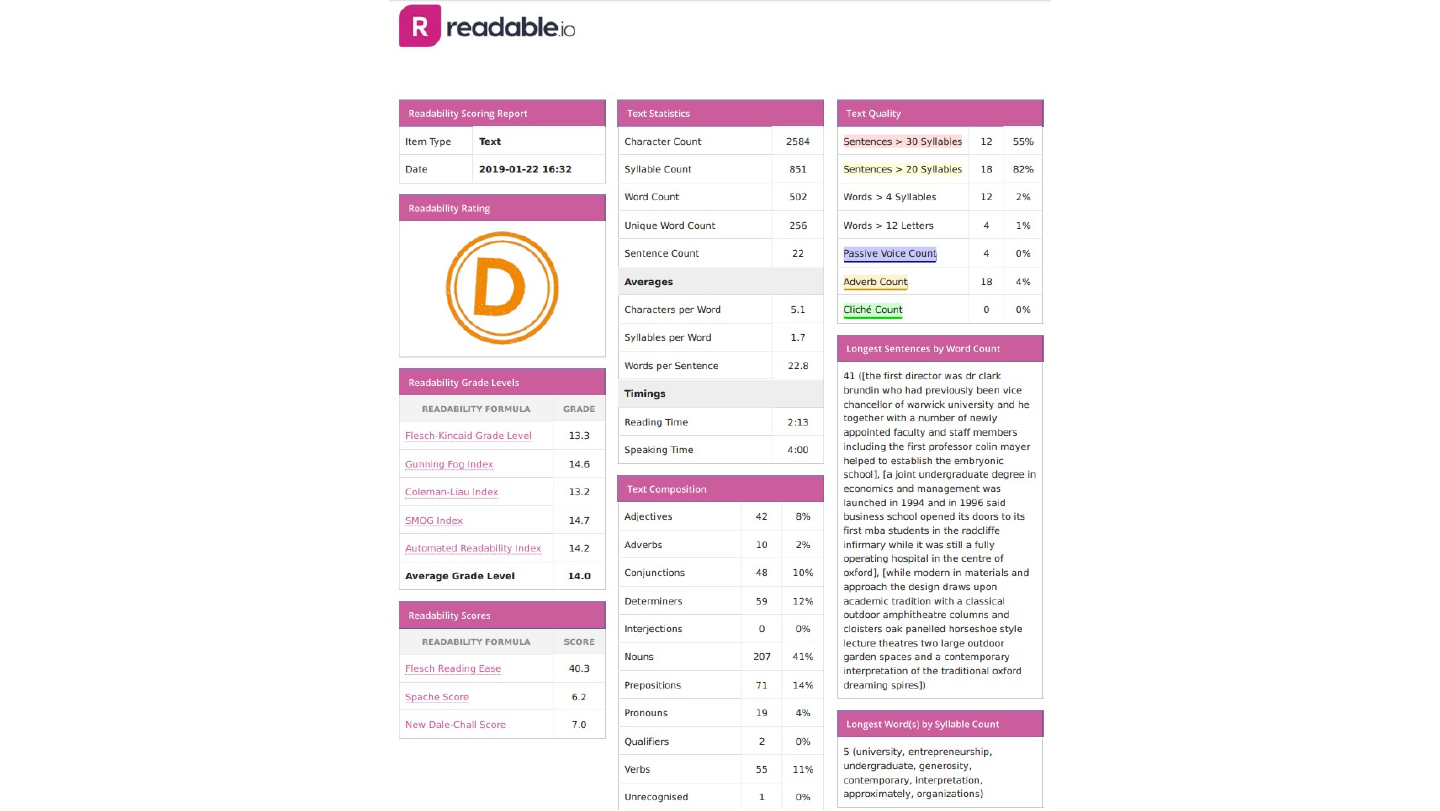
Screenshot of the Readable.io text analyser with a text pasted in, highlighted passages and a readability rating of “D” in a panel on the right.

Original slide 89 (image)

Slide 90: Slide 90

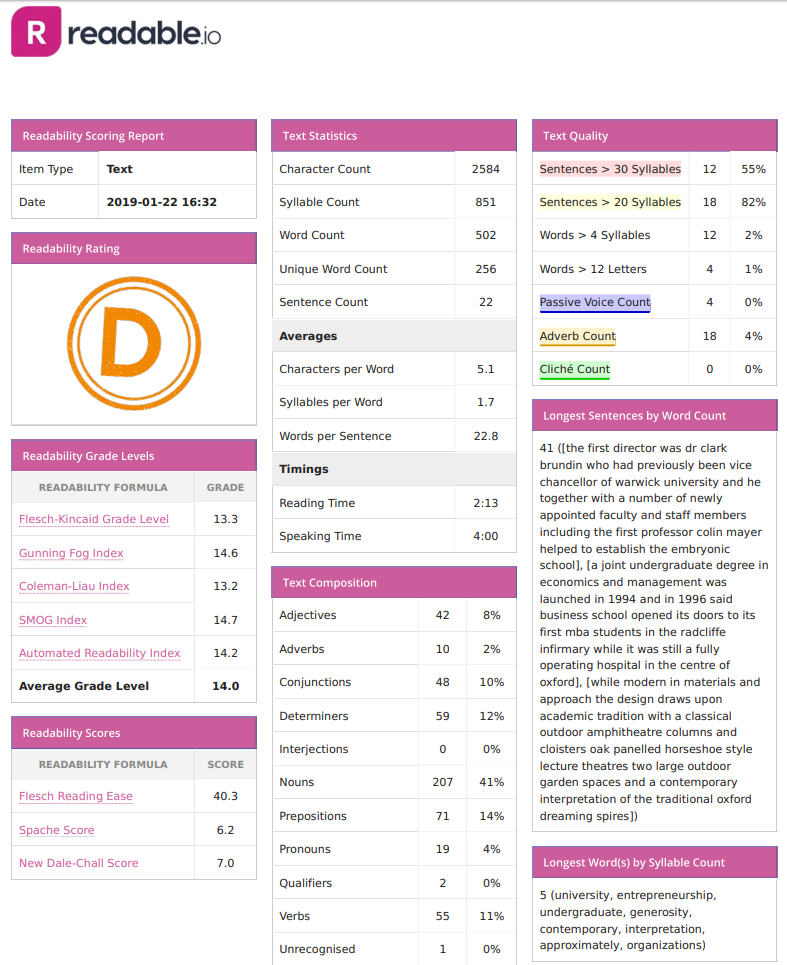
Screenshot of a Readable.io report with the rating “D” in an orange circle and tables of readability grade levels, text statistics and text quality.

Original slide 90 (image)

Slide 91: Slide 91

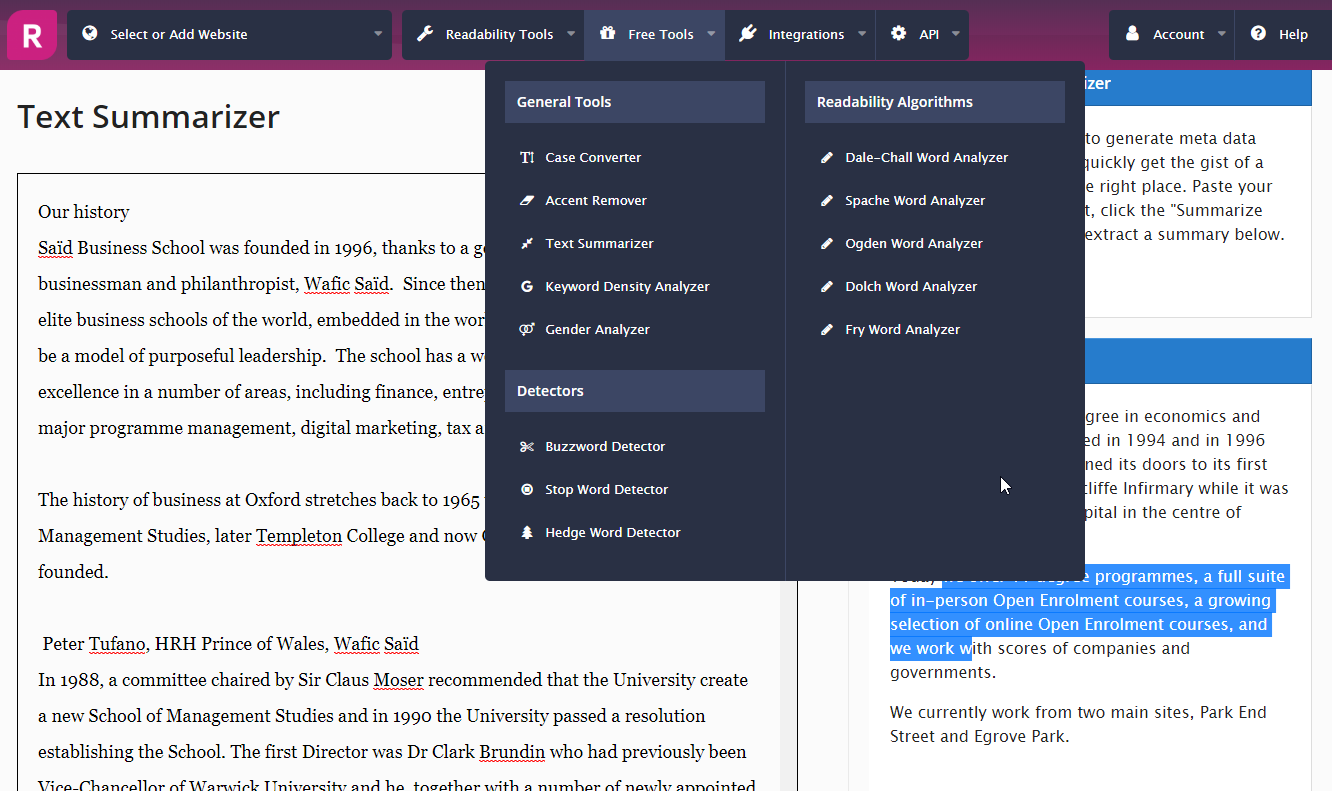
Screenshot of a Readable.io page, “Text Summarizer”, with its menus open: General Tools (Case Converter, Accent Remover, Text Summarizer, Keyword Density Analyzer, Gender Analyzer), Detectors (Buzzword Detector, Stop Word Detector, Hedge Word Detector) and Readability Algorithms.

Original slide 91 (image)

Slide 92: Slide 92

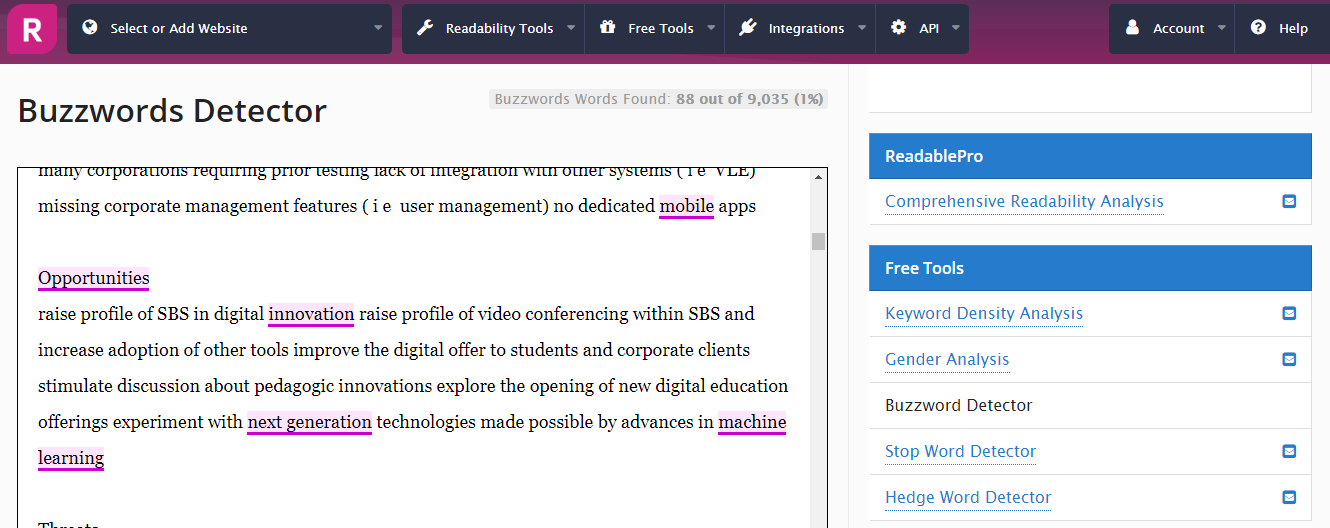
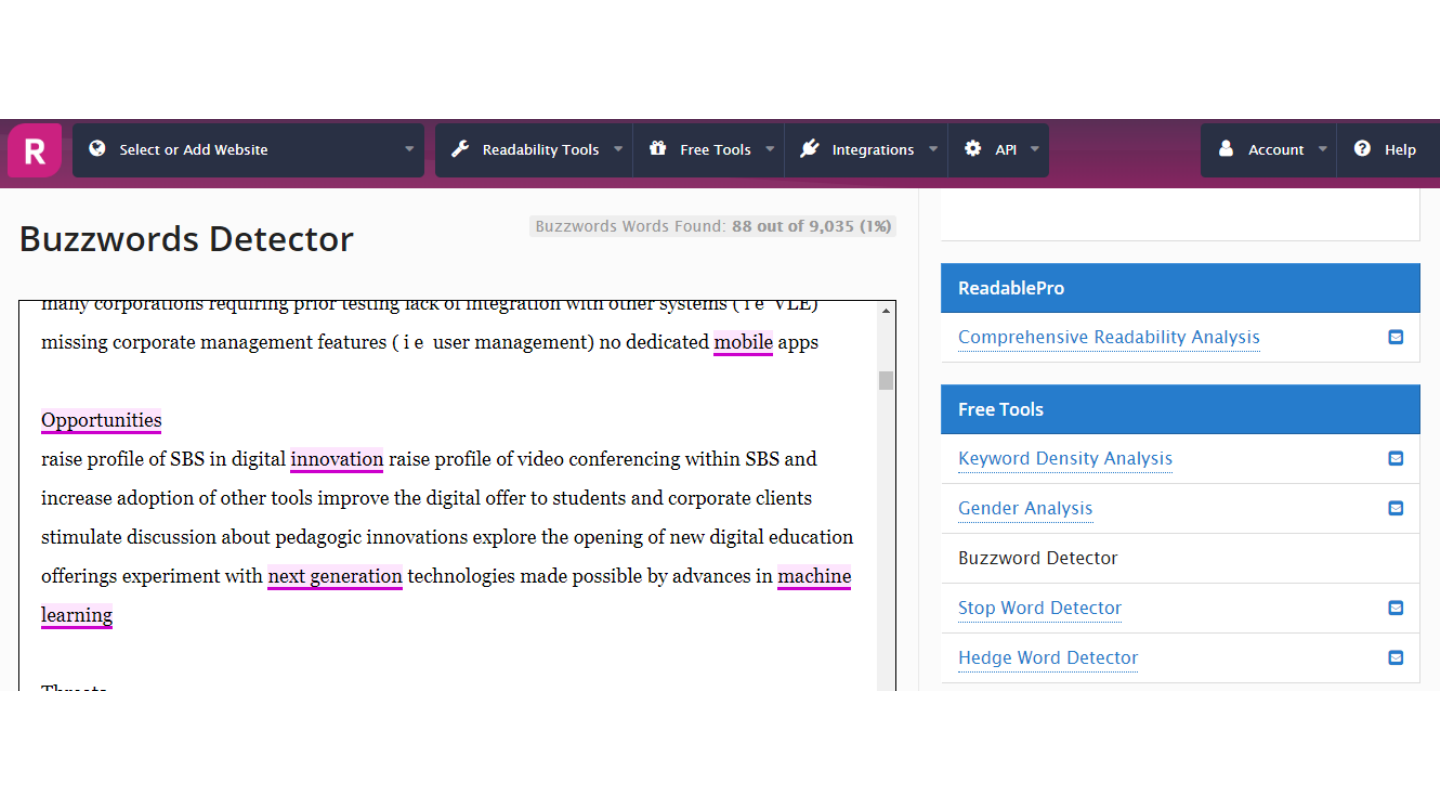
Screenshot of the “Buzzwords Detector” of Readable.io with a text in which buzzwords are underlined.

Original slide 92 (image)

Slide 93: Slide 93

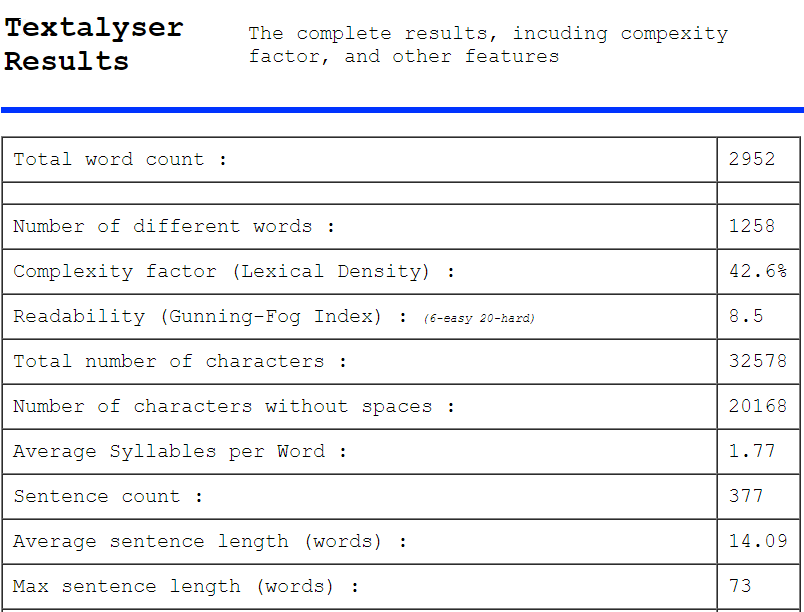
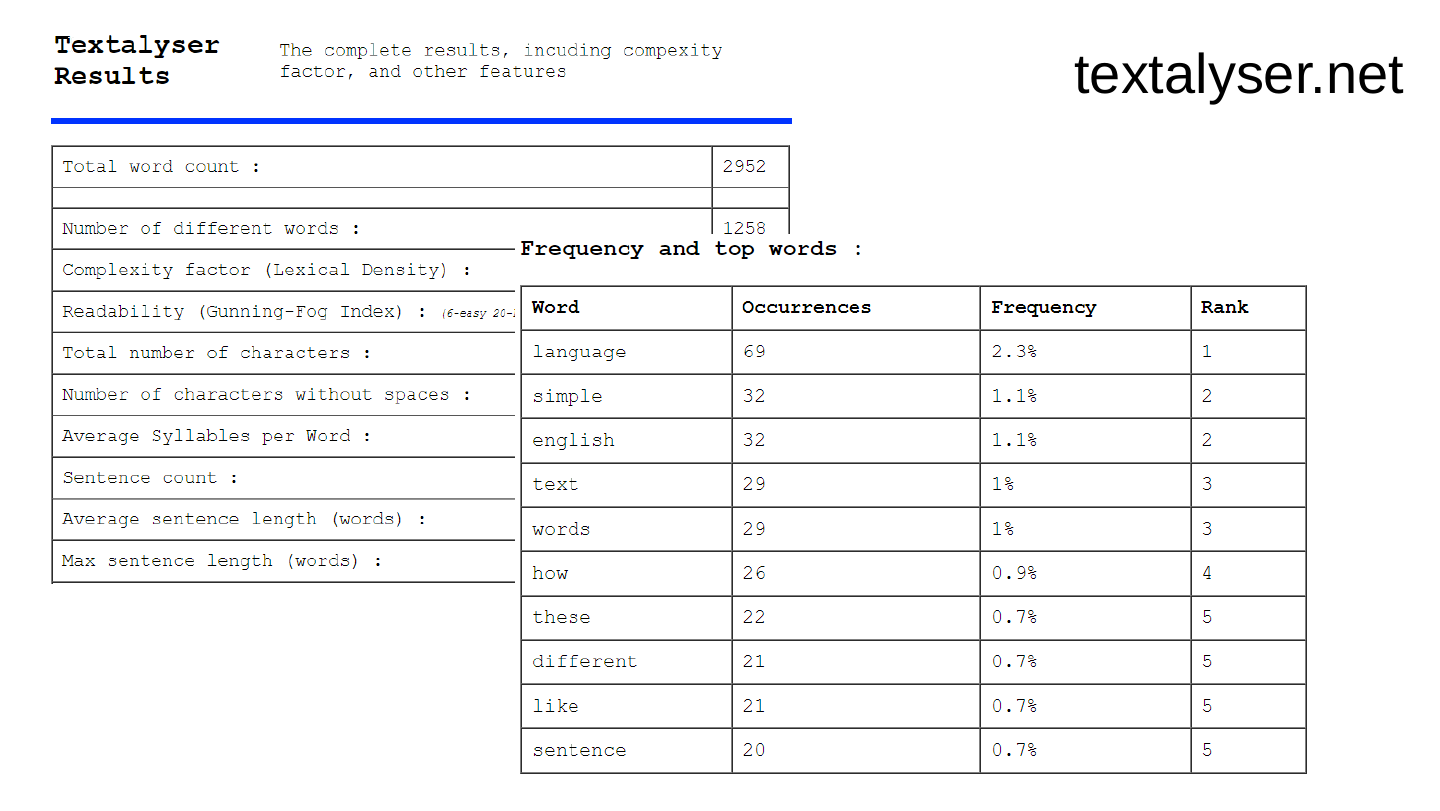
Screenshot of the results page of the textalyser.net text analyser: a table with the total word count, number of different words, complexity factor, readability (Gunning-Fog Index), sentence count and average sentence length.

textalyser.net

Original slide 93 (image)

Slide 94: Slide 94

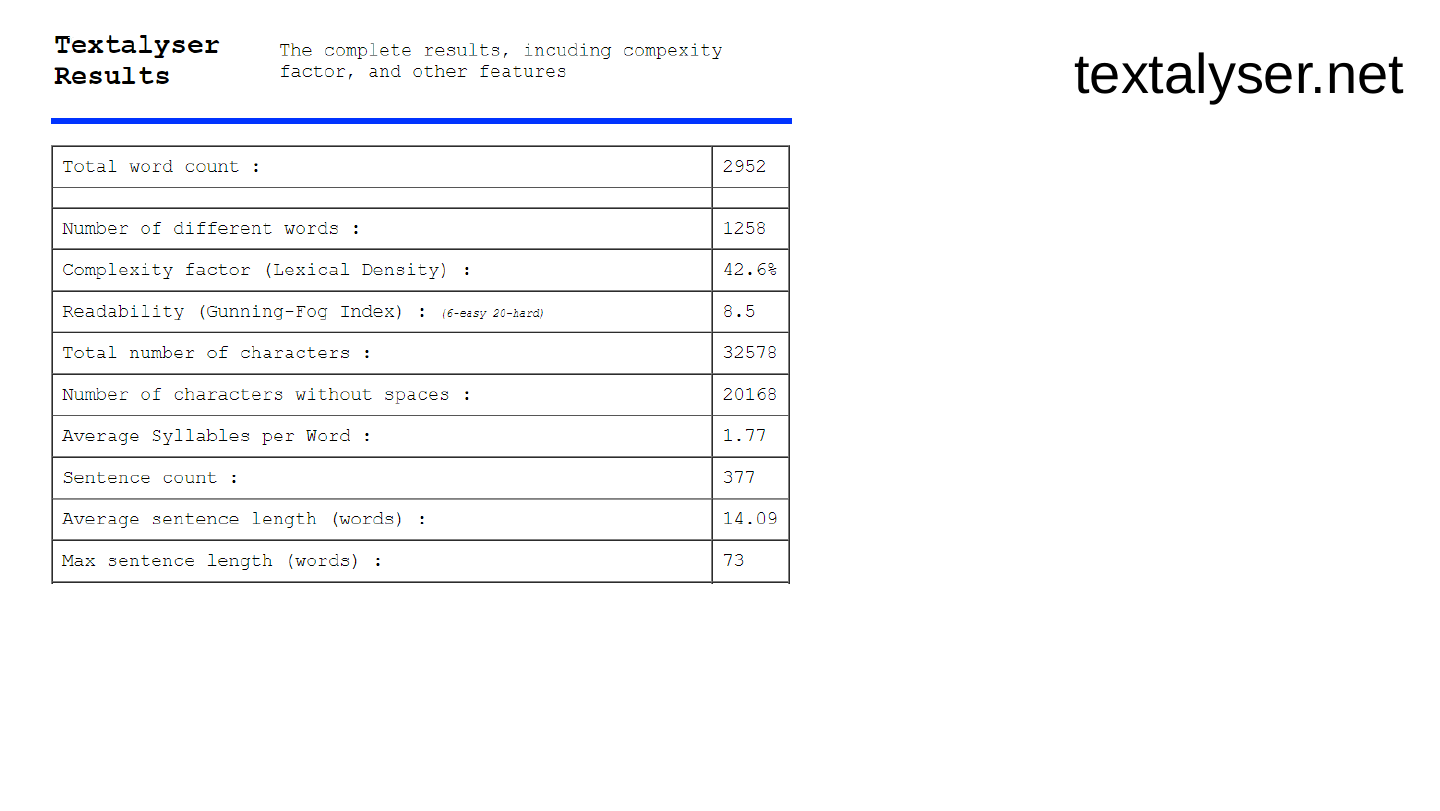
Screenshot of the results page of the textalyser.net text analyser: a table with the total word count, number of different words, complexity factor, readability (Gunning-Fog Index), sentence count and average sentence length.

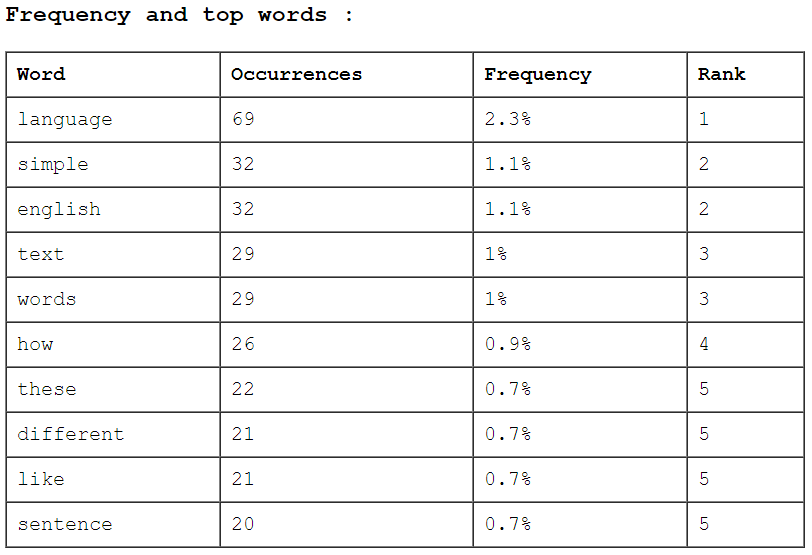
Screenshot of the textalyser.net frequency table, listing the most frequent words (language, simple, english, text, words, how, these, different, like, sentence) with occurrences, frequency and rank.

textalyser.net

Original slide 94 (image)

Slide 95: Slide 95

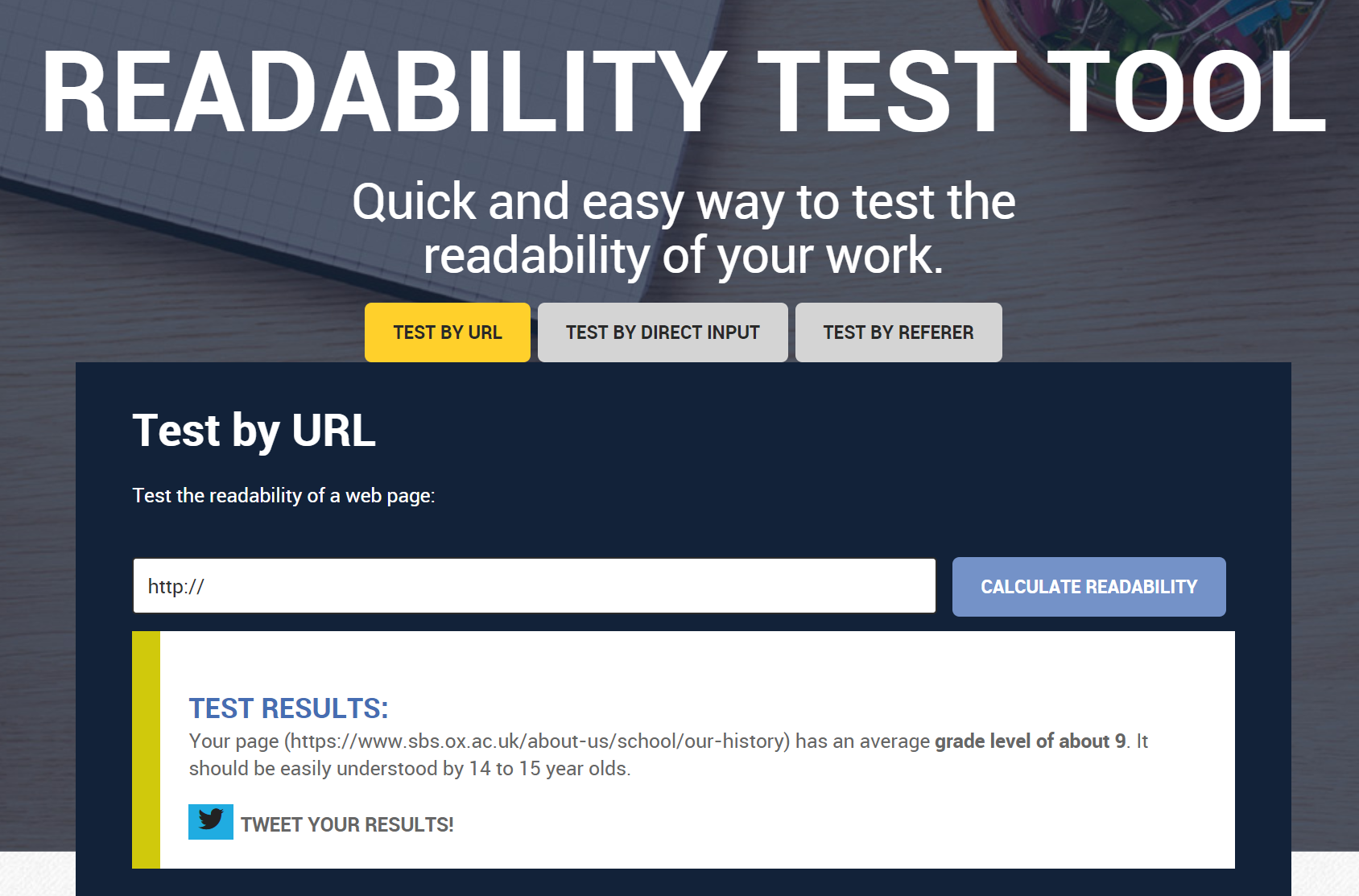
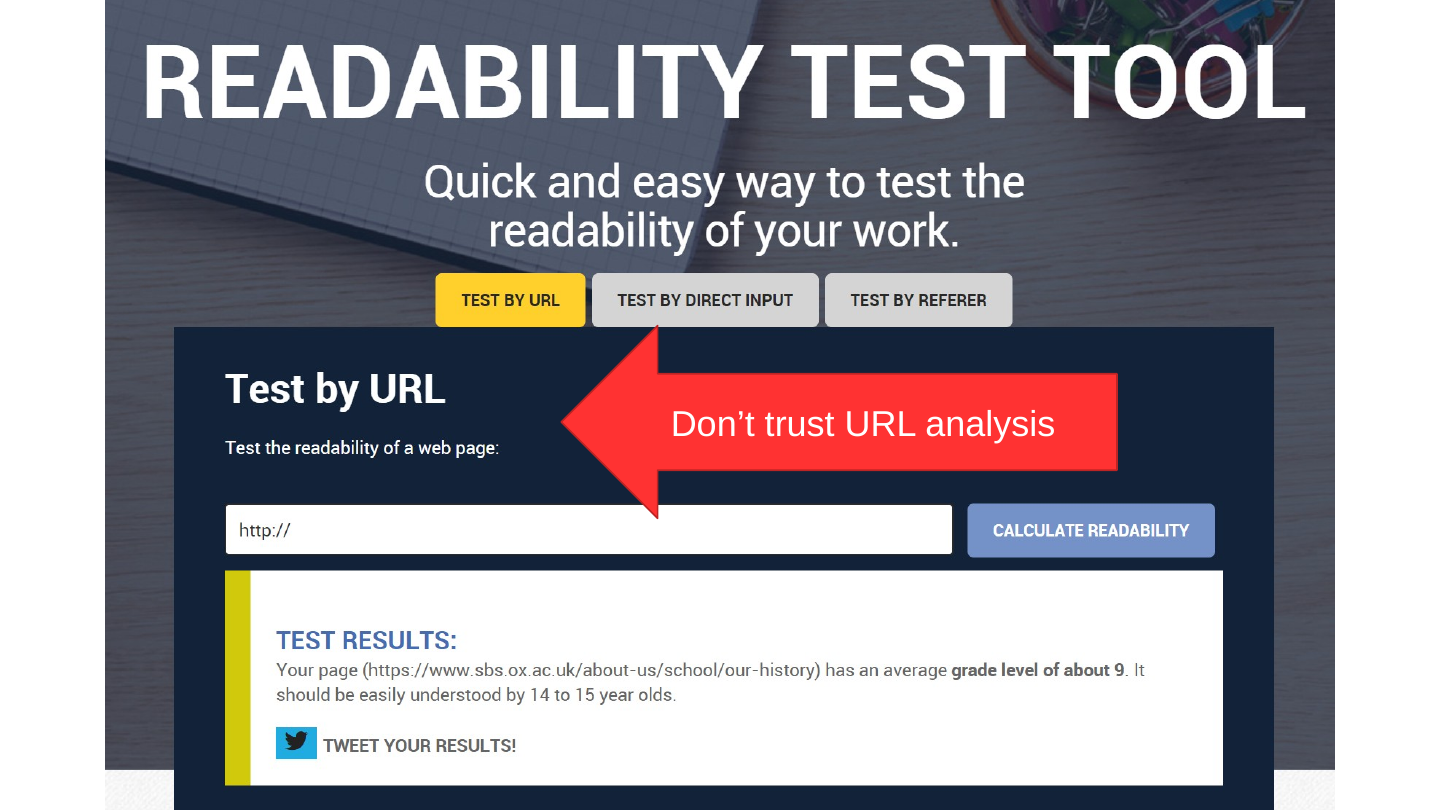
Screenshot of the Readability Test Tool web page with a “Test by URL” form and a results box saying that the page has an average grade level of about 9 and should be easily understood by 14 to 15 year olds.

Don’t trust URL analysis

Original slide 95 (image)

Slide 96: Word choice

Word choice

Original slide 96 (image)

Slide 97: Slide 97

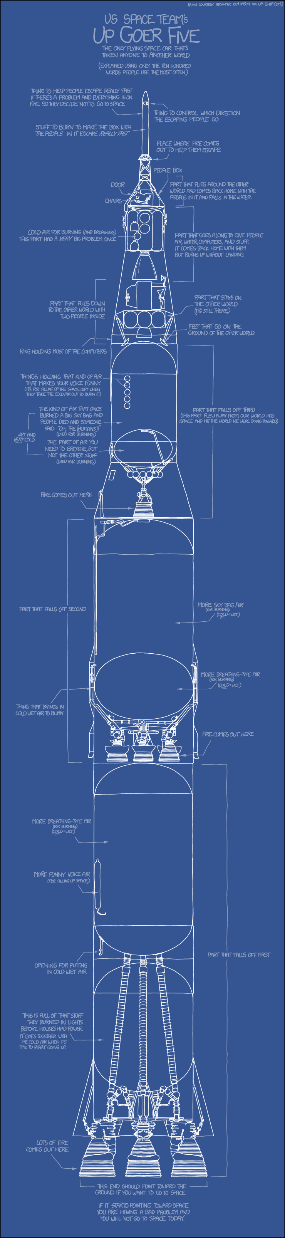
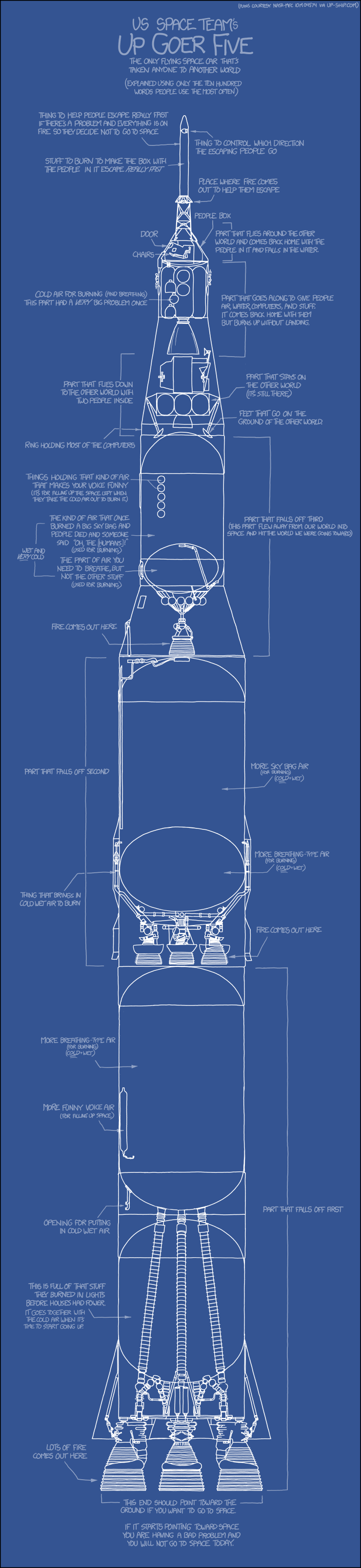
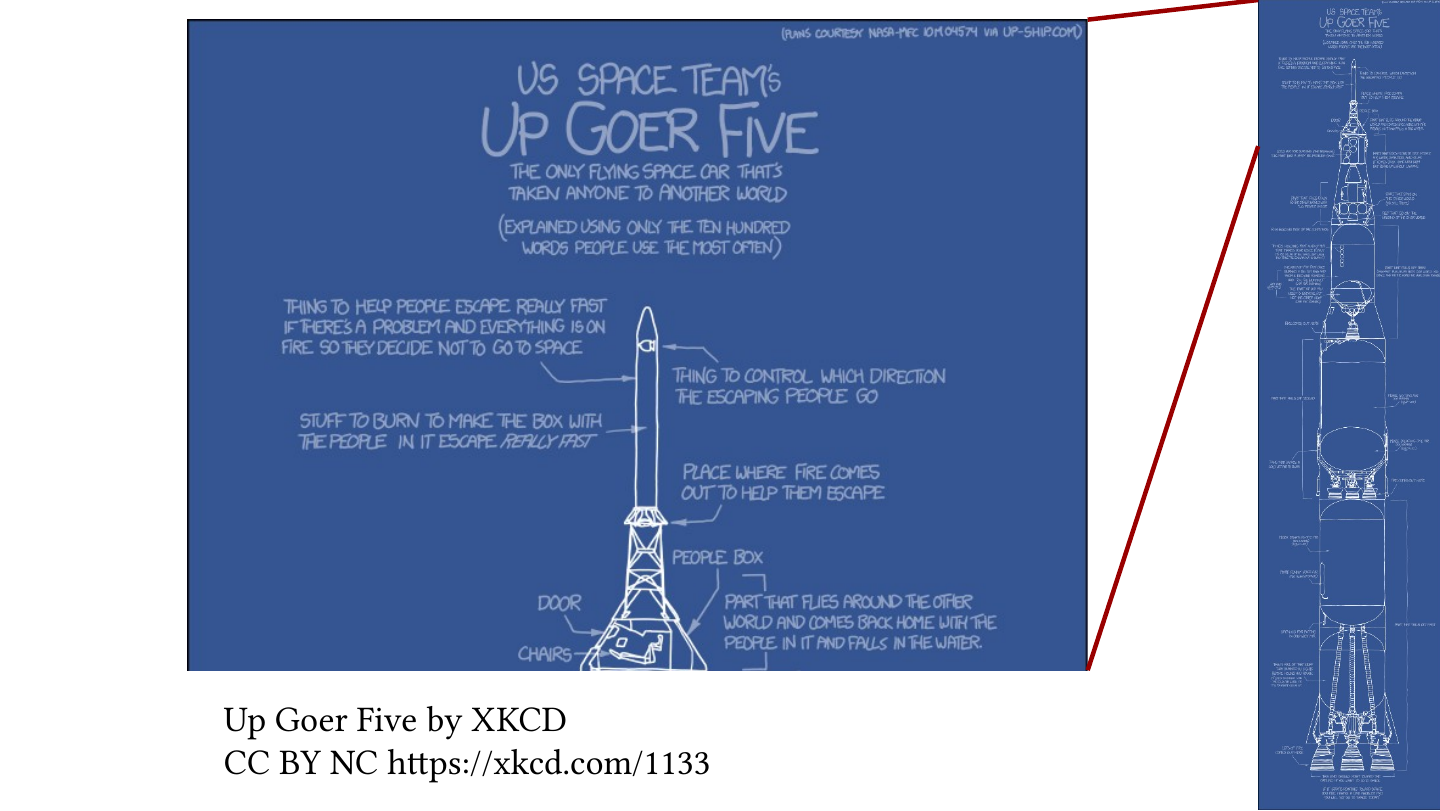
Reduced view of the whole xkcd comic “Up Goer Five”: a tall blueprint of a rocket.

The whole xkcd comic “Up Goer Five”, a tall blueprint of a rocket with labels written in simple words.

Up Goer Five by XKCD

CC BY NC https://xkcd.com/1133
Original slide 97 (image)

Slide 98: Slide 98

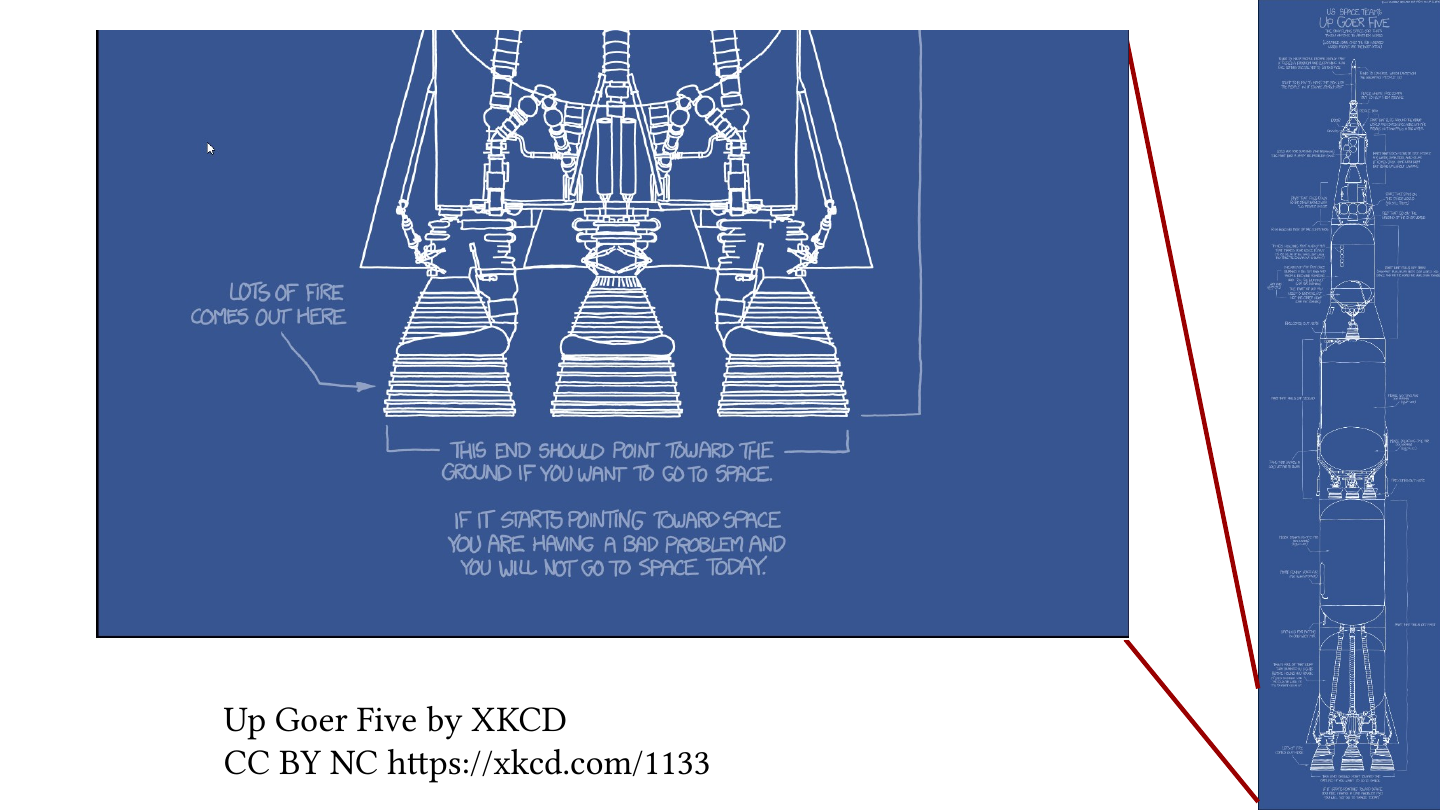
Reduced view of the whole xkcd comic “Up Goer Five”: a tall blueprint of a rocket.

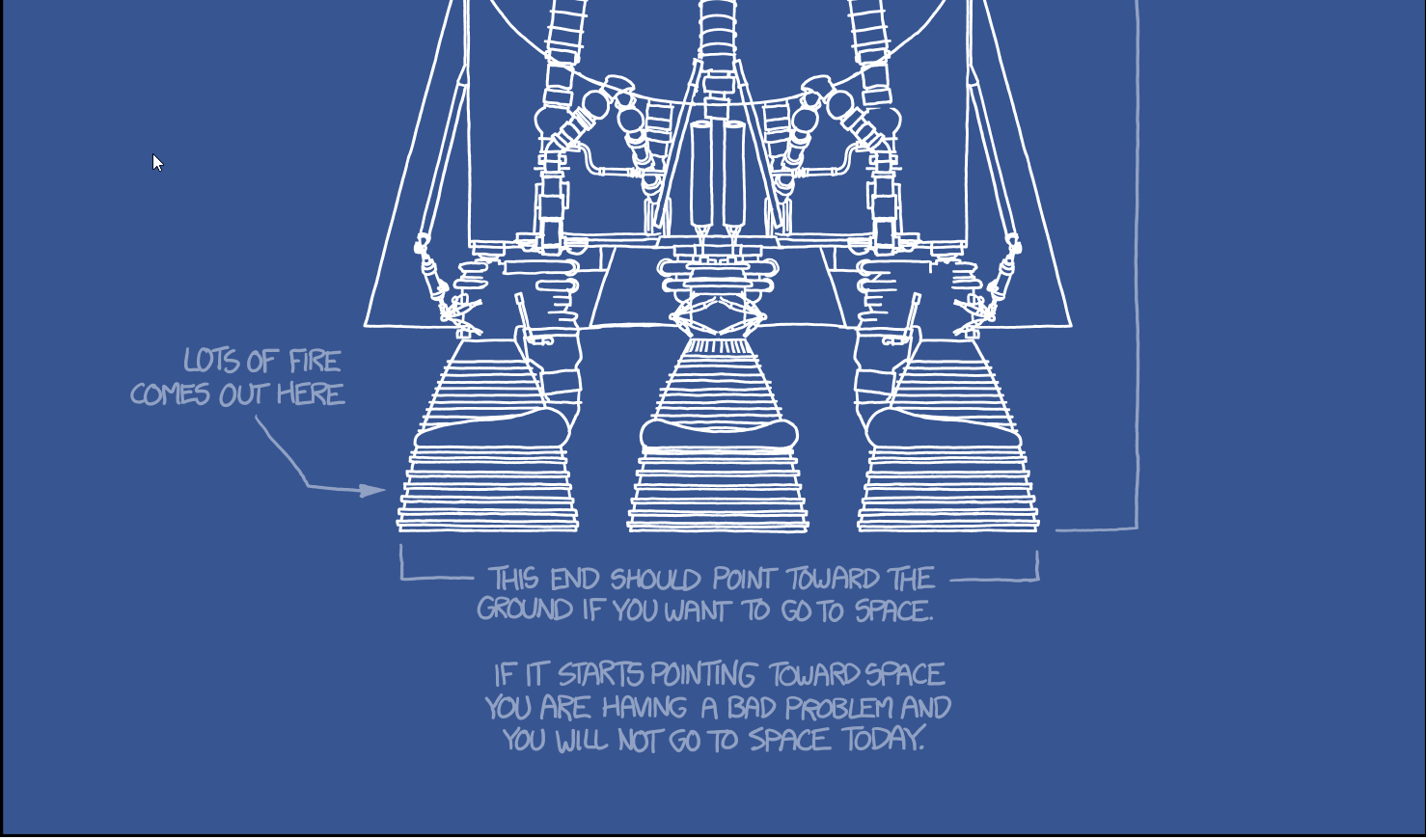
Detail of the xkcd comic “Up Goer Five”: the rocket engines, labelled “Lots of fire comes out here” and “This end should point toward the ground if you want to go to space”.

Up Goer Five by XKCD

CC BY NC https://xkcd.com/1133
Original slide 98 (image)

Slide 99: Slide 99

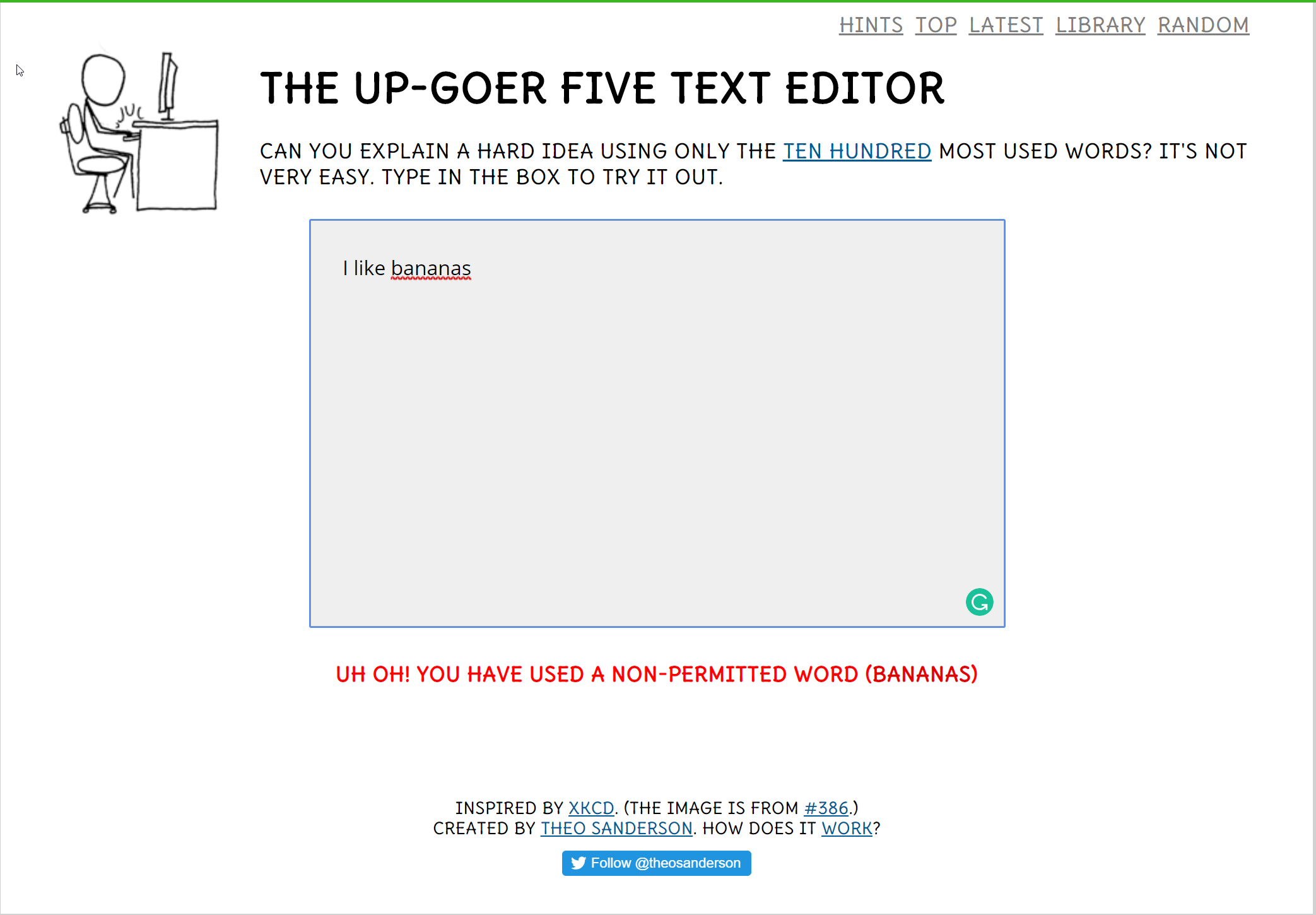
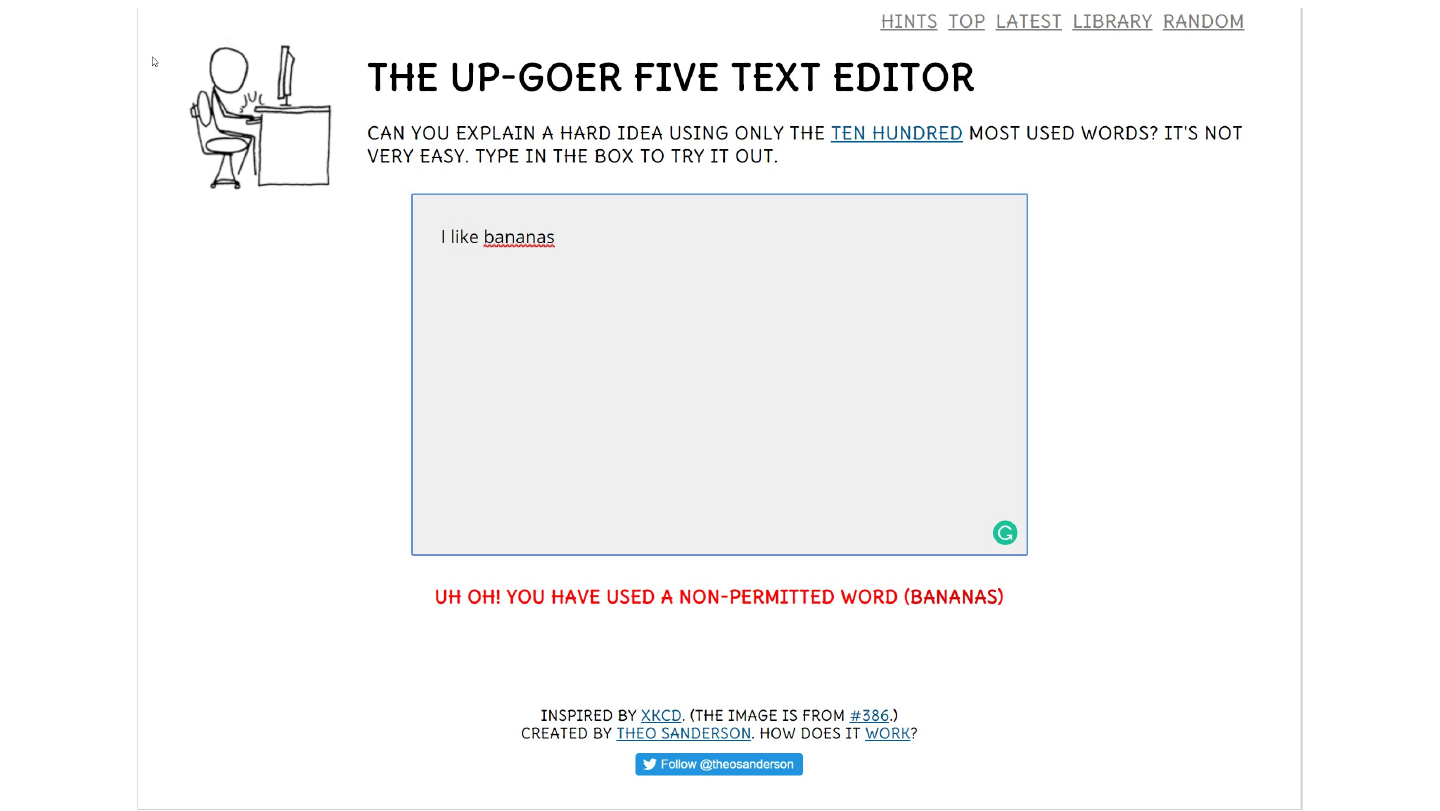
Screenshot of the Up-Goer Five Text Editor, with the text “I like bananas” and the message “Uh oh! You have used a non-permitted word (bananas)”.

Original slide 99 (image)

Slide 100: Slide 100

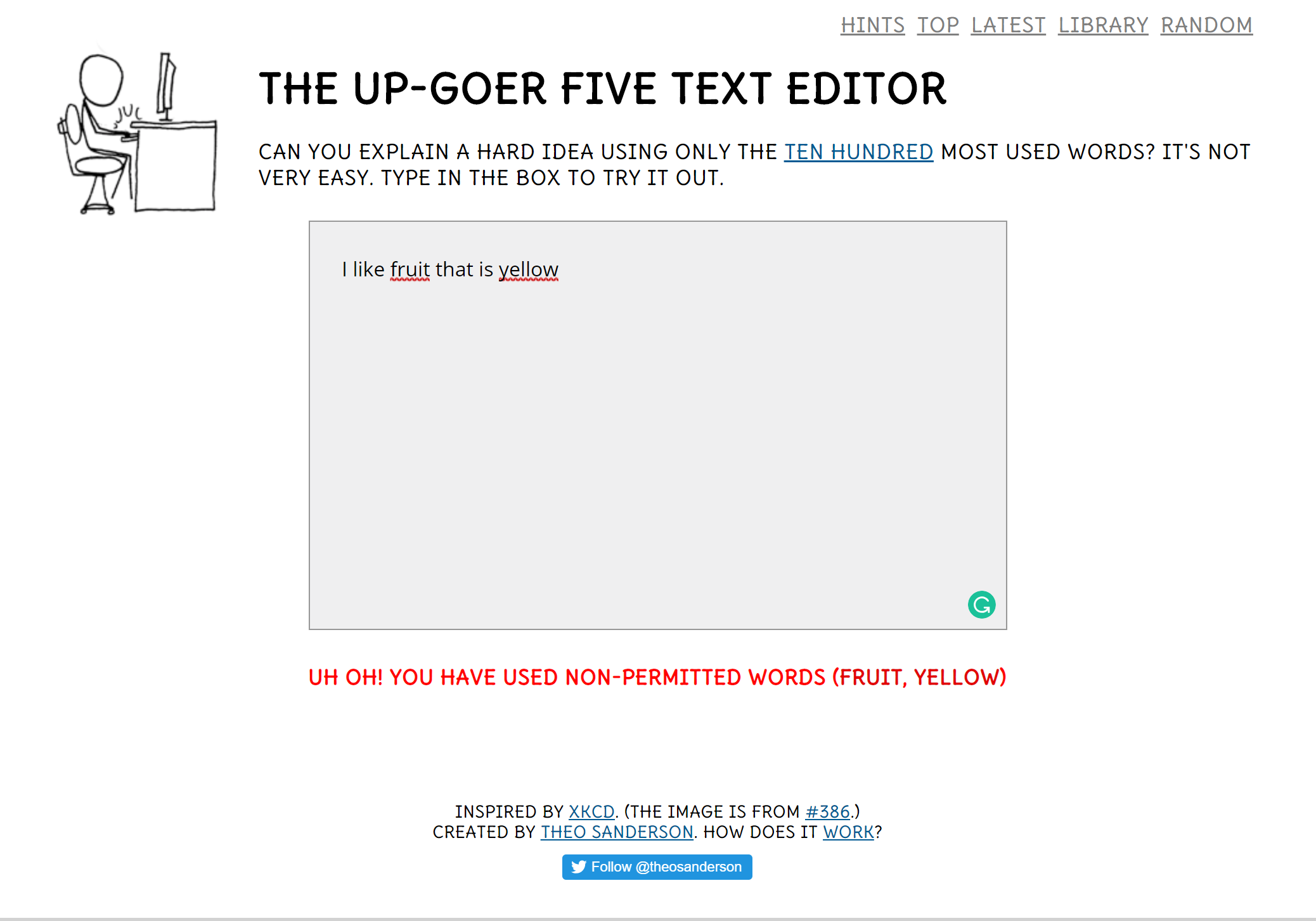
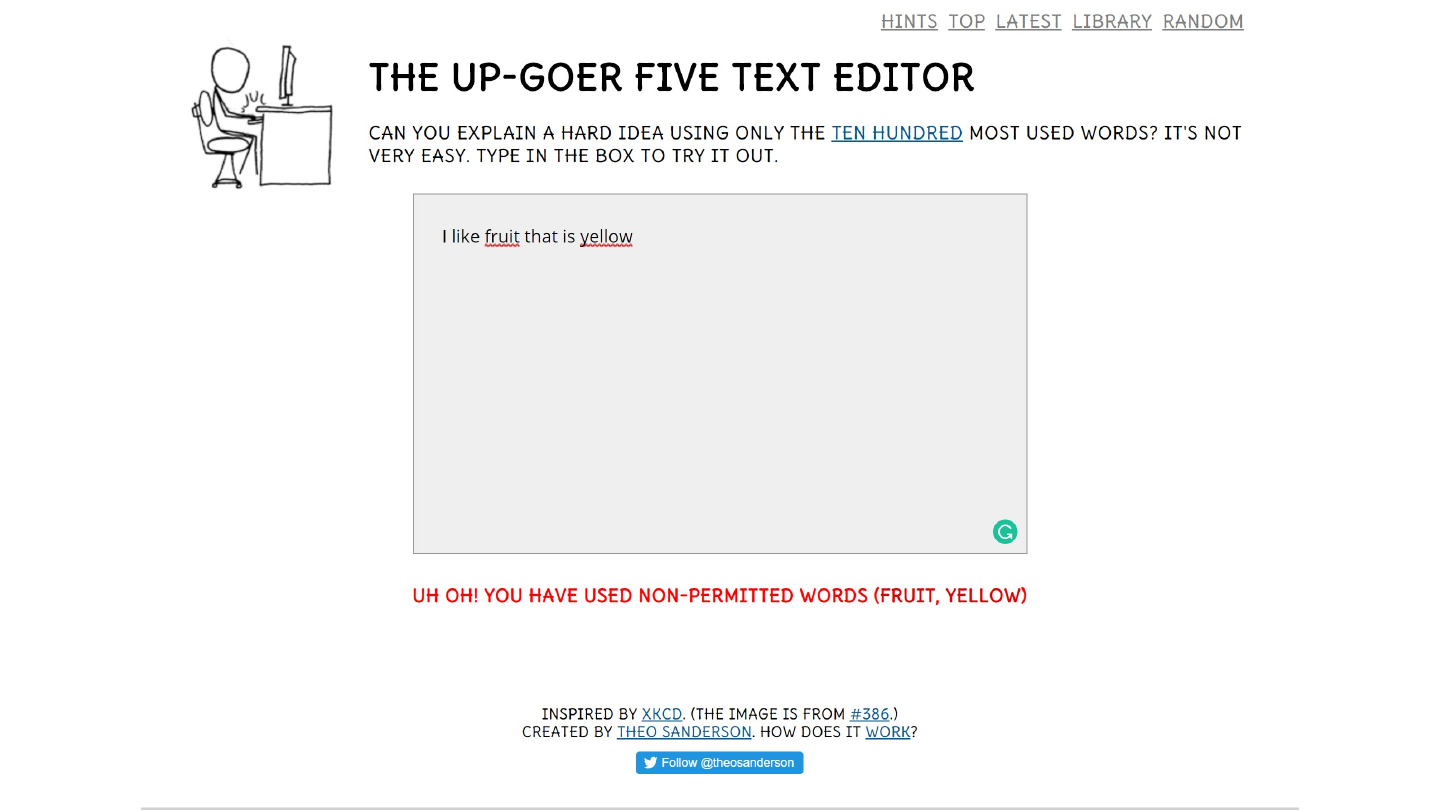
Screenshot of the Up-Goer Five Text Editor, with the text “I like fruit that is yellow” and the message “Uh oh! You have used non-permitted words (fruit, yellow)”.

Original slide 100 (image)

Slide 101: Slide 101

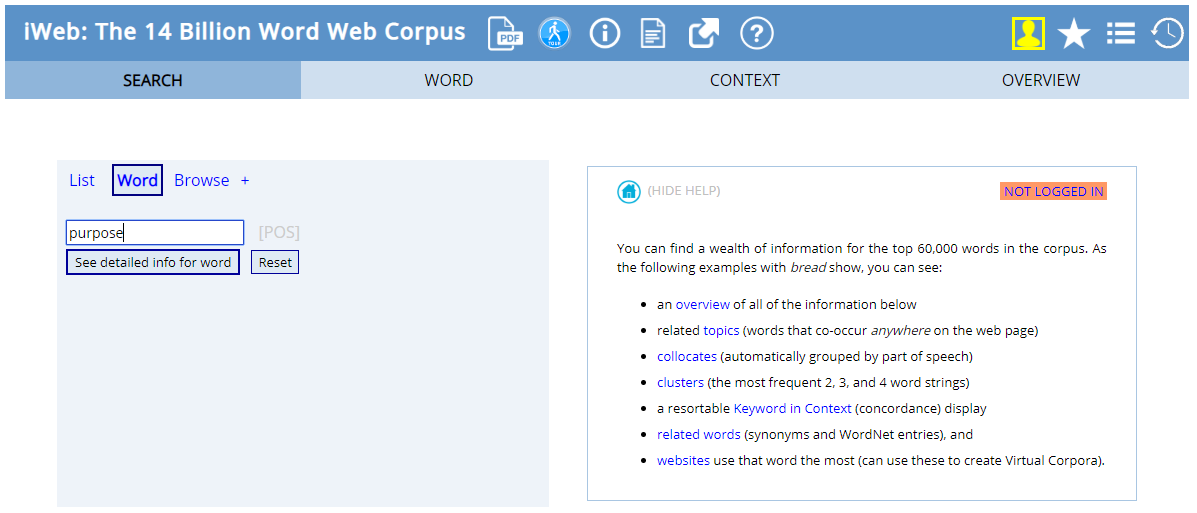
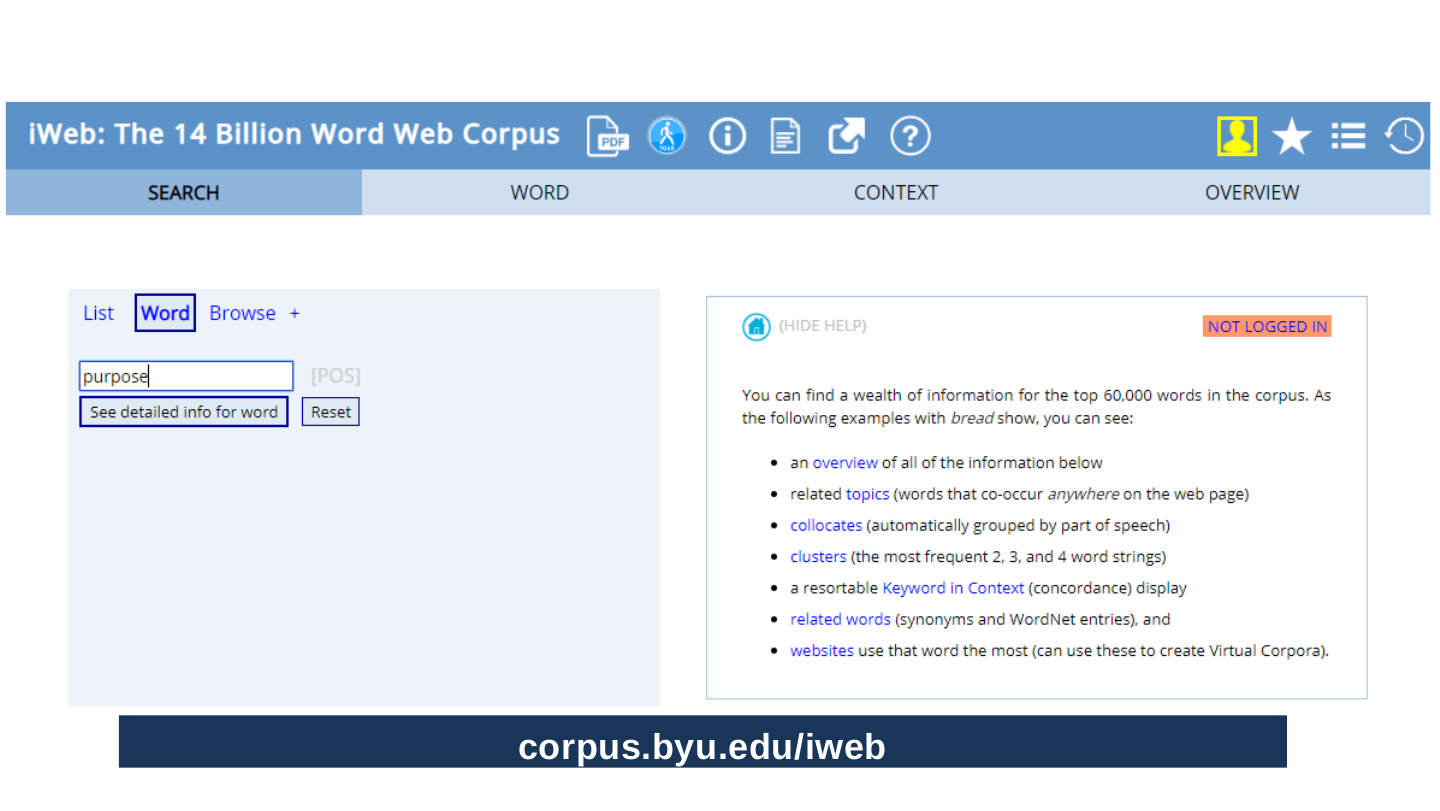
Screenshot of the search page of iWeb: The 14 Billion Word Web Corpus, with the word “purpose” typed into the Word search box.

corpus.byu.edu/iweb

Original slide 101 (image)

Slide 102: corpus.byu.edu/iweb

corpus.byu.edu/iweb
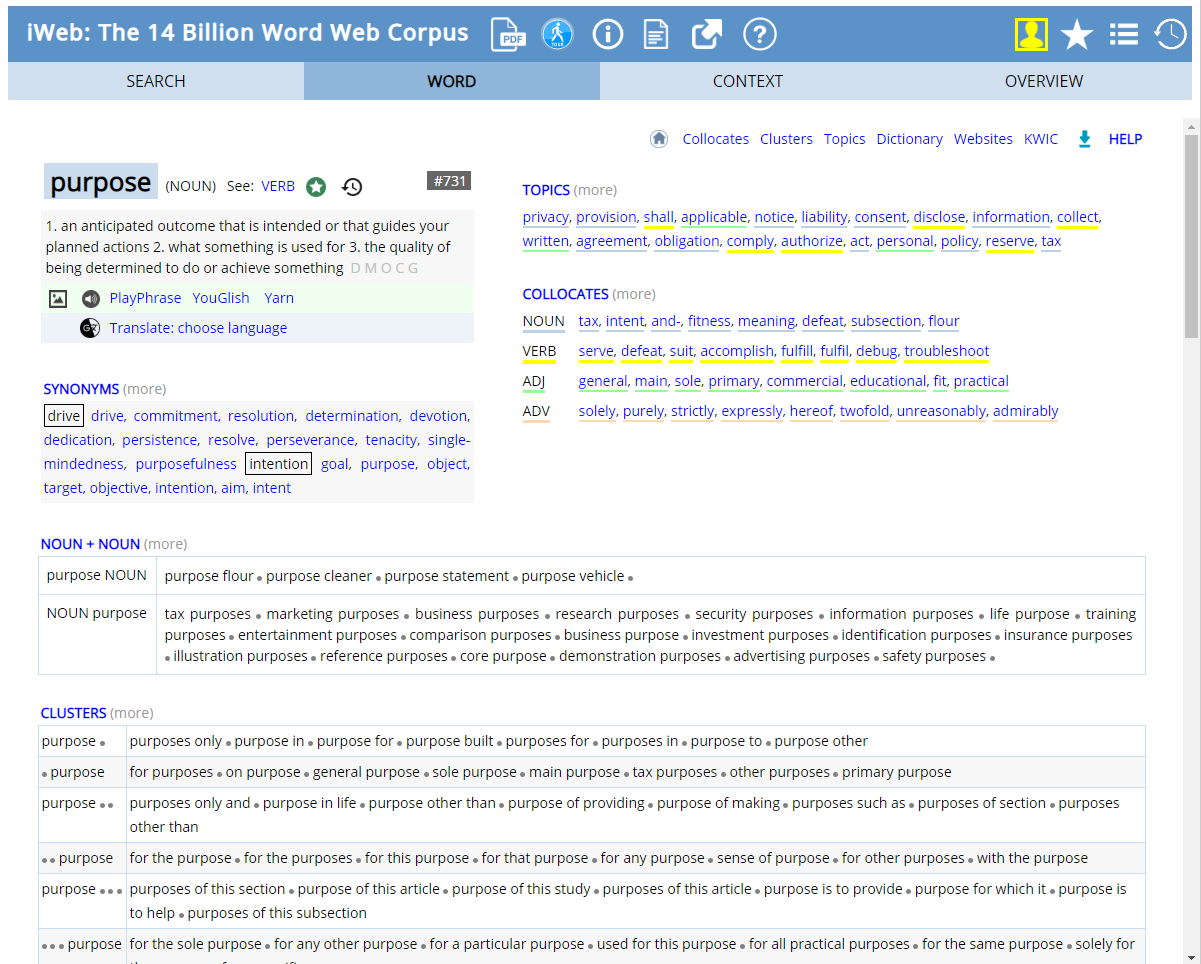
Screenshot of the iWeb results for the word “purpose”: its frequency, topics, collocates, clusters and related words.

Original slide 102 (image)

Slide 103: corpus.byu.edu/iweb

corpus.byu.edu/iweb
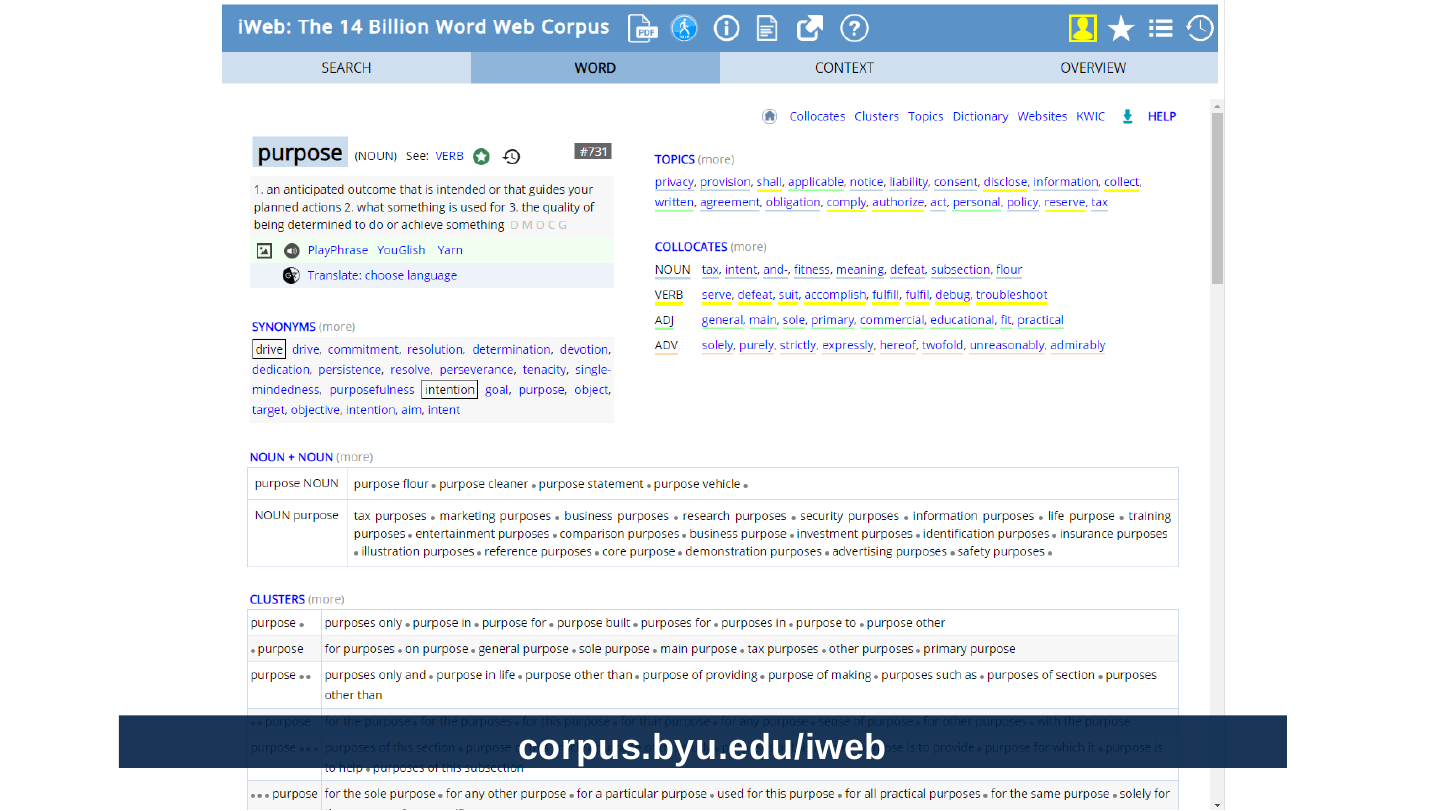
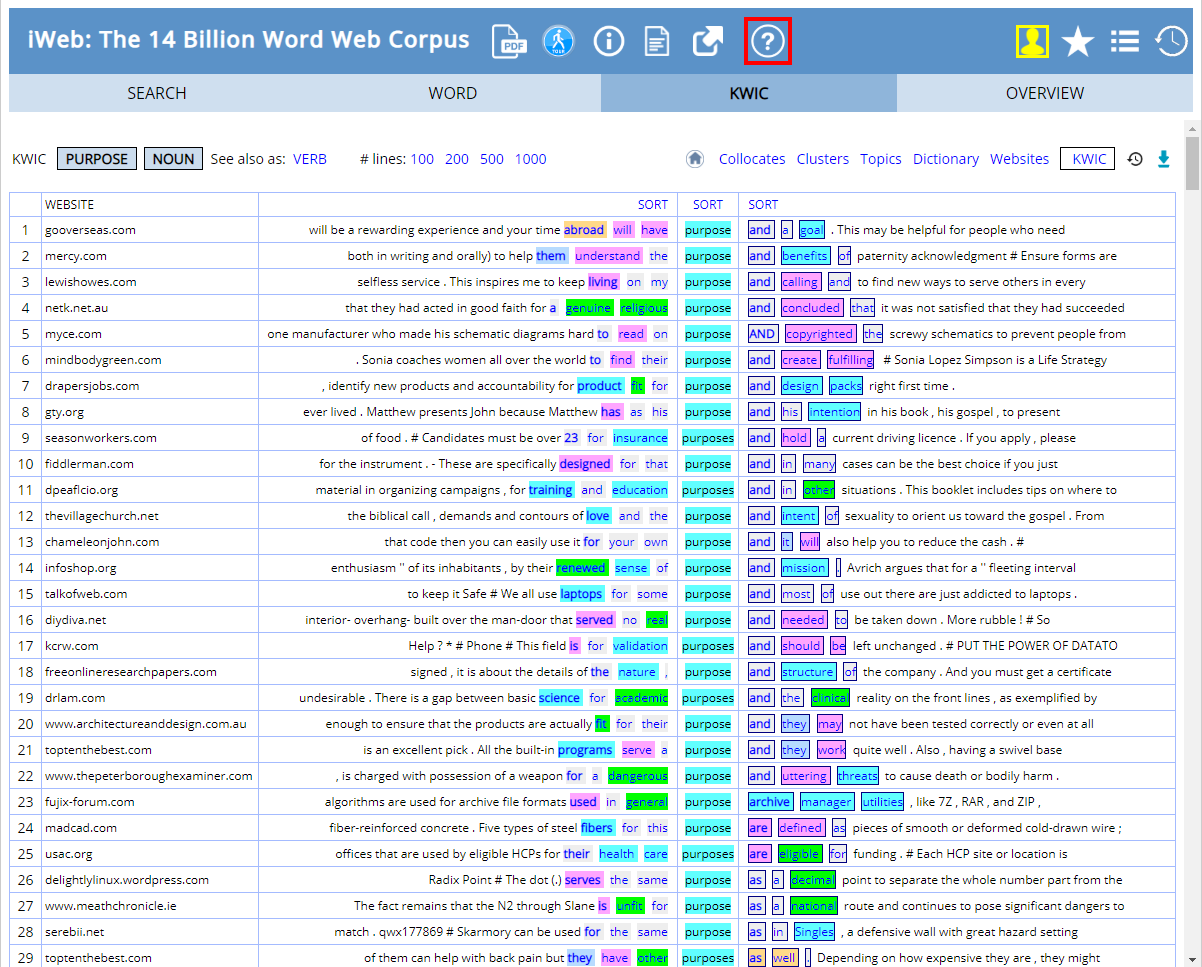
Screenshot of the iWeb key-word-in-context view for “purpose”: a long list of lines from web pages with the word highlighted.

Original slide 103 (image)

Slide 104: Grammar, spelling, style

Grammar, spelling, style
Original slide 104 (image)

Slide 105: Slide 105

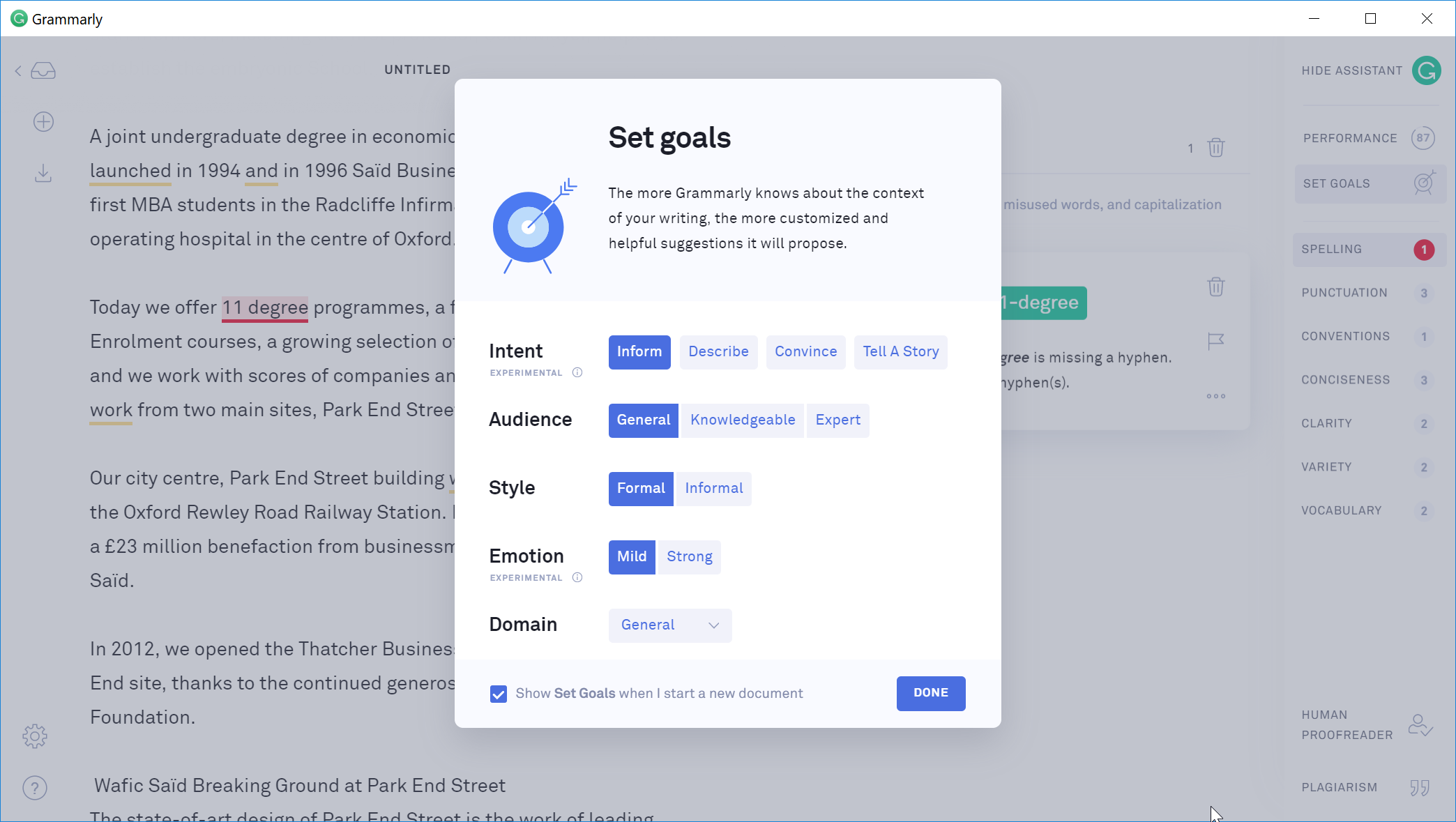
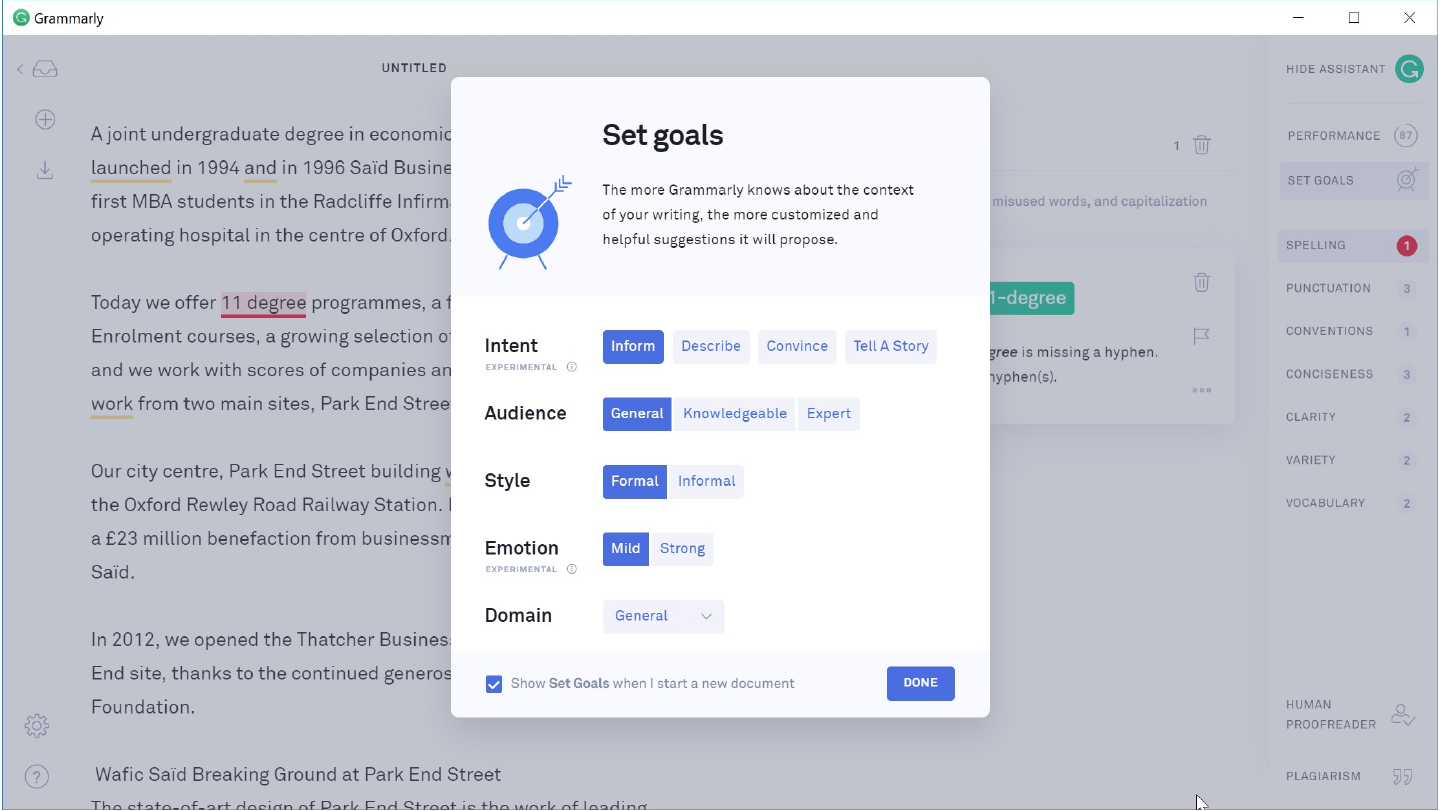
Screenshot of Grammarly with a “Set goals” dialog over a document, offering Intent, Audience, Style, Emotion and Domain settings.

Original slide 105 (image)

Slide 106: Slide 106

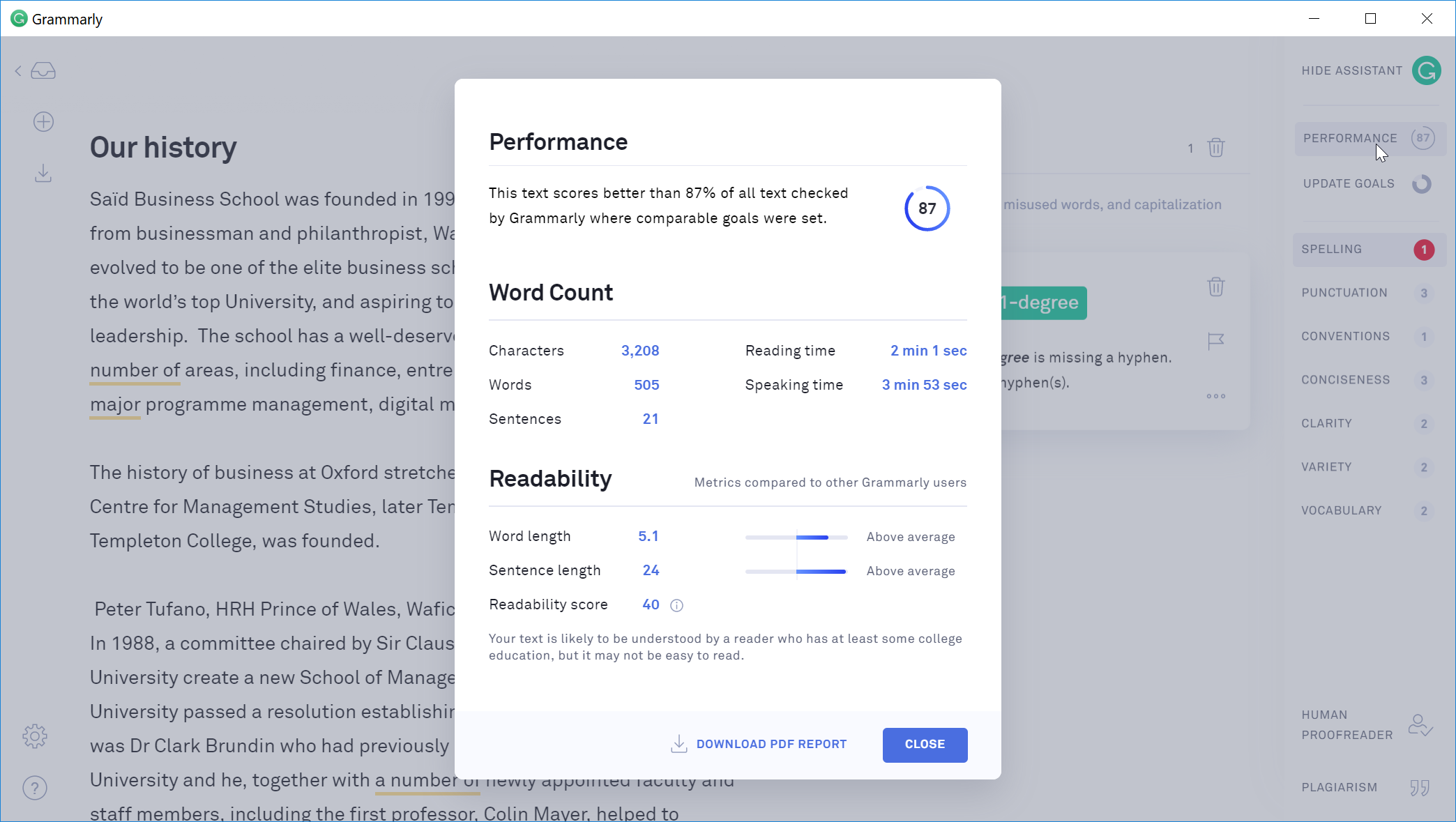
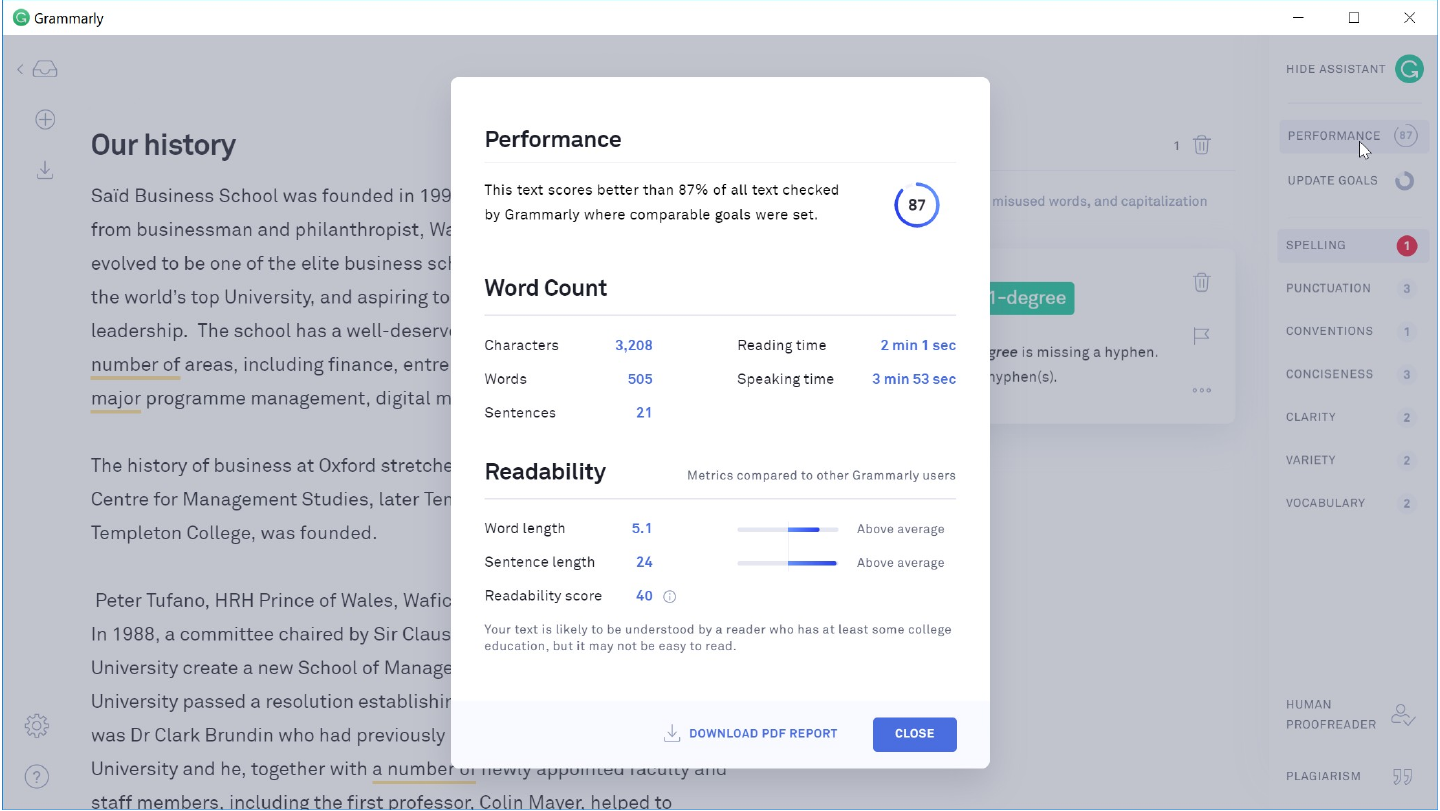
Screenshot of Grammarly with a “Performance” panel over the document “Our history”: an overall score, word count, reading time and readability measures.

Original slide 106 (image)

Slide 107: Slide 107

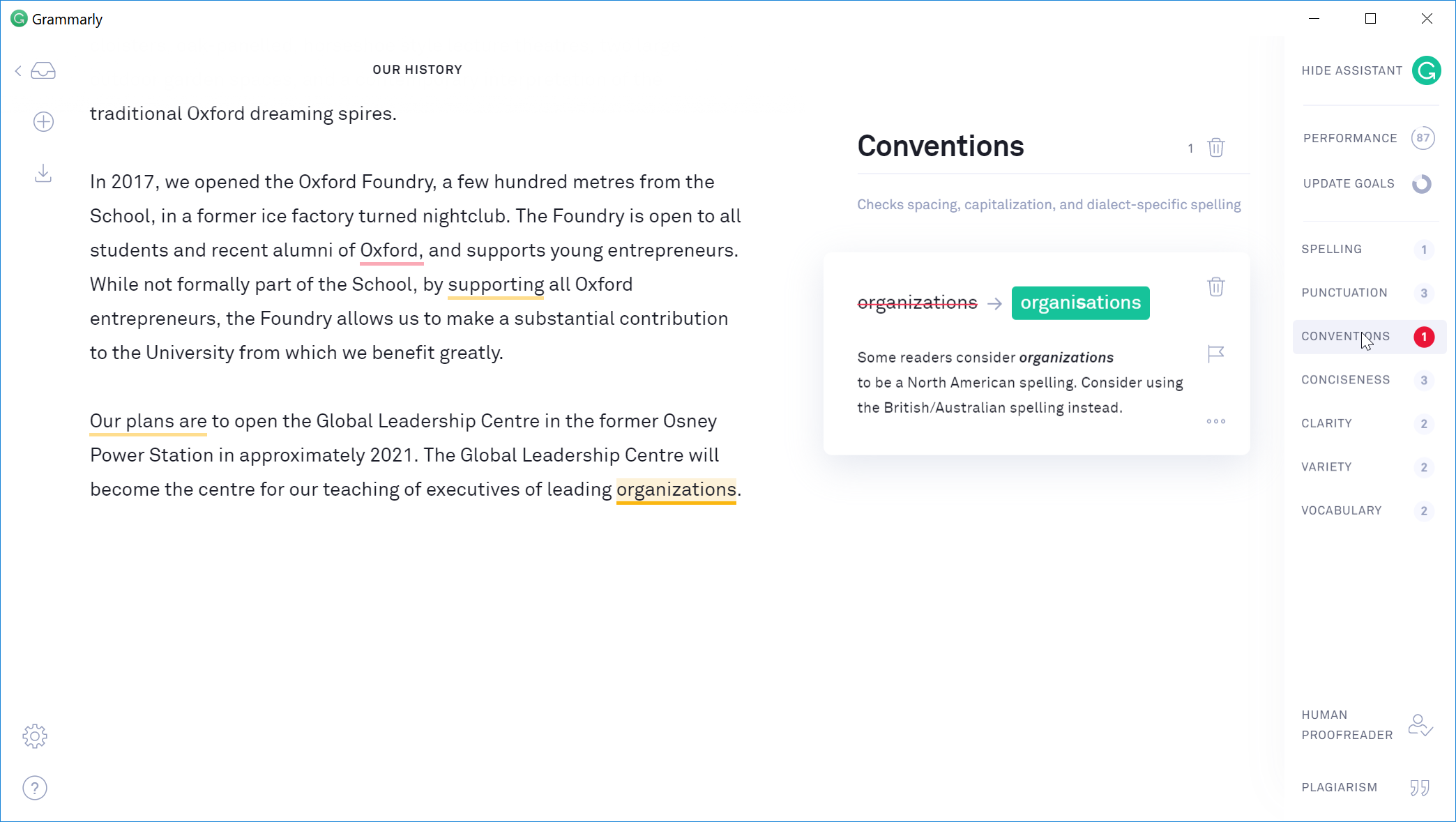
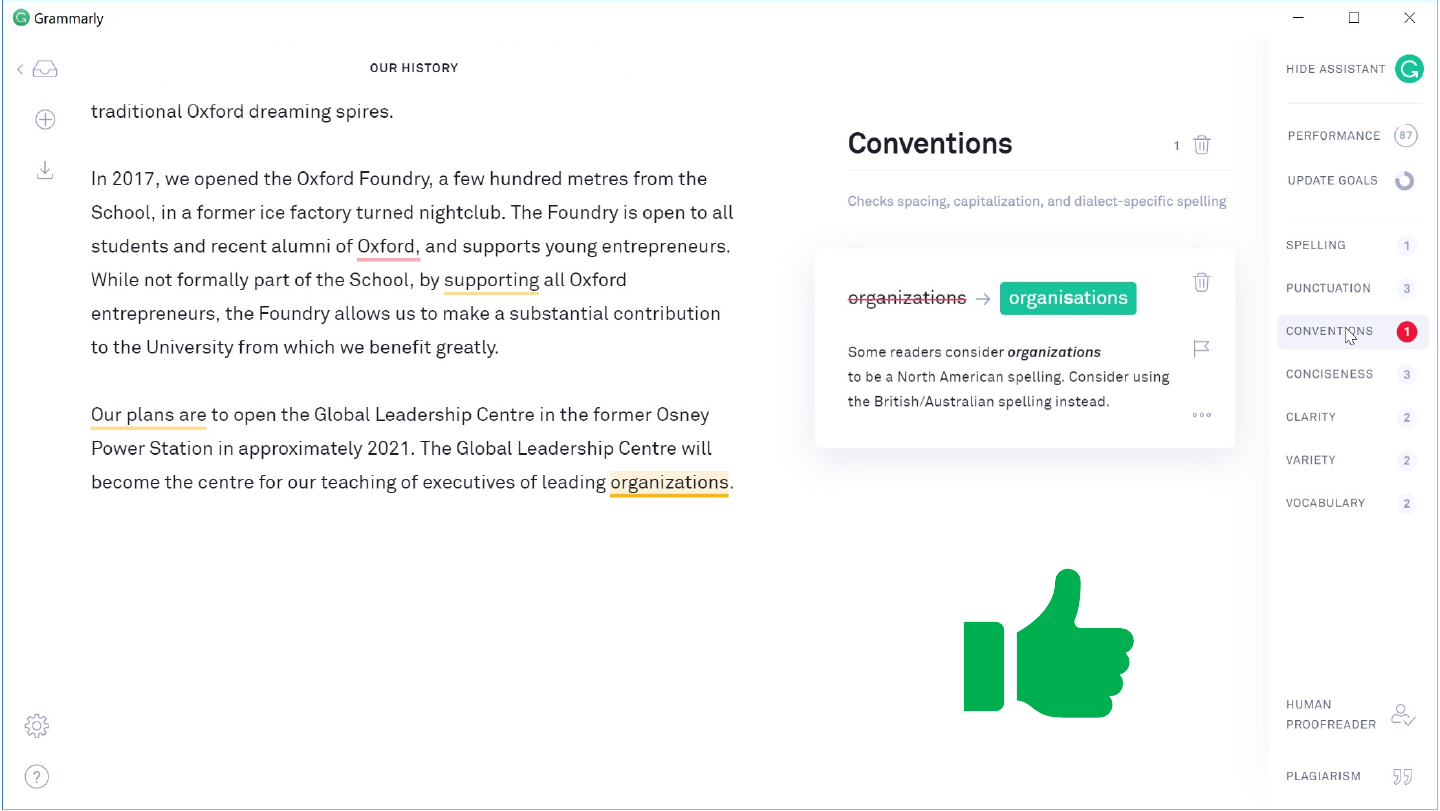
Screenshot of Grammarly with a “Conventions” panel suggesting the British spelling “organisations” for “organizations”.

Green thumbs-up icon.

Original slide 107 (image)

Slide 108: Slide 108

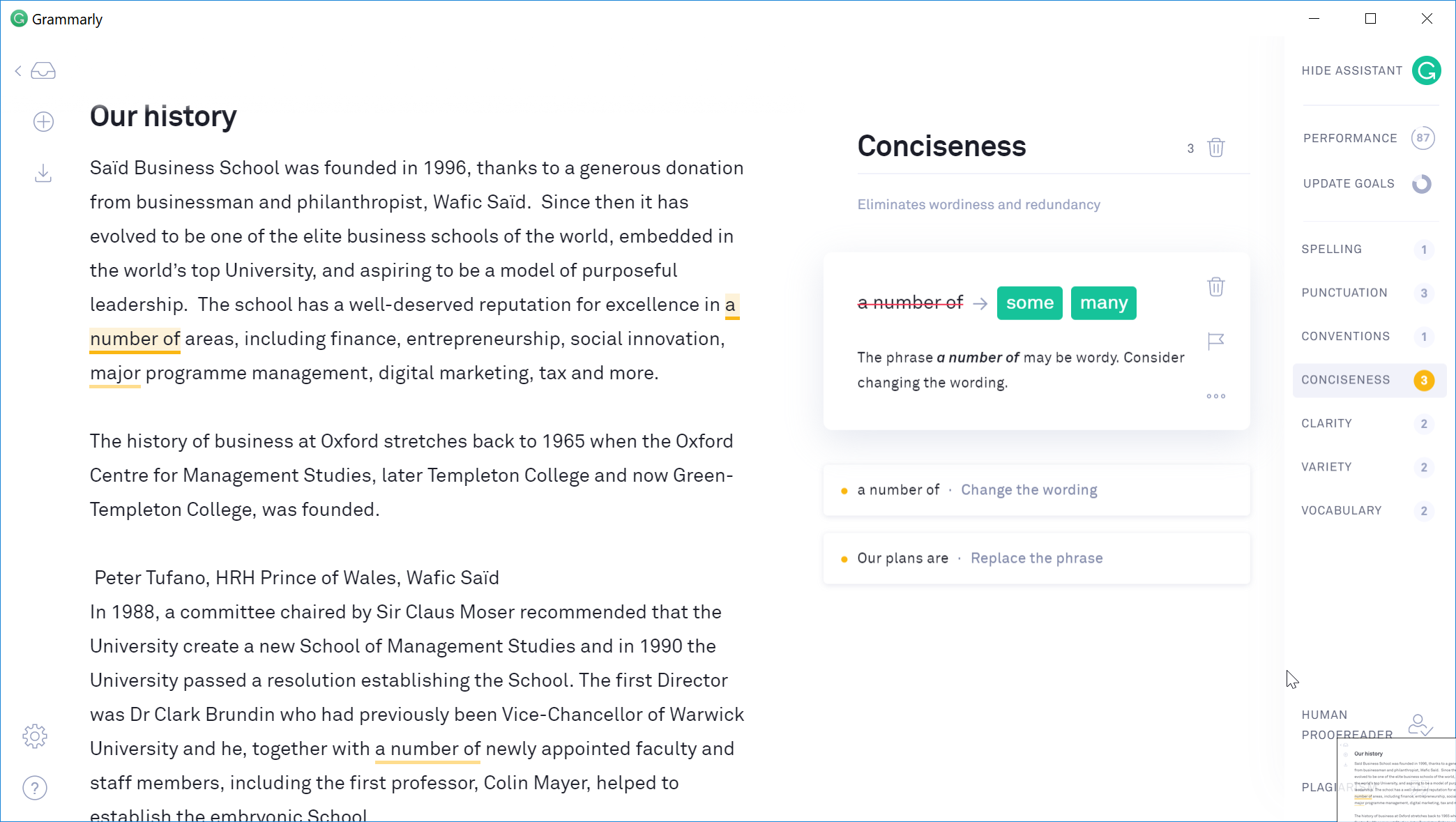
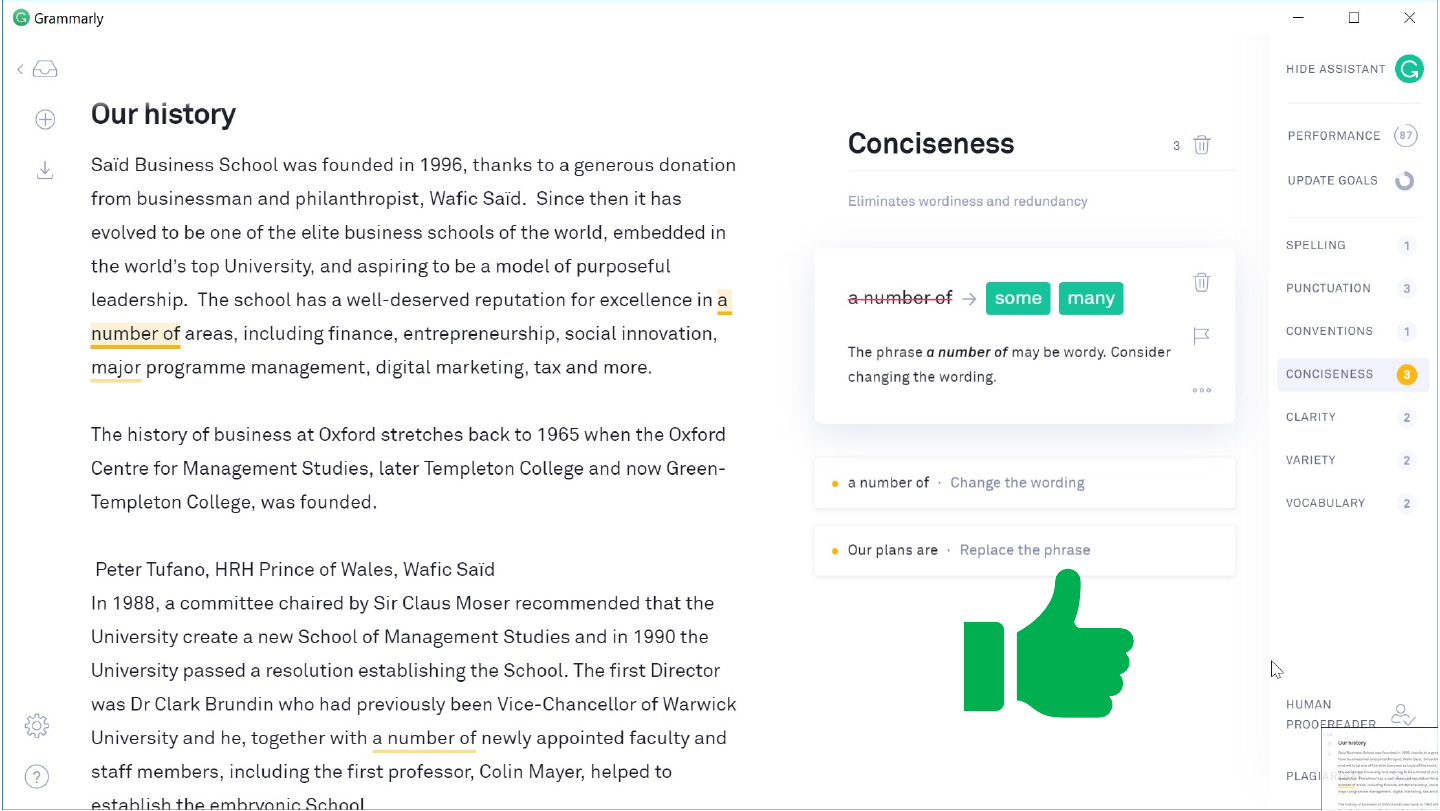
Screenshot of Grammarly with a “Conciseness” panel suggesting “some” or “many” in place of “a number of”.

Green thumbs-up icon.

Original slide 108 (image)

Slide 109: Slide 109

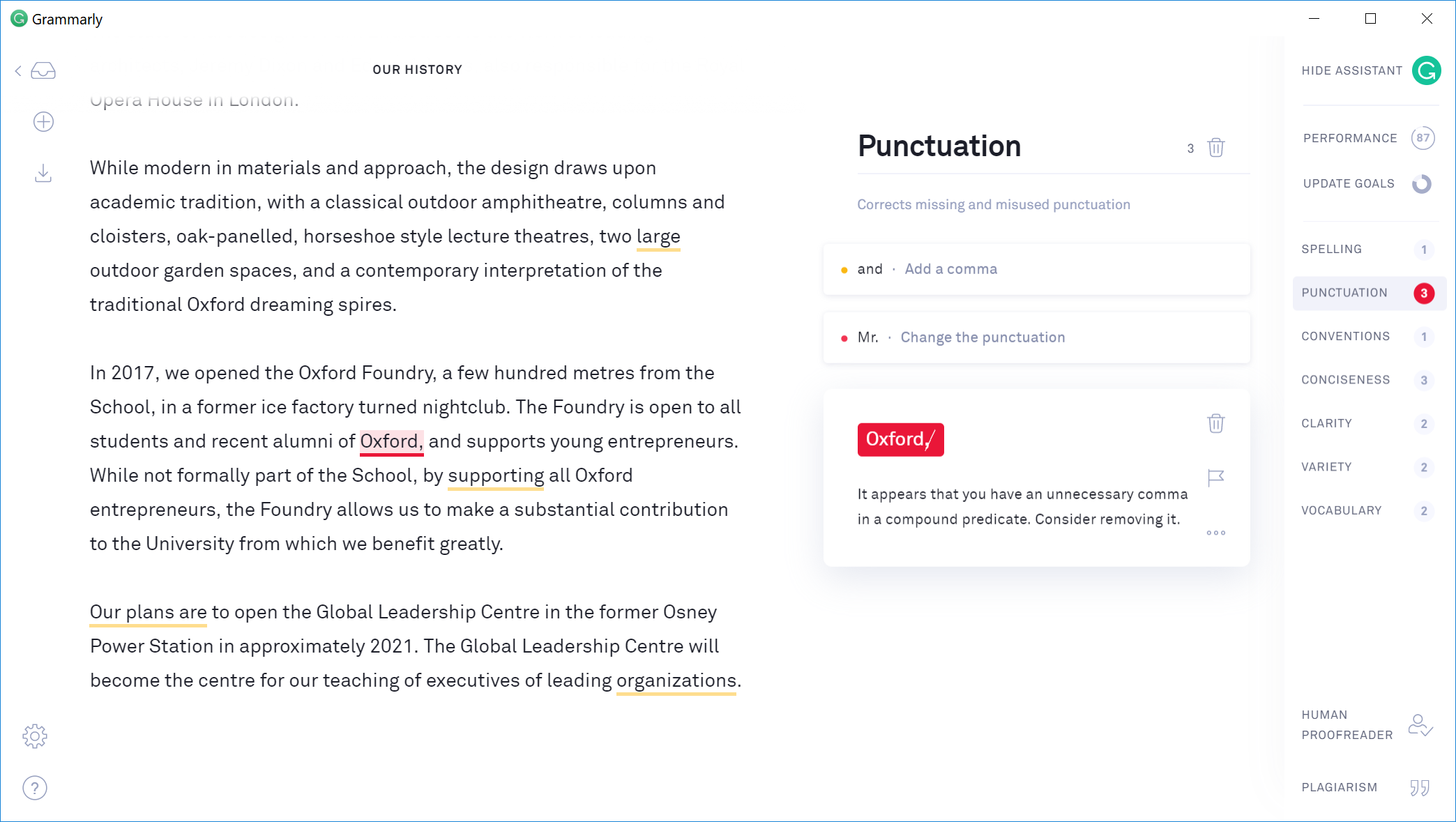
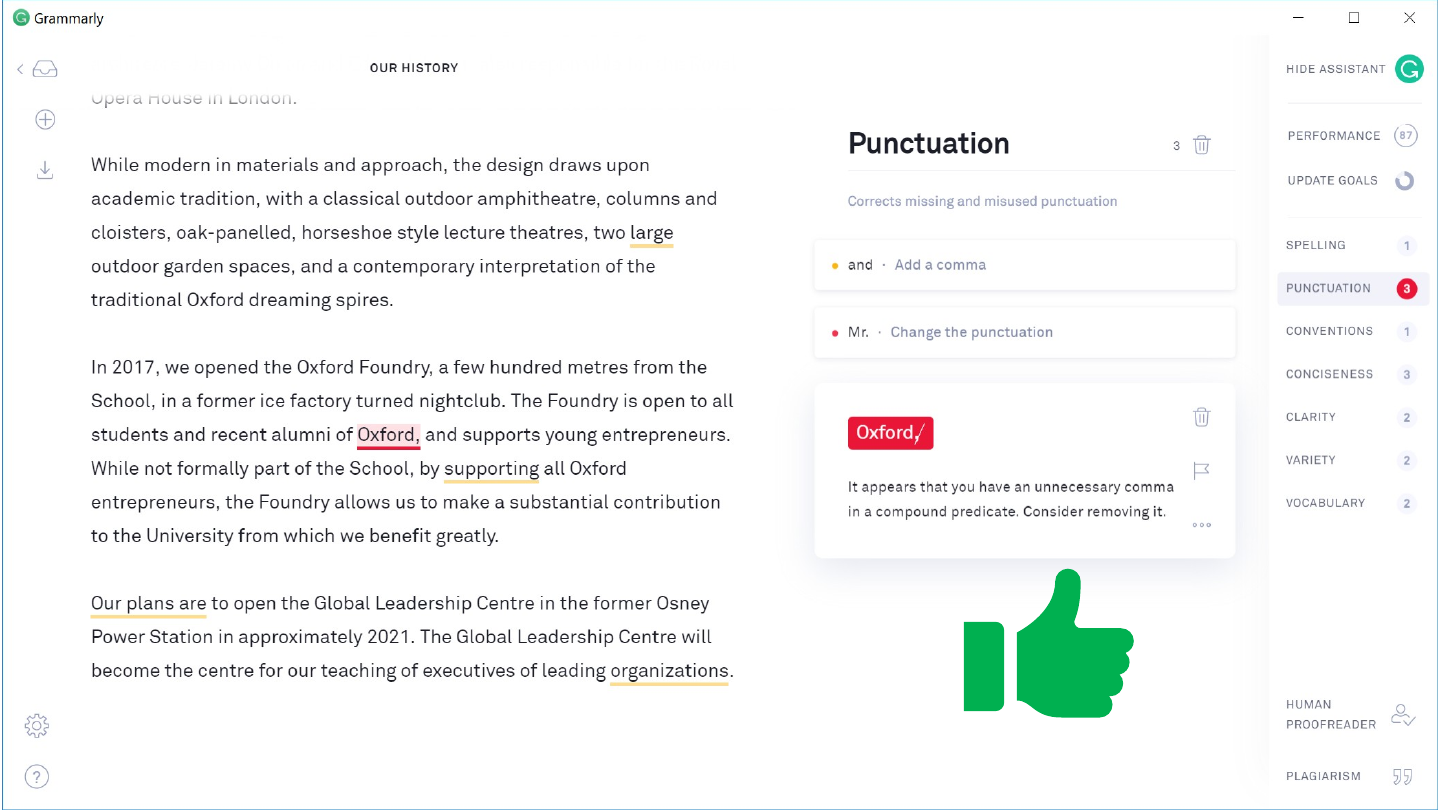
Screenshot of Grammarly with a “Punctuation” panel suggesting the removal of a comma after “Oxford”.

Green thumbs-up icon.

Original slide 109 (image)

Slide 110: Slide 110

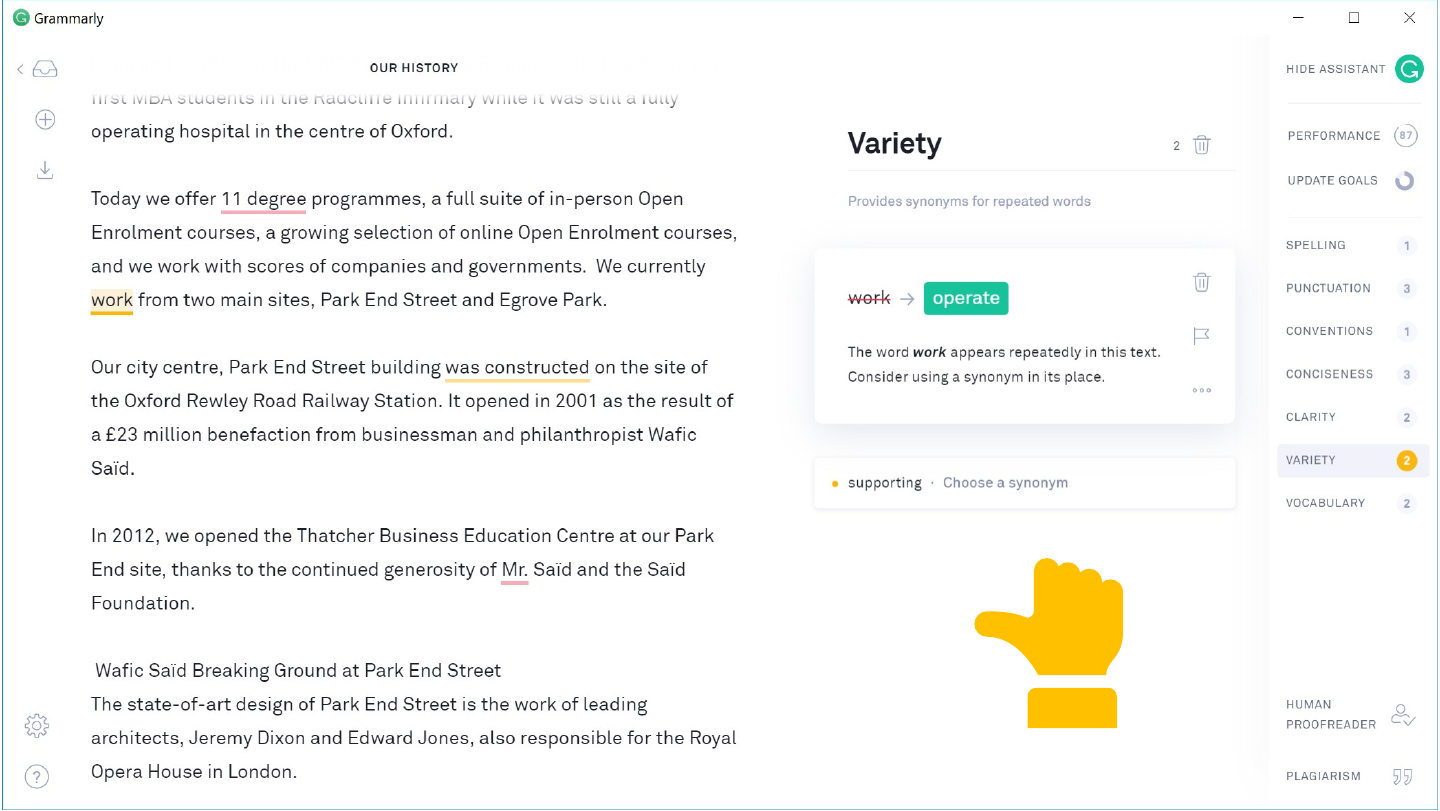
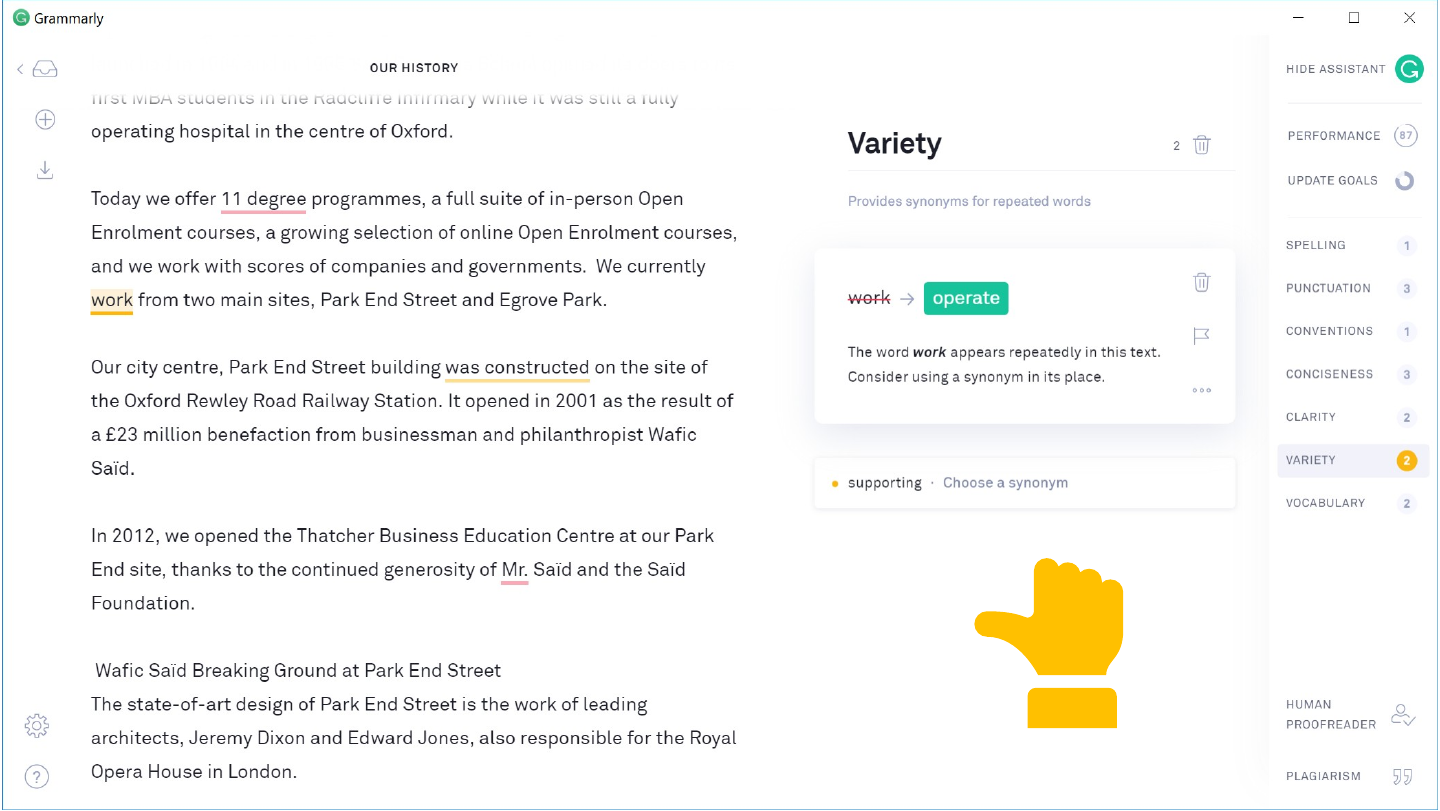
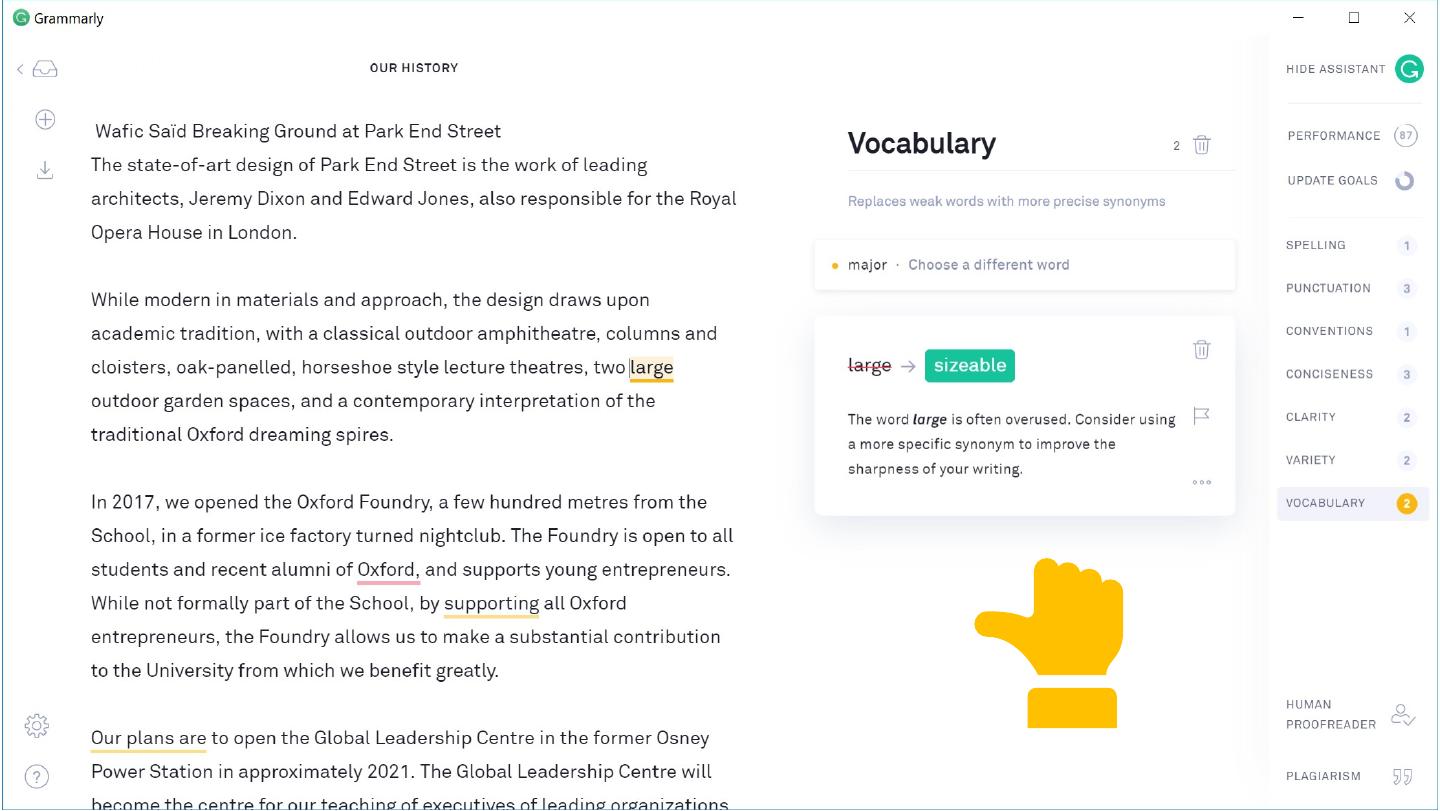
The slide's original page: a Grammarly window with the document “Our history” on the left and a “Variety” panel open, suggesting “operate” as a synonym for the repeated word “work”. At the lower right of the page is a yellow hand icon turned sideways, its thumb pointing left, its fingers curled up and its cuff below; it is neither thumbs-up nor thumbs-down.

Original slide 110 (image)

Slide 111: Slide 111

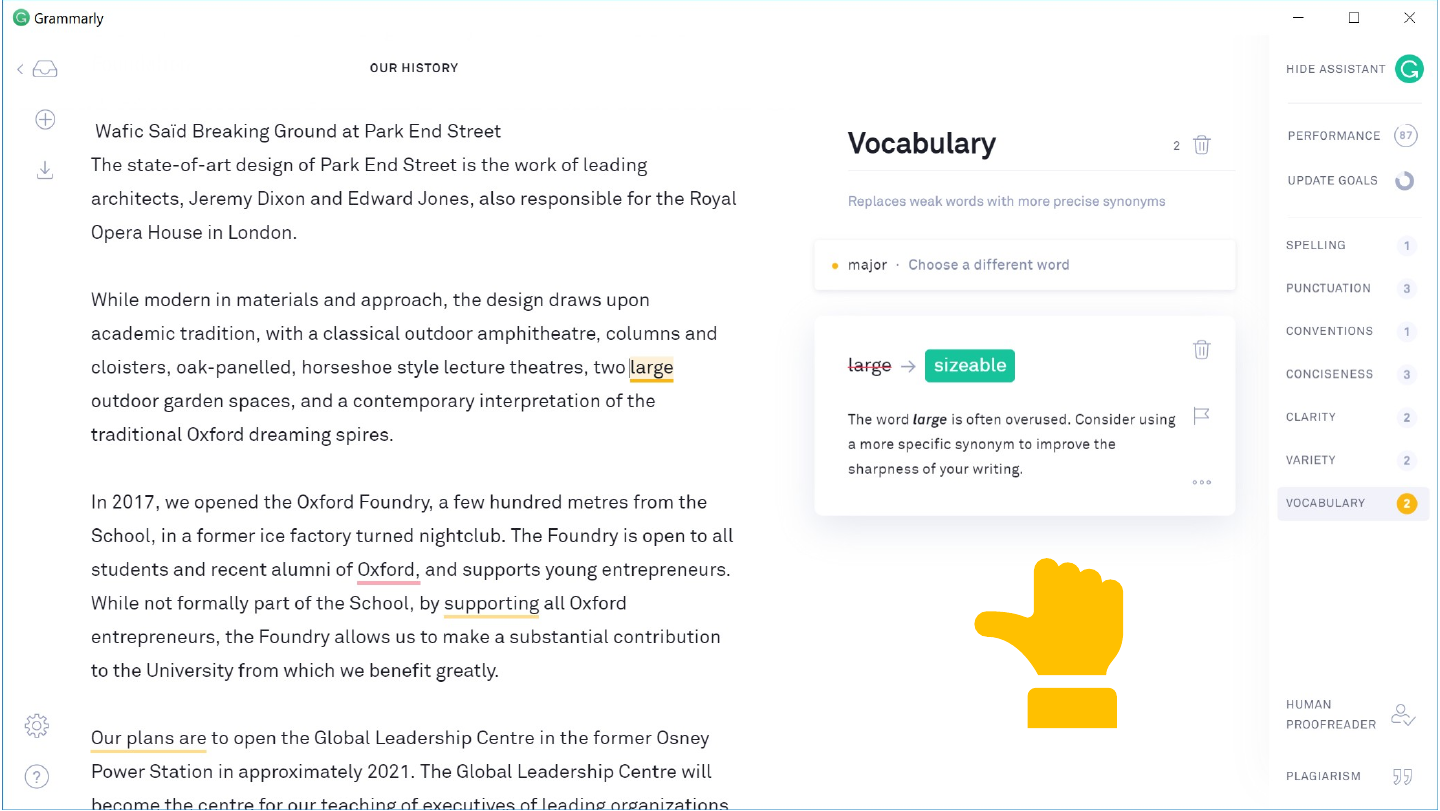
The slide's original page: a Grammarly window with the document “Our history” on the left and a “Vocabulary” panel open, suggesting “sizeable” in place of “large”. At the lower right of the page is a yellow hand icon turned sideways, its thumb pointing left, its fingers curled up and its cuff below; it is neither thumbs-up nor thumbs-down.

Original slide 111 (image)

Slide 112: Slide 112

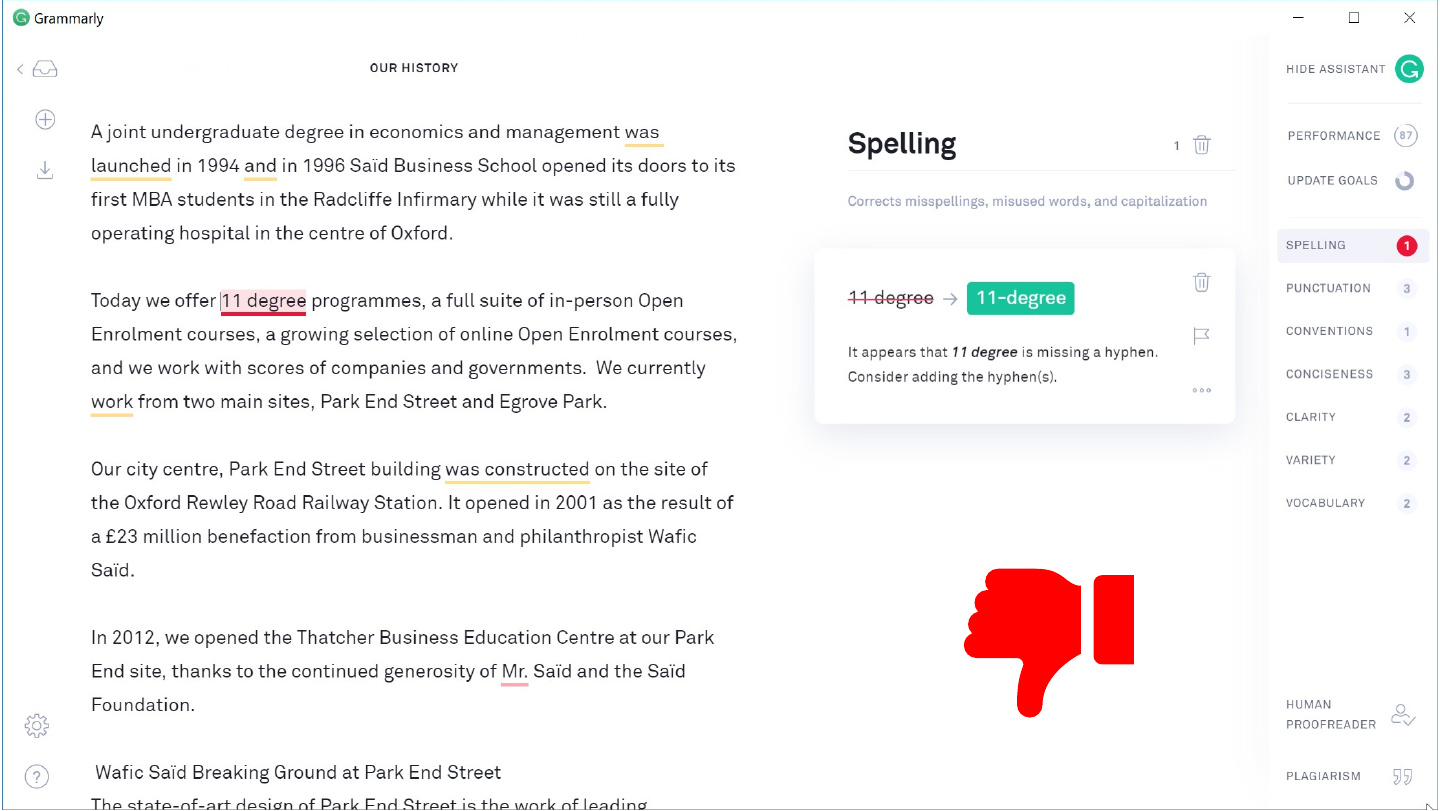
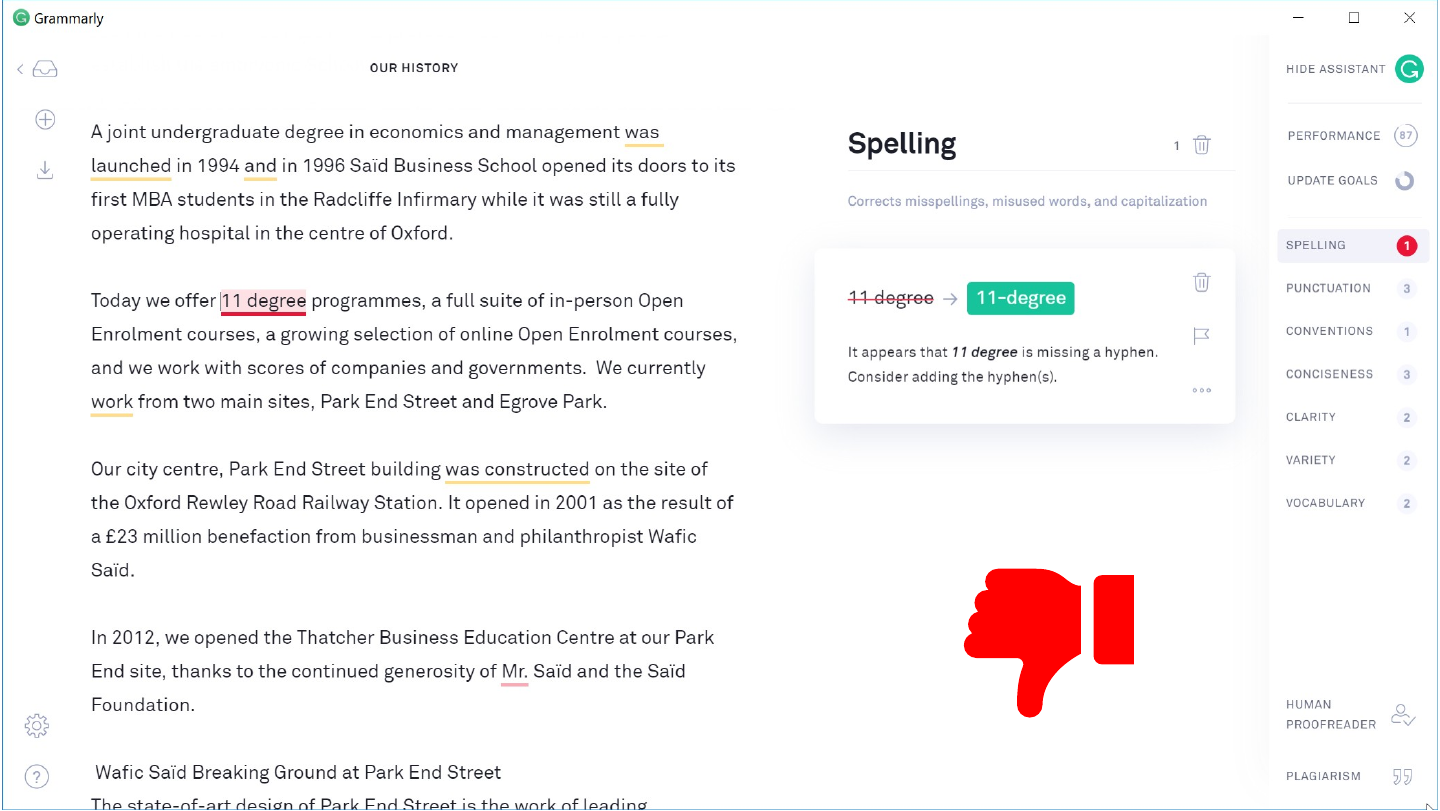
The slide's original page: a Grammarly window with the document “Our history” on the left and a “Spelling” panel open, suggesting “11-degree” in place of “11 degree”. At the lower right of the page is a red thumbs-down icon: a red hand with its thumb pointing down and its cuff on the right.

Original slide 112 (image)

Slide 113: Slide 113

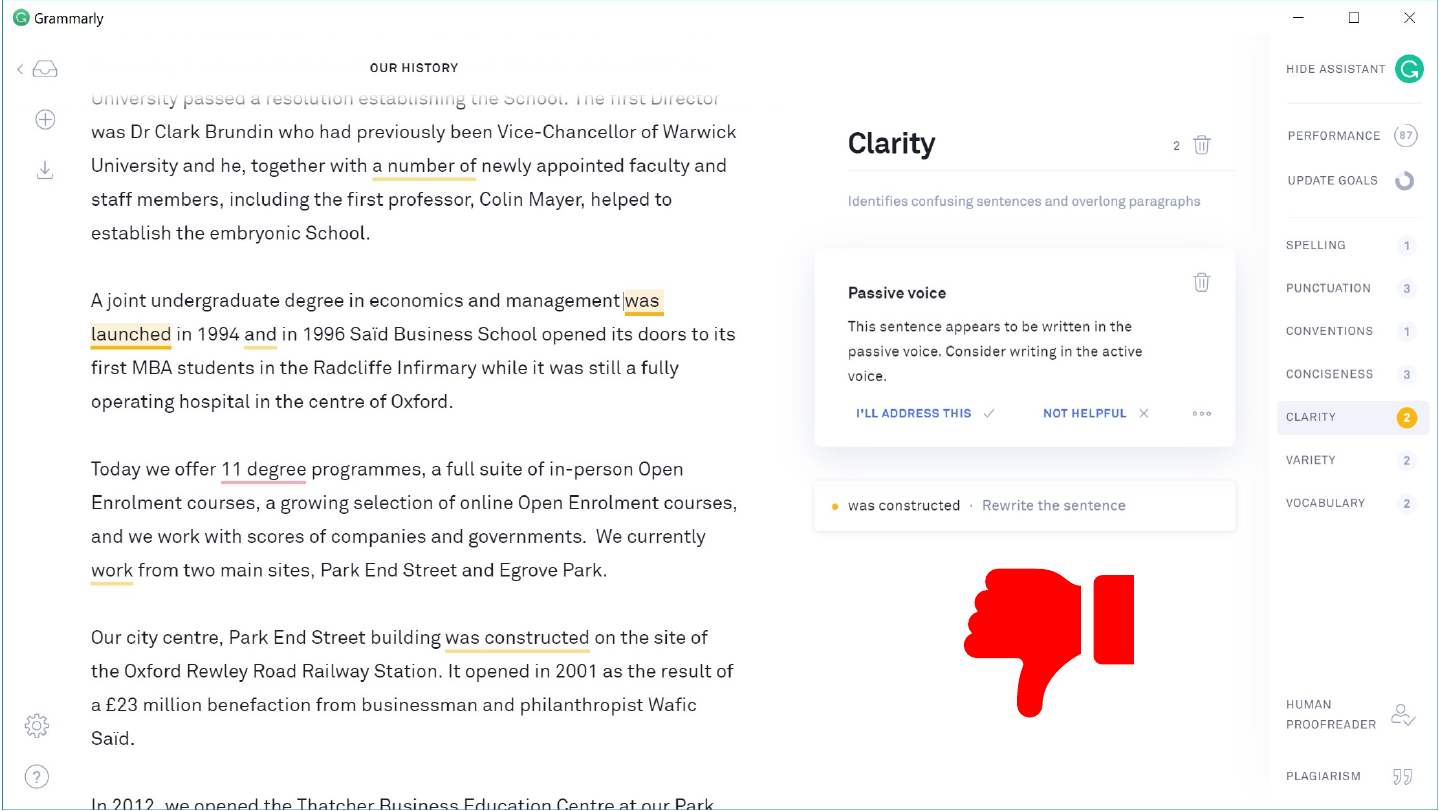
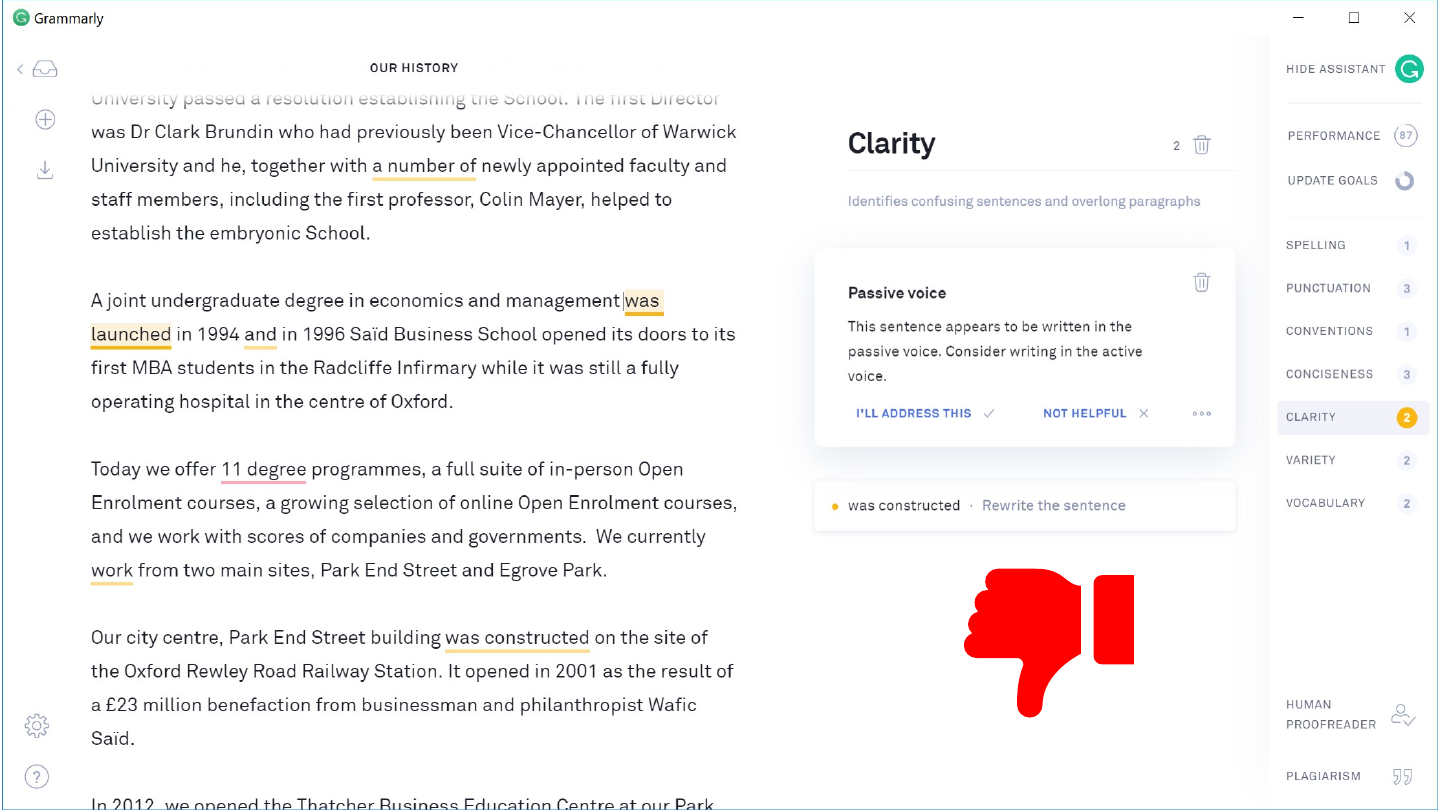
The slide's original page: a Grammarly window with the document “Our history” on the left and a “Clarity” panel open, flagging “was constructed” as passive voice. At the lower right of the page is a red thumbs-down icon: a red hand with its thumb pointing down and its cuff on the right.

Original slide 113 (image)

Slide 114: Slide 114

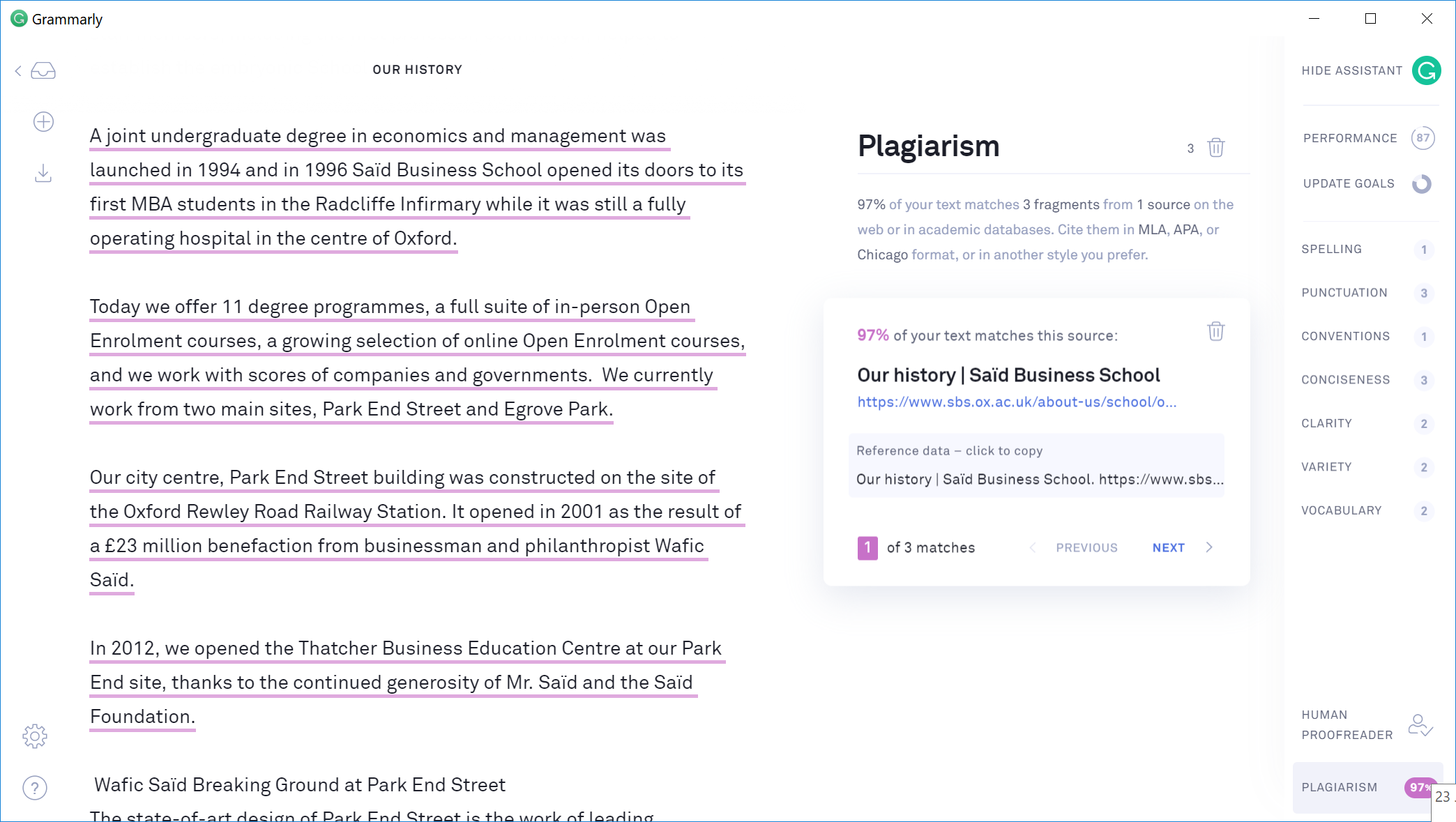
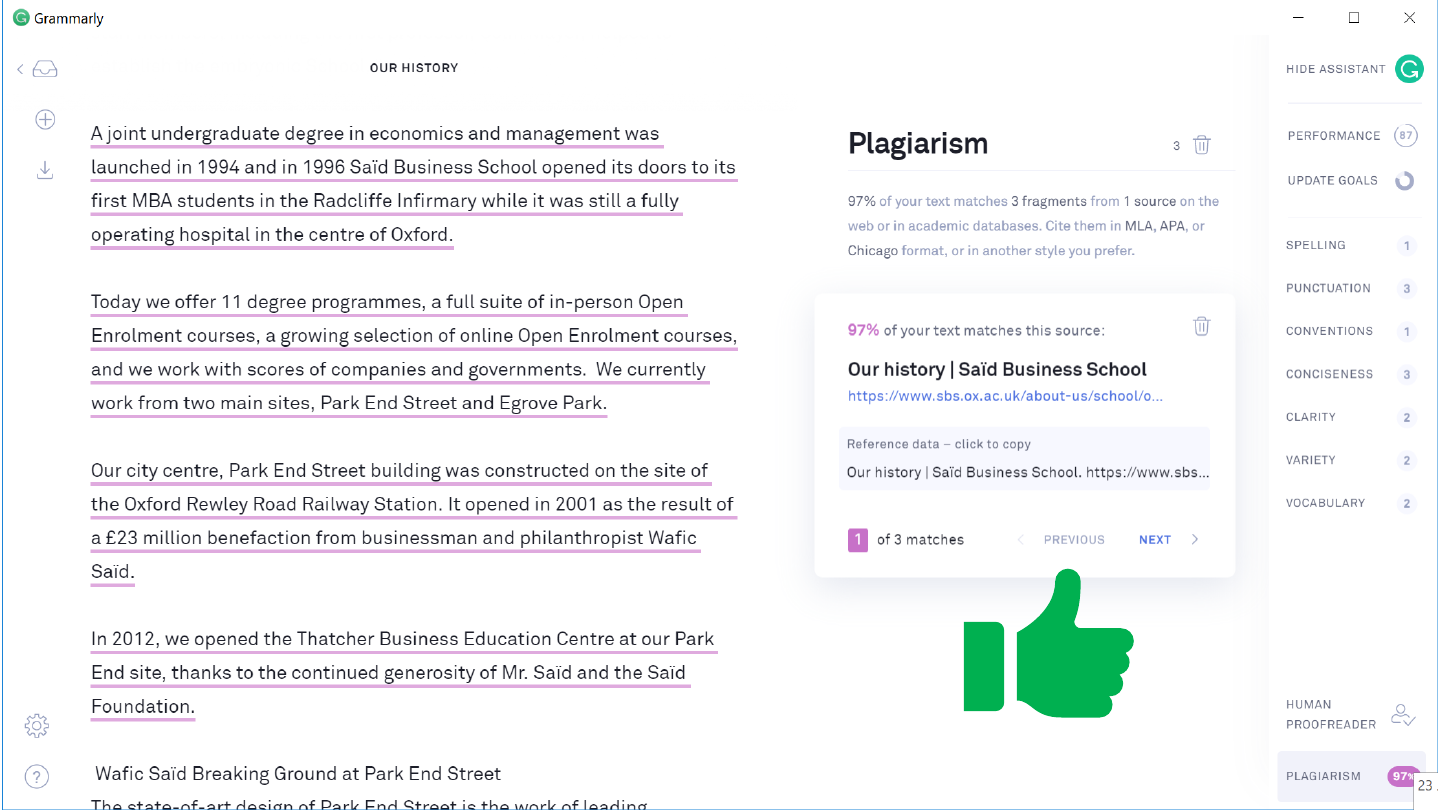
Screenshot of Grammarly with a “Plagiarism” panel reporting that a high share of the text matches a page titled “Our history | Said Business School”.

Green thumbs-up icon.

Original slide 114 (image)

Slide 115: Editing tools

Editing tools
Original slide 115 (image)

Slide 116: Listen to what you wrote

Listen to what you wrote
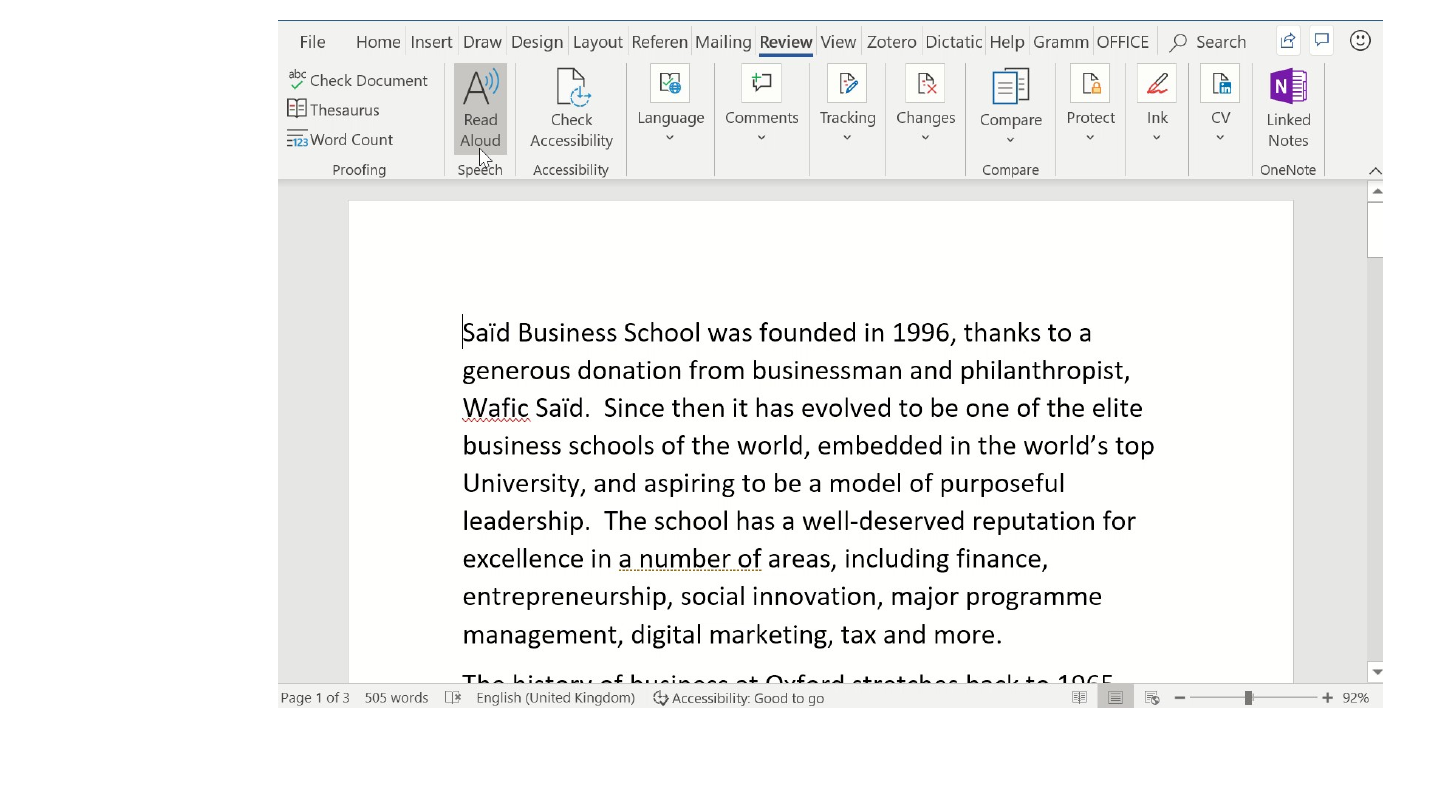
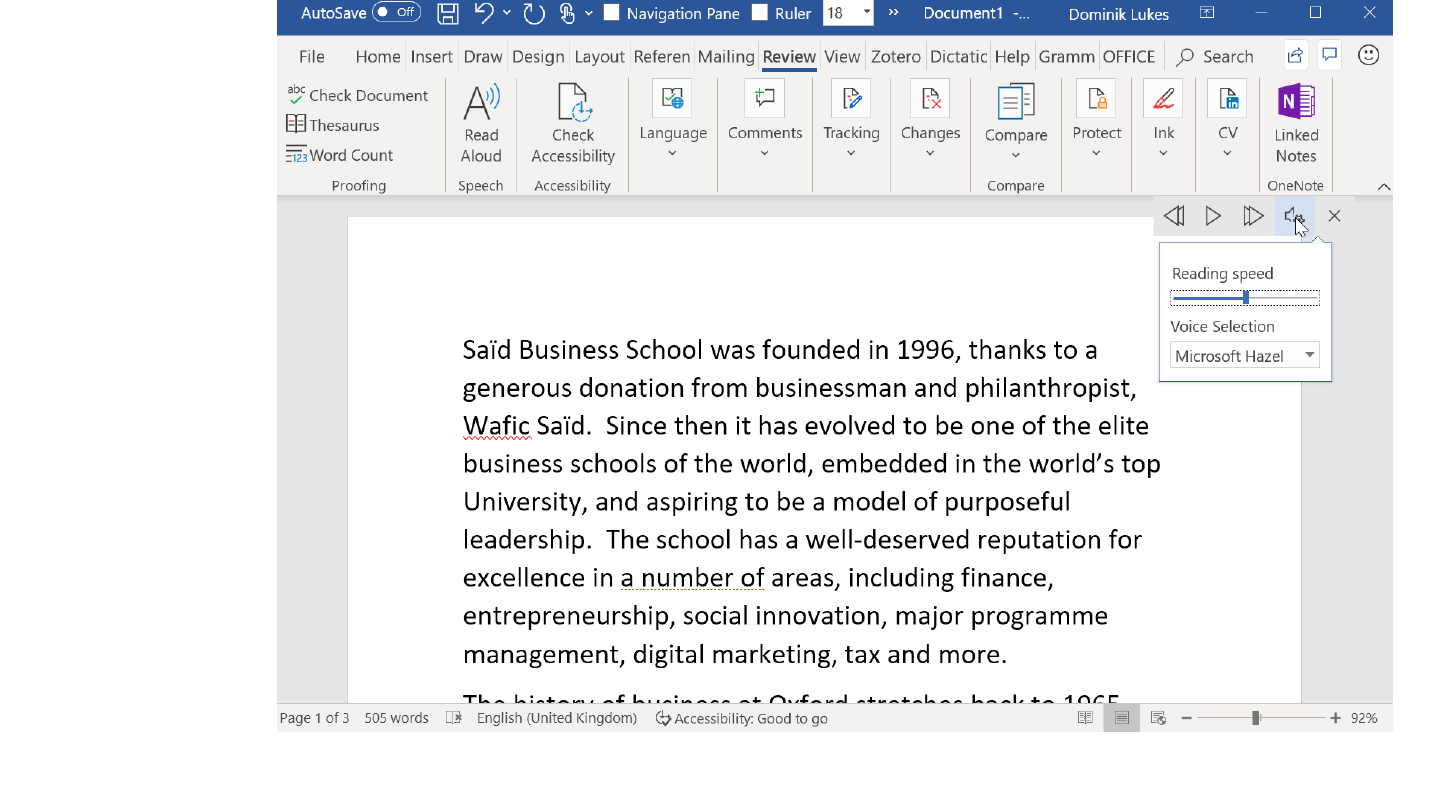
The slide's original page: a Microsoft Word window with the Review tab open and the Read Aloud button highlighted above a paragraph of the history text. The slide holds a screen recording (video) of this feature, which this package does not carry.

Original slide 116 (image)

Slide 117: Listen to what you wrote

Listen to what you wrote
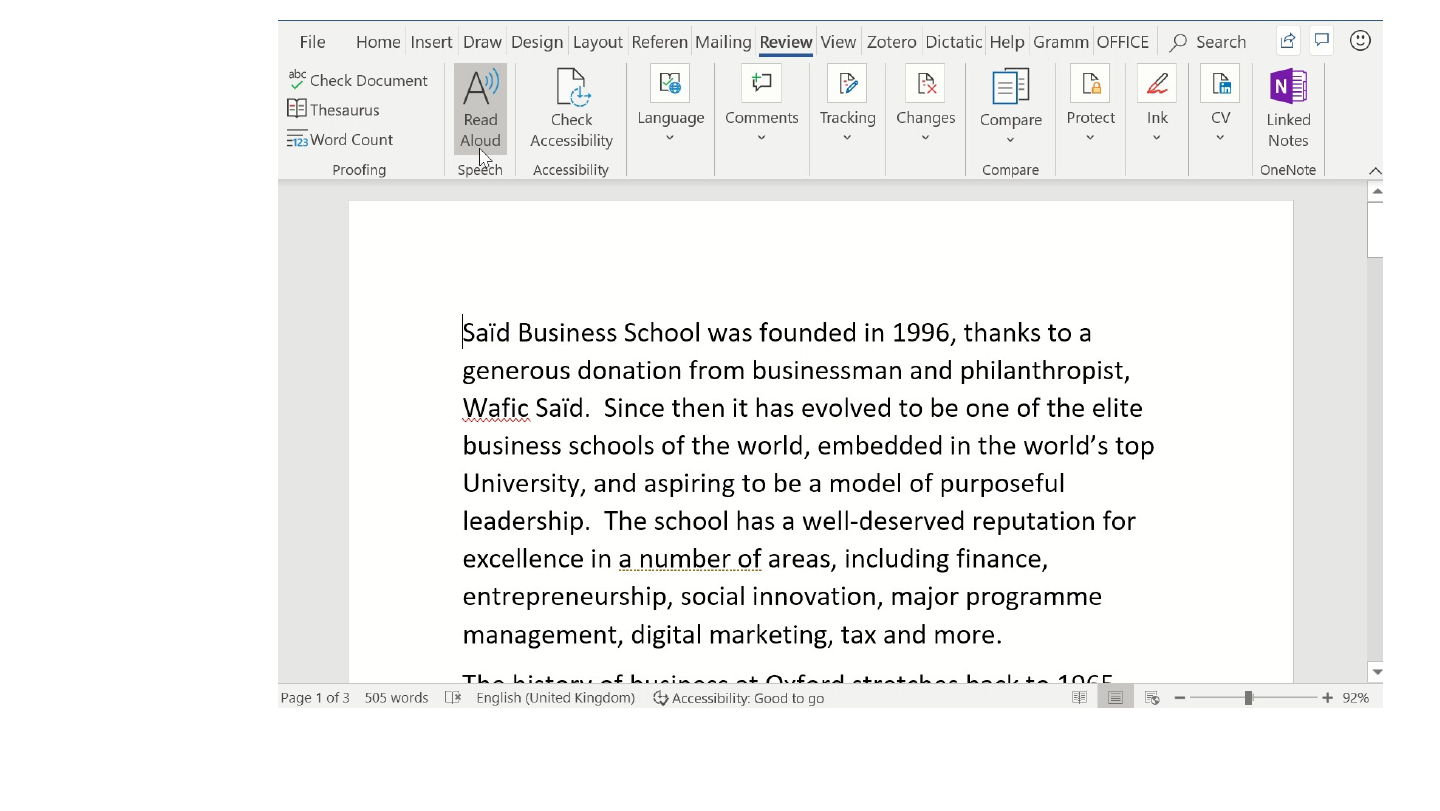
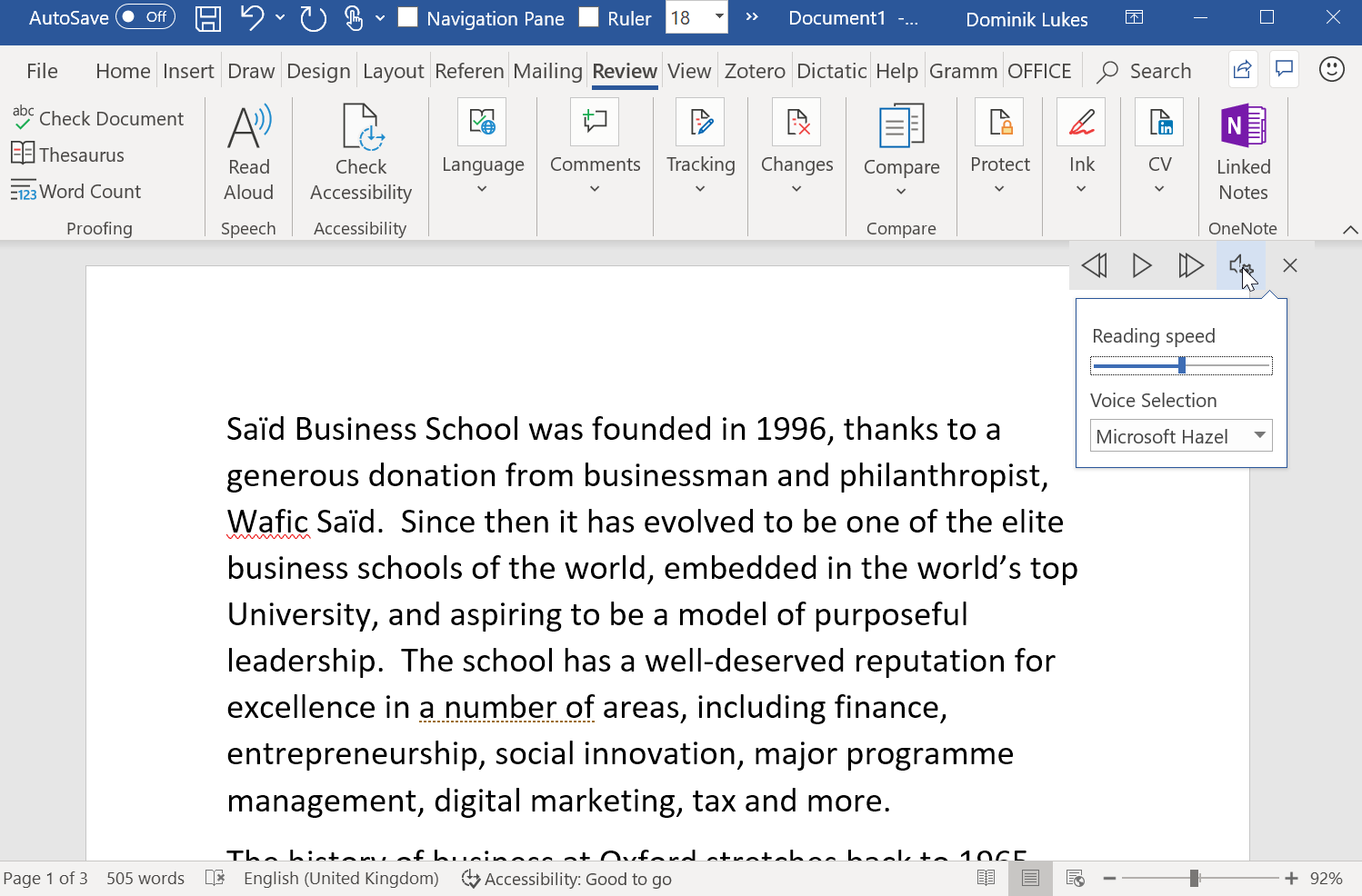
Screenshot of Microsoft Word with the Read Aloud control selected and a speed and voice menu open (voice: Microsoft Hazel).

Original slide 117 (image)

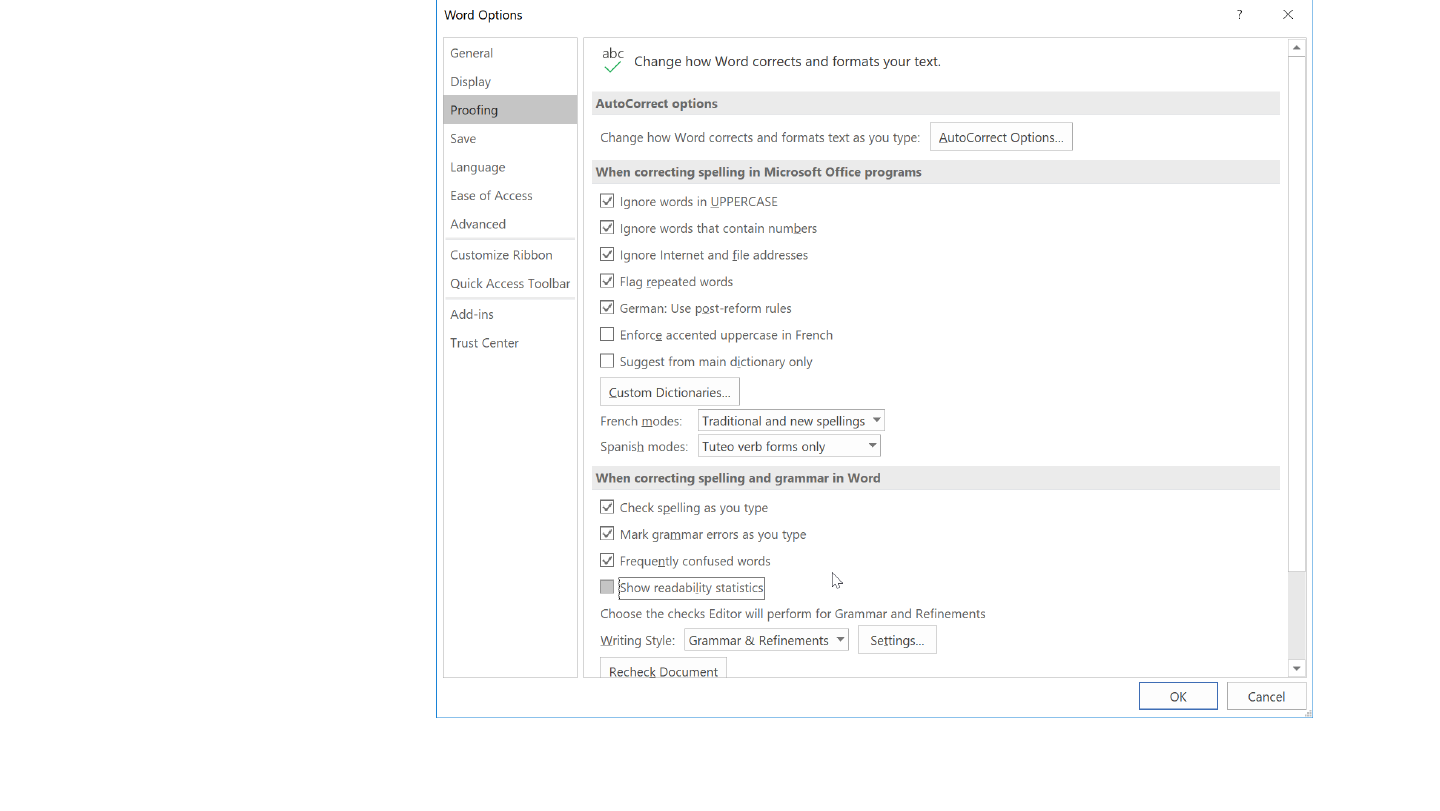
Slide 118: Readability in Word

Readability in Word
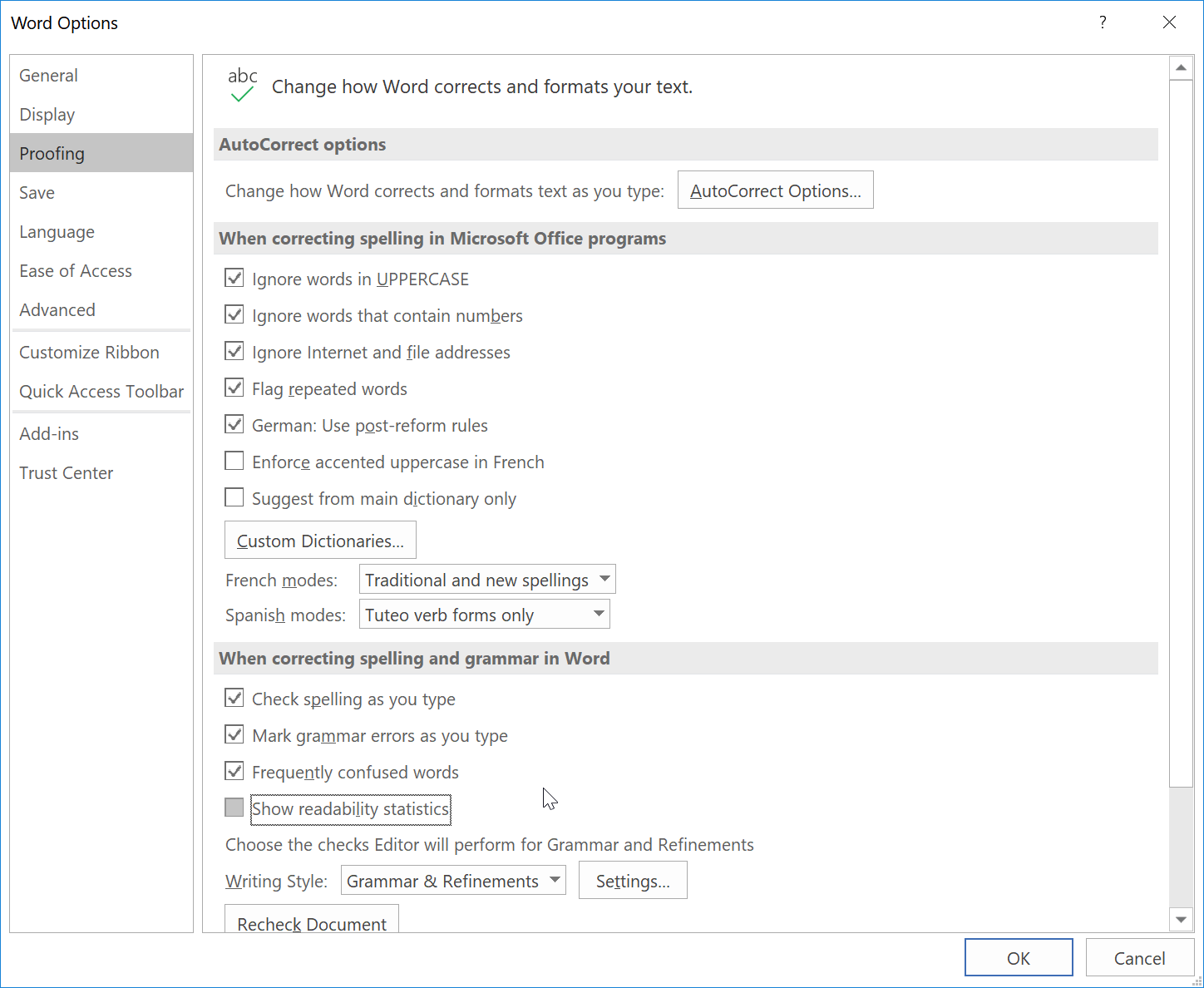
Screenshot of the Word Options dialog, Proofing section, with the option “Show readability statistics” among the grammar settings.

Original slide 118 (image)

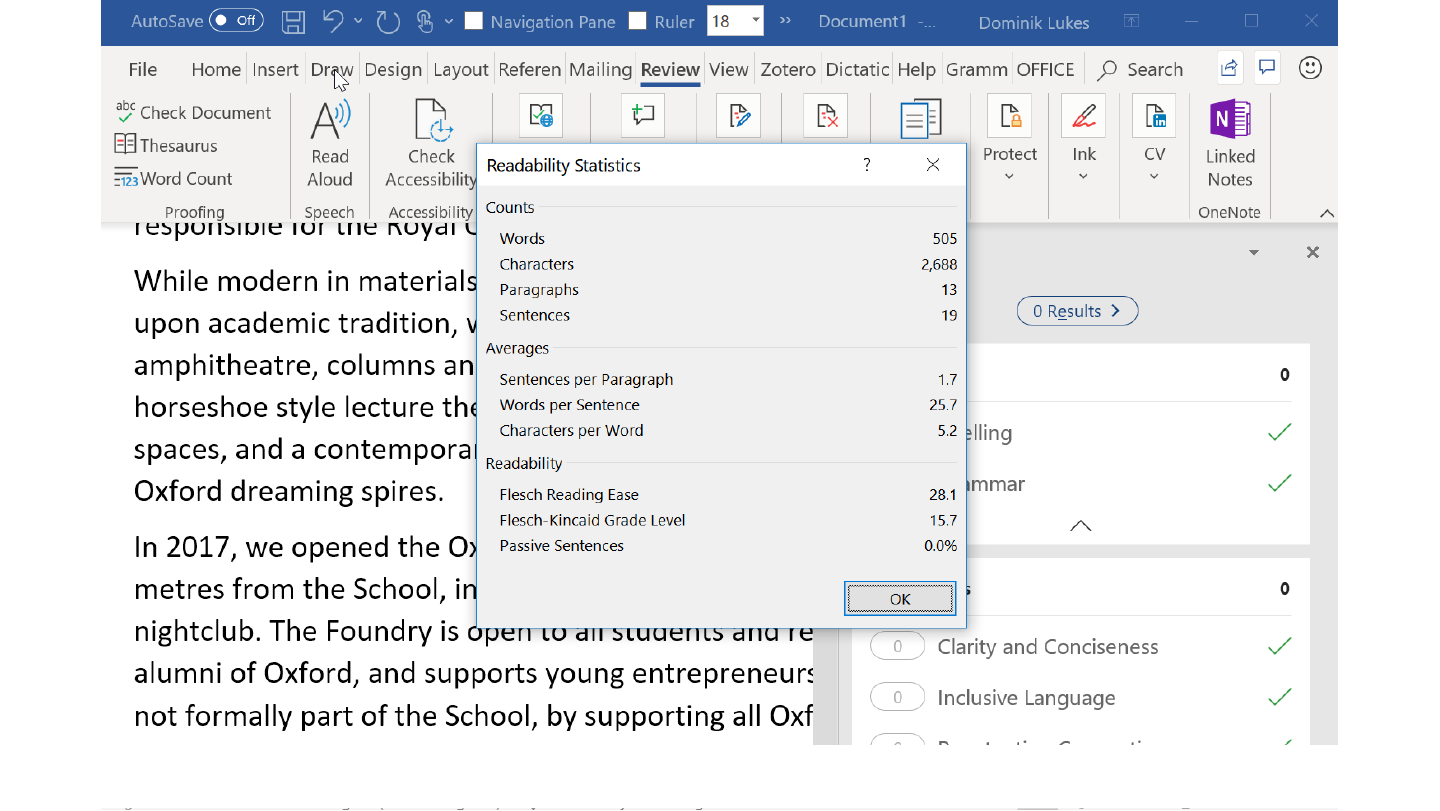
Slide 119: All spelling errors must be corrected or ignored

All spelling errors must be corrected or ignored
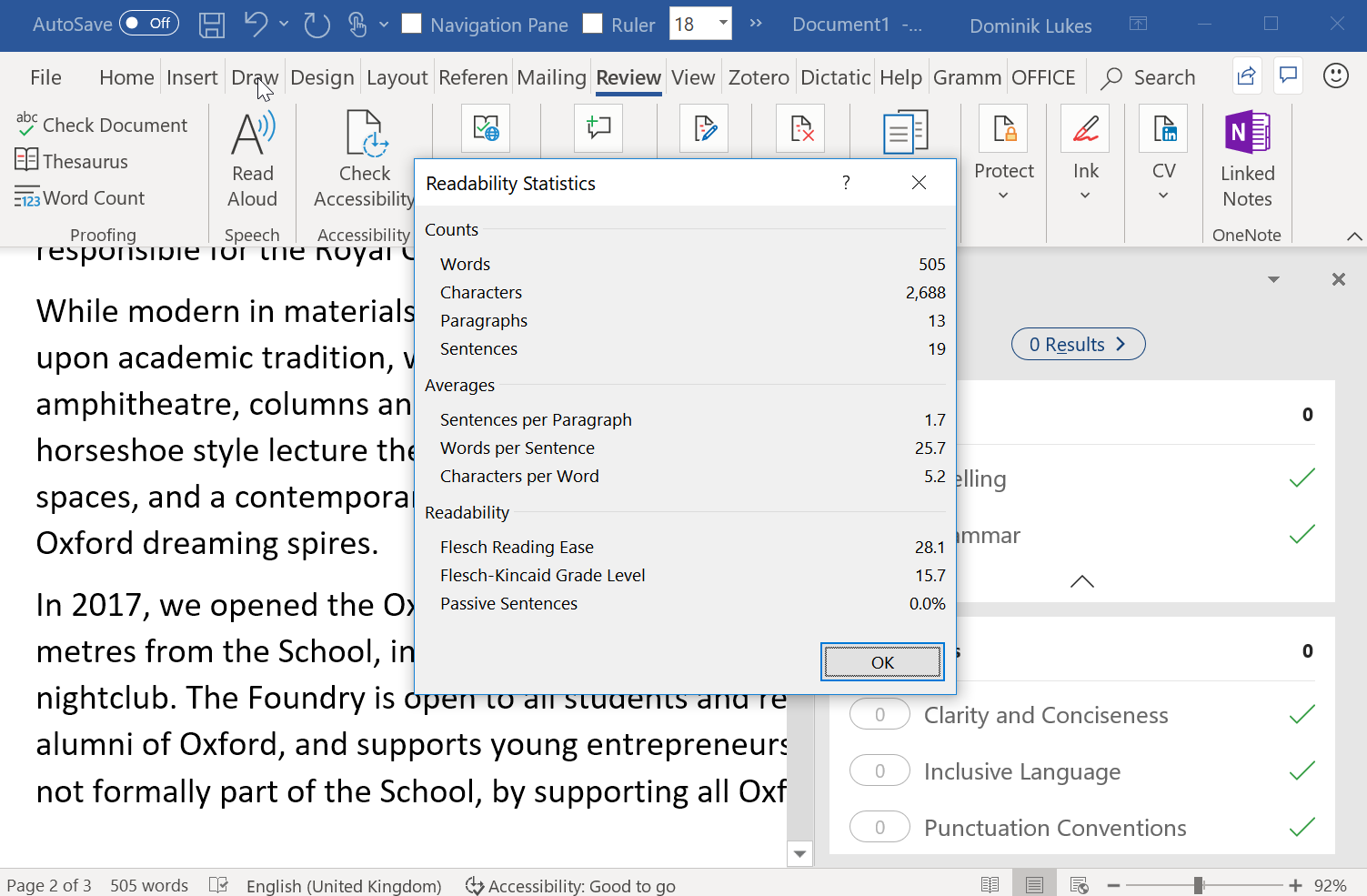
Screenshot of Microsoft Word with a Readability Statistics dialog open: counts of words, characters, paragraphs and sentences, averages per sentence and per word, and the Flesch Reading Ease and Flesch-Kincaid Grade Level scores.

Original slide 119 (image)

Slide 120: Word online has different features

Word online has different features
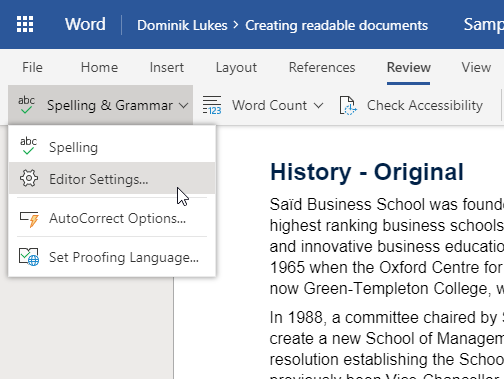
Screenshot of Word online with a Spelling & Grammar menu open: Spelling, Editor Settings, AutoCorrect Options and Set Proofing Language.

Original slide 120 (image)

Slide 121: Word online has different features

Word online has different features
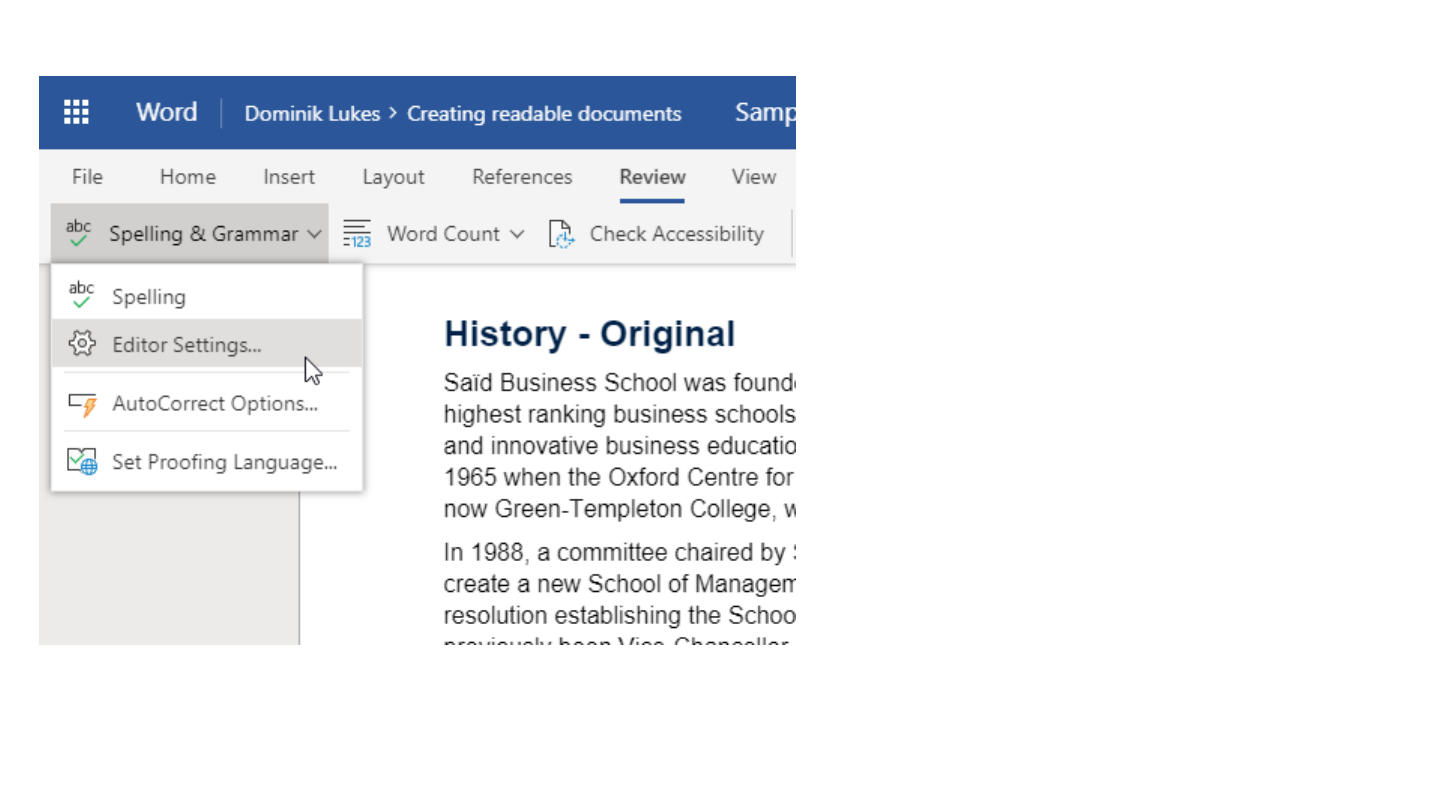
Screenshot of the Editor Settings dialog of Word online, with the Clarity and Conciseness, Formal Language, Inclusive Language and Punctuation Conventions checks all ticked.

Original slide 121 (image)

Slide 122: People over tools

People over tools
Original slide 122 (image)

Slide 123: Writing / editing buddies / beta readers

Writing / editing buddies / beta readers

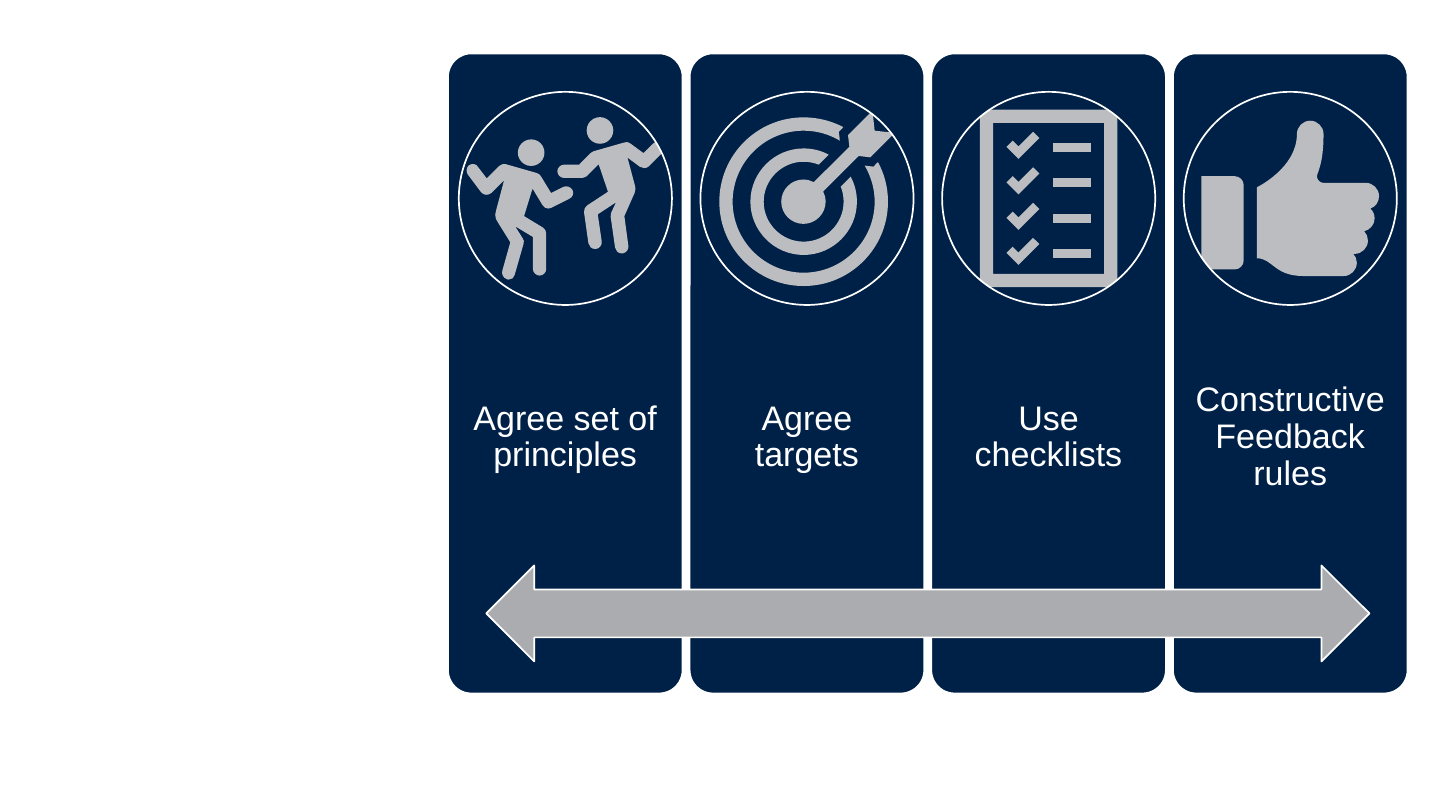
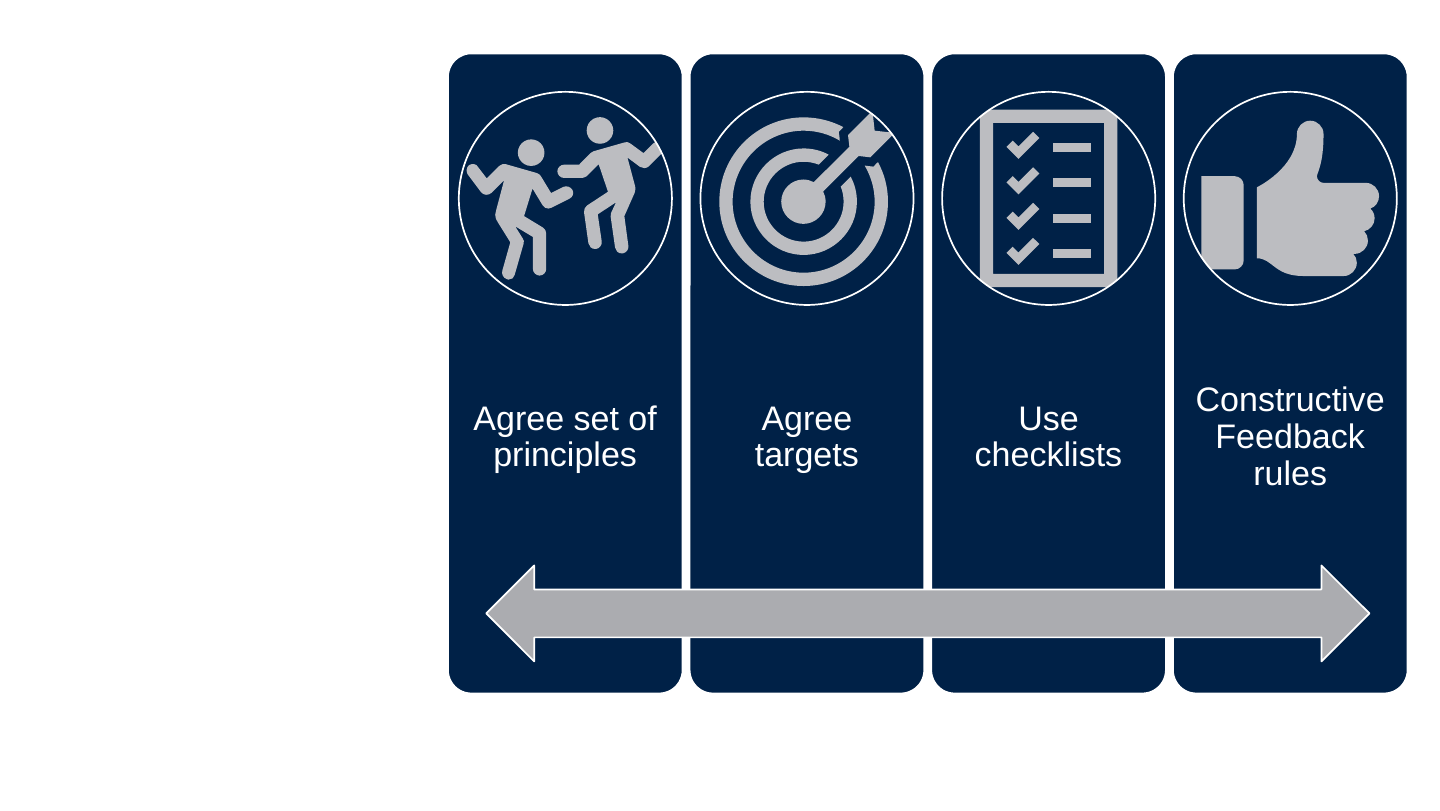
  • Agree set of principles
  • Agree targets
  • Use checklists
  • Constructive Feedback rules

The slide's original page: four dark blue panels side by side with a double-headed arrow beneath them. Each has an icon and a label: two figures dancing for Agree set of principles, a target for Agree targets, a checklist for Use checklists and a thumbs-up for Constructive Feedback rules.

Original slide 123 (image)

Slide 124: Careful that you don’t end up speaking to an internal audience to tick boxes.

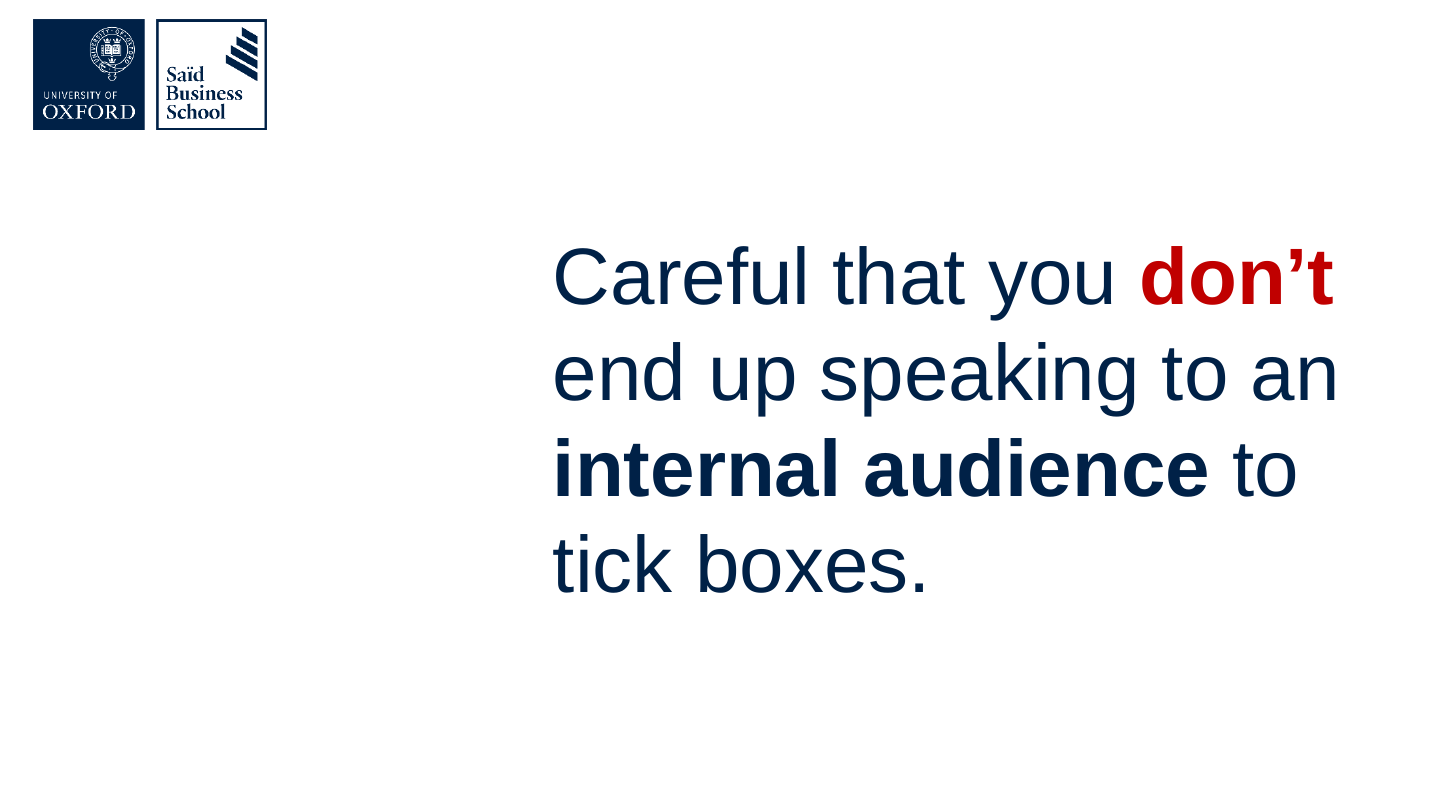
Careful that you don’t end up speaking to an internal audience to tick boxes.
Original slide 124 (image)

Slide 125: Ask online for help

Ask online for help
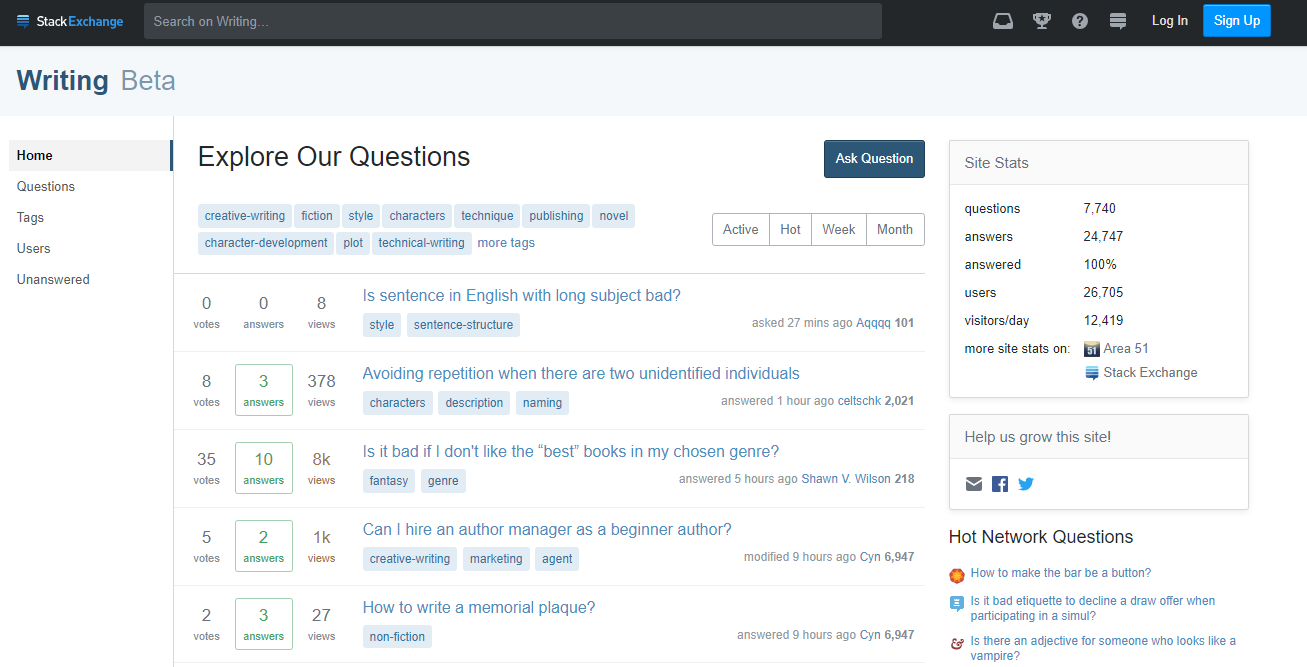
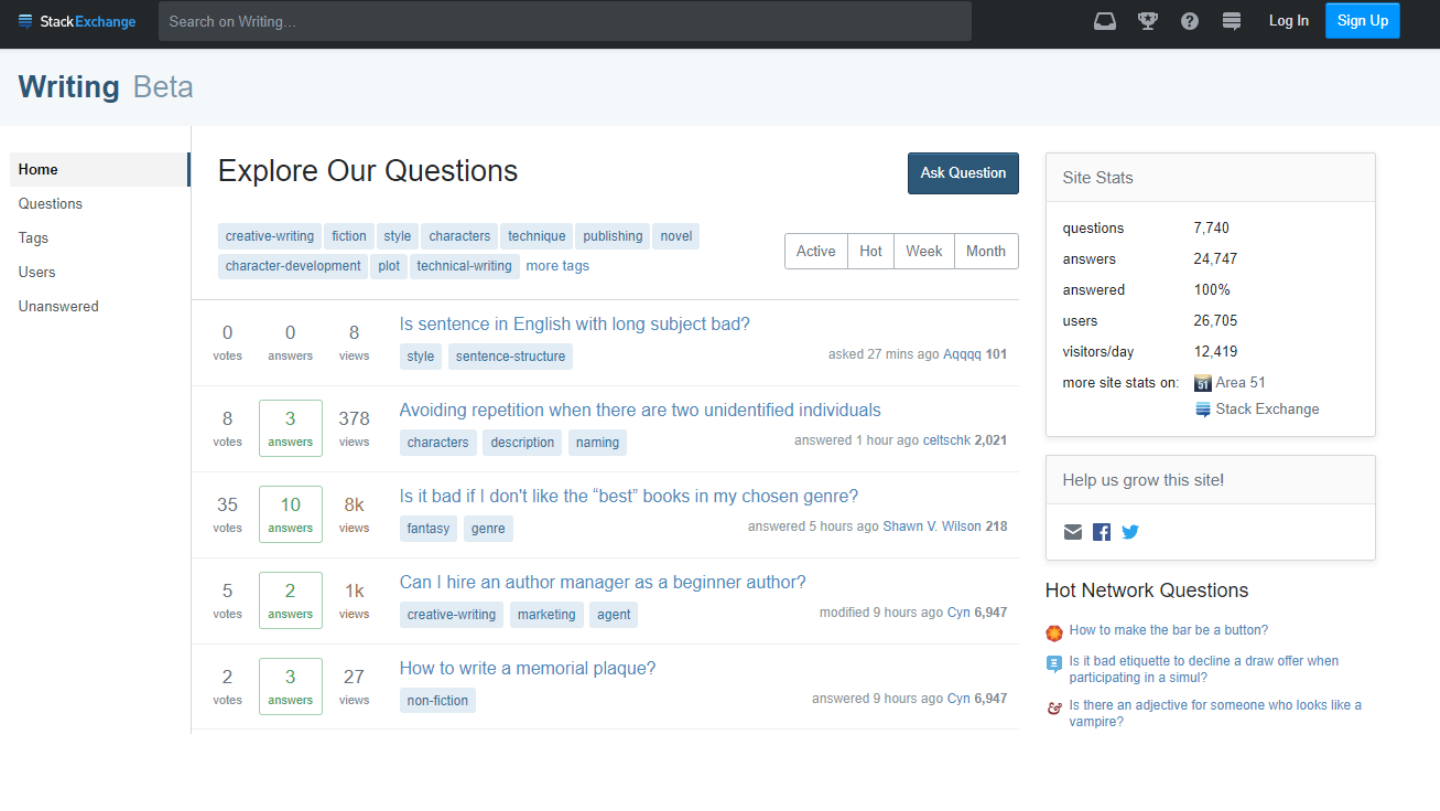
Screenshot of the Writing Stack Exchange home page, “Explore Our Questions”, with a list of questions and site statistics.

Original slide 125 (image)

Slide 126: Be careful who you ask. People who write well often don’t know how they do it. And beautiful prose is not always easy to read.
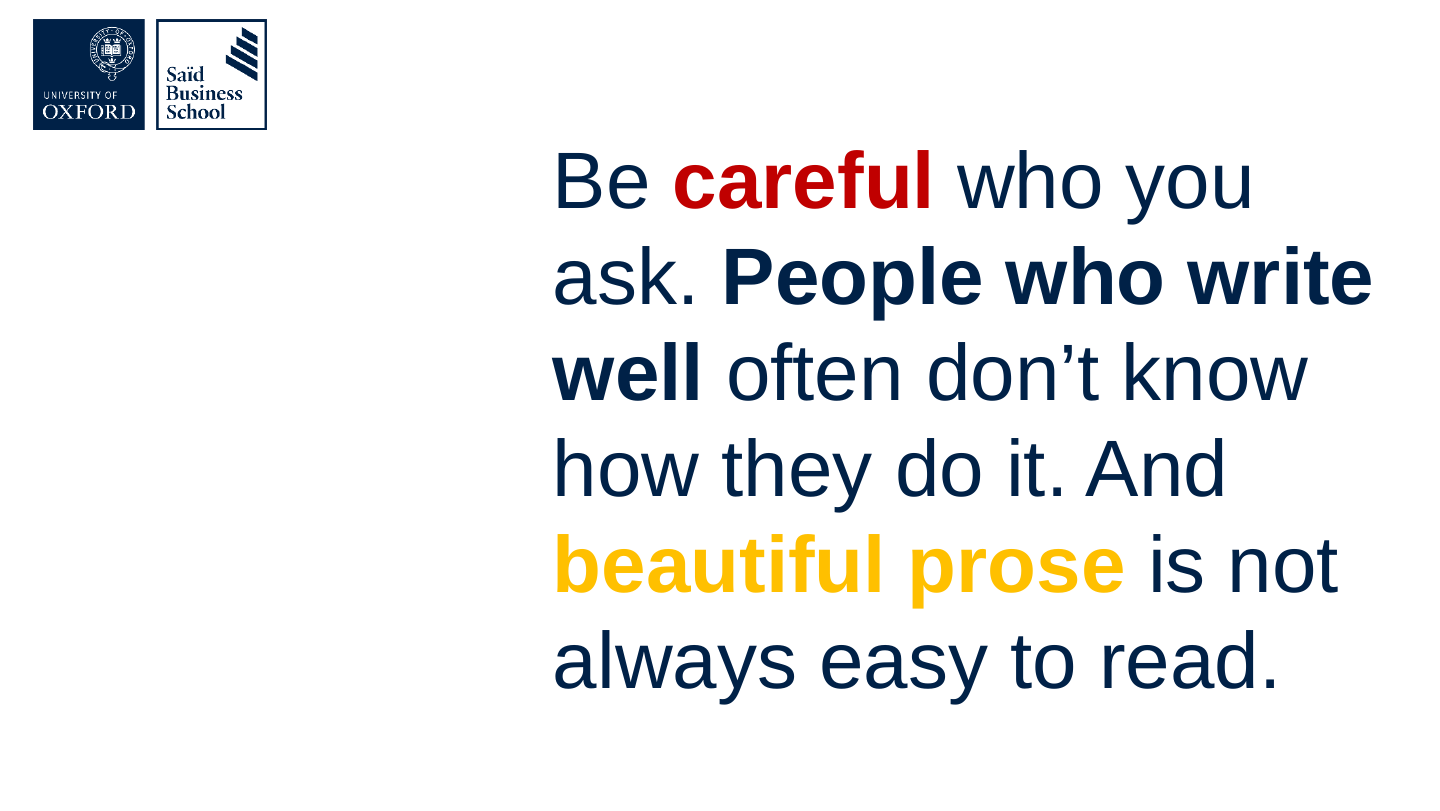
Be careful who you ask. People who write well often don’t know how they do it. And beautiful prose is not always easy to read.

Original slide 126 (image)

Slide 127: Thank you

Thank you

This presentation was created by Dominik Lukeš

and it is made available under

Creative Commons Attribution license
Creative Commons Attribution (CC BY) licence badge.

Original slide 127 (image)