The hidden skills and knowledge gaps in hybrid teaching
- SlideShare title: Hybrid teaching: Hidden skills and knowledge gaps
- Talk date: Not established
- SlideShare upload: 2022-01-12 (upload date, not the delivery date)
- Event: Not established
- Place: Not established
- Topics: Teaching & technology
- Language: en
- Slides in the original listing: 57
- Coverage: Full text of all 57 slides, each paired with its original slide image (slide N is section N).
- Original listing: https://www.slideshare.net/slideshow/hybrid-teaching-hidden-skills-and-knowledge-gaps/250982668
- Cover image: https://slides.dominiklukes.net/readers/hybrid-teaching-hidden-skills-and-knowledge-gaps/pages/page-01.png
- Reader data (JSON): https://slides.dominiklukes.net/readers/hybrid-teaching-hidden-skills-and-knowledge-gaps/presentation.json
- TalkWeaver package (outline and images, ZIP): https://slides.dominiklukes.net/hybrid-teaching-hidden-skills-and-knowledge-gaps/hybrid-teaching-hidden-skills-and-knowledge-gaps-talkweaver.zip
- TalkWeaver outline: https://slides.dominiklukes.net/hybrid-teaching-hidden-skills-and-knowledge-gaps/talkweaver/hybrid-teaching-hidden-skills-and-knowledge-gaps-outline.md
- Markdown copy: https://slides.dominiklukes.net/hybrid-teaching-hidden-skills-and-knowledge-gaps/index.md
Slide 1: The hidden skills and knowledge gaps in hybrid teaching
The hidden skills and knowledge gaps in hybrid teaching

Slide 2: First things first!
First things first!

Slide 3: What do I mean by: skills, knowledge and gap?
What do I mean by: skills, knowledge and gap?
Slide 4: knowledge = mental model of how things work
knowledge = mental model of how things work
Slide 5: skills = fluency of performance
skills = fluency of performance
Slide 6: gap = difference between necessary and current state of knowledge and skills
gap = difference between necessary and current state of knowledge and skills
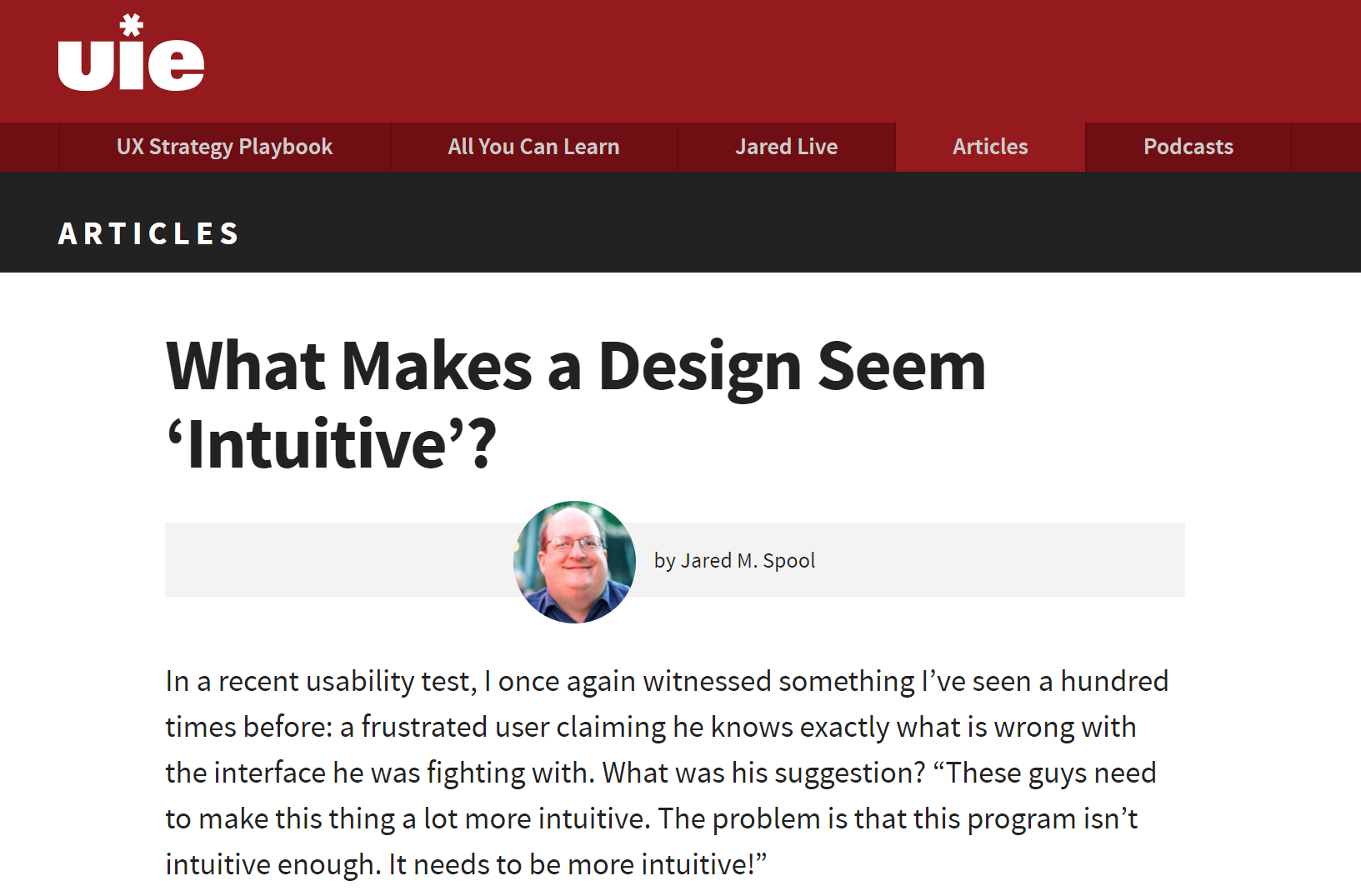
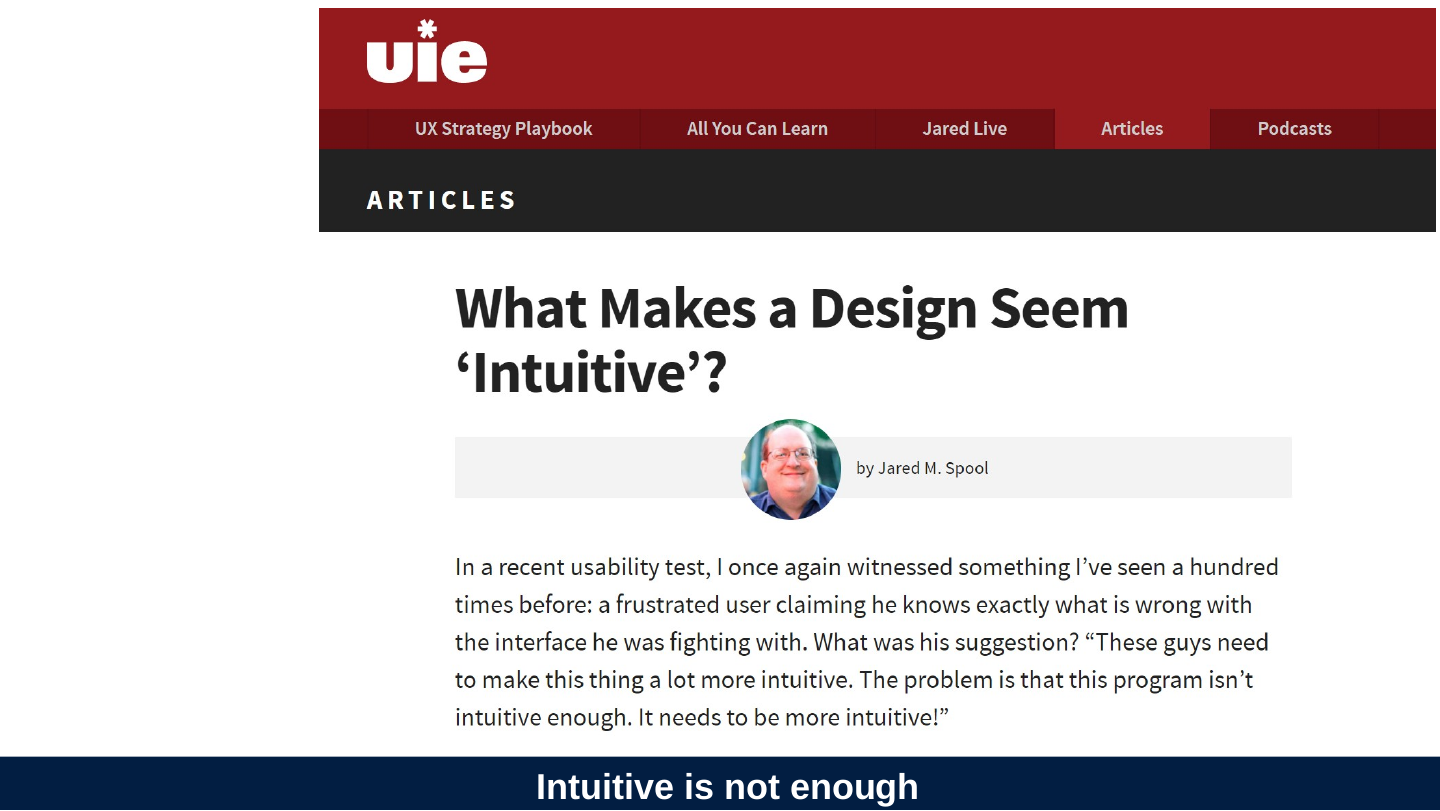
Slide 7: Intuitive is not enough
Intuitive is not enough
Slide 8: Slide 8
“we first have to look at how people understand the design in the first place. To do that, we need to look at the design’s knowledge space.”
-- Jared Spool
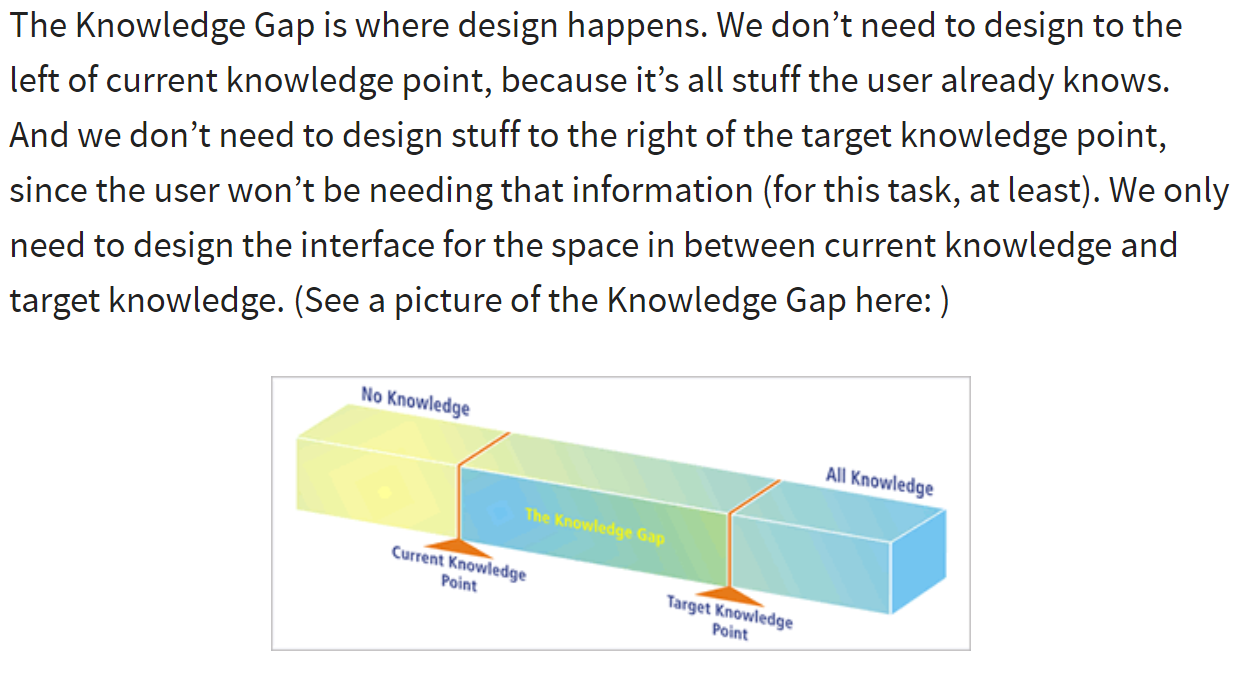
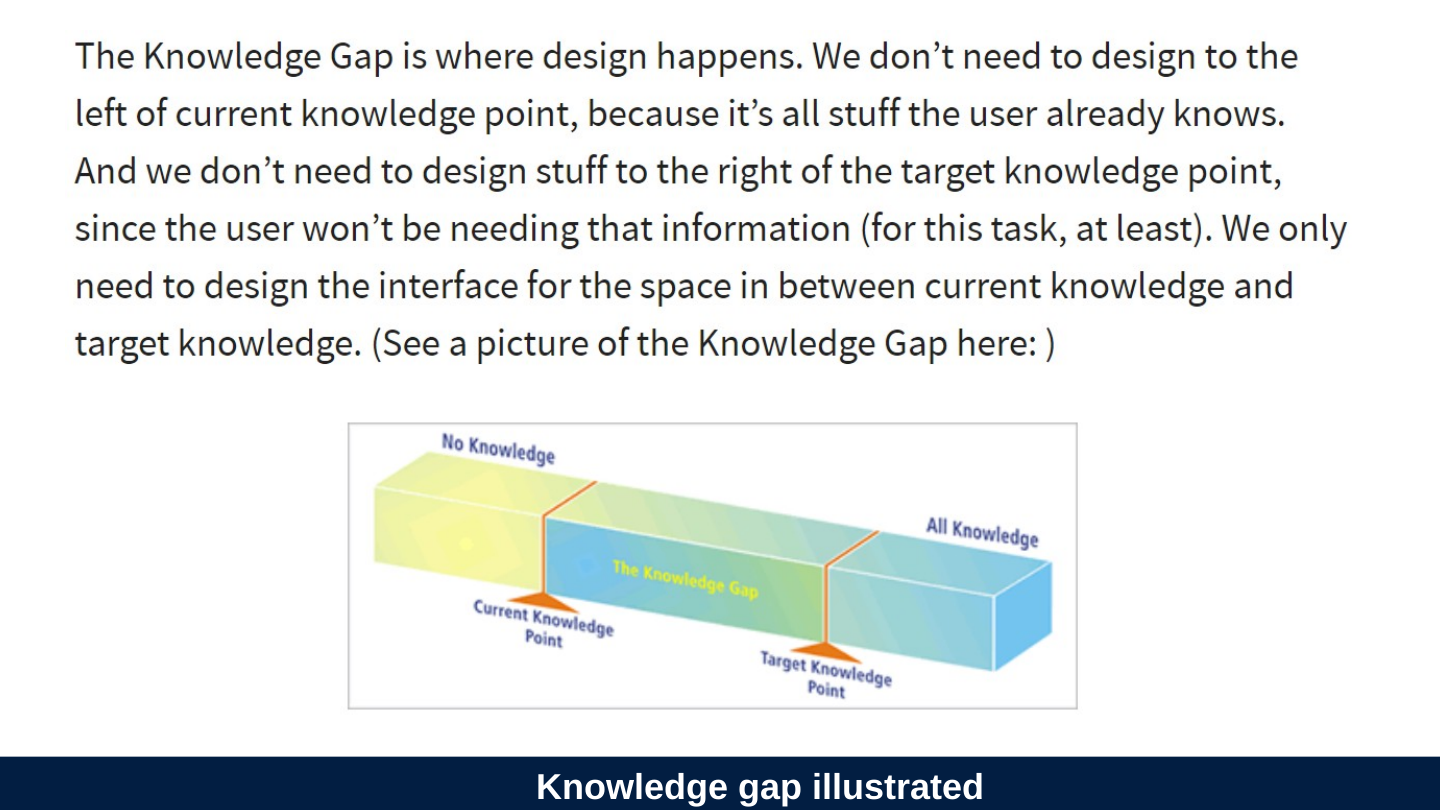
Slide 9: Knowledge gap illustrated
Knowledge gap illustrated
Slide 10: Slide 10
“The biggest challenge in making a design seem intuitive to users is learning where the current and target knowledge points are.”
-- Jared Spool
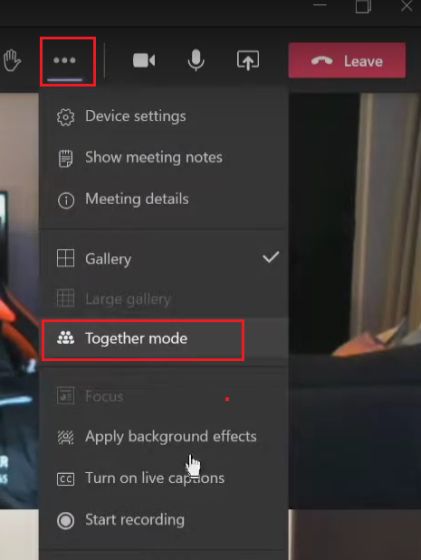
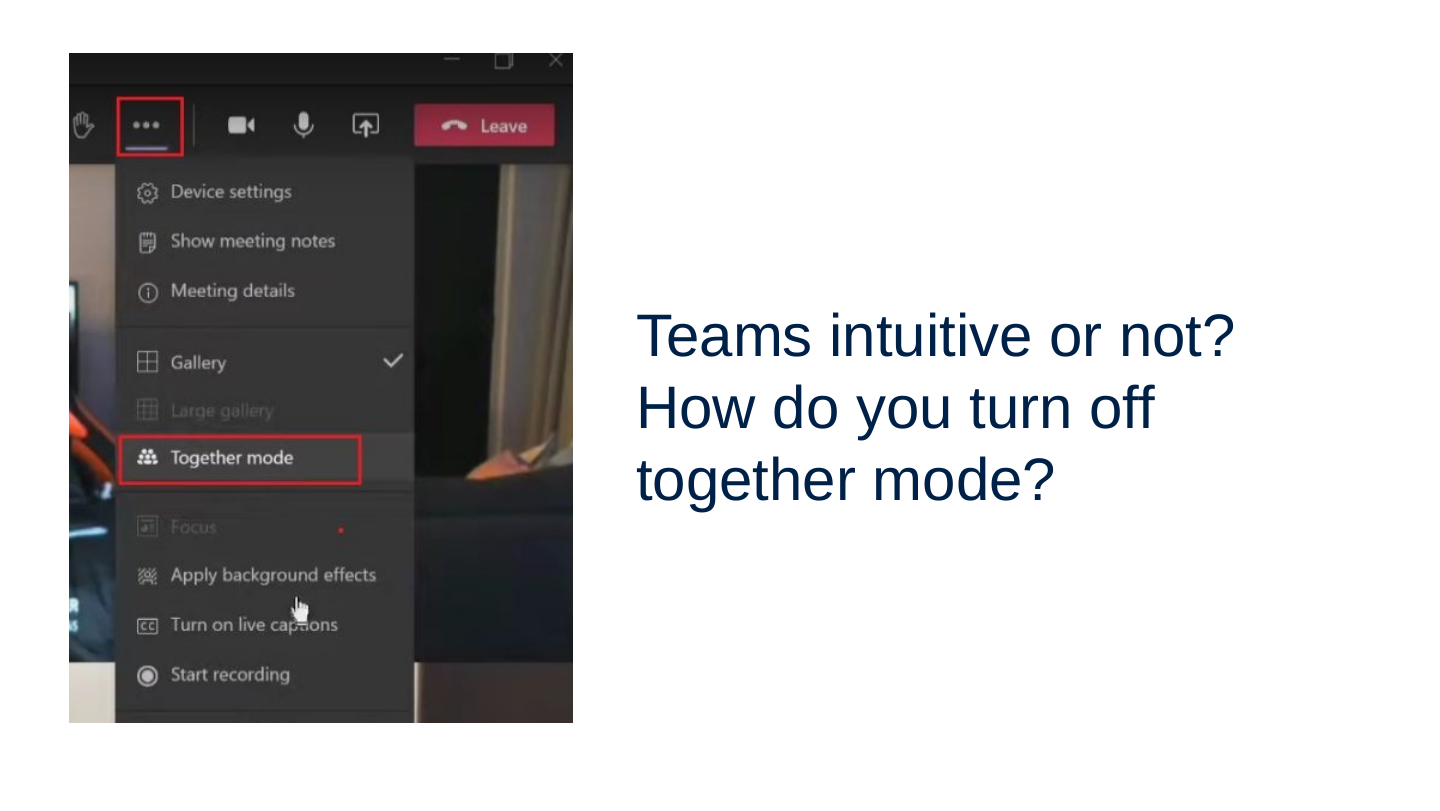
Slide 11: Teams intuitive or not? How do you turn off together mode?
Teams intuitive or not? How do you turn off together mode?
Slide 12: People don’t develop knowledge and skills in the same way.
People don’t develop knowledge and skills in the same way.
Slide 13: Table of types of users
Table of types of users
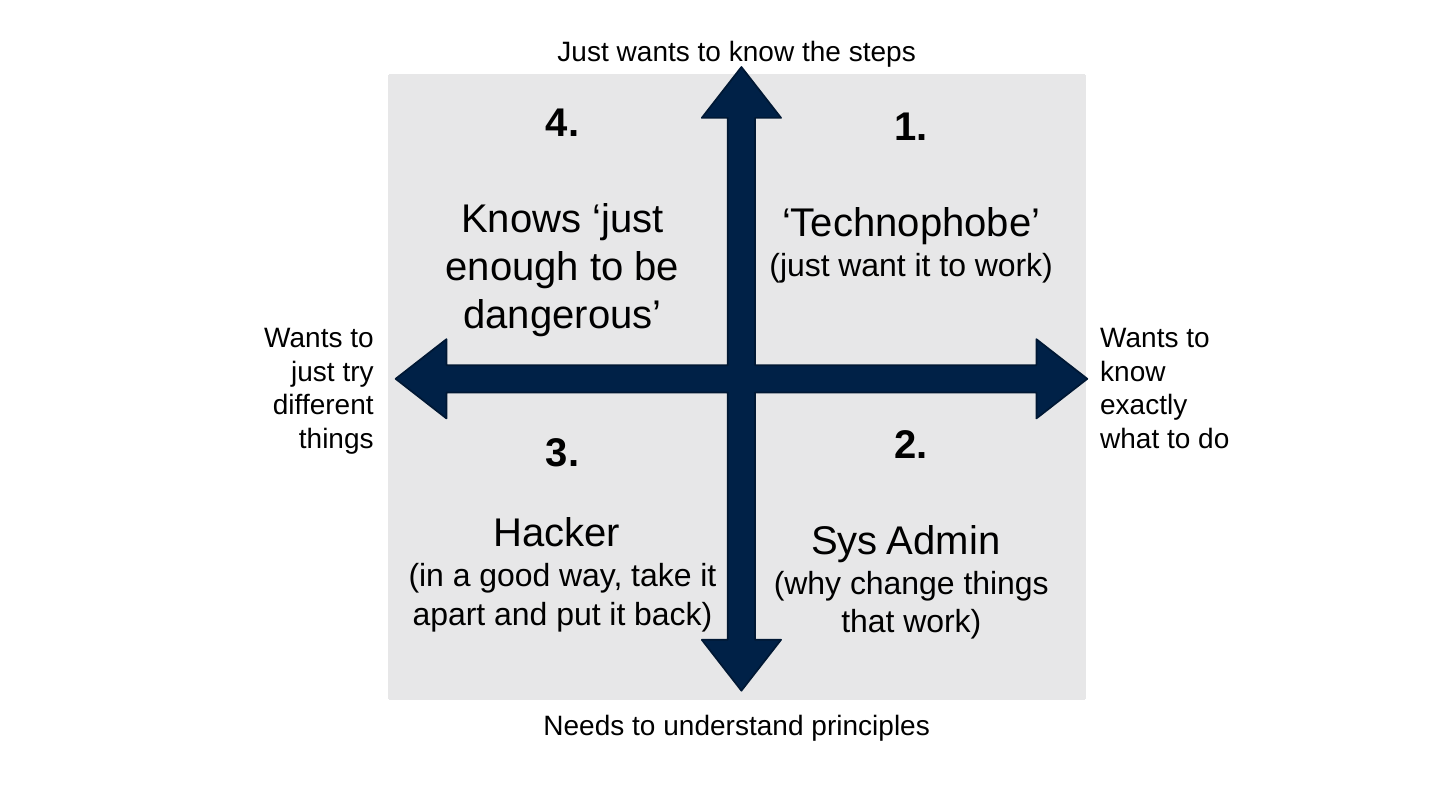
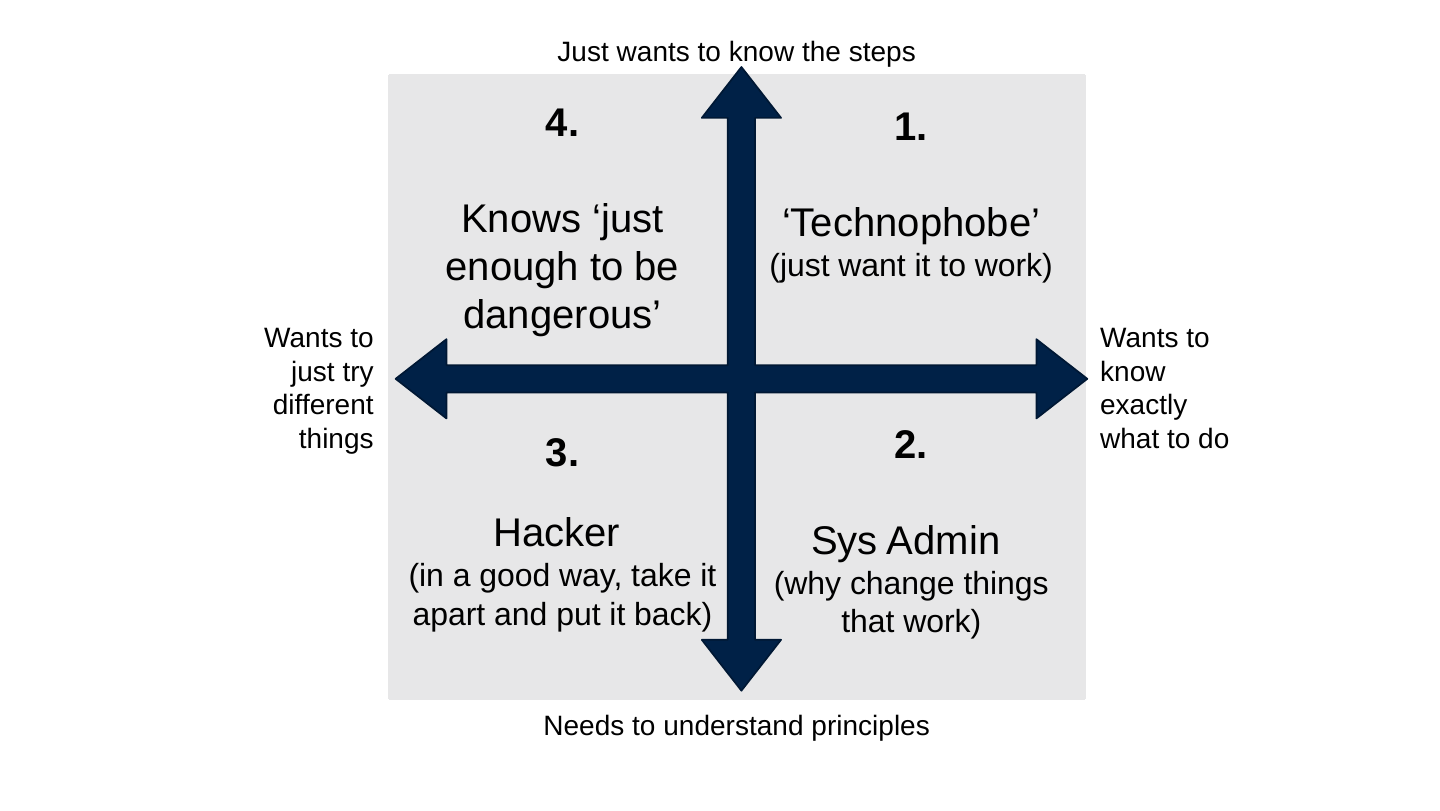
Axis labels on the slide: top “Just wants to know the steps”, bottom “Needs to understand principles”, left “Wants to just try different things”, right “Wants to know exactly what to do”.
- ‘Technophobe’ (just want it to work)
- Sys Admin (why change things that work)
- Hacker (in a good way, take it apart and put it back)
- Knows ‘just enough to be dangerous’
Slide 14: Some hybrid mental models
Some hybrid mental models
Slide 15: Mental models can help make sense of the needs.
Mental models can help make sense of the needs.
Slide 16: Three levels of hybrid
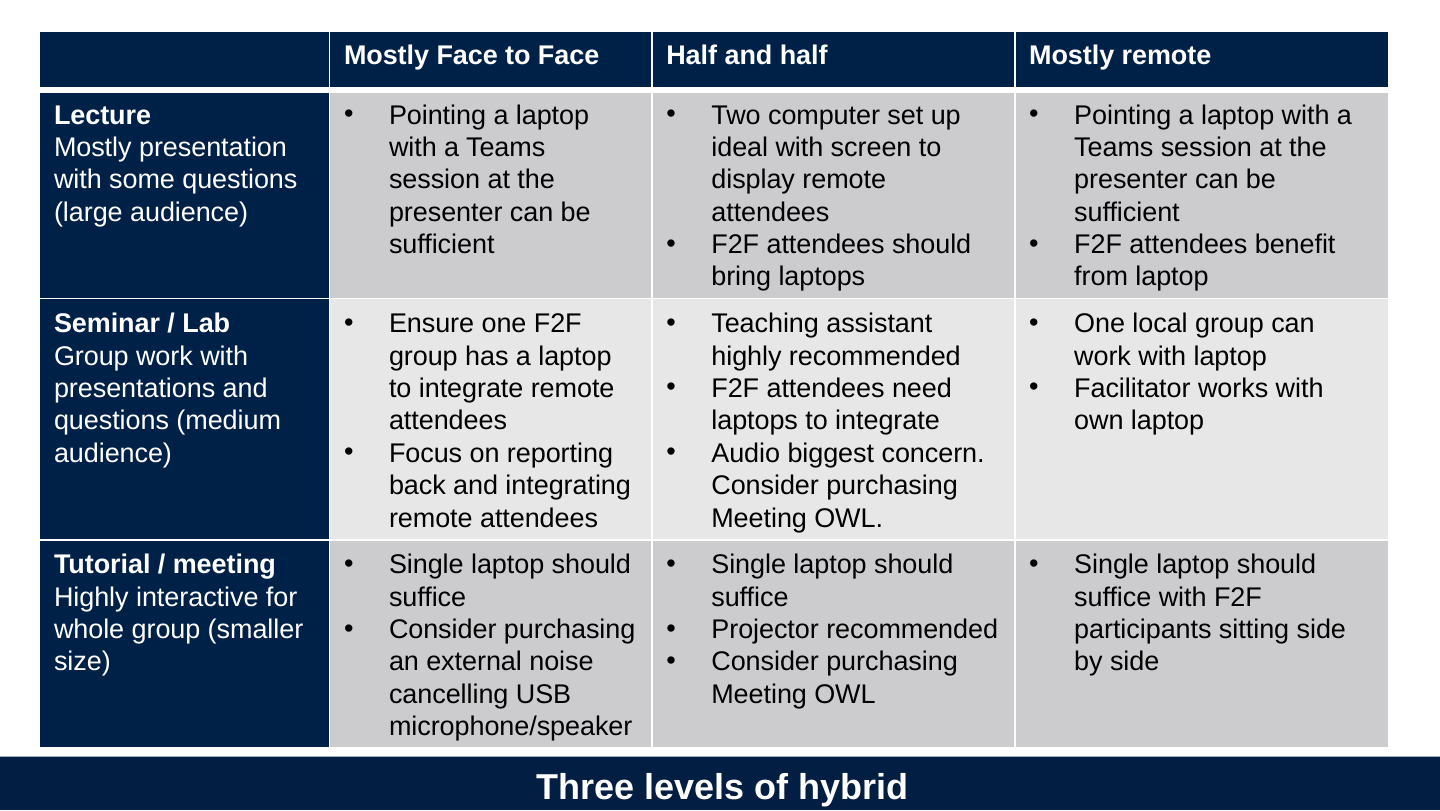
Three levels of hybrid
- Lecture / Mostly presentation with some questions (large audience)
- Mostly Face to Face
- Pointing a laptop with a Teams session at the presenter can be sufficient
- Half and half
- Two computer set up ideal with screen to display remote attendees
- F2F attendees should bring laptops
- Mostly remote
- Pointing a laptop with a Teams session at the presenter can be sufficient
- F2F attendees benefit from laptop
- Mostly Face to Face
- Seminar / Lab / Group work with presentations and questions (medium audience)
- Mostly Face to Face
- Ensure one F2F group has a laptop to integrate remote attendees
- Focus on reporting back and integrating remote attendees
- Half and half
- Teaching assistant highly recommended
- F2F attendees need laptops to integrate
- Audio biggest concern. Consider purchasing Meeting OWL.
- Mostly remote
- One local group can work with laptop
- Facilitator works with own laptop
- Mostly Face to Face
- Tutorial / meeting / Highly interactive for whole group (smaller size)
- Mostly Face to Face
- Single laptop should suffice
- Consider purchasing an external noise cancelling USB microphone/speaker
- Half and half
- Single laptop should suffice
- Projector recommended
- Consider purchasing Meeting OWL
- Mostly remote
- Single laptop should suffice with F2F participants sitting side by side
- Mostly Face to Face
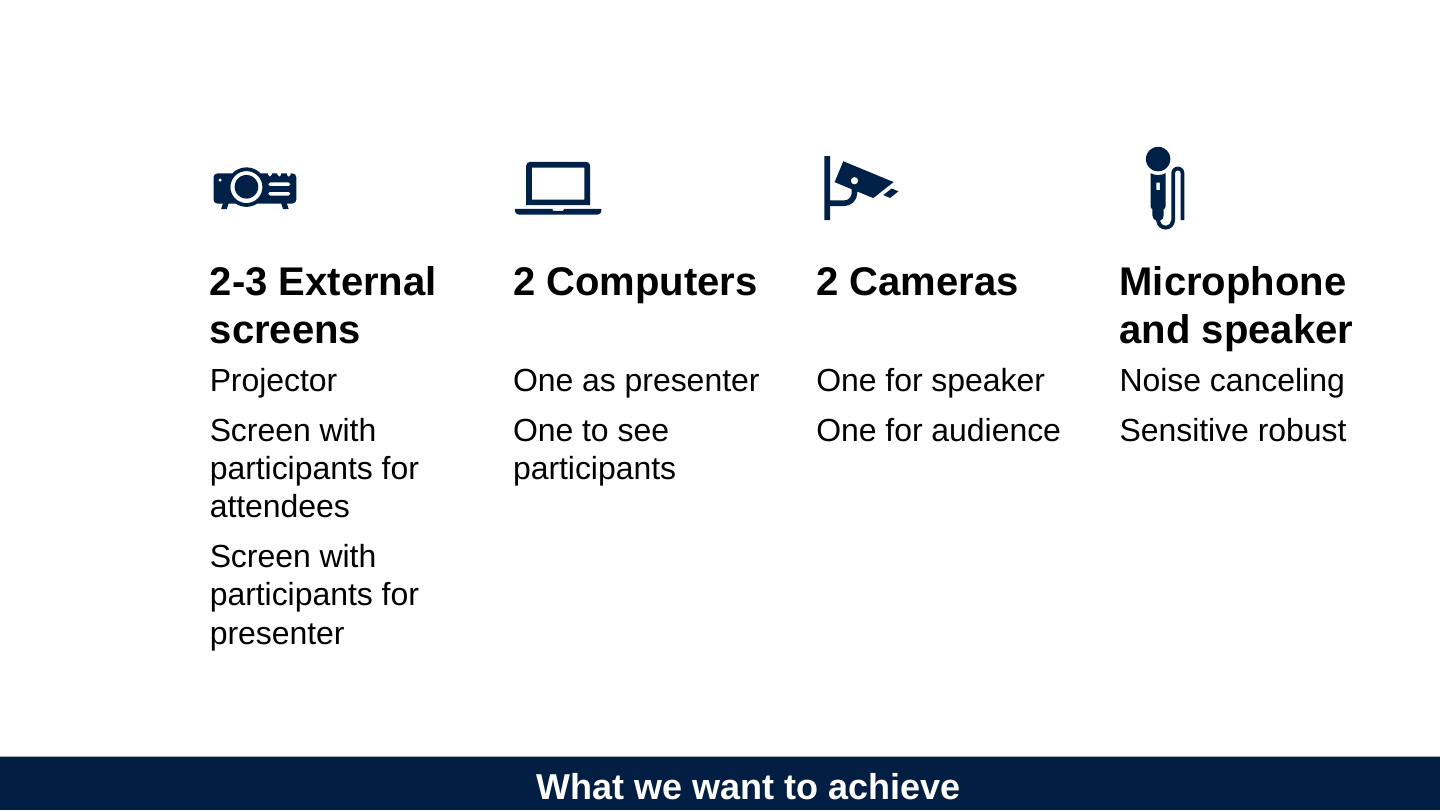
Slide 17: What do we need
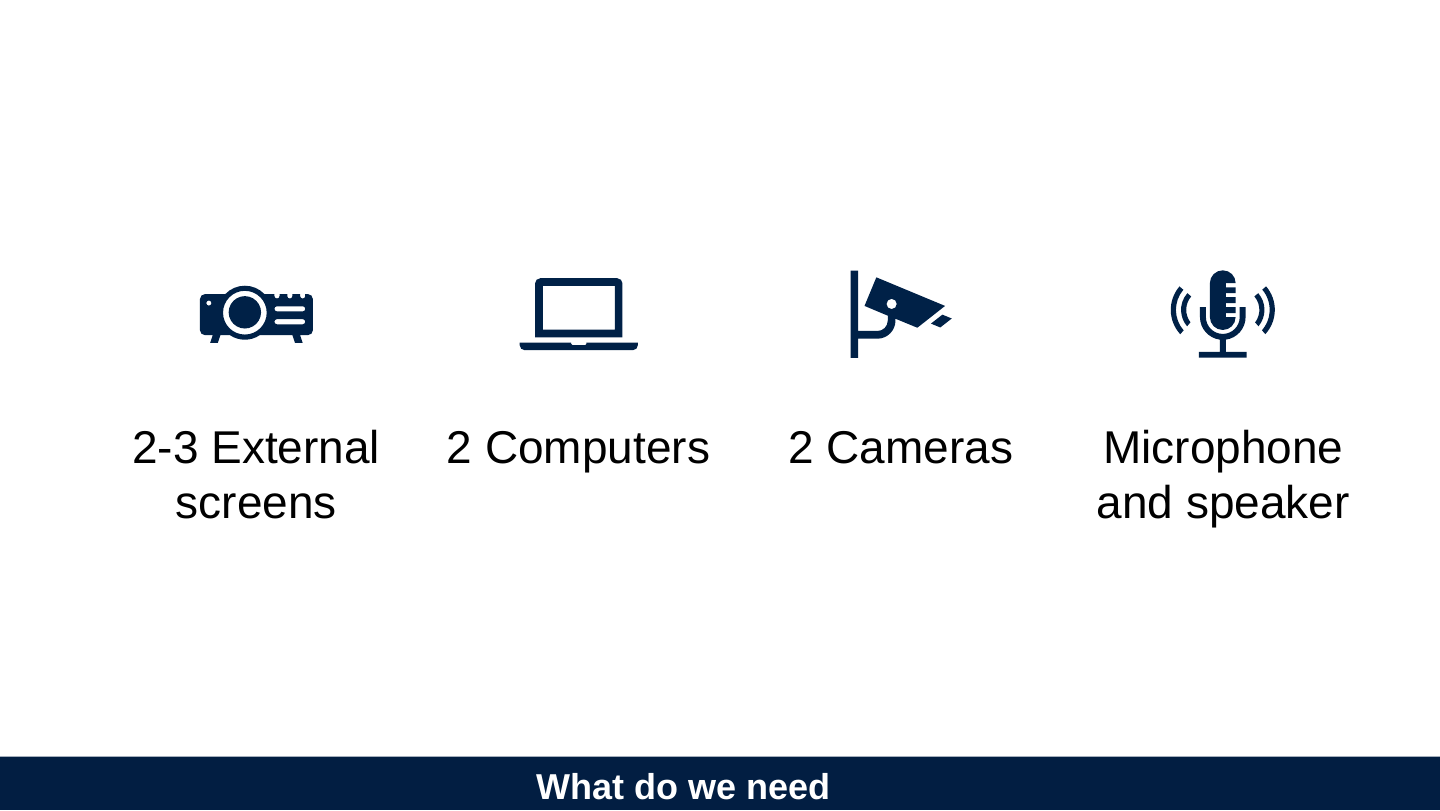
What do we need
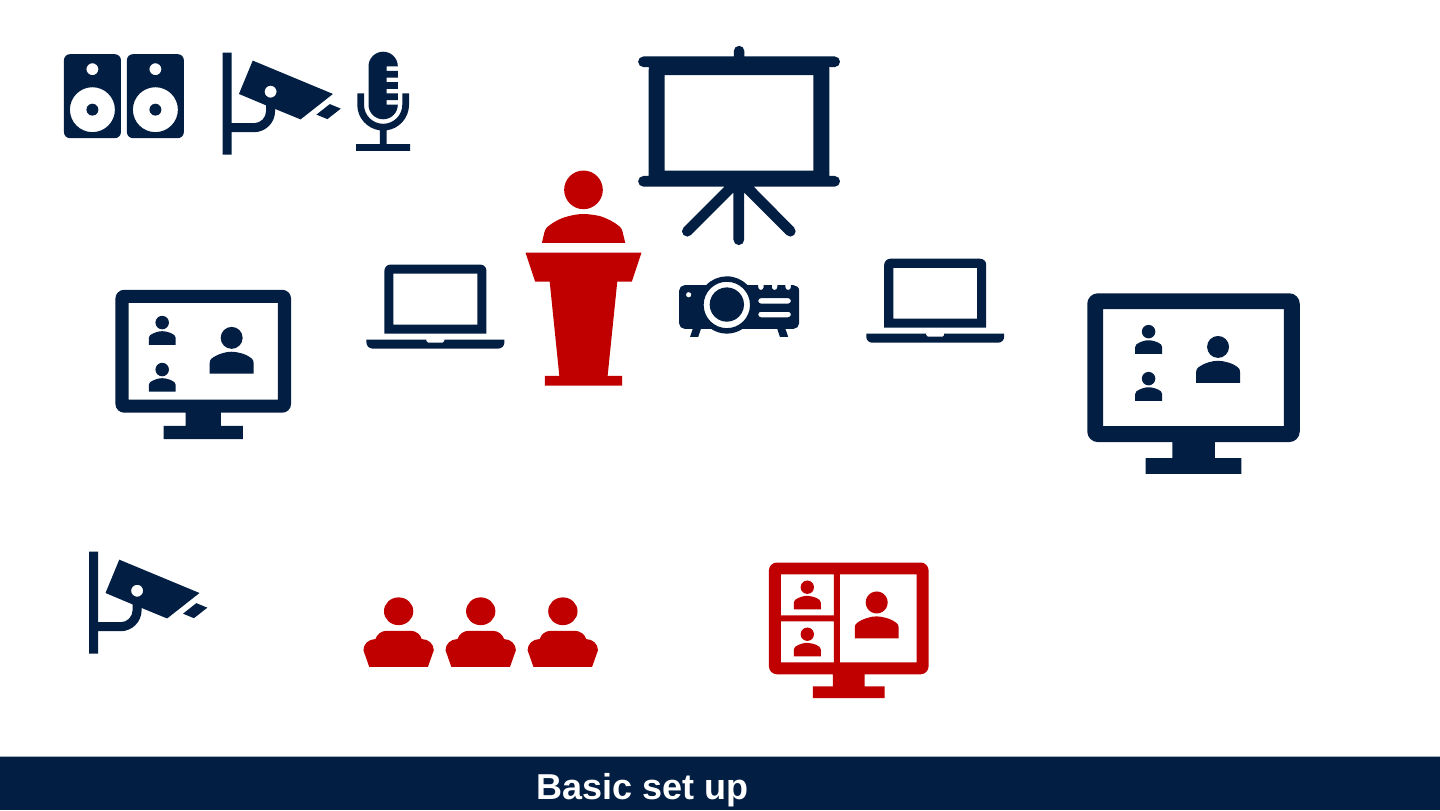
- 2-3 External screens
- 2 Computers
- 2 Cameras
- Microphone and speaker
Slide 18: What we want to achieve
What we want to achieve
- 2-3 External screens
- Projector
- Screen with participants for attendees
- Screen with participants for presenter
- 2 Computers
- One as presenter
- One to see participants
- 2 Cameras
- One for speaker
- One for audience
- Microphone and speaker
- Noise canceling
- Sensitive robust
Slide 19: Good mental models can help make sense of seeming chaos.
Good mental models can help make sense of seeming chaos.
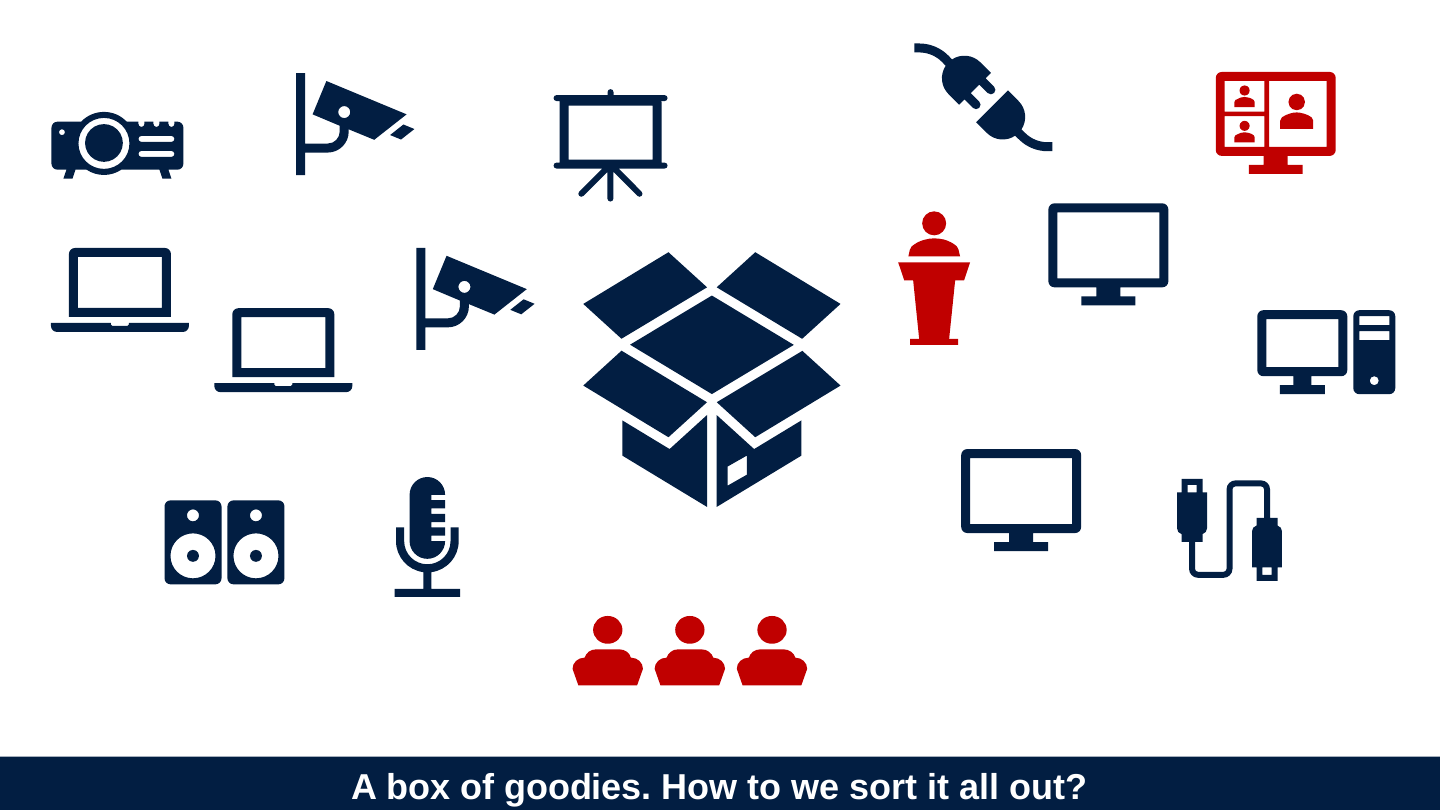
Slide 20: A box of goodies. How to we sort it all out?
A box of goodies. How to we sort it all out?
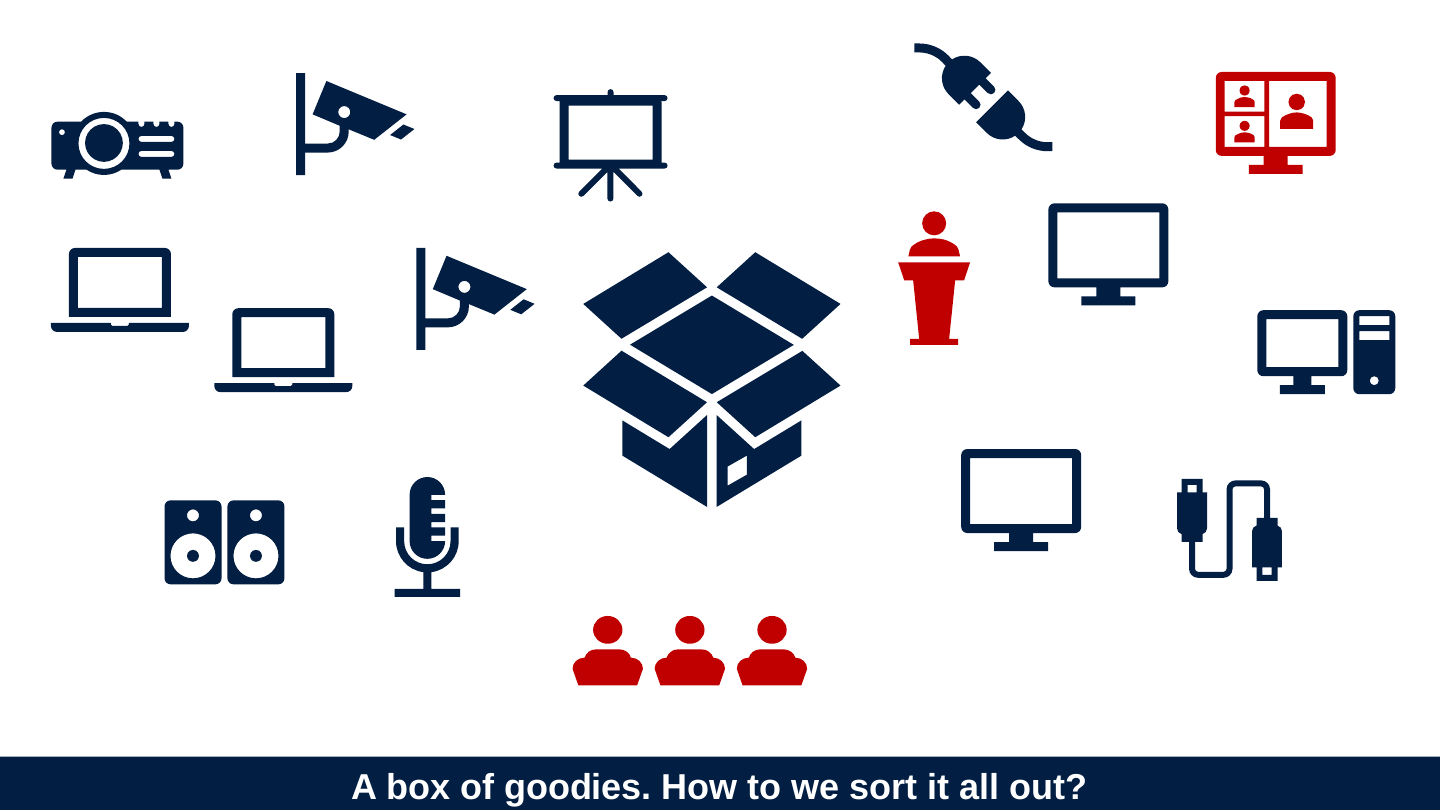
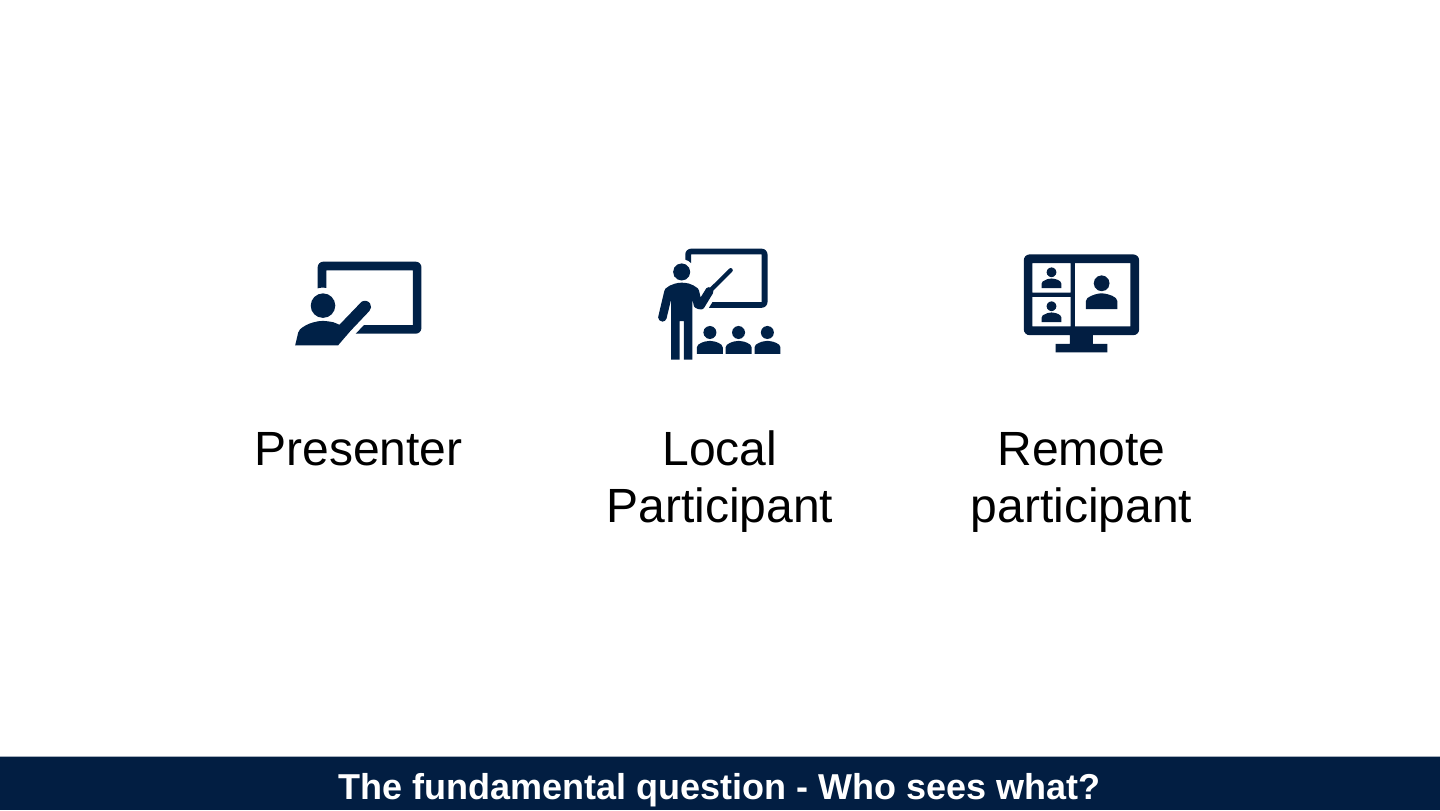
Slide 21: The fundamental question - Who sees what?
The fundamental question - Who sees what?
- Presenter
- Local Participant
- Remote participant
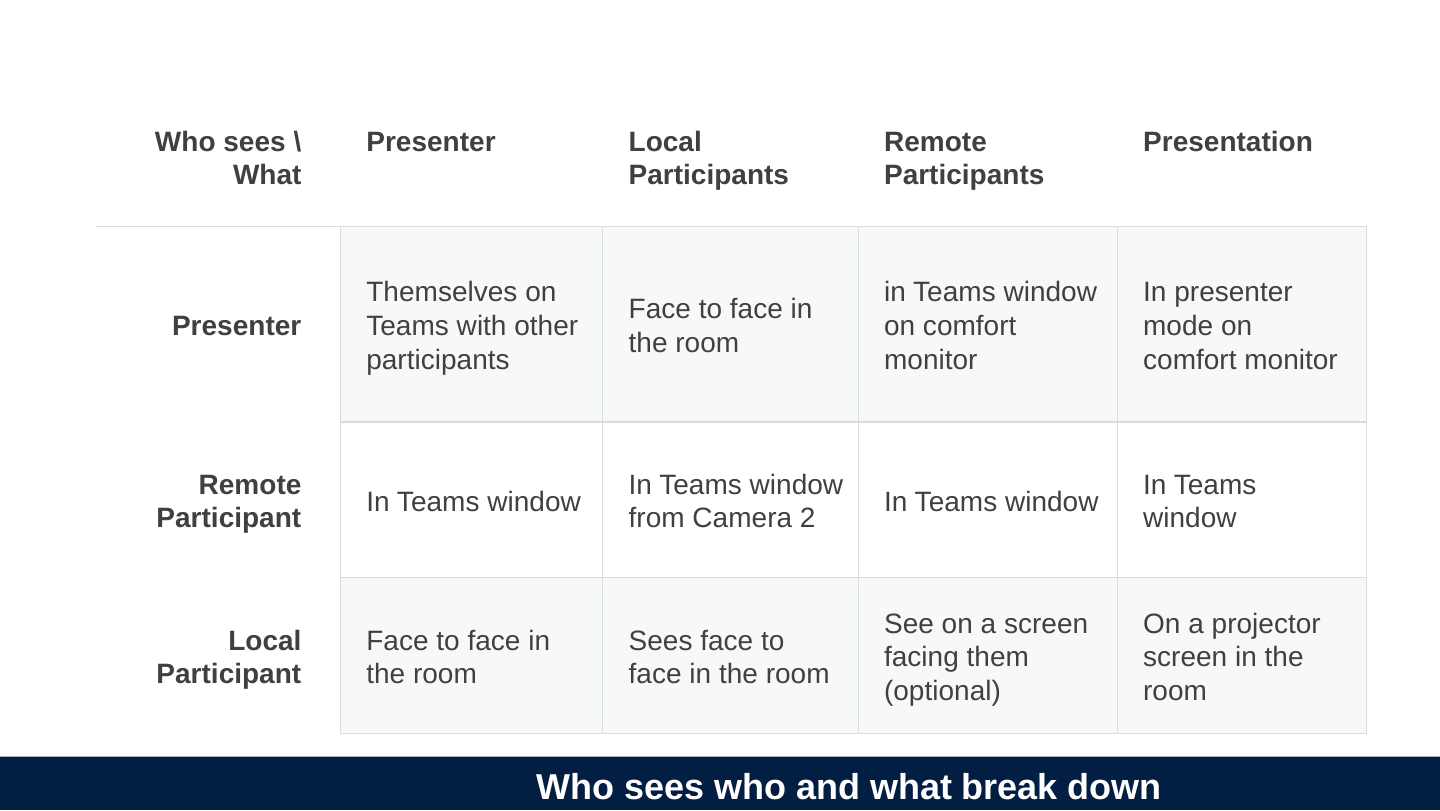
Slide 22: Who sees who and what break down
Who sees who and what break down
Who sees \ What | Presenter | Local Participants | Remote Participants | Presentation |
|---|---|---|---|---|
| Presenter | Themselves on Teams with other participants | Face to face in the room | in Teams window on comfort monitor | In presenter mode on comfort monitor |
| Remote Participant | In Teams window | In Teams window from Camera 2 | In Teams window | In Teams window |
| Local Participant | Face to face in the room | Sees face to face in the room | See on a screen facing them (optional) | On a projector screen in the room |
Slide 23: Basic set up
Basic set up
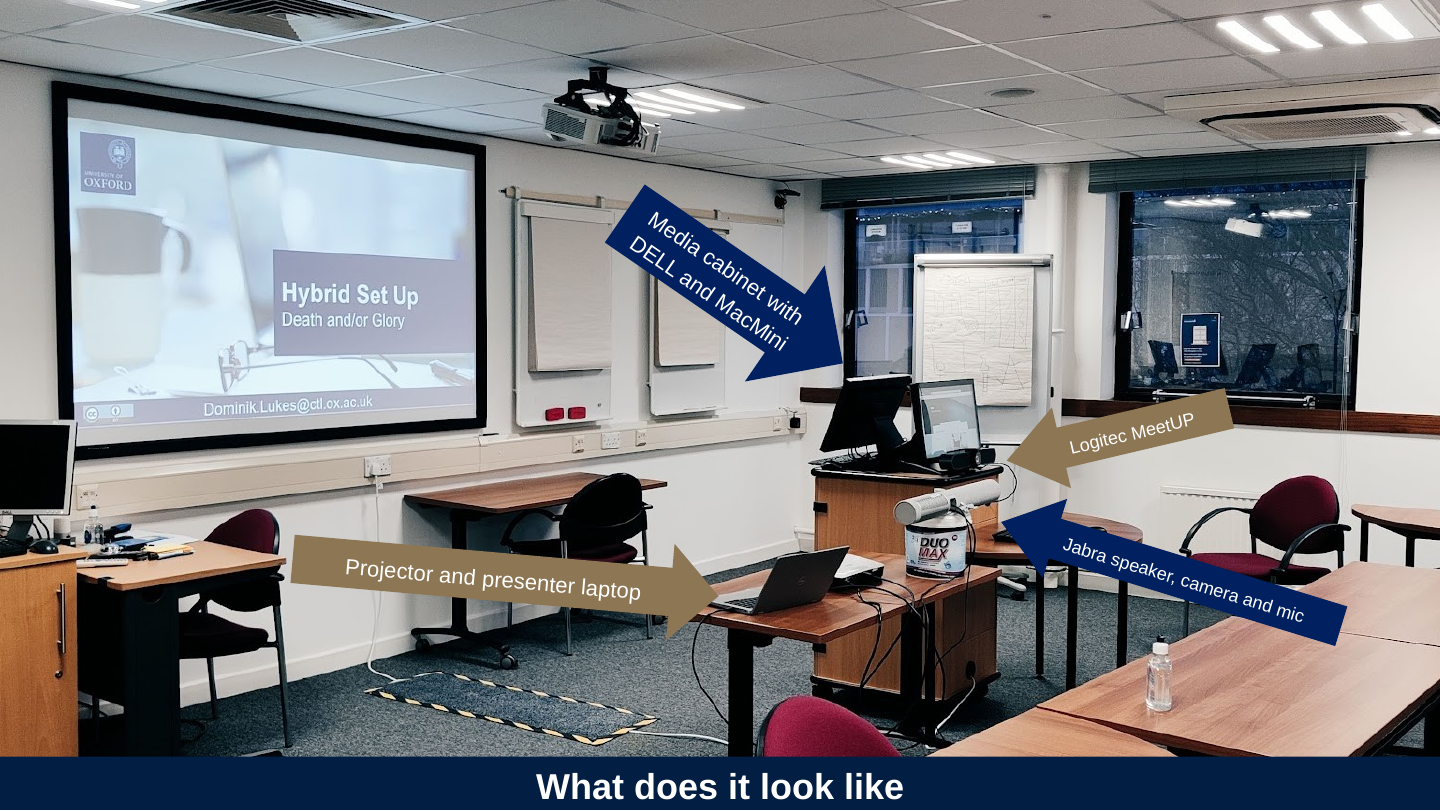
Slide 24: What does it look like
What does it look like
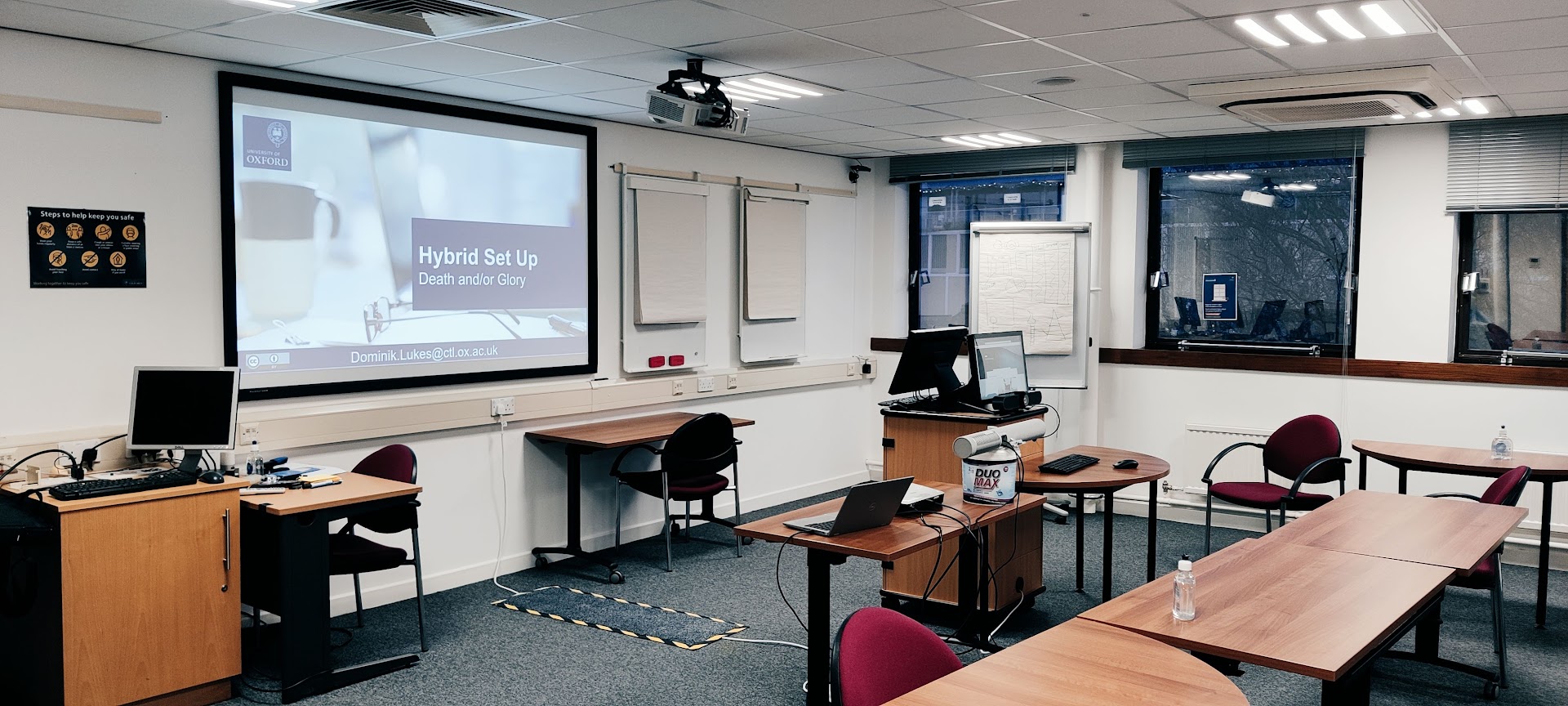
- Projector and presenter laptop
- Jabra speaker, camera and mic
- Logitec MeetUP
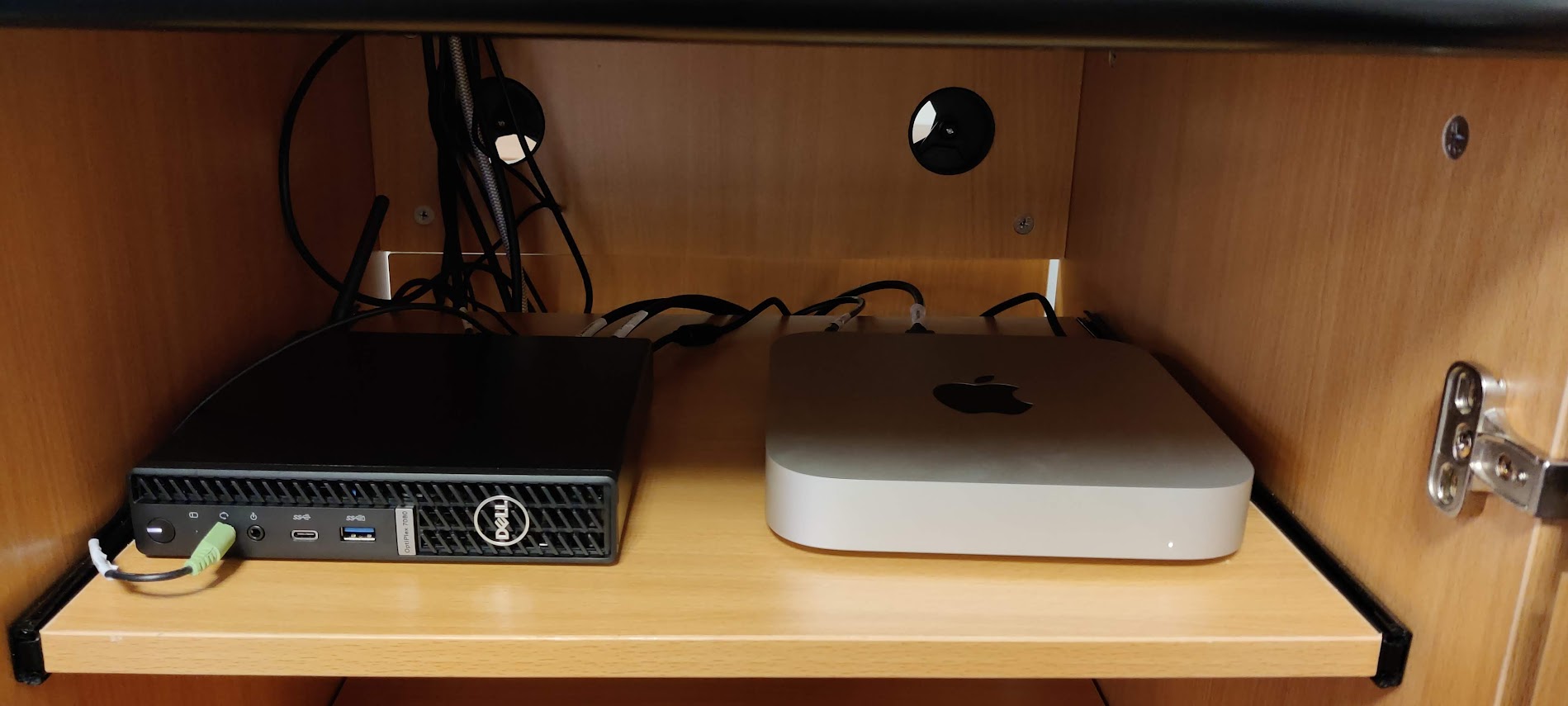
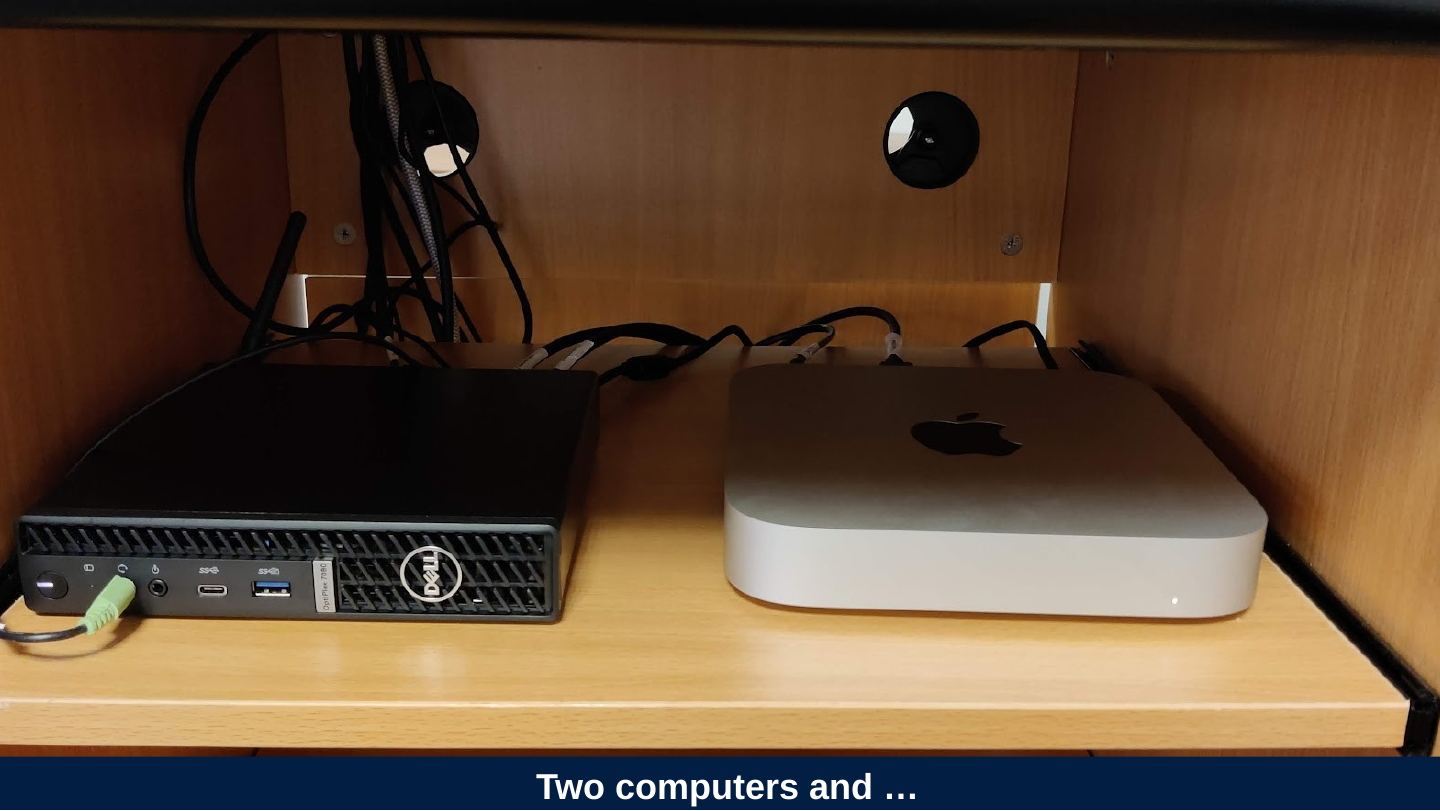
- Media cabinet with DELL and MacMini
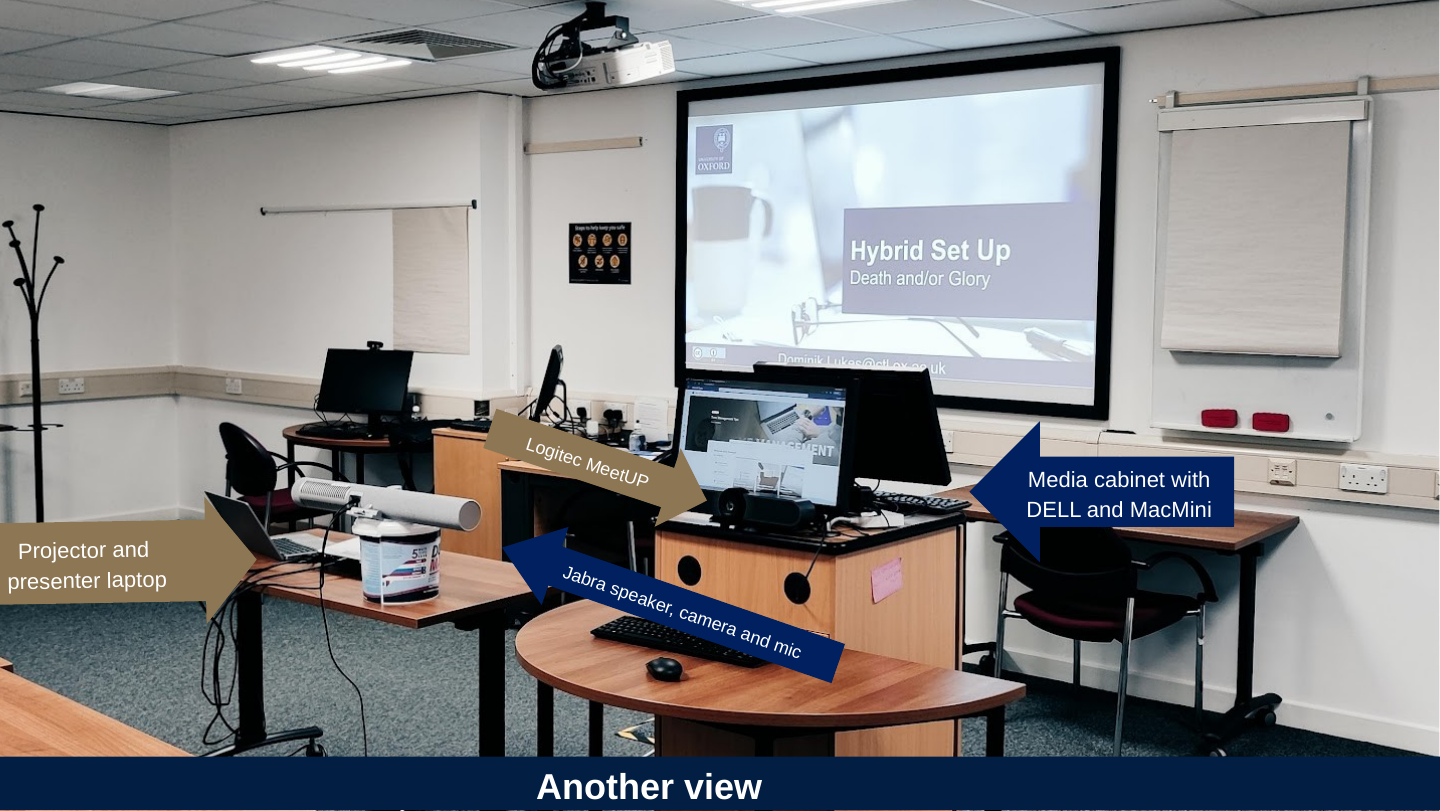
Slide 25: Another view
Another view
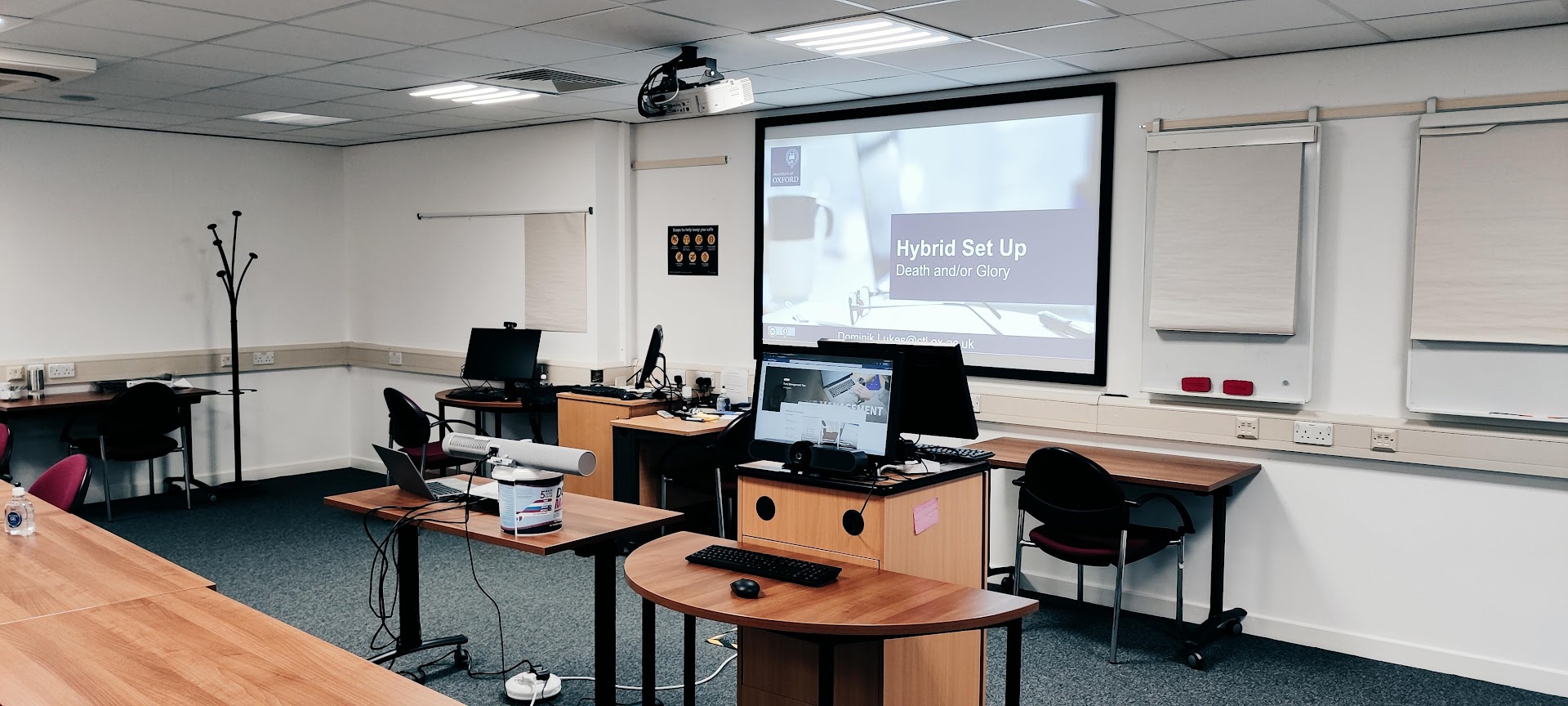
- Projector and presenter laptop
- Jabra speaker, camera and mic
- Logitec MeetUP
- Media cabinet with DELL and MacMini
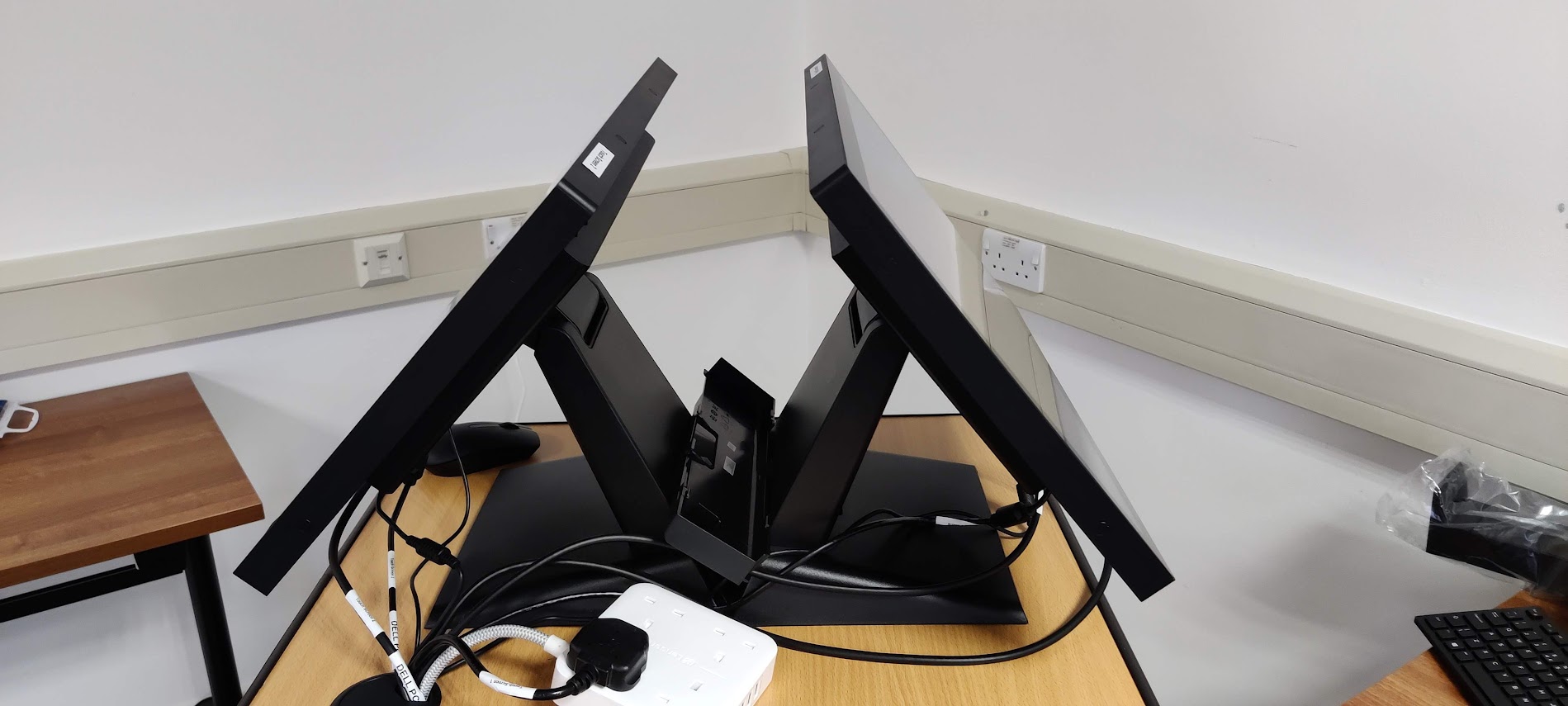
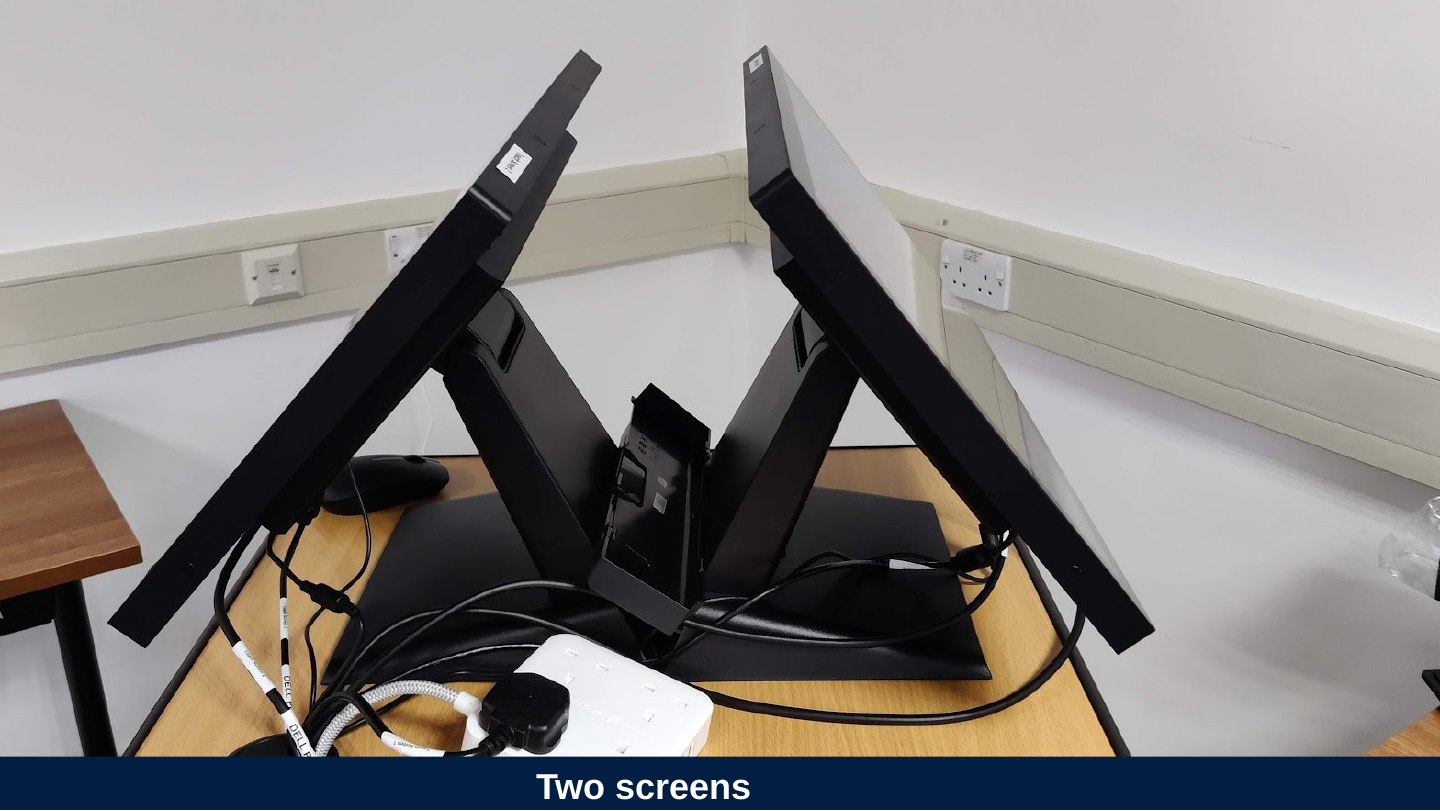
Slide 26: Two screens
Two screens
Slide 27: Two computers and …
Two computers and …
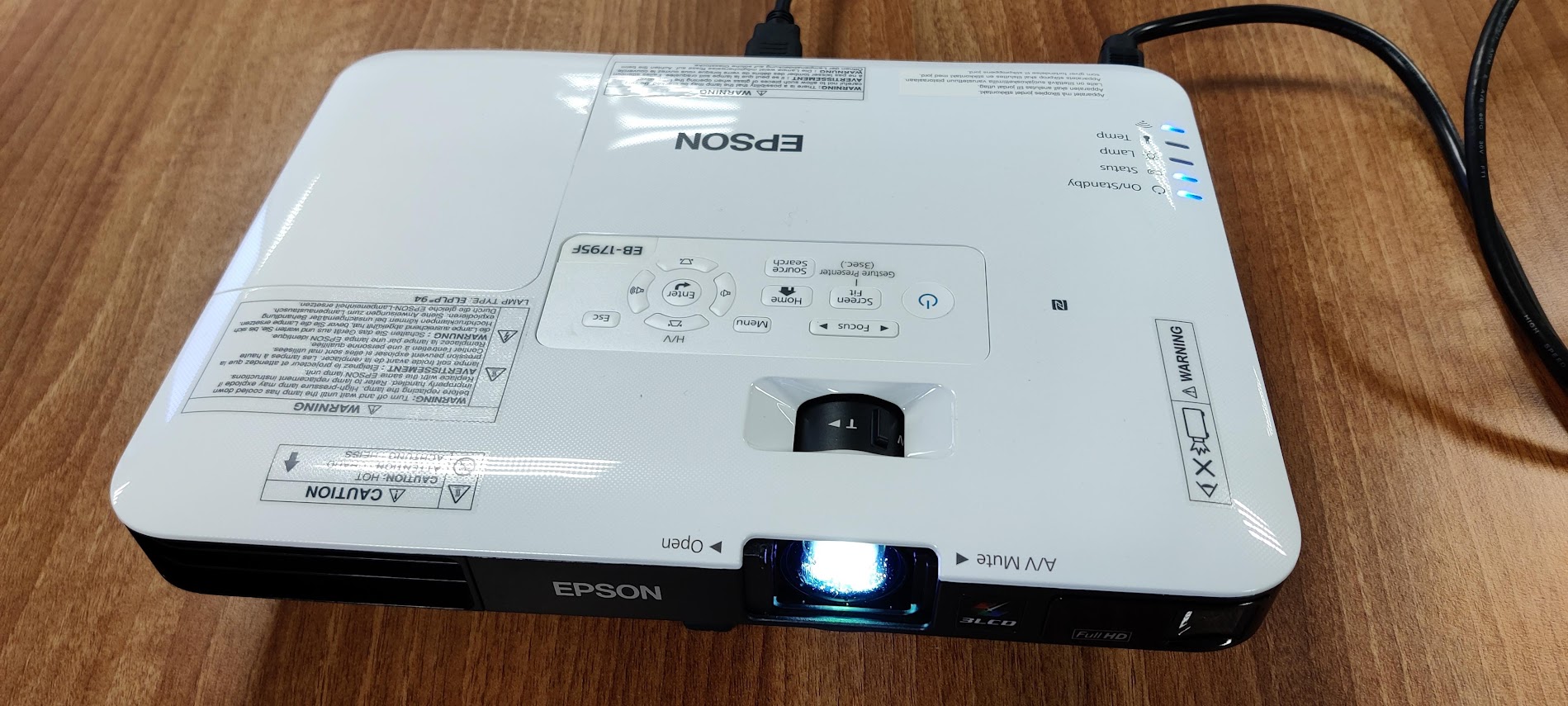
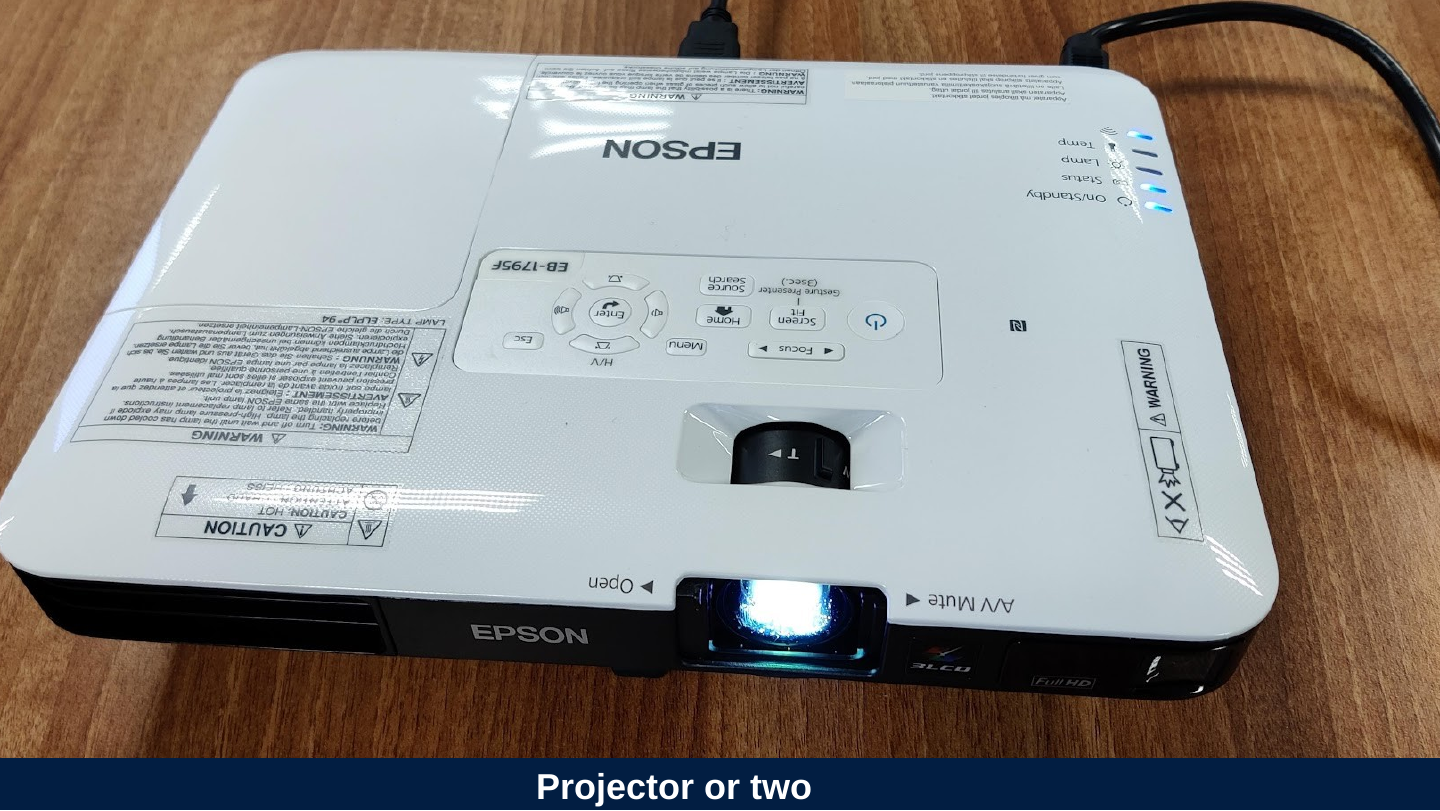
Slide 28: Projector or two
Projector or two
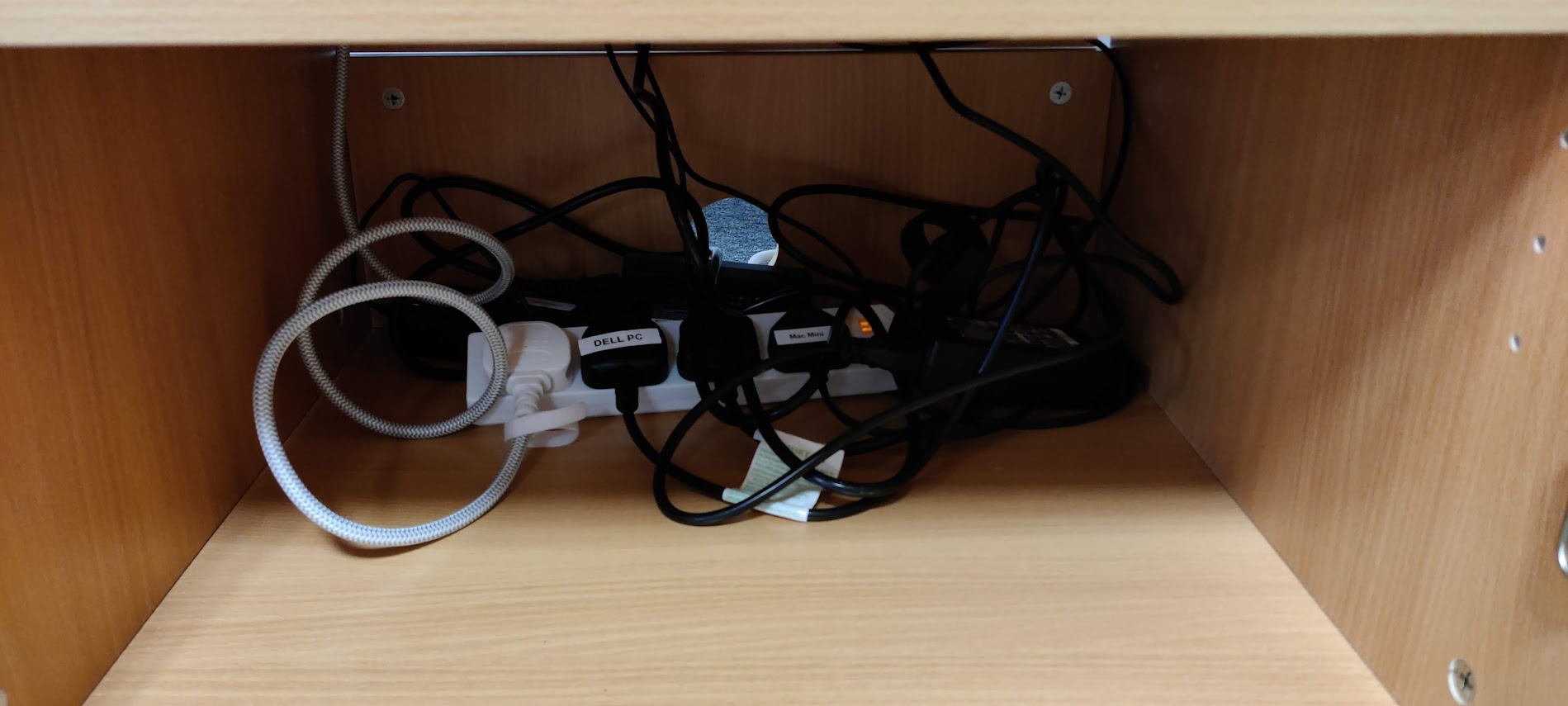
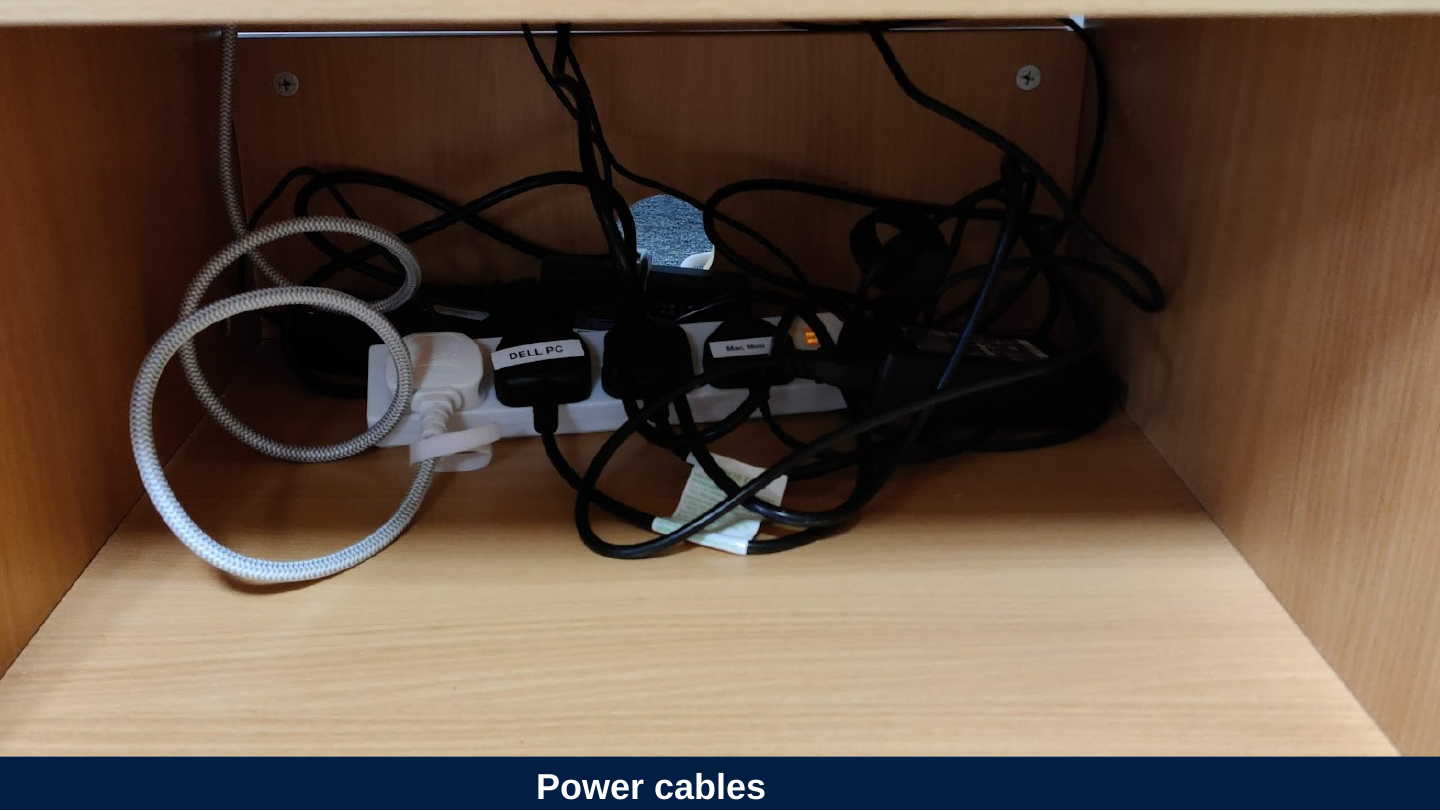
Slide 29: Power cables
Power cables
Slide 30: Sometimes more straightforward propositional knowledge is helpful
Sometimes more straightforward propositional knowledge is helpful
Slide 31: Microphone / Speaker / Camera Combinations
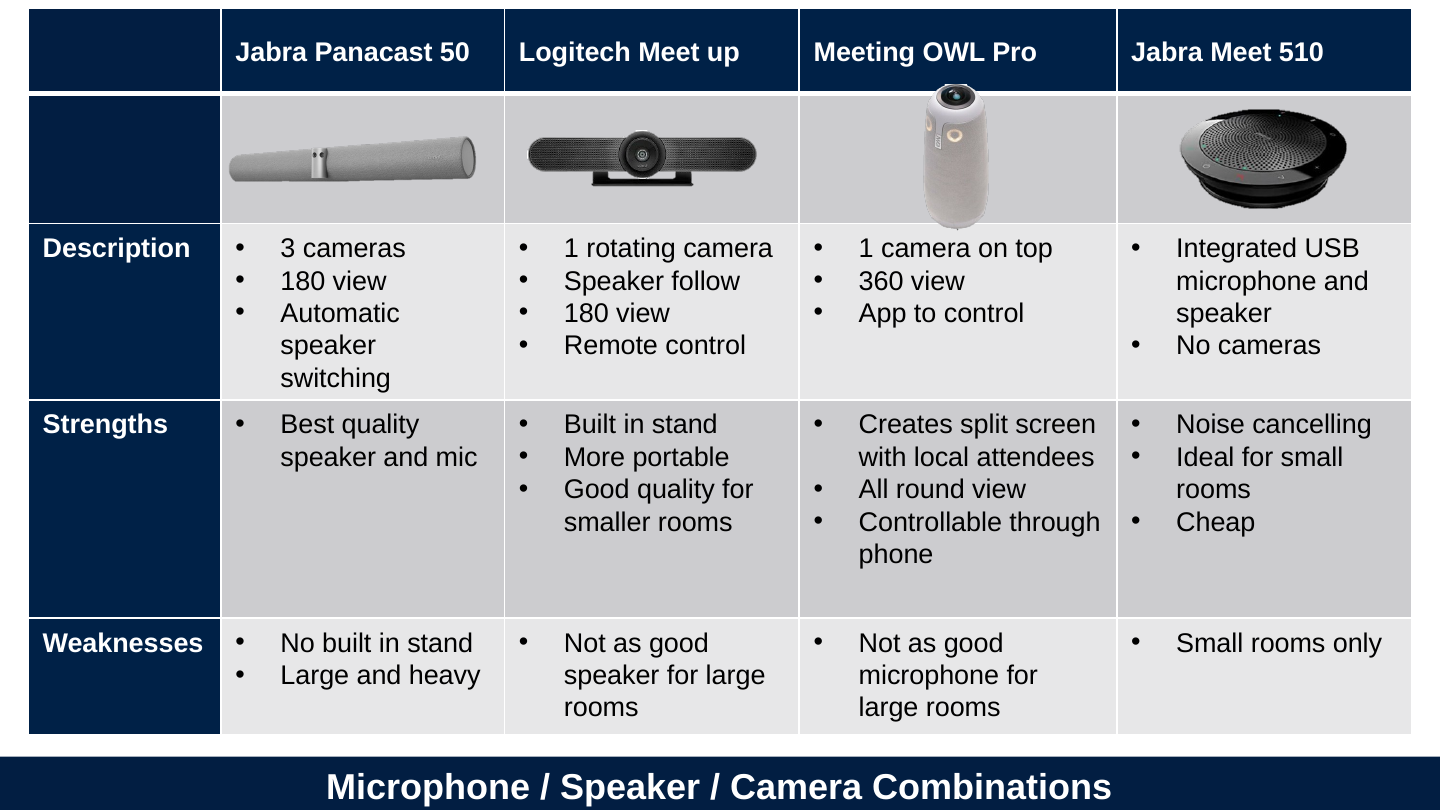
Microphone / Speaker / Camera Combinations
| Jabra Panacast 50 | Logitech Meet up | Meeting OWL Pro | Jabra Meet 510 | |
|---|---|---|---|---|
| Description | 3 cameras / 180 view / Automatic speaker switching | 1 rotating camera / Speaker follow / 180 view / Remote control | 1 camera on top / 360 view / App to control | Integrated USB microphone and speaker / No cameras |
| Strengths | Best quality speaker and mic | Built in stand / More portable / Good quality for smaller rooms | Creates split screen with local attendees / All round view / Controllable through phone | Noise cancelling / Ideal for small rooms / Cheap |
| Weaknesses | No built in stand / Large and heavy | Not as good speaker for large rooms | Not as good microphone for large rooms | Small rooms only |



Slide 32: Metaphors can also be mental models.
Metaphors can also be mental models.
Slide 33: Pipes metaphor
Pipes metaphor
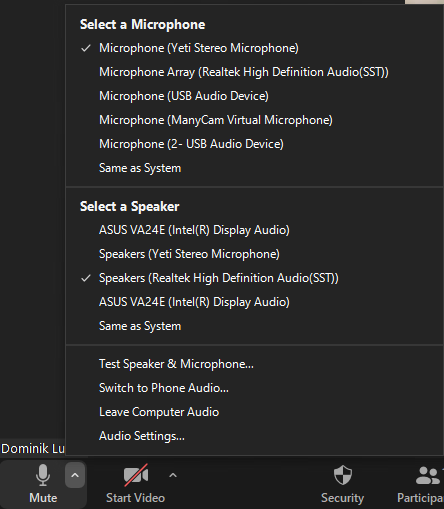
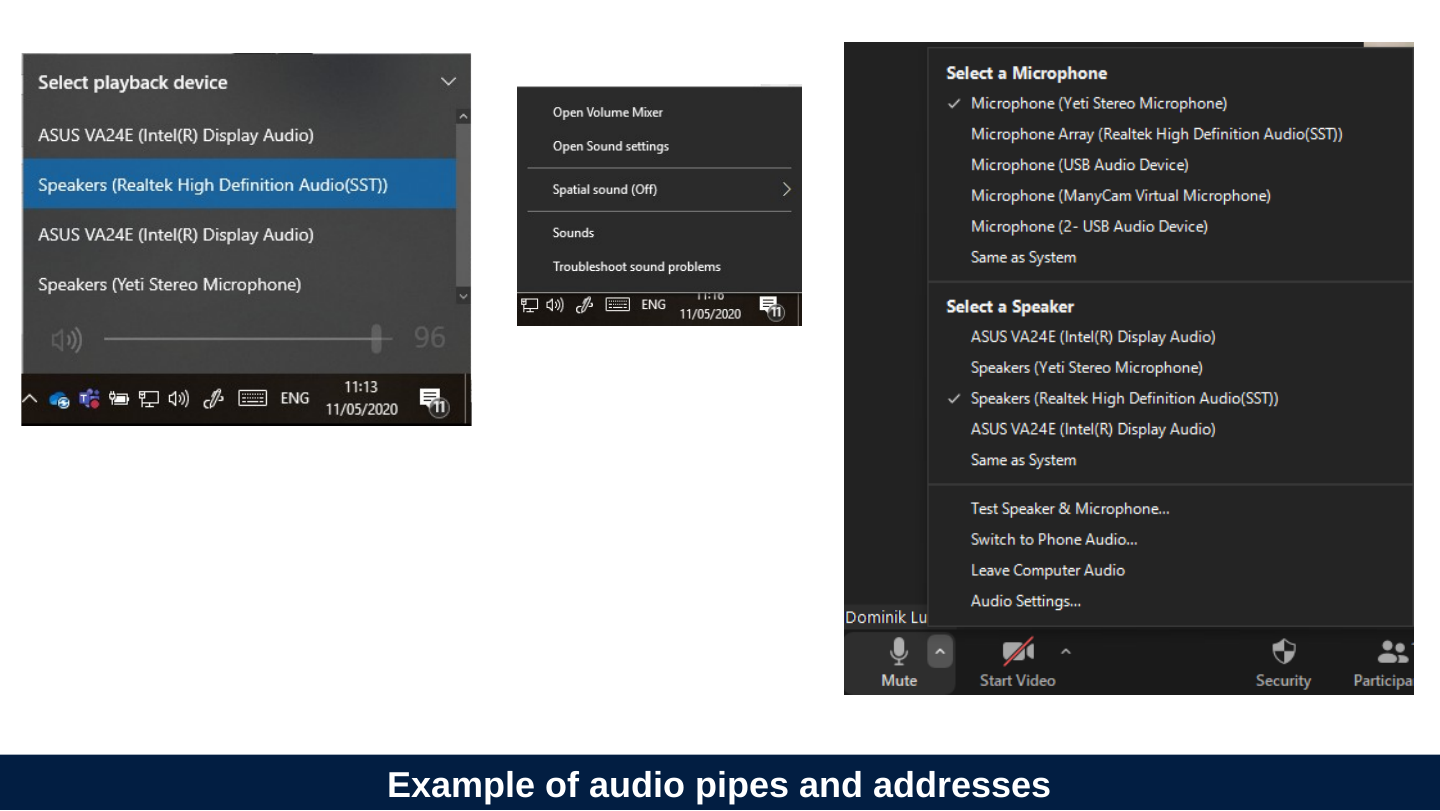
Everything digital is connected by some sort of a pipe through which information flows. Pipes have branches and gates.
Slide 34: Addresses metaphor
Addresses metaphor
For your computer to find anything, it has to have a unique address. There has to be a path to that address and the address has a name. And the computer must have a procedure for following that path.
Slide 35: Example of audio pipes and addresses
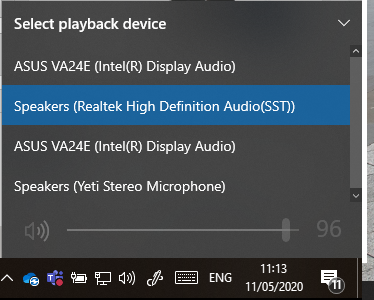
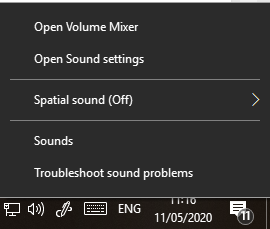
Example of audio pipes and addresses
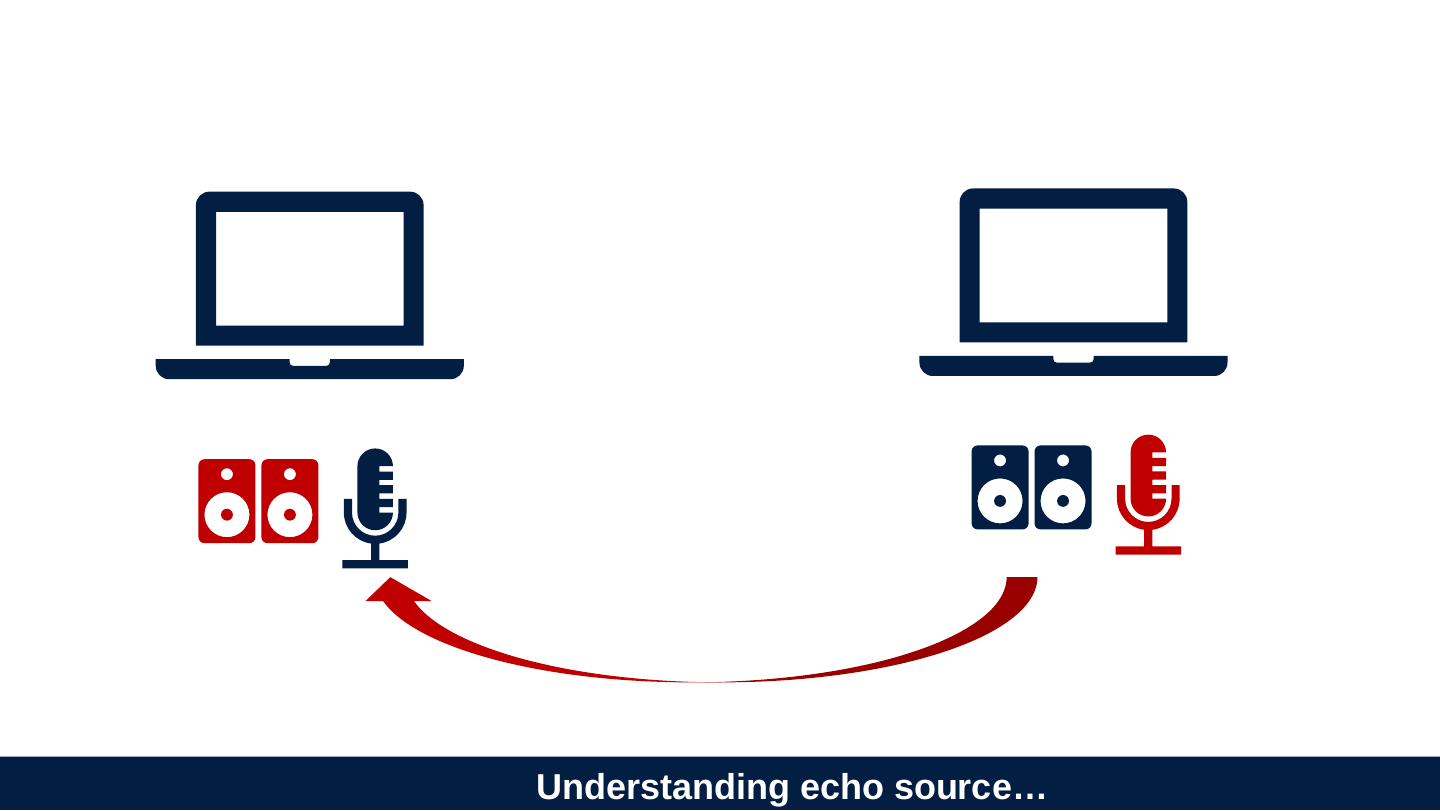
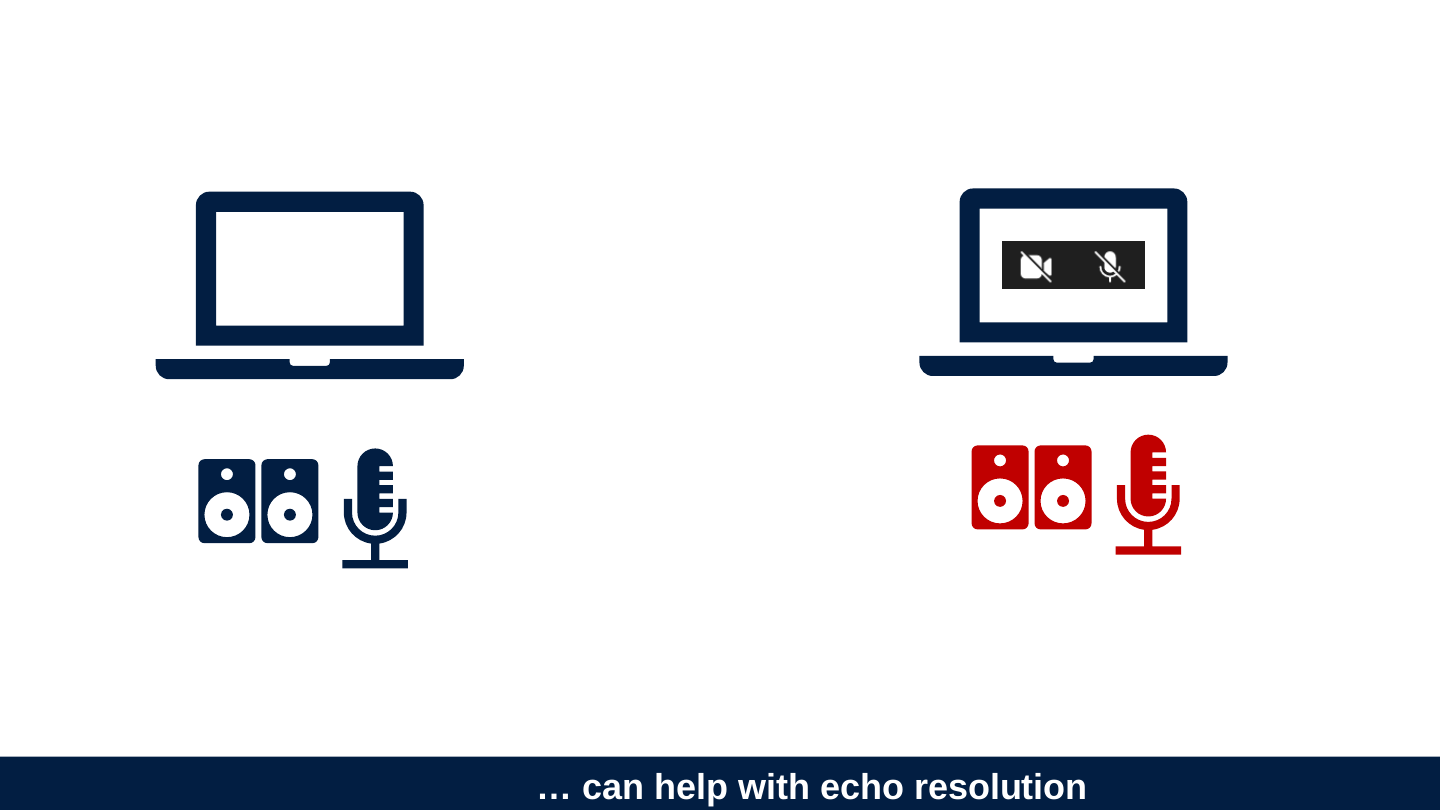
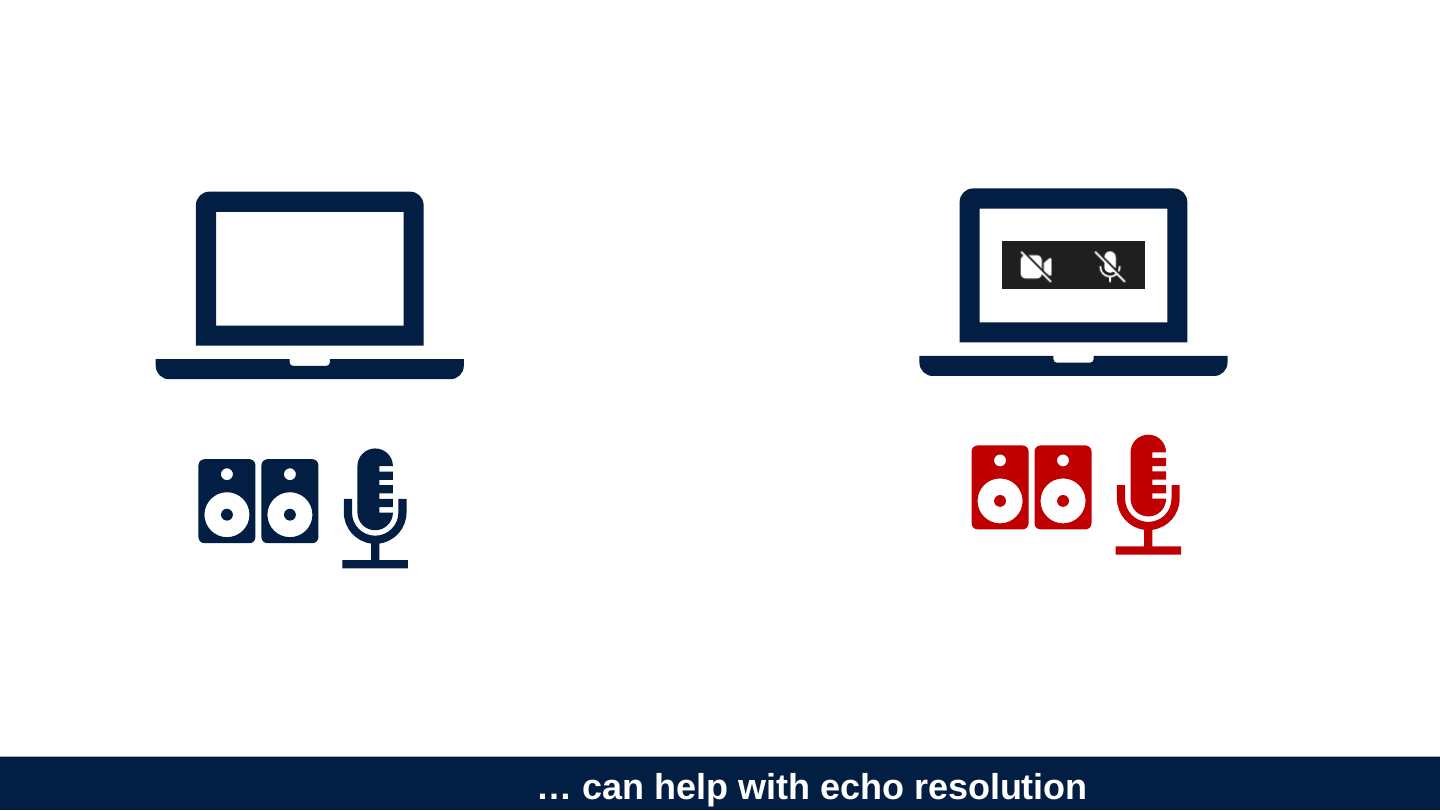
Slide 36: Understanding echo source…
Understanding echo source…
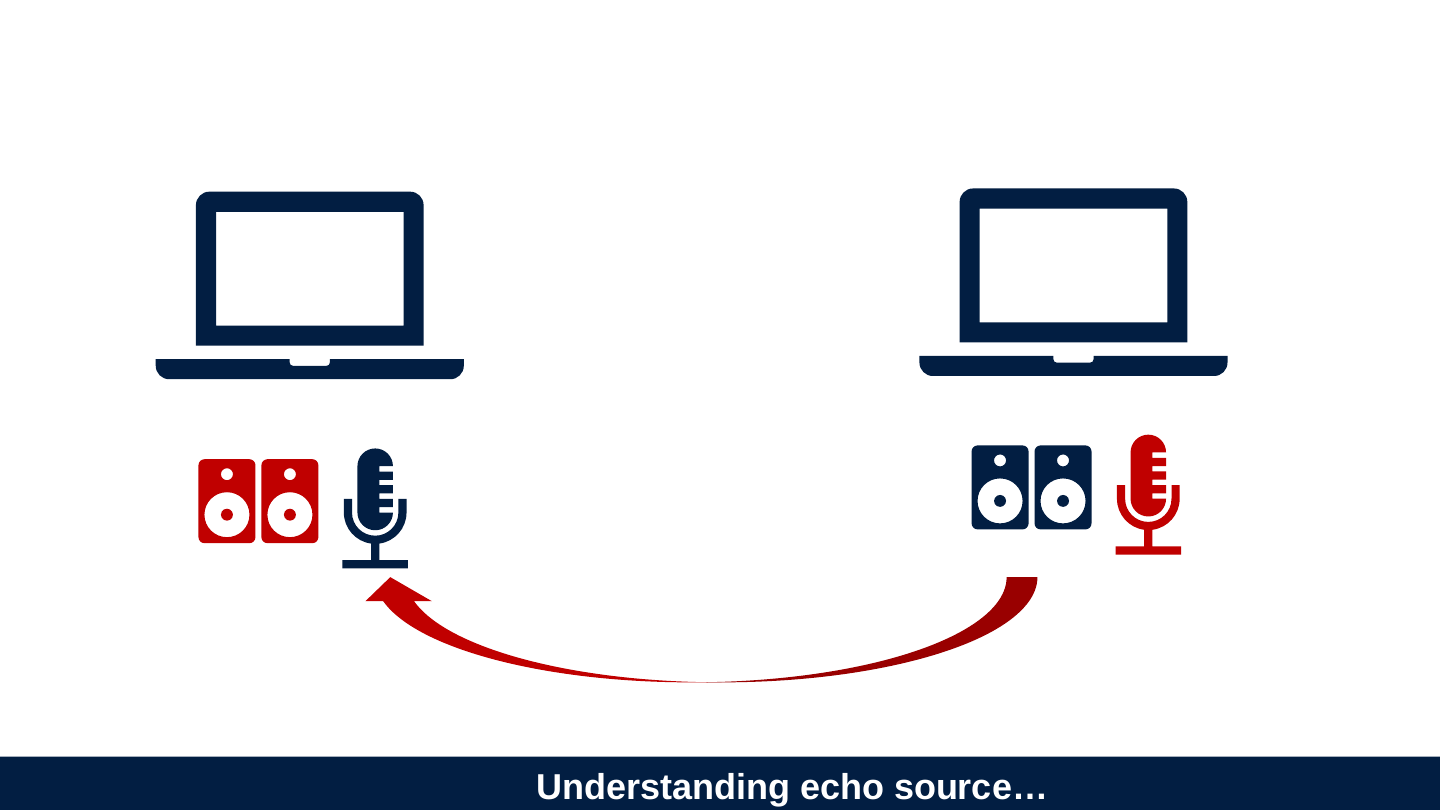
Slide 37: … can help with echo resolution
… can help with echo resolution
Slide 38: But sometimes straightforward factual knowledge is necessary.
But sometimes straightforward factual knowledge is necessary.
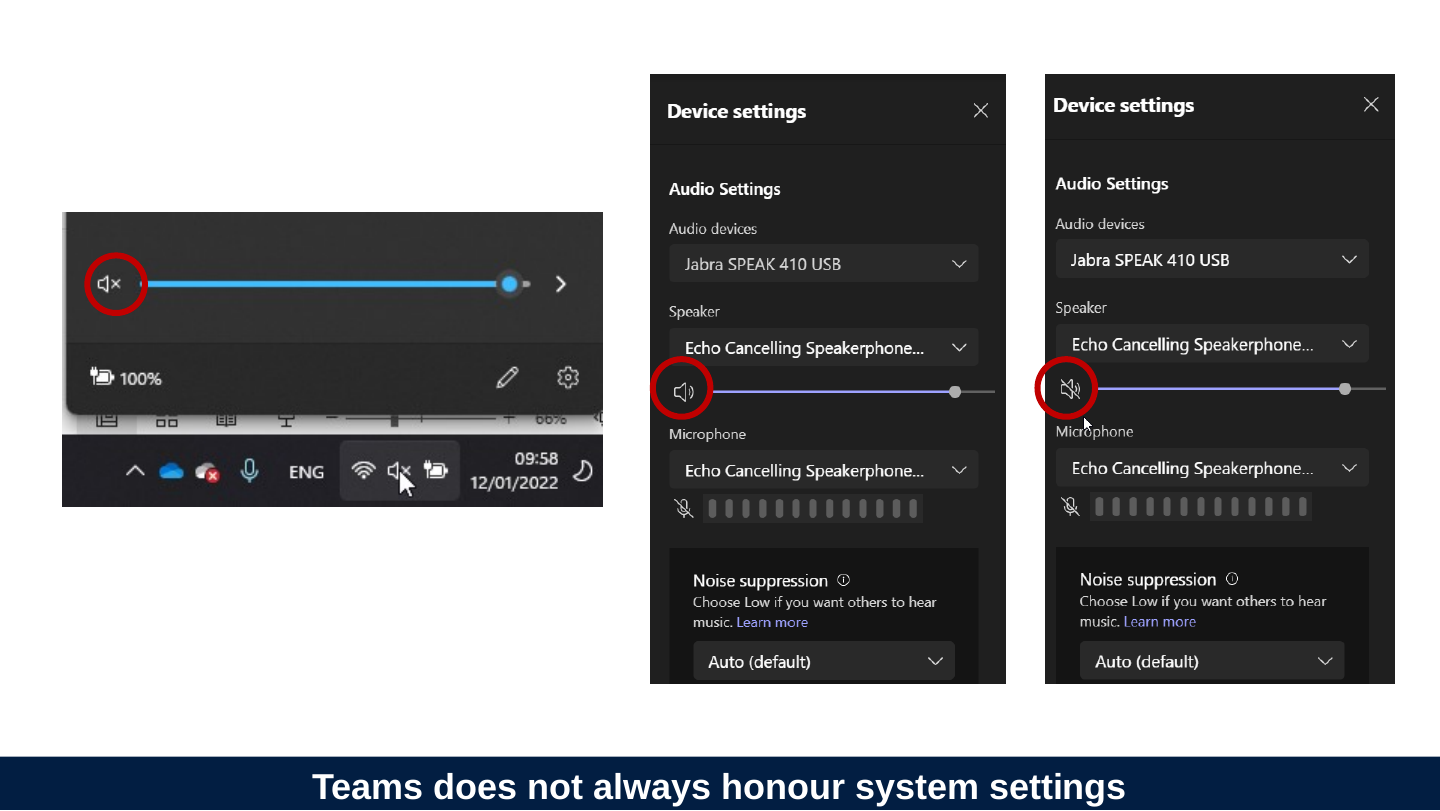
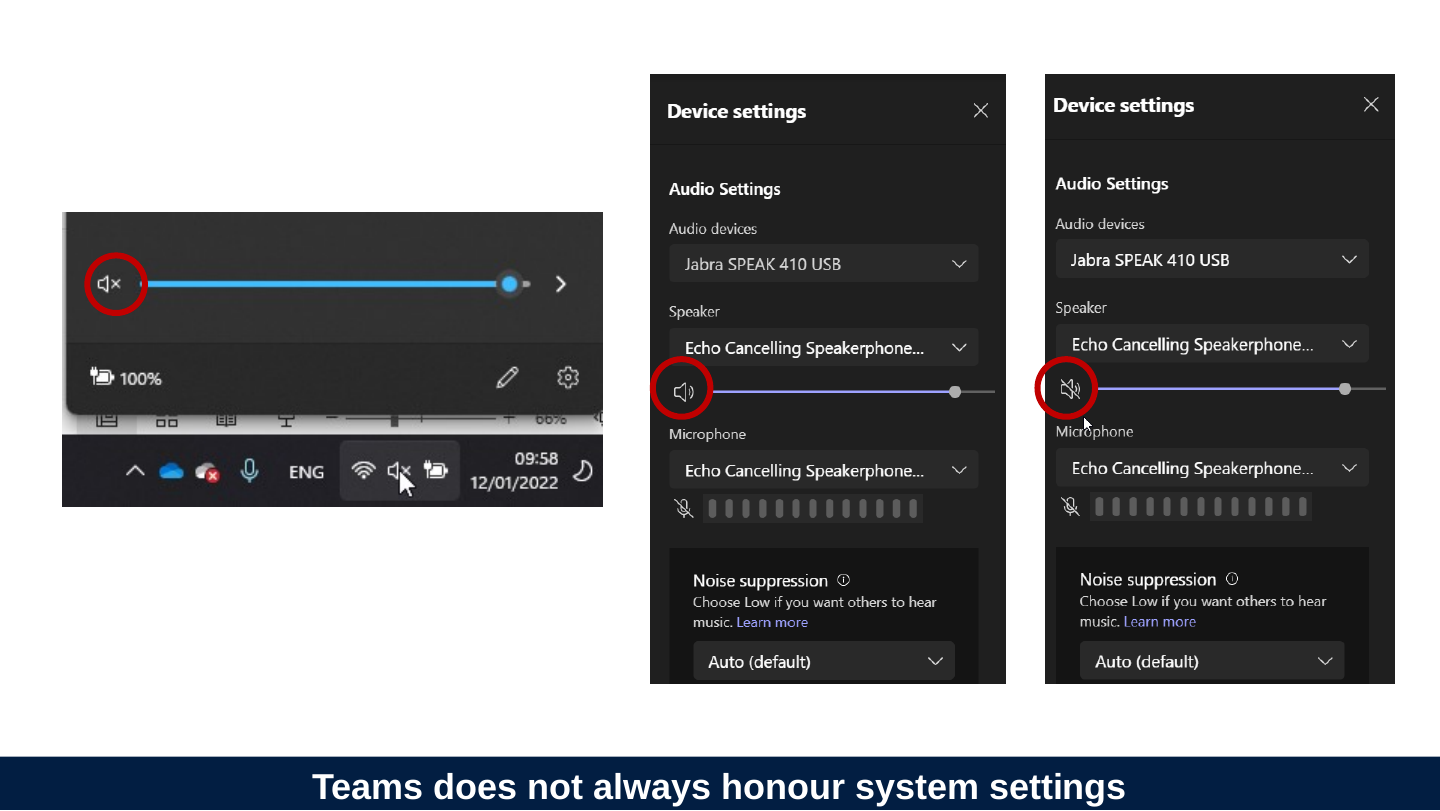
Slide 39: Teams does not always honour system settings
Teams does not always honour system settings
Slide 40: Some skills
Some skills

Slide 41: Are radio DJs smarter than university lecturers?
Are radio DJs smarter than university lecturers?
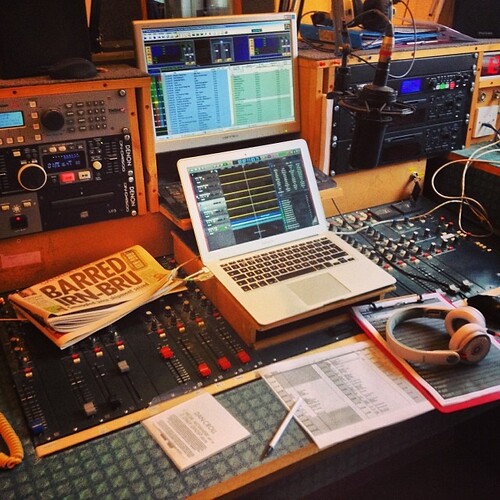
This Photo by Unknown Author is licensed under CC BY-ND
Slide 42: Chunks and shortcuts can let us manage complex situations.
Chunks and shortcuts can let us manage complex situations.
Slide 43: Targeted (deliberate) practice can help develop chunks.
Targeted (deliberate) practice can help develop chunks.
Slide 44: Think of this as learning a foreign language. Simply knowing the words and rules is not enough!
Think of this as learning a foreign language. Simply knowing the words and rules is not enough!
Slide 45: Developing fluency with these tasks can help.
Developing fluency with these tasks can help.
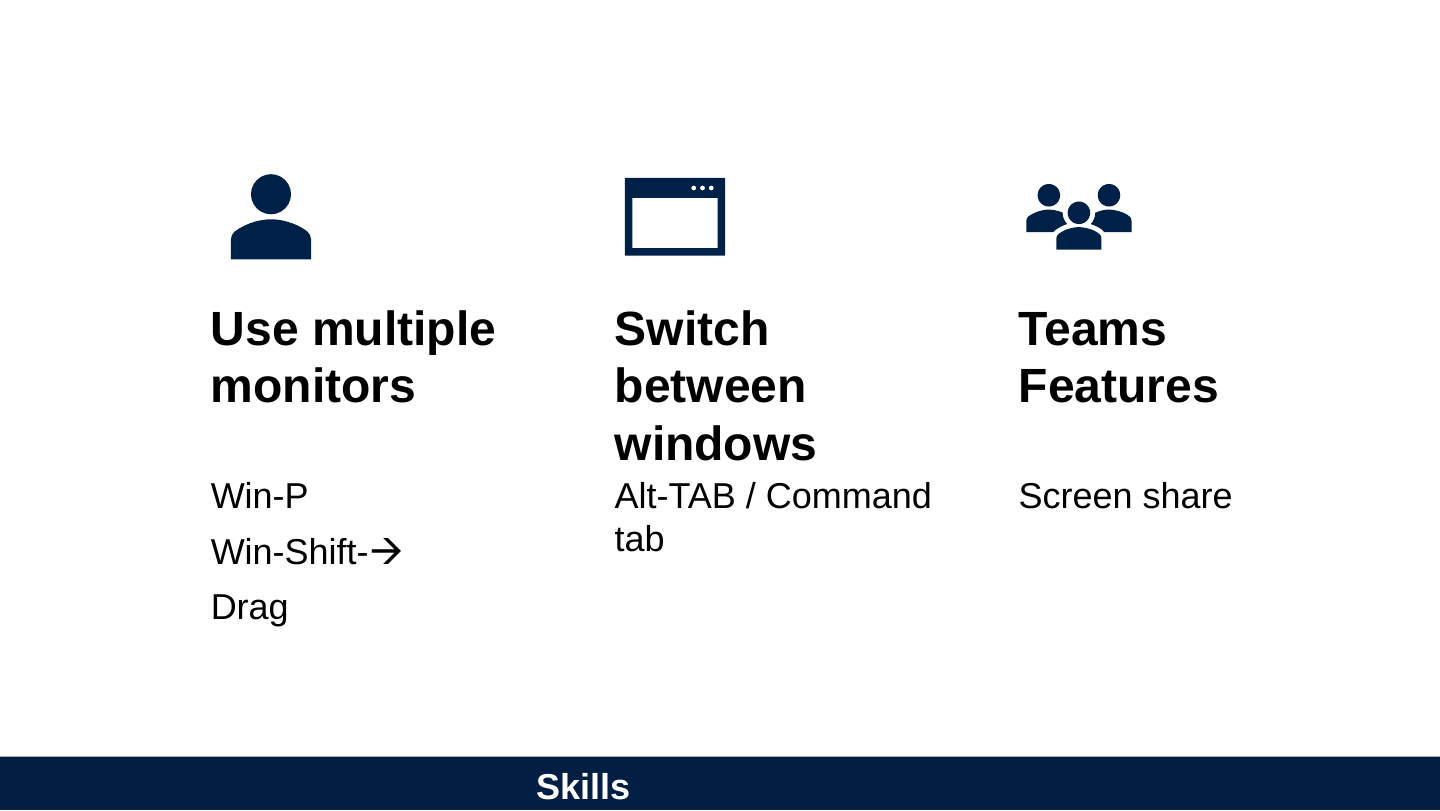
Slide 46: Skills
Skills
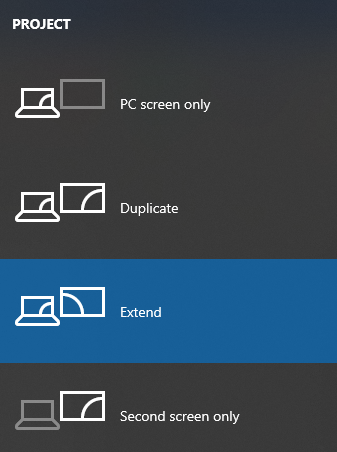
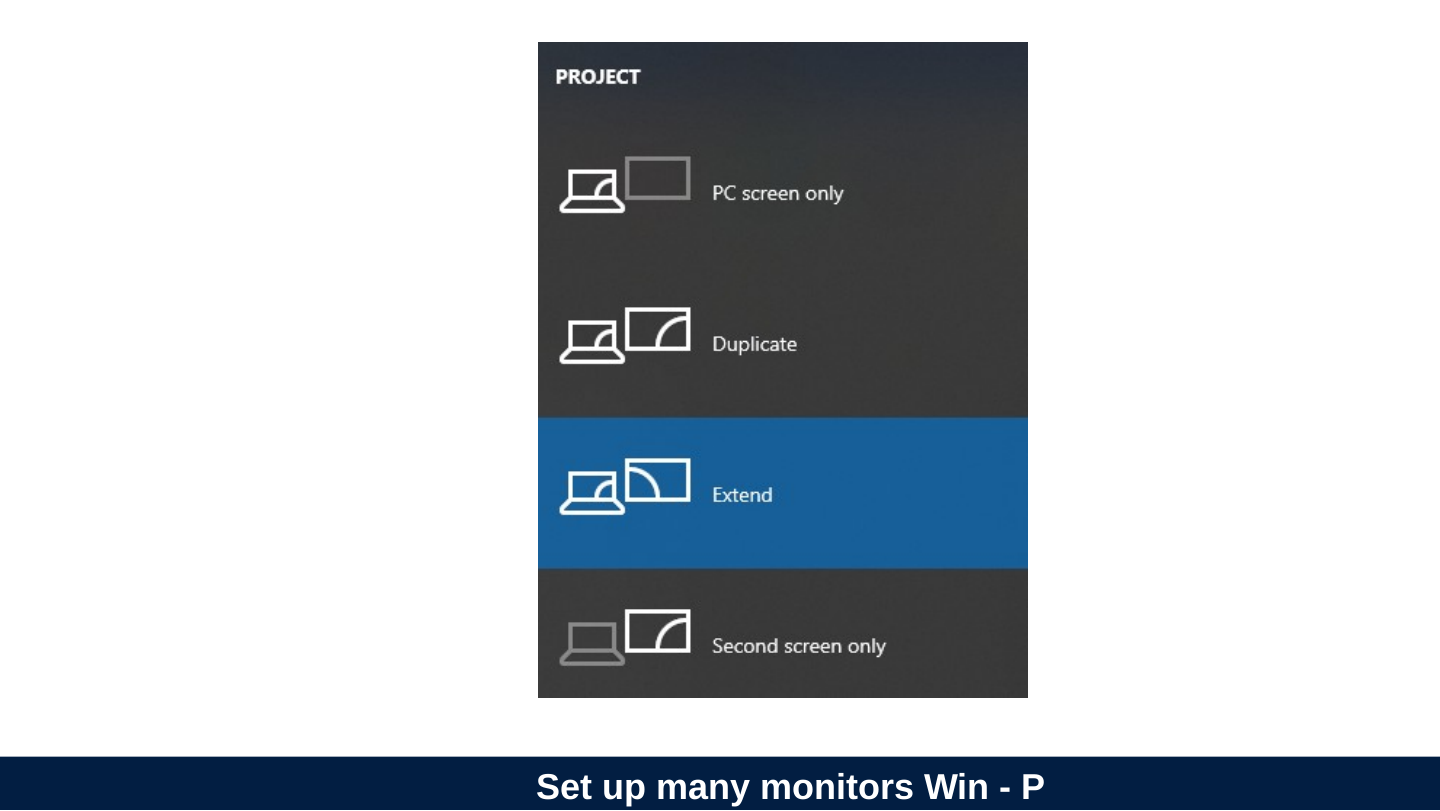
- Use multiple monitors
- Win-P
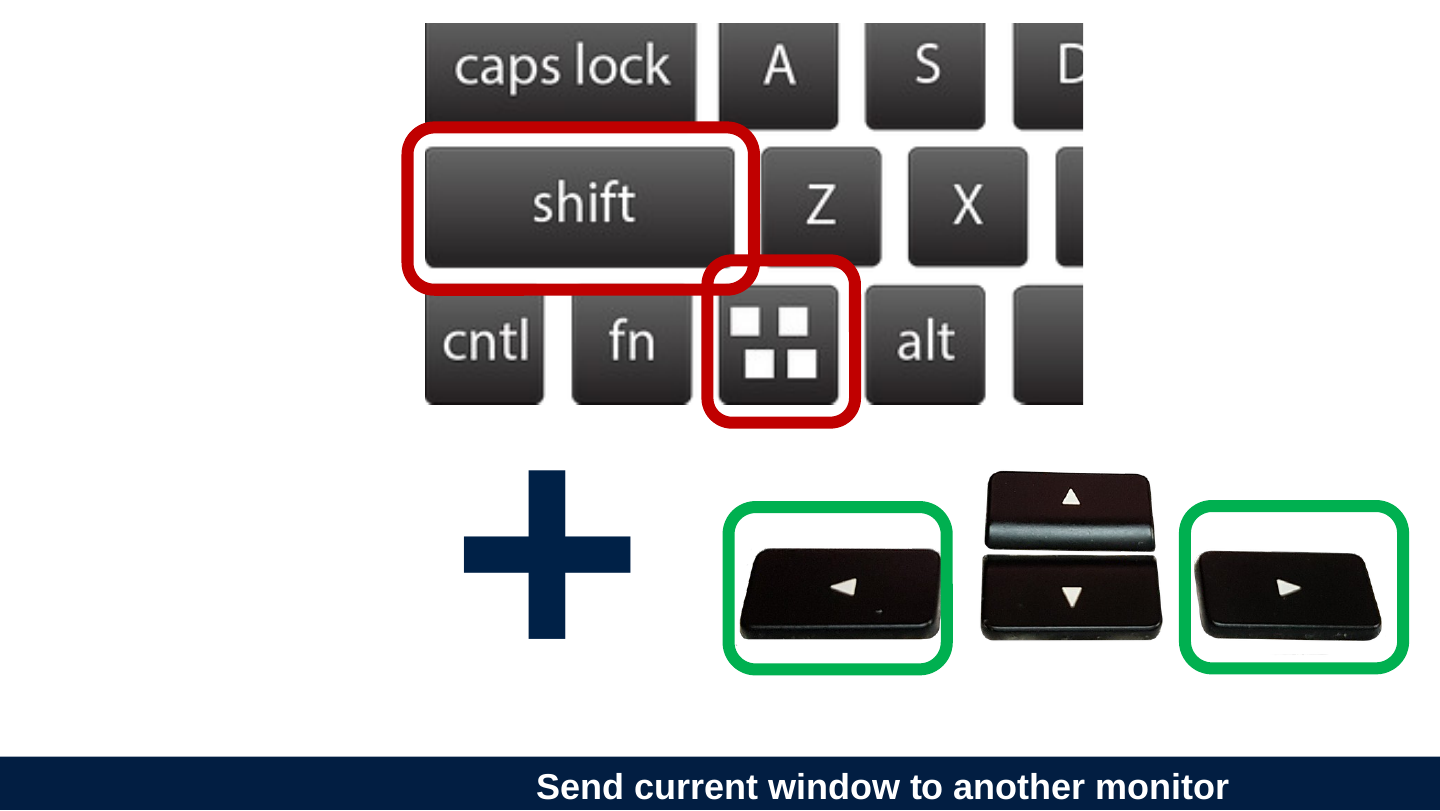
- Win-Shift-→
- Drag
- Switch between windows
- Alt-TAB / Command tab
- Teams Features
- Screen share
Slide 47: Set up many monitors Win - P
Set up many monitors Win - P
Slide 48: Send current window to another monitor
Send current window to another monitor
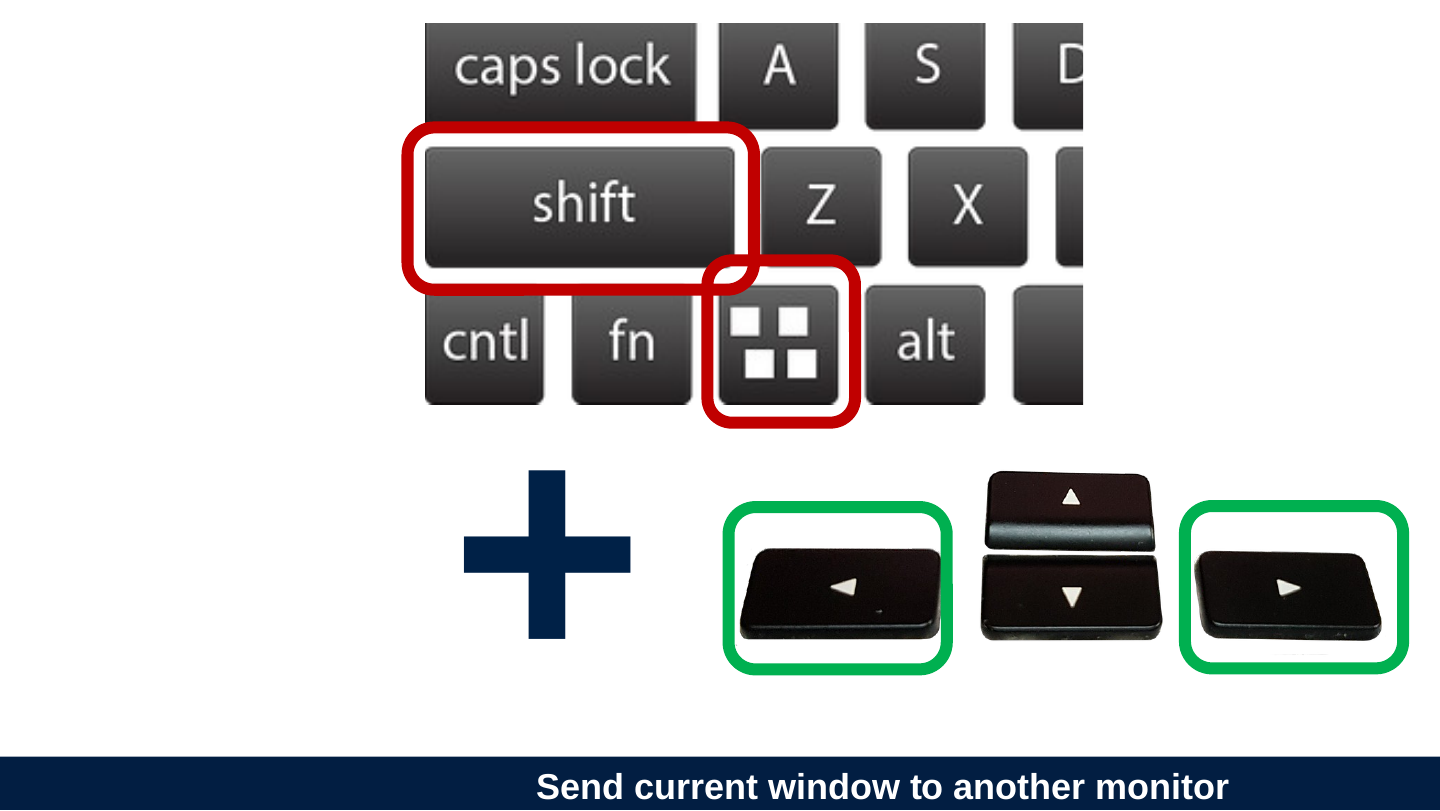
Outlined in red: the shift key and the Windows key. Outlined in green: the left and right arrow keys. A plus sign separates the two groups.
Slide 49: Win/Alt/Cmd Tab to reveal memory
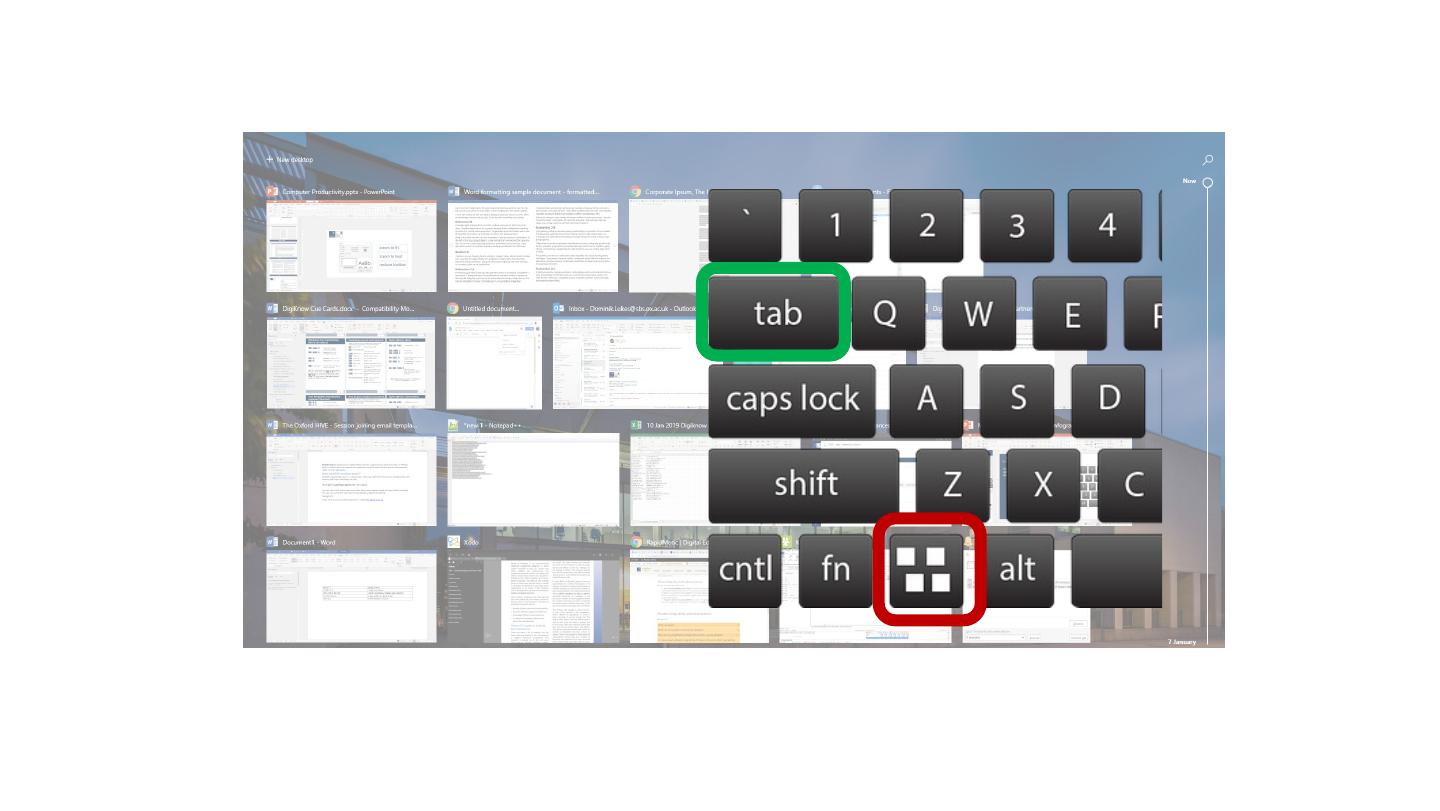
Win/Alt/Cmd Tab to reveal memory
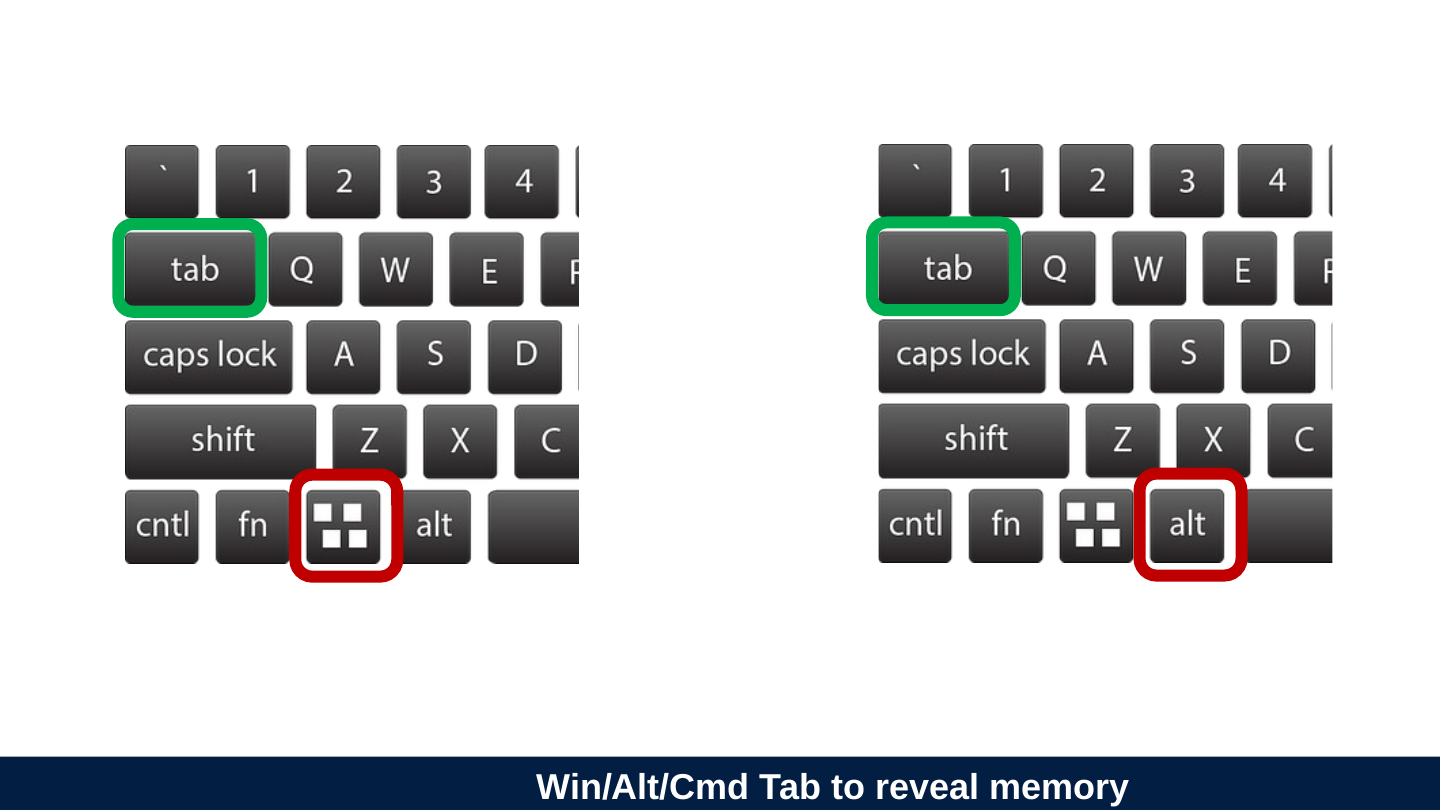
Left keyboard: tab outlined in green, Windows key outlined in red. Right keyboard: tab outlined in green, alt key outlined in red.
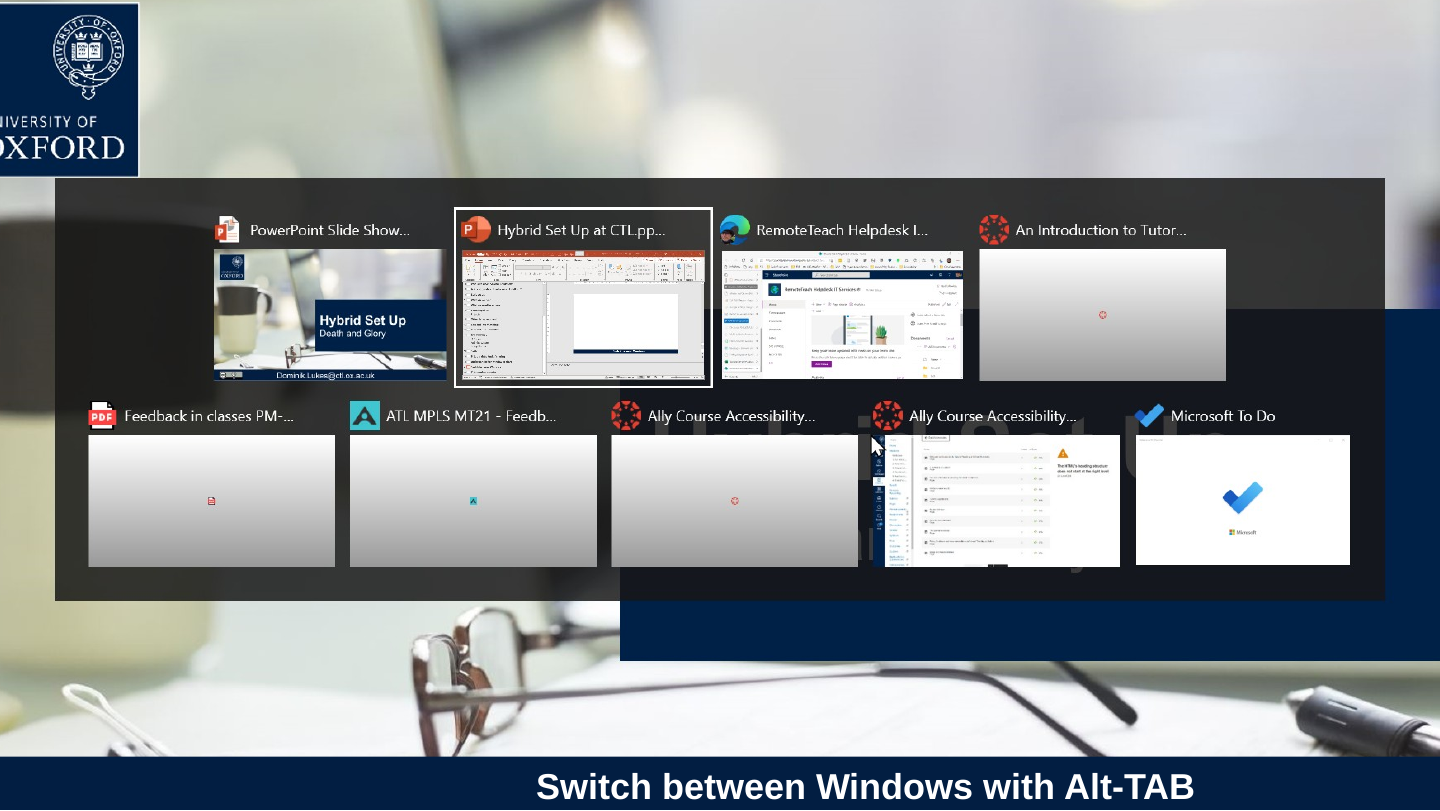
Slide 50: Switch between Windows with Alt-TAB
Switch between Windows with Alt-TAB
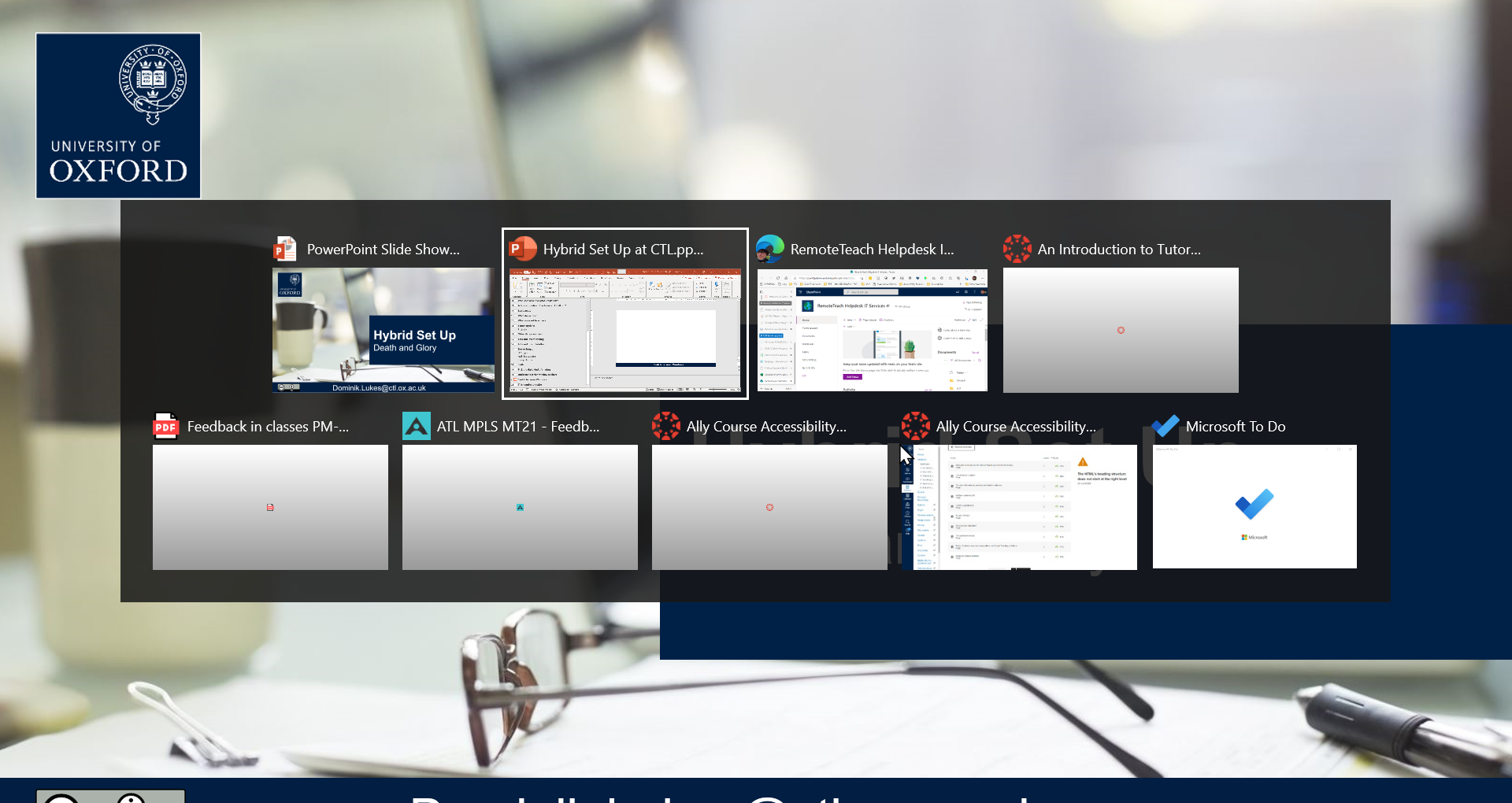
Slide 51: Alt-Tab view on Windows
Alt-Tab view on Windows
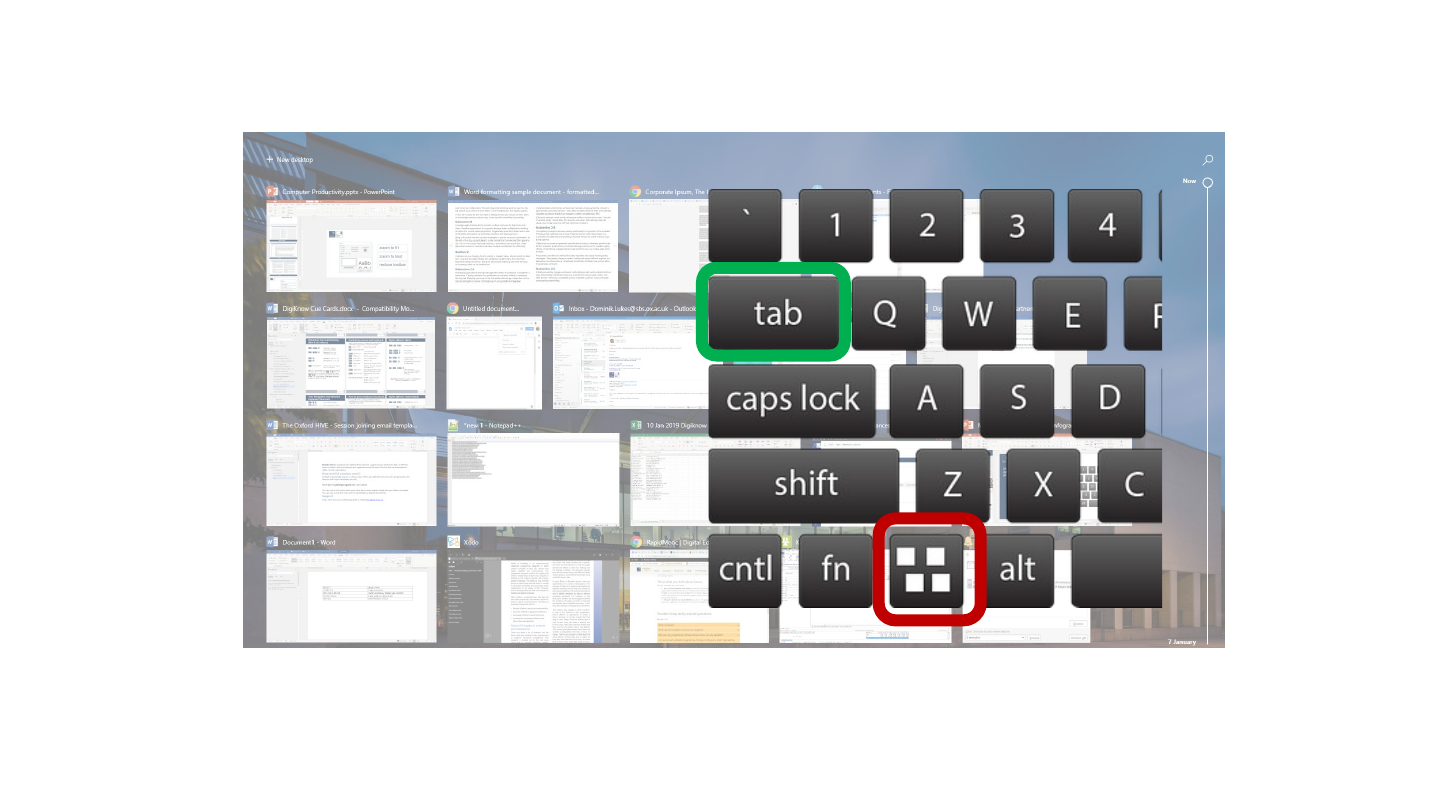
On the keyboard drawn over the screenshot, the tab key is outlined in green and the Windows key in red.
Slide 52: Summary of keyboard shortcuts
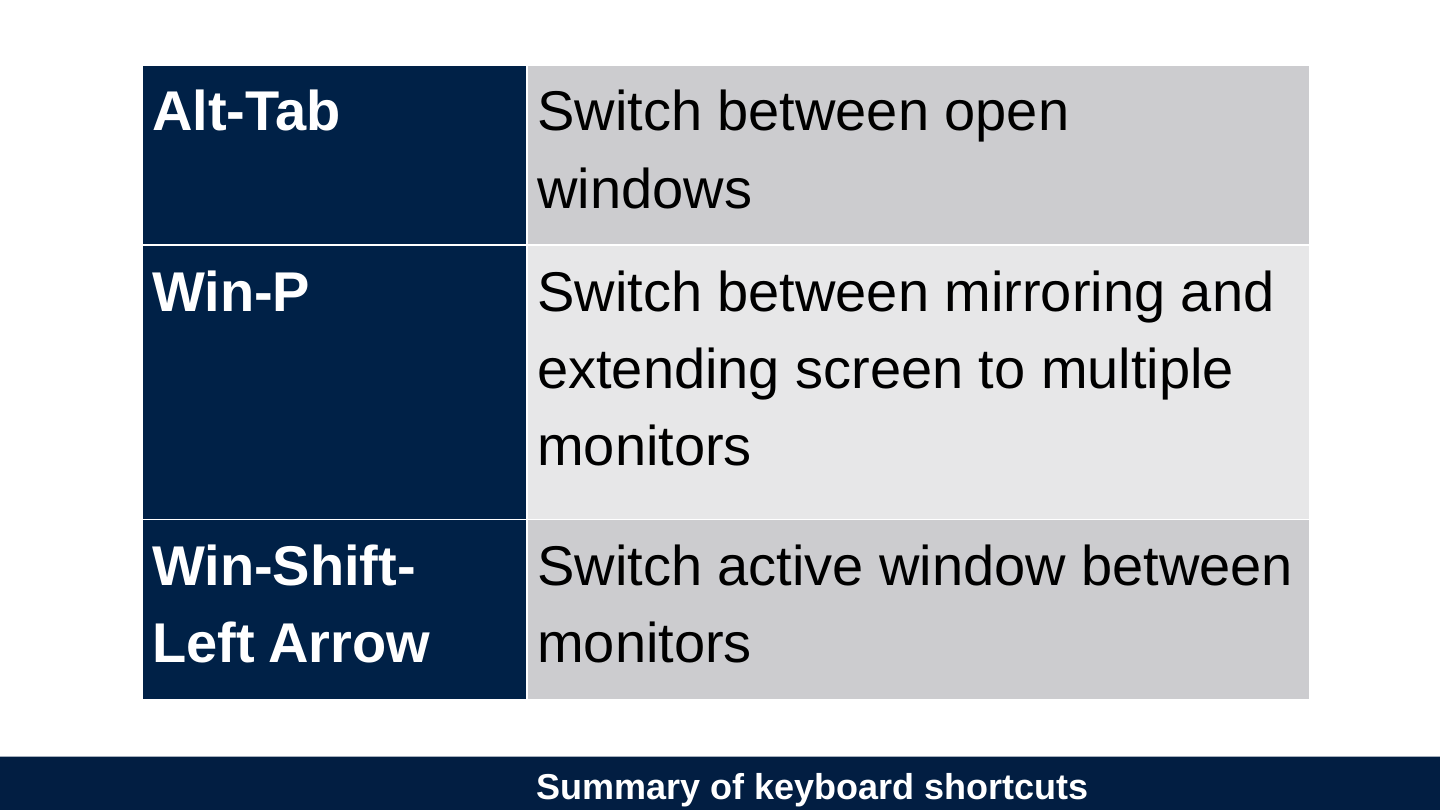
Summary of keyboard shortcuts
| Alt-Tab | Switch between open windows |
|---|---|
| Win-P | Switch between mirroring and extending screen to multiple monitors |
| Win-Shift-Left Arrow | Switch active window between monitors |
Slide 53: Transferring mental models into fluent actions is also necessary.
Transferring mental models into fluent actions is also necessary.
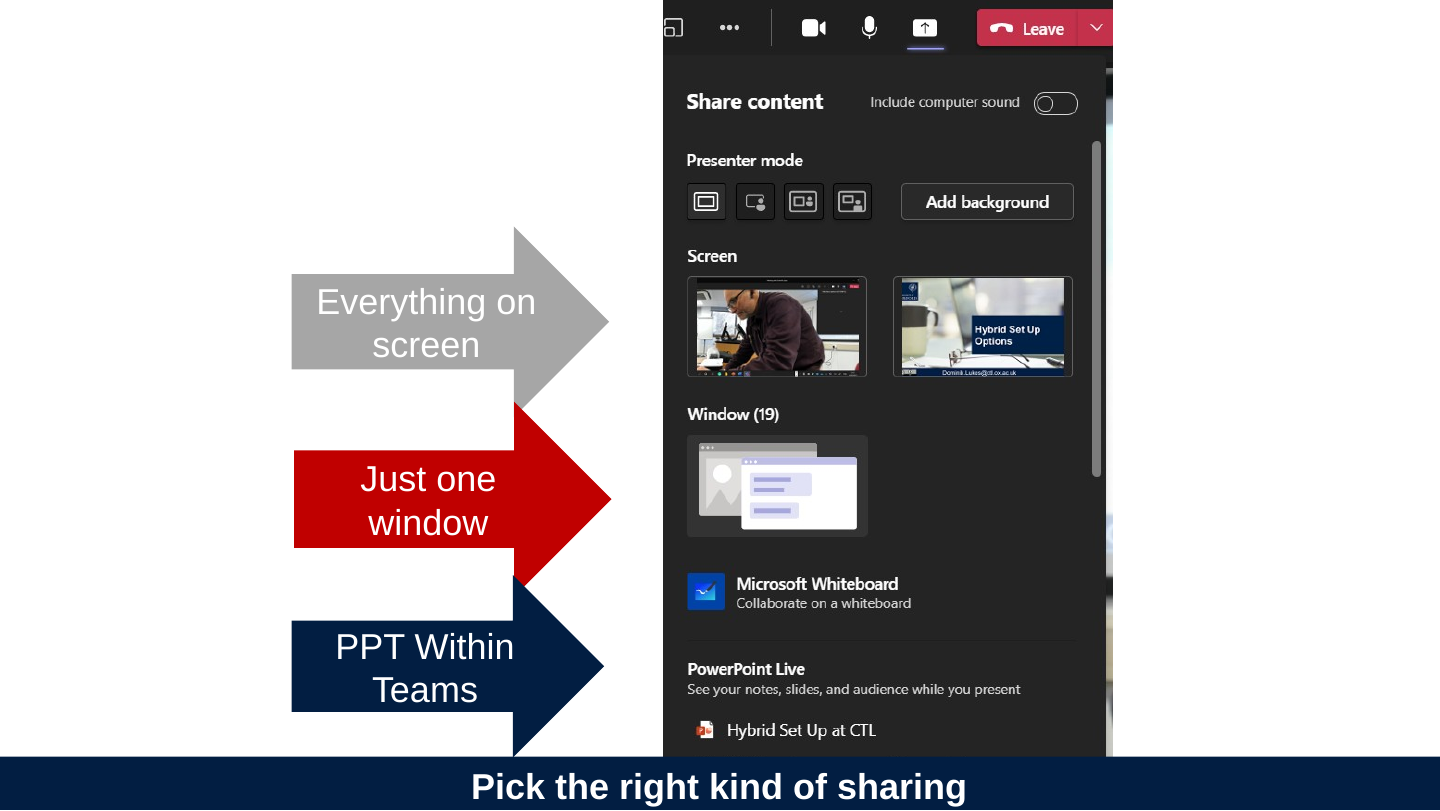
Slide 54: Pick the right kind of sharing
Pick the right kind of sharing
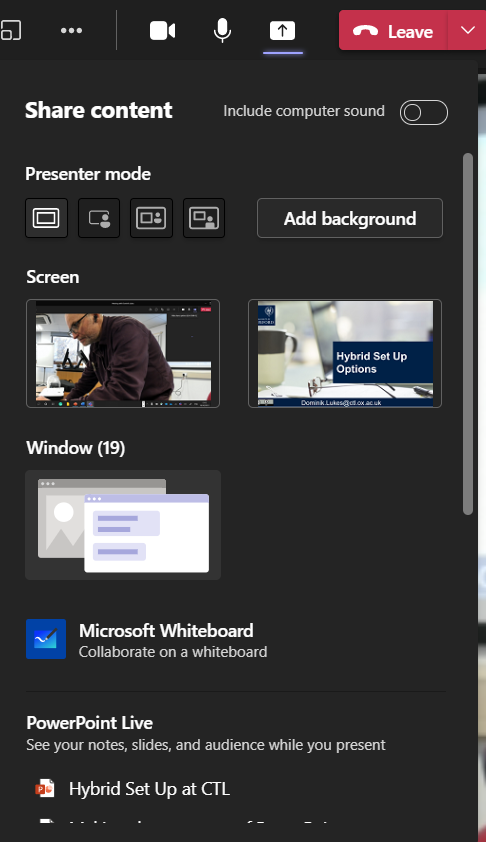
- Everything on screen
- Just one window
- PPT Within Teams
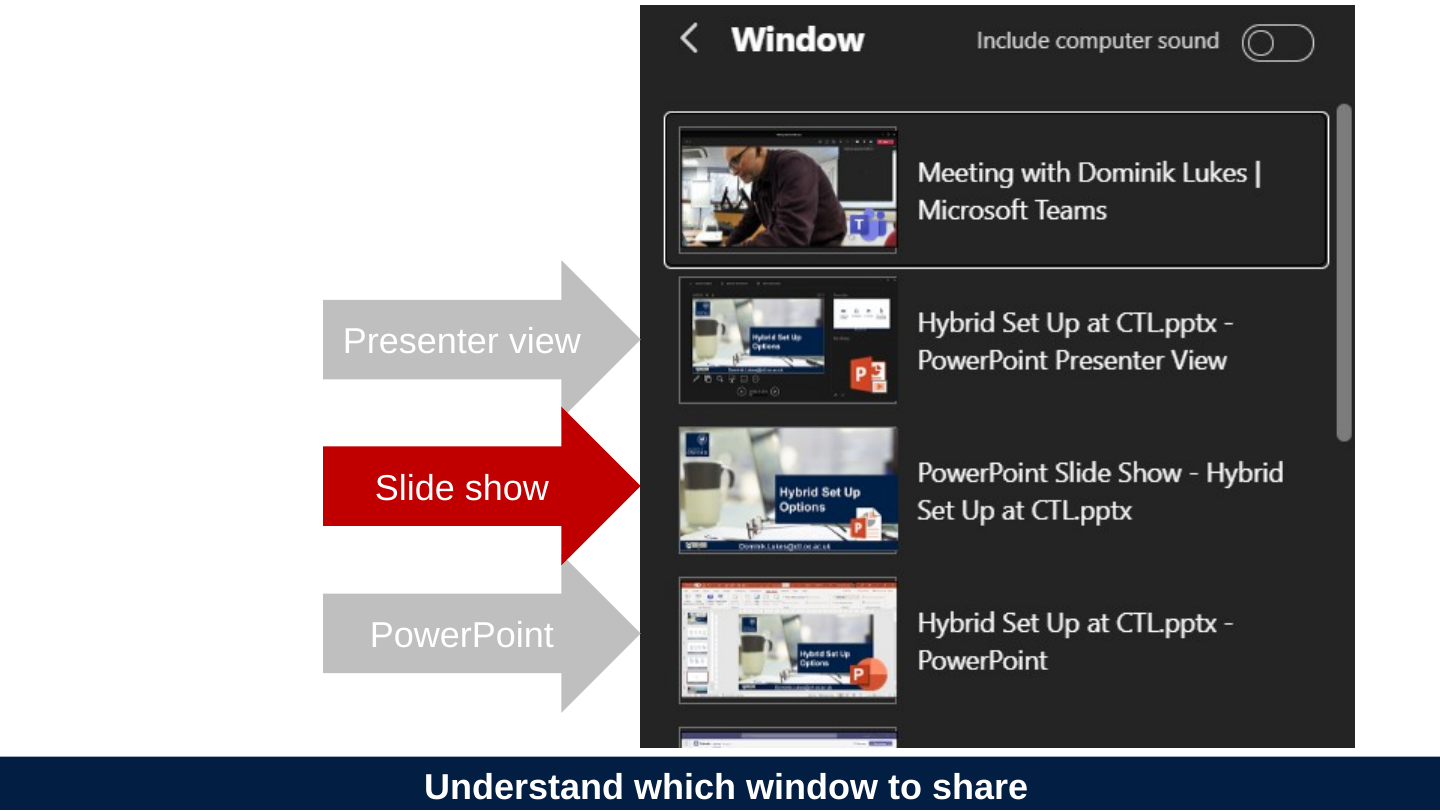
Slide 55: Understand which window to share
Understand which window to share
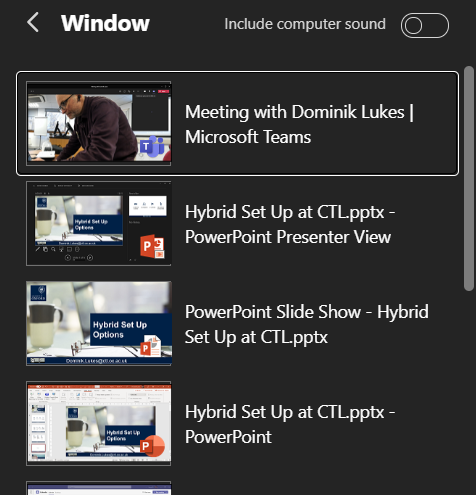
- Presenter view
- Slide show
- PowerPoint
Slide 56: Expecting things to ‘just work’ is like expecting cars to ‘just drive’.
Expecting things to ‘just work’ is like expecting cars to ‘just drive’.
Slide 57: This requires deliberate practice
This requires deliberate practice
[email protected] | @techczech