Innovations in Reading and Writing: What Should Learning Technologists Know?
- SlideShare title: Innovations in reading and writing: What should learning technologists know -...
- Talk date: Not established
- SlideShare upload: 2021-12-16 (upload date, not the delivery date)
- Event: Not established
- Place: Not established
- Topics: Access & reading
- Language: en
- Slides in the original listing: 90
- Coverage: Full text of all 90 slides, each paired with its original slide image (slide N is section N).
- Original listing: https://www.slideshare.net/slideshow/innovations-in-reading-and-writing-what-should-learning-technologists-know-presentation-at-alt2021-winter-conference/250850623
- Cover image: https://slides.dominiklukes.net/readers/innovations-in-reading-and-writing-what-should-learning-technologists-know-presentation-at-alt2021-winter-conference/pages/page-01.png
- Reader data (JSON): https://slides.dominiklukes.net/readers/innovations-in-reading-and-writing-what-should-learning-technologists-know-presentation-at-alt2021-winter-conference/presentation.json
- TalkWeaver package (outline and images, ZIP): https://slides.dominiklukes.net/innovations-in-reading-and-writing-what-should-learning-technologists-know-presentation-at-alt2021-winter-conference/innovations-in-reading-and-writing-what-should-learning-technologists-know-presentation-at-alt2021-winter-conference-talkweaver.zip
- TalkWeaver outline: https://slides.dominiklukes.net/innovations-in-reading-and-writing-what-should-learning-technologists-know-presentation-at-alt2021-winter-conference/talkweaver/innovations-in-reading-and-writing-what-should-learning-technologists-know-presentation-at-alt2021-winter-conference-outline.md
- Markdown copy: https://slides.dominiklukes.net/innovations-in-reading-and-writing-what-should-learning-technologists-know-presentation-at-alt2021-winter-conference/index.md
Slide 1: Innovations in Reading and Writing: What Should Learning Technologists Know?
Innovations in Reading and Writing: What Should Learning Technologists Know?
[email protected] | @techczech

Slide 2: This is a quick top level overview!
This is a quick top level overview!
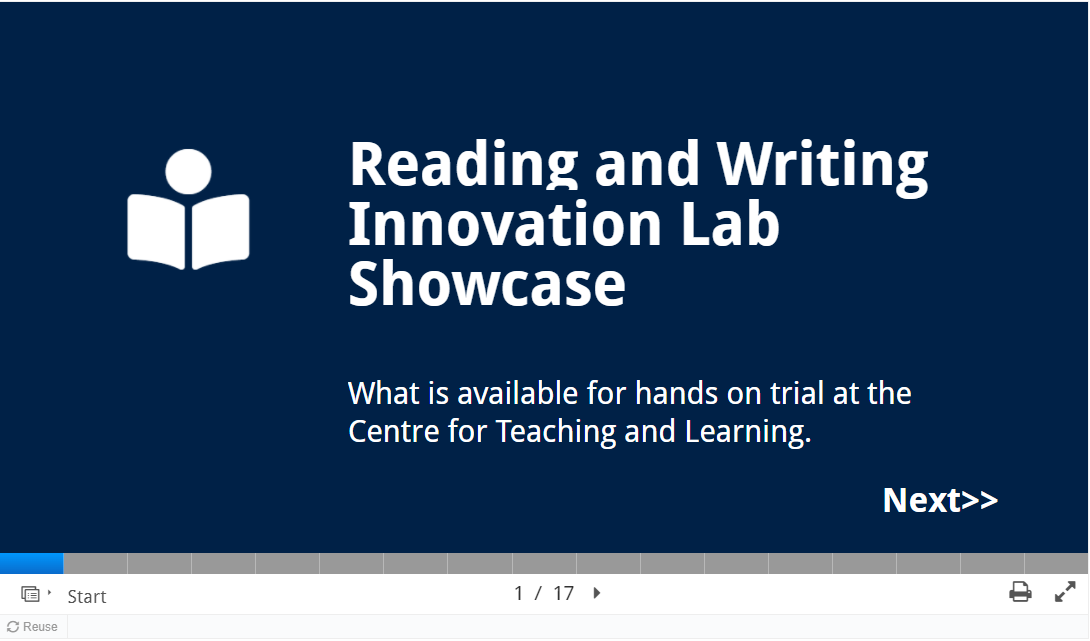
Slide 3: More on bit.ly/oxfordreadinglab
More on bit.ly/oxfordreadinglab

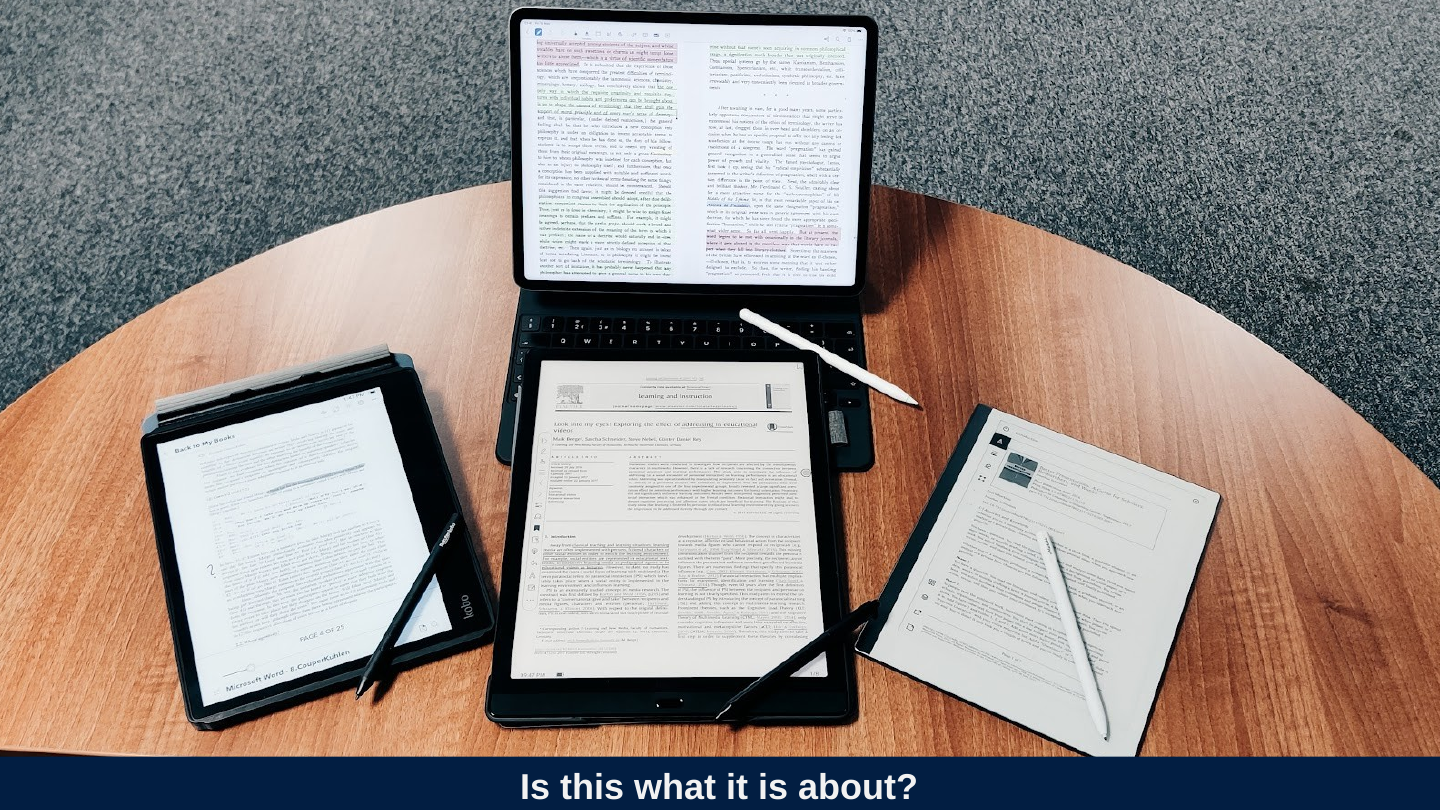
Slide 4: Is this what it is about?
Is this what it is about?
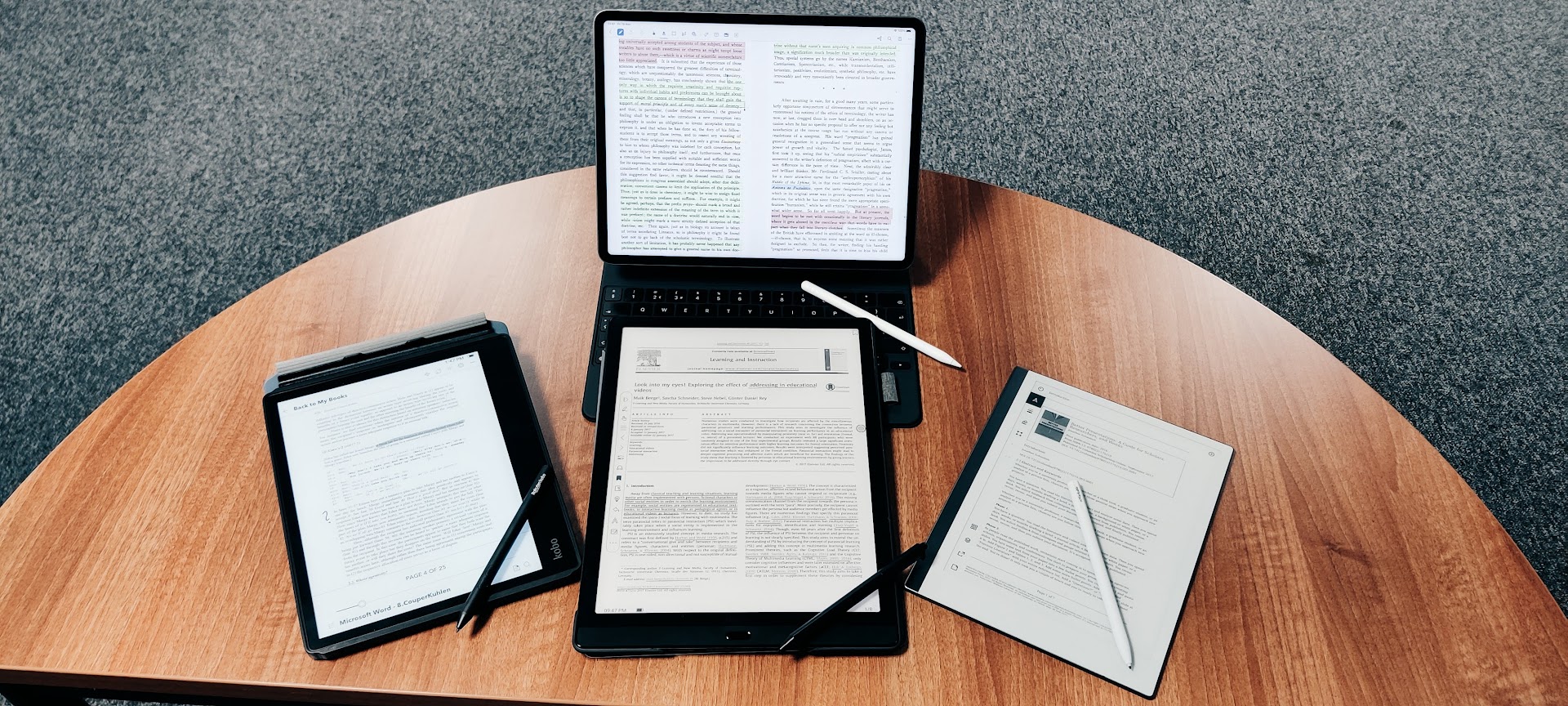
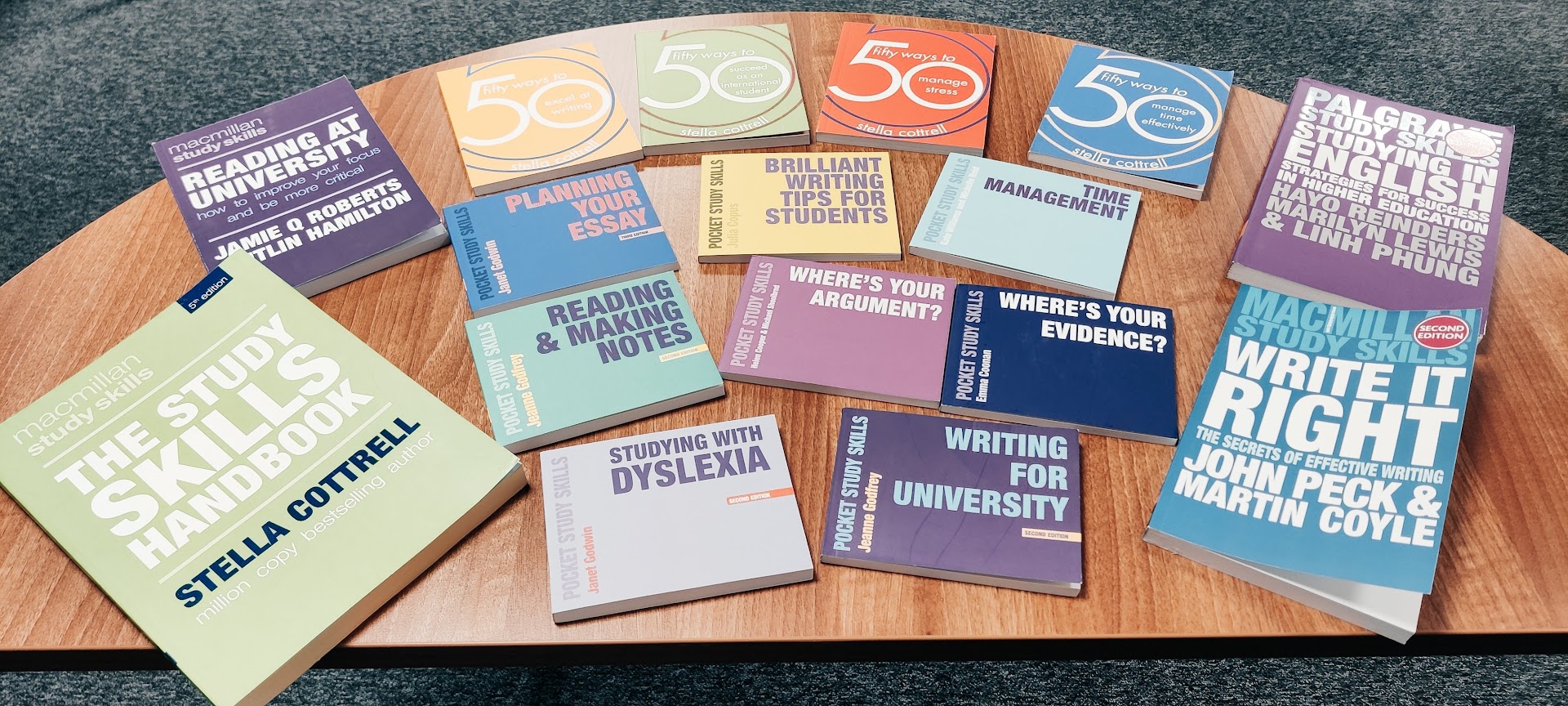
Slide 5: Or is this what it’s all about?
Or is this what it’s all about?
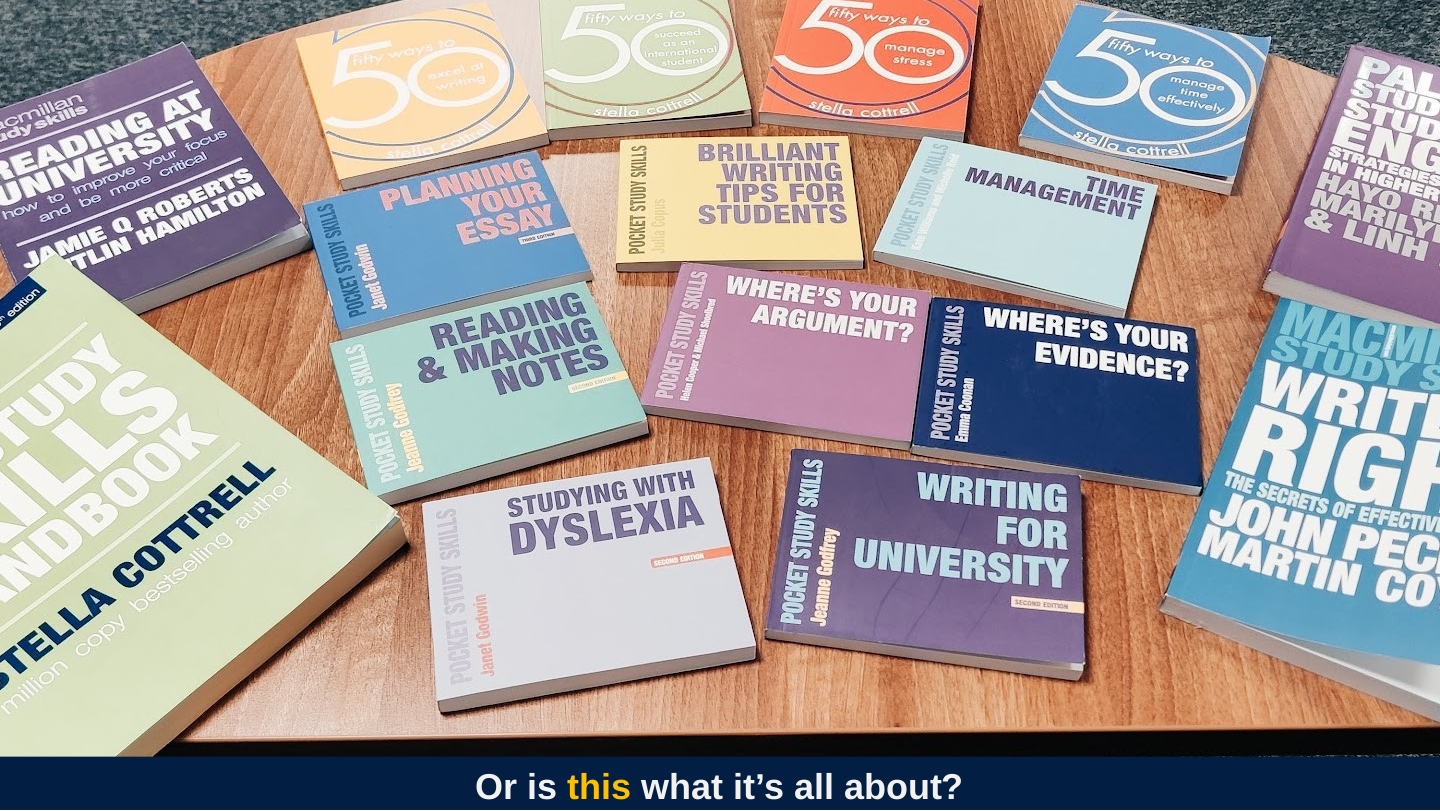
Slide 6: Strategies come before technologies.
Strategies come before technologies.

Slide 7: Technologies can help but also get in the way.
Technologies can help but also get in the way.

Slide 8: Just came out bit.ly/ readingaffordances 2021
Just came out bit.ly/ readingaffordances 2021
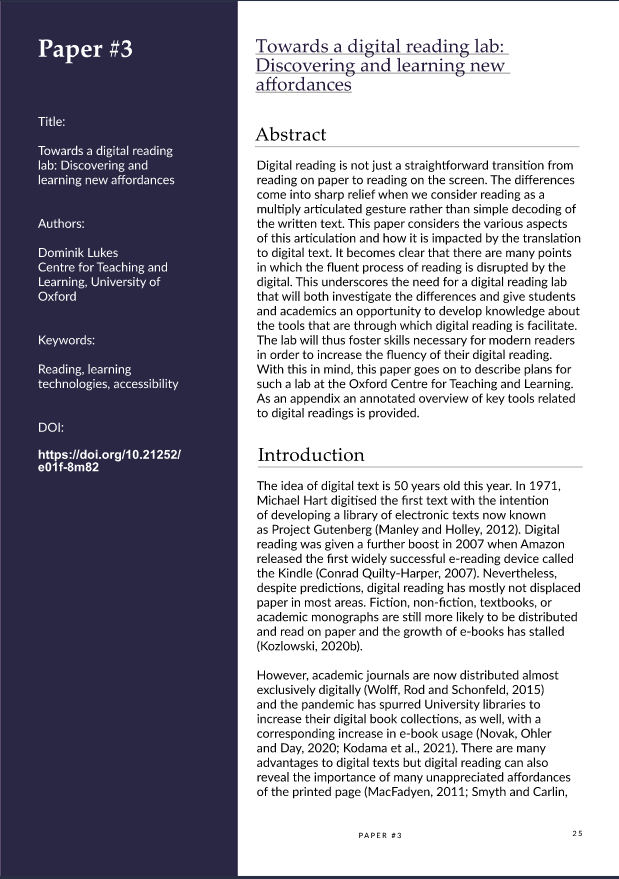
Slide 9: Articulation of Reading
Articulation of Reading
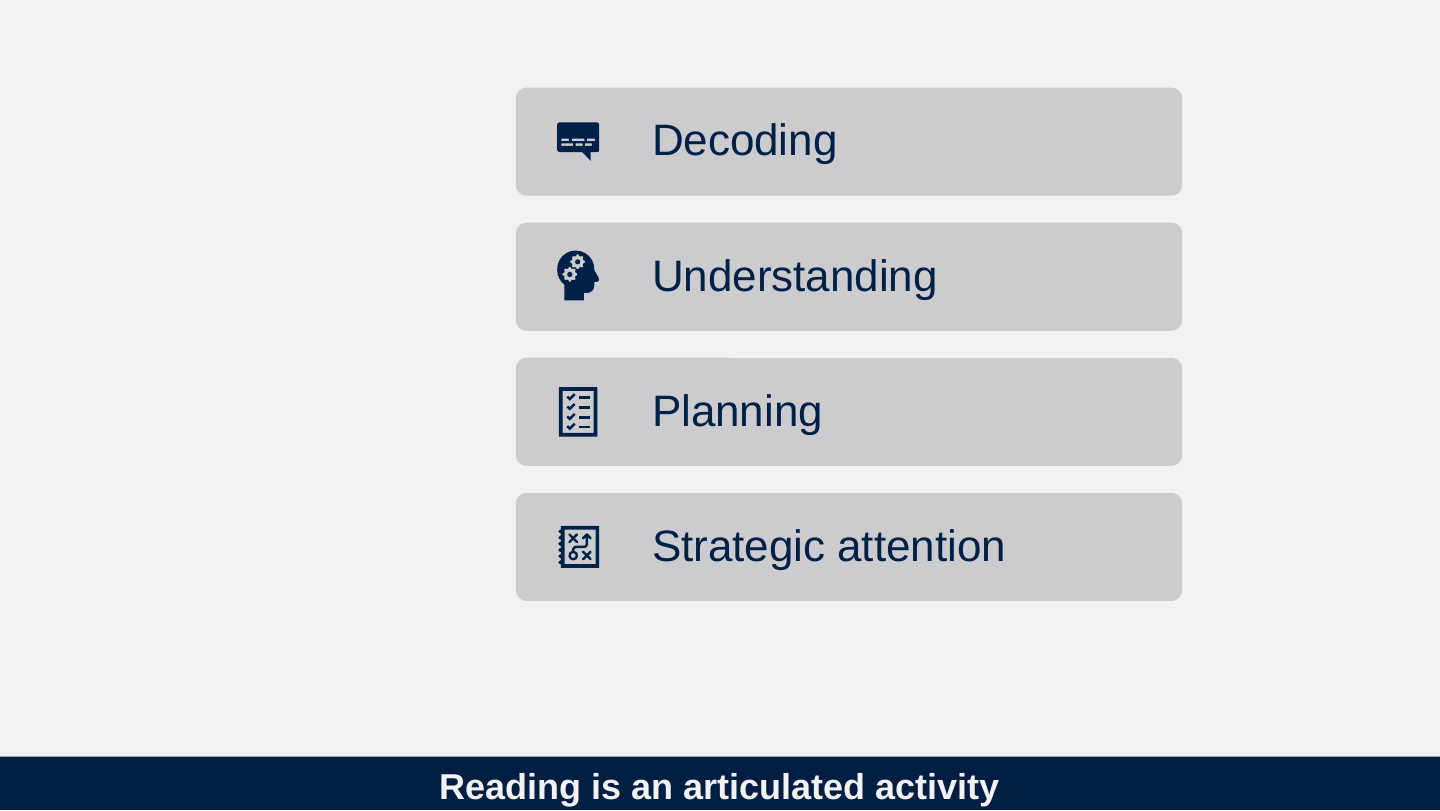
Slide 10: Reading is an articulated activity
Reading is an articulated activity
- Decoding
- Understanding
- Planning
- Strategic attention
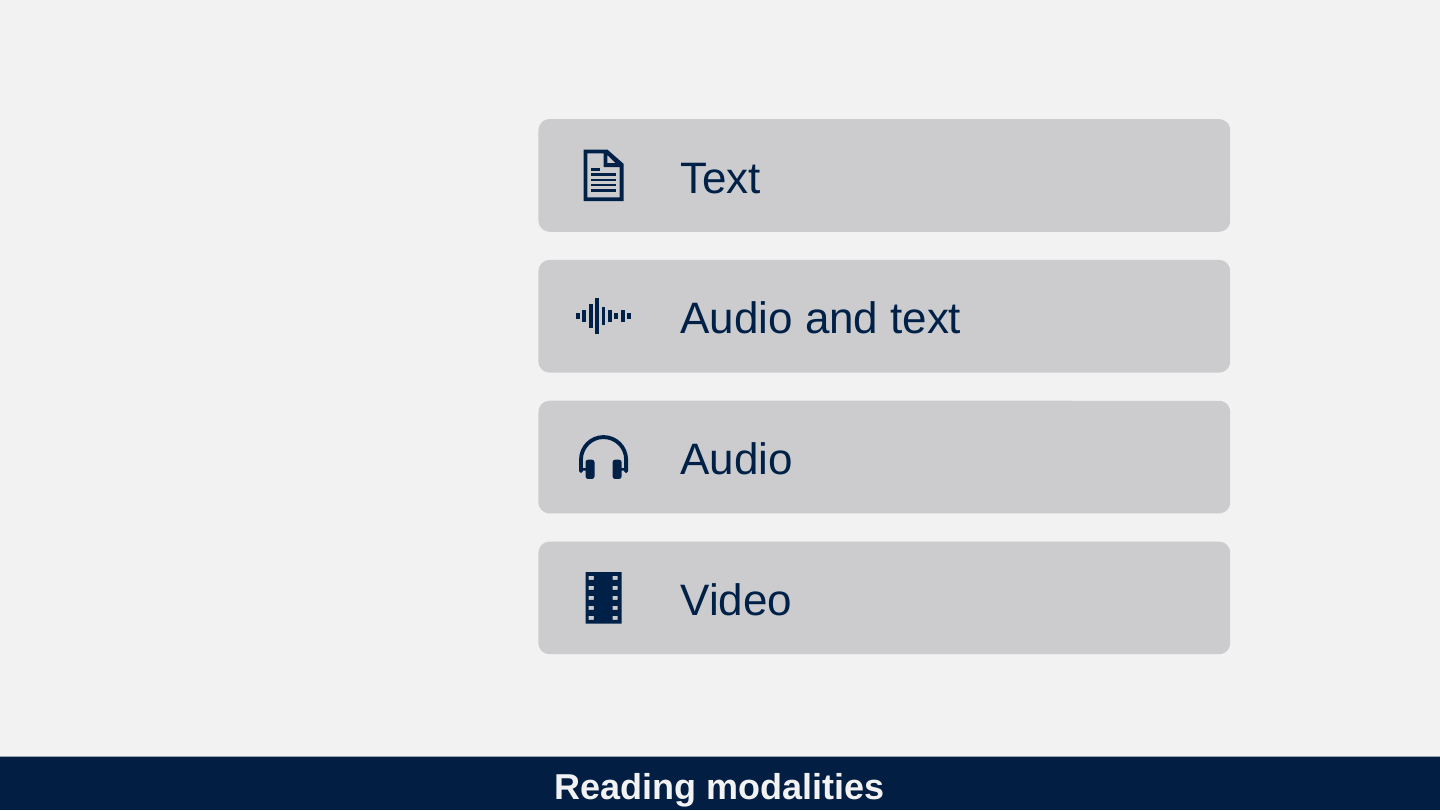
Slide 11: Reading modalities
Reading modalities
- Text
- Audio and text
- Audio
- Video
Slide 12: What makes reading easier
What makes reading easier
Slide 13: Five principle of readable content
Five principle of readable content
- Enlarge
- Listen
- Navigate
- Strategize

Slide 14: Enlarge: Reduce barriers to decoding
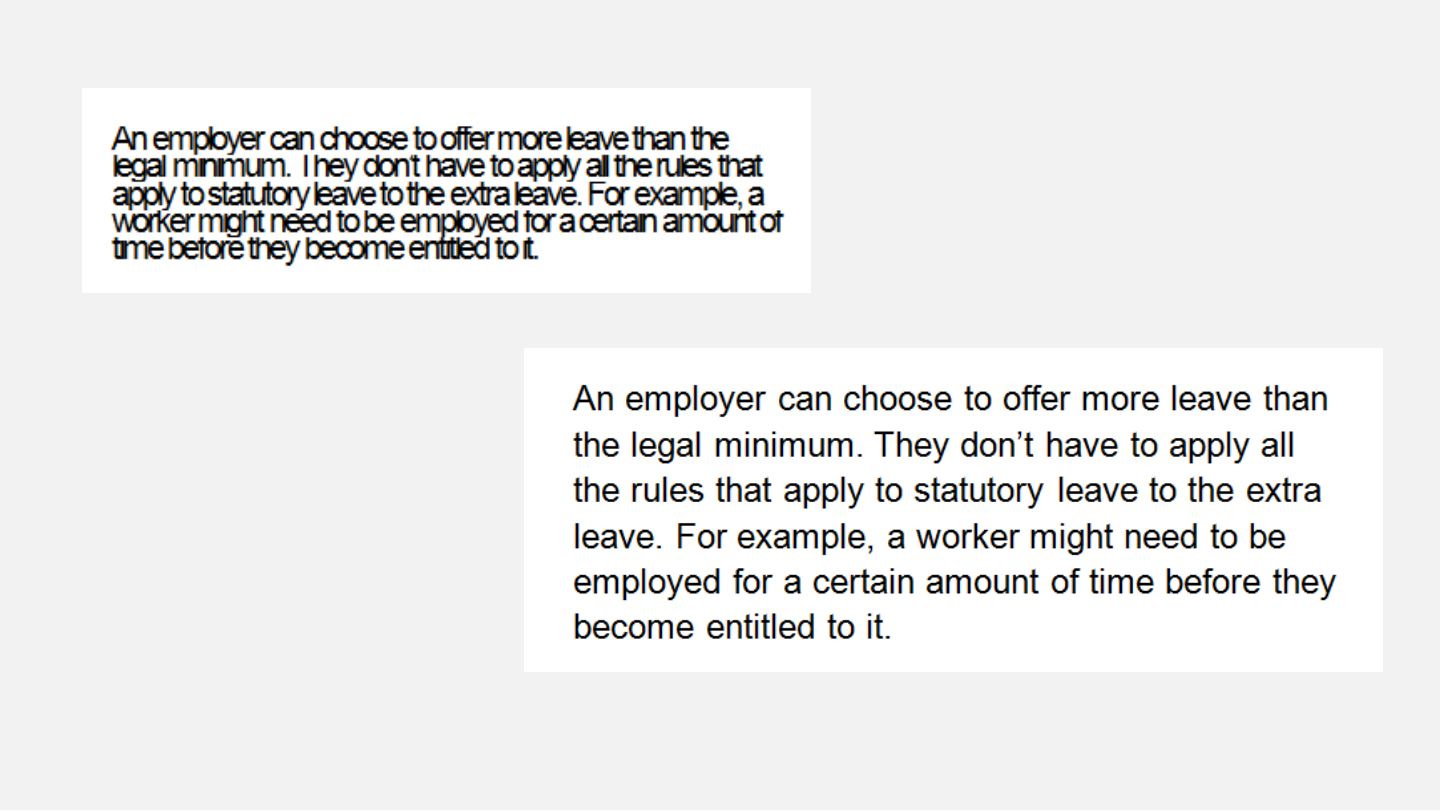
Enlarge: Reduce barriers to decoding

Slide 15: Enlarge: Reduce barriers to decoding
Slide 16: Enlarge: Reduce barriers to decoding
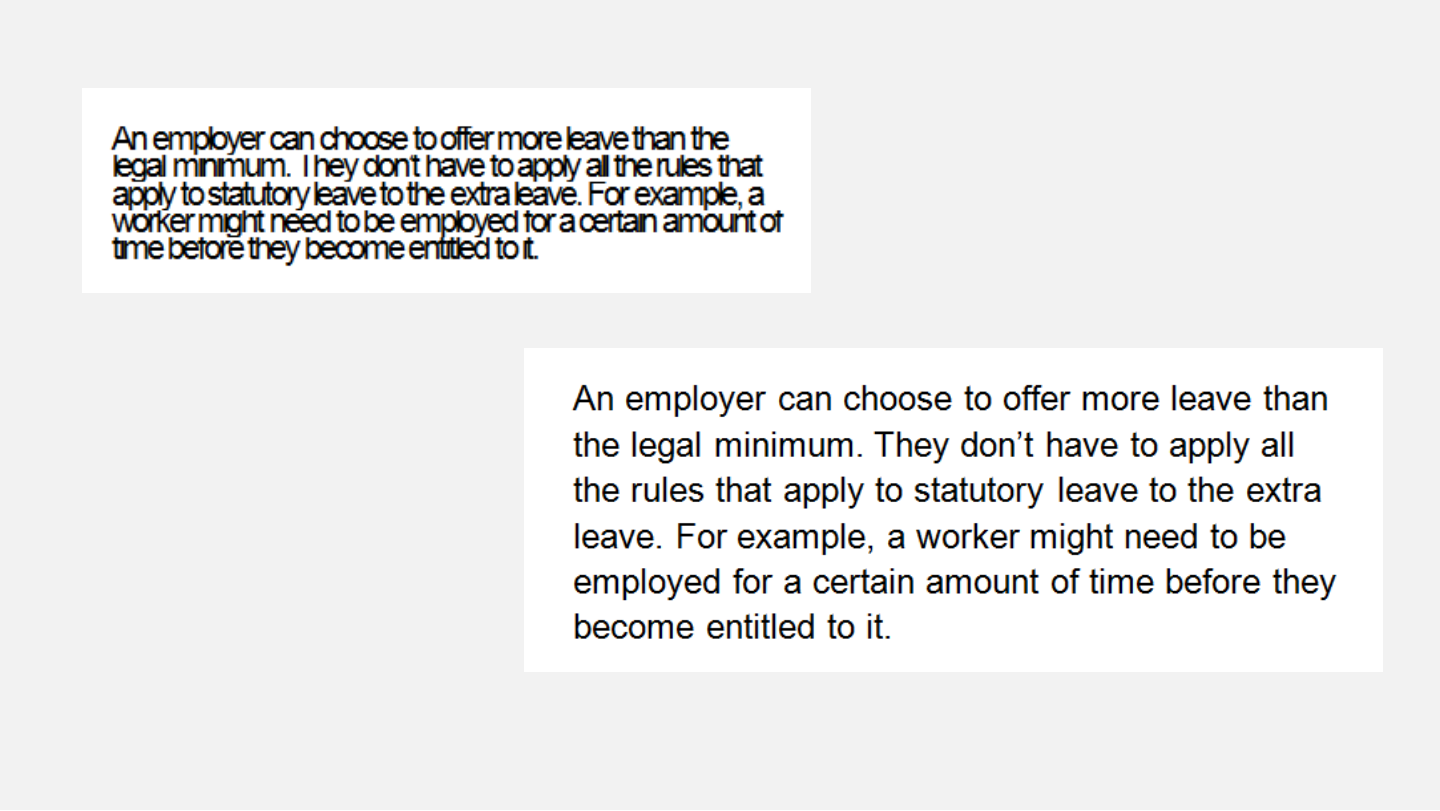
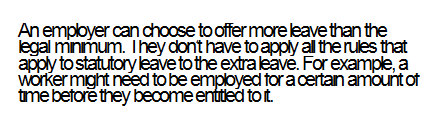
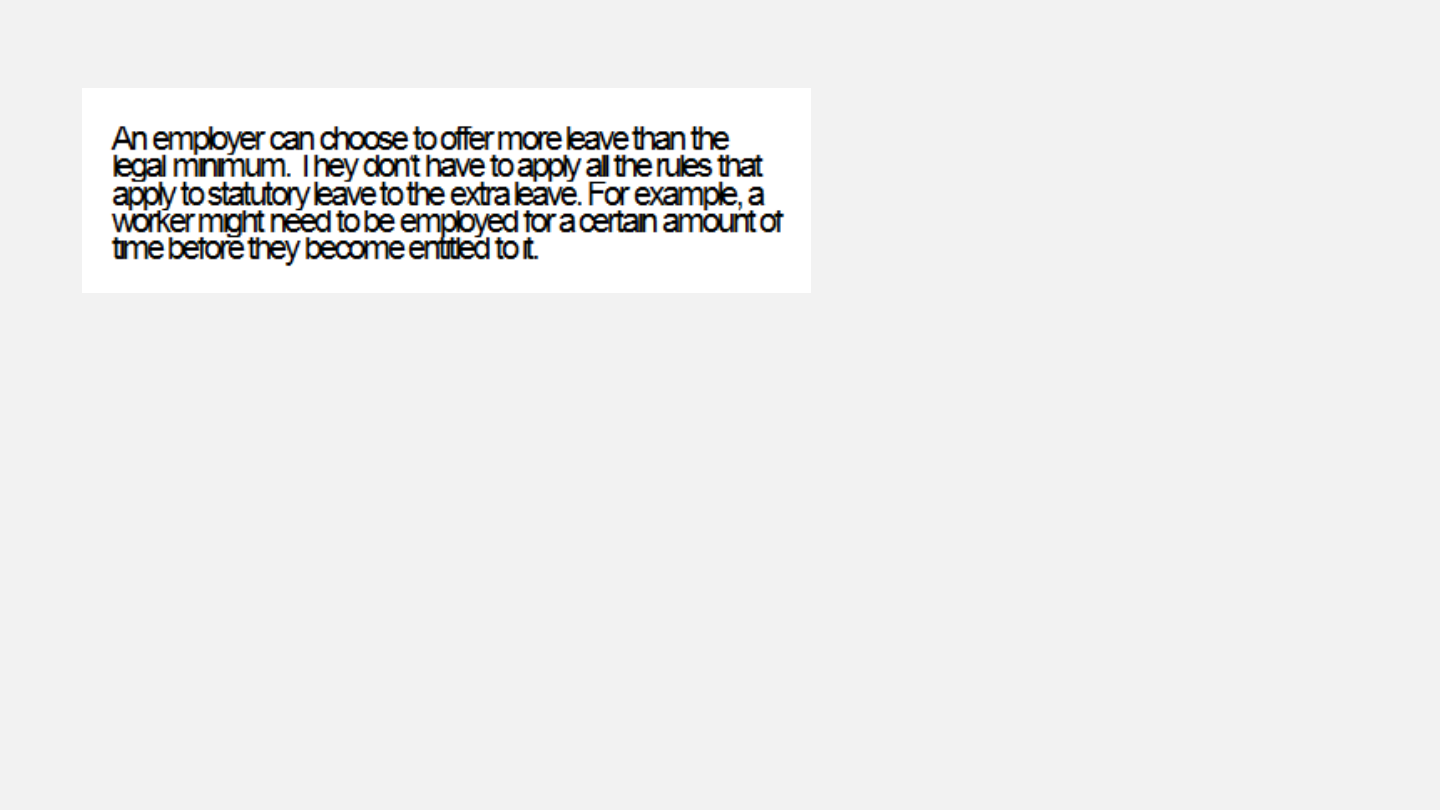
An employer can choose to offer more leave than the legal minimum. They don’t have to apply all the rules that apply to statutory leave to the extra leave. For example, a worker might need to be employed for a certain amount of time before they become entitled to it.
The slide shows this paragraph twice: squeezed in the small upper box (“I hey” appears for “They” because of the overlap) and with normal spacing in the large lower box.
Slide 17: Enlarge: Reduce barriers to decoding


Slide 18: Enlarge: Reduce barriers to decoding
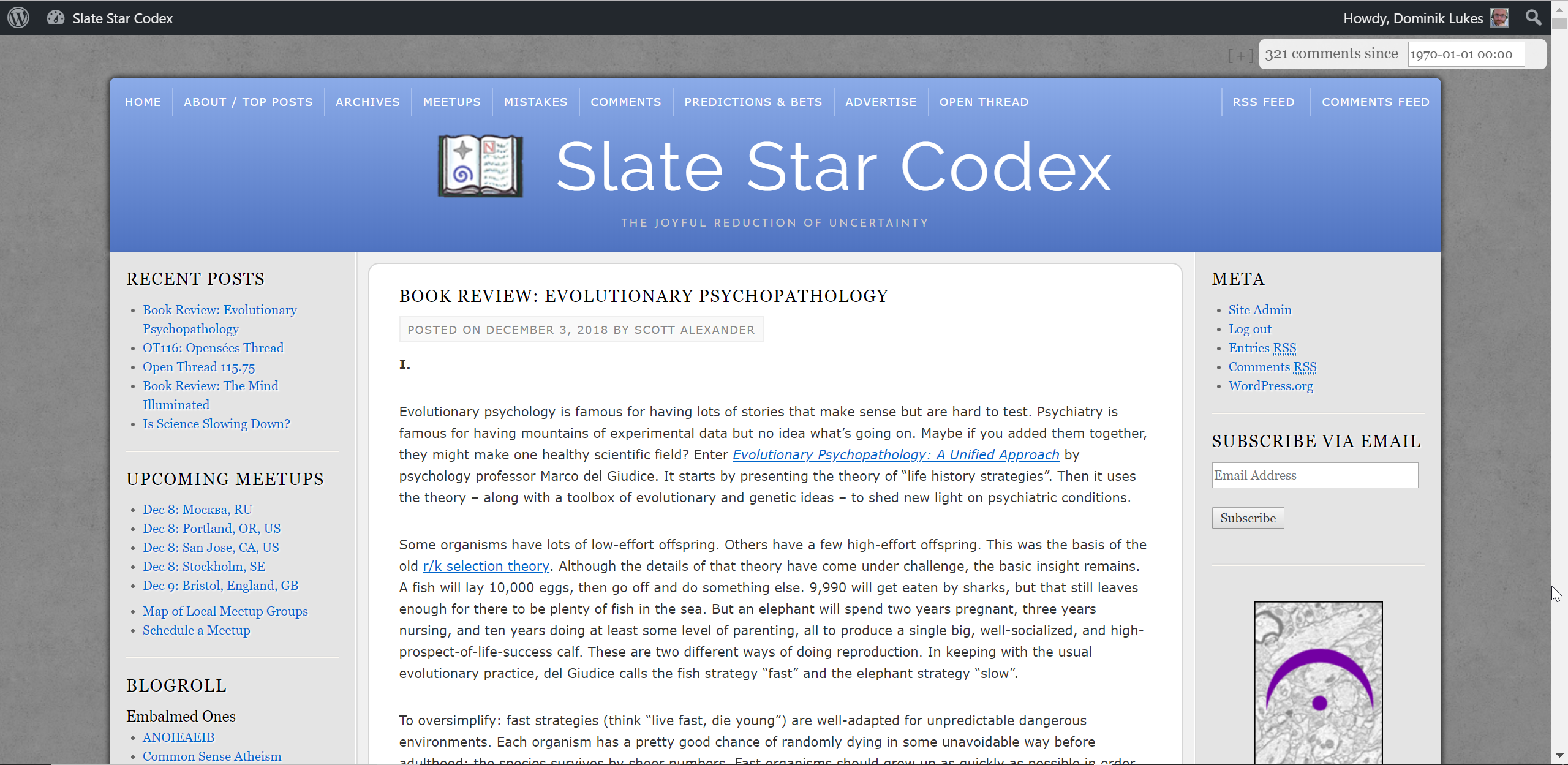
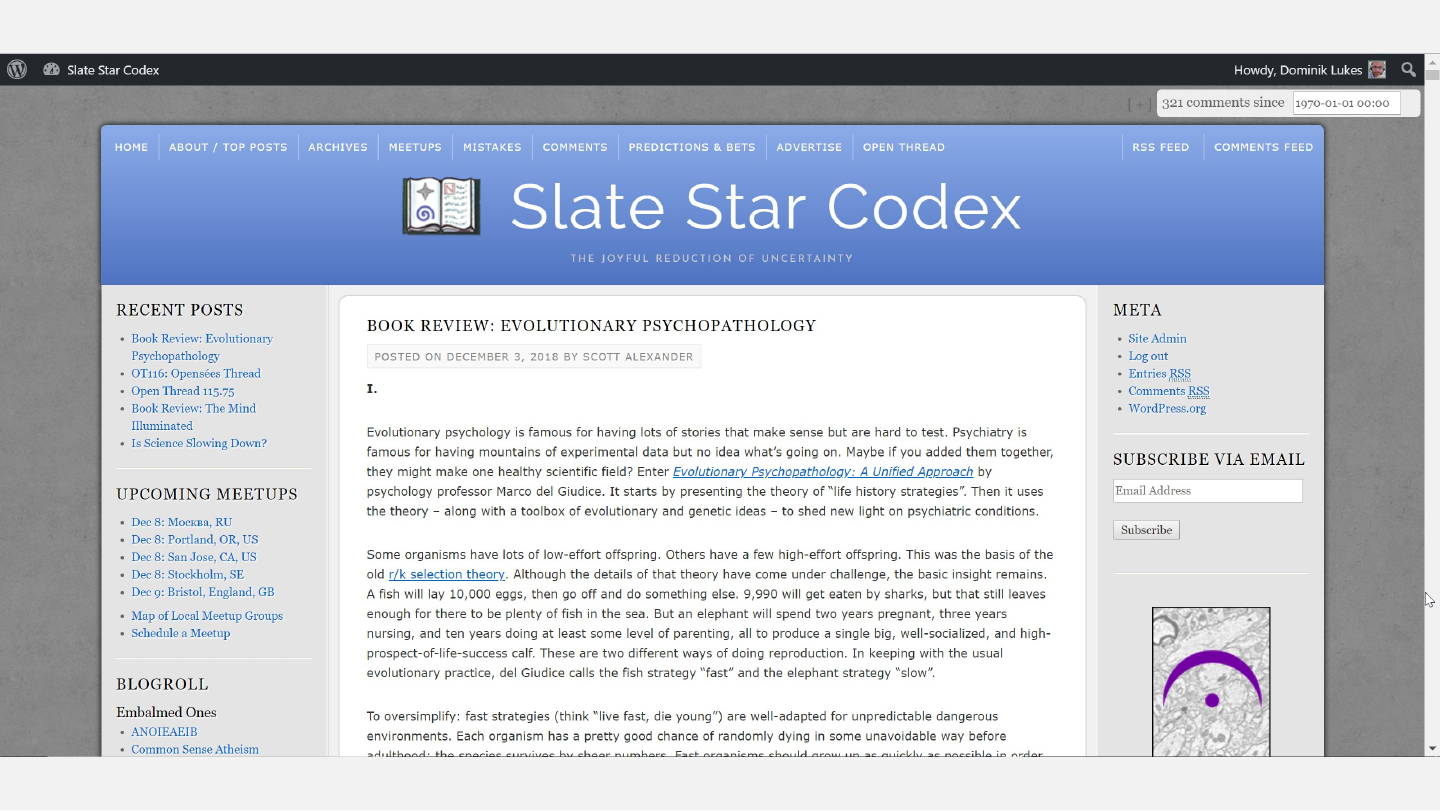
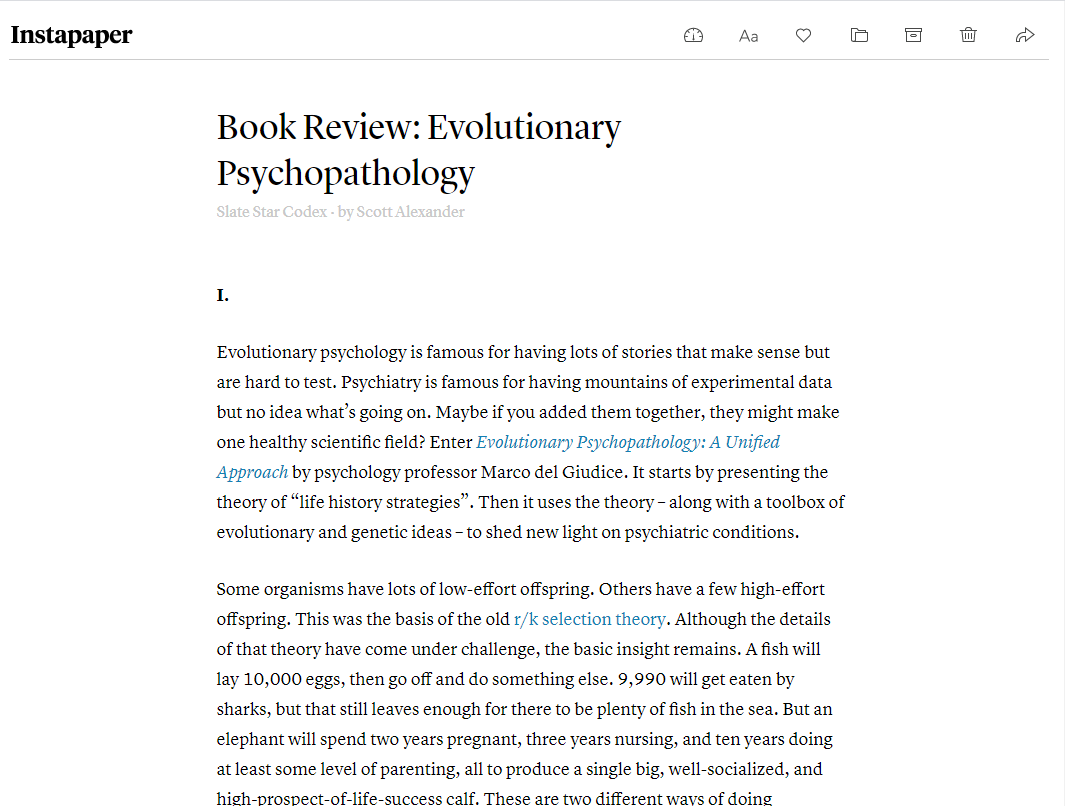
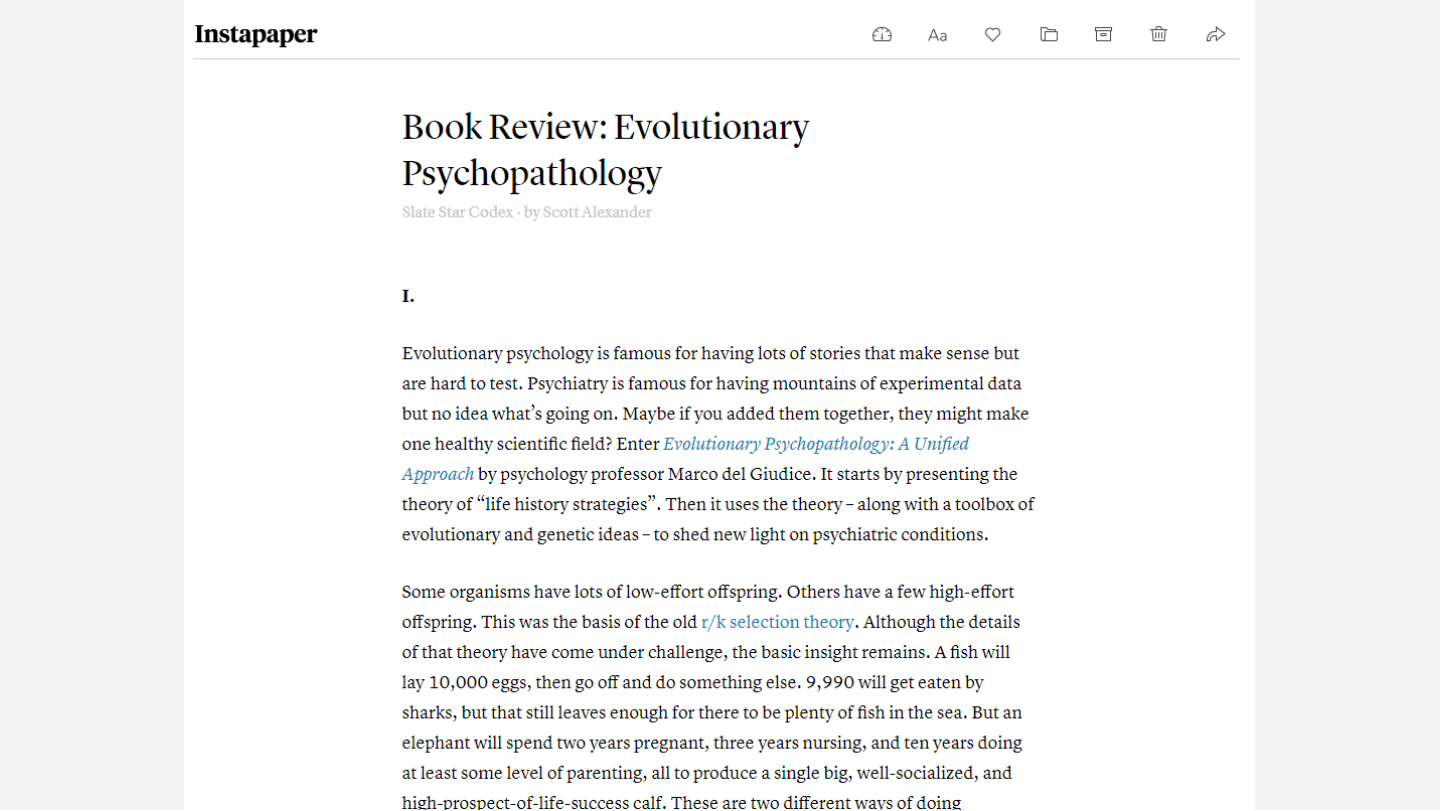
Slide 19: Instapaper view of the review
Instapaper view of the review
Slide 20: My instapaper
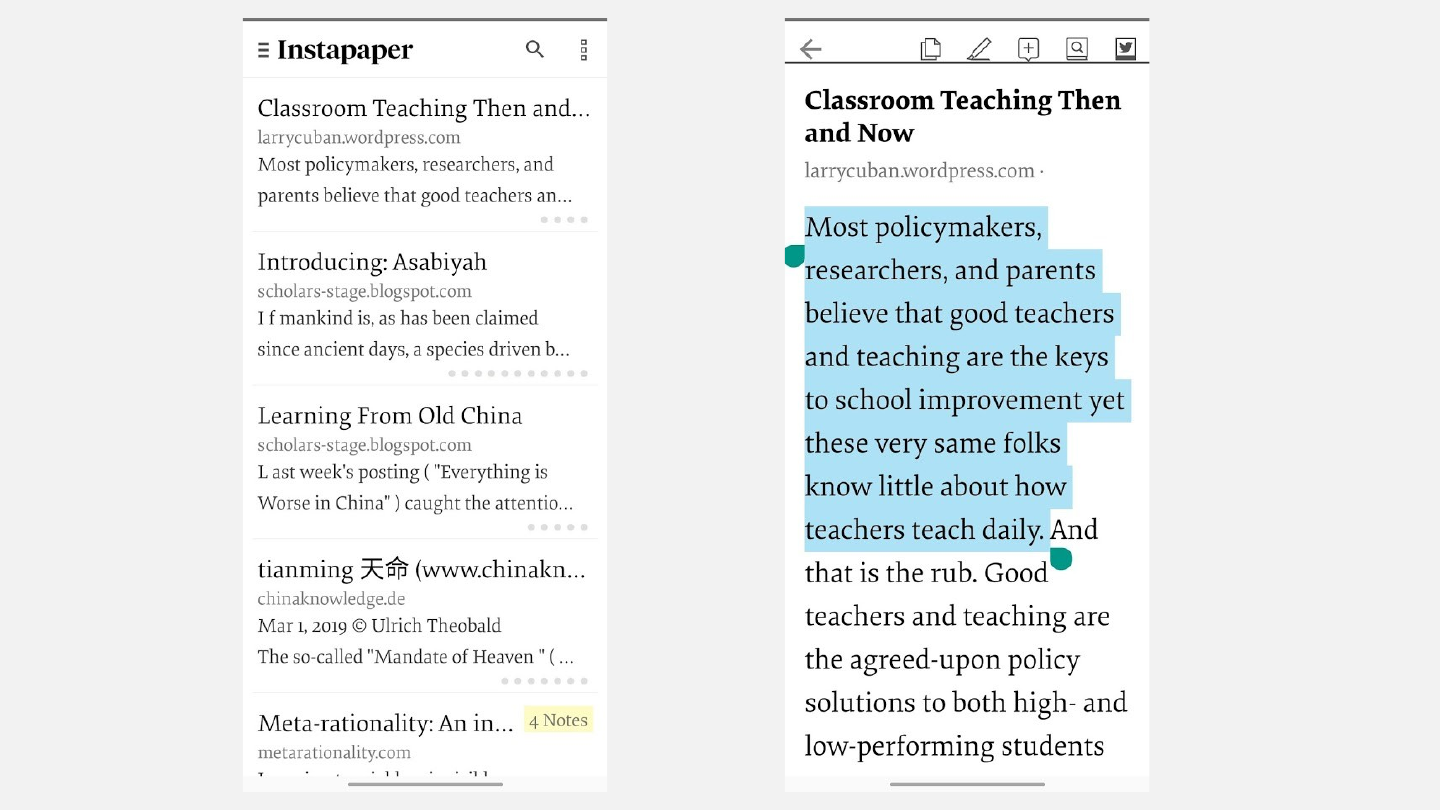
My instapaper
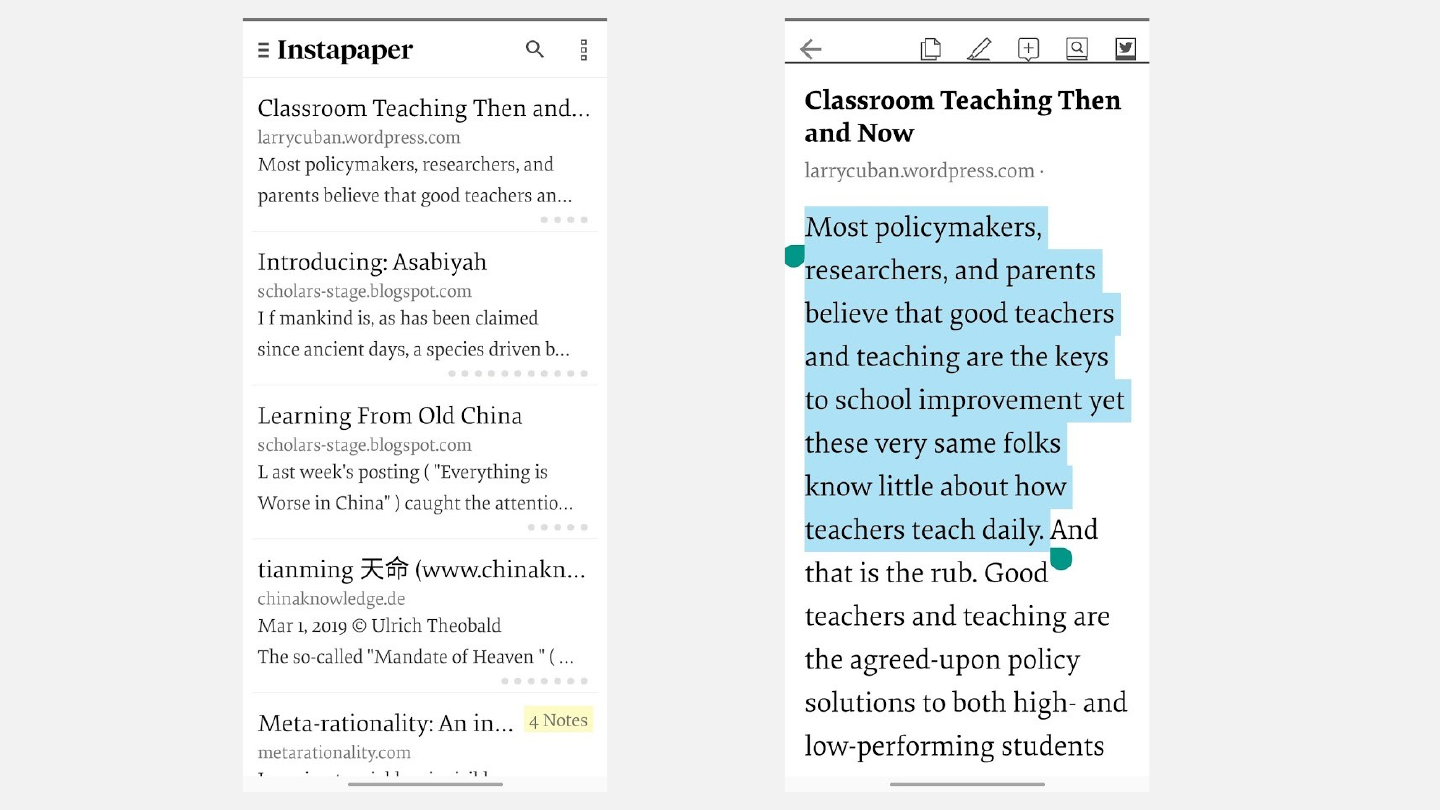
Left screen, the Instapaper article list: Classroom Teaching Then and… (larrycuban.wordpress.com); Introducing: Asabiyah (scholars-stage.blogspot.com); Learning From Old China (scholars-stage.blogspot.com); tianming 天命 (www.chinakn…) (chinaknowledge.de); Meta-rationality: An in… (metarationality.com), marked “4 Notes”.
Right screen, the open article with the highlighted passage: “Most policymakers, researchers, and parents believe that good teachers and teaching are the keys to school improvement yet these very same folks know little about how teachers teach daily.” The text continues “And that is the rub. Good teachers and teaching are the agreed-upon policy solutions to both high- and low-performing students”.
Slide 21: New Edge has Immersive Reader built in
New Edge has Immersive Reader built in


Slide 22: Advanced text display options
Advanced text display options


Slide 23: Additionally also supports line focus
Additionally also supports line focus


Slide 24: Additional language support features
Additional language support features


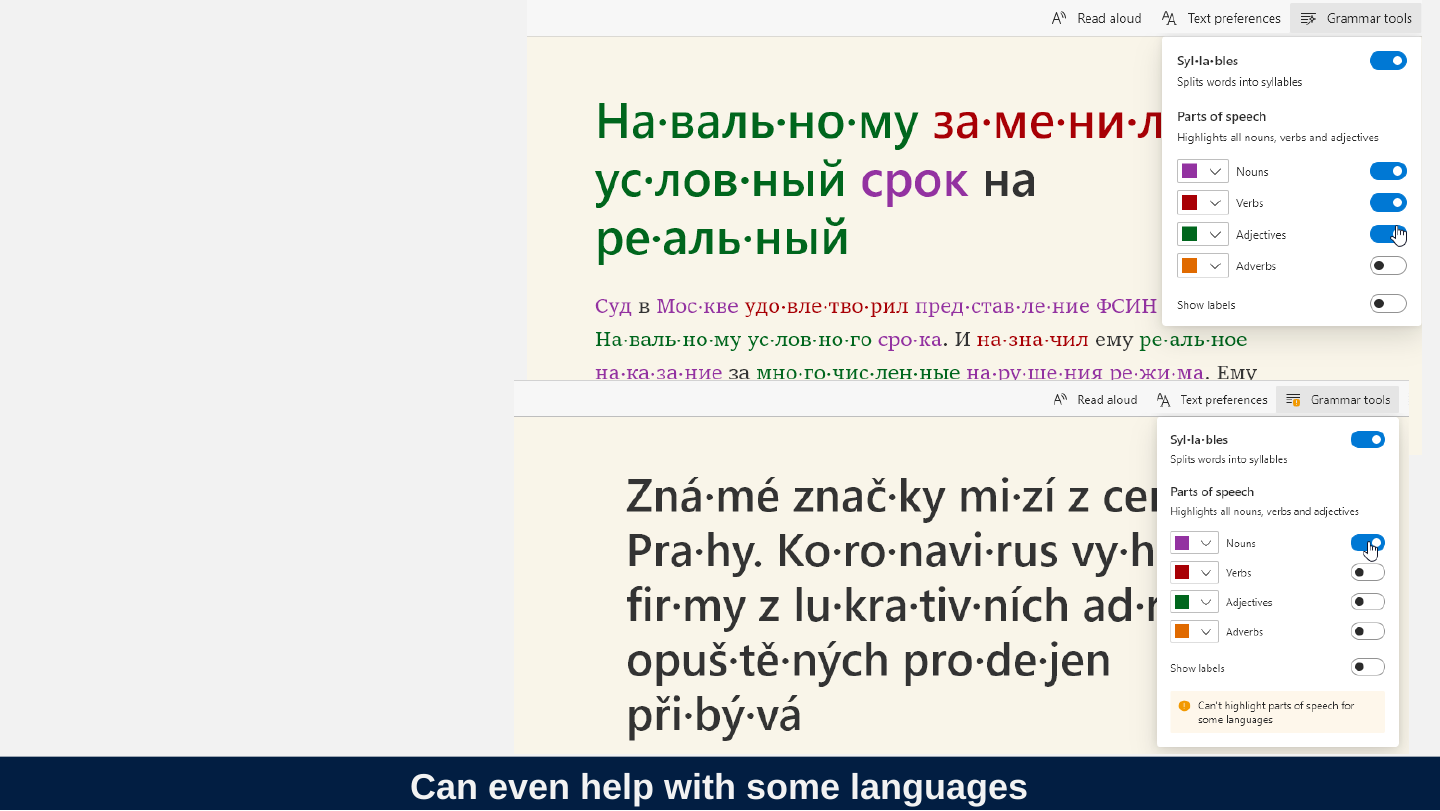
Slide 25: Can even help with some languages
Can even help with some languages
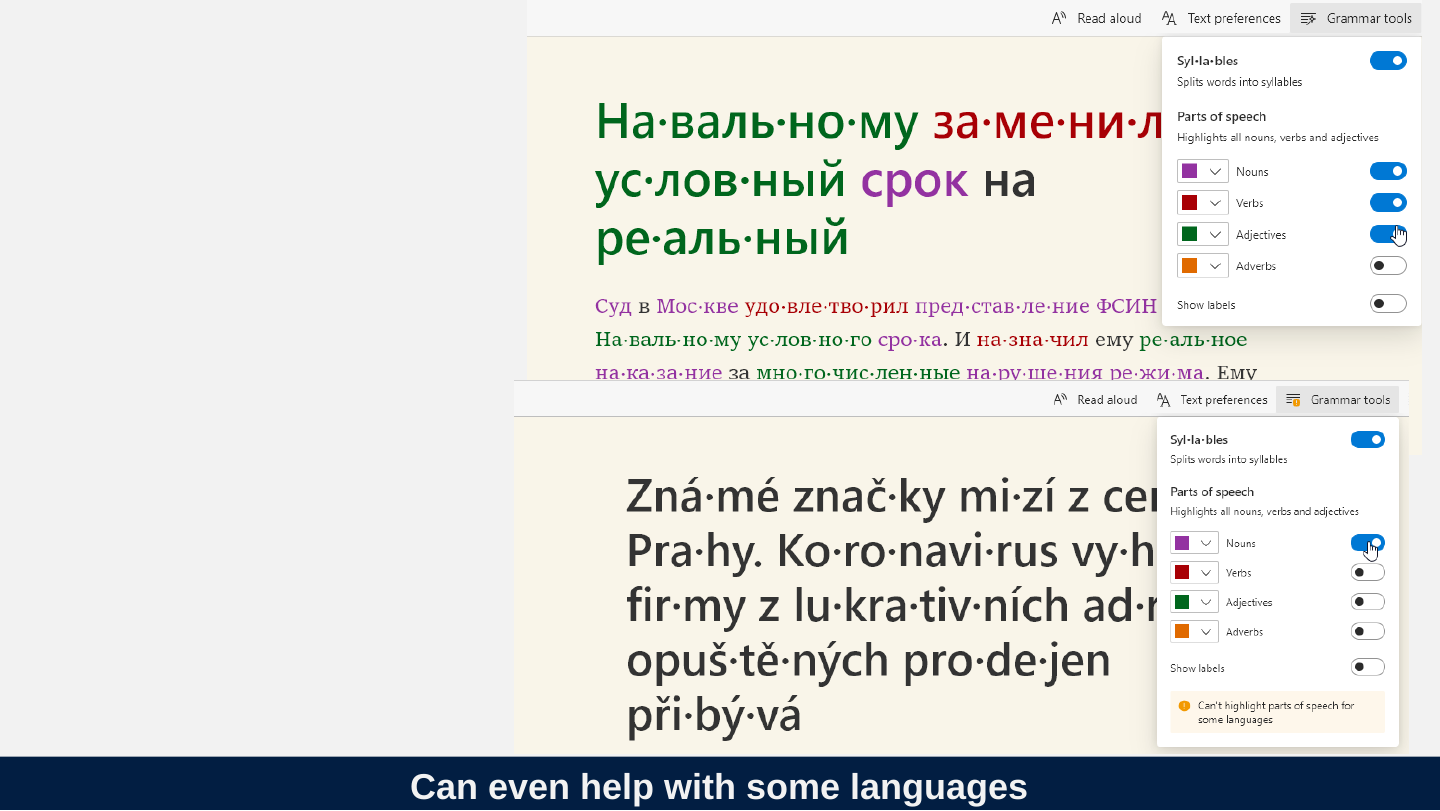
Immersive Reader’s Grammar tools panel (Syllables, Parts of speech with Nouns, Verbs, Adjectives and Adverbs, Show labels) is open on both screenshots. In the Czech screenshot the panel warns: “Can’t highlight parts of speech for some languages”.
Visible Czech text, split into syllables: “Zná·mé znač·ky mi·zí z cen… Pra·hy. Ko·ro·navi·rus vy·h… fir·my z lu·kra·tiv·ních ad·r… opuš·tě·ných pro·de·jen při·bý·vá”. The right-hand ends of the lines are hidden behind the panel.
The Russian screenshot begins “На·валь·ному за·ме·ни·л…” and its right-hand ends are hidden behind the panel in the same way.
Slide 26: Reading with your ears
Reading with your ears
Slide 27: Natural voices
Natural voices


Slide 28: Reading with your ears
Slide 29: Reading with your ears
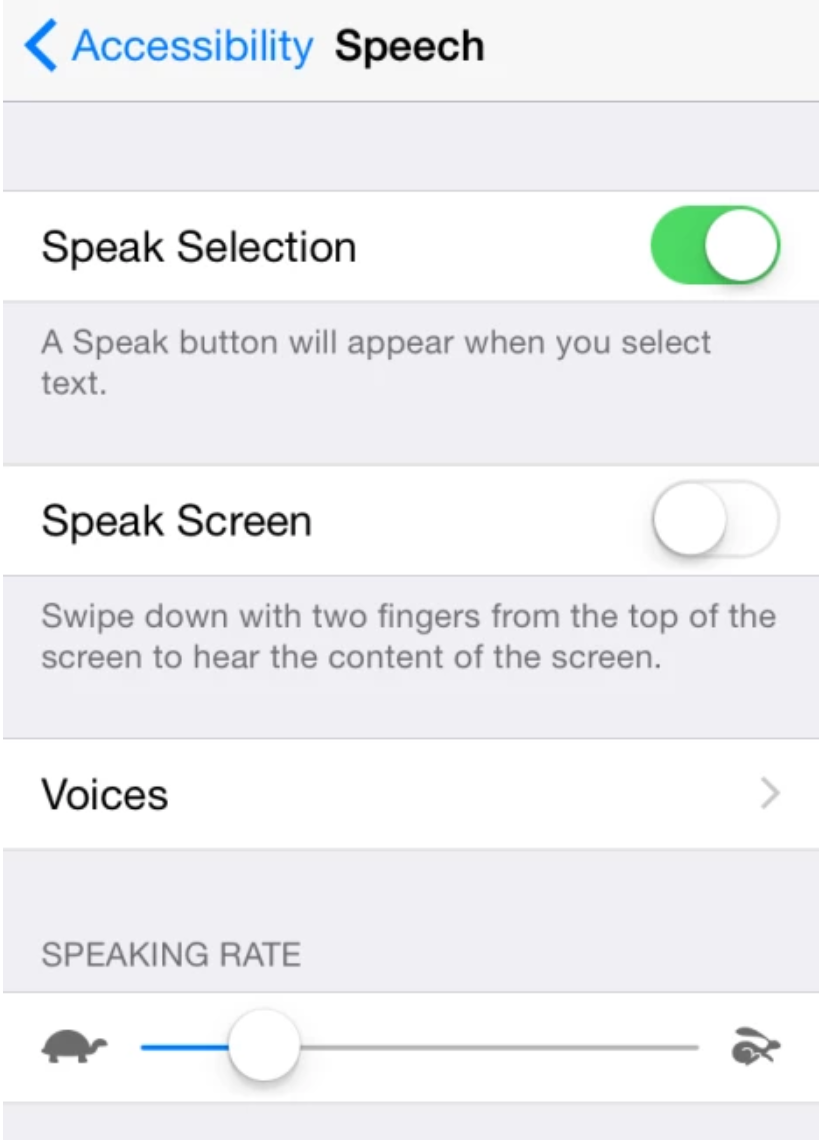
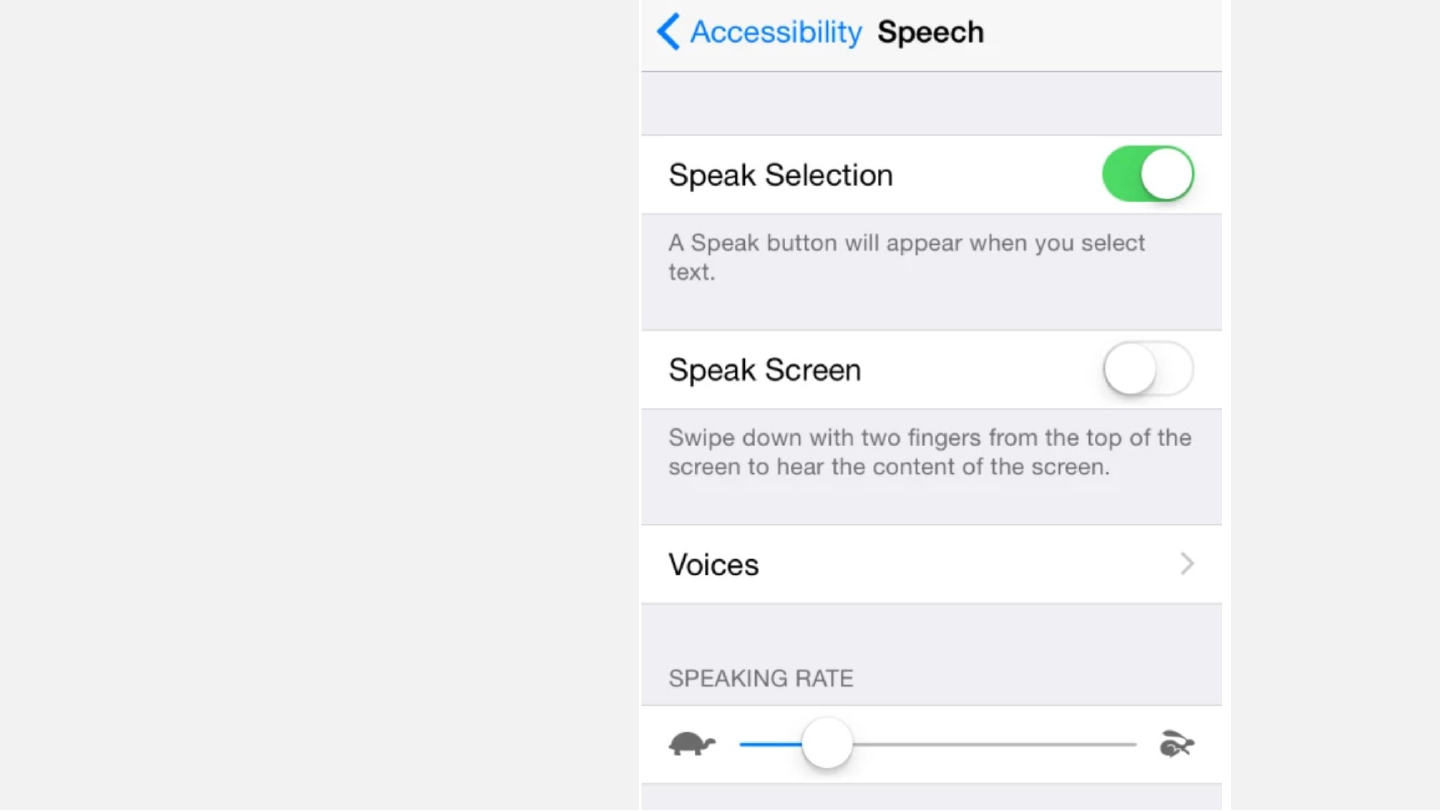
Slide 30: Voicedream reasder
Voicedream reasder
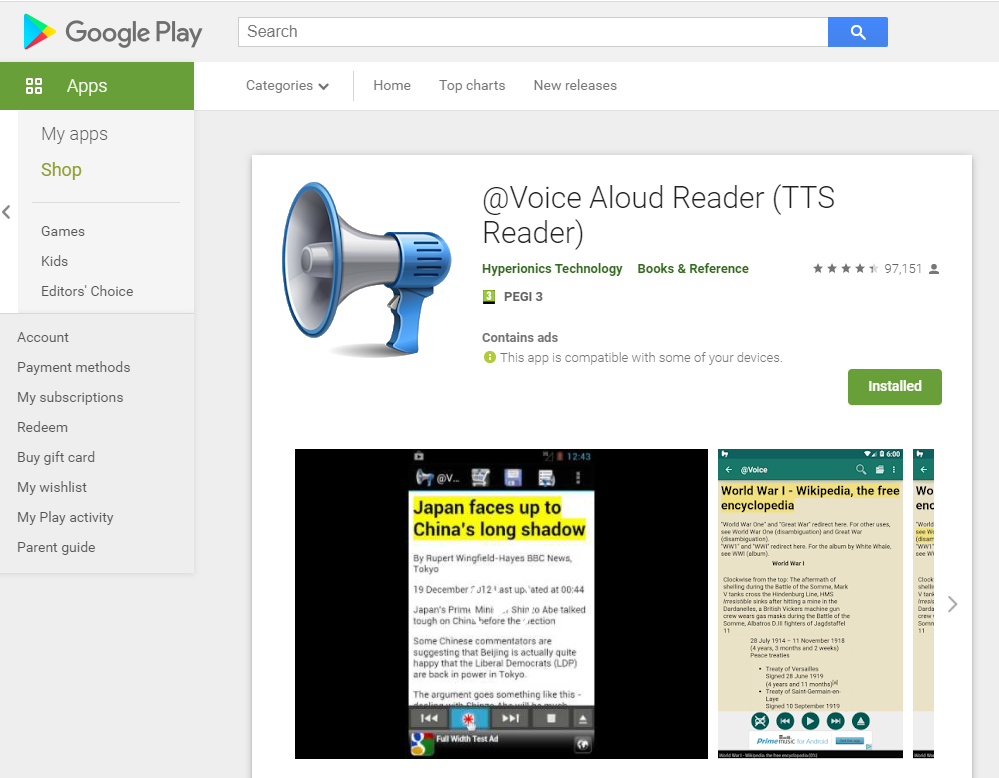
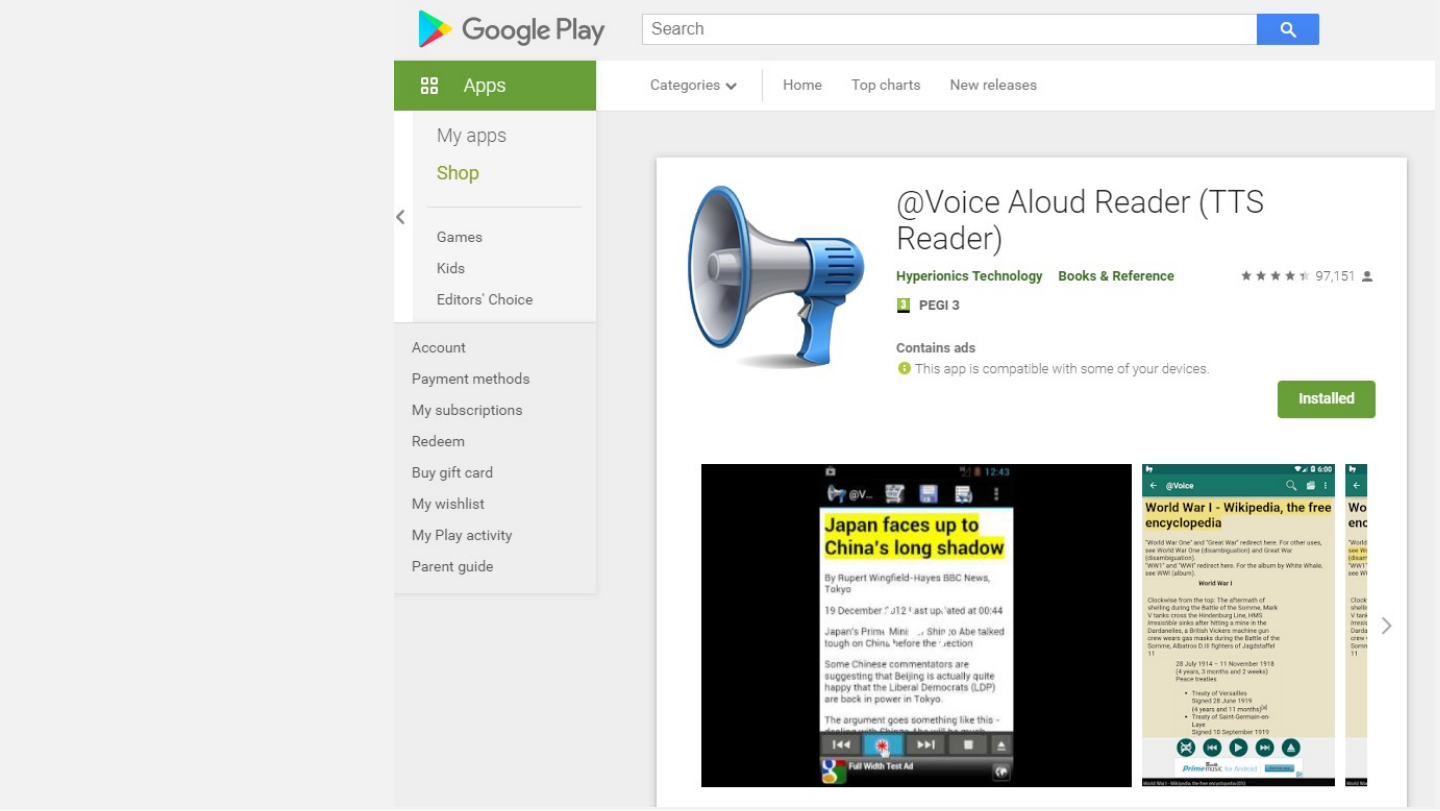
Slide 31: VoiceAloud reader
VoiceAloud reader
Slide 32: Reading with your ears
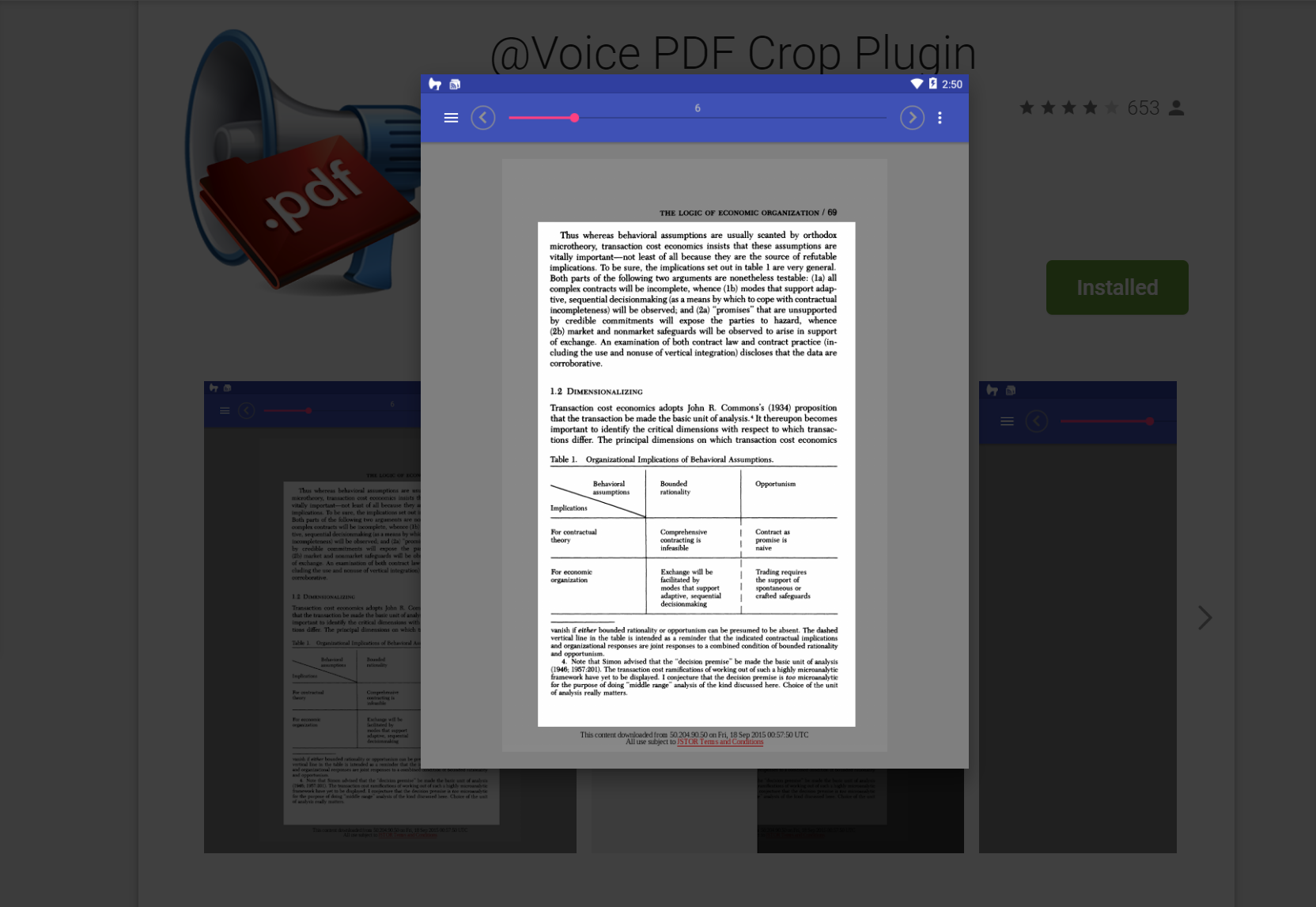
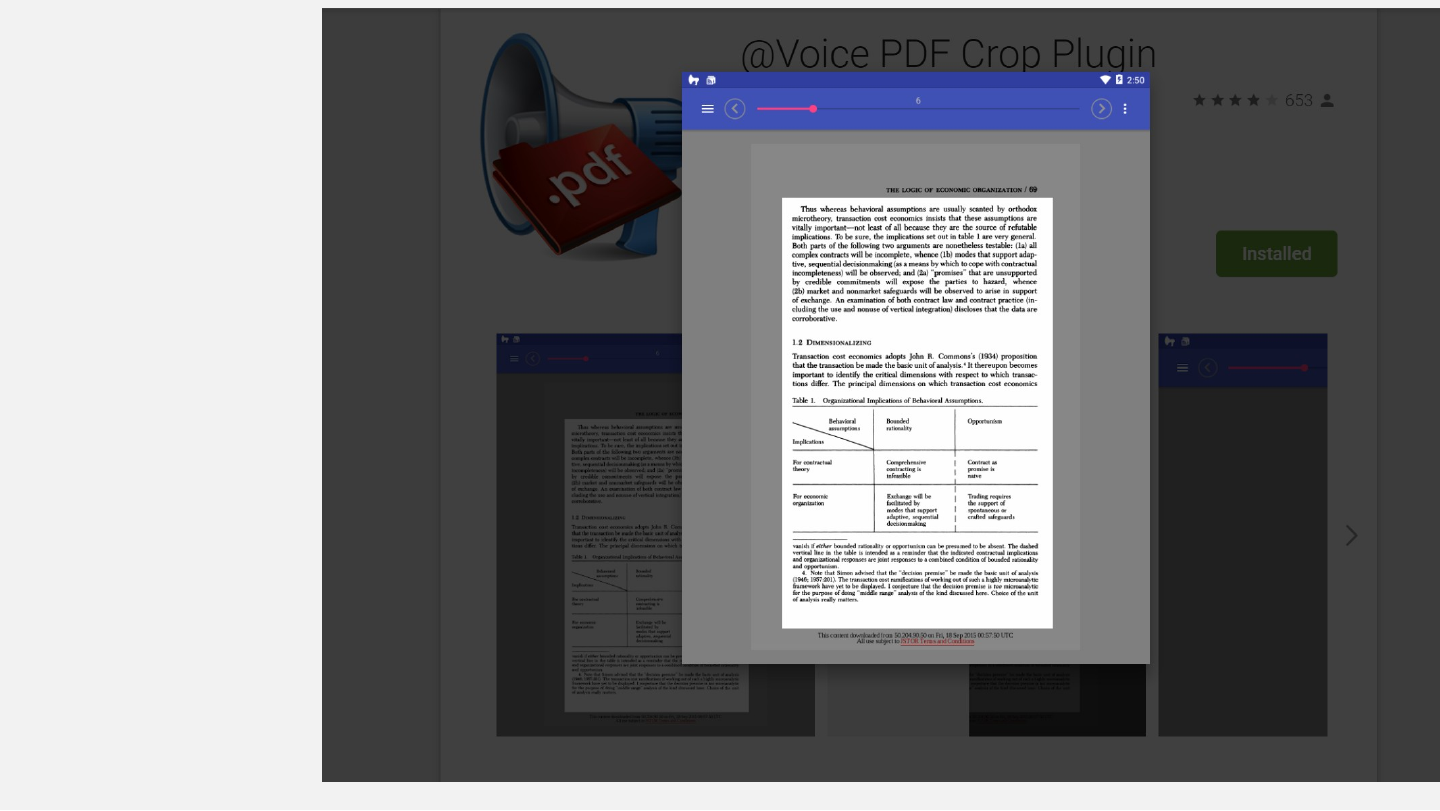
Slide 33: Listening tips
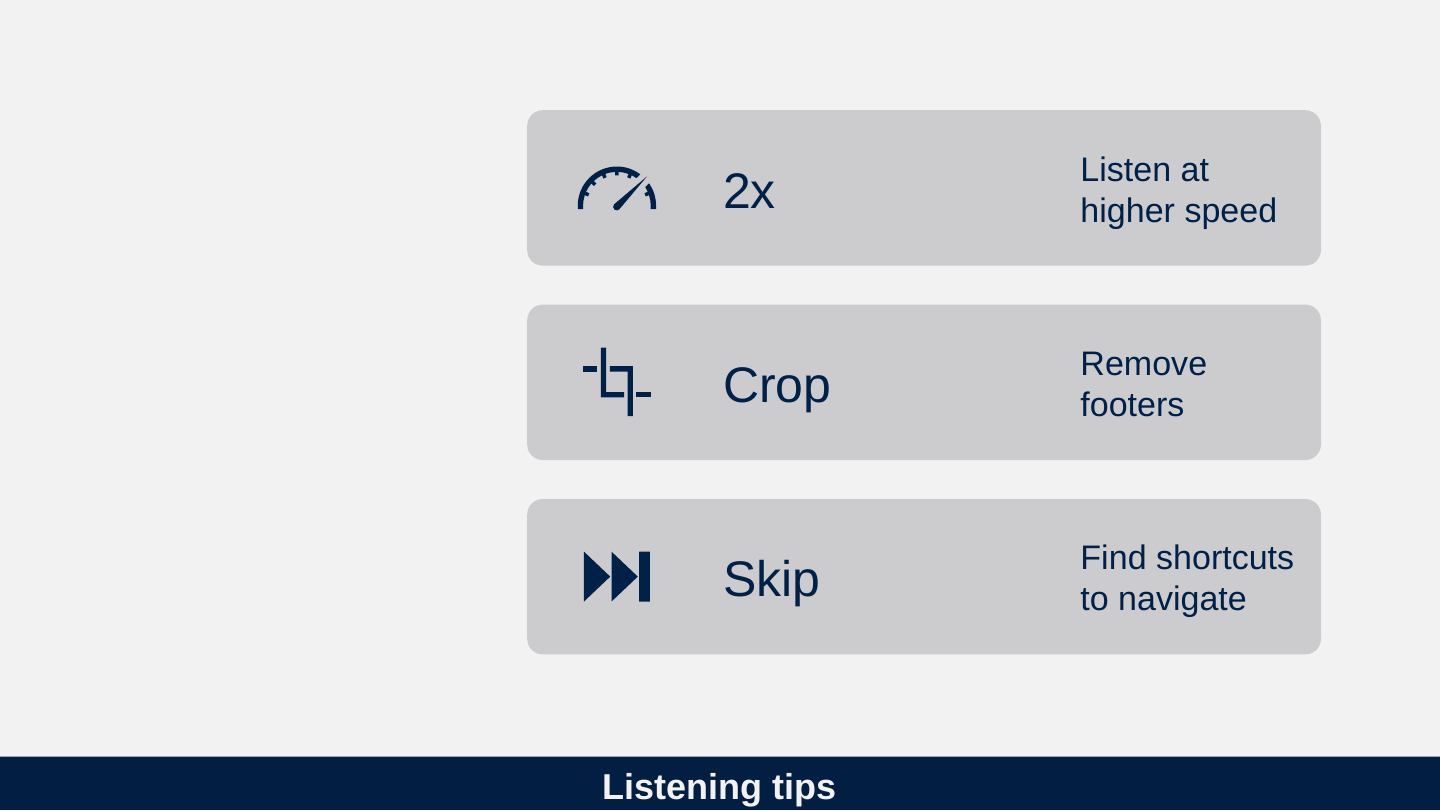
Listening tips
- 2x: Listen at higher speed
- Crop: Remove footers
- Skip: Find shortcuts to navigate
Slide 34: Navigation
Navigation

Slide 35: Texts have structures
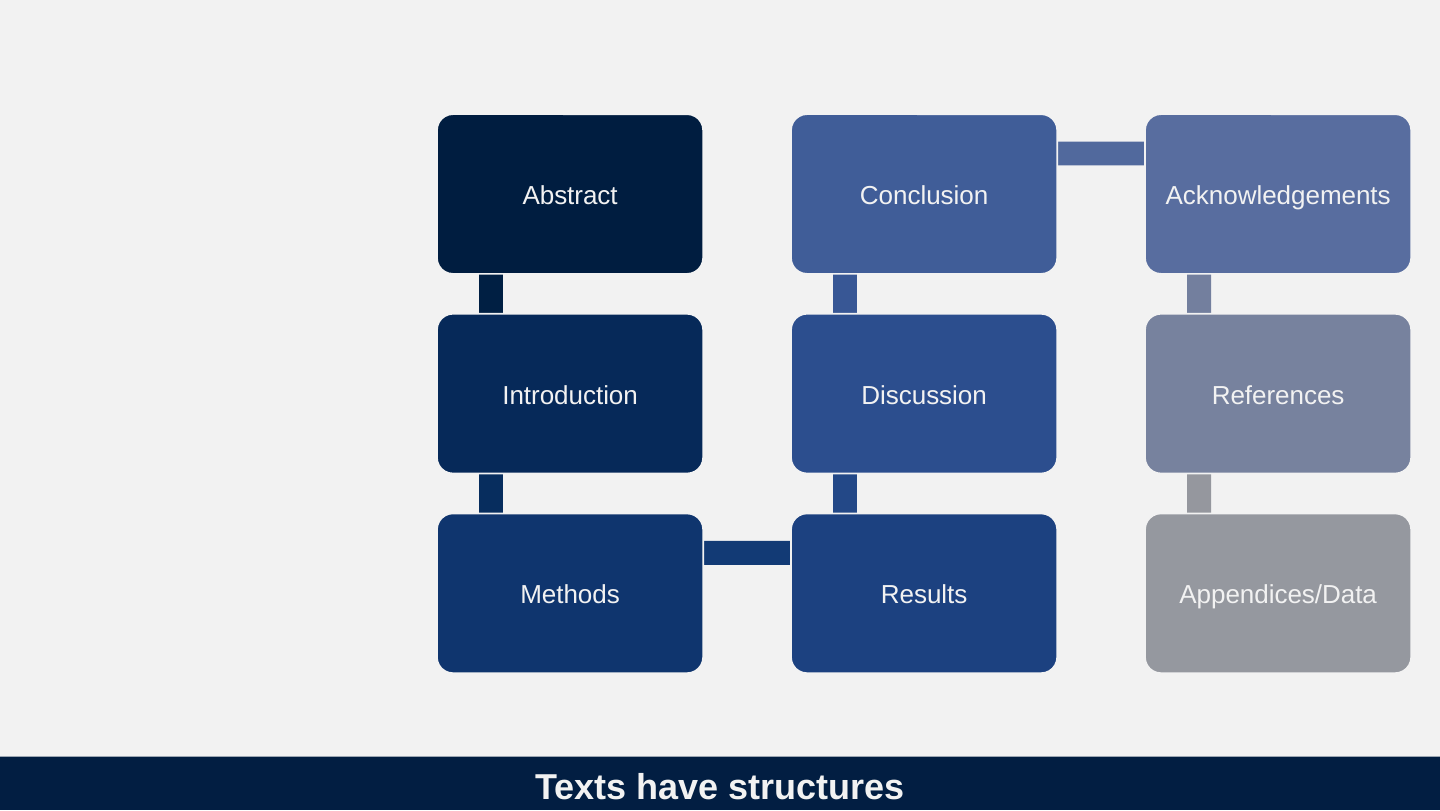
Texts have structures
- Abstract
- Introduction
- Methods
- Results
- Discussion
- Conclusion
- Acknowledgements
- References
- Appendices/Data
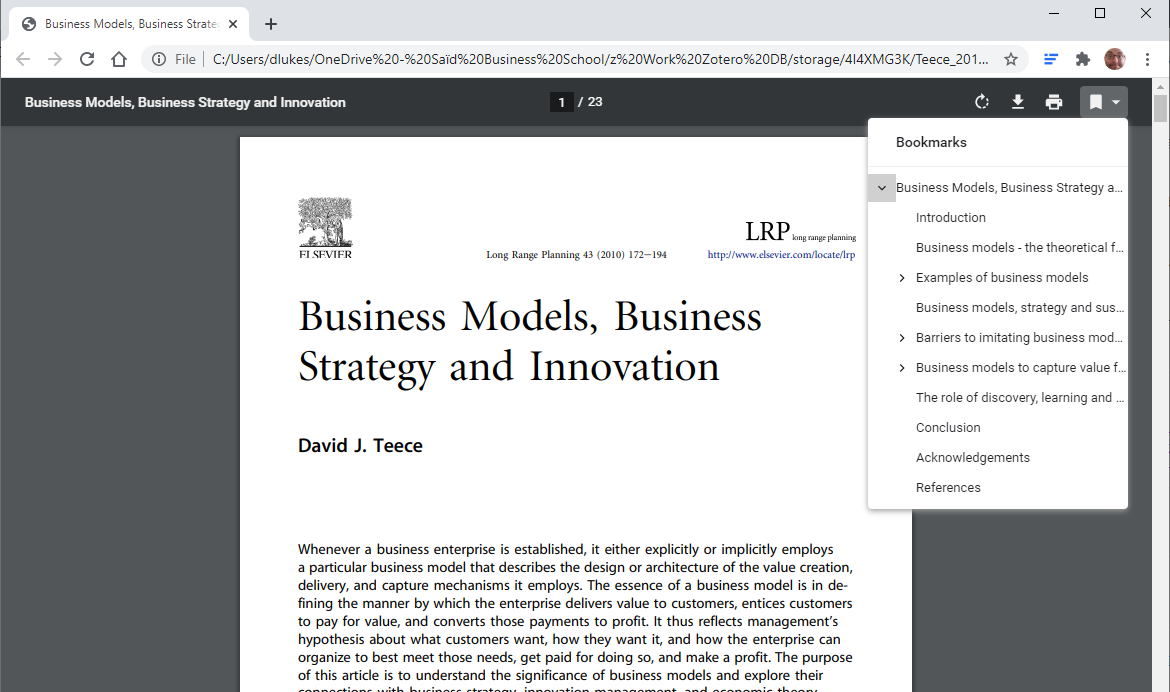
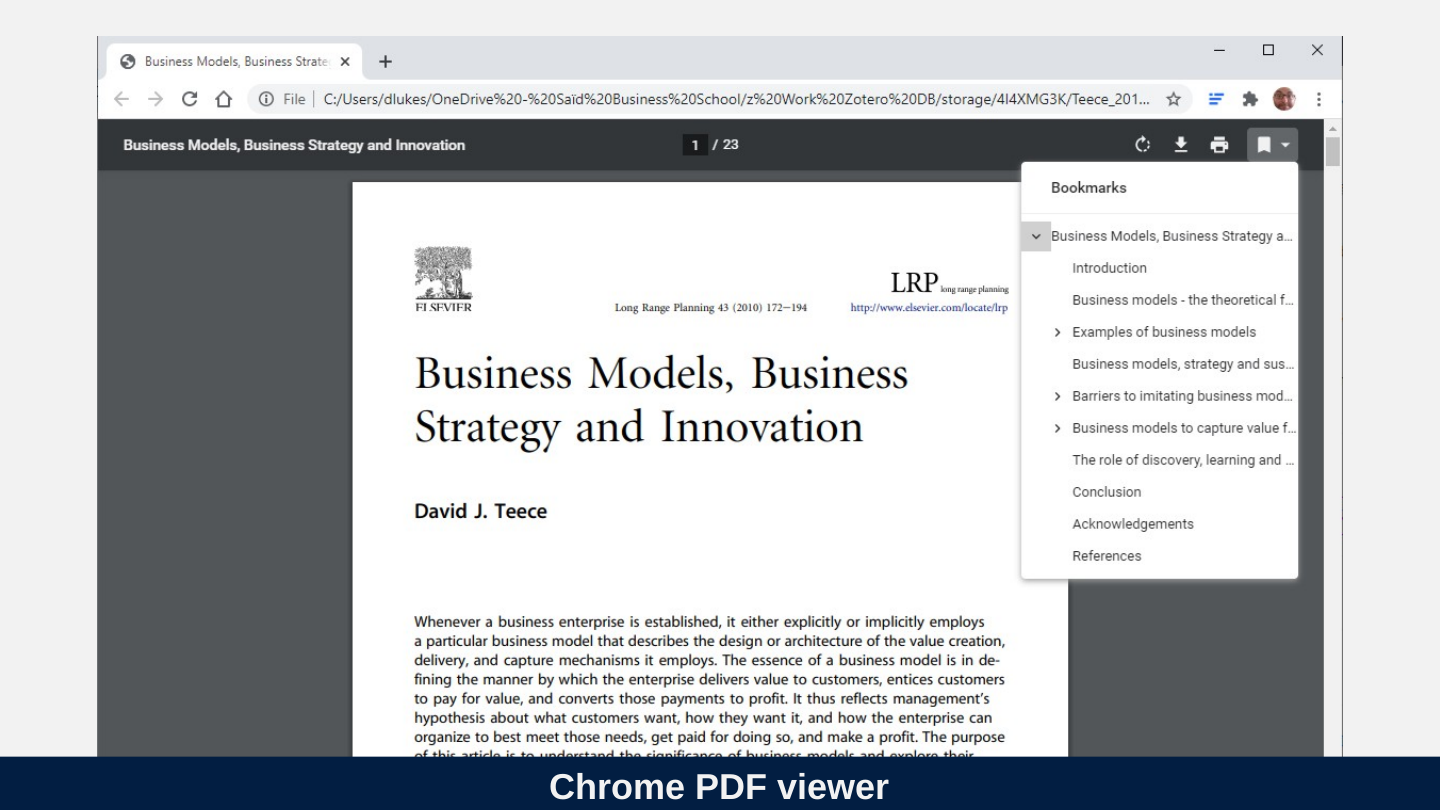
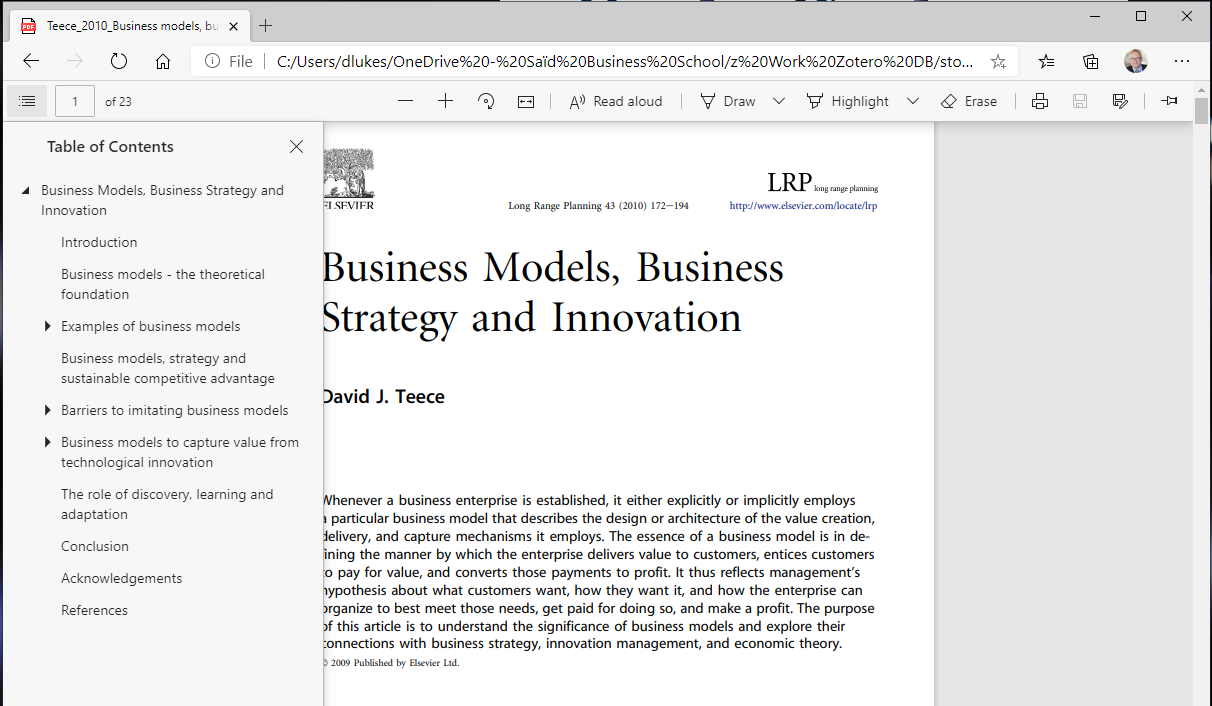
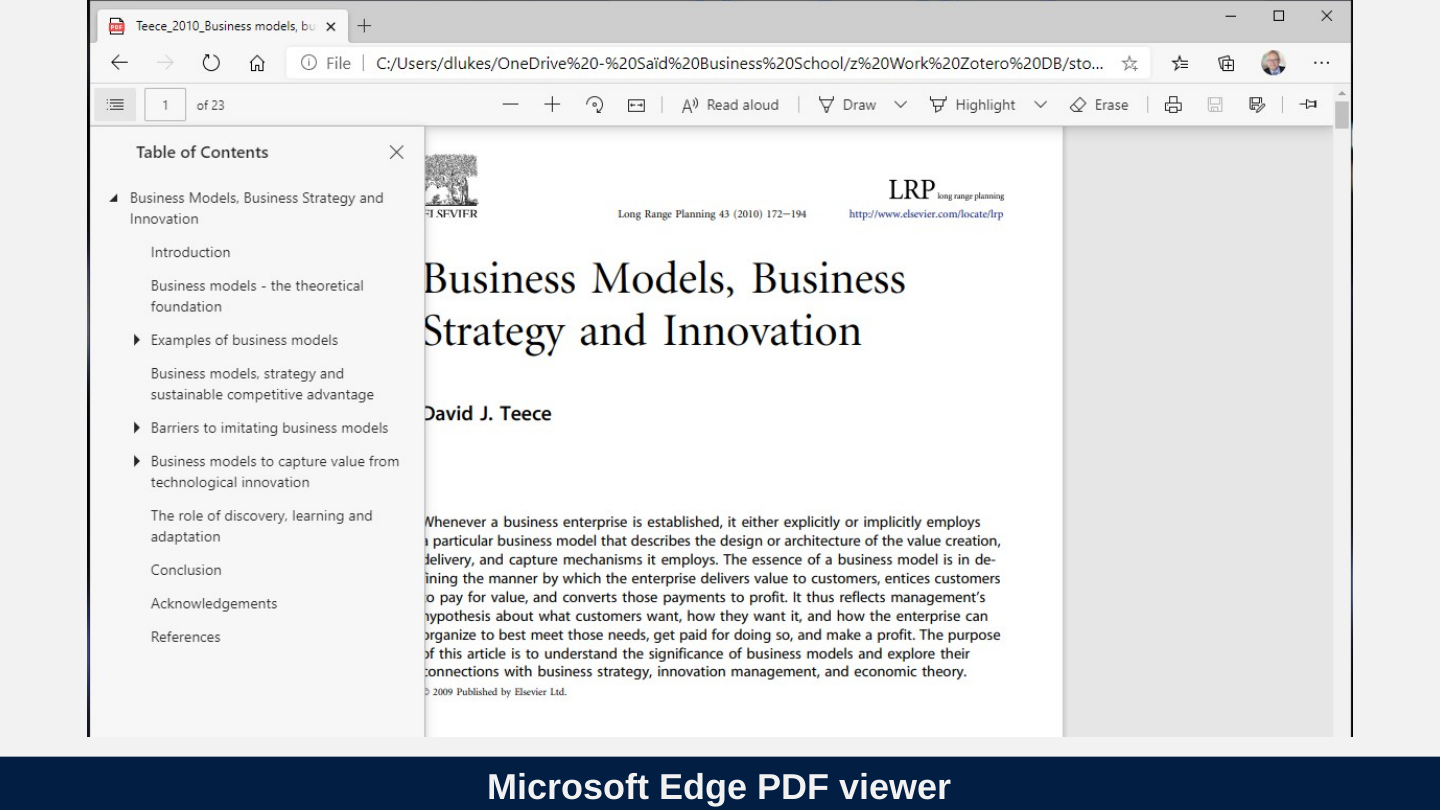
Slide 36: Navigation Pane in Word is an essential tool for reading and writing
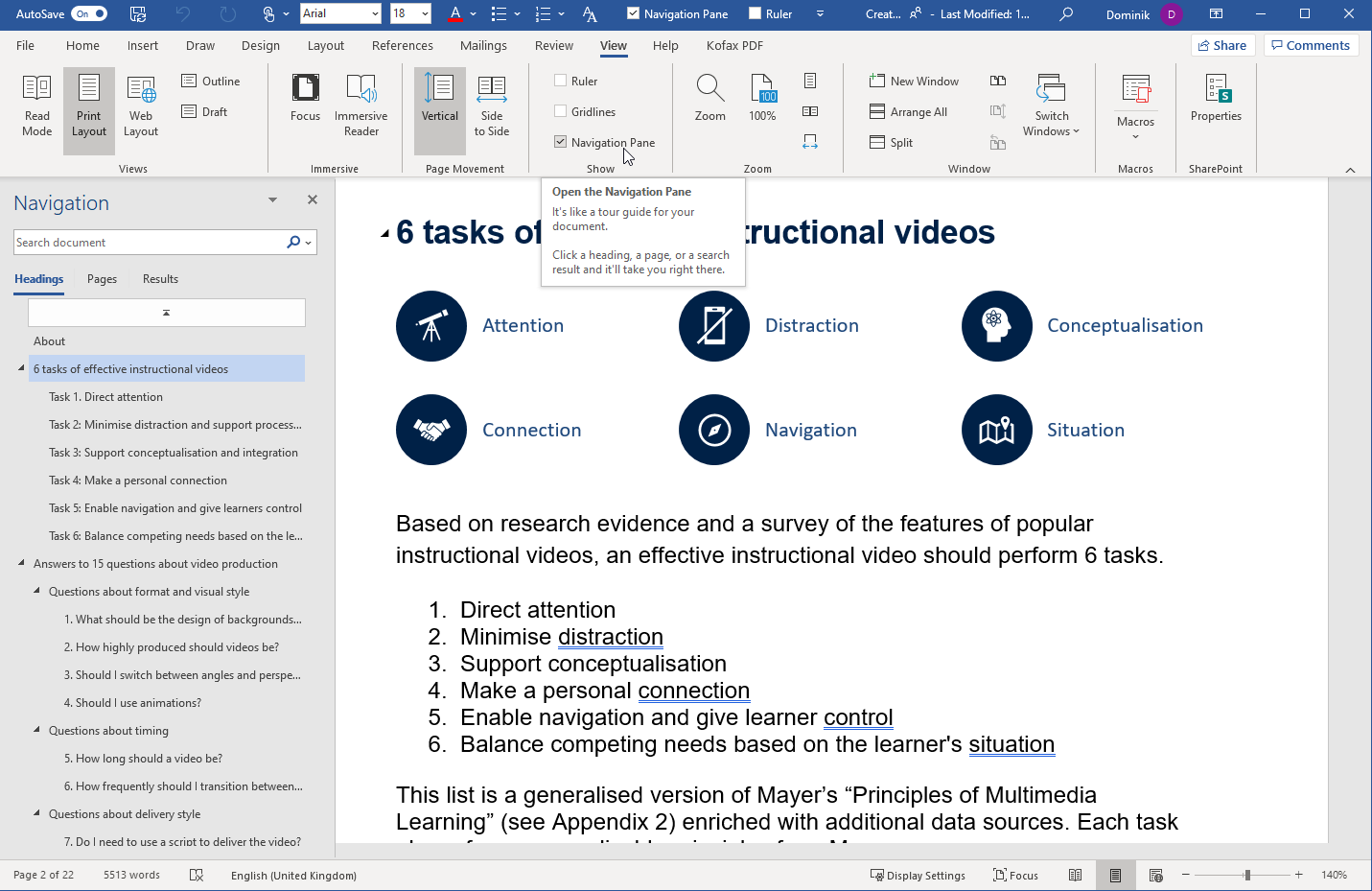
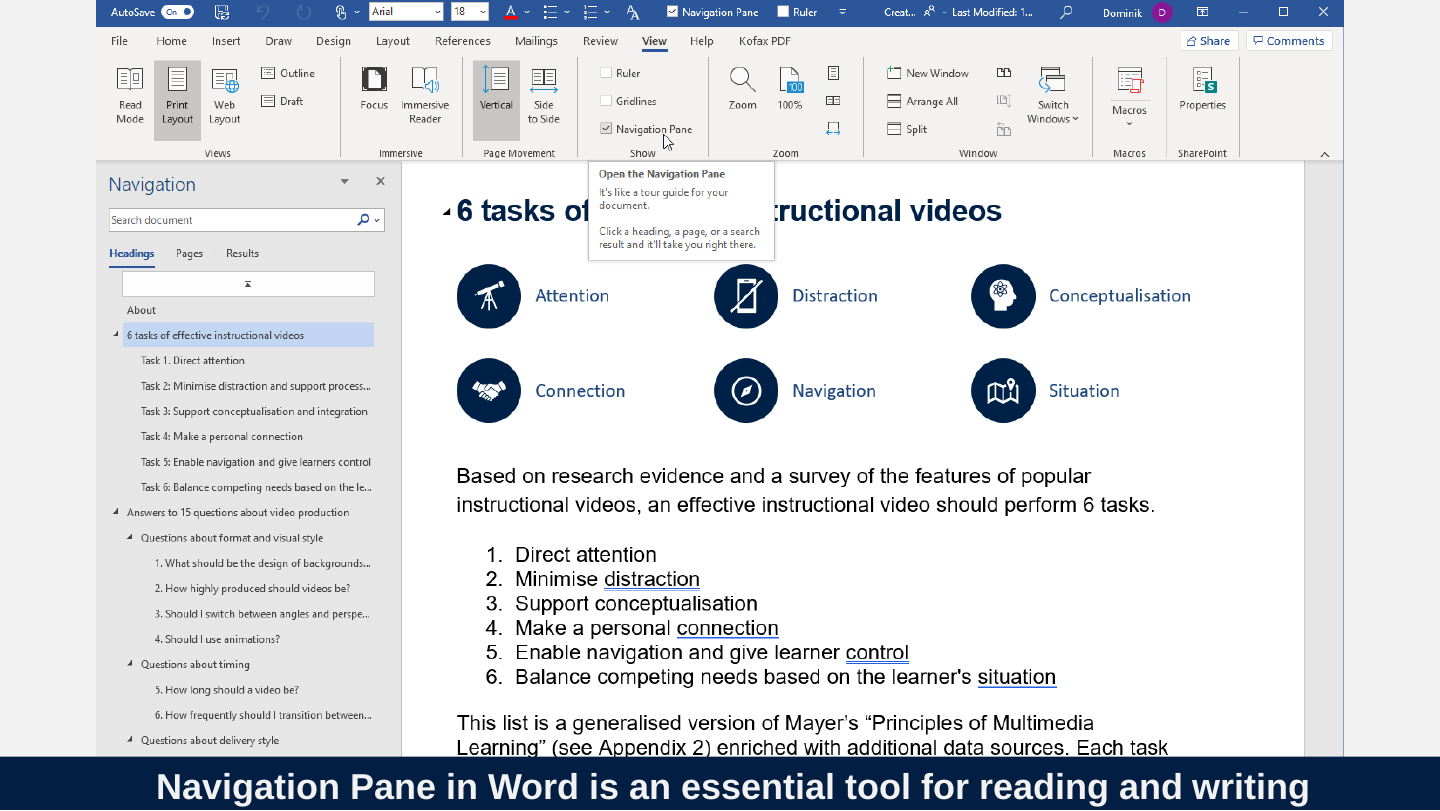
Navigation Pane in Word is an essential tool for reading and writing
Slide 37: Chrome PDF viewer
Chrome PDF viewer
Slide 38: Microsoft Edge PDF viewer
Microsoft Edge PDF viewer
Slide 39: Read strategically
Read strategically

Slide 40: Read strategically
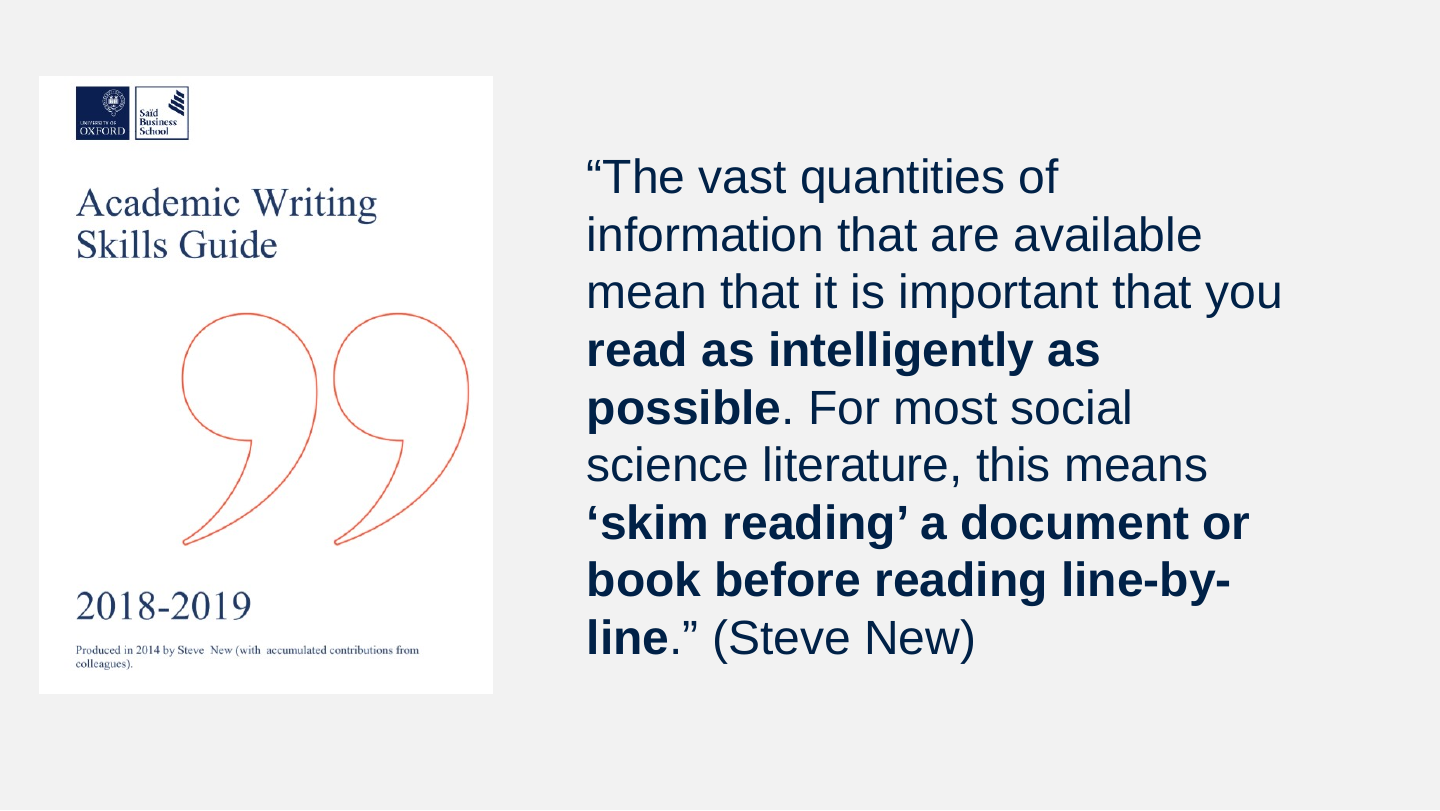
“The vast quantities of information that are available mean that it is important that you read as intelligently as possible. For most social science literature, this means ‘skim reading’ a document or book before reading line-by-line.” (Steve New)
Slide 41: Three Modes of Reading
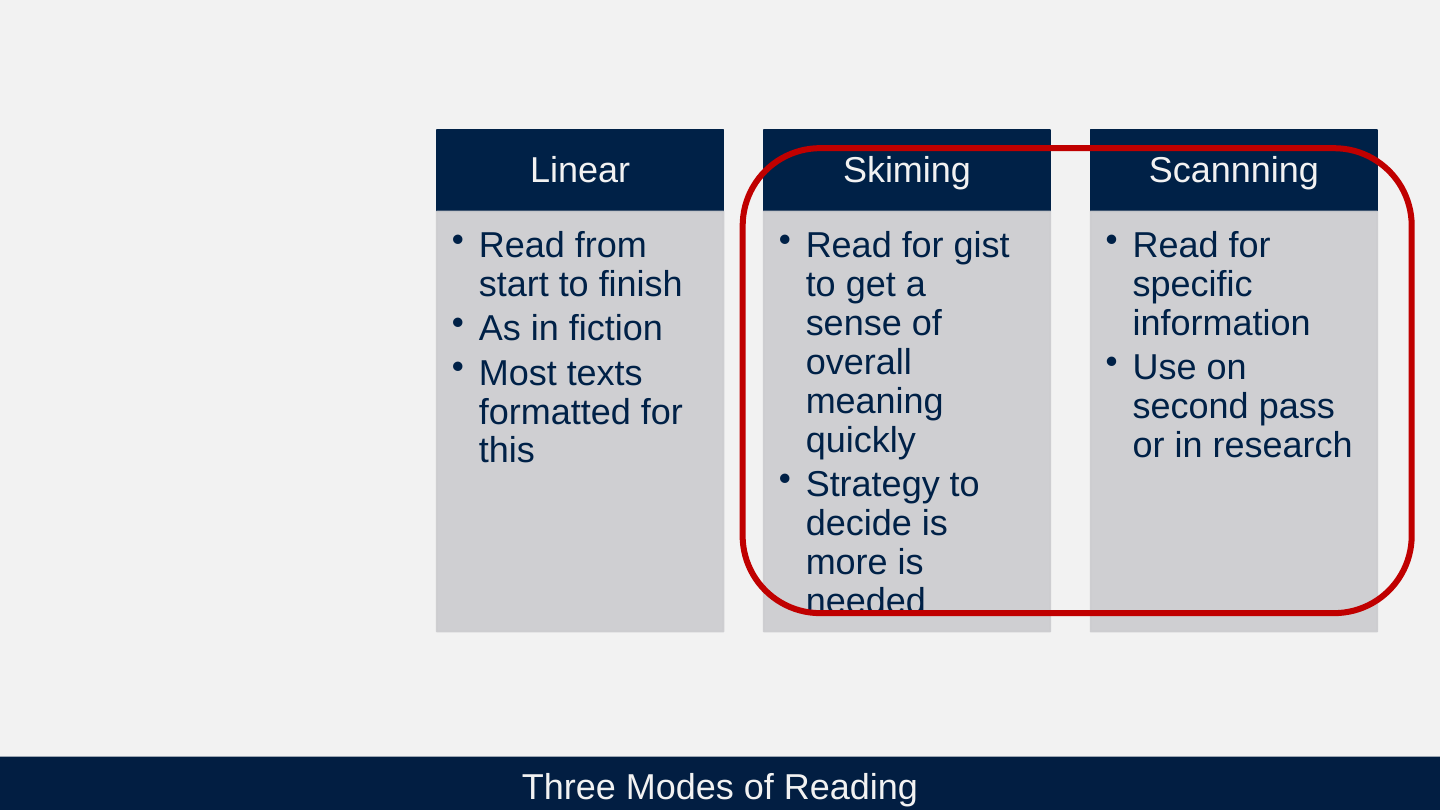
Three Modes of Reading
Linear
- Read from start to finish
- As in fiction
- Most texts formatted for this
Skiming
- Read for gist to get a sense of overall meaning quickly
- Strategy to decide is more is needed
Scannning
- Read for specific information
- Use on second pass or in research
Slide 42: Most digital reading interfaces assume the linear mode!
Most digital reading interfaces assume the linear mode!
Slide 43: This is why digital textbooks are so slow to take off!
This is why digital textbooks are so slow to take off!

Slide 44: Where does technology come in?
Where does technology come in?
Slide 45: Affordances of Reading
Affordances of Reading

Slide 46: Definition of affordance
Definition of affordance
Affordance is the property of an object that allows the user to interact with it in order to achieve a particular goal without conscious deliberation.
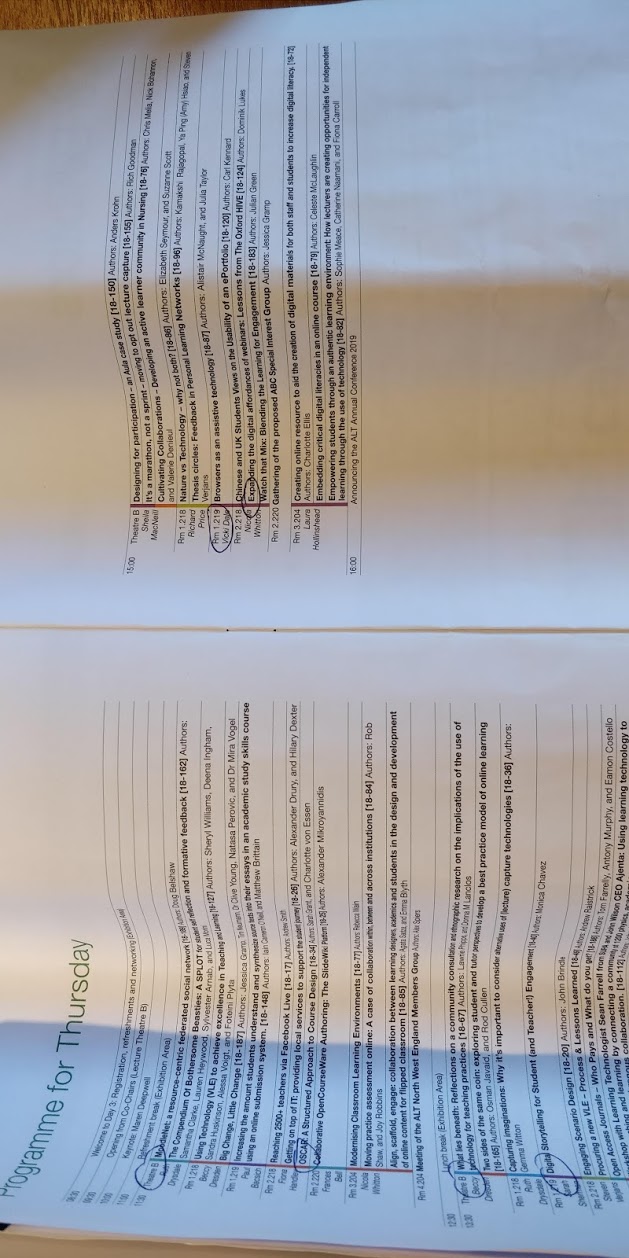
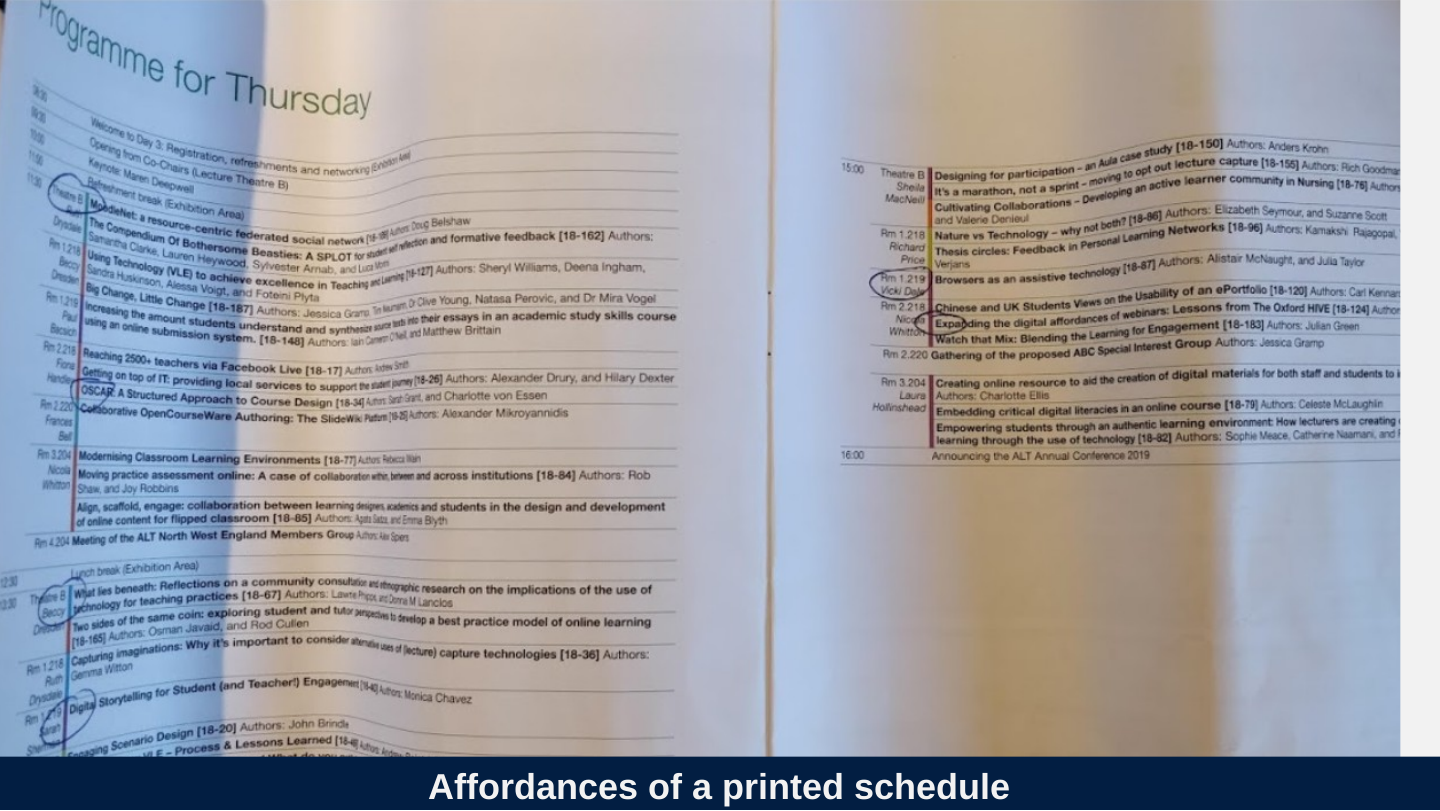
Slide 47: Affordances of a printed schedule
Affordances of a printed schedule
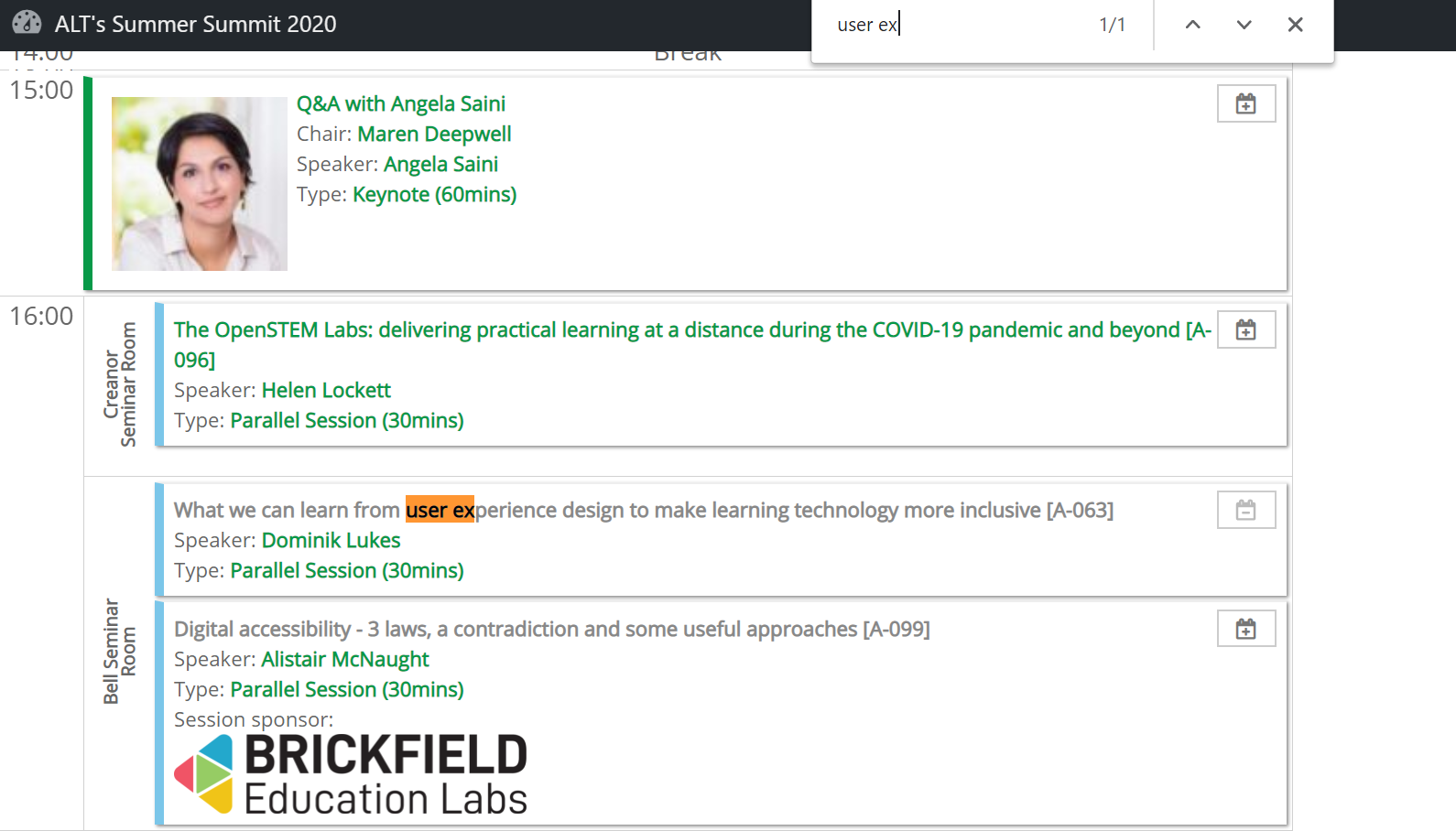
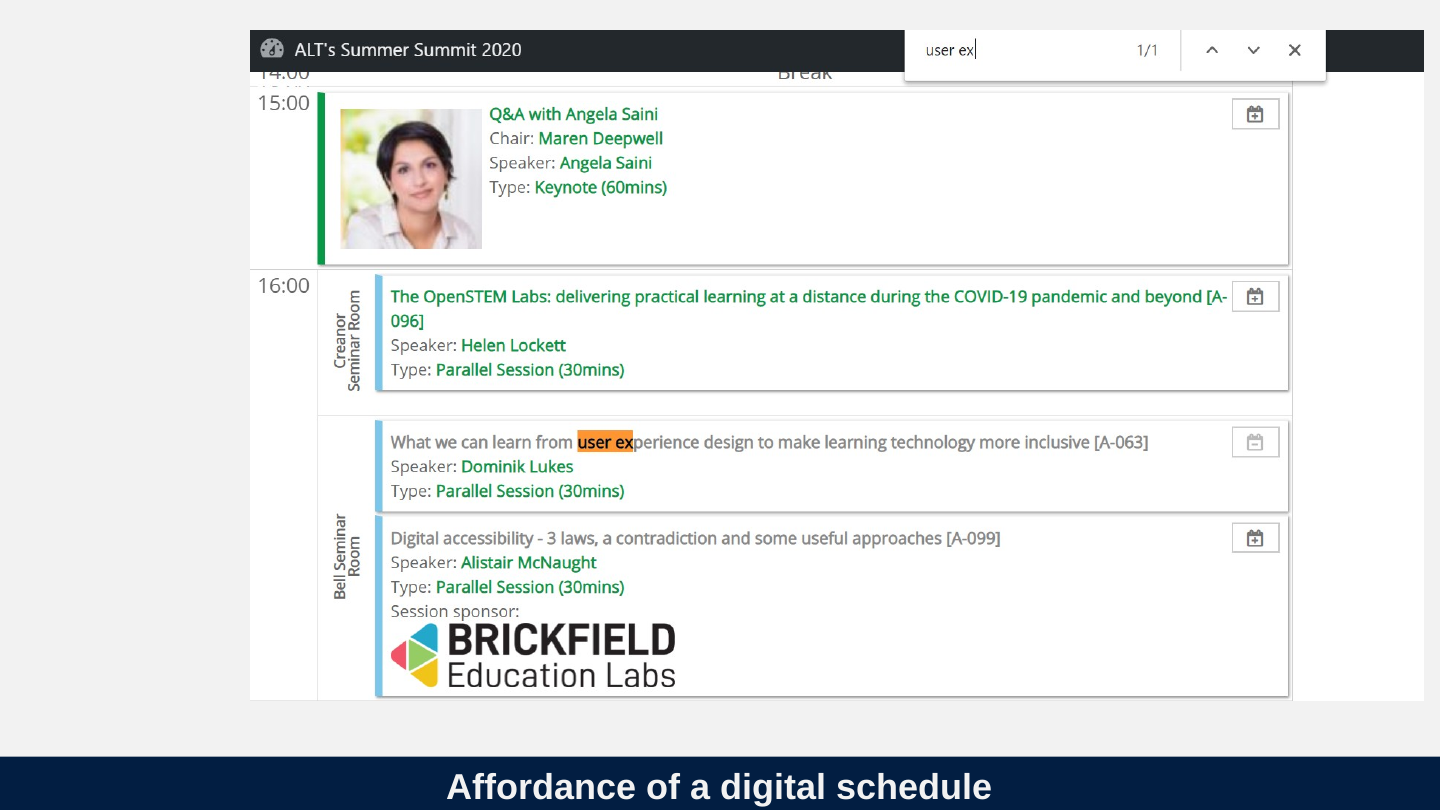
Slide 48: Affordance of a digital schedule
Affordance of a digital schedule
Slide 49: Affordances of books
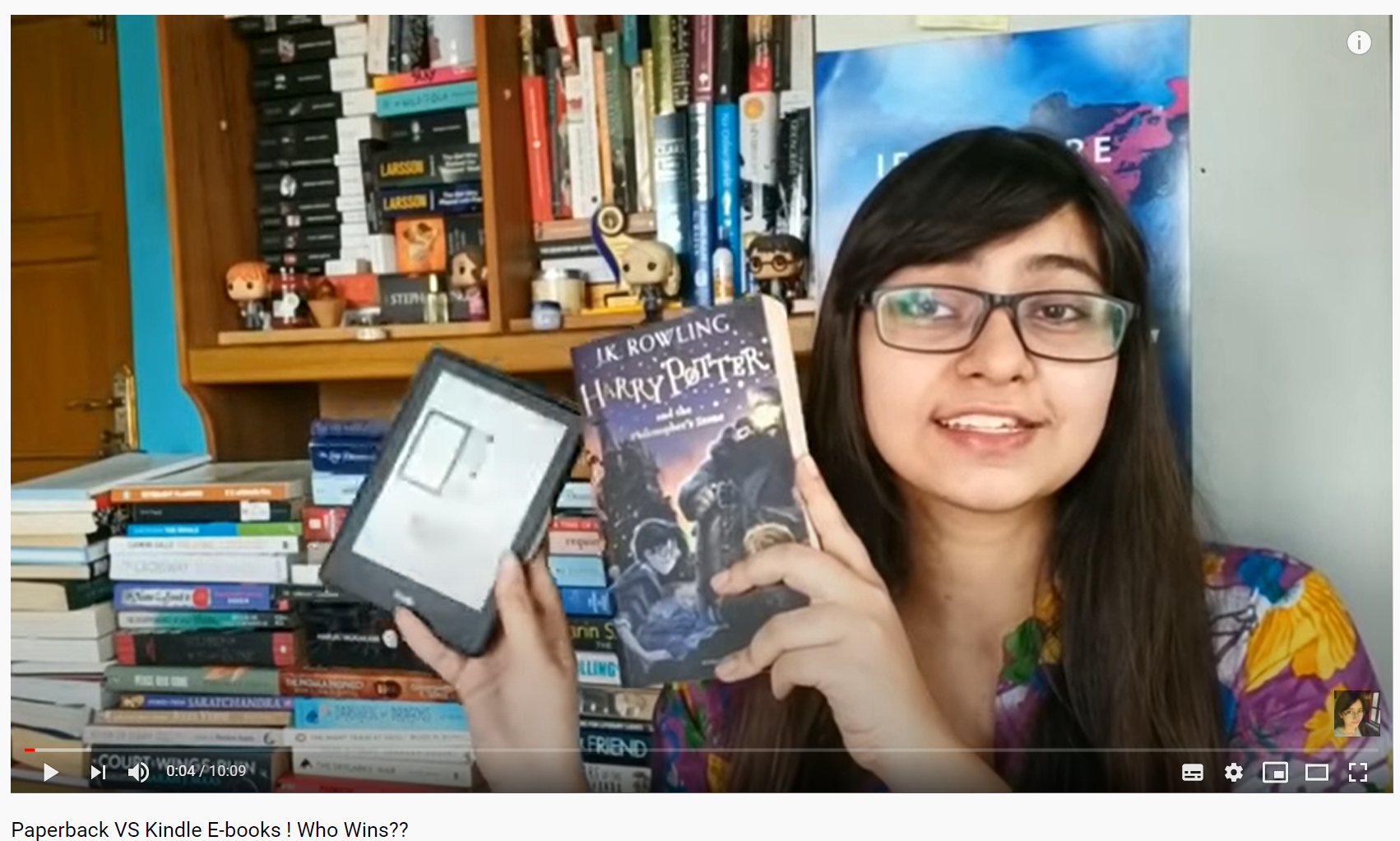
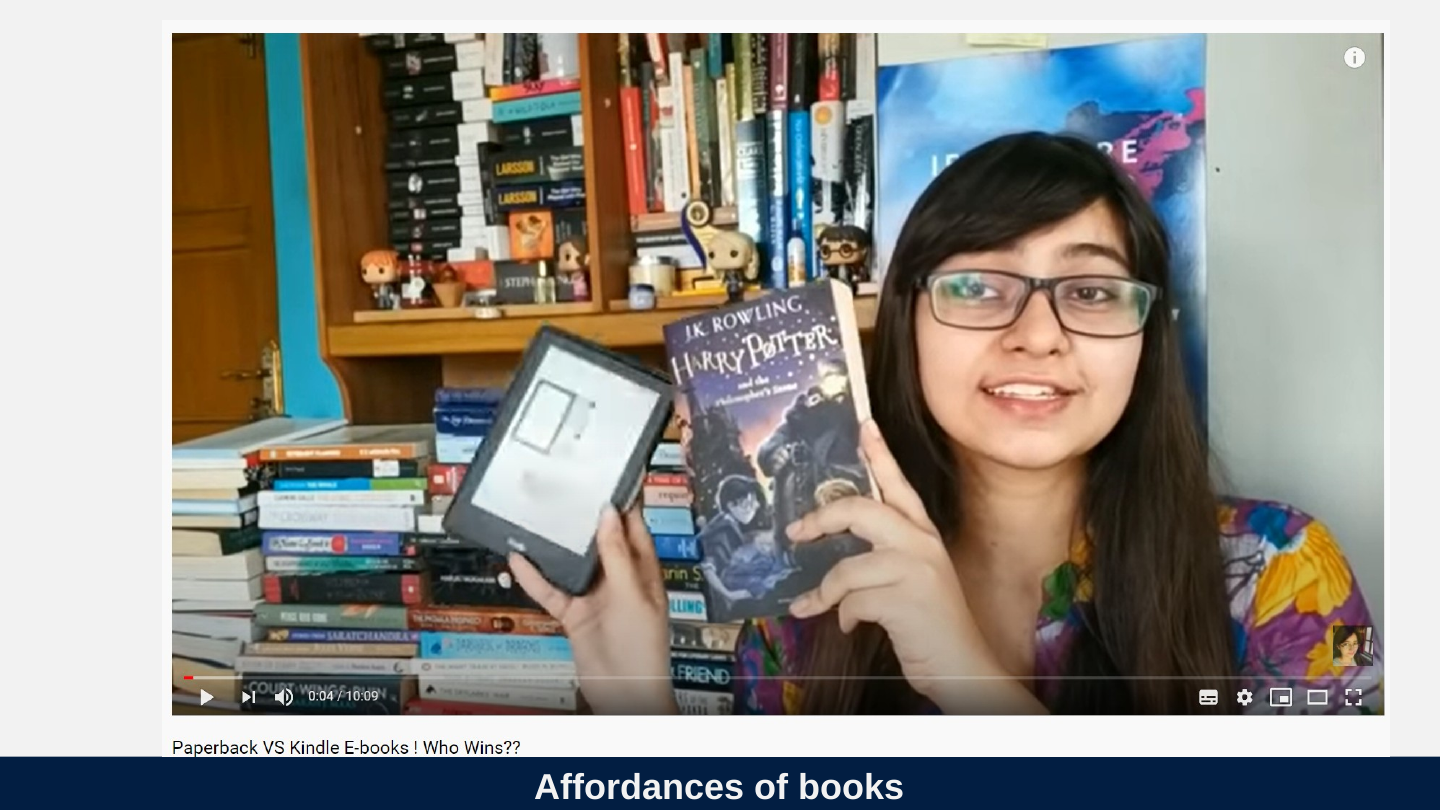
Affordances of books
Slide 50: Affordances
Affordances
- Physicality (Weight / 3D)
- Touch
- Ink absorption
- Visibility – Comparison
- Movability
Slide 51: Most e-reading tools do not take into account key affordances of reading. We must evaluate them from this perspective.
Most e-reading tools do not take into account key affordances of reading. We must evaluate them from this perspective.
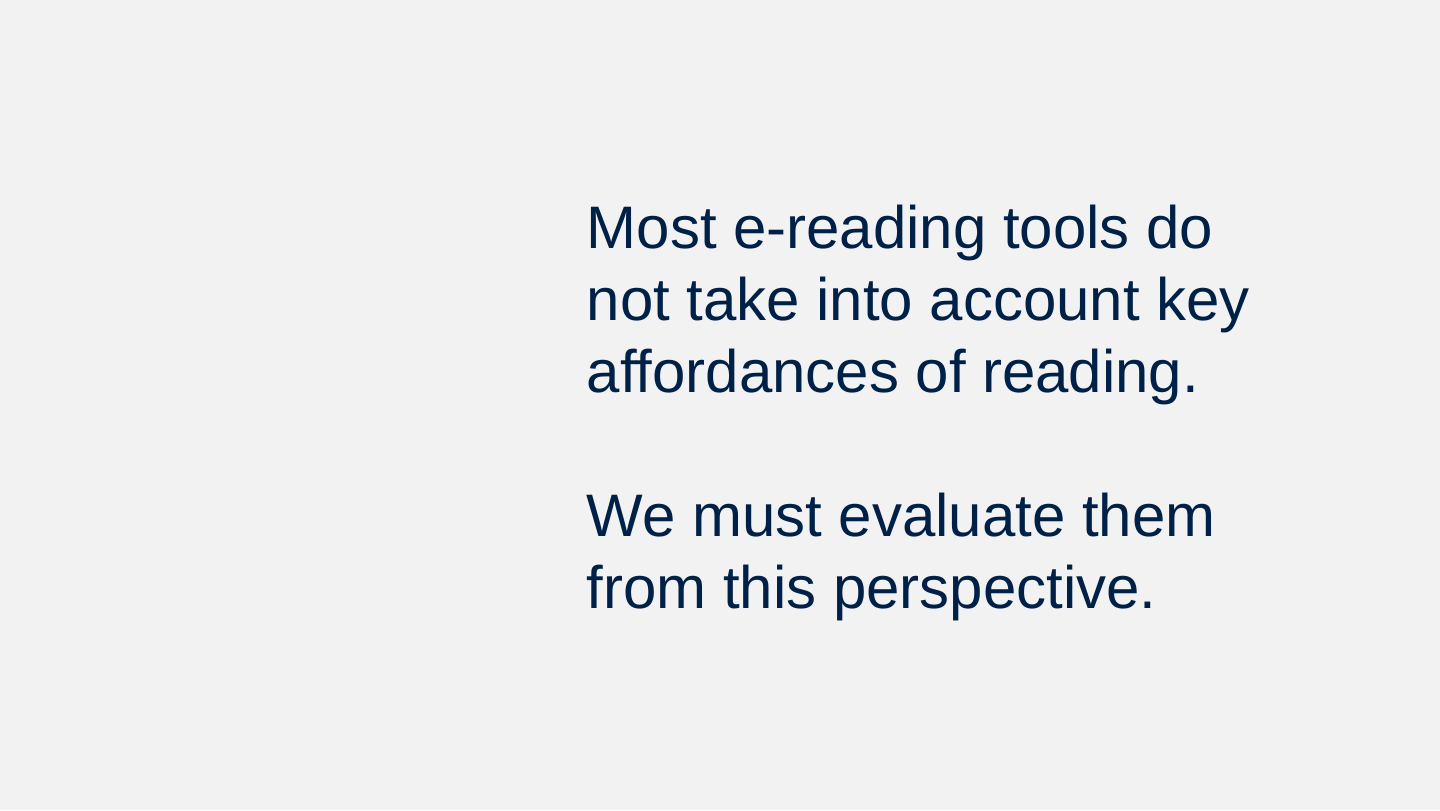
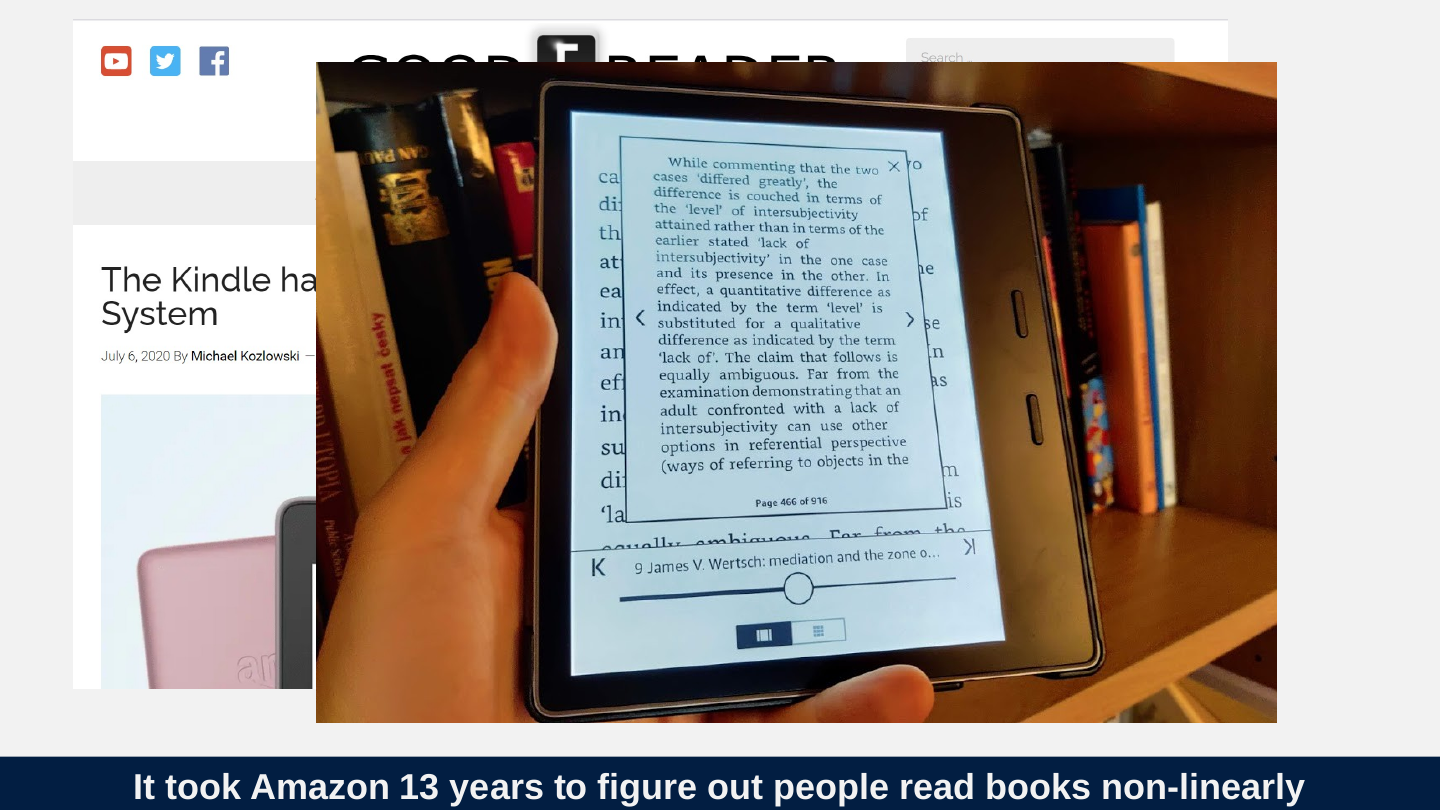
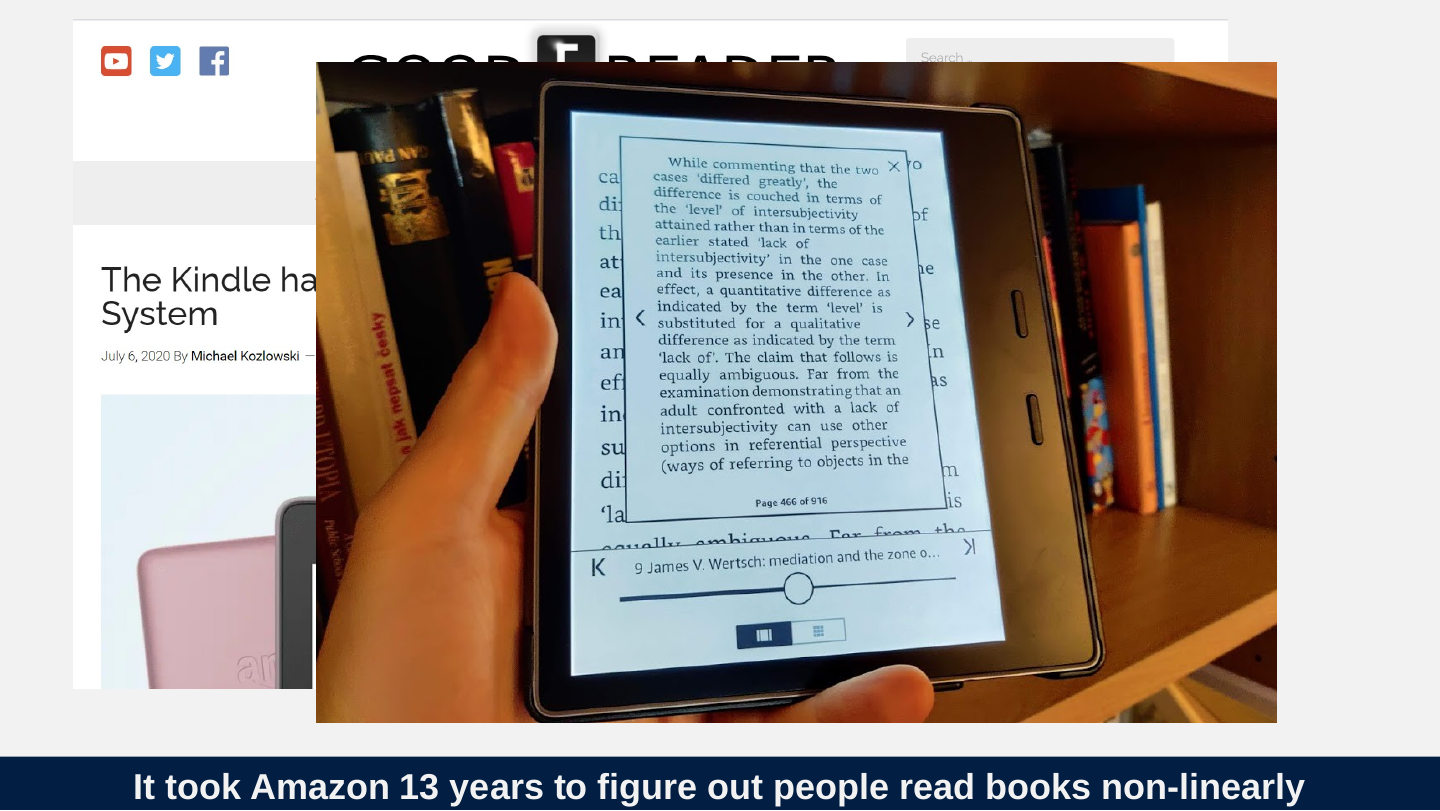
Slide 52: It took Amazon 13 years to figure out people read books non-linearly
It took Amazon 13 years to figure out people read books non-linearly
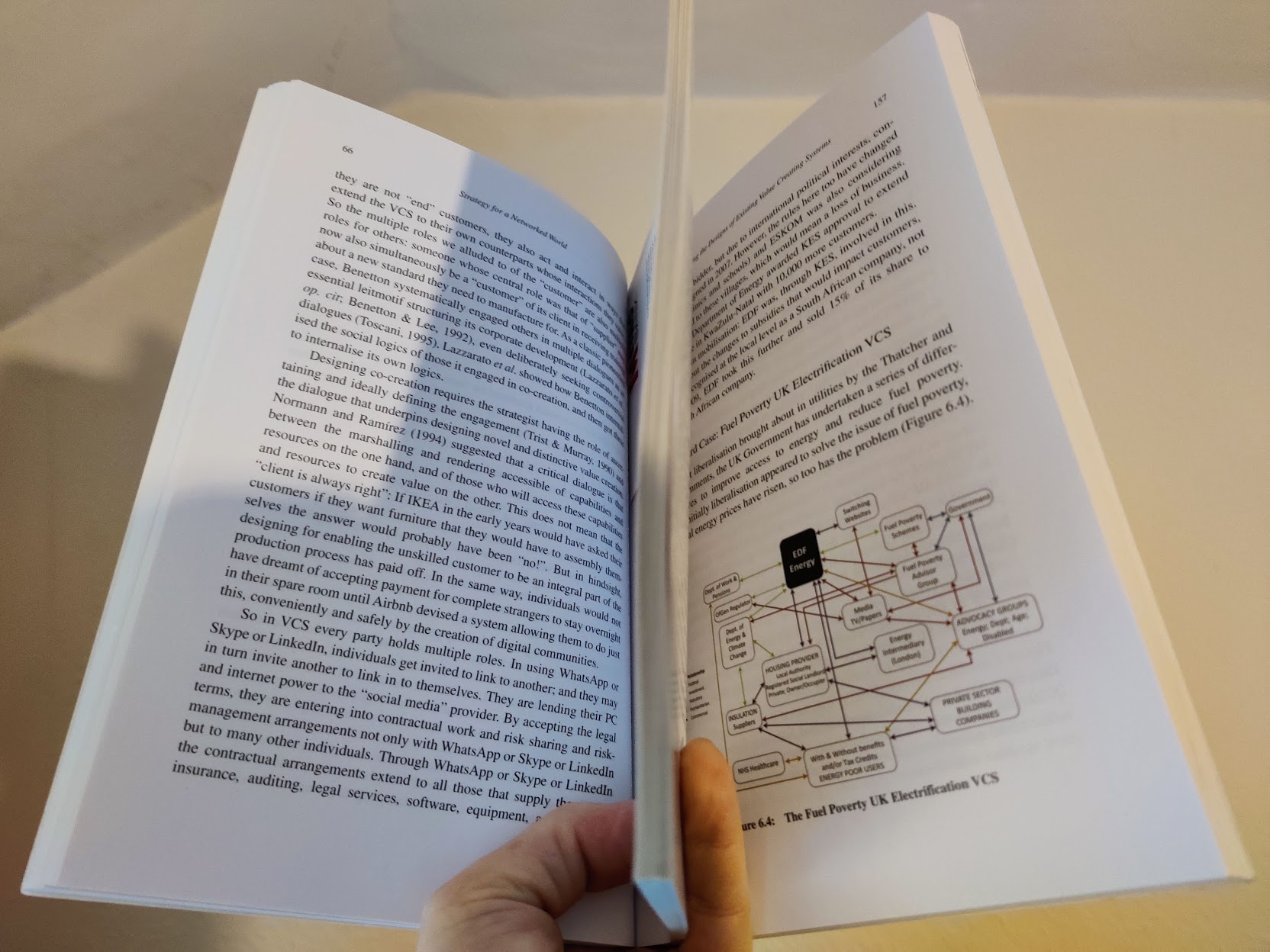
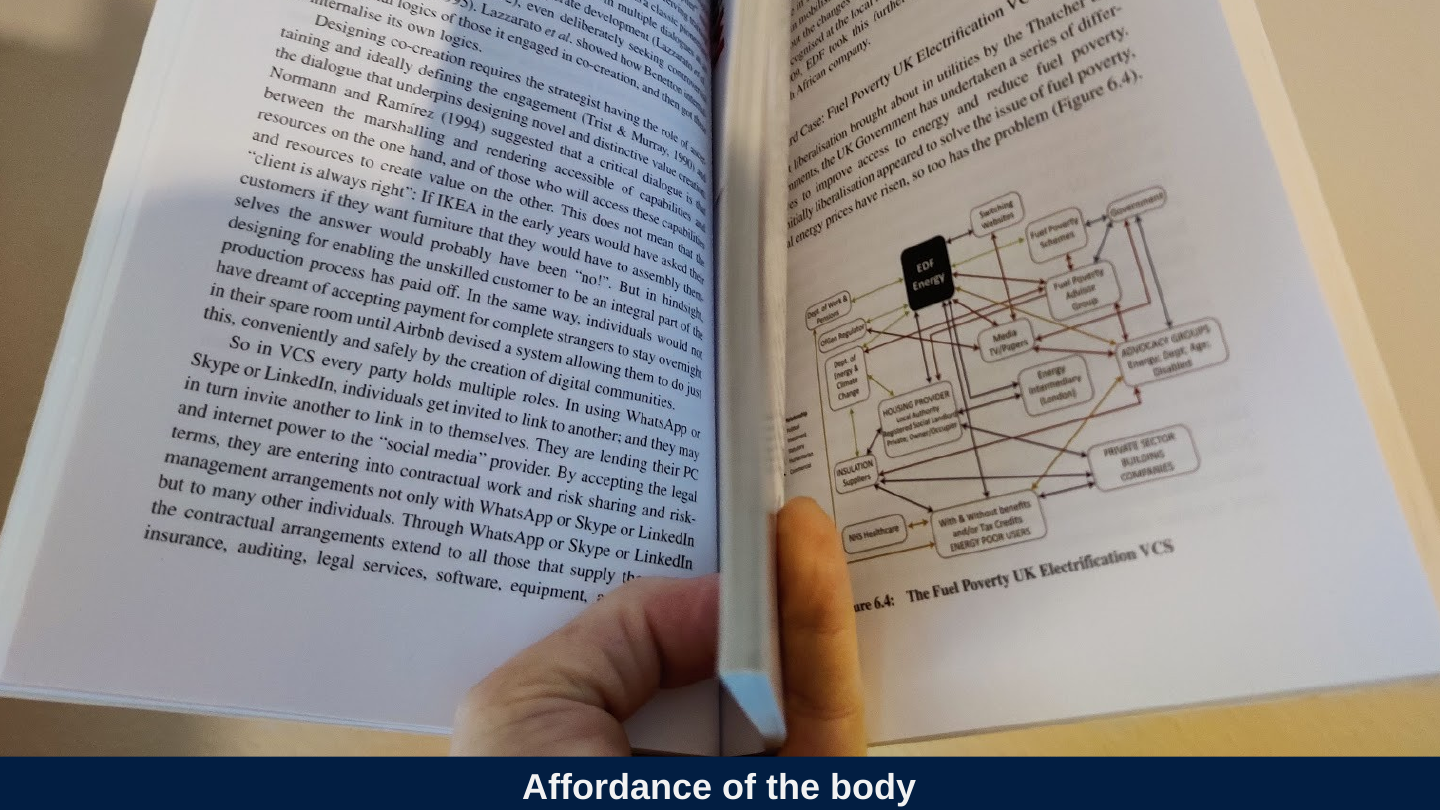
Slide 53: Affordance of the body
Affordance of the body
Slide 54: Publishers seem to be remarkably ignorant of the affordances of reading.
Publishers seem to be remarkably ignorant of the affordances of reading.
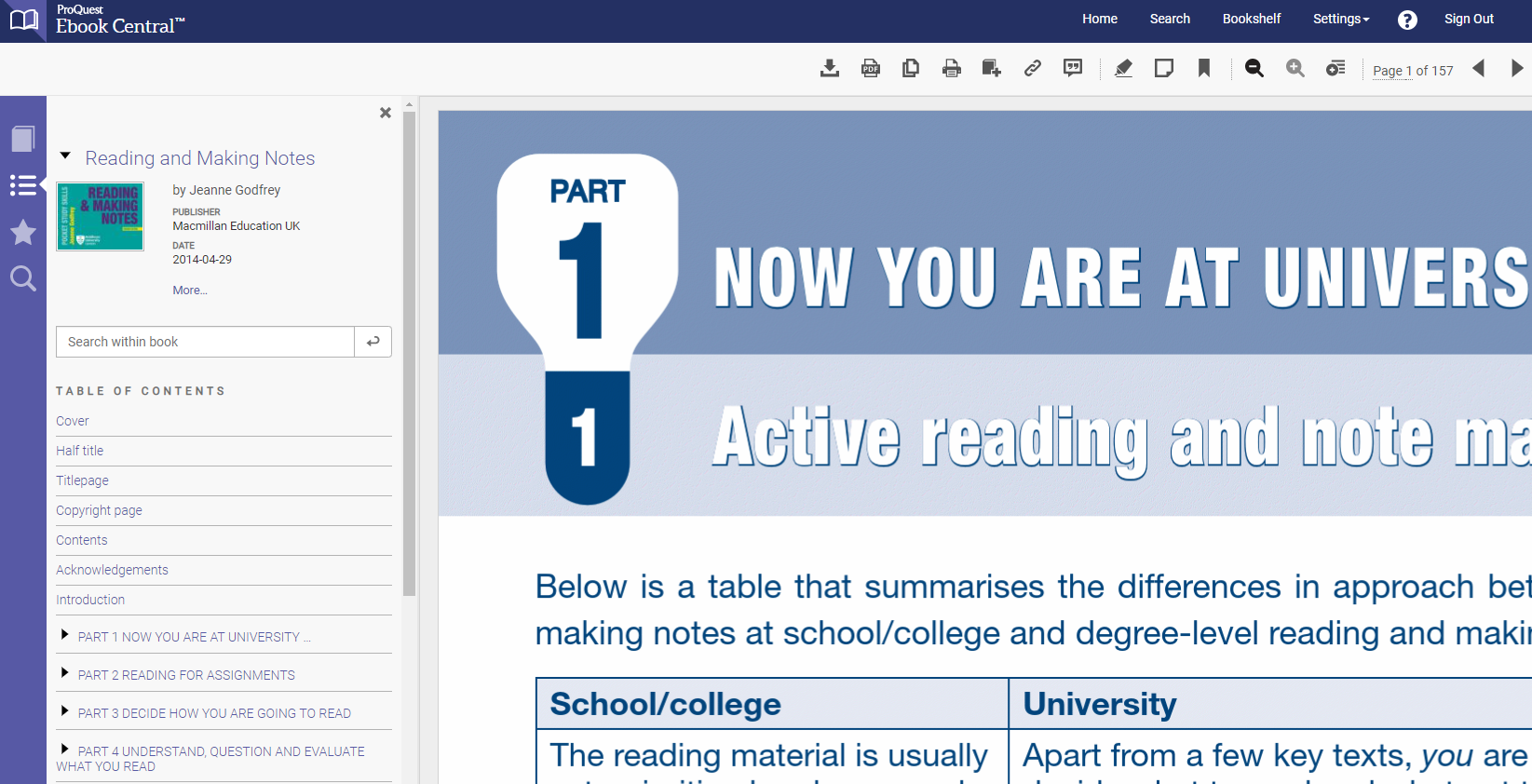
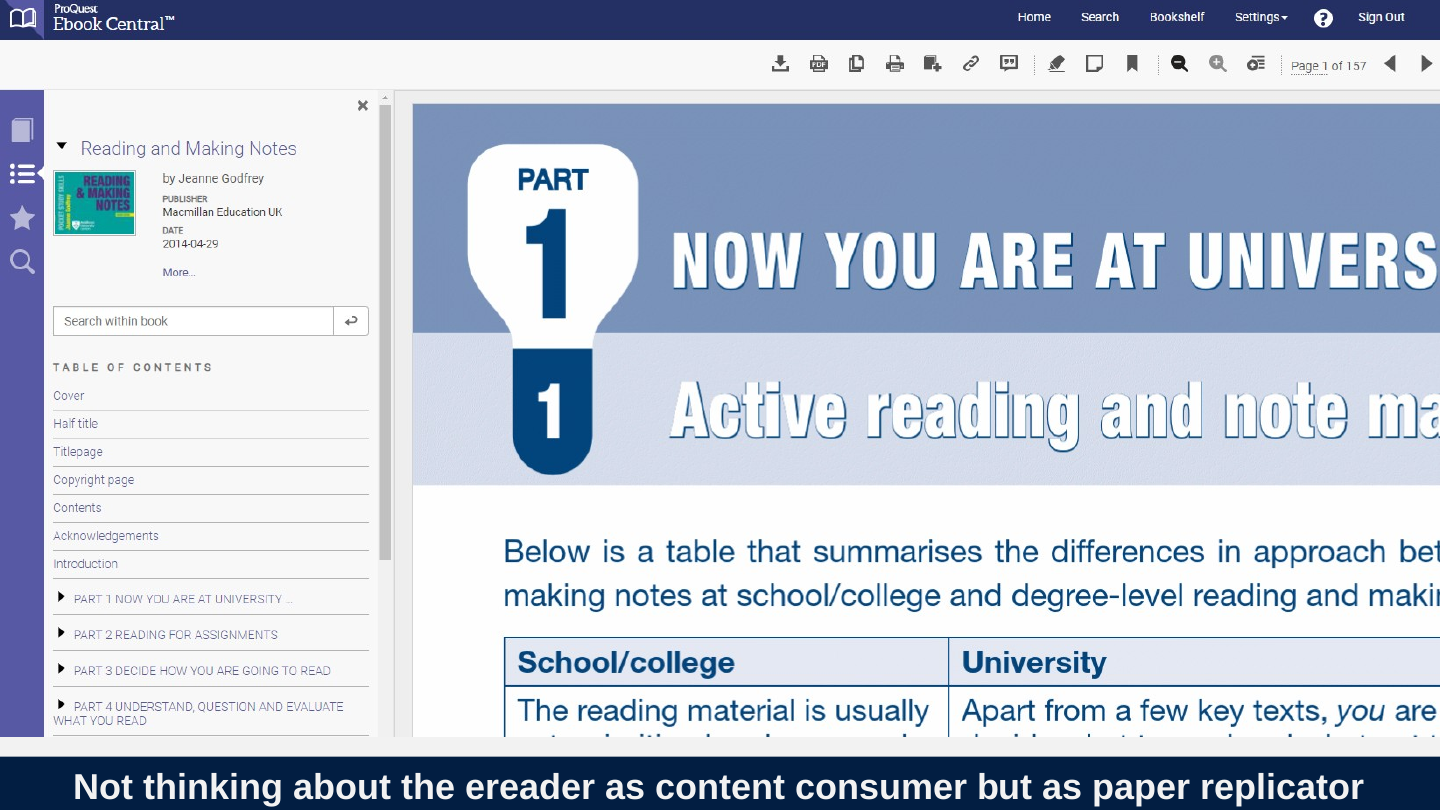
Slide 55: Not thinking about the ereader as content consumer but as paper replicator
Not thinking about the ereader as content consumer but as paper replicator
Slide 56: Reading hardware and software
Reading hardware and software

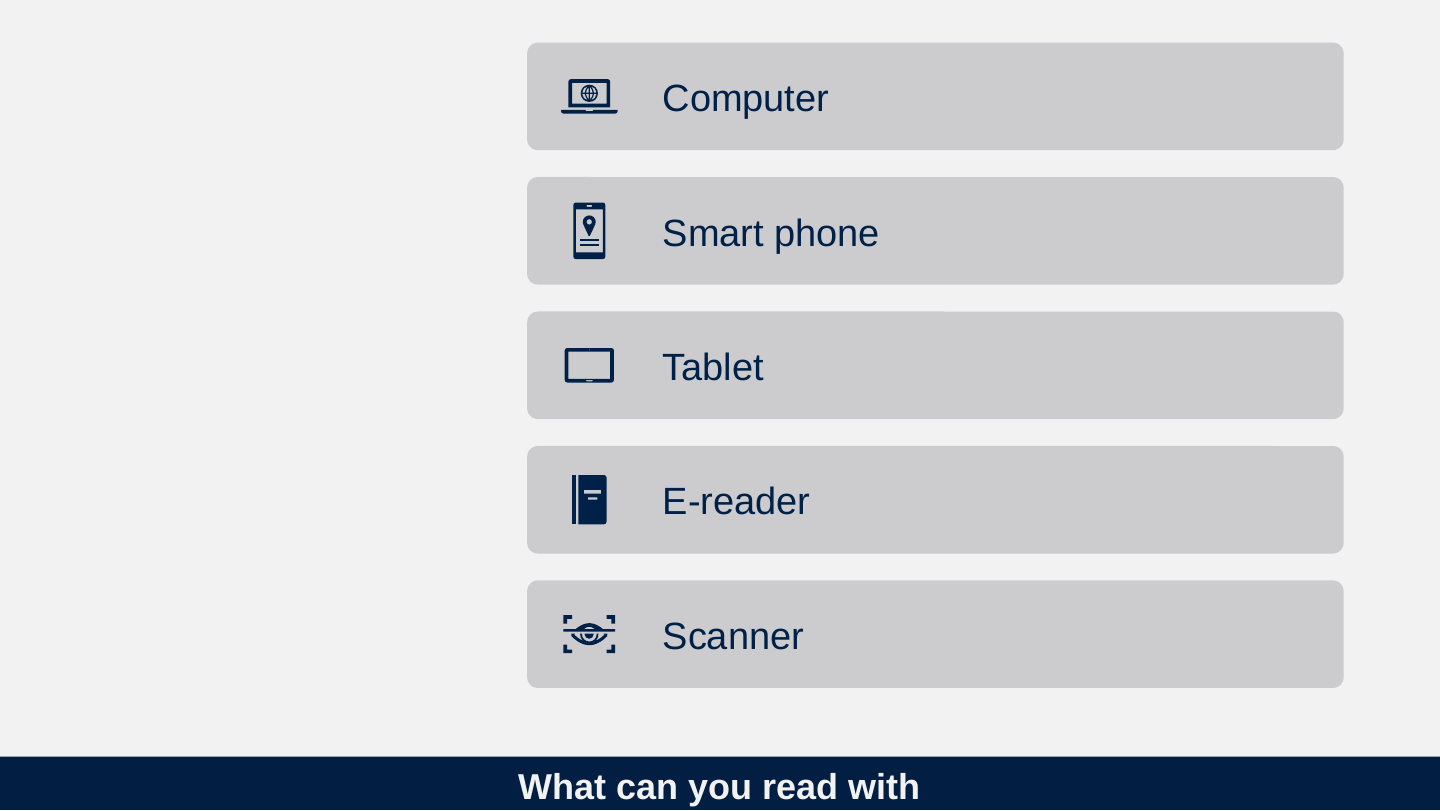
Slide 57: What can you read with
What can you read with
- Computer
- Smart phone
- Tablet
- E-reader
- Scanner
Slide 58: Comparing hardware solutions
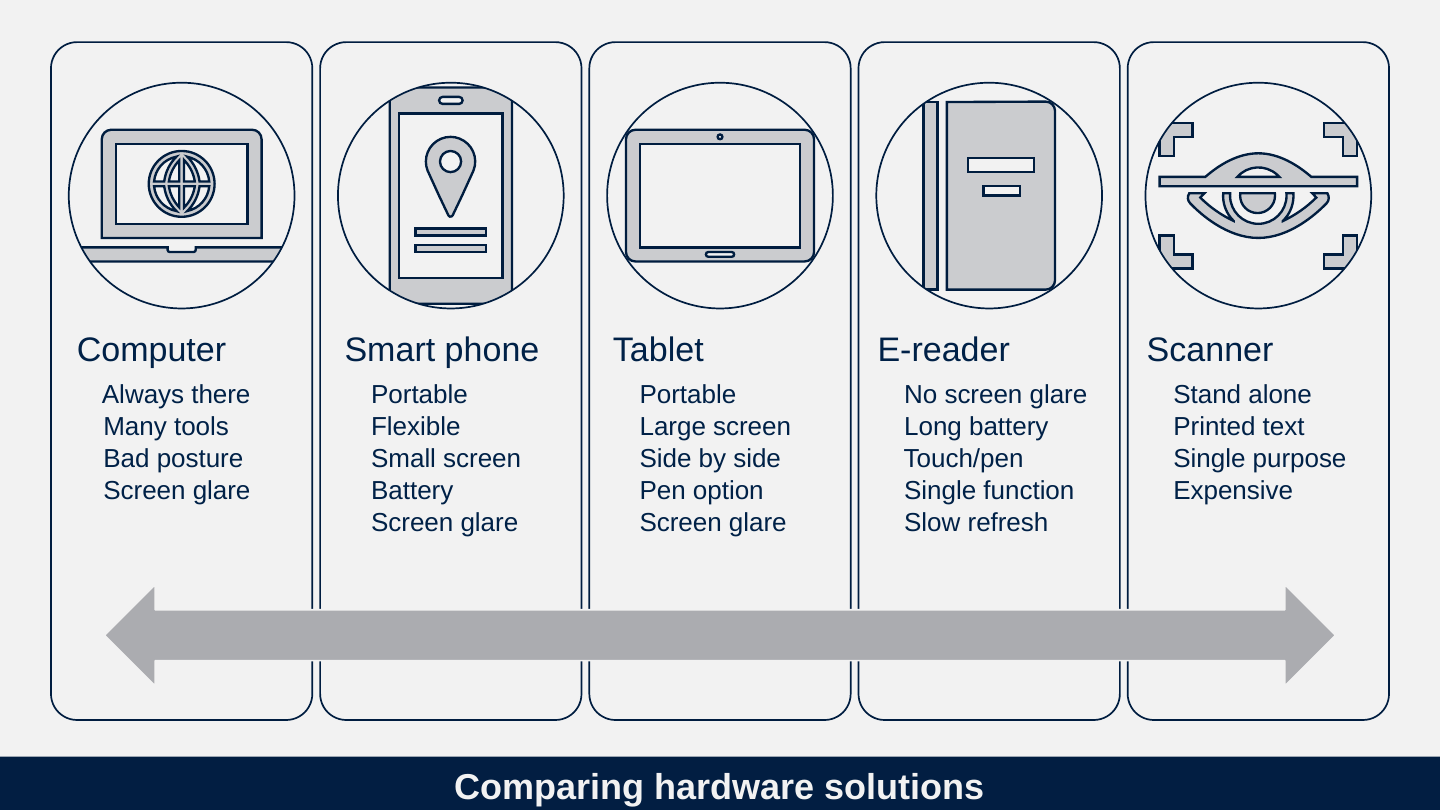
Comparing hardware solutions
Computer
- 👍 Always there
- 👍 Many tools
- 👎 Bad posture
- 👎 Screen glare
Smart phone
- 👍 Portable
- 👍 Flexible
- 👎 Small screen
- 👎 Battery
- 👎 Screen glare
Tablet
- 👍 Portable
- 👍 Large screen
- 👍 Side by side
- 👍 Pen option
- 👎 Screen glare
E-reader
- 👍 No screen glare
- 👍 Long battery
- 👍 Touch/pen
- 👎 Single function
- 👎 Slow refresh
Scanner
- 👍 Stand alone
- 👍 Printed text
- 👎 Single purpose
- 👎 Expensive
Slide 59: E-readers
E-readers

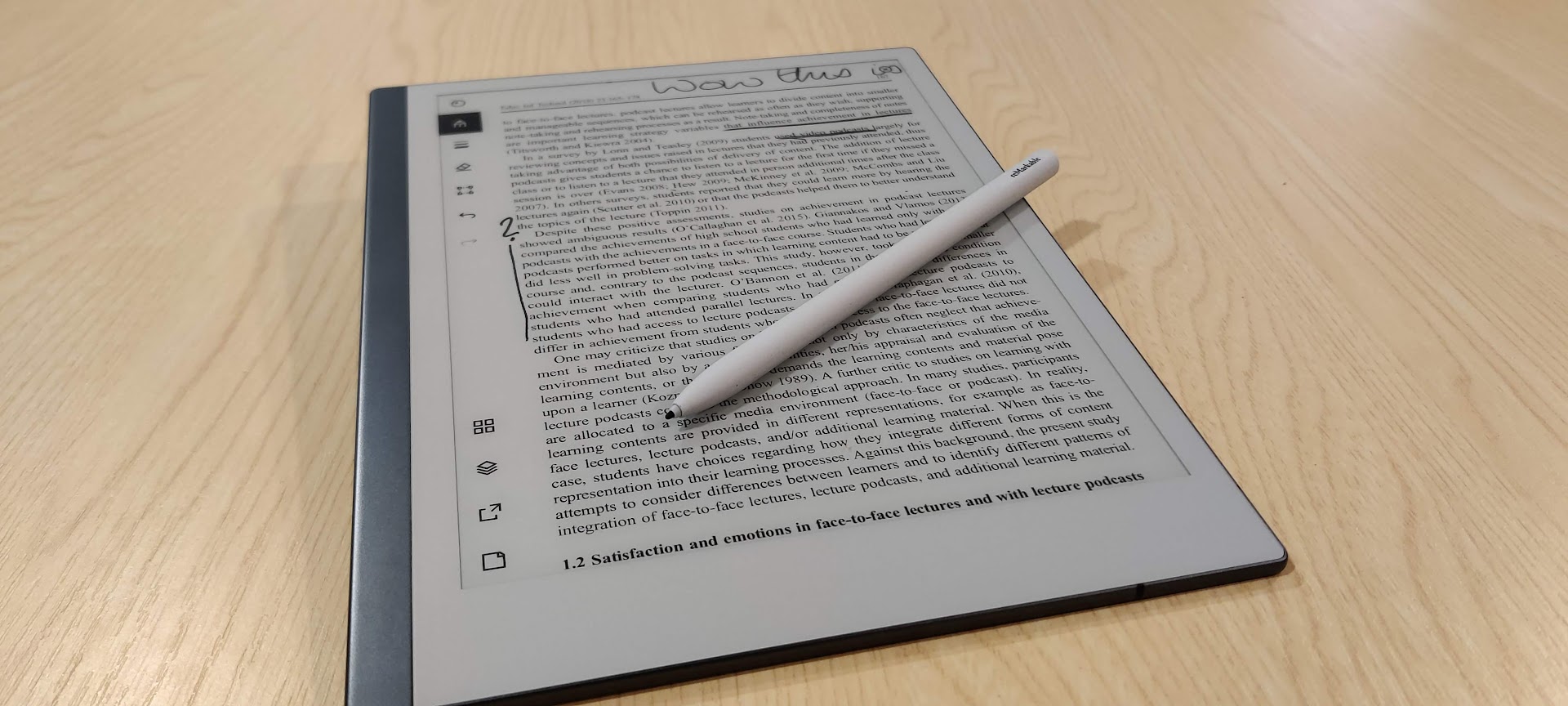
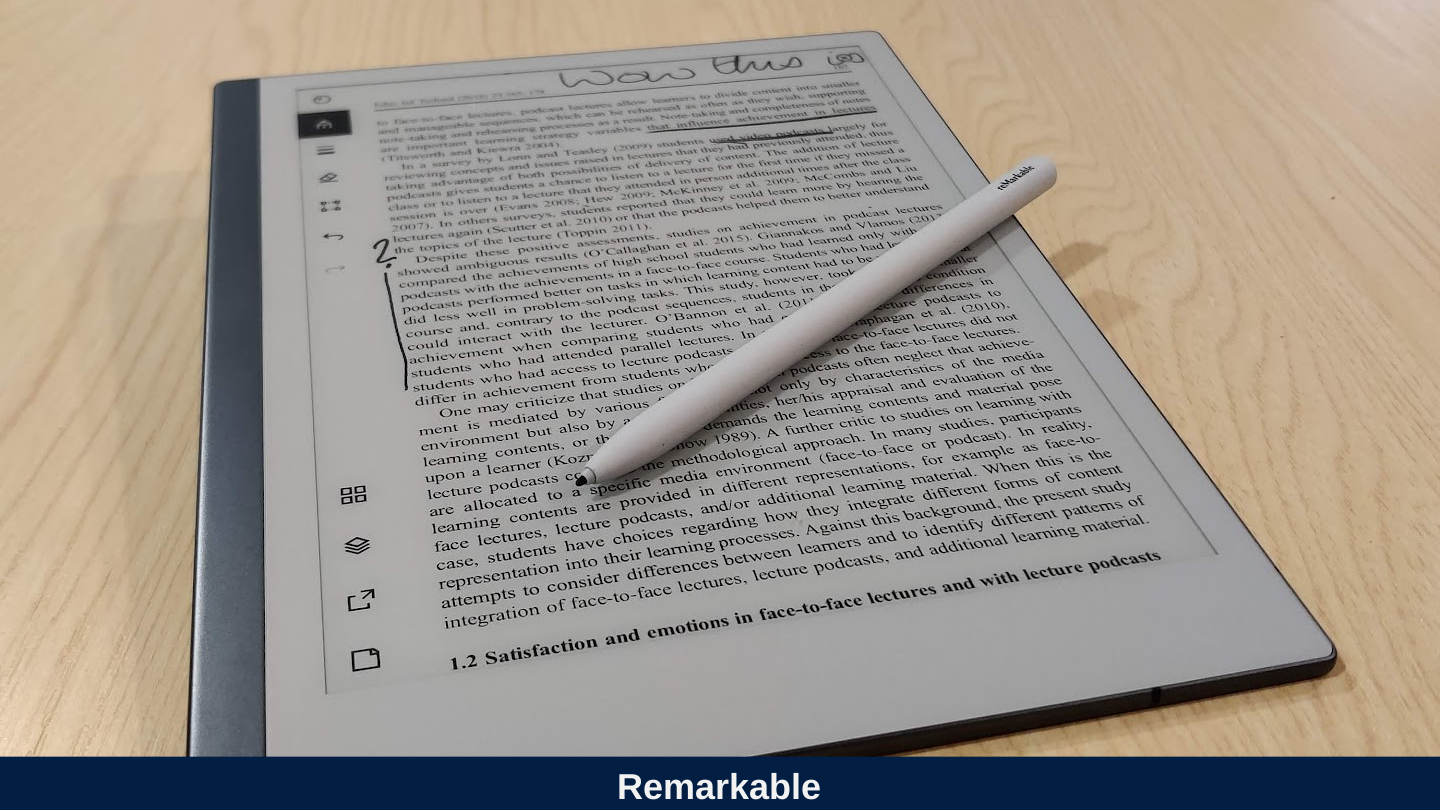
Slide 60: Remarkable
Remarkable
Slide 61: Kobo
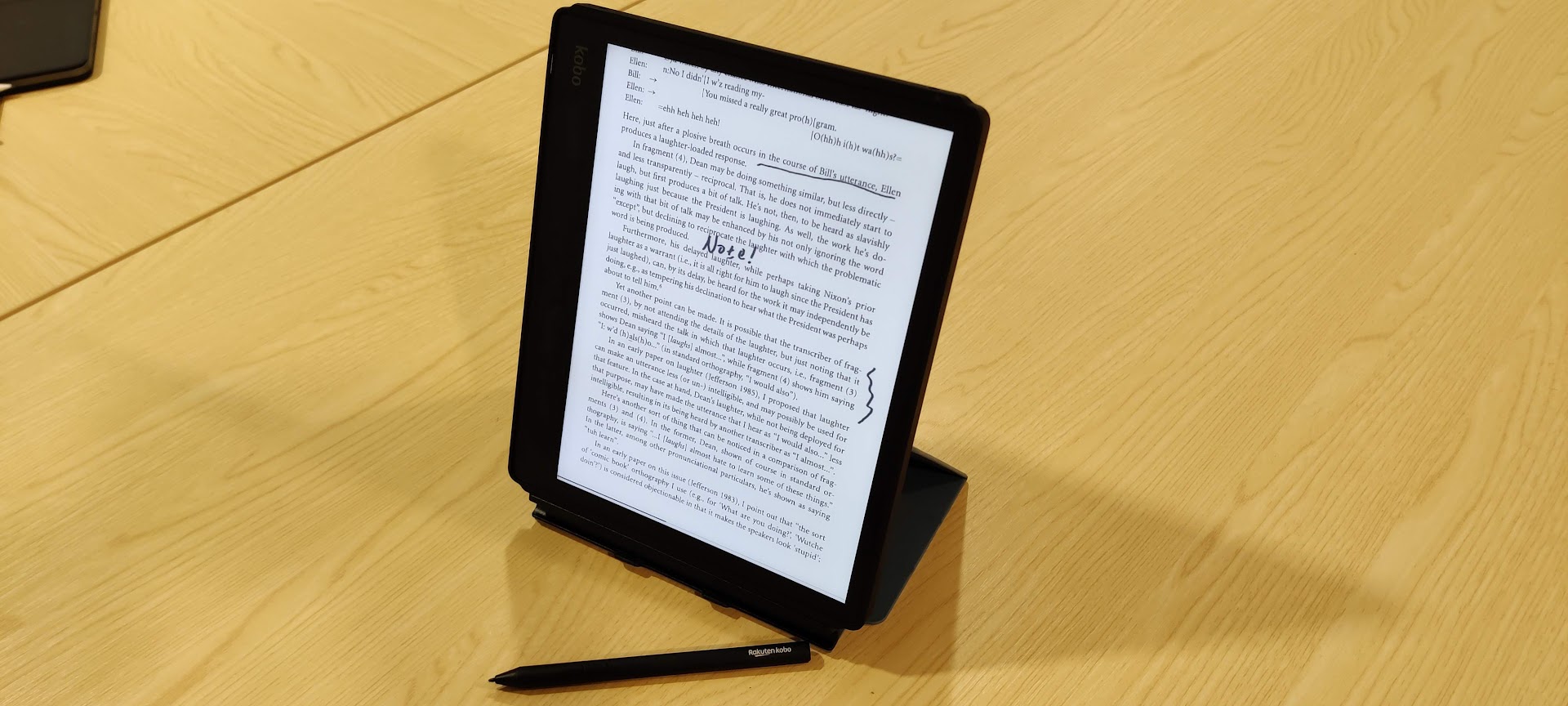
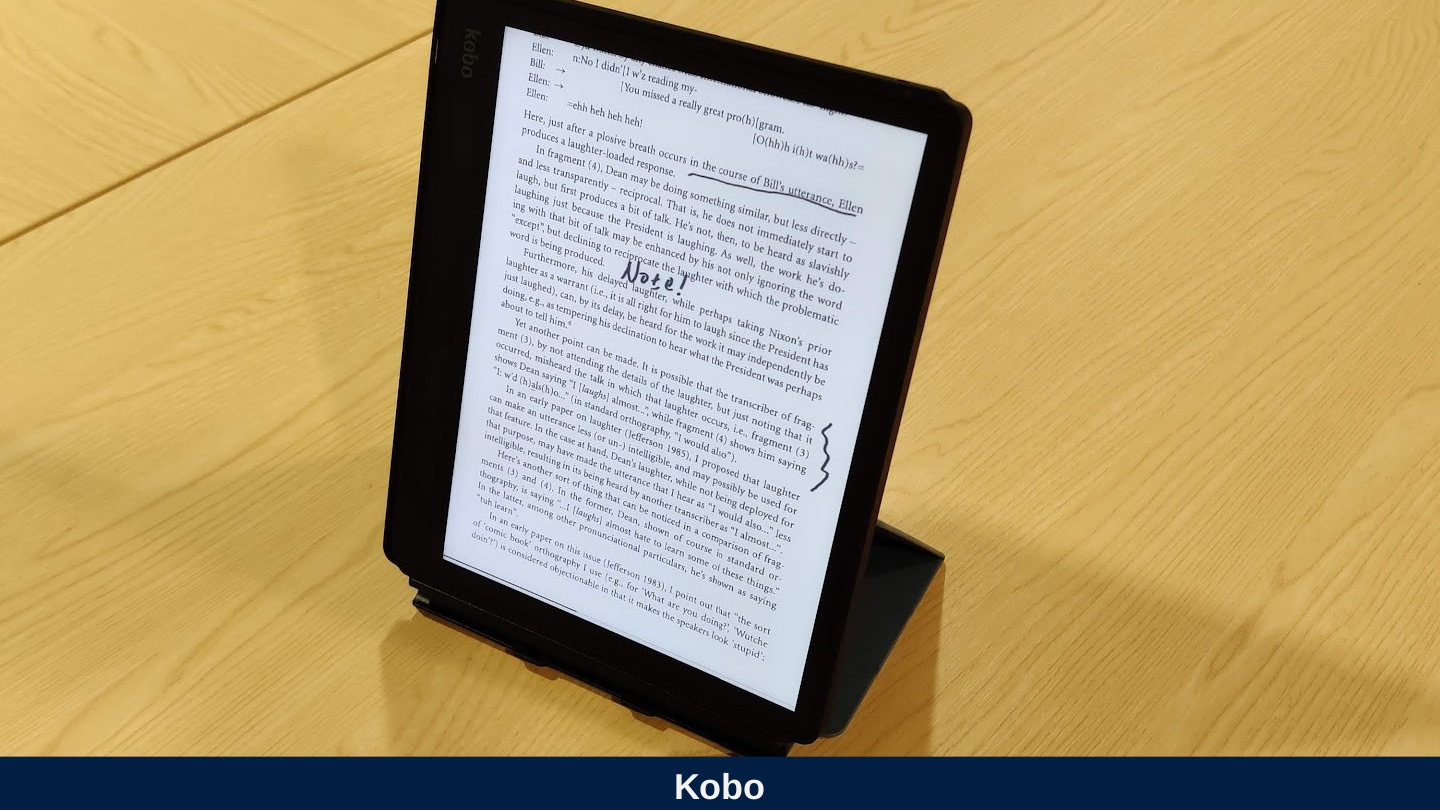
Kobo
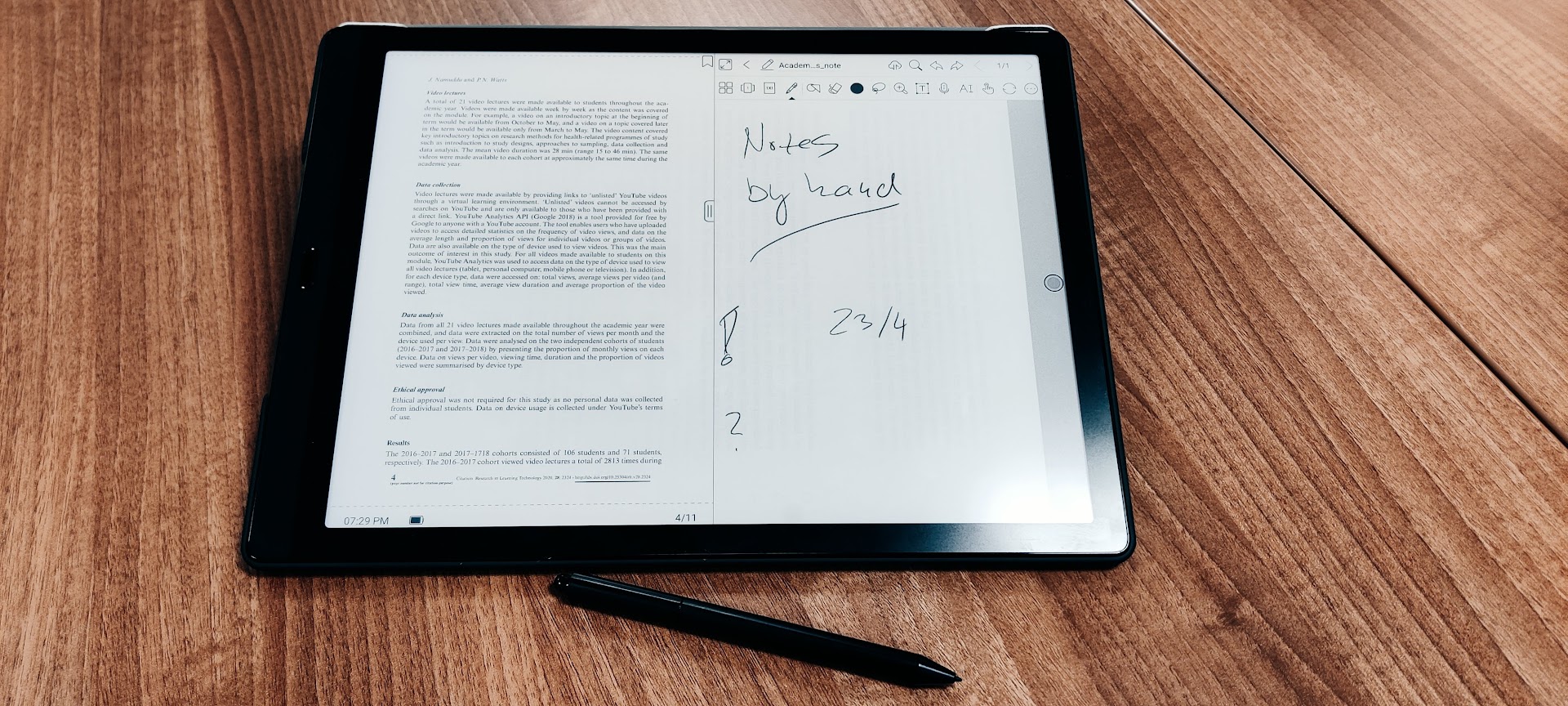
Slide 62: Boox Max Lumi
Boox Max Lumi


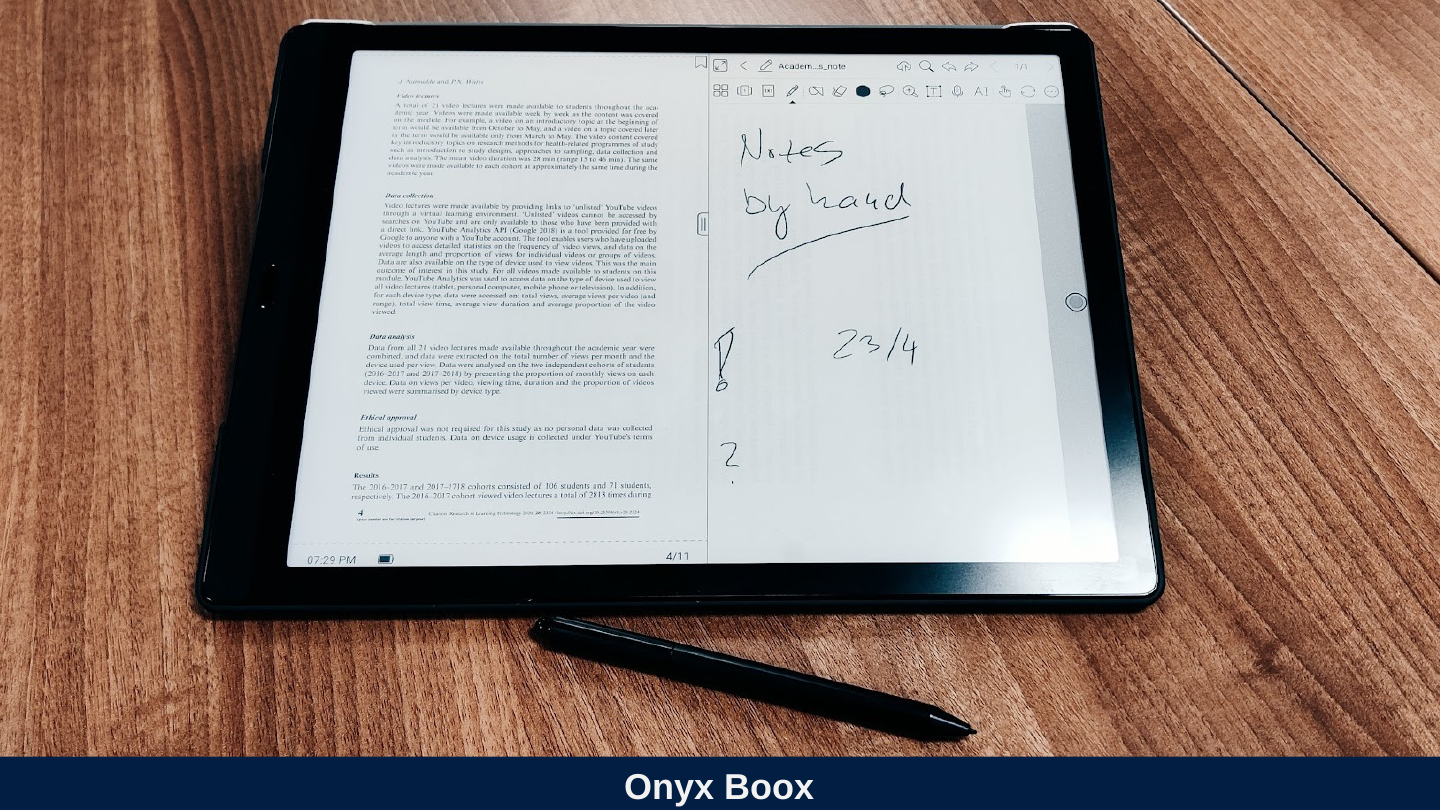
Slide 63: Onyx Boox
Onyx Boox
Slide 64: Scanners
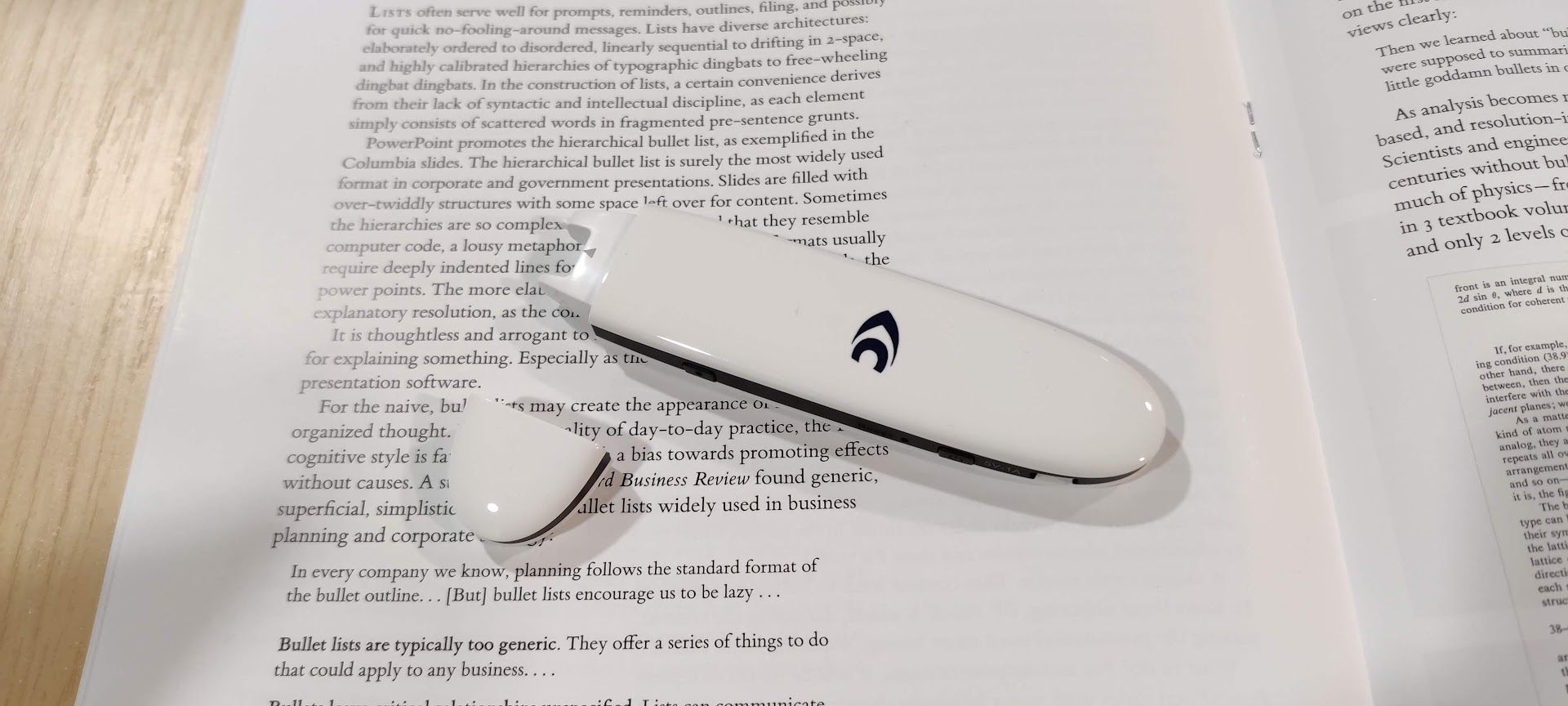
Scanners

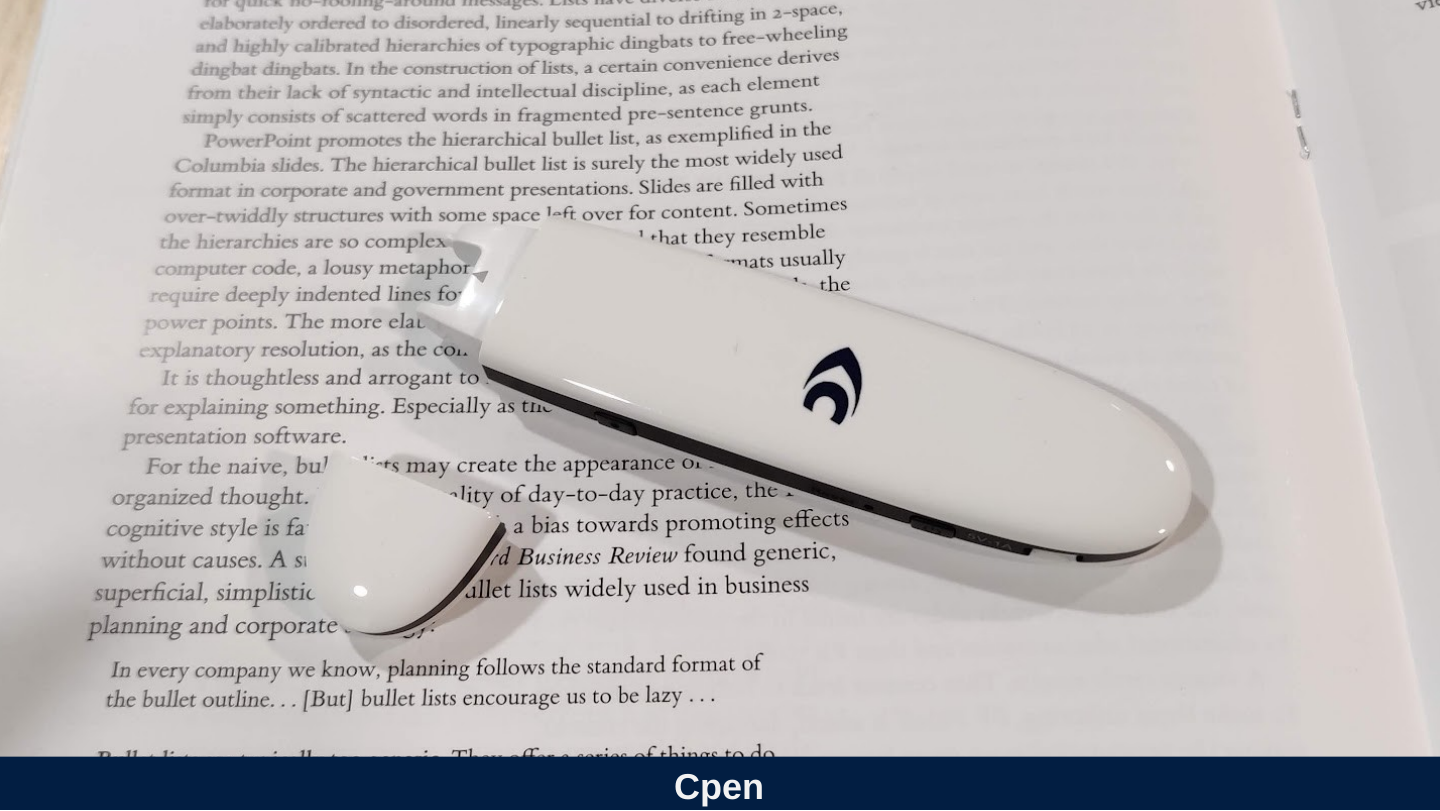
Slide 65: Cpen
Cpen
Slide 66: ORCam Reader
ORCam Reader


Slide 67: Tablets
Tablets

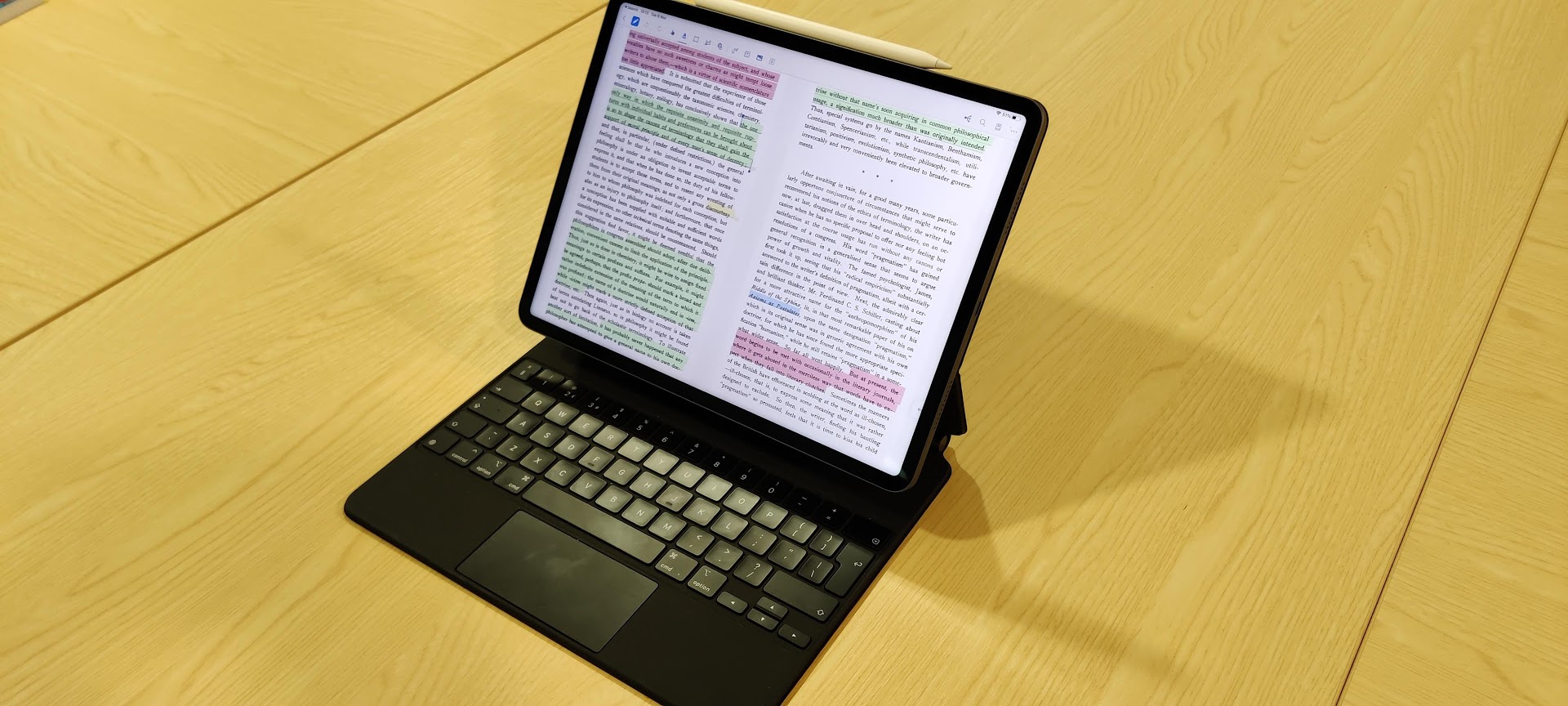
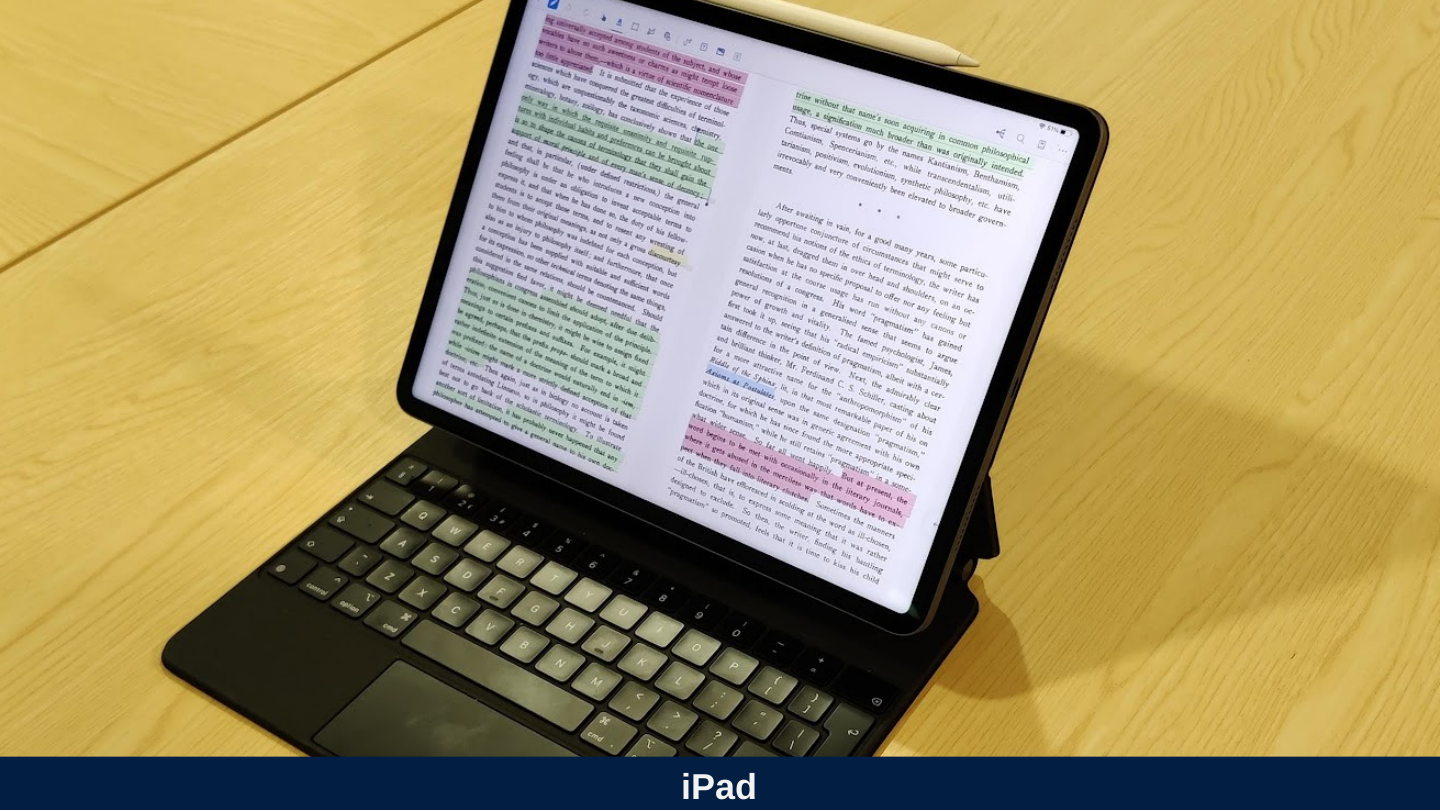
Slide 68: iPad
iPad
Slide 69: Touch interfaces
Touch interfaces

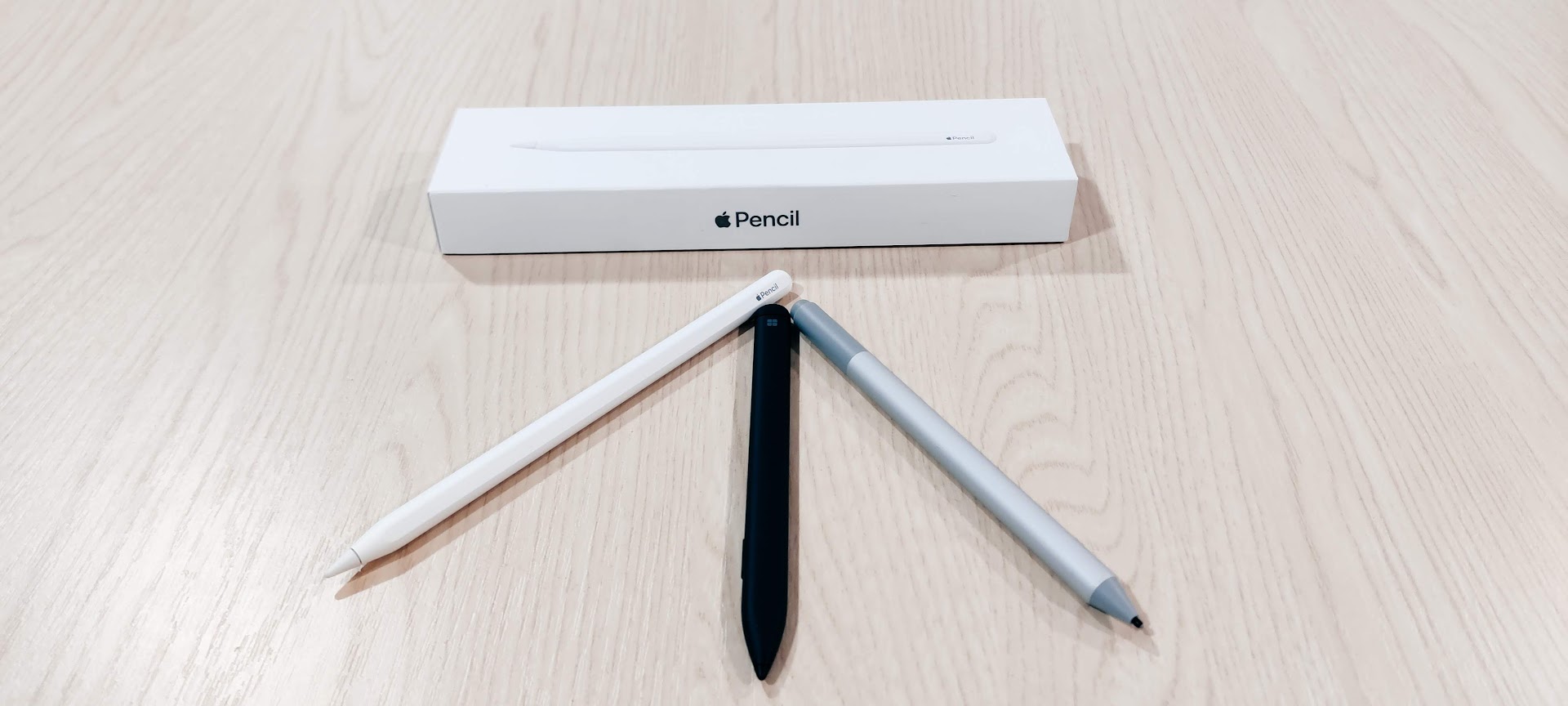
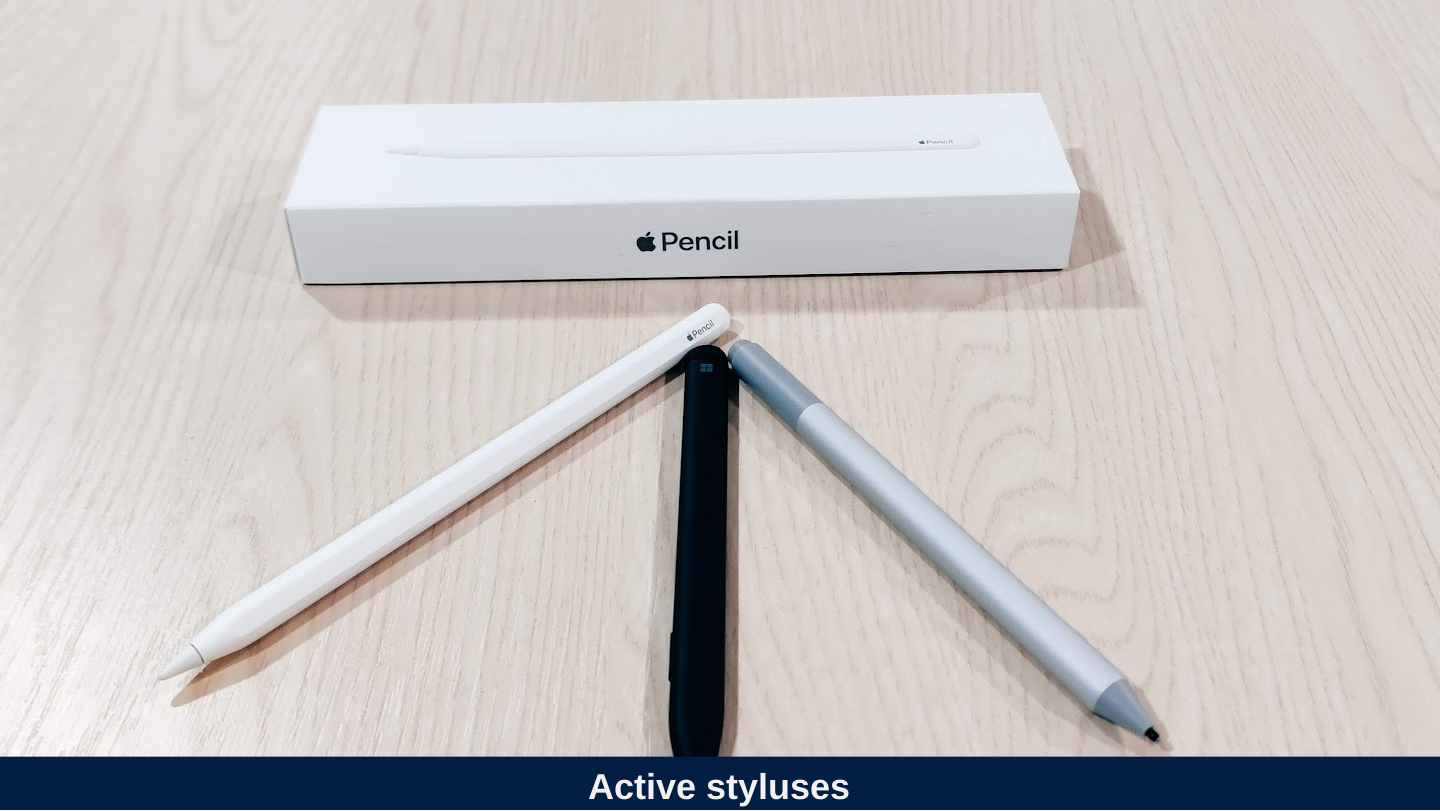
Slide 70: Active styluses
Active styluses
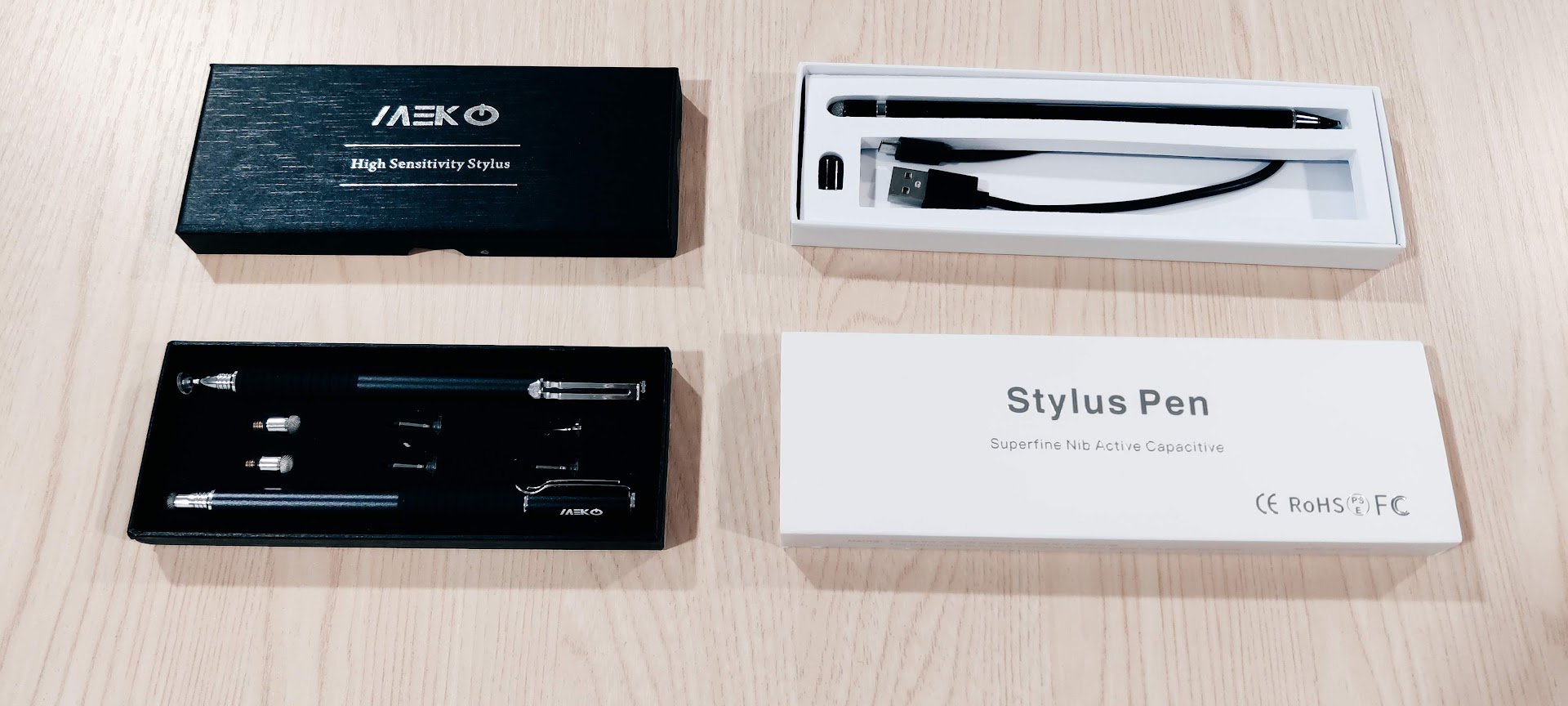
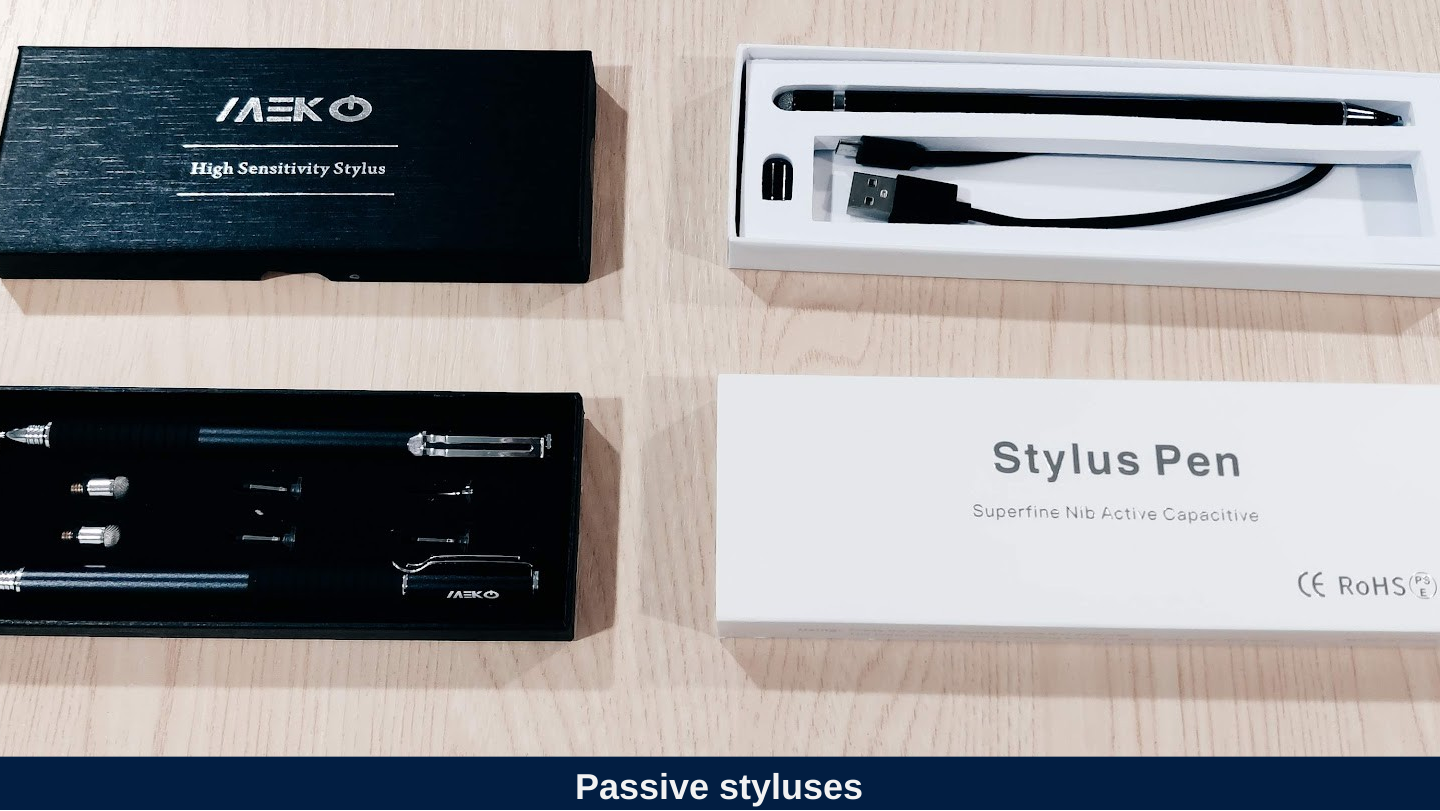
Slide 71: Passive styluses
Passive styluses
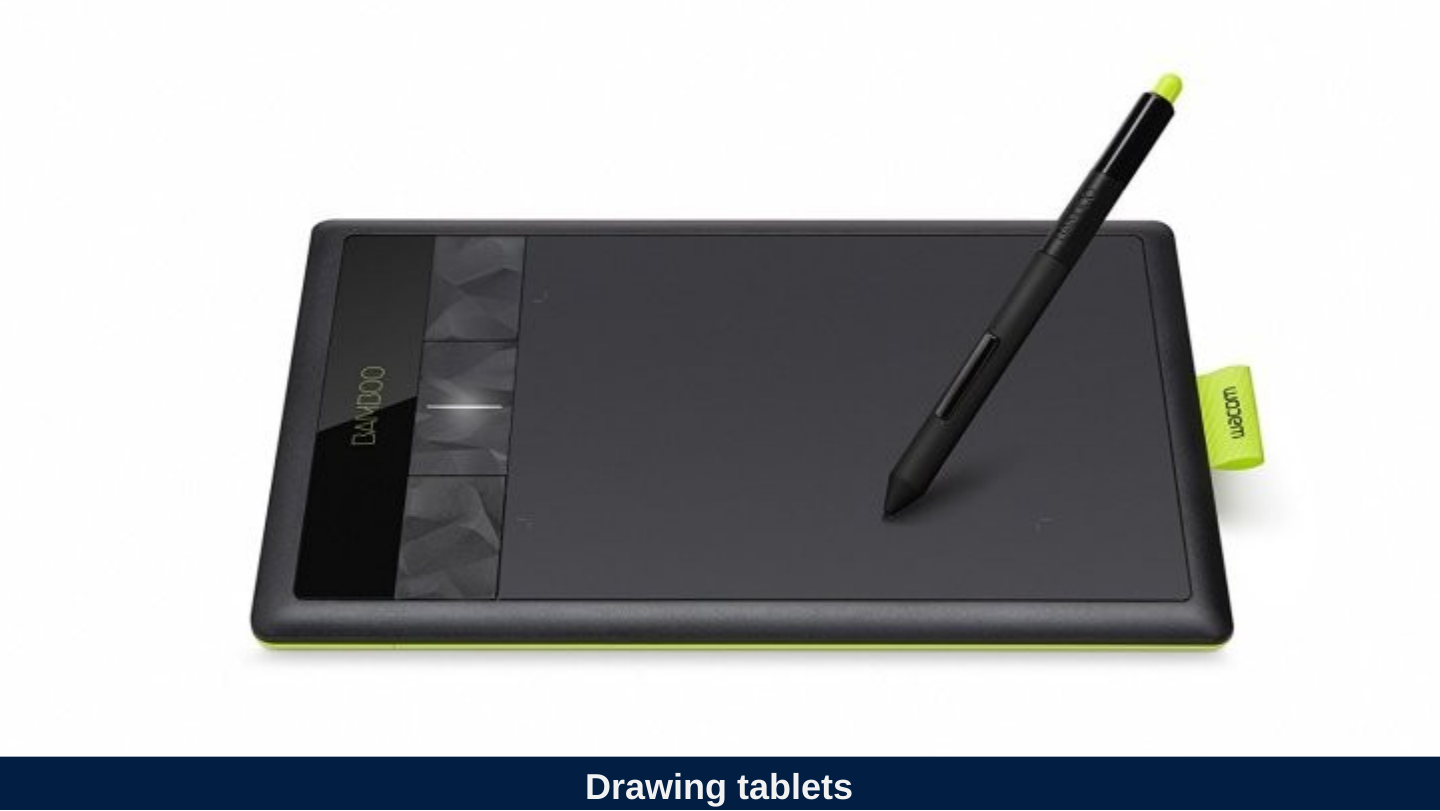
Slide 72: Drawing tablets
Drawing tablets

Slide 73: Apps
Apps

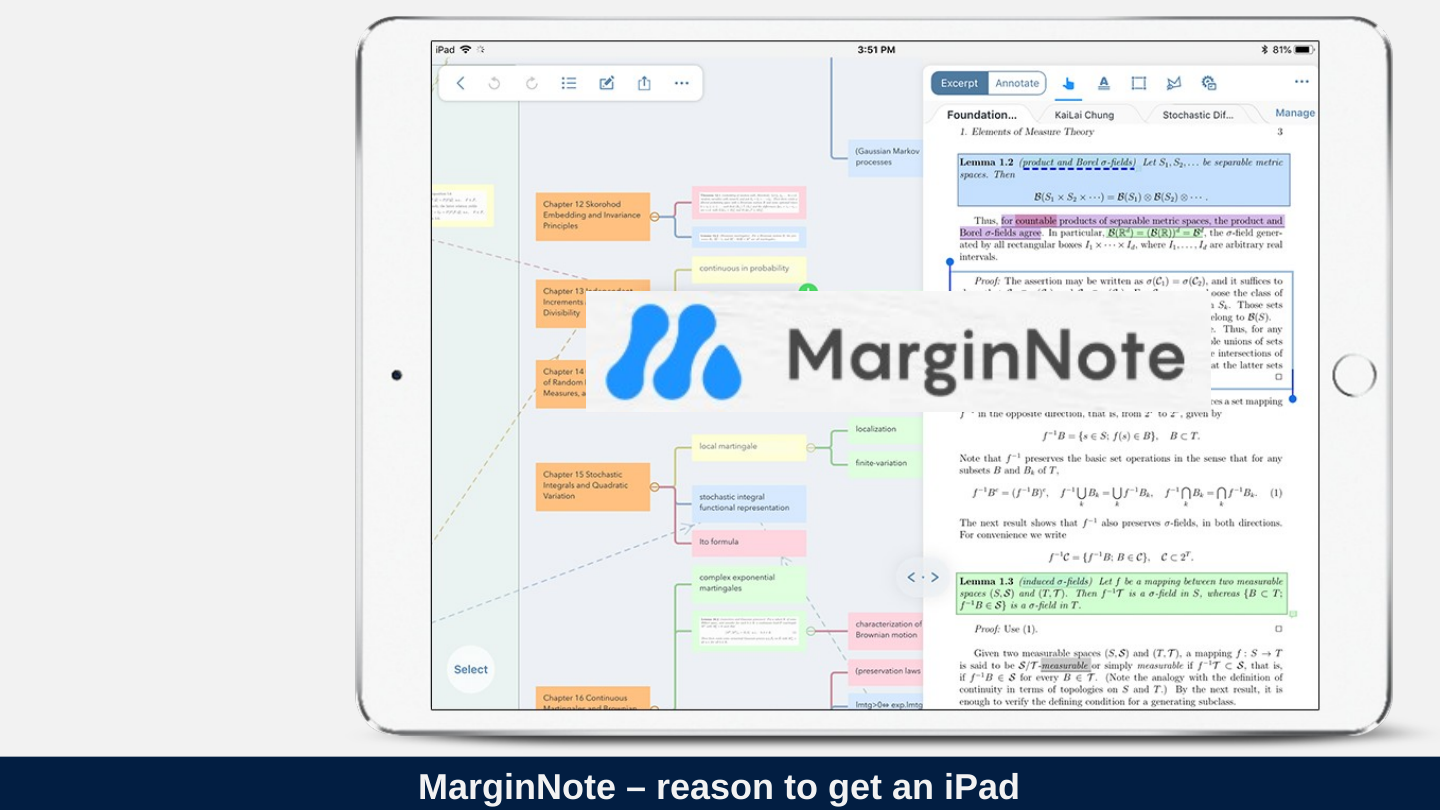
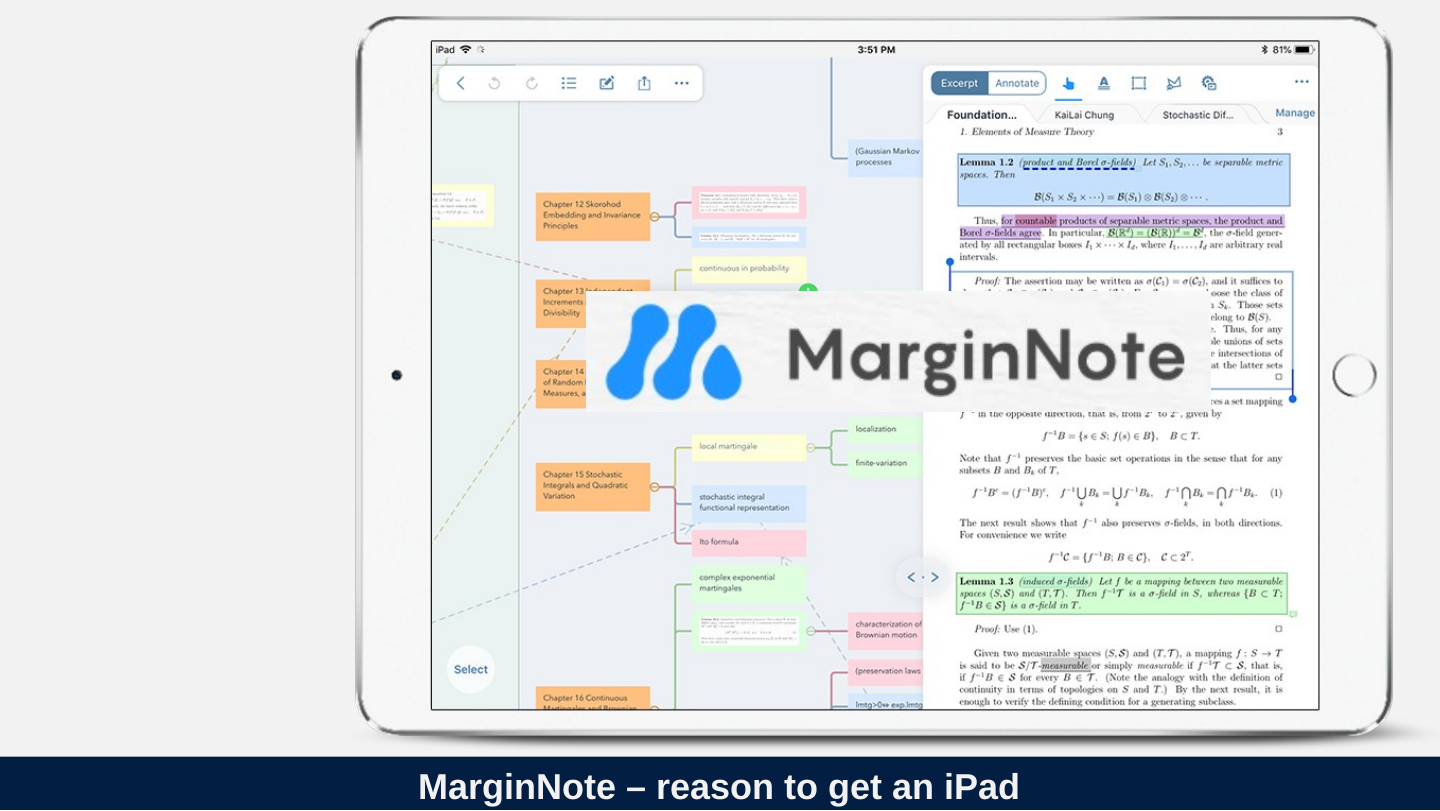
Slide 74: MarginNote – reason to get an iPad
MarginNote – reason to get an iPad
Slide 75: Margin note features
Margin note features
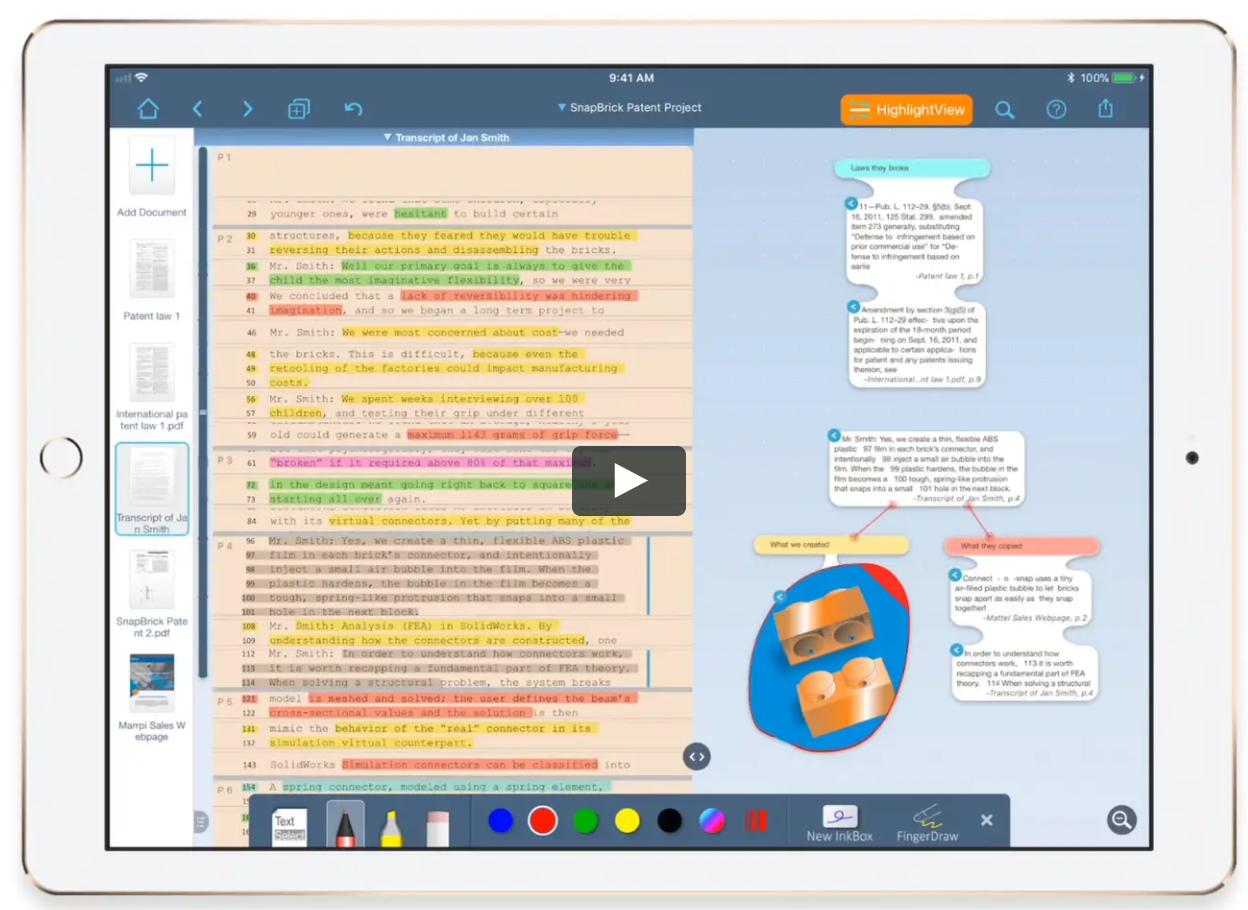
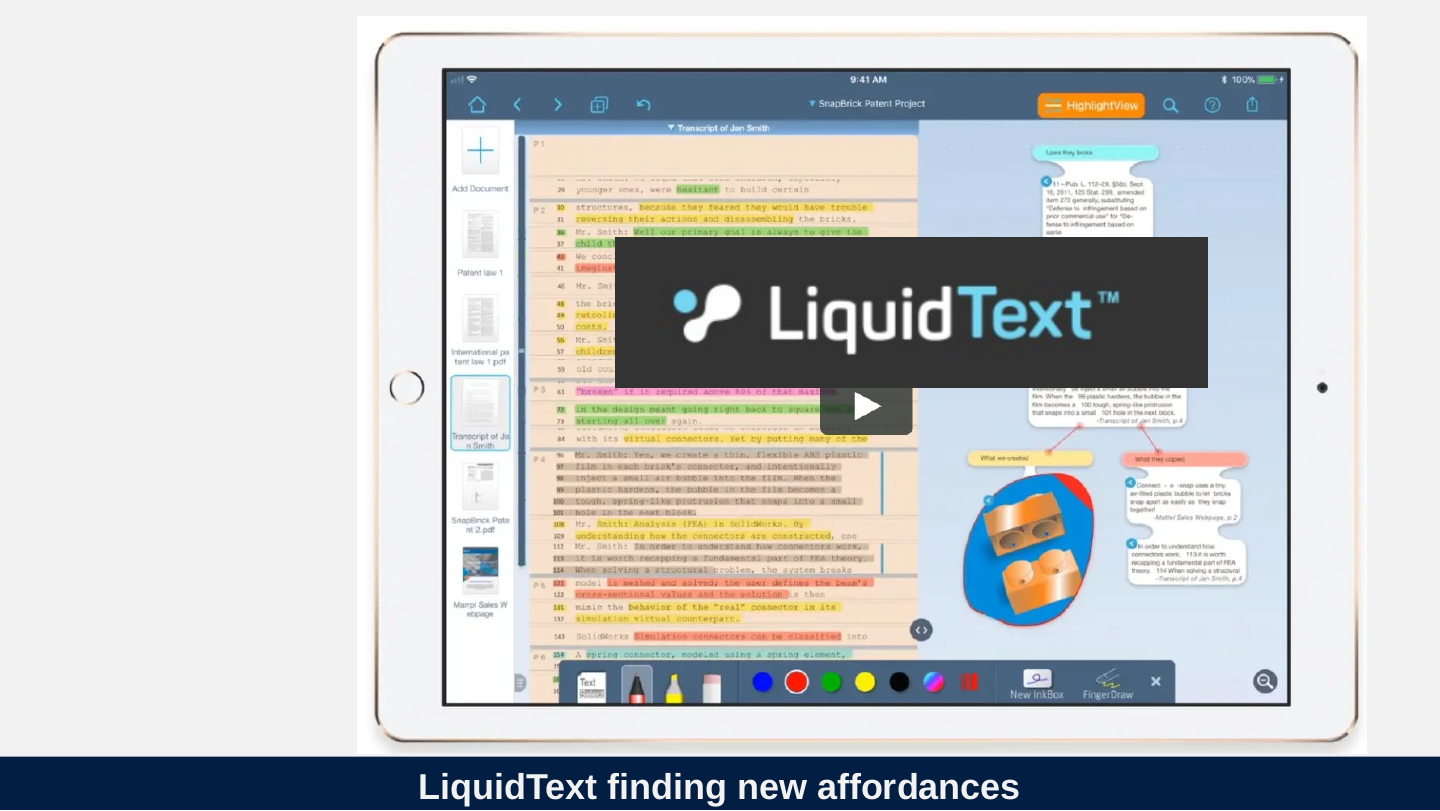
Slide 76: LiquidText finding new affordances
LiquidText finding new affordances
Slide 77: Touch affordance demo
Touch affordance demo
Slide 78: DRM – Elephant in the room
DRM – Elephant in the room

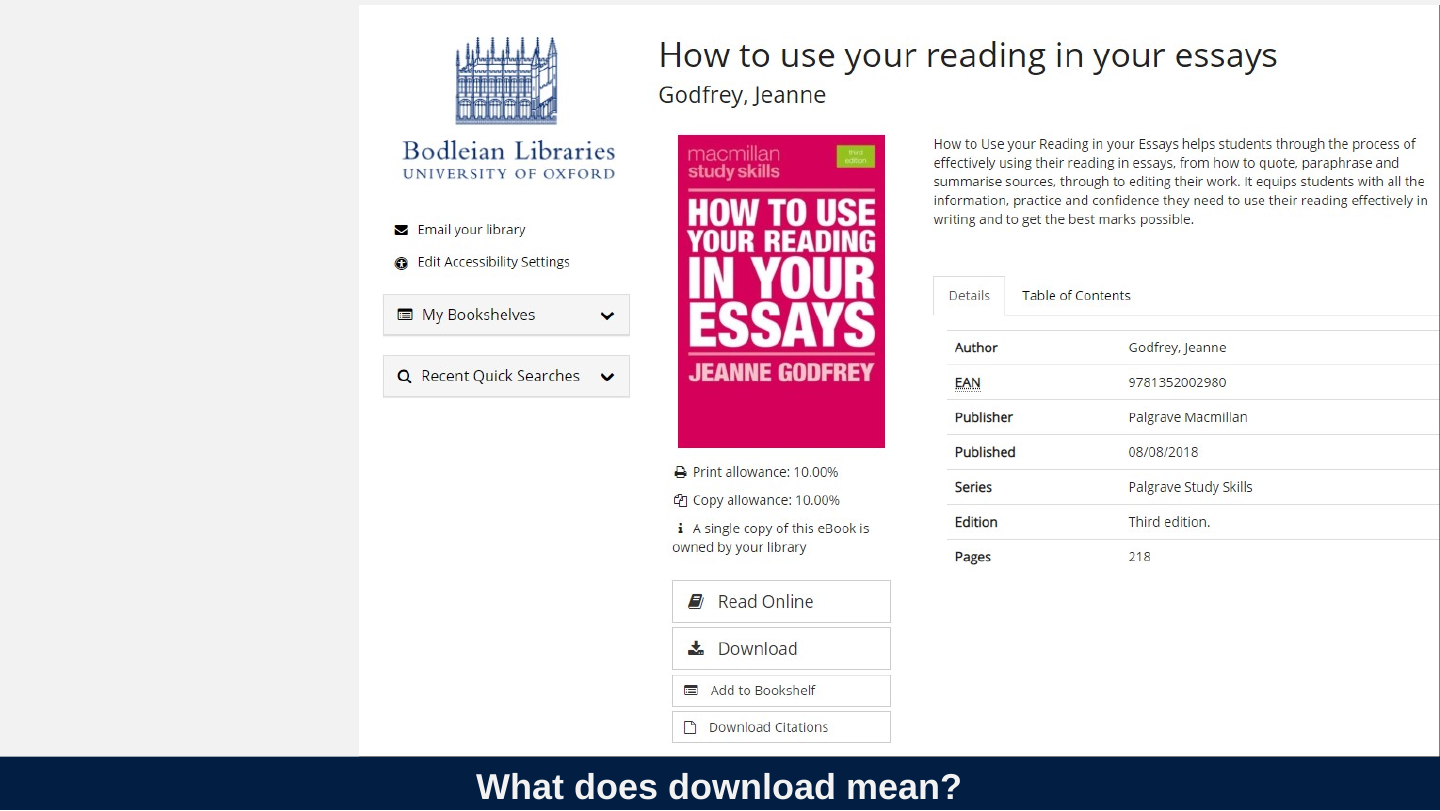
Slide 79: What does download mean?
What does download mean?
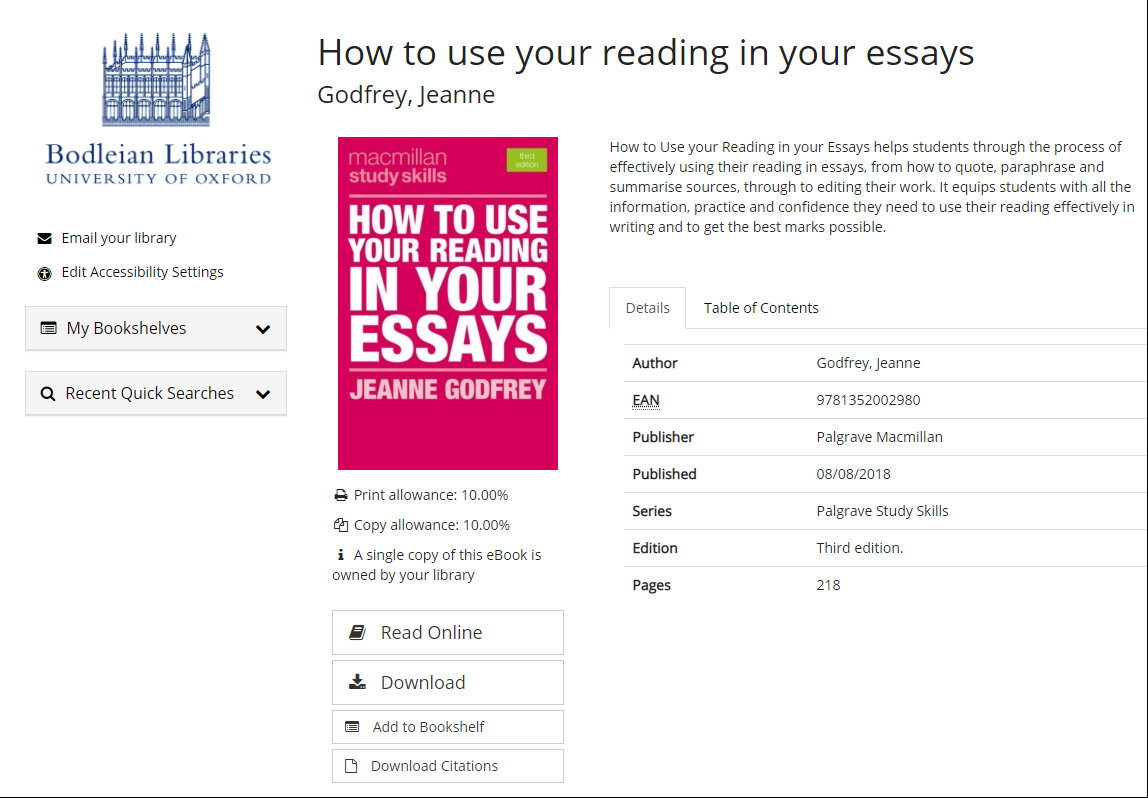
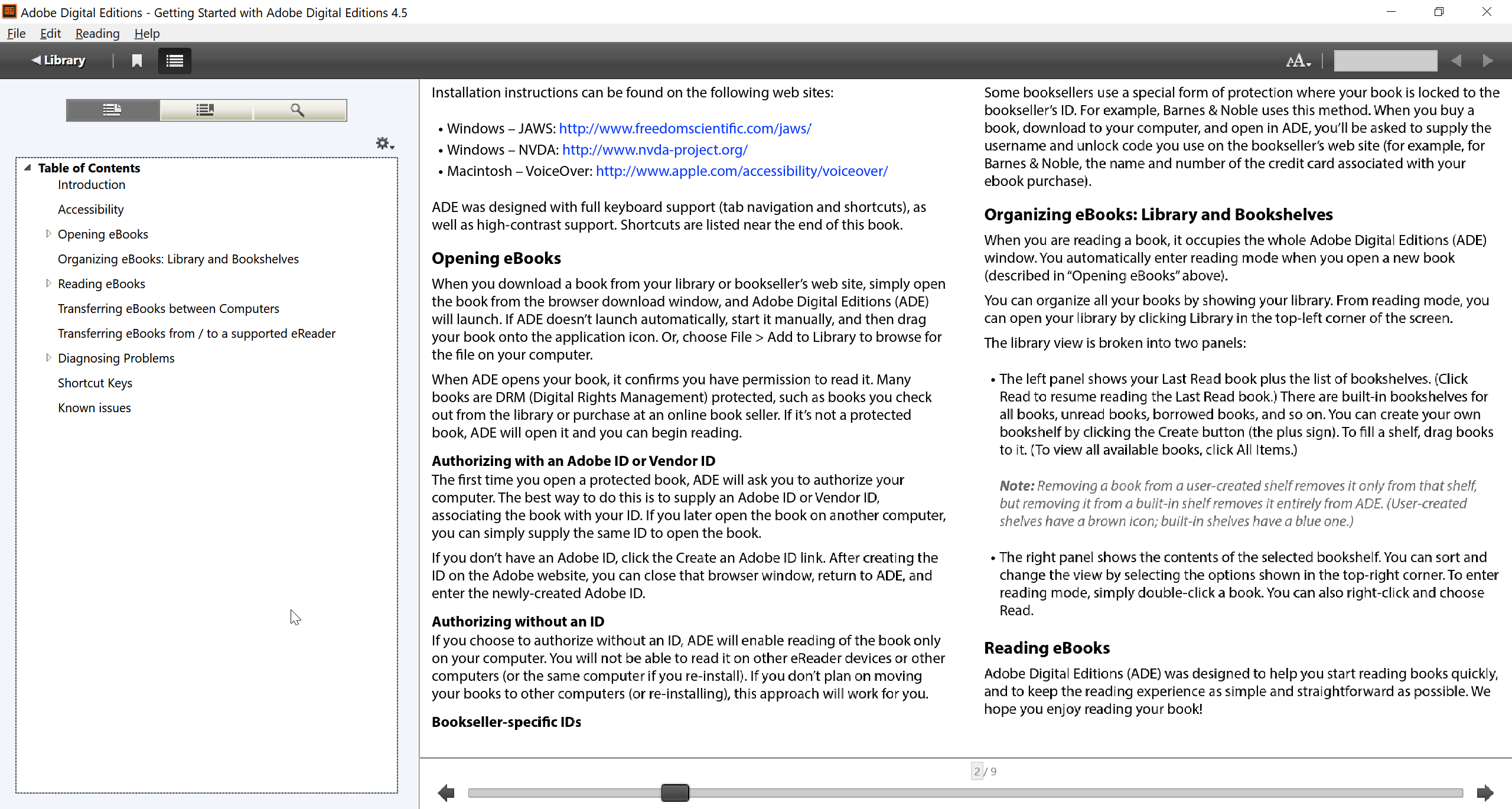
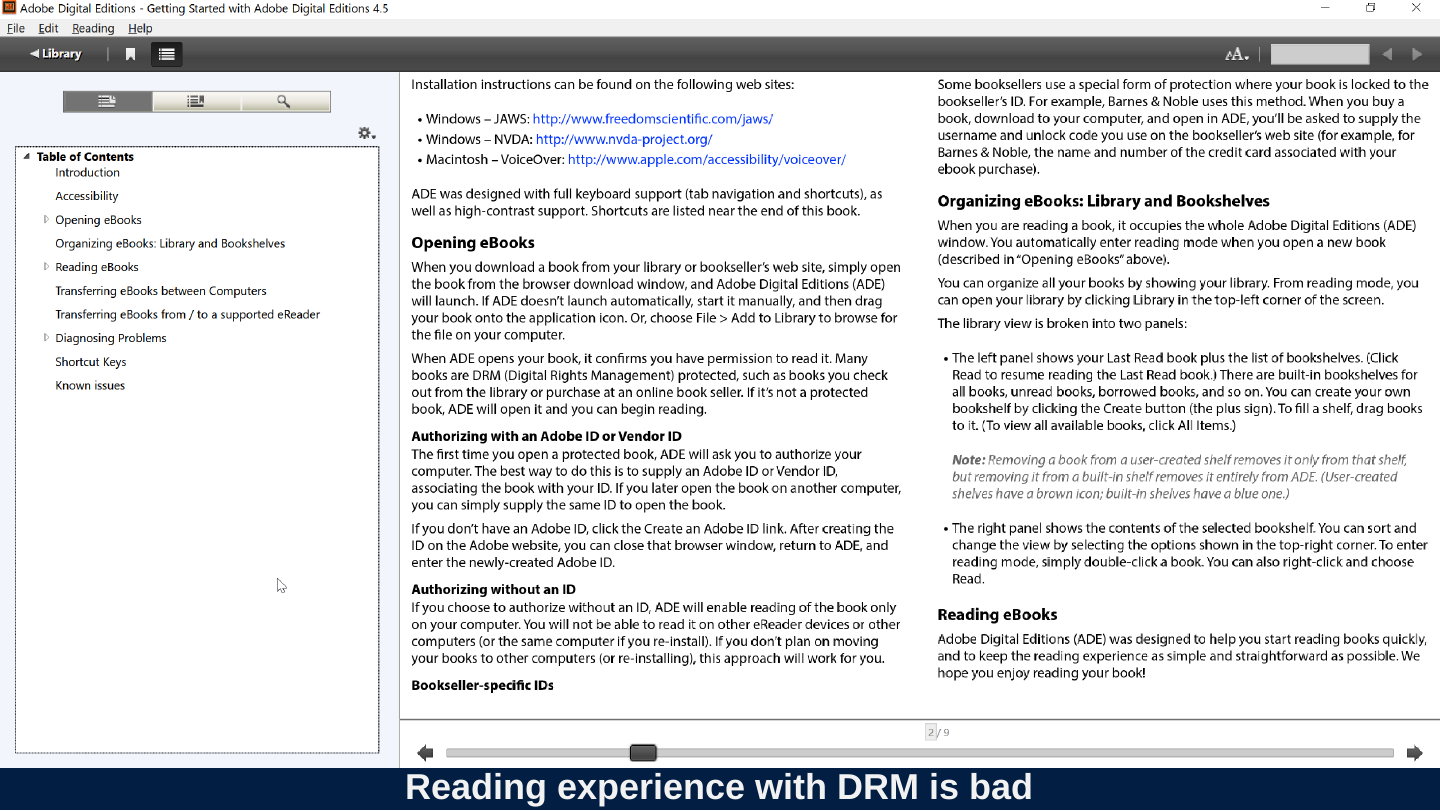
Slide 80: Reading experience with DRM is bad
Reading experience with DRM is bad
Slide 81: No tool that is designed to support DRM has kept up with reading innovation! Publishers, shame on you!!!
No tool that is designed to support DRM has kept up with reading innovation! Publishers, shame on you!!!
Slide 82: Workflows
Workflows

Slide 83: Workflows are just as important as the tools.
Workflows are just as important as the tools.
Slide 84: Amazon pioneered workflows with the Kindle.
Amazon pioneered workflows with the Kindle.
Slide 85: Types of workflow
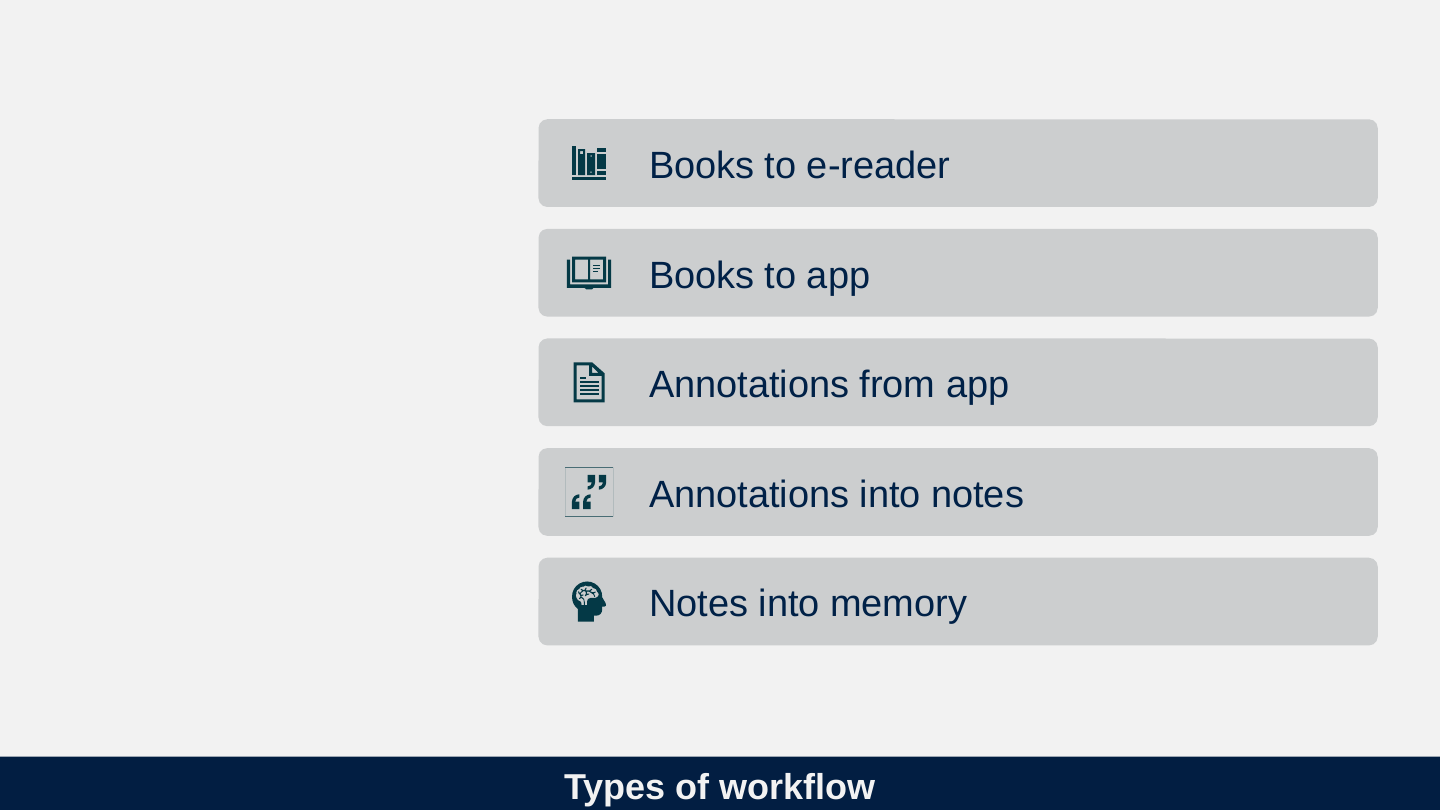
Types of workflow
- Books to e-reader
- Books to app
- Annotations from app
- Annotations into notes
- Notes into memory
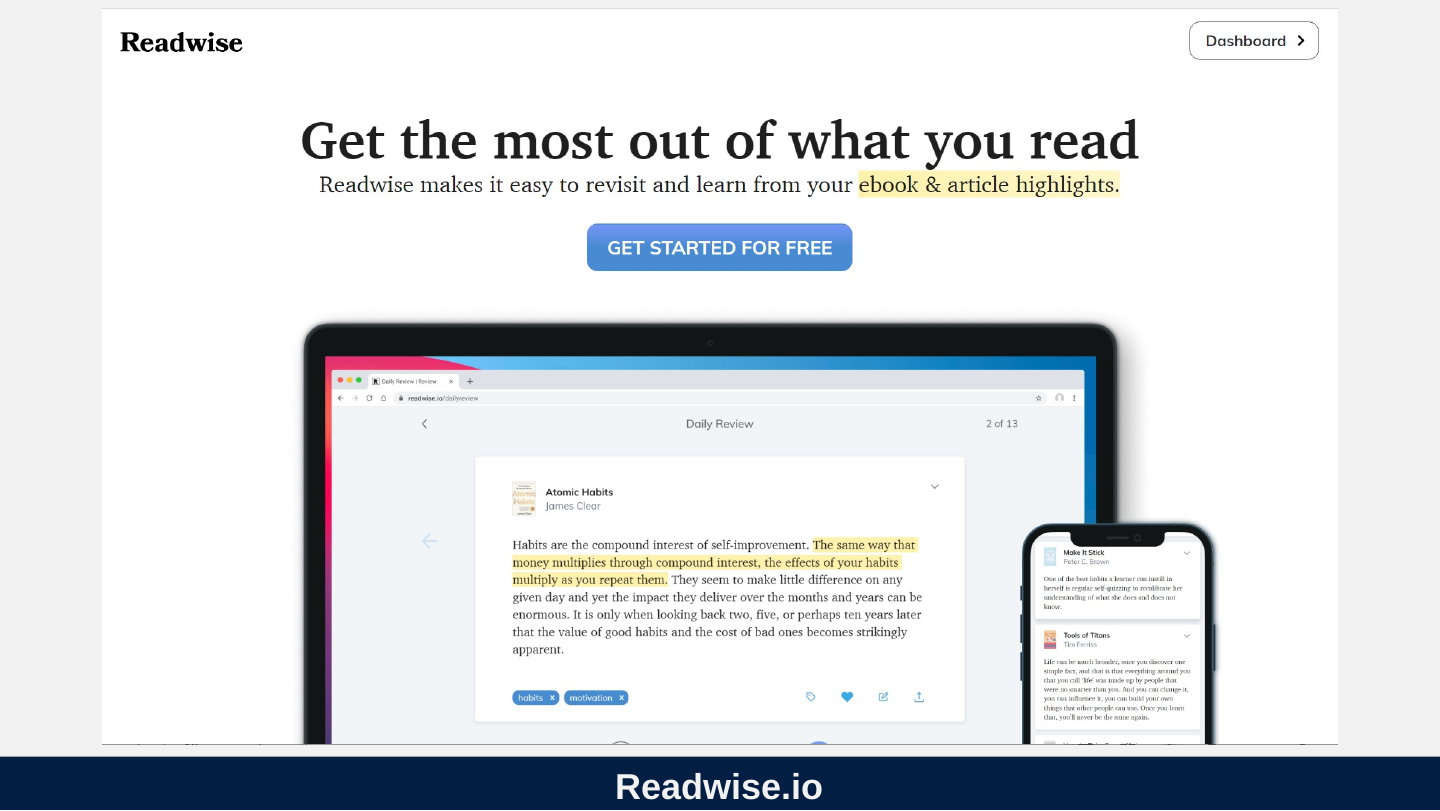
Slide 86: Readwise.io
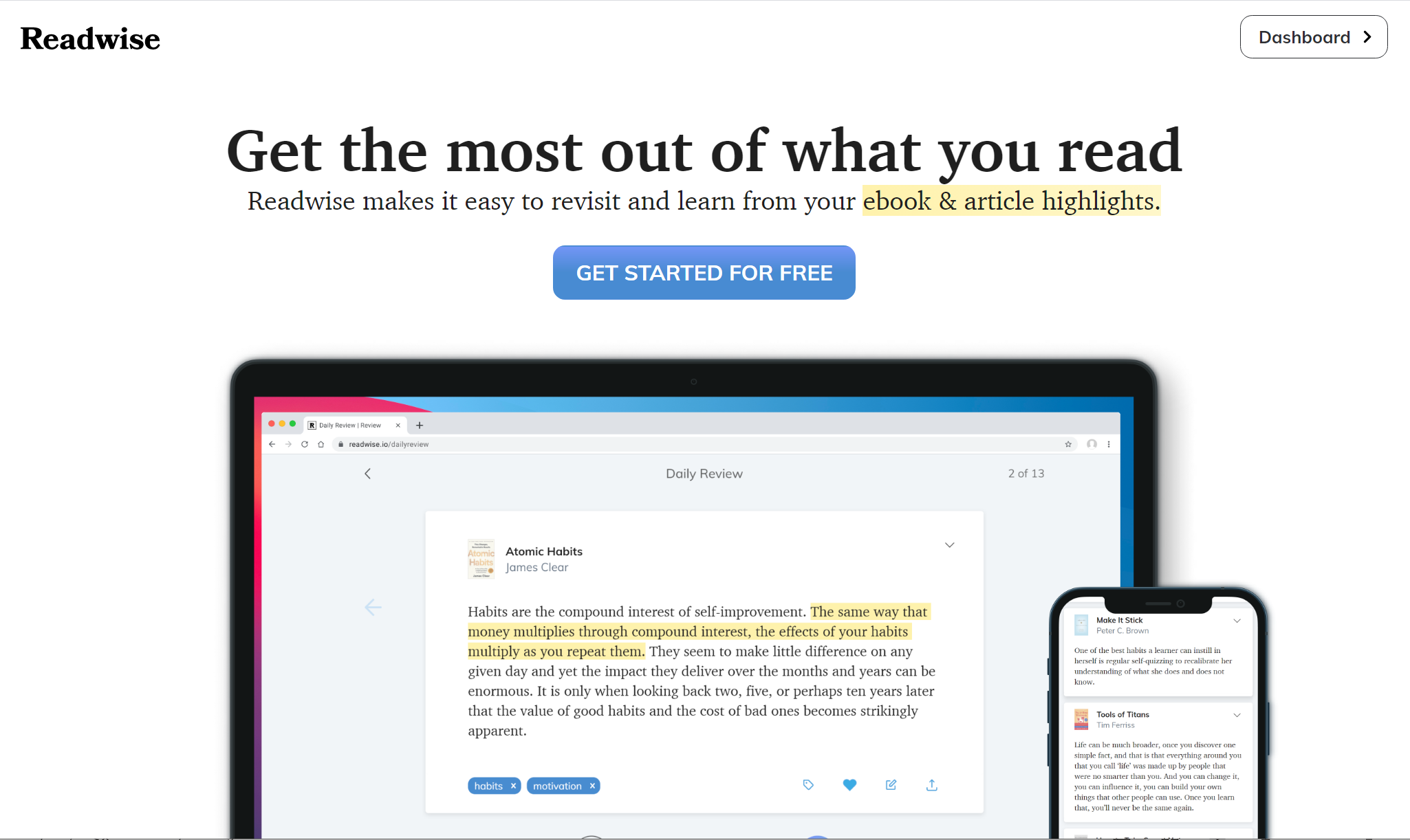
Readwise.io
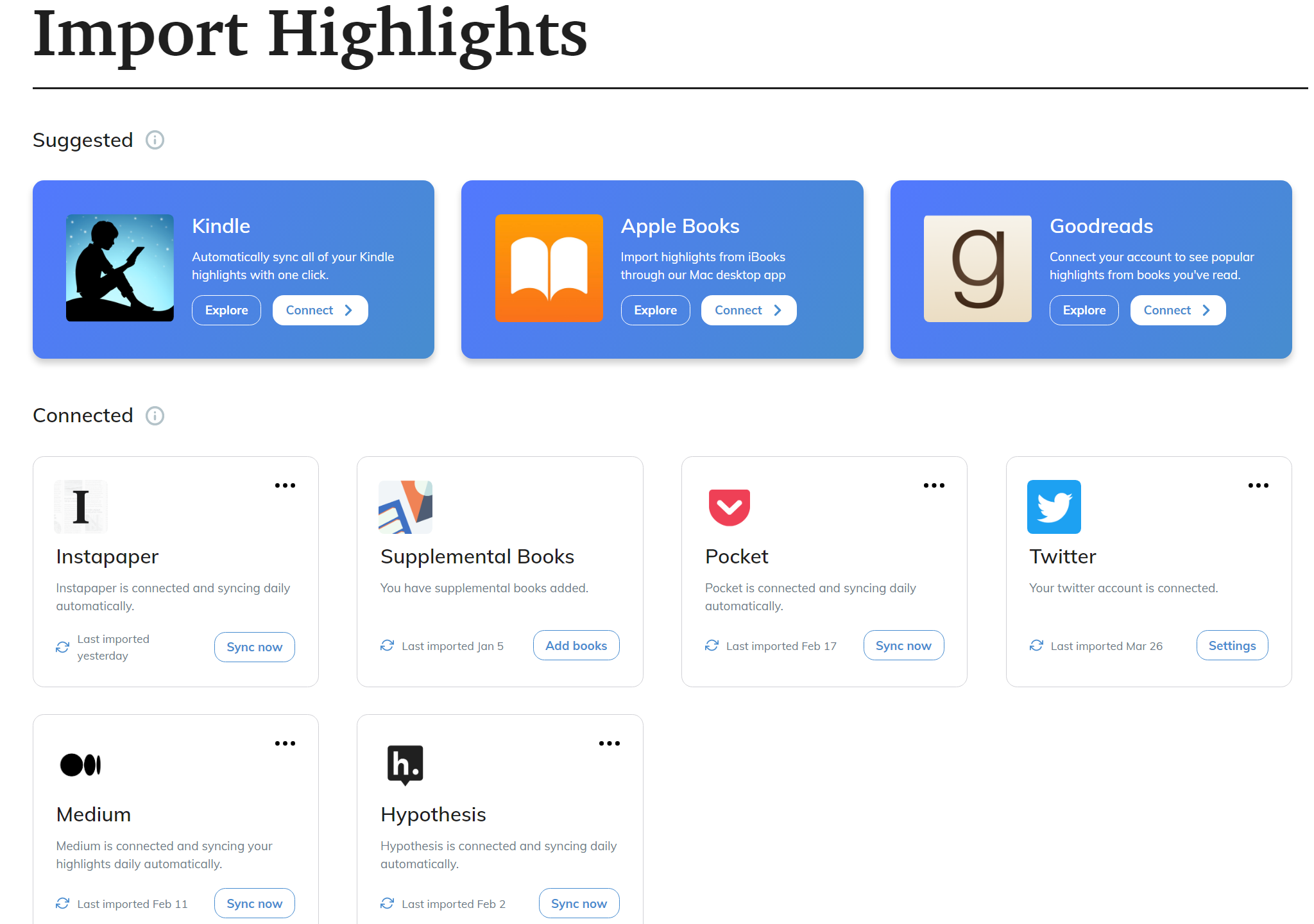
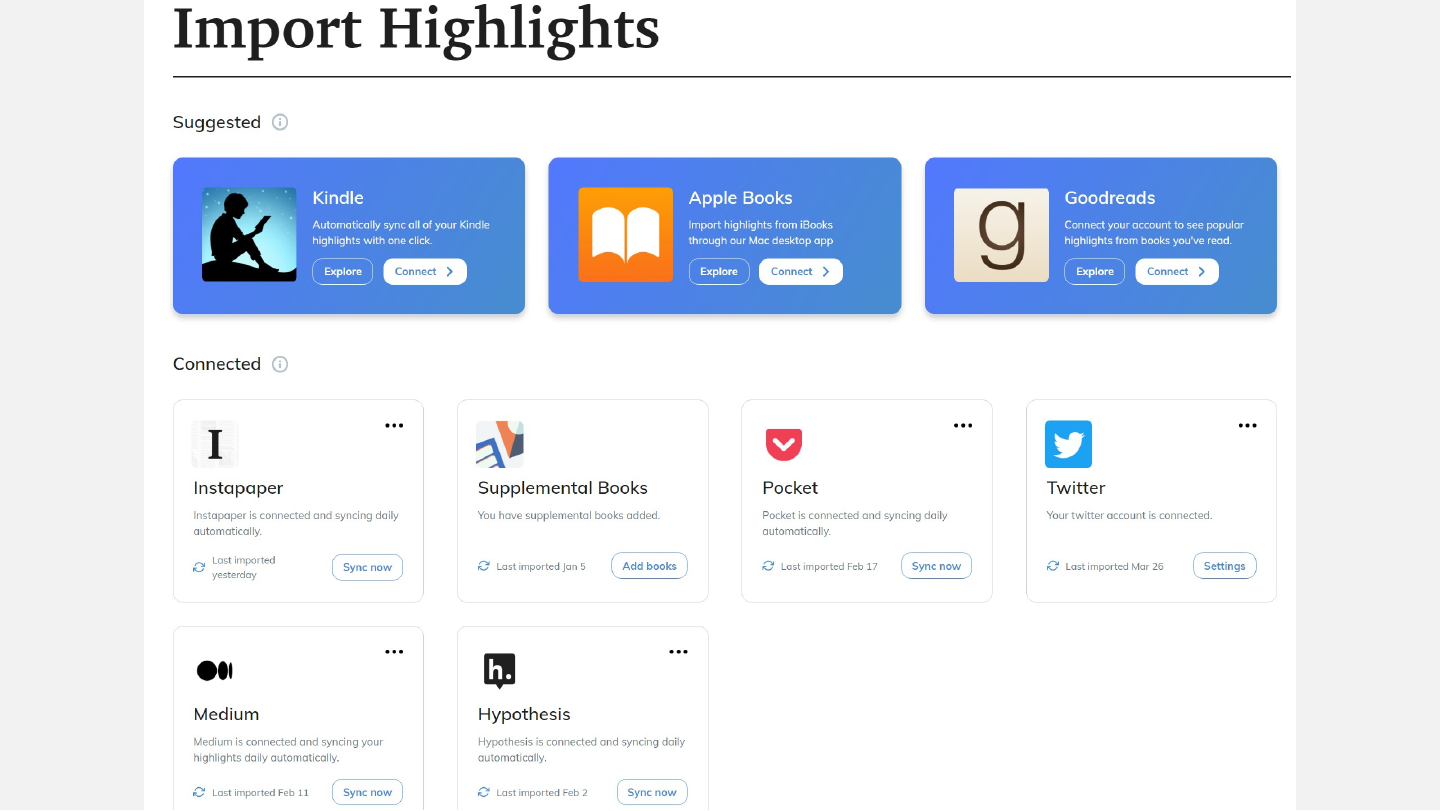
Slide 87: Readwise Import Options
Readwise Import Options
Slide 88: Review what you imported
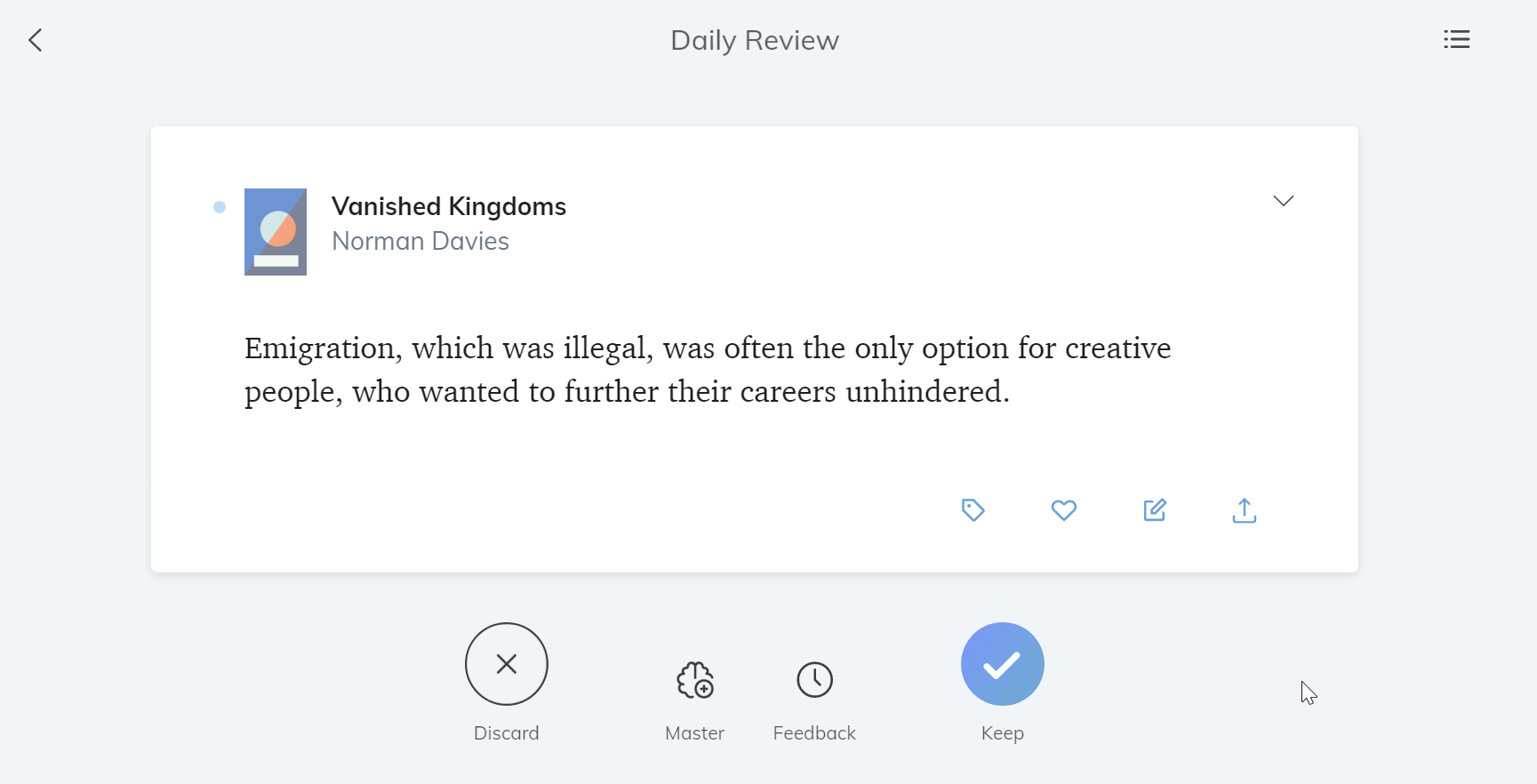
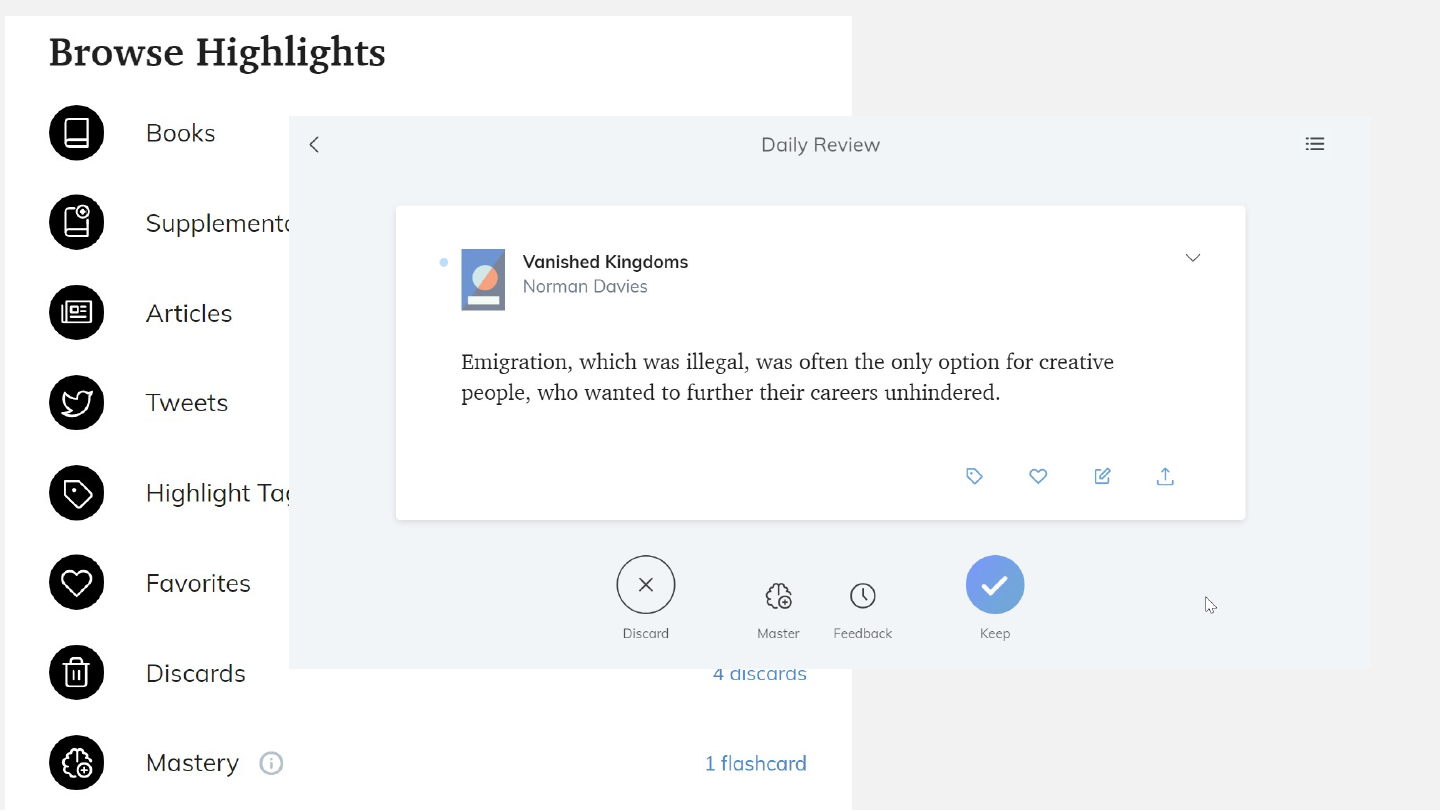
Review what you imported
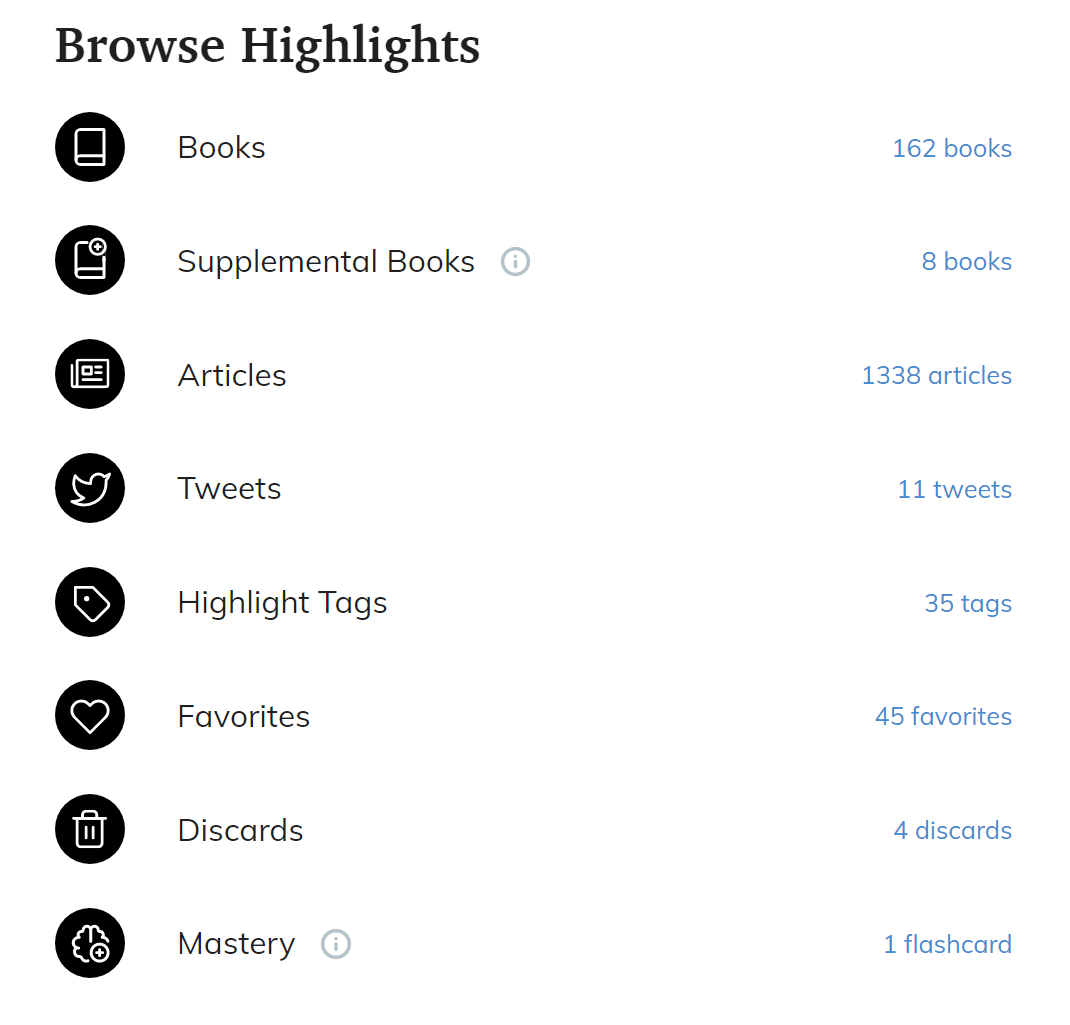
Slide 89: Readwise export options
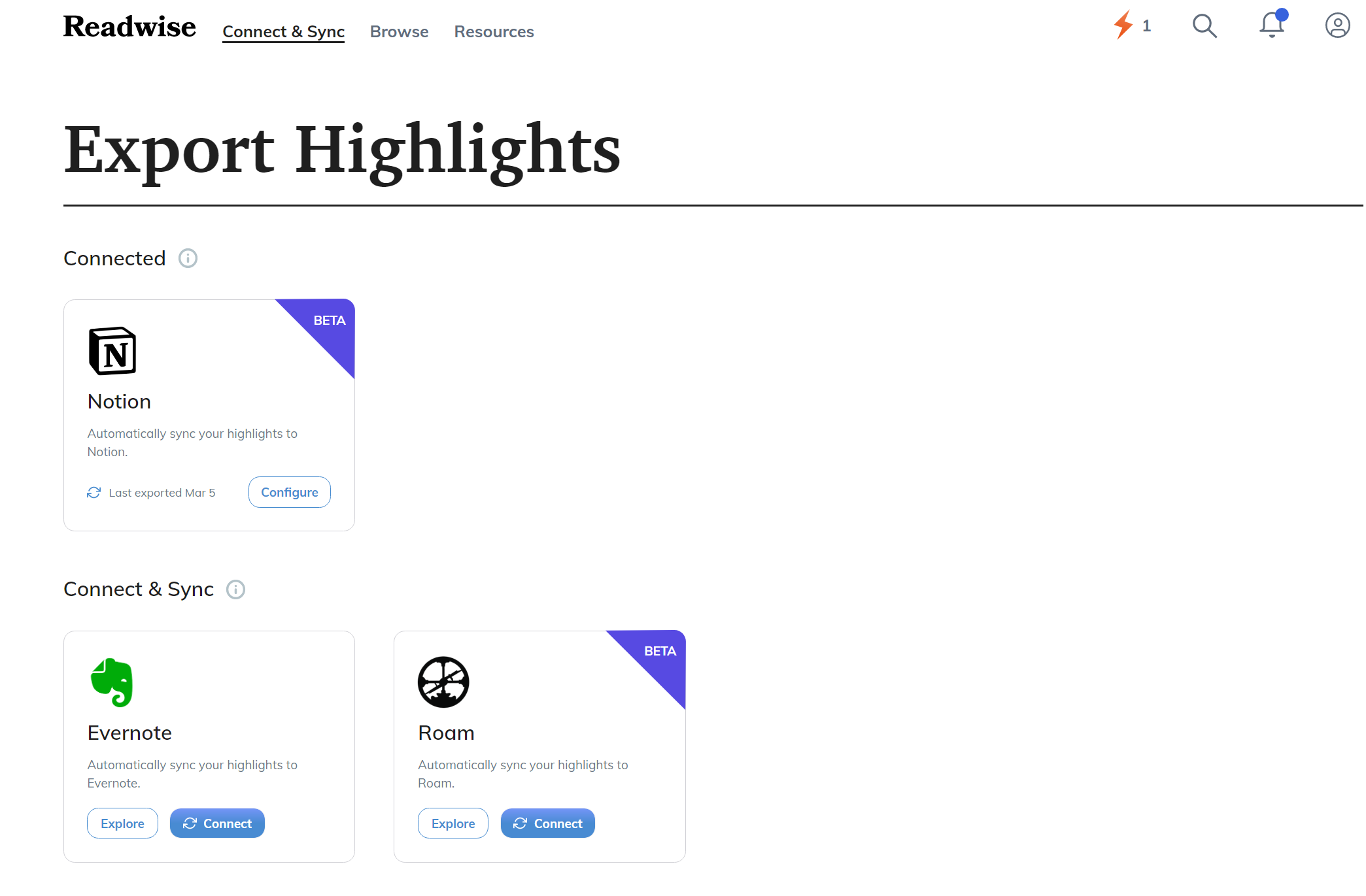
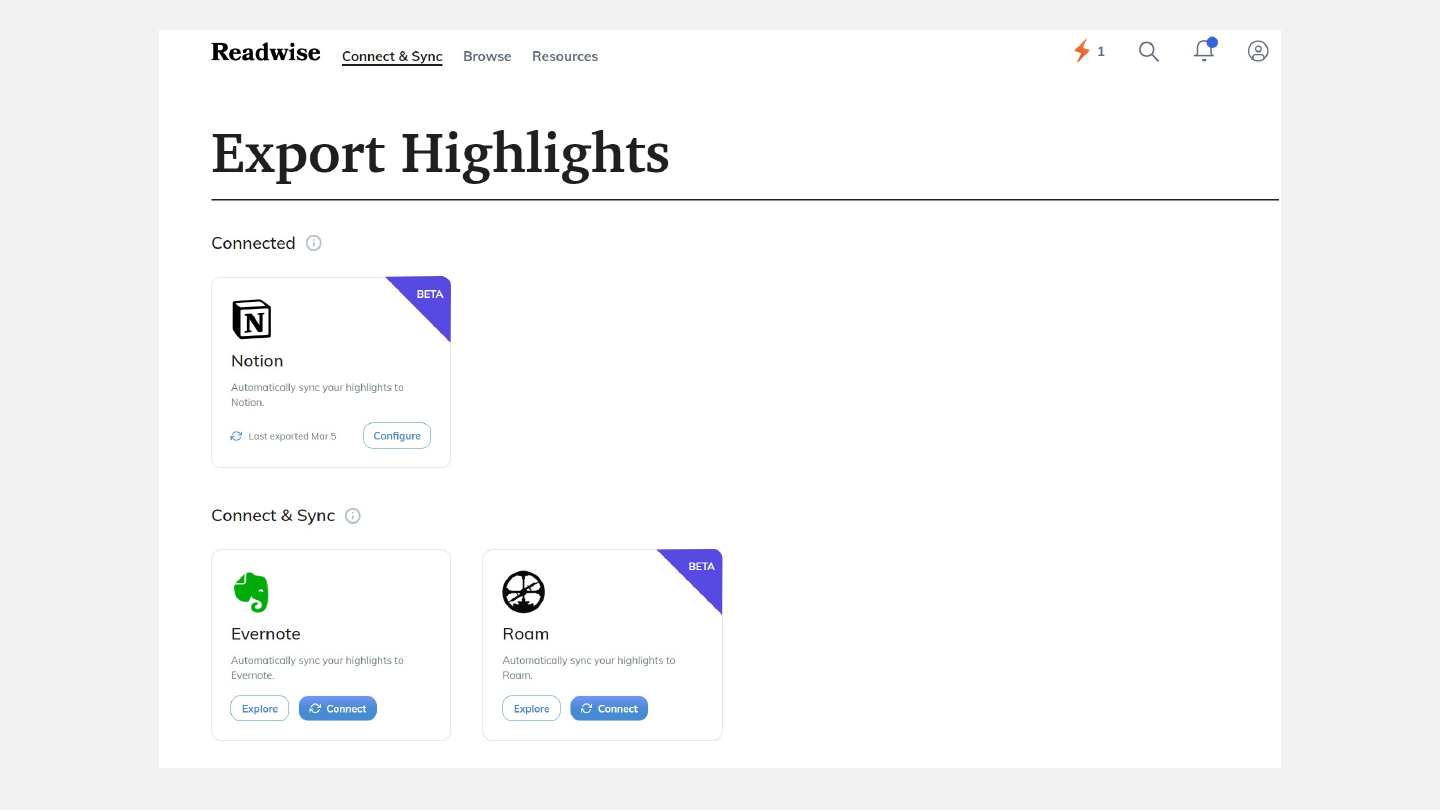
Readwise export options
Slide 90: Strategies before technologies
Strategies before technologies
Thank you and more on bit.ly/oxfordreadinglab